Why Image File Thumbnails Are Not Showing and How to Fix Them
If Windows shows icons instead of image previews, check File Explorer’s thumbnail setting first. Then troubleshoot the cache, file format, and cloud files.
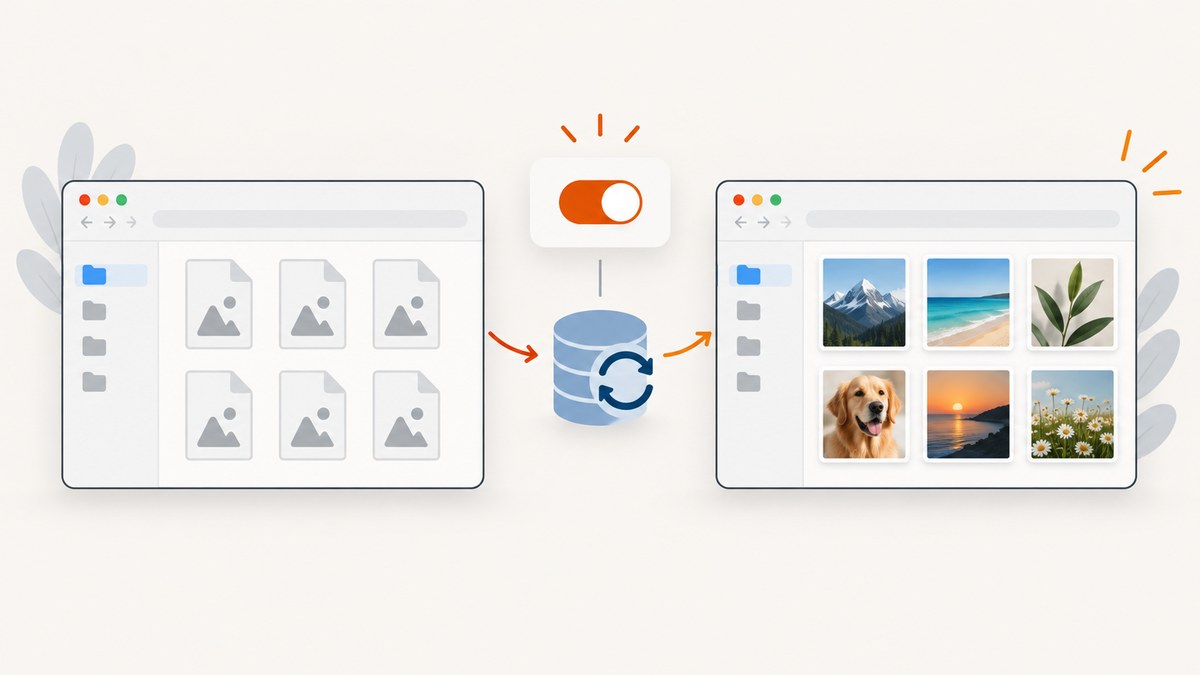
If File Explorer shows generic icons instead of image previews, first check whether thumbnails are disabled. In Windows 11 and Windows 10, open File Explorer Options, go to the View tab, and clear Always show icons and never thumbnails. Apply the change, then restart File Explorer or Windows. If ordinary local JPG and PNG files still show icons, work through the cache, file format, and cloud-storage checks below.
1. Check the folder view
File Explorer can show files as small icons, a list, or details. Choose a large enough icon layout to make previews visible:
- Open the folder containing the images.
- Select View.
- Choose a larger icon layout, such as Large icons or Extra large icons, if available.
- Check whether a familiar local JPG or PNG now has a preview.
If the files still appear as generic icons, check the system thumbnail setting next. Changing the folder layout cannot restore previews when thumbnail generation is disabled.
2. Turn thumbnails back on
- Open File Explorer.
- Open the Options command. In Windows 11, it may be under the three-dot menu on the command bar.
- In Folder Options, select the View tab.
- Clear Always show icons and never thumbnails.
- Select Apply, then OK.
- Restart File Explorer or restart Windows, then check the folder again.
This setting suppresses thumbnails across folders. Microsoft’s File Explorer documentation covers Windows 11 and Windows 10 and describes View controls for how files and folders appear. See [Microsoft’s File Explorer help](https://support.microsoft.com/en-us/windows/file-explorer-in-windows-ef370130-1cca-4c78-9c2e-2d5c5f8c6c9f) and the [Microsoft-hosted troubleshooting steps](https://learn.microsoft.com/en-us/answers/questions/).
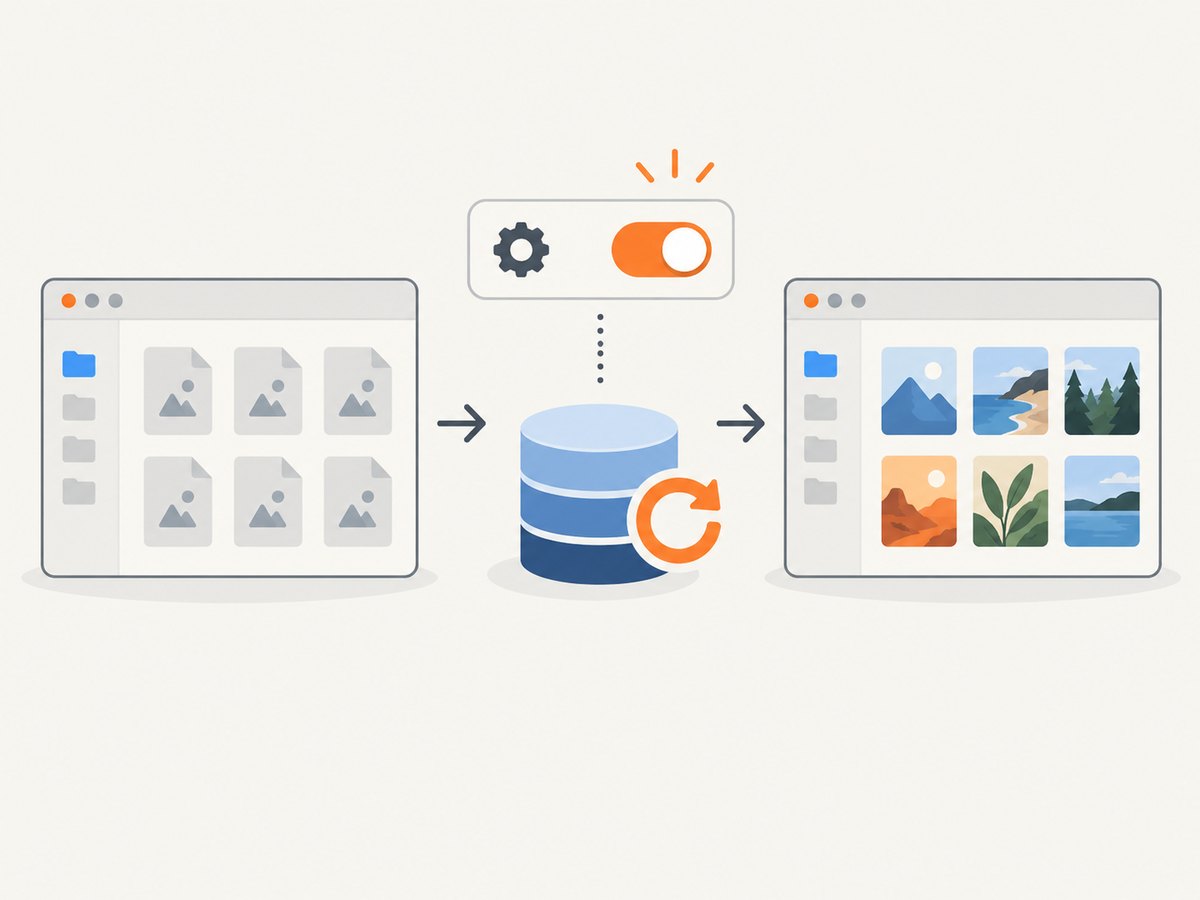
3. Test whether the problem affects every image
Try a normal JPG or PNG stored on the local drive. This separates a general Explorer setting or cache issue from a file-type issue:
- Local JPG and PNG previews work, but one extension does not: the extension may need a thumbnail handler. Go to Format-specific thumbnails.
- Local JPG and PNG files also show icons: continue to rebuild the thumbnail cache.
- Only cloud-managed files show icons: check the cloud file state and provider behavior.
Use a file you know opens correctly in an image viewer. A corrupted or incomplete file may not have a preview even when thumbnails are enabled.
4. Rebuild the thumbnail cache
Windows stores generated previews in a cache. A stale or damaged cache can leave generic icons in place after the thumbnail setting is corrected. Reset the thumbnail cache, then reopen the folder and allow Windows to generate previews again. Microsoft-hosted guidance recommends this when changing the setting does not resolve the issue.
Cache rebuilding can take a little time, especially in folders with many images. Leave the folder open briefly after the reset. Previews may appear progressively as Windows processes the files.
5. Check cloud-managed and placeholder files
Files in OneDrive or another cloud-managed location may be online-only placeholders, or the storage provider may supply previews itself. Microsoft notes that PowerToys thumbnail previews may not appear on paths managed by cloud-storage solutions such as OneDrive because the cloud service can provide thumbnails instead of Windows generating them locally.
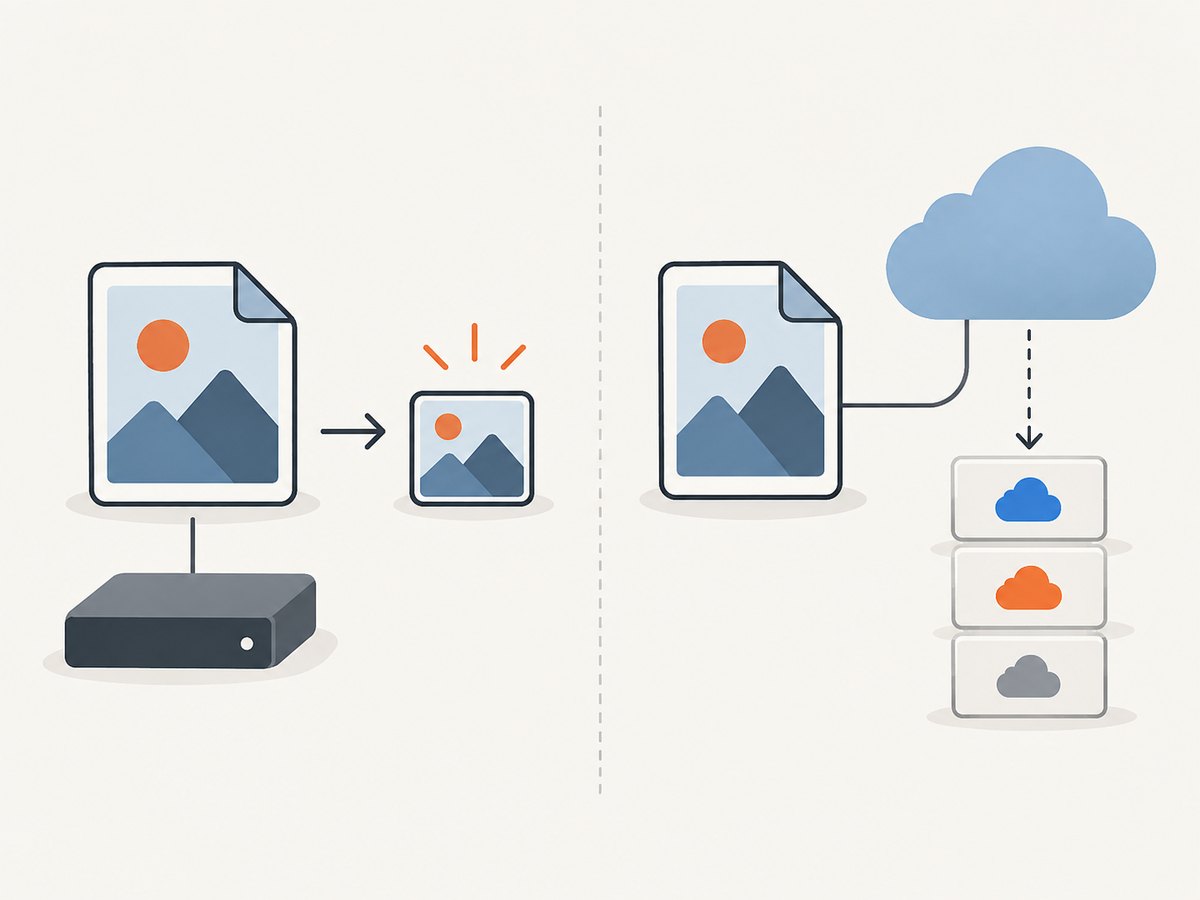
- Check whether the file is available on the device or is still an online-only placeholder.
- Try opening or downloading the file, then revisit the folder.
- Compare the same image in a local folder with its cloud-managed copy.
- If the local copy has a thumbnail but the cloud copy does not, investigate the provider’s preview behavior for that path.
6. Add support for uncommon image and document formats
Windows may not have a thumbnail handler for every extension. Microsoft PowerToys File Explorer add-ons can add thumbnail support for SVG, PDF, G-code, BGCODE, STL, and QOI. Enable the relevant extension in PowerToys; a reboot may be required before previews appear.
This is a format-specific fix. It is appropriate when common JPG and PNG files work but files of one of these types do not. Find the PowerToys File Explorer add-ons documentation for supported extensions and setup details.
7. Escalate if File Explorer has broader problems
If Explorer is unstable, freezes, or fails to display other folder content as well as thumbnails, treat that as a broader Windows issue. Check for Windows updates and restart. Microsoft’s File Explorer troubleshooting guidance also documents Disk Cleanup and system-file repair routes. Use those steps when symptoms extend beyond one file type or one folder; they are broader than changing the thumbnail setting or rebuilding its cache.
See Microsoft’s File Explorer troubleshooting guidance for current steps.
Choose the fix that matches the symptom
| What you see | Likely area to check | Next step |
|---|---|---|
| Icons for images across folders | Explorer thumbnail setting or cache | Clear Always show icons and never thumbnails; then reset the cache if needed. |
| Only one extension lacks previews | Format support | Check for a thumbnail handler; consider PowerToys for its supported formats. |
| Only cloud-path files lack previews | Placeholder or provider behavior | Make a file available locally and compare it with a local copy. |
| Explorer also freezes or fails elsewhere | Broader system issue | Update and restart Windows, then follow Microsoft’s broader troubleshooting steps. |
Troubleshooting common cases
The checkbox is already clear
Keep the setting as it is, make sure the folder uses a large icon view, and test a local JPG or PNG. If those still lack previews, reset the thumbnail cache. If only one extension fails, investigate its format handler instead of repeating the general setting change.
Thumbnails appear briefly, then become icons
Compare a local file with a cloud-managed file. A provider-managed path or online-only placeholder can behave differently from a local image. Make the file available locally and check again.
JPG works, but SVG or PDF does not
This points to format coverage rather than a global thumbnail setting. Check whether an installed handler supports that extension. PowerToys File Explorer add-ons cover SVG and PDF, among other listed formats.
Previews do not appear immediately after clearing the cache
Windows needs to regenerate previews. Reopen the folder and allow processing to finish. A folder with many images can take longer than a folder with only a few.
Restarting Explorer did not help
Confirm the checkbox state again, test with a known-good local JPG or PNG, then reset the cache. If Explorer has other symptoms too, move on to Windows updates and the broader Microsoft troubleshooting guidance.
Performance, reliability, and maintenance
- Large folders: Generating previews for many files takes time. Use a smaller test folder to distinguish slow cache regeneration from a persistent failure.
- After a cache reset: Existing previews must be generated again, so icons can remain temporarily while Windows processes files.
- Cloud paths: Preview behavior can depend on whether files are local, placeholders, or handled by the storage provider. Compare like-for-like files before changing system settings.
- Format handlers: Additional formats depend on installed support. Installing a handler is most relevant when the issue is limited to particular extensions.
- System repair: Reserve broader repair steps for broader Explorer or Windows symptoms. A missing preview for one format does not by itself point to system-file damage.
Or skip the browser setup
If you need a screenshot of a website rather than a thumbnail generated in Windows, ScreenshotNeo returns a PNG, JPEG, WebP, or PDF from one GET request. It accepts cookie and consent banners and removes more than 60 known consent platforms, newsletter popups, and chat widgets before capture; each cleanup step can be turned off. Bot checks, blank pages, timeouts, failed loads, and cache hits are not billed, and the response identifies the page verdict and billing status. Its MCP server lets AI agents take screenshots. The free plan includes 1,000 screenshots a month with no card; paid plans start at $5 for 3,000. See the ScreenshotNeo API docs.
curl -G "https://api.screenshotneo.com/v1/shot" -d access_key=YOUR_API_KEY --data-urlencode url=https://stripe.com -o shot.webpSign up for 1,000 free screenshots a month, with no card.
FAQ
Does this apply to Windows 10 as well as Windows 11?
Yes. The core File Explorer setting applies to both versions.
Will changing the view size fix a disabled thumbnail setting?
No. A larger icon layout gives previews room to display, but the “Always show icons and never thumbnails” option must also be cleared.
Why do some file types show previews while others do not?
Thumbnail support depends on available format handlers. Windows may need an added handler for less common extensions.


