How to Fix Images Missing from PDFs Generated from HTML
Fix missing PDF images by checking URL bases, access permissions, JavaScript timing, formats, and renderer logs with practical examples.
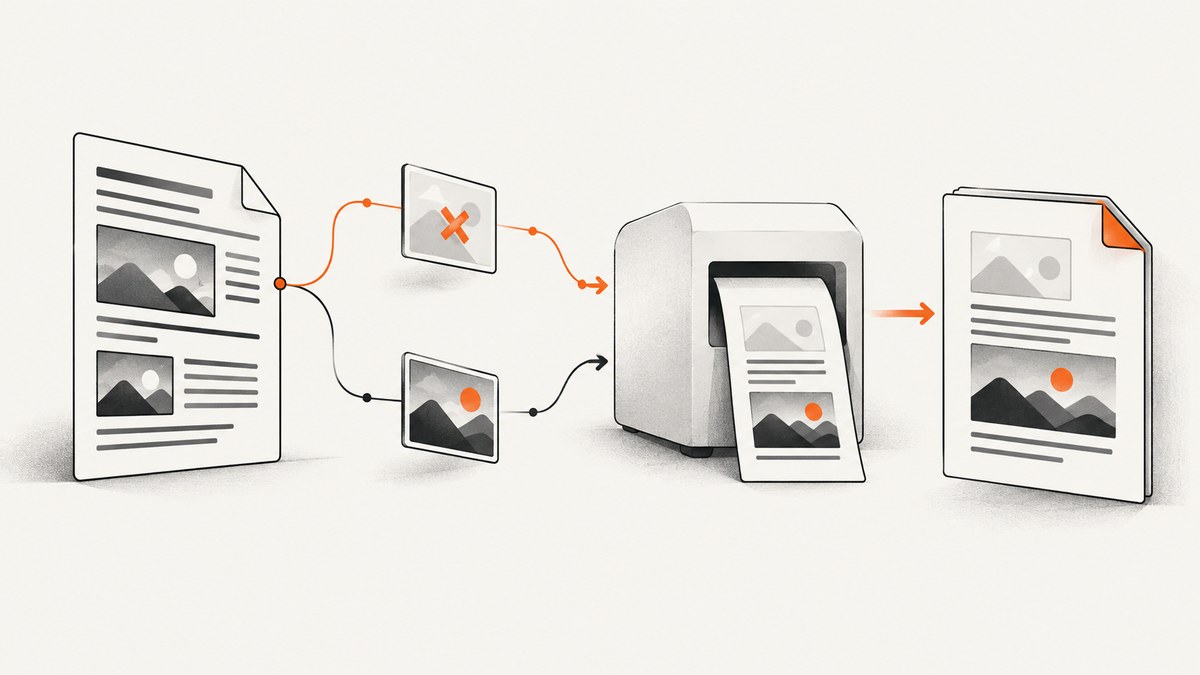
Images disappear from an HTML-generated PDF for a small number of repeatable reasons: the renderer resolves a relative URL against the wrong base, cannot reach the asset, prints before JavaScript finishes, silently ignores a loading error, or does not support the image format or CSS involved.
Start by finding the exact image URL the renderer is trying to load. Open that URL from the renderer’s machine or container, record its HTTP status and content type, then fix the specific failure. A browser preview alone is not proof that a server-side PDF process can fetch the same resource.
1. Diagnose the missing image before changing code
- List every image source after templates and relative paths have been expanded.
- Resolve each source from the renderer’s working directory or page URL.
- Request the resolved URL from the same container, VM, or server that creates the PDF.
- Record redirects, status codes, authentication challenges, MIME types, and renderer warnings.
- Test one failing asset as a simple PNG or SVG to separate access problems from format problems.
| Symptom | Likely cause | First check |
|---|---|---|
| All relative images are blank | Wrong or missing base URL | Print the fully resolved URL |
| Only local files are blank in wkhtmltopdf | Local-file access is disabled | Use a narrowly scoped --allow path |
| Charts and lazy images are missing | JavaScript or image decoding has not finished | Wait for an application readiness condition |
| Public images work but private images fail | Missing headers, cookies, or signed-request logic | Fetch the URL with the renderer’s credentials |
| One format fails while PNG works | Unsupported image or CSS feature | Convert the asset and simplify its styles |
| PDF succeeds with blank areas | Resource warnings are non-fatal | Capture logs and fail CI on mandatory-resource errors |
2. Fix relative URLs with the correct base
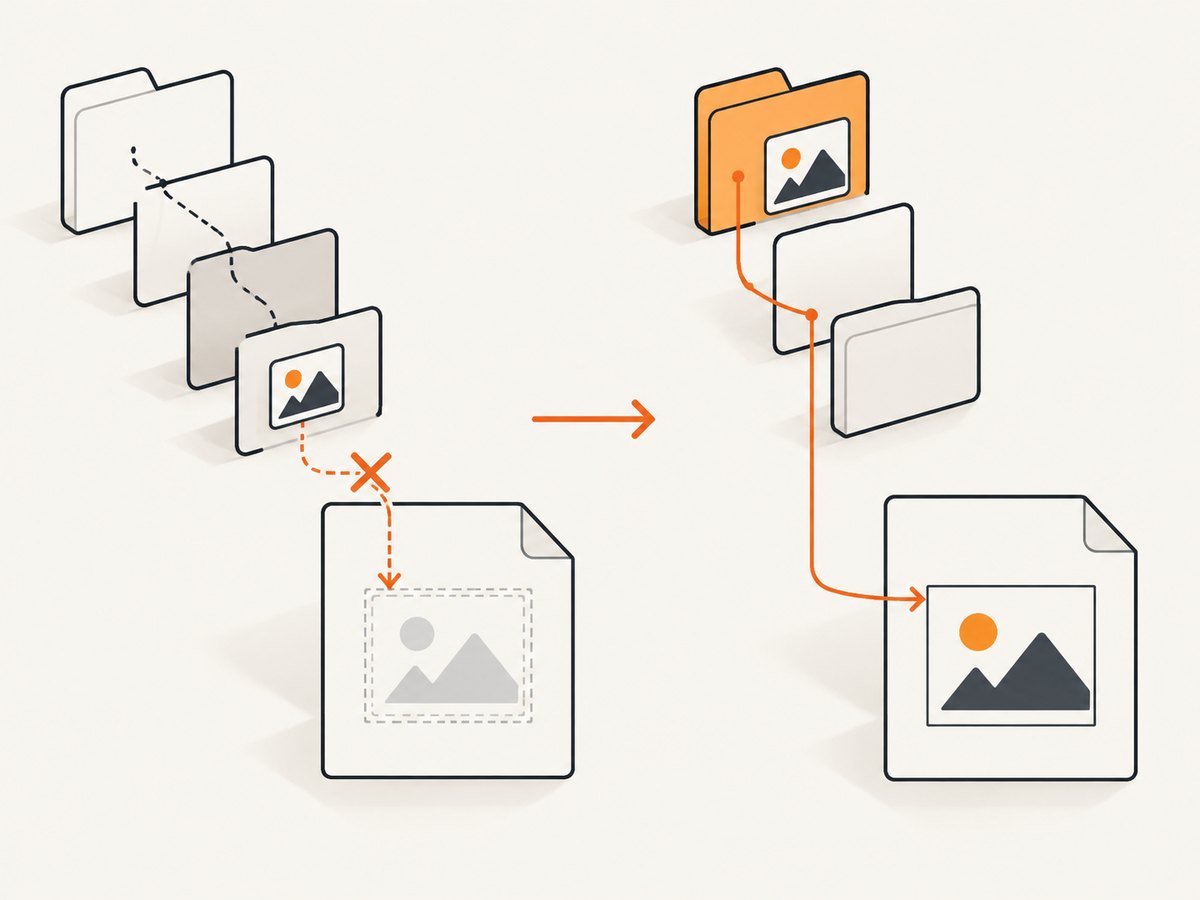
A relative source such as ../images/logo.png has no meaning by itself. It is resolved against a document URL or filesystem base. WeasyPrint documents base_url as the base used to resolve relative URLs such as an <img> source. When HTML is supplied as a string, provide this value explicitly. See the WeasyPrint API documentation.
WeasyPrint: HTML string with a filesystem base
from pathlib import Path
from weasyprint import HTML

html = Path('report.html').read_text(encoding='utf-8')
HTML(string=html, base_url=Path('report.html').parent.resolve().as_uri()).write_pdf('report.pdf')
If your assets are hosted, use absolute HTTPS URLs in the HTML or set a base URL that points to the page’s real origin. Check case-sensitive filenames: a path that works on a case-insensitive laptop can fail on Linux.
Make the base explicit in HTML
<head>
  <base href='https://example.com/reports/'>
</head>
<body>
  <img src='images/chart.png' alt='Revenue chart'>
</body>
Use one strategy consistently. Mixing a <base> element, a different renderer working directory, and generated temporary files makes failures difficult to reproduce.
3. Allow the renderer to reach local and protected assets
wkhtmltopdf local files
wkhtmltopdf loads images by default, but local-file access is disabled by default. Enable only the directory that contains the document and its assets, rather than opening the whole filesystem. Its command-line options also expose media-error handling, which should be captured during diagnosis. See the wkhtmltopdf usage documentation.
wkhtmltopdf \
  --enable-local-file-access \
  --allow /srv/report-assets \
  --load-media-error-handling abort \
  /srv/report/report.html /srv/report/report.pdf
Keep --allow limited to the required asset directory. If a file is outside that directory, move or copy it into the permitted tree and update the URL.
WeasyPrint authentication and custom fetching
WeasyPrint can read normal files, HTTP, FTP, and data URLs, but HTTP authentication and cookies are not handled automatically. For protected images, provide a custom URL fetcher that adds the required headers or maps an application URL to a permitted local file. The URL fetcher documentation describes this extension point.
from weasyprint import HTML, default_url_fetcher

def fetch_with_token(url, timeout=10):
    if url.startswith('https://internal.example/'):
        return {
            **default_url_fetcher(url),
            'http_headers': {'Authorization': 'Bearer YOUR_TOKEN'},
        }
    return default_url_fetcher(url)

HTML(
    string='<img src="https://internal.example/chart.png">',
    url_fetcher=fetch_with_token,
).write_pdf('report.pdf')
In production, avoid putting credentials in HTML. Pass them through the renderer’s fetch layer and redact authorization values from logs.
4. Wait for JavaScript, lazy loading, and image decoding
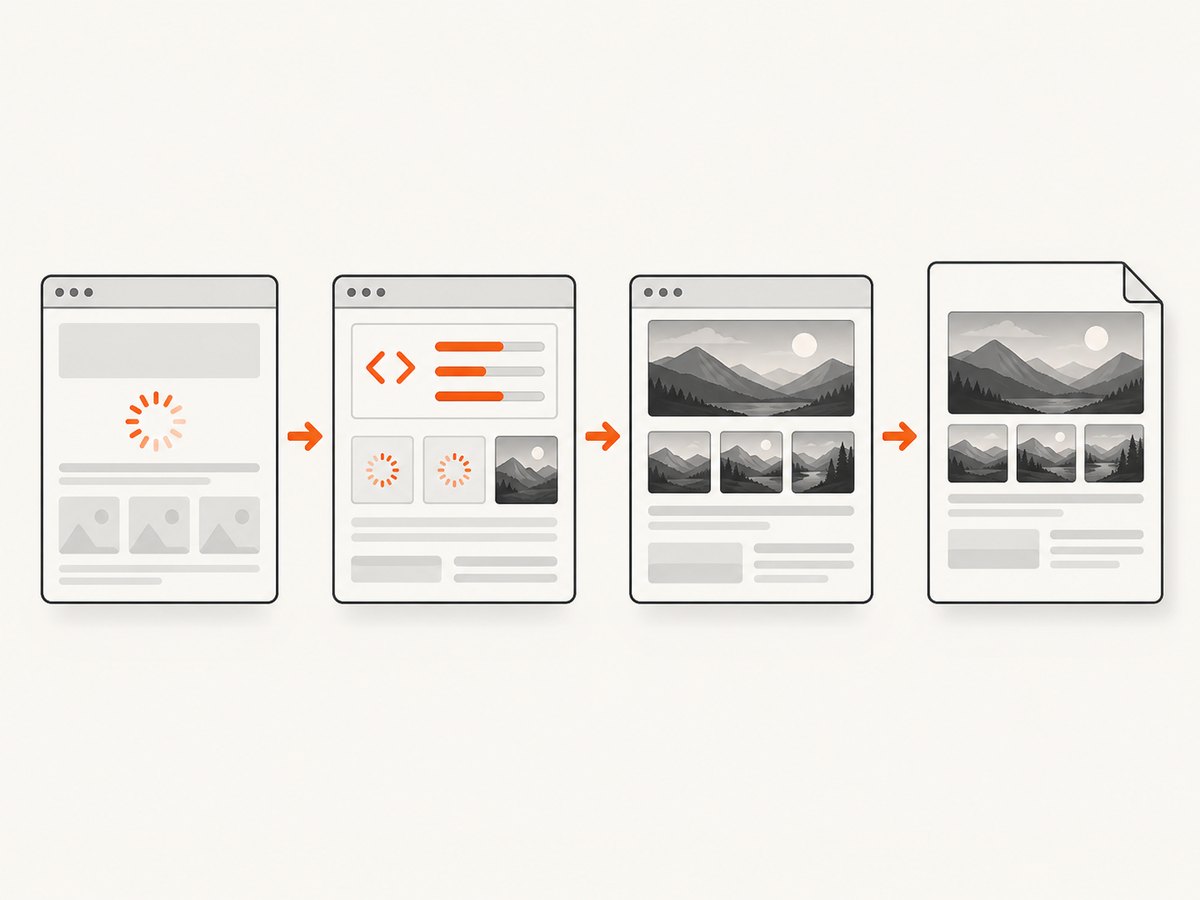
An <img> element may be inserted by JavaScript, have a data-src attribute that a lazy-loader later copies into src, or still be decoding when PDF generation begins. A screenshot of the page in a browser is not equivalent to an immediate print call.
wkhtmltopdf delay
wkhtmltopdf \
  --enable-javascript \
  --javascript-delay 1500 \
  --load-media-error-handling abort \
  https://example.com/report report.pdf
Use the smallest delay that reliably covers your page. A fixed delay is less reliable than an application-specific readiness signal, but it is useful for isolating a timing problem.
Puppeteer: wait for images explicitly
import puppeteer from 'puppeteer';

const browser = await puppeteer.launch();
const page = await browser.newPage();
await page.goto('https://example.com/report', {waitUntil: 'networkidle0'});

await page.waitForFunction(() => {
  const images = Array.from(document.images);
  return images.every((img) => img.complete && img.naturalWidth > 0);
});

await page.pdf({path: 'report.pdf', format: 'A4', printBackground: true});
await browser.close();
For applications with charts or client-side templates, expose a page-level flag after those operations finish and wait for that flag. Puppeteer also depends on a compatible Chromium build and required system libraries; verify those before debugging page markup. The Puppeteer documentation covers browser setup and page APIs.
Make lazy images printable
For diagnosis, temporarily replace lazy loading with eager loading:
<img src='/images/photo.jpg' loading='eager' alt='Product photo'>If that fixes the PDF, keep the production page unchanged and add a print mode that eagerly assigns each image source before the renderer starts.
5. Check image formats and CSS support
Convert one failing file to PNG, JPEG, or SVG. WeasyPrint supports raster formats provided by Pillow and SVG in <img>, <embed>, and <object>. Unsupported formats or CSS features can be omitted while the rest of the PDF succeeds; see the WeasyPrint feature documentation.
from PIL import Image

Image.open('source.webp').convert('RGB').save('source.png')
Also check:
- The response has the correct
Content-Type, such asimage/pngorimage/jpeg. - The file is not zero bytes or truncated.
- SVG references use reachable fonts and nested images.
- CSS does not hide the image with
display:none, zero dimensions, clipping, or a white-on-white treatment. - Background images are included when the renderer’s print-background option is enabled.
6. Complete examples for common renderers
WeasyPrint from a local project
from pathlib import Path
from weasyprint import HTML

root = Path('/srv/report').resolve()
html_path = root / 'report.html'
HTML(filename=str(html_path), base_url=root.as_uri()).write_pdf(root / 'report.pdf')
WeasyPrint from remote HTML
from weasyprint import HTML

HTML(url='https://example.com/report').write_pdf('report.pdf')
Use the URL form only when every image is reachable from the renderer. For authenticated resources, use a custom fetcher or prefetch assets into a controlled directory.
Node.js with Puppeteer
import puppeteer from 'puppeteer';

const browser = await puppeteer.launch({headless: true});
try {
  const page = await browser.newPage();
  await page.goto('https://example.com/report', {waitUntil: 'networkidle0', timeout: 90000});
  await page.waitForFunction(() => [...document.images].every(i => i.complete && i.naturalWidth));
  await page.pdf({path: 'report.pdf', format: 'A4', printBackground: true});
} finally {
  await browser.close();
}
7. Troubleshooting common errors
| Error or symptom | Cause | Fix |
|---|---|---|
file:///... not allowed |
wkhtmltopdf local access policy | Add a narrow --allow directory and enable local access |
| WeasyPrint warning about a missing image | Bad base URL, 404, or fetch failure | Log the resolved URL and request it from the renderer host |
| 401 or 403 for an image | Headers, cookies, or signed URL missing | Use a custom fetcher or inject a valid short-lived URL |
| Image appears in browser but not PDF | JavaScript or lazy loading has not completed | Wait for readiness and verify naturalWidth |
| PDF creation hangs | Asset request never finishes | Set request timeouts, inspect network logs, and fail the job clearly |
| Chromium will not launch | Missing system libraries, sandbox permissions, or version mismatch | Install the required runtime dependencies and align Puppeteer with Chromium |
| Only SVG or WebP fails | Renderer format support or nested-resource issue | Convert to PNG/SVG and simplify the asset for isolation |
During diagnosis, treat warnings as failures for required assets. WeasyPrint can continue after resource errors; configure your fetch layer or job wrapper to stop when a mandatory image cannot be fetched. This prevents a valid-looking PDF with incomplete content from reaching users.
8. A production checklist
- Resolve and log every image URL before rendering.
- Run an asset request from the same container and network as the PDF worker.
- Set
base_urlfor HTML strings and use absolute URLs where practical. - Grant wkhtmltopdf access only to the needed local directory.
- Provide headers, cookies, or a custom fetcher for protected resources.
- Wait for the application’s readiness signal and successful image decoding.
- Use PNG, JPEG, or SVG while isolating format problems.
- Capture renderer logs and make mandatory-resource failures fatal.
- Pin compatible browser and renderer versions in deployment.
- Keep a small fixture document containing local, remote, authenticated, lazy, and SVG images for CI.
9. Performance, reliability, and cost considerations
Remote image requests add latency and can fail independently of HTML. Cache stable assets, reuse a browser process when your renderer supports it, and avoid one request per image when you can bundle assets safely. A long fixed JavaScript delay increases every job’s runtime; a readiness condition usually gives faster completion for simple pages and enough time for complex pages.
For reliability, set network and overall job timeouts, record the URL and status for each failure, and retry only transient network errors. Do not retry a deterministic 404, unsupported format, or authorization failure. Keep PDF output and logs together for failed jobs so the missing resource can be reproduced.
Self-hosted rendering costs include browser or renderer CPU, memory, storage, network egress, and engineering time for runtime dependencies. A hosted capture service can move those operational tasks behind an API, but you still need to decide how private assets are authorized and how long results are cached.
10. Or skip the browser setup
ScreenshotNeo provides a website screenshot API and PDF capture endpoint. One GET request can return a PNG, JPEG, WebP, or PDF. It can accept a URL, wait for a selector, delay, or network idle, load lazy images for full-page captures, send custom headers and cookies, and run custom JavaScript. Those options address the same URL-access and readiness problems that cause missing images.
For a PDF or image capture, use the API documented at ScreenshotNeo docs. The basic call is:
curl -G 'https://api.screenshotneo.com/v1/shot' \
  -d access_key=YOUR_API_KEY \
  --data-urlencode url=https://example.com/report \
  -o report.webp
import requests
r = requests.get(
'https://api.screenshotneo.com/v1/shot',
params={'access_key': 'YOUR_API_KEY', 'url': 'https://example.com/report'},
timeout=90,
)
r.raise_for_status()
open('report.webp', 'wb').write(r.content)const q = new URLSearchParams({ access_key: 'YOUR_API_KEY', url: 'https://example.com/report' });
const res = await fetch(`https://api.screenshotneo.com/v1/shot?${q}`);
if (!res.ok) throw new Error(`HTTP ${res.status}`);ScreenshotNeo removes cookie and consent banners, newsletter popups, and chat widgets before capture. Bot checks, blank pages, timeouts, failed loads, and cache hits are not billed; response headers identify the page verdict and whether the request was billed. It also offers an MCP server with take_screenshot, get_page_info, and capture_pdf for Claude, Cursor, and other MCP clients.
You can start with 1,000 screenshots per month free with no card. Paid plans start at $5 for 3,000 shots, and every feature is available on every plan. Create a free ScreenshotNeo account.
11. FAQ
Why does an image URL work in Chrome but fail in the PDF?
The PDF process may run from another directory, network, container, or identity. Resolve and request the URL from that environment, then compare status, redirects, and headers.
Should I embed every image as a data URL?
Data URLs remove a separate network request, but they increase HTML size and complicate caching. Use them for small, controlled assets; use a reachable absolute URL or controlled local directory for larger files.
Is a longer JavaScript delay always safer?
No. It increases latency and still fails when a request hangs. Prefer an application readiness condition plus request and job timeouts.
How do I know whether the problem is CSS?
Render the same asset with minimal markup and a fixed width and height. If it appears, inspect print styles, clipping, zero dimensions, backgrounds, and unsupported CSS in the original document.
What should CI validate?
Validate that required image URLs return successful responses, renderer logs contain no mandatory-resource warnings, and the produced PDF contains expected pages and image regions.


