How to Fix Images That Don’t Appear in Puppeteer PDFs
Puppeteer PDFs can miss images when they have not loaded or print settings hide them. Check image state, compare a screenshot, and inspect print CSS.

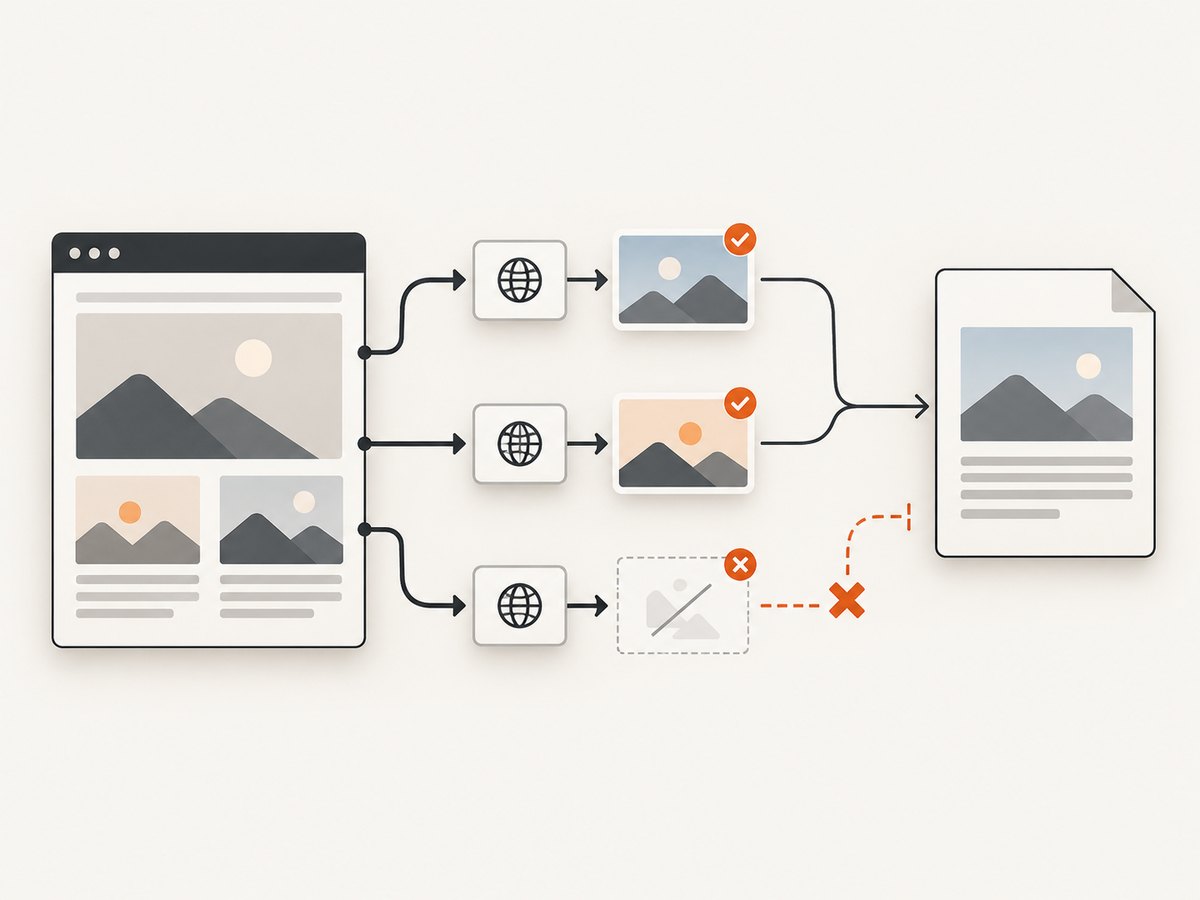
If images are missing from a Puppeteer PDF, first confirm they loaded before calling page.pdf(). For a normal URL, start by waiting for network activity to settle; for HTML passed to page.setContent(), check the image elements explicitly. Then compare a browser screenshot with the PDF and inspect print styles, especially if the missing artwork is a CSS background.
Network idle is a useful readiness signal, but it does not prove that every image loaded successfully or was printed. A broken URL, a lazy image that never started loading, and a print rule that hides a background need different fixes.
1. Identify how the page gets its content
The right first check depends on whether you navigate to a page or install HTML directly. Puppeteer’s PDF guide demonstrates navigation with waitUntil: 'networkidle2'. The setContent() API also accepts lifecycle wait options, with load as the default in the referenced API documentation. Neither method alone guarantees that every intended image is present in the final PDF.
When using page.goto()
Wait for an appropriate navigation lifecycle event, then check application readiness and image state before printing. A page may continue fetching images or data after navigation, and a request can finish unsuccessfully without leaving the page ready to print.
const response = await page.goto(url, { waitUntil: 'networkidle2' });
if (!response || !response.ok()) {
  throw new Error(`Navigation failed: ${response?.status() ?? 'no response'}`);
}

// Add an application-specific readiness check if the page renders asynchronously.
await page.waitForFunction(() => {
  return [...document.images].every(image => image.complete);
}, { timeout: 15000 });

await page.pdf({ path: 'output.pdf' });
The response check is useful for navigation errors, but a successful document response says nothing about whether every image request succeeded. The wait function above checks that image loading has completed; it does not treat a completed broken image as a success. Check naturalWidth as well when all listed images are expected to be valid.
When using page.setContent()
Setting markup is not the same as waiting for remote resources in that markup. Set a lifecycle point explicitly, then inspect the expected images. This example is appropriate when every image in the HTML is required:
await page.setContent(html, { waitUntil: 'load' });

await page.waitForFunction(() => {
  return [...document.images].every(
    image => image.complete && image.naturalWidth > 0
  );
}, { timeout: 15000 });

await page.pdf({ path: 'output.pdf' });
This is an illustrative readiness check, not a universal solution. If the document intentionally contains optional or broken images, waiting for every image to have a positive natural width will time out. Select the required elements or collect failures and decide how the application should handle them. A custom timeout should reflect the page and its resource environment.
2. Inspect the image elements
Before changing timeouts or adding arbitrary delays, inspect what the browser reports. For an <img>, the useful signals are whether it has a source, whether loading completed, and whether it has a nonzero natural width.
const images = await page.evaluate(() =>
  [...document.images].map(image => ({
    src: image.currentSrc || image.src,
    complete: image.complete,
    naturalWidth: image.naturalWidth,
    naturalHeight: image.naturalHeight,
    loading: image.loading
  }))
);

const failed = images.filter(image =>
  !image.complete || image.naturalWidth === 0
);

if (failed.length) {
  console.error('Images not ready or unavailable:', failed);
}
A zero natural width after completion generally means the image did not produce usable image dimensions; investigate the request and source instead of waiting longer. A missing or unexpected currentSrc can also reveal that responsive source selection did not choose what you expected.
For diagnosis, log browser console messages and failed requests. Puppeteer’s page events let you capture this evidence while loading:
page.on('console', message => {
  if (message.type() === 'error') console.error('Browser:', message.text());
});
page.on('requestfailed', request => {
  console.error('Request failed:', request.url(), request.failure()?.errorText);
});
These listeners help reveal failed resources but do not automatically identify the cause. The page, its server response, and the browser’s request details are needed to distinguish a wrong URL, a denied request, or an application issue.
3. Check lazy loading and application readiness
Images with loading="lazy" or application-controlled lazy loading may not request their source until they approach the viewport. A PDF can print the page before those images enter the loading path. First check whether the target image has a real selected source and whether its request began.
If the page’s own behavior depends on scrolling, trigger that behavior before checking image state. One simple diagnostic is to scroll through the document in increments and return to the top:
await page.evaluate(async () => {
  const step = Math.max(300, window.innerHeight);
  for (let y = 0; y < document.body.scrollHeight; y += step) {
    window.scrollTo(0, y);
    await new Promise(resolve => setTimeout(resolve, 100));
  }
  window.scrollTo(0, 0);
});

await page.waitForFunction(() =>
  [...document.images].every(image => image.complete && image.naturalWidth > 0),
  { timeout: 15000 }
);
The short pause here gives scroll-triggered behavior an opportunity to run; it is not proof that images are ready. Prefer an application-specific signal where available, and keep checking the expected image state. Pages that continually load more content may need a bounded scroll strategy rather than scrolling until the document height stops changing.
4. Compare a screenshot with the PDF
Capture a screenshot after the same navigation and waits, then compare it with the PDF. Puppeteer documents screenshot capture after network-idle navigation. This comparison narrows the issue:
| Screenshot | Likely investigation | |
|---|---|---|
| Image missing | Image missing | Source URL, request result, page readiness, image state, or application rendering |
| Image visible | Image missing | Print media rules, background printing, or PDF-specific layout |
| Image appears inconsistently | Image appears inconsistently | Timing, lazy loading, changing content, or unstable resource delivery |
To capture a diagnostic screenshot:
await page.screenshot({ path: 'before-pdf.png', fullPage: true });
await page.pdf({ path: 'output.pdf' });
Keep the screenshot and PDF runs on the same page state. If the page changes between captures, the comparison is less informative. For very long pages, a full-page screenshot may itself be large; a viewport screenshot focused on the affected area can be enough.
5. Check print CSS and PDF options
Puppeteer generates PDFs using print media by default. A stylesheet can hide or replace content under @media print, and CSS background artwork may be omitted unless background printing is enabled. The PDF options document lists printBackground as false by default.

await page.pdf({
  path: 'output.pdf',
  printBackground: true
});
This matters for CSS such as background-image or colored sections. It does not repair a failed <img> request. Inspect the print rules too:
@media print {
  .hero-art { display: block; }
  /* Confirm print styles do not hide or replace required artwork. */
}
For a controlled comparison, you can render the screen media before the PDF, but the PDF still uses print media by default. If the artwork only disappears under print, fix the print styles or select the PDF option that matches the intended output.
6. A robust end-to-end diagnostic script
This CommonJS example combines navigation, failed-request logging, image inspection, screenshot comparison, and PDF output. Install Puppeteer in your project and save it as make-pdf.js. Run it with a target URL as the first argument.
const puppeteer = require('puppeteer');

async function main() {
  const url = process.argv[2];
  if (!url) throw new Error('Usage: node make-pdf.js https://example.com');

  const browser = await puppeteer.launch({ headless: true });
  try {
    const page = await browser.newPage();
    page.on('requestfailed', request => {
      console.error('Request failed:', request.url(), request.failure()?.errorText);
    });
    page.on('console', message => {
      if (message.type() === 'error') console.error('Browser:', message.text());
    });

    const response = await page.goto(url, {
      waitUntil: 'networkidle2',
      timeout: 60000
    });
    if (!response || !response.ok()) {
      throw new Error(`Navigation failed: ${response?.status() ?? 'no response'}`);
    }

    const imageState = await page.evaluate(() =>
      [...document.images].map(image => ({
        src: image.currentSrc || image.src,
        complete: image.complete,
        naturalWidth: image.naturalWidth,
        naturalHeight: image.naturalHeight
      }))
    );
    console.log(JSON.stringify(imageState, null, 2));

    await page.screenshot({ path: 'before-pdf.png', fullPage: true });
    await page.pdf({ path: 'output.pdf', printBackground: true });
  } finally {
    await browser.close();
  }
}

main().catch(error => {
  console.error(error);
  process.exitCode = 1;
});
This script logs image state rather than assuming that navigation completed every image. Add a targeted wait after inspecting the page if its application needs more time or uses lazy loading. A fixed navigation timeout is a failure boundary, not a reason to increase it blindly.
7. Common errors and fixes
| Symptom | What to check | Fix to try |
|---|---|---|
| PDF is blank or incomplete | Navigation response, page readiness, and console errors | Wait for the application’s ready state, then verify expected content before printing |
| Some images are absent | currentSrc, complete, naturalWidth, failed requests |
Correct the source or request issue; wait for required images and trigger lazy loading |
| Only CSS artwork is absent | Print media CSS and whether artwork is a background | Enable printBackground and ensure print rules retain the artwork |
| Readiness wait times out | Whether an optional image is broken or the page loads continuously | Wait for required elements only; report optional failures instead of requiring all images |
networkidle2 never arrives |
Long-lived requests, polling, or ongoing page activity | Use a relevant application-specific readiness condition and inspect the required images |
| Image shows in screenshot but not PDF | Print-only styles and PDF options | Check @media print and background printing |
8. Reliability, performance, and cost
Use the smallest readiness condition that represents a complete document. Waiting for every image on a page can be wasteful when some are optional, while a short fixed delay can be unreliable on a slow or variable page. Bound waits with timeouts, log the specific resources that fail, and make the application’s policy explicit: fail the PDF, omit an optional image, or continue with a warning.
Network idle can add wait time and may be unsuitable for pages with persistent network activity. An image-state check is more targeted, but can still wait forever if the predicate includes an intentionally unavailable resource; always bound it. Scrolling a long page can trigger many requests and increase capture time, so do it only when lazy content is part of the document. A screenshot comparison adds a capture step, useful while diagnosing but unnecessary in every production run.
For recurring PDF generation, record the URL, failed request details, and image state alongside the job outcome. This gives you evidence when a remote image host is intermittent. Avoid logging sensitive query strings or page content if those values may contain credentials or private data.
There is no universal wait duration or cost figure: both depend on page behavior, image size, network conditions, and how the capture job is run. The researched Puppeteer documentation does not provide a benchmark or guarantee that network idle means images rendered correctly. Measure your own workload and use explicit failure handling.
9. Or skip the browser setup
If your immediate need is a clean page screenshot to compare with the PDF or use elsewhere, ScreenshotNeo provides a website screenshot API and MCP server. A GET request takes a URL and returns an image or PDF. The example below requests a WebP screenshot; see the ScreenshotNeo API documentation for configuration.
curl -G "https://api.screenshotneo.com/v1/shot" -d access_key=YOUR_API_KEY --data-urlencode url=https://stripe.com -o shot.webpimport requests
r = requests.get(
"https://api.screenshotneo.com/v1/shot",
params={"access_key": "YOUR_API_KEY", "url": "https://stripe.com"},
timeout=90,
)
r.raise_for_status()
open("shot.webp", "wb").write(r.content)const q = new URLSearchParams({
access_key: 'YOUR_API_KEY',
url: 'https://stripe.com'
});
const res = await fetch(`https://api.screenshotneo.com/v1/shot?${q}`);
if (!res.ok) throw new Error(`Screenshot request failed: ${res.status}`);
await require('node:fs/promises').writeFile('shot.webp', Buffer.from(await res.arrayBuffer()));ScreenshotNeo removes cookie banners, popups, and chat widgets before the shot. Bot checks, blank pages, and failed loads are never billed, and response headers report page verdict and billing status. Its MCP server lets AI agents take screenshots. The free plan includes 1,000 screenshots a month with no card; paid plans start at $5 for 3,000. Create a free ScreenshotNeo account.
FAQ
Does networkidle2 guarantee every image is loaded?
No. It indicates a period of low network activity. Check the expected image elements and compare the rendered screenshot when necessary.
Does Puppeteer wait for images when generating a PDF?
The PDF guide says PDF generation waits for fonts by default. It does not state that this guarantees all images have loaded and rendered.
Why are CSS backgrounds missing while img tags work?
PDFs use print media by default, and background printing is disabled by default. Check print styles and set printBackground: true if the PDF should include backgrounds.
Why does the image readiness check never finish?
An image may be optional, broken, or never requested because it is lazy-loaded. Check its source and request result, trigger the page’s loading behavior, and wait only for the images the document requires.
Will setContent wait for remote images?
It accepts lifecycle wait options, but setting the HTML is not proof that each remote image loaded successfully. Check image state after setting the content.


