How to Fix Incorrect Coordinates When Cropping Images in C#
Fix shifted C# image crops by mapping preview coordinates to source pixels, handling EXIF orientation, and recalculating bounds after transforms.
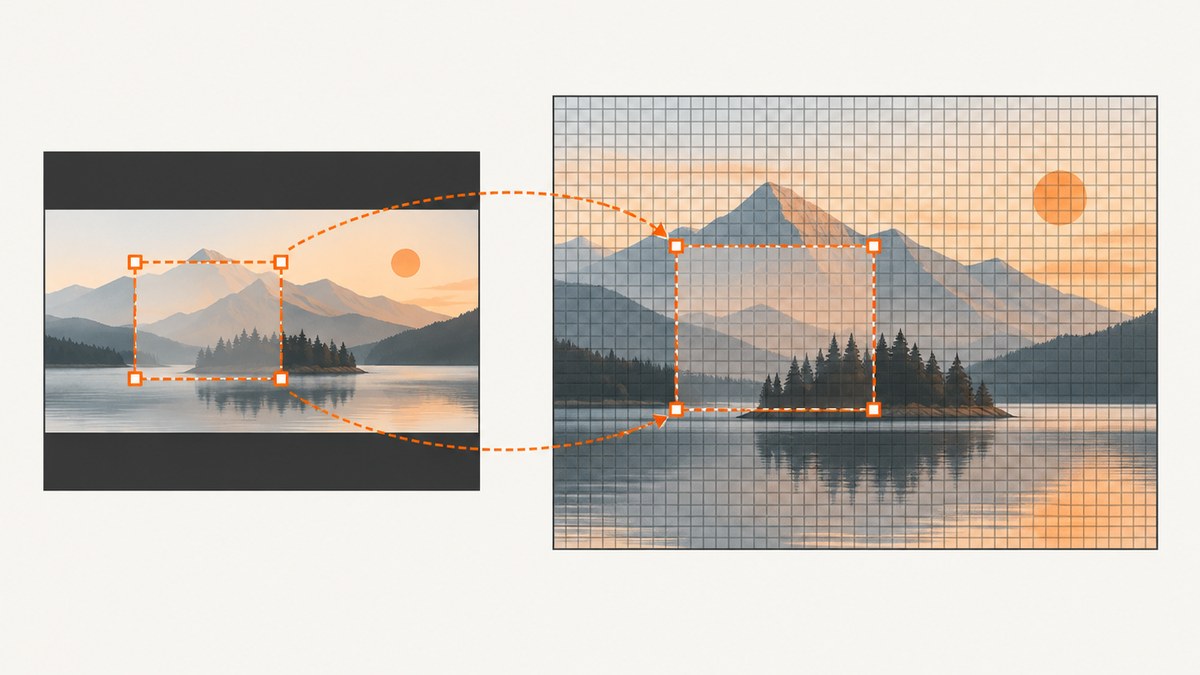
Incorrect crop coordinates in C# almost always come from mixing coordinate spaces. A rectangle selected on a resized preview is not automatically valid for the original bitmap. Convert the preview selection to source-image pixels, account for the image’s actual displayed bounds and letterboxing, normalize EXIF orientation when coordinates represent what a person sees, and recalculate every later rectangle after a crop, resize, or rotation.
The exact API contract still matters. System.Drawing’s DrawImage documentation defines source coordinates relative to the source image’s upper-left corner and scales that source area into a separate destination rectangle. ImageSharp expresses crop rectangles in the image’s current coordinate space and recommends orienting pixels before choosing visually defined coordinates when EXIF orientation may exist.
1. Identify the coordinate space before changing code
Write down what every value means immediately before the crop call:
| Value | Typical space | Common mistake |
|---|---|---|
x, y, width, height from a mouse selection |
Preview control or window coordinates | Passing them directly as bitmap pixels |
| Displayed image rectangle | Control coordinates after scaling and padding | Using the entire control when the image is letterboxed |
| Crop rectangle passed to an image library | Current source image pixels | Using coordinates from an earlier image size |
| System.Drawing destination rectangle | Output or drawing surface coordinates | Confusing it with the source rectangle |
| Normalized values from 0 to 1 | Resolution-independent coordinates | Forgetting to multiply by current width and height |
Log the source width and height, displayed image rectangle, selection rectangle, crop rectangle, destination rectangle, EXIF-orientation state, and rounding results. A single log line often reveals that a 1920×1080 source is being cropped with values measured on a 640×360 preview.
2. Convert preview coordinates to source pixels
Assume the image is rendered inside a rectangle whose top-left corner is (displayLeft, displayTop) and whose size is displayWidth × displayHeight. For a point measured in the same UI coordinate system:
sourceX = (viewX - displayLeft) * sourceWidth / displayWidth
sourceY = (viewY - displayTop) * sourceHeight / displayHeight
Transform both corners of a selection and derive the width and height from the transformed corners. This handles non-uniform scaling. If the preview preserves aspect ratio, use the actual image rectangle inside the control, including any top, bottom, left, or right bars.
double scaleX = (double)sourceWidth / displayWidth;
double scaleY = (double)sourceHeight / displayHeight;

int left = (int)Math.Floor((selectionLeft - displayLeft) * scaleX);
int top = (int)Math.Floor((selectionTop - displayTop) * scaleY);
int right = (int)Math.Ceiling((selectionRight - displayLeft) * scaleX);
int bottom = (int)Math.Ceiling((selectionBottom - displayTop) * scaleY);

left = Math.Clamp(left, 0, sourceWidth);
top = Math.Clamp(top, 0, sourceHeight);
right = Math.Clamp(right, left, sourceWidth);
bottom = Math.Clamp(bottom, top, sourceHeight);

int width = right - left;
int height = bottom - top;
Flooring the top-left and ceiling the bottom-right encloses the selected region. Another rounding policy may be appropriate for your application, but apply it consistently and test boundary cases.
Letterboxing and padding
Do not divide by the control’s width and height when the image occupies only part of it. For example, if a 16:9 image is centered in a square control, subtract the horizontal or vertical bar before scaling. A click outside the image should be rejected or clamped deliberately; do not silently convert it into a valid source coordinate.
3. Keep System.Drawing source and destination rectangles separate
With Graphics.DrawImage, the source rectangle identifies pixels in the source image. The destination rectangle identifies where those pixels are rendered. Microsoft documents the source coordinates as relative to the source image’s upper-left corner, with the selected source area scaled to the destination rectangle.
using System.Drawing;

using var source = Image.FromFile("input.jpg");
var sourceRect = new Rectangle(left, top, width, height);
var destinationRect = new Rectangle(0, 0, 800, 600);

using var output = new Bitmap(destinationRect.Width, destinationRect.Height);
using (using Graphics graphics = Graphics.FromImage(output))
{
    graphics.DrawImage(
        source,
        destinationRect,
        sourceRect.X,
        sourceRect.Y,
        sourceRect.Width,
        sourceRect.Height,
        GraphicsUnit.Pixel);
}

output.Save("crop.jpg", System.Drawing.Imaging.ImageFormat.Jpeg);
Use source pixel dimensions for sourceRect. Use the output bitmap or drawing surface dimensions for destinationRect. Passing preview dimensions as the source rectangle selects the wrong area even though the call succeeds.
4. Handle EXIF orientation before a visual crop
JPEG files can store pixels in one orientation and instruct viewers to rotate or mirror them through EXIF metadata. A user’s selection is based on the displayed orientation, while a crop API may operate on the stored pixel array. The result can appear rotated, mirrored, or shifted.
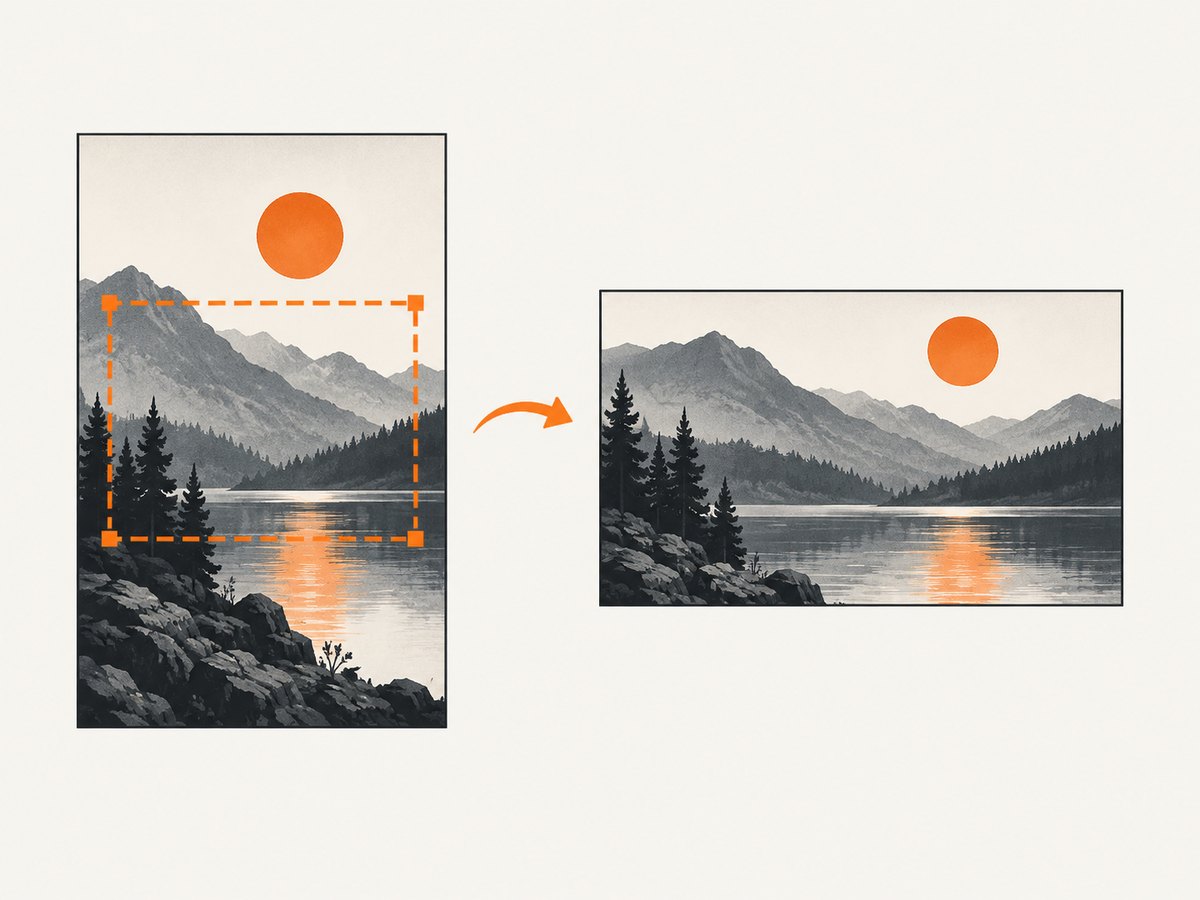
When using ImageSharp and coordinates were chosen from what a person sees, call AutoOrient() before selecting the crop rectangle. The ImageSharp crop guide documents this approach. If you retain the original orientation, explicitly map the selection through the required rotation or mirror transform instead.
using SixLabors.ImageSharp;
using SixLabors.ImageSharp.Processing;

using Image image = Image.Load("input.jpg");
image.Mutate(ctx => ctx.AutoOrient());

var crop = new SixLabors.ImageSharp.Rectangle(left, top, width, height);
image.Mutate(ctx => ctx.Crop(crop));
image.Save("crop.jpg");
Confirm the method names and package behavior against the ImageSharp version used by your project.
5. Recalculate after every geometry-changing operation
A crop becomes the new image. After cropping, the kept region moves to coordinate (0, 0), and the dimensions change. A later overlay or second crop must use the post-crop coordinate system. The same rule applies after resizing, rotating, padding, or applying a canvas operation.
- Load the image.
- Apply orientation normalization if the selection is visual.
- Map UI coordinates to the current image dimensions.
- Crop or transform.
- Read the new dimensions.
- Transform or recompute any remaining rectangles.
Do not cache rectangles calculated for the original image and reuse them after a transform.
6. A complete C# mapping example
using System;
using System.Drawing;

public static class CropCoordinates
{
    public static Rectangle PreviewToSource(
        Rectangle displayedImage,
        Rectangle selection,
        Size sourceSize)
    {
        if (displayedImage.Width <= 0 || displayedImage.Height <= 0)
            throw new ArgumentException("Displayed image bounds must be positive.");

        double scaleX = (double)sourceSize.Width / displayedImage.Width;
        double scaleY = (double)sourceSize.Height / displayedImage.Height;

        int left = (int)Math.Floor((selection.Left - displayedImage.Left) * scaleX);
        int top = (int)Math.Floor((selection.Top - displayedImage.Top) * scaleY);
        int right = (int)Math.Ceiling((selection.Right - displayedImage.Left) * scaleX);
        int bottom = (int)Math.Ceiling((selection.Bottom - displayedImage.Top) * scaleY);

        left = Math.Clamp(left, 0, sourceSize.Width);
        top = Math.Clamp(top, 0, sourceSize.Height);
        right = Math.Clamp(right, left, sourceSize.Width);
        bottom = Math.Clamp(bottom, top, sourceSize.Height);

        return Rectangle.FromLTRB(left, top, right, bottom);
    }
}

// Example: a 1920x1080 bitmap displayed at (40, 120) with size 960x540.
Size source = new Size(1920, 1080);
Rectangle displayed = new Rectangle(40, 120, 960, 540);
Rectangle selection = new Rectangle(280, 255, 240, 180);
Rectangle sourceCrop = CropCoordinates.PreviewToSource(displayed, selection, source);
Console.WriteLine(sourceCrop);
This helper assumes the selection and displayed-image rectangles use the same UI coordinate system. It does not apply EXIF orientation; normalize or transform orientation before calling it.
7. Validate rectangles and units
- Treat width and height as sizes, not right and bottom coordinates.
- Use integer pixel units only at the API boundary; keep intermediate scale calculations as floating point.
- Reject or clamp negative coordinates intentionally.
- Verify
left + width ≤ sourceWidthandtop + height ≤ sourceHeight. - Check whether the overload expects pixels, points, or another unit.
- Use the current image dimensions after each transform.
- Test one-pixel selections, selections touching each edge, selections outside the image, and selections covering the full image.
8. Troubleshooting incorrect crops
| Symptom | Likely cause | Fix |
|---|---|---|
| Crop is consistently too small or too large | Preview coordinates used as source pixels | Apply separate X and Y scale factors. |
| Crop is shifted by a constant amount | Control padding or letterbox offset omitted | Subtract the displayed image’s actual left and top before scaling. |
| Crop is correct on some images but rotated on phone photos | EXIF orientation differs | Call AutoOrient() or map coordinates through the orientation transform. |
| Second crop or overlay is misplaced | Old coordinates reused after cropping | Recompute in post-transform coordinates. |
| Right or bottom edge is missing | Width calculated as an absolute right coordinate | Use width = right - left and height = bottom - top. |
| System.Drawing output looks stretched | Source and destination rectangles confused | Keep source pixels and destination rendering bounds separate. |
| Exceptions occur only near edges | Rounding produces an out-of-range bound | Clamp after rounding and validate non-negative width and height. |
| Selection works at one zoom level only | Hard-coded scale or control dimensions | Read the current displayed image rectangle for every layout or zoom change. |
9. Performance and reliability
For large images, decode once and avoid repeatedly creating full-size intermediate bitmaps. Crop before an expensive resize when the workflow permits. Dispose Bitmap, Image, streams, and graphics objects promptly. Keep coordinate calculations independent of UI repaint timing: capture the displayed image rectangle and source dimensions from the same state used to render the preview.
For reliable results, store the transform sequence with each selection: displayed-image bounds, source dimensions, orientation state, scale, and offsets. This makes a crop reproducible after a window resize or asynchronous image load. If image loading can replace the source while a user is dragging, associate the selection with an image version and discard stale selections.
10. Or skip the browser setup
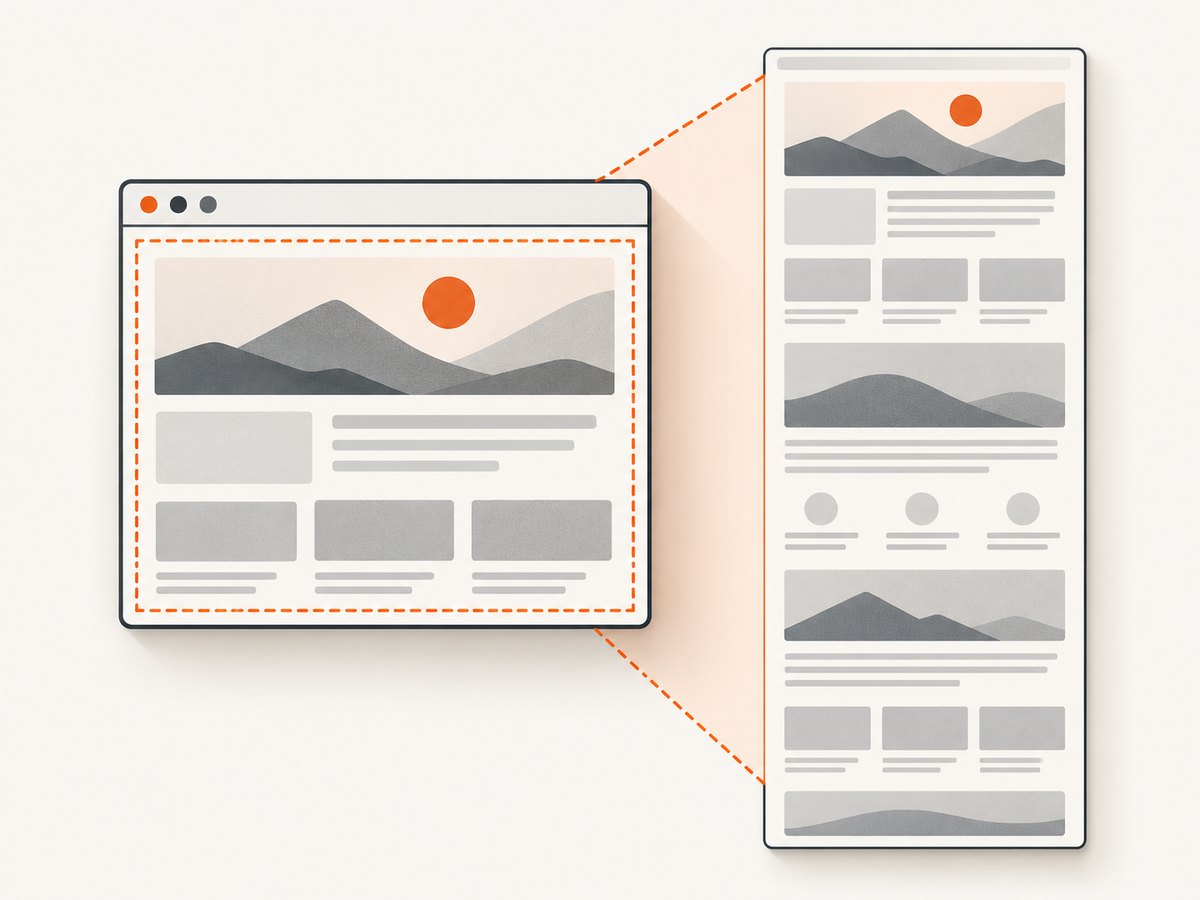
If your goal is to obtain screenshots for a pipeline rather than implement interactive bitmap cropping, ScreenshotNeo provides a one-request website screenshot API. Before capture it accepts cookie and consent banners and removes more than 60 known consent platforms, newsletter popups, and chat widgets. Bot checks, blank pages, timeouts, failed loads, and cache hits cost nothing, and the response identifies the result with X-Page-Verdict and X-Billed headers. Its MCP server lets Claude, Cursor, and other MCP clients call take_screenshot, get_page_info, and capture_pdf.
See the ScreenshotNeo documentation for all options.
cURL
curl -G "https://api.screenshotneo.com/v1/shot" -d access_key=YOUR_API_KEY --data-urlencode url=https://stripe.com -o shot.webpPython
import requests

r = requests.get(
    "https://api.screenshotneo.com/v1/shot",
    params={"access_key": "YOUR_API_KEY", "url": "https://stripe.com"},
    timeout=90,
)
r.raise_for_status()
open("shot.webp", "wb").write(r.content)
Node.js
const q = new URLSearchParams({ access_key: 'YOUR_API_KEY', url: 'https://stripe.com' });
const res = await fetch(`https://api.screenshotneo.com/v1/shot?${q}`);
if (!res.ok) throw new Error(`HTTP ${res.status}`);
const body = Buffer.from(await res.arrayBuffer());
require('fs').writeFileSync('shot.webp', body);
ScreenshotNeo supports full-page and element captures, custom CSS and JavaScript, waits, blocking rules, device presets, arbitrary viewports, retina scale, caching with a chosen TTL, signed links, asynchronous jobs, bulk capture, PDFs, HTML/CSS rendering, and usage reporting. Every feature is available on every plan. The free plan includes 1,000 shots per month without a card; paid plans start at $5 for 3,000 shots.
Create a free ScreenshotNeo account and start with 1,000 screenshots each month at no charge.
11. FAQ
Should coordinates use the original image size or the displayed size?
Crop APIs generally consume coordinates in the current source image’s pixel space. Convert displayed coordinates using the displayed image rectangle and current source dimensions.
Why does a crop fail only for images from phones?
Those files often contain EXIF orientation metadata. Normalize orientation before choosing a visual crop or explicitly transform the selection.
Can I use one scale factor for both axes?
Only when the image is displayed without non-uniform scaling. Use independent X and Y factors unless that invariant is guaranteed.
Do crop coordinates remain valid after resizing?
No. A resize changes the coordinate space. Recalculate or transform the rectangle using the new dimensions.
What should I log when debugging?
Log source dimensions, displayed-image bounds, selection bounds, orientation state, scale factors, offsets, rounded coordinates, and the final crop rectangle immediately before the crop call.


