How to Fix Incorrect Fonts in Puppeteer Screenshots
Fix Puppeteer screenshots with missing, substituted, or late-loading fonts by checking the browser host, font coverage, and page readiness.
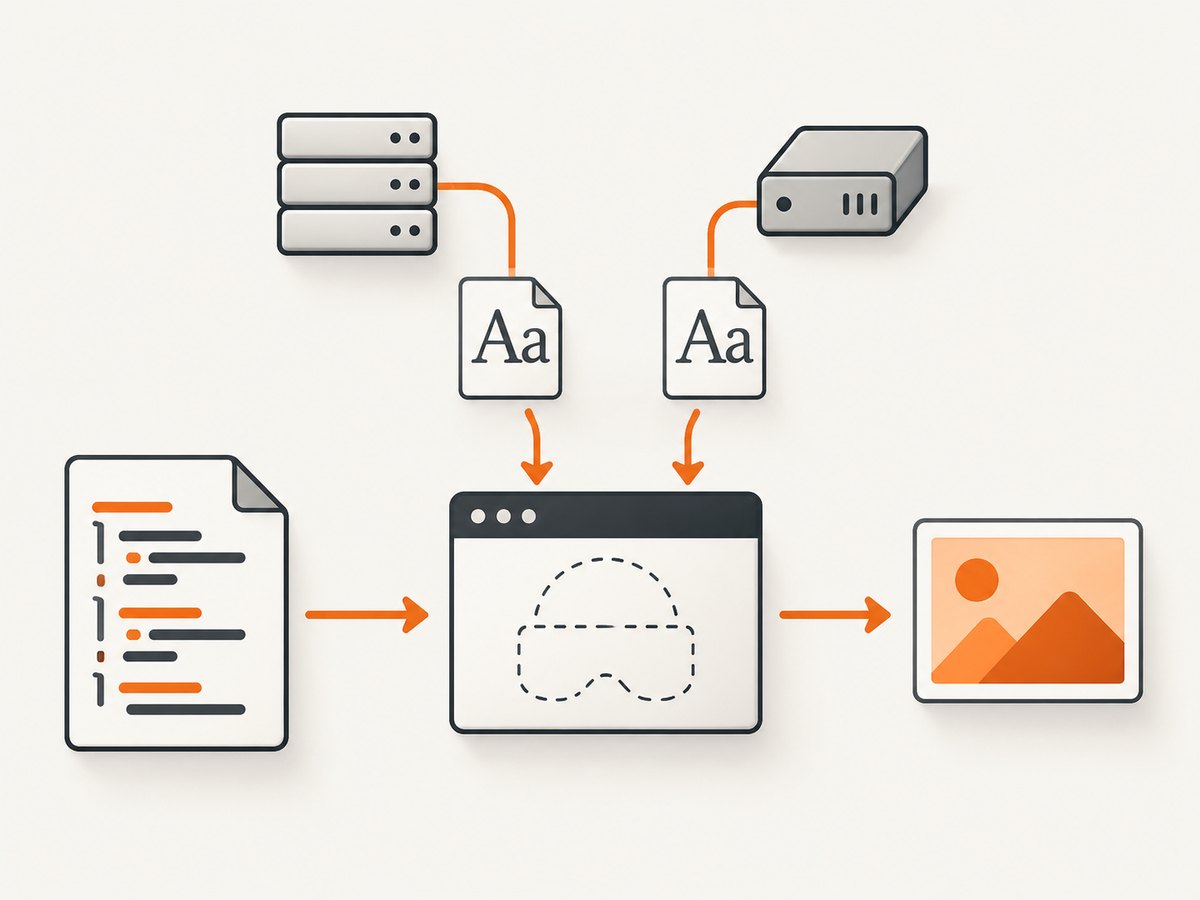
A Puppeteer screenshot with the wrong font usually has one of two causes: Chrome cannot access the intended font family or glyphs in the environment where it runs, or the page is captured before its web fonts finish loading. Check both. Waiting for document.fonts.ready handles page readiness; it does not install missing fonts or prove that the requested family covers every character.
This guide traces the browser runtime, verifies page-side font loading, and shows a repeatable Puppeteer capture flow. It also covers containers, custom fonts, language coverage, timing, diagnostics, and the common misdiagnoses.
1. Identify the browser and environment
Start with the process that actually launches Chrome. A developer laptop and a production container can have different operating systems, font packages, architectures, browser binaries, and font caches. A page that renders correctly in one environment can therefore produce fallback fonts in another.
Record these details before changing CSS:
- Operating system, distribution, architecture, and container base image.
- Node.js and Puppeteer versions.
- Whether the project uses
puppeteerorpuppeteer-core. - The browser executable and version, including whether it is local, managed separately, or remote.
- The intended CSS family, weight, style, and character sets in the screenshot.
The puppeteer package downloads a compatible Chrome for Testing browser by default. puppeteer-core does not download Chrome and is for projects that manage the browser or connect to one themselves. That distinction tells you where to inspect installed fonts: the host or container running Chrome, not necessarily the machine running your script. See the official Puppeteer installation guide and supported browser versions.
2. Confirm the font exists and covers the text
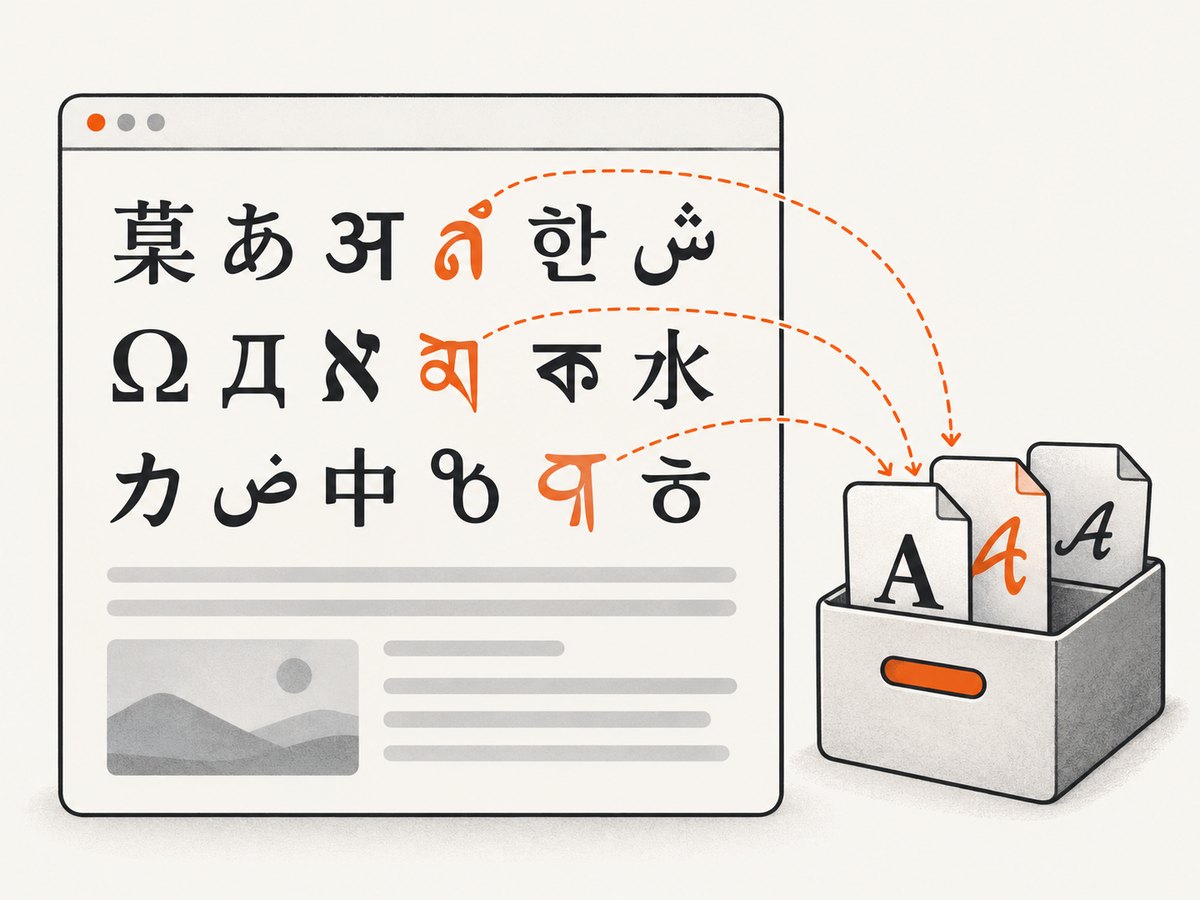
Check that the exact family and required weights are present in the runtime image. Also check glyph coverage. A font can contain Latin letters but not the CJK, Arabic, Hebrew, Thai, emoji, or symbol characters in a particular page. Chrome then uses a fallback font for unsupported glyphs, so a page can look partly correct while still showing inconsistent metrics or shapes.
For Linux and Docker, install the font packages needed by your content using the target distribution’s package manager, then rebuild and deploy the image. Package names differ by distribution and change over time, so look them up in the current repository for the base image you use. Puppeteer’s troubleshooting guide includes a Docker example with font packages for multiple writing systems and specifically calls out that Chinese, Japanese, and Korean rendering may need additional fonts. Treat that list as an example, not a universal package prescription: Puppeteer troubleshooting.
If the site uses a self-hosted web font, check its network request and response as well. The file might be unavailable to the page because of a bad URL, access restrictions, a failed request, or an incorrect CSS family/weight declaration. A locally installed system font and a web font delivered by the page are separate sources; diagnosing one does not establish that the other loaded.
3. Wait for fonts after the content is ready
After navigation, page scripts may still insert content or trigger font requests. Wait for the application state that matters first, then ask the Font Loading API to settle before taking the screenshot:
await page.waitForSelector('[data-report-ready="true"]', { timeout: 15000 });
await page.evaluate(() => document.fonts.ready);
await page.screenshot({ path: 'capture.png', fullPage: true });
Replace the example selector with a real ready marker for your page. If content is injected by your own script, inject it before the font wait. A fixed sleep may hide a race on one machine and still fail under load on another. Use bounded waits so a broken page cannot hold a screenshot worker indefinitely.
The browser’s document.fonts.ready promise resolves when font loading and layout operations have completed for the document. It is a readiness check, not a correctness check: it does not confirm that the preferred font was requested, successfully fetched, installed on the host, or able to draw every glyph. For the API’s behavior, see MDN’s Document.fonts reference.
4. Use a reproducible Puppeteer capture script
This runnable Node.js example uses Puppeteer’s default browser download, sets a fixed viewport, waits for a page-specific ready marker and for font loading, and writes a screenshot. Install Puppeteer with npm install puppeteer; make sure your deployment process permits its browser installation step, as described in the installation guide.
const puppeteer = require('puppeteer');

(async () => {
  const browser = await puppeteer.launch({ headless: true });
  try {
    const page = await browser.newPage();
    await page.setViewport({ width: 1440, height: 1000, deviceScaleFactor: 1 });

    await page.goto('https://example.com/report', {
      waitUntil: 'domcontentloaded',
      timeout: 30000,
    });

    // Use a marker that your application sets after the relevant content exists.
    await page.waitForSelector('[data-report-ready="true"]', {
      timeout: 15000,
    });

    const fontStatus = await page.evaluate(async () => {
      await document.fonts.ready;
      return {
        status: document.fonts.status,
        headingFontLoaded: document.fonts.check('700 32px "Example Sans"'),
        bodyFontLoaded: document.fonts.check('400 16px "Example Sans"'),
      };
    });
    console.log('Font checks:', fontStatus);

    await page.screenshot({ path: 'capture.png', fullPage: true });
  } finally {
    await browser.close();
  }
})().catch((error) => {
  console.error(error);
  process.exitCode = 1;
});
Change the URL, readiness selector, and family to match the application. document.fonts.check() is a useful diagnostic for whether the browser considers a given font shorthand available for rendering. It does not by itself prove the pixels use the intended file in every circumstance; compare the computed CSS and inspect network failures and host font availability too. Log these results alongside the browser version and deployment image when diagnosing intermittent or environment-specific output.
5. Configure containers and browser ownership
Make font installation part of the browser image or application image build so each worker starts from the same known environment. Rebuild and roll out the image after changing font packages; changing a Dockerfile does not modify containers that are already running.
With puppeteer, inspect the browser it downloaded and the same image’s system fonts. With puppeteer-core, inspect the separately managed executable and the machine or remote service that owns it. Pin the browser and image versions in a production capture pipeline when visual consistency matters. Puppeteer documents supported platforms and their required browser dependencies on its system requirements page.
If the issue only occurs in a minimal Linux image, distinguish missing font files from missing Chrome system libraries. Library problems can stop Chrome launching or cause broader rendering trouble; font problems more often show substituted glyphs or changed text metrics. Puppeteer’s troubleshooting page warns that Chrome does not support Alpine out of the box and calls for compatible dependencies there. Use a supported base where practical, or validate the specific image and browser combination you deploy.
6. Distinguish font problems from capture timing
Use symptoms to choose the next check:
| What you see | Likely check | Next action |
|---|---|---|
| Every page uses a generic-looking family | Family absent or CSS request failed | Check installed fonts, computed styles, and font network requests |
| Only some characters look different | Glyph coverage or fallback | Check that the installed or delivered font supports those characters |
| First capture is wrong; later capture looks right | Capture raced font or content loading | Wait for the application marker, then document.fonts.ready |
| Local output differs from container output | Runtime/browser/font set differs | Compare OS, image, architecture, browser version, and font packages |
| Layout shifts after text appears | Fallback was used before web font completion | Wait for content and fonts before measuring or capturing |
These are diagnostic leads, not proof on their own. For a stable comparison, hold the OS/container image, architecture, browser version, viewport, device scale, URL state, and required font families constant. Text metrics vary across browser and operating-system environments, so a visual difference does not automatically indicate a Puppeteer defect.
7. Common errors and fixes
“The font wait completed, but the screenshot still uses a fallback”
Cause: The page is settled, but the desired family is missing, blocked, misspelled in CSS, or lacks the needed glyphs. Fix: Check the computed font-family, requests for web font files, document.fonts.check(), and host font availability. Add the required font to the runtime image or correct the page’s font delivery and CSS.
“It works on my laptop but not in Docker”
Cause: The container’s font set or browser dependencies differ from the laptop’s. Fix: Inspect the image that runs Chrome, install the required font packages for that distribution and language coverage, rebuild, and capture with the deployed image. Do not install packages only on the host if Chrome runs inside the container.
“The first screenshot is wrong and retries pass”
Cause: Font or application content readiness is racing capture. Fix: Wait for a meaningful page-specific selector or state after dynamic content is present, then await document.fonts.ready. Keep each wait bounded and record which condition timed out.
“Chinese, Japanese, or Korean characters are missing or inconsistent”
Cause: The runtime font set may not include those writing systems or the intended web font may not contain the glyphs. Fix: Add appropriate font coverage to the image and verify the actual family and network response. The package names depend on the distribution.
“Chrome is unavailable after installing Puppeteer”
Cause: A package manager or build policy may have blocked installation scripts, so Puppeteer did not download its browser. Fix: Follow Puppeteer’s installation guidance for your package manager, or explicitly manage a browser and use puppeteer-core. Confirm that the executable you launch is the one whose runtime fonts you checked. See Puppeteer troubleshooting.
“Chrome launches, but the output changes after a deployment”
Cause: The new image, browser, or font package set differs. Fix: Compare deployment metadata and pin the relevant components; capture a representative multilingual page as a release check. Keep package updates deliberate so new font files reach every worker consistently.
8. Performance, reliability, and cost
Font readiness adds a wait only while the document still has font-related work to settle, but a page can also be stalled by slow or unreachable font resources. Apply a timeout to navigation and application readiness, and set an overall job deadline in the calling service. Decide how your worker handles a timeout—fail the capture, retry within a bounded policy, or save diagnostics—rather than silently waiting forever.
Installing fonts increases the contents of the runtime image and may require periodic maintenance as the supported scripts or packages change. Baking fonts into an image makes the capture environment easier to reproduce than relying on one-off deployment steps, provided that the image is rebuilt and rolled out consistently. Test only the families and scripts your pages require, but include multilingual pages if those characters are part of your output.
There is no universal time or cost estimate for font installation or capture: it depends on the image, page, network, browser, and font set. For a screenshot service, account for browser runtime, font assets, page readiness, retries, and failure handling when estimating operational cost. A capture that returns quickly with fallback fonts is not a successful optimization; it is incorrect output.
9. Or skip the browser setup
ScreenshotNeo is a website screenshot API: one GET request returns an image or PDF from a URL. For this font troubleshooting use case, it means you can request a capture without managing a local Puppeteer browser and its font packages. Review the ScreenshotNeo API documentation and the product site at ScreenshotNeo.
curl -G "https://api.screenshotneo.com/v1/shot" \
  -d access_key=YOUR_API_KEY \
  --data-urlencode url=https://stripe.com \
  -o shot.webp
The same request in Python:
import requests

r = requests.get(
    "https://api.screenshotneo.com/v1/shot",
    params={"access_key": "YOUR_API_KEY", "url": "https://stripe.com"},
    timeout=90,
)
r.raise_for_status()
open("shot.webp", "wb").write(r.content)
And in Node.js:
const q = new URLSearchParams({
  access_key: 'YOUR_API_KEY',
  url: 'https://stripe.com',
});
const res = await fetch(`https://api.screenshotneo.com/v1/shot?${q}`);
if (!res.ok) throw new Error(`Screenshot request failed: ${res.status}`);
await require('node:fs/promises').writeFile('shot.webp', Buffer.from(await res.arrayBuffer()));
Cookie banners, popups, and chat widgets are removed before the shot. Bot checks, blank pages, and failed loads are never billed. An MCP server lets AI agents take screenshots. The free plan includes 1,000 screenshots a month with no card; paid plans start at $5 for 3,000. For a page that depends on a particular locally installed font, verify that the service’s rendered result suits your requirement before switching workflows.
Sign up for 1,000 free screenshots a month, with no card.
10. FAQ
Does document.fonts.ready install fonts in Docker?
No. It waits for the document’s font loading and layout work to settle. Install required system fonts in the environment that runs Chrome, and separately verify page-delivered fonts.
Should I use a longer fixed delay?
Usually, a page-specific readiness condition followed by the font readiness promise is more meaningful. A delay can be either wasteful or too short and does not establish that the right family exists.
Does Puppeteer always use the browser on the developer’s machine?
No. It controls the browser configured for that process. In containers and remote-browser setups, inspect the environment that owns the actual Chrome process.
Can missing glyphs be fixed by changing screenshot dimensions?
No. Viewport and scale affect layout and rasterization, but they do not add font files or glyph coverage. Fix the font source or availability first.
Sources
- Puppeteer installation and supported browsers.
- Puppeteer troubleshooting, including Docker and font considerations.
- Puppeteer system requirements.
- MDN: Document.fonts.


