How to Fix Injected HTML Rendering Differences in Laravel Browsershot
Fix differences between injected HTML in Chrome and Laravel Browsershot by checking assets, readiness, viewport, media mode, and browser diagnostics.

If HTML looks right in an interactive Chrome tab but wrong in Laravel Browsershot, first check whether Chromium can load every referenced asset and whether the capture waits for the rendered state you expect. Then match the viewport, media mode, device scale, user agent, and fonts. Browsershot runs supplied markup through Puppeteer and headless Chrome, so its environment is not automatically the same as your open browser tab. Browsershot accepts arbitrary HTML and can also return a page body after JavaScript has run.
Use the sequence below to find the cause before changing CSS. Most discrepancies come from unreachable relative assets, capturing before client-side rendering finishes, or different browser conditions.
1. Start with a small, trusted reproduction
Reduce the input to the smallest complete HTML document that still shows the problem. Include the styles and scripts relevant to the broken layout. Record the exact string passed to Browsershot::html(), the options, and whether you are producing an image or PDF. Reproducing the same input inside the worker or container that generates the output is important: its filesystem permissions, network access, Chrome installation, and fonts can differ from a developer workstation.
Only pass HTML and URLs you trust. Spatie’s PDF documentation explicitly places responsibility for validating them on the caller: validate URLs and HTML passed to Browsershot. This matters especially when markup comes from user input; injected markup may contain scripts, remote requests, or other content that should not run in a privileged rendering process.
<?php

use Spatie\Browsershot\Browsershot;

$html = '<!doctype html>
<html>
<head>
  <meta charset="utf-8">
  <meta name="viewport" content="width=device-width, initial-scale=1">
  <link rel="stylesheet" href="https://example.test/report.css">
</head>
<body>
  <main id="report-ready"><h1>Report</h1></main>
</body>
</html>';

Browsershot::html($html)
    ->windowSize(1280, 900)
    ->waitUntilNetworkIdle()
    ->waitForSelector('#report-ready')
    ->save(storage_path('app/debug.png'));
The example assumes the HTML is trusted and that the CSS URL is reachable from the rendering machine. If the output is a PDF, apply the same readiness and asset checks; PDF generation may also use print styles and page settings.
2. Make every asset reachable from Chromium
With Browsershot::html(), relative paths have no ordinary page URL to resolve against unless you arrange an origin or rewrite them. A reference such as ./styles/report.css may work in a local browser opened from a project directory, yet fail when the renderer receives a standalone HTML string. Rewrite relative references to absolute URLs reachable by the worker, or serve the assembled document from a controlled HTTP origin. Check stylesheets, images, web fonts, script bundles, and any resources those scripts fetch.
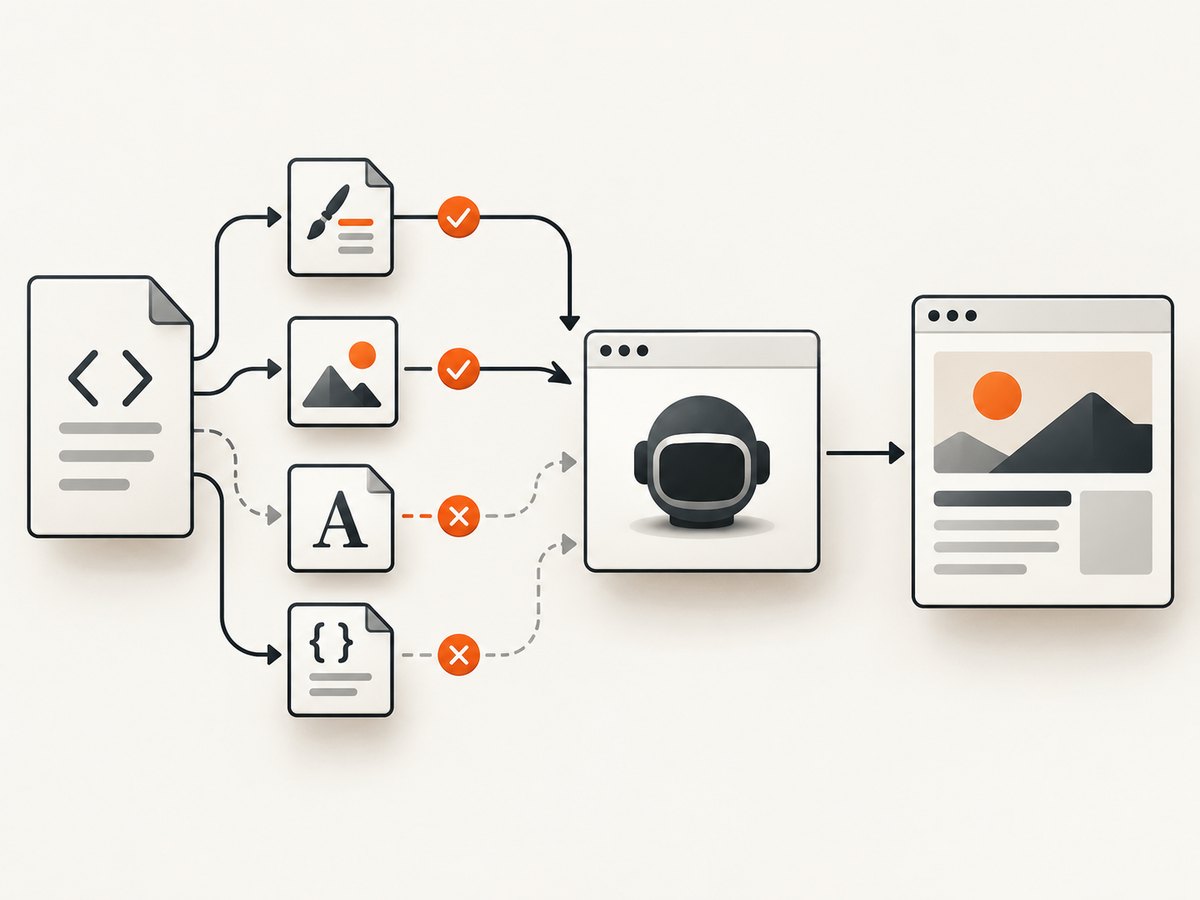
Local-file templates introduce another boundary: Chrome may restrict one local file from loading another. The Laravel PDF guide documents --disable-web-security and --allow-file-access-from-files as possible flags for local assets. These weaken browser security, so prefer a controlled served origin where practical and assess the implications before using them. A community report describes absolute URL rewriting and these flags in a particular environment; treat that as environment-specific, not a universal fix.
Do not infer successful loading from the fact that the HTML string contains a URL. Inspect the requests from the actual rendering process. A CSS file returning 404, a font blocked by origin rules, or an image URL inaccessible from a container can all alter layout without changing your template source.
3. Wait for the page’s real ready state
Network idle is useful, but it is not the same as application completion. Browsershot’s waitUntilNetworkIdle() uses Puppeteer’s networkidle0 by default; passing false allows up to two active connections (networkidle2). The image guide describes a 500 ms quiet period. Long polling, analytics, or streaming requests can prevent strict idle; conversely, a page can be network-idle before a client-side component has populated its DOM.
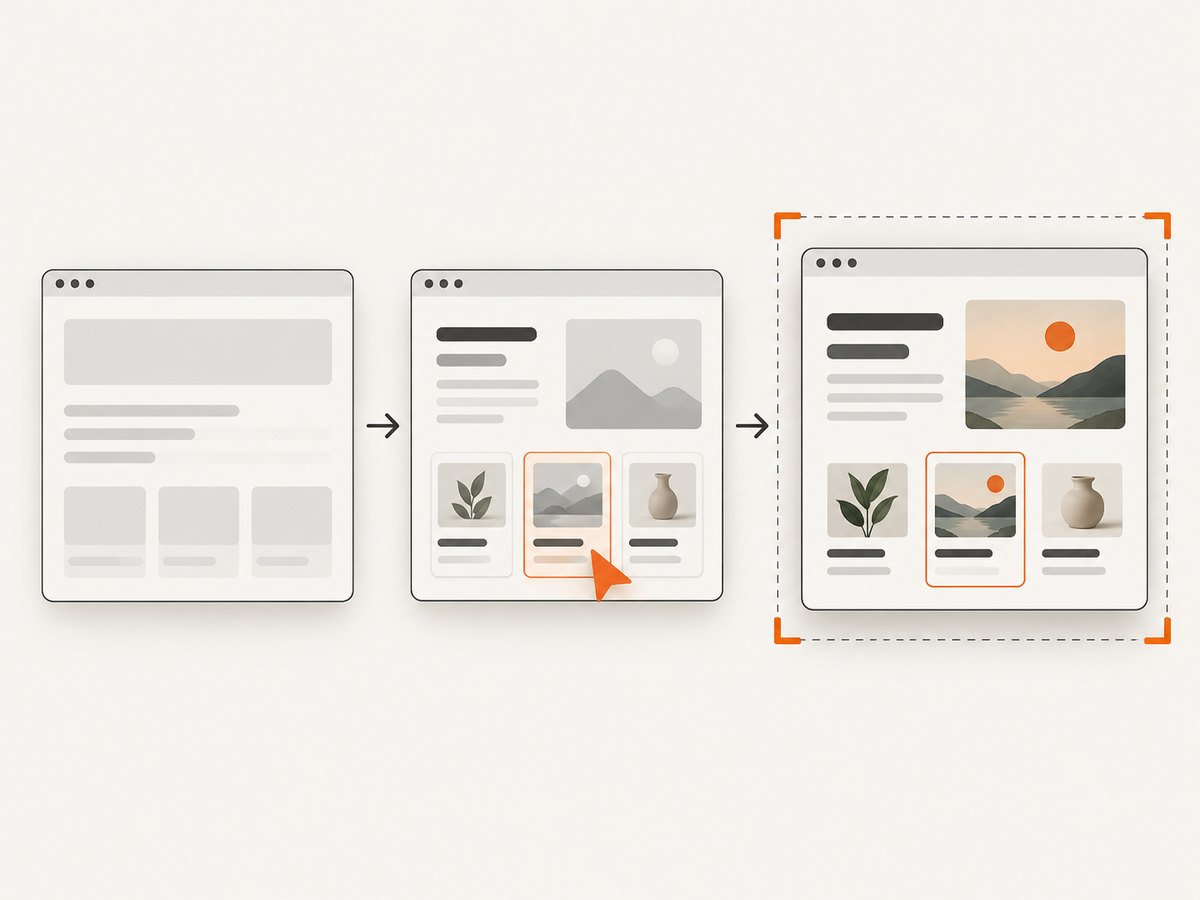
Pair network idle with a selector or application-specific function when the output depends on JavaScript. A stable marker such as #report-ready is better than an arbitrary sleep because it represents the state required by the capture.
Browsershot::html($html)
    ->waitUntilNetworkIdle()
    ->waitForSelector('#report-ready')
    ->waitForFunction('window.renderComplete === true', 100, 10000)
    ->save($path);
Use the conditions that actually apply; requiring all three is unnecessary if one reliable application signal is sufficient. The function polling interval and timeout above are examples to adapt to the page, not universal values. For fonts, the page can expose readiness only after its required web fonts have resolved; wait for that signal if font metrics affect wrapping. Avoid unbounded waiting: choose a deadline appropriate to the job and report timeout failures explicitly.
4. Match browser conditions, not just HTML
Compare the conditions under which the working Chrome view was produced with those of the headless capture. Width and height control responsive breakpoints. Device scale factor and scale affect pixel dimensions. User agent and mobile emulation can change responsive behavior. Screen and print media can activate different CSS. PDF page format and margins also affect pagination and available content width.
| Condition | What can change | What to compare |
|---|---|---|
| Viewport | Breakpoints, wrapping, grid columns | windowSize(width, height) against the working browser dimensions |
| Media mode | @media print versus screen rules |
Whether the target is an image or PDF and the selected media emulation |
| Device scale | Pixel density and screenshot dimensions | deviceScaleFactor() and any explicit scale setting |
| User agent/device | Responsive or user-agent-dependent branches | userAgent(), mobile, and touch settings if used |
| Fonts | Glyph widths, line breaks, element heights | Successful font requests and font availability in the worker |
| PDF settings | Pagination, margins, page size, backgrounds | Format, margins, landscape, background printing, and readiness |
Browsershot exposes settings including windowSize(), userAgent(), emulateMedia(), deviceScaleFactor(), and scale(). Set only the relevant options explicitly, and record them with the job so a later discrepancy can be reproduced.
5. Inspect the rendered DOM and browser diagnostics
Before rewriting CSS, compare the DOM Browsershot produced with the DOM visible in the interactive browser after scripts have executed. bodyHtml() returns the body HTML after JavaScript execution; diagnostics such as consoleMessages(), pageErrors(), failedRequests(), and triggeredRequests() help distinguish a missing resource from a script exception, navigation problem, or early capture. These methods are documented in the current Browsershot source and usage documentation.
$shot = Browsershot::html($html)
    ->windowSize(1280, 900)
    ->waitUntilNetworkIdle()
    ->waitForSelector('#report-ready');

file_put_contents(storage_path('app/debug-body.html'), $shot->bodyHtml());

// During diagnosis, inspect and log these values from the same worker:
$console = $shot->consoleMessages();
$failed = $shot->failedRequests();
$errors = $shot->pageErrors();
$requests = $shot->triggeredRequests();

$shot->save(storage_path('app/debug.png'));
For repeatable debugging, save a diagnostic image or PDF, retain the exact HTML and options, and log the renderer’s runtime environment and target URL. Avoid logging secrets embedded in markup, cookies, or headers. Change one condition at a time so you can identify which difference matters.
6. Troubleshooting common symptoms
| Symptom | Likely cause | Fix to try |
|---|---|---|
| CSS or images are missing | Relative URLs, inaccessible host, local-file restriction, or failed request | Use reachable absolute URLs or a served origin; inspect failed requests and console output. |
| Dynamic component is absent | Capture happened before client-side rendering finished | Wait for network idle where useful, then wait for a concrete selector or readiness function. |
| Columns or text wrapping differ | Different viewport, media, scale, or font load | Match dimensions and media; verify fonts load before capture. |
| Works locally but fails in queue worker | Different permissions, Chrome binary, environment, or network access | Run diagnostics inside the worker and compare requests, errors, fonts, and options. |
| PDF differs from screenshot | Print CSS and PDF page defaults affect layout | Set media mode and PDF format, margins, landscape, and background behavior intentionally. |
| Network-idle wait times out | Persistent connections or periodic requests keep the page active | Try waitUntilNetworkIdle(false) if suitable, or wait on a selector/function representing completion. |
| Text shifts between runs | Fonts or asynchronous content resolve at different times | Wait for font and application readiness; ensure requests are deterministic and bounded. |
| Output is blank or navigation fails | Invalid markup, failed navigation, missing runtime dependency, or premature capture | Check page errors, failed requests, the body HTML, and the exact worker environment. |
For PDF-only customization, Spatie’s Browsershot driver guide shows how to apply Browsershot options through Laravel PDF. Keep security-related flags scoped as narrowly as your setup allows.
7. Performance, reliability, and cost
Asset loading and JavaScript execution are part of rendering work. Waiting for all network activity can increase latency or stall on pages that keep connections open; a specific readiness marker can avoid waiting for irrelevant work. Blocking nonessential requests may reduce work, but it can also remove CSS, fonts, or data the page needs. Measure against the pages and conditions your application actually captures rather than assuming a setting is faster.
For reliability, set a bounded timeout, make readiness criteria explicit, and capture diagnostics on failure. A screenshot job should distinguish successful render from a blank page, failed navigation, timeout, or missing content. Reproduce problems using the same Chrome/Puppeteer installation, permissions, fonts, and network access as production. The official documentation does not establish a universal timeout or performance benchmark for these fixes, so choose limits from your own workload.
Rendering costs depend on your infrastructure and job volume: browser processes consume CPU and memory, and waiting for unnecessary resources occupies workers. Keep diagnostic artifacts only as long as needed, and avoid retrying deterministic failures indefinitely. For PDF jobs, account for page size and content length when estimating worker time and storage.
8. Or skip the browser setup
If you need a screenshot of a public webpage rather than a locally assembled Laravel template, ScreenshotNeo can return PNG, JPEG, WebP, or PDF from one GET request. See the ScreenshotNeo API documentation for the options. This does not replace rendering your private, injected HTML through your own application when that markup is the thing you need to capture.
curl -G "https://api.screenshotneo.com/v1/shot" -d access_key=YOUR_API_KEY --data-urlencode url=https://stripe.com -o shot.webpimport requests
r = requests.get("https://api.screenshotneo.com/v1/shot", params={"access_key": "YOUR_API_KEY", "url": "https://stripe.com"}, timeout=90)
open("shot.webp", "wb").write(r.content)const q = new URLSearchParams({ access_key: 'YOUR_API_KEY', url: 'https://stripe.com' });
const res = await fetch(`https://api.screenshotneo.com/v1/shot?${q}`);ScreenshotNeo removes cookie banners, popups, and chat widgets before the shot; bot checks, blank pages, and failed loads are never billed. Its MCP server lets AI agents take screenshots, and 1,000 screenshots a month are free with no card; paid plans start at $5 for 3,000. Sign up for the free plan to get started.
9. Quick verification checklist
- Can the worker reach every stylesheet, image, font, script, and data endpoint?
- Are relative asset URLs resolved against the intended origin?
- Does the capture wait for a selector or function that represents finished content?
- Do viewport, media, device scale, user agent, and PDF settings match the target?
- Do body HTML, console messages, page errors, and failed requests explain the difference?
- Can the same result be reproduced in the worker with the exact HTML and options?
FAQ
Does waitUntilNetworkIdle() guarantee that JavaScript rendering is finished?
No. It observes network activity. Client-side work can continue after the network becomes quiet, so pair it with a selector or application readiness condition when required.
Should I always enable Chrome’s file access flags?
No. They can help a specific local-file setup, but they loosen browser security. A controlled HTTP origin is preferable when practical.
Why does the output differ only in the queue worker?
The worker may have different network access, filesystem permissions, fonts, Chrome/Puppeteer versions, or runtime options. Collect diagnostics where the capture actually runs.
Can ScreenshotNeo capture my unsaved Laravel HTML string?
The API takes a URL. To capture content created in Laravel, make it available at a reachable URL with appropriate access controls, or use Browsershot with the HTML directly.


