How to Fix Invalid Base64 Data Errors in jsPDF with React
Fix jsPDF Base64 errors in React by validating data URLs, waiting for FileReader, choosing the right format, and handling image inputs safely.
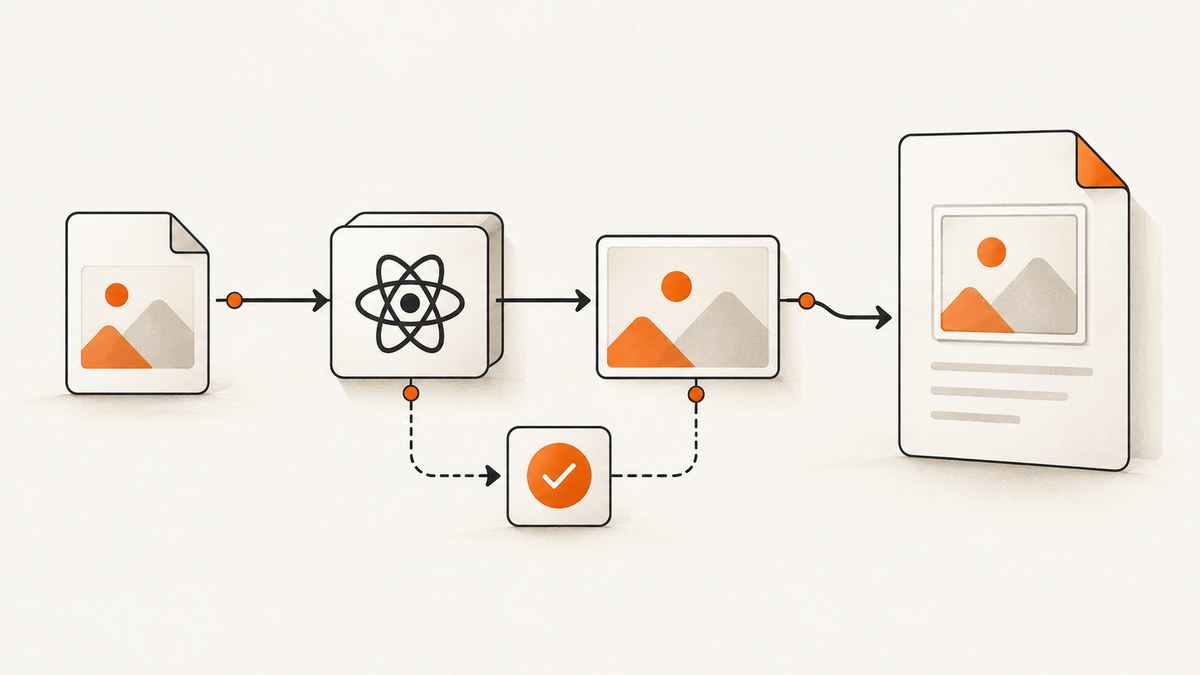
Most invalid Base64 errors in jsPDF come from passing the wrong value to doc.addImage(): an incomplete data URL, an asynchronous FileReader result that is not ready, a non-image string, or an image whose format jsPDF cannot identify. Inspect the value immediately before the call, wait for image conversion to finish, validate the data URL, and provide the format explicitly when recognition is uncertain.
jsPDF supports more than Base64 strings. Its addImage API accepts strings, HTMLImageElement, HTMLCanvasElement, Uint8Array, and RGBA data. See the official addImage documentation for the signature used by your installed version.
1. Inspect the value passed to addImage
Log its type and a short prefix, rather than dumping a large image into the console:
console.log({
  type: typeof imageData,
  prefix: typeof imageData === "string" ? imageData.slice(0, 80) : null,
  length: typeof imageData === "string" ? imageData.length : null
});

doc.addImage(imageData, "PNG", 10, 10, 100, 60);
A usable data URL normally begins with a media type such as data:image/png;base64,. The documented structure is data:[<MIME-type>][;base64],<data>; the payload after the comma must not be empty. MDN documents the data URL grammar in detail.
Do not add a second prefix to a value that already contains one. Conversely, a raw Base64 payload without a header must be converted to a correctly typed data URL or supplied through another supported input type.
2. Wait for FileReader before creating the PDF
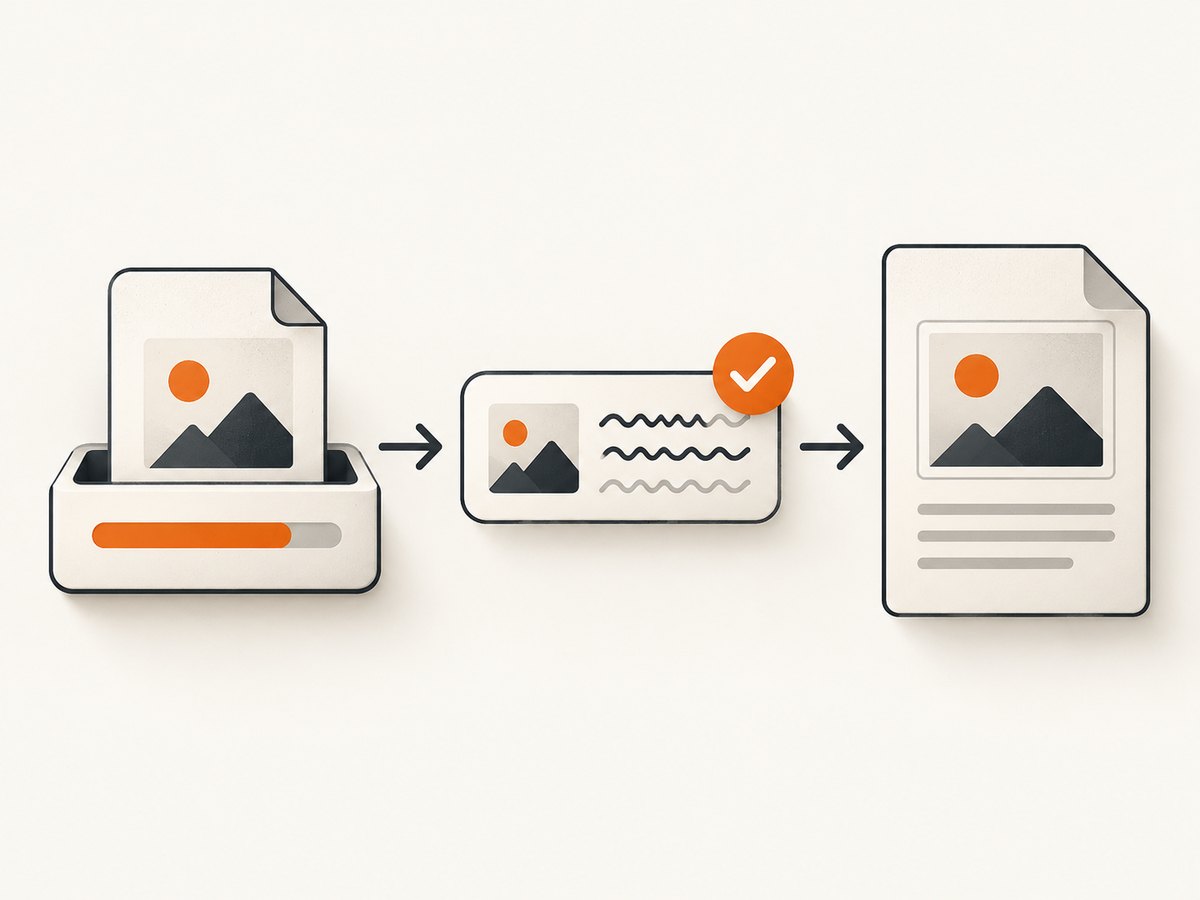
FileReader.readAsDataURL() is asynchronous. Calling addImage before the load event fires can pass null, undefined, or an incomplete value. A promise wrapper makes the sequencing explicit.
import { jsPDF } from "jspdf";

function readAsDataURL(file) {
  return new Promise((resolve, reject) => {
    const reader = new FileReader();
    reader.onload = () => resolve(reader.result);
    reader.onerror = () => reject(reader.error);
    reader.readAsDataURL(file);
  });
}

function assertImageDataURL(value) {
  if (typeof value !== "string" || !value.startsWith("data:image/")) {
    throw new Error("Expected an image data URL");
  }

  const comma = value.indexOf(",");
  if (comma === -1 || value.slice(comma + 1).trim() === "") {
    throw new Error("Image data URL has no Base64 payload");
  }
}

export async function createPdfFromFile(file) {
  if (!file || !file.type.startsWith("image/")) {
    throw new Error("Choose an image file");
  }

  const imageData = await readAsDataURL(file);
  assertImageDataURL(imageData);

  const format = file.type === "image/jpeg" ? "JPEG" :
    file.type === "image/webp" ? "WEBP" : "PNG";

  const doc = new jsPDF();
  doc.addImage(imageData, format, 10, 10, 100, 60);
  doc.save("image.pdf");
}
3. Use the handler safely in a React component
import { useState } from "react";
import { createPdfFromFile } from "./pdf";

export default function ImageToPdf() {
  const [error, setError] = useState("");
  const [busy, setBusy] = useState(false);

  async function handleChange(event) {
    const file = event.target.files?.[0];
    if (!file) return;

    setBusy(true);
    setError("");
    try {
      await createPdfFromFile(file);
    } catch (err) {
      setError(err instanceof Error ? err.message : "Could not create PDF");
    } finally {
      setBusy(false);
      event.target.value = "";
    }
  }

  return (
    <section>
      <input type="file" accept="image/png,image/jpeg,image/webp" onChange={handleChange} />
      {busy && <p>Creating PDF…</p>}
      {error && <p role="alert">{error}</p>}
    </section>
  );
}
Reading the file into React state is optional. If you do store it in state, remember that a state update does not make the new value available synchronously in the same event handler. Use the value returned by the awaited conversion, or run PDF creation after the state-driven workflow has completed.
4. Pass the correct format explicitly
The second argument to addImage identifies the image format. Use a value that matches the actual bytes, such as PNG, JPEG, or WEBP. Explicit format selection is useful when automatic recognition fails or when a canvas export has an ambiguous type.
const canvas = document.querySelector("canvas");
const pngData = canvas.toDataURL("image/png");
const doc = new jsPDF();
doc.addImage(pngData, "PNG", 10, 10, 180, 100);
doc.save("canvas.pdf");
Do not label JPEG bytes as PNG merely to silence the error. A mismatched format can produce a different decoding failure or a damaged PDF.
5. Choose an input type that matches your application
| Input you have | Recommended path | Checks |
|---|---|---|
Uploaded File |
Await readAsDataURL, then pass the resulting data URL |
File type, completed read, nonempty payload |
| Rendered canvas | Use canvas.toDataURL() or RGBA data |
Canvas has finished drawing; specify format |
| Image element | Pass the loaded HTMLImageElement or its data URL |
Image load has completed |
| Binary image bytes | Use supported Uint8Array input |
Bytes identify a supported image format |
| String from an API | Verify it is an image, not JSON, HTML, a PDF, or an error response | Content type and payload are correct |
6. Common causes and fixes
| Symptom | Likely cause | Fix |
|---|---|---|
Supplied Data is not a valid base64-String |
Empty, truncated, or malformed payload | Inspect the value at the call site and validate the part after the comma |
AddImage does not support files of type 'UNKNOWN' |
Format detection failed | Pass PNG, JPEG, or WEBP explicitly and verify the bytes |
Value is undefined or null |
FileReader or image loading has not completed | Await a promise or handle the load event before calling jsPDF |
Value starts with data:image/... but still fails |
Payload is empty, truncated, or not actually an image | Decode the source independently and check the response/file type |
| PDF text contains a broken image | Format argument does not match the source | Use the source MIME type and matching format argument |
| Works in one project but not another | Different jsPDF release or call signature | Inspect the installed version and compare with its documentation |
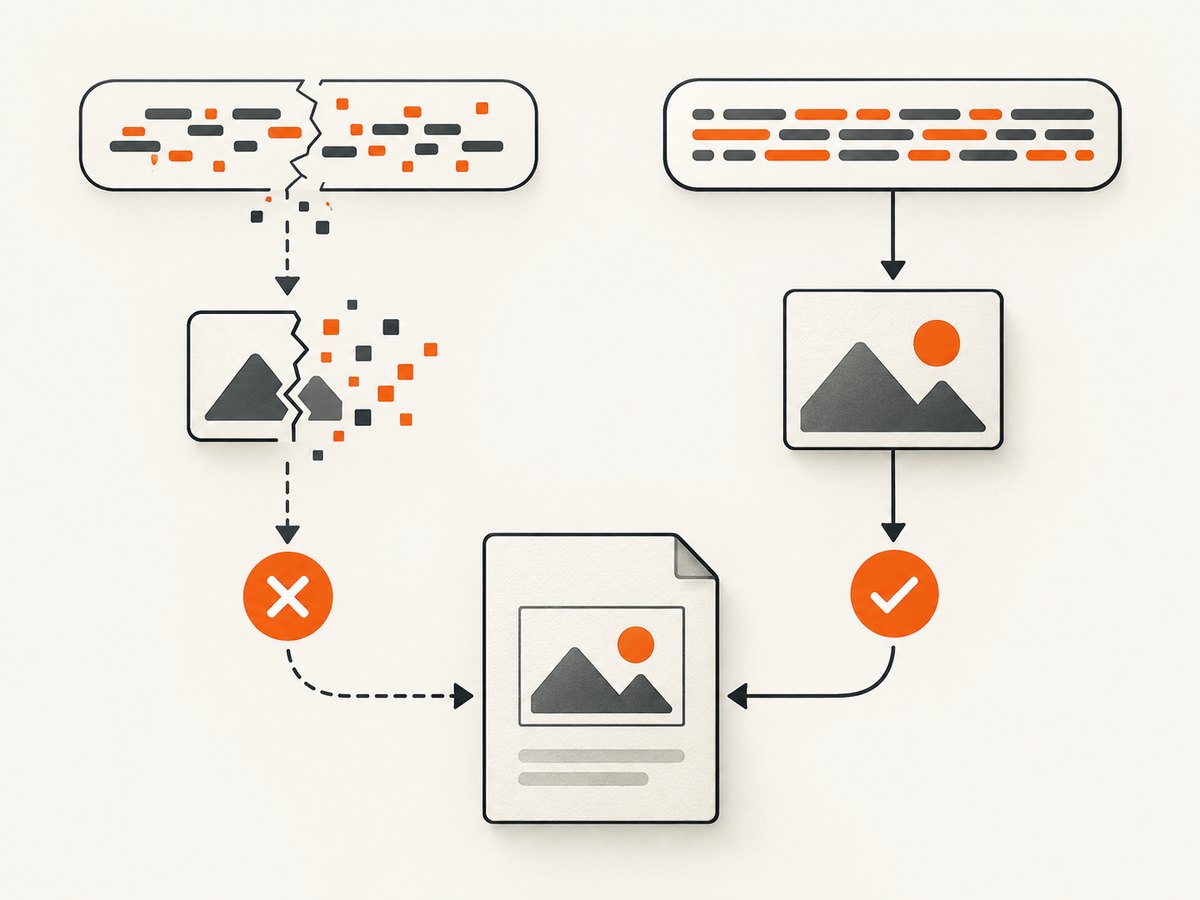
7. Validate without exposing image data in logs
function inspectDataURL(value) {
  if (typeof value !== "string") {
    return { valid: false, reason: "not a string" };
  }

  const match = value.match(/^data:(image\/[a-z0-9.+-]+)(;base64)?,(.*)$/i);
  if (!match) return { valid: false, reason: "invalid data URL shape" };
  if (!match[3]) return { valid: false, reason: "empty payload" };

  return {
    valid: true,
    mimeType: match[1].toLowerCase(),
    base64: Boolean(match[2]),
    payloadLength: match[3].length
  };
}

console.log(inspectDataURL(imageData));
This checks the shape only. Correct Base64 syntax does not prove that the decoded bytes are a supported image. A Base64-encoded JSON response, PDF, HTML error page, or arbitrary text will still fail as image input.
8. Handle image loading and format conversion
If your source is a URL, wait for the image element to load before adding it:
function loadImage(url) {
  return new Promise((resolve, reject) => {
    const image = new Image();
    image.onload = () => resolve(image);
    image.onerror = () => reject(new Error("Image could not be loaded"));
    image.src = url;
  });
}

async function pdfFromUrl(url) {
  const image = await loadImage(url);
  const doc = new jsPDF();
  doc.addImage(image, "JPEG", 10, 10, 180, 100);
  doc.save("remote-image.pdf");
}
Use a URL that returns image bytes and make sure the browser permits the image to be used by your application. If the remote response is an error page, authentication redirect, or JSON document, converting or passing it as an image will not work.
9. Dependency and security checks
The invalid Base64 message alone does not identify a security issue. Check the version pinned in your application and the documentation for that release. The jsPDF security advisory describes a ReDoS issue affecting versions through 3.0.0 and lists 3.0.1 or later as patched; review the project’s current advisory before changing dependencies. This is separate from validating image data.
10. Performance, reliability, and cost considerations
- Base64 increases the in-memory representation of an image, so large uploads can increase browser memory use. Resize or compress images before embedding when document size matters.
- Do not repeatedly convert the same file in multiple React renders. Perform conversion in the user action or a controlled effect and reuse the completed value.
- Keep the format consistent through the pipeline. Converting once to PNG or JPEG avoids repeated decoding and makes the
addImagecall predictable. - For repeatable PDFs, record the source MIME type, dimensions, and jsPDF version alongside failures so a malformed input can be reproduced.
- There is no server charge for local jsPDF conversion, but browser memory and processing time still limit very large images.
Or skip the browser setup
If your PDF starts with a webpage screenshot, ScreenshotNeo can return an image directly from one GET request. It removes cookie and consent banners, newsletter popups, and chat widgets before capture; bot checks, blank pages, failed loads, timeouts, and cache hits are not billed; and its response identifies the page verdict and billing status in headers. The MCP server also lets Claude, Cursor, and other MCP clients take screenshots. The free plan includes 1,000 screenshots per month with no card, and paid plans start at $5 for 3,000 shots.
See the ScreenshotNeo API documentation for all options.
curl -G "https://api.screenshotneo.com/v1/shot" \
  -d access_key=YOUR_API_KEY \
  --data-urlencode url=https://stripe.com \
  -o shot.webp
import requests
r = requests.get(
"https://api.screenshotneo.com/v1/shot",
params={"access_key": "YOUR_API_KEY", "url": "https://stripe.com"},
timeout=90,
)
r.raise_for_status()
open("shot.webp", "wb").write(r.content)const q = new URLSearchParams({
access_key: 'YOUR_API_KEY',
url: 'https://stripe.com'
});
const res = await fetch(`https://api.screenshotneo.com/v1/shot?${q}`);
if (!res.ok) throw new Error(`Screenshot failed: ${res.status}`);
const bytes = new Uint8Array(await res.arrayBuffer());Use the returned image bytes as the input to your PDF pipeline, or convert them to a data URL only when your jsPDF workflow requires one. Create a free ScreenshotNeo account with 1,000 screenshots each month and no card.
FAQ
Can I pass raw Base64 to addImage?
Use a correctly typed data URL or another supported input type. If you pass a raw payload, make sure the call and format match the jsPDF version you installed.
Why does adding PNG sometimes fix the error?
The explicit format helps when automatic recognition cannot identify the image. It only works when the bytes really are PNG data.
Does every Base64 string represent an image?
No. Base64 is an encoding, not a file type. Decode or inspect the source response and confirm that it contains supported image bytes.
Should I store the data URL in React state?
You can, but do not read the state immediately after setting it and expect the new value synchronously. Await the conversion result or react to the completed state value.
What should I check first when the error message changes?
Check the runtime type, short prefix, payload length, source MIME type, image load status, explicit format, and installed jsPDF version in that order.


