How to Fix Invalid Node Channel Messages in Headless Chrome
Fix “Invalid node channel message” in headless Chrome by checking fonts, dependencies, ChromeDriver versions, and server configuration.
Short answer: On the Linux server environments where this message has been reported, missing fonts are the first thing to fix. Install the font packages appropriate for your distribution, including IPA Gothic and the relevant X.Org fonts in CentOS-style systems, then run the same headless Chrome command again. This fixed the original reported case, but it is not a guaranteed explanation for every current Chrome build. If the message remains, inspect shared libraries, ChromeDriver compatibility, sandbox permissions, and localhost resolution as separate startup problems.
The literal error is often written as Invalid node channel message when running chrome headless. It appeared in older Linux and EC2 setups, including a report using Google Chrome 59.0.3071.115. The message alone does not identify one universal cause, so preserve the full stderr output and diagnose the launch environment systematically.
1. Capture the environment before changing anything
Write down these values first. They make it possible to compare a failing launch with a successful one:
- Linux distribution and release: for example, CentOS, Amazon Linux, Ubuntu, or Debian.
- Chrome or Chromium version.
- ChromeDriver version, if a WebDriver framework starts the browser.
- The exact command or framework configuration.
- The complete stderr output, including lines before and after the node-channel message.
- Whether Chrome runs as root, a service account, a container user, or an SSH user.
Run these read-only checks where available:
cat /etc/os-release
which google-chrome || which chromium || which chromium-browser
google-chrome --version 2>/dev/null || chromium --version 2>/dev/null
ldd $(which google-chrome 2>/dev/null || which chromium) | grep 'not found' || true
If the browser binary is not on PATH, substitute its absolute path. Do not discard the original launch command; changing several variables at once makes the result harder to interpret.
2. Install fonts on a minimal Linux image
Minimal cloud images often omit fonts that desktop distributions install by default. The directly matching community report recommended installing IPA Gothic and X.Org font packages, and the question author later said missing fonts appeared to resolve the message. A separate CentOS setup guide showed a similar package list.
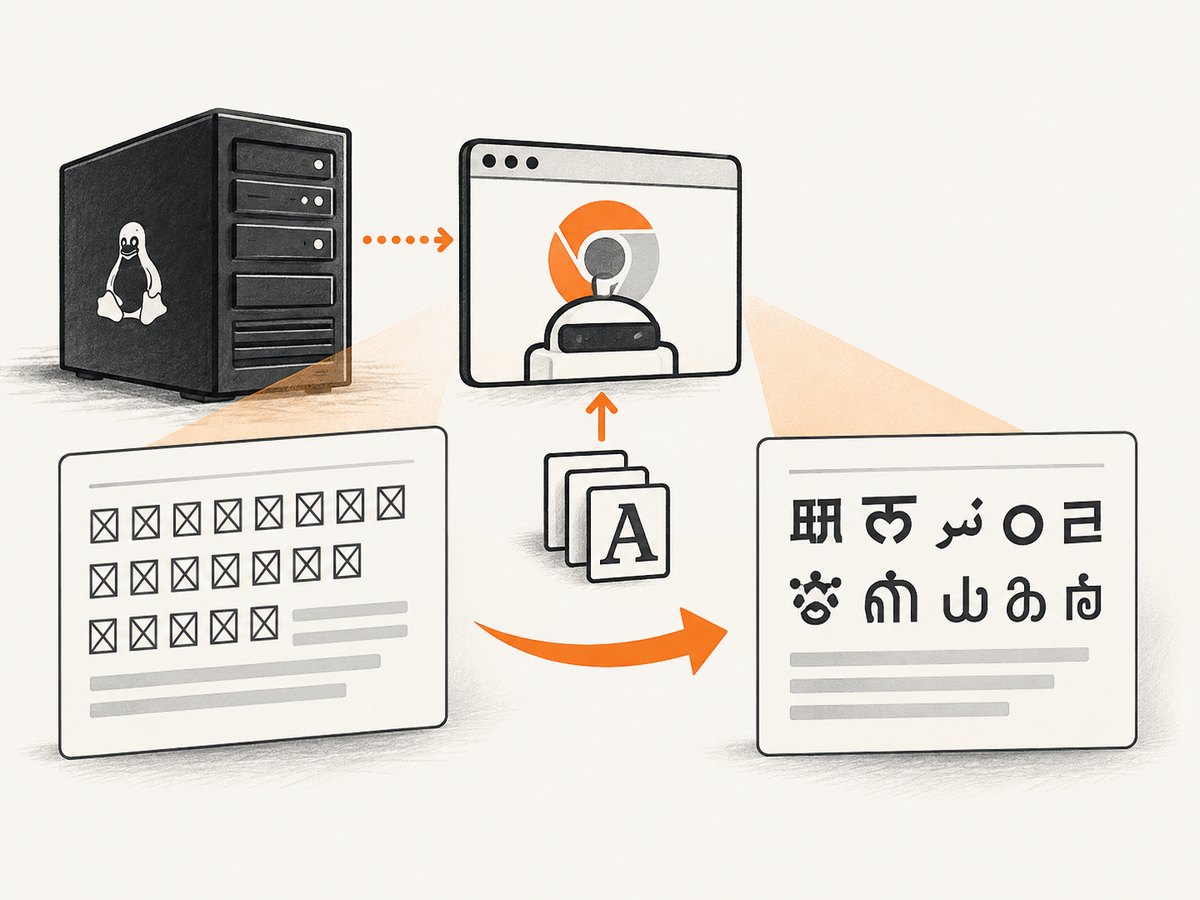
On CentOS-style systems, the historical package names were:
ipa-gothic-fonts
xorg-x11-fonts-100dpi
xorg-x11-fonts-75dpi
xorg-x11-utils
xorg-x11-fonts-cyrillic
xorg-x11-fonts-Type1
xorg-x11-fonts-misc
Use the package manager and package names provided by your OS release. The following is an example for a CentOS or RHEL-like machine; verify availability before running it:
sudo yum install -y \
  ipa-gothic-fonts \
  xorg-x11-fonts-100dpi \
  xorg-x11-fonts-75dpi \
  xorg-x11-utils \
  xorg-x11-fonts-cyrillic \
  xorg-x11-fonts-Type1 \
  xorg-x11-fonts-misc
On newer systems the package manager may be dnf, and Ubuntu or Debian use different package names. Do not copy the CentOS names unchanged into another distribution. Search that distribution’s package index for IPA Gothic, common X.Org fonts, and fontconfig support. After installation, refresh the font cache if your distribution requires it:
fc-cache -f -v
fc-list | head
Then retry the exact Chrome command that failed. A direct retry isolates browser startup from WebDriver and application code.
3. Test Chrome directly in headless mode
Create a writable temporary directory and run a small capture against a stable page. The historical examples used --headless --disable-gpu; another setup example also used --no-sandbox. Use --no-sandbox only when your deployment model requires it and you understand the security trade-off.
mkdir -p /tmp/chrome-profile /tmp/chrome-output

google-chrome \
  --headless \
  --disable-gpu \
  --user-data-dir=/tmp/chrome-profile \
  --screenshot=/tmp/chrome-output/example.png \
  --window-size=1280,800 \
  https://example.com

file /tmp/chrome-output/example.png
For Chromium, replace google-chrome with chromium or the binary name installed by your distribution. If this direct command works but your framework fails, focus on ChromeDriver, process permissions, and framework arguments. If it fails in the same way, continue with OS-level checks.
4. Check shared libraries and permissions
A missing library can stop Chrome before a page is loaded. This is a separate setup fault documented in Linux Chrome guides; it is not proof that the library caused the node-channel message. The ldd check above reports unresolved dependencies for the browser binary. Also inspect the sandbox and temporary directories:
id
ls -ld /tmp /tmp/chrome-profile /tmp/chrome-output
mount | grep ' /tmp ' || true
dmesg | tail -n 50
The account launching Chrome needs to create its profile, crash-report, and output files. A read-only home directory, an unwritable /tmp, or a restrictive container policy can look like a browser startup failure. Give each concurrent process its own --user-data-dir; sharing one profile between processes causes locks and intermittent exits.
In containers, verify that the image includes the libraries Chrome expects and that the process has enough shared memory. A small /dev/shm can cause renderer failures even when the browser starts. If your platform permits it, increase shared memory or use the platform’s documented Chrome container configuration. Keep this diagnosis separate from the font test so you know which change helped.
5. Verify ChromeDriver and framework versions
When Selenium, Puppeteer, or another automation tool launches Chrome, confirm that the driver is compatible with the installed browser. Version mismatch is a documented Linux setup issue, but the available reports do not establish it as the cause of this exact message.
- Print the browser version and the driver version.
- Confirm that the framework is pointing at the intended browser binary.
- Run the direct headless command first.
- Run a minimal automation script with one page and no custom hooks.
- Add flags, proxies, extensions, and application code one at a time.
For Node.js with Puppeteer, keep the first test minimal:
const puppeteer = require('puppeteer');

(async () => {
  const browser = await puppeteer.launch({
    headless: true,
    args: ['--disable-gpu']
  });
  const page = await browser.newPage();
  await page.goto('https://example.com', {waitUntil: 'load', timeout: 30000});
  await page.screenshot({path: 'example.png'});
  await browser.close();
})();
If your framework downloads its own browser, compare that binary with the system Chrome you tested. Avoid mixing a system Chrome, an old driver, and a framework-managed browser until the minimal test succeeds.
6. Check localhost and server networking
Some Linux setup guides list localhost resolution as another source of automation failures. Inspect /etc/hosts and hostname resolution:
hostname
getent hosts localhost
getent hosts $(hostname)
cat /etc/hosts
These checks help identify a broken local name mapping, but they do not prove that localhost caused the node-channel message. Treat it as a separate failure when ChromeDriver cannot connect, a debugging port refuses connections, or a framework reports a transport error.
7. Troubleshooting table
| Symptom | Likely area | What to do |
|---|---|---|
| The node-channel message appears immediately on a minimal image | Fonts or browser dependencies | Install distribution-appropriate fonts, including the historical IPA Gothic and X.Org equivalents, then retry directly. |
ldd reports “not found” |
Shared libraries | Install the packages that provide those libraries for your OS and rerun ldd. |
| Chrome starts manually but WebDriver fails | Driver or framework configuration | Check browser/driver versions, binary paths, profile directories, and framework flags. |
| Only root execution works | Sandbox or permissions | Run with a dedicated non-root user, writable profile and temporary directories, and your platform’s supported sandbox configuration. |
| Several jobs fail intermittently | Shared profile or resources | Use one profile directory per process, increase available memory or shared memory, and limit concurrency. |
| Driver cannot connect to the browser | Local networking | Check localhost resolution, ephemeral ports, firewall rules, and whether another process already owns the debugging port. |
| Fonts install but the same message remains | Different startup fault | Compare full stderr, test direct Chrome, inspect libraries and permissions, and verify versions. Do not assume the font diagnosis applies. |
8. Make the fix reproducible
Once the direct command works, record the environment in your deployment configuration. Pin a browser version that your automation framework supports, install fonts during image creation, create writable runtime directories, and log the browser version at startup. Keep a smoke test that opens one known URL and writes one screenshot.
For reliability, isolate browser processes, enforce a timeout, clean abandoned profiles, and capture stderr. A failed page load, a browser crash, and a driver connection failure require different retries. Retrying a missing-library failure usually wastes time; retrying a transient navigation failure can be appropriate after the browser is known to start.
9. Performance and cost considerations
Fonts themselves add little runtime cost, but installing them in every job slows cold starts and makes failures harder to reproduce. Put stable packages in the base image. Reuse a browser process when your framework supports it, while keeping page contexts and profile data isolated. Limit full-page captures and parallel tabs when memory is constrained.
If you operate your own EC2 or container fleet, account for machine time, image maintenance, browser updates, driver updates, debugging, and failed captures. A screenshot that never loads is still an operational event even when your application does not produce an image. Track launch failures separately from navigation failures so capacity decisions use useful data.
10. Or skip the browser setup
If your goal is a reliable screenshot rather than maintaining Chrome on a server, ScreenshotNeo provides a website screenshot API and MCP server. It accepts one GET request and returns PNG, JPEG, WebP, or PDF. The API removes cookie and consent banners, newsletter popups, and chat widgets before capture, with each cleanup step configurable.
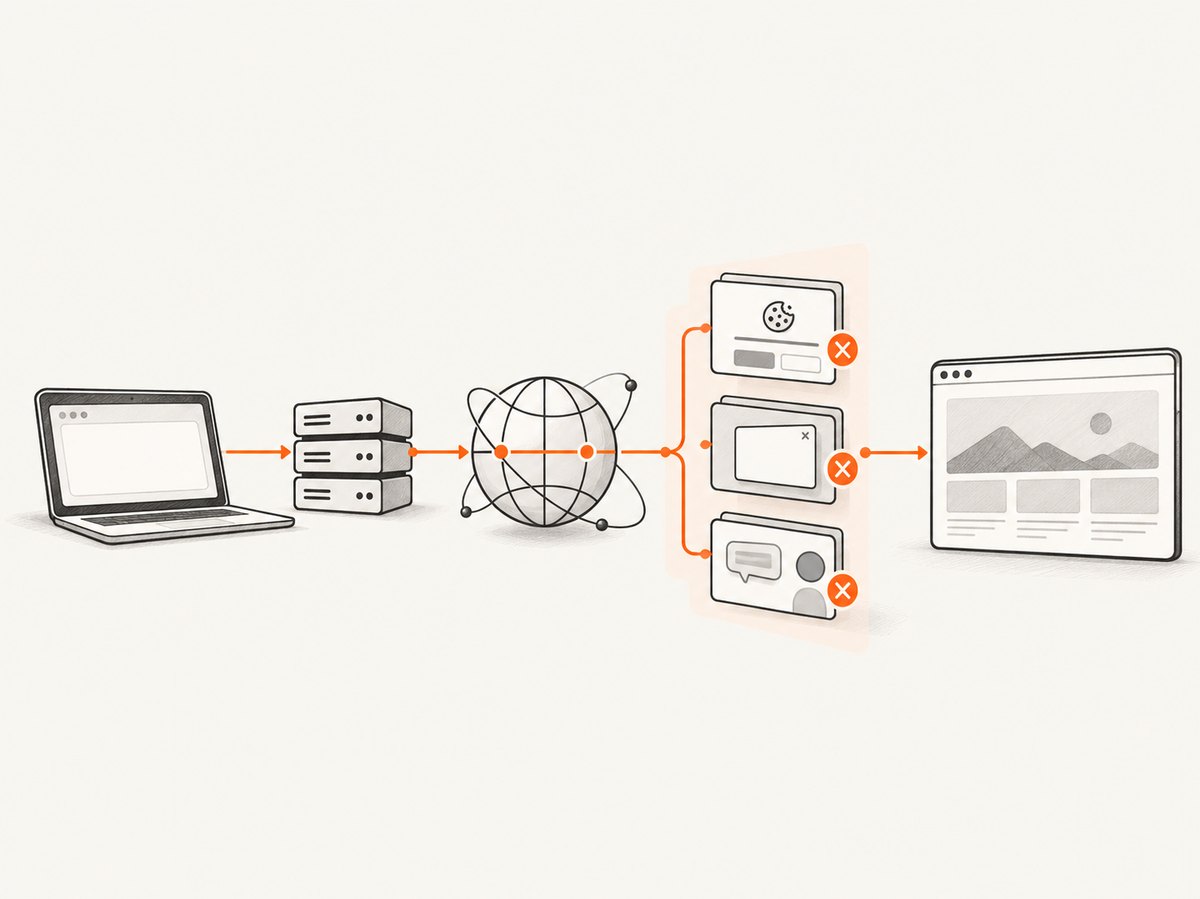
Only clean shots are billed. Bot checks, CAPTCHAs, blank pages, timeouts, failed loads, and cache hits cost nothing, and the response identifies the result with X-Page-Verdict and X-Billed headers. An MCP server provides take_screenshot, get_page_info, and capture_pdf tools for Claude, Cursor, and other MCP clients.
See the ScreenshotNeo API documentation for authentication and options. The basic calls are:
cURL
curl -G 'https://api.screenshotneo.com/v1/shot' \
  -d access_key=YOUR_API_KEY \
  --data-urlencode url=https://stripe.com \
  -o shot.webp
Python
import requests

r = requests.get(
    'https://api.screenshotneo.com/v1/shot',
    params={'access_key': 'YOUR_API_KEY', 'url': 'https://stripe.com'},
    timeout=90,
)
r.raise_for_status()
open('shot.webp', 'wb').write(r.content)
Node.js
const q = new URLSearchParams({ access_key: 'YOUR_API_KEY', url: 'https://stripe.com' });
const res = await fetch(`https://api.screenshotneo.com/v1/shot?${q}`);
if (!res.ok) throw new Error(`HTTP ${res.status}`);
const fs = require('node:fs');
fs.writeFileSync('shot.webp', Buffer.from(await res.arrayBuffer()));
For production captures, ScreenshotNeo supports full-page screenshots with lazy images loaded, CSS-selector element capture, dark mode, device presets and custom viewports, retina scale, custom CSS and JavaScript, click actions, selector waits, delays, network-idle waits, request blocking, custom headers and cookies, user agents and Authorization, timezone and geolocation, transparent backgrounds, resizing, configurable caching, signed links, asynchronous jobs with signed webhooks, bulk capture for up to 100 URLs per call, usage reporting, and an OpenAPI specification. It also accepts parameter names used by other screenshot APIs, which can simplify migration.
The Free plan includes 1,000 shots per month with no card. Paid plans start at $5 for 3,000 shots; yearly billing gives two months free. Create a free ScreenshotNeo account and start with the no-card plan.
11. FAQ
Does this error always mean fonts are missing?
No. Missing fonts are the best-supported fix for the historical Linux cases matching this wording, but the message is not a universal diagnosis for current Chrome builds.
Should I install the exact CentOS packages on Ubuntu?
No. Package names are distribution-specific. Find the IPA Gothic, X.Org font, and fontconfig equivalents for your OS release.
Is --no-sandbox required?
Not universally. Some older setup examples used it, but decide based on your user, container, and security model. First make the browser work with the supported sandbox configuration for your environment.
Why does direct Chrome work while Selenium fails?
The browser may be healthy while ChromeDriver, the driver version, the binary path, the profile directory, or localhost connectivity is wrong. Compare those layers with a minimal test.
Can ScreenshotNeo help when a site shows a bot check?
A bot check is reported as a page verdict and is not billed as a clean shot. ScreenshotNeo does not turn a blocked page into a valid page; it identifies the result so your application can handle it.


