How to Fix Invisible Text in Puppeteer PDFs
When Puppeteer creates a PDF with missing or unreadable text, compare print and screen styles first. Then check color handling, backgrounds, fonts, and the exact browser options.
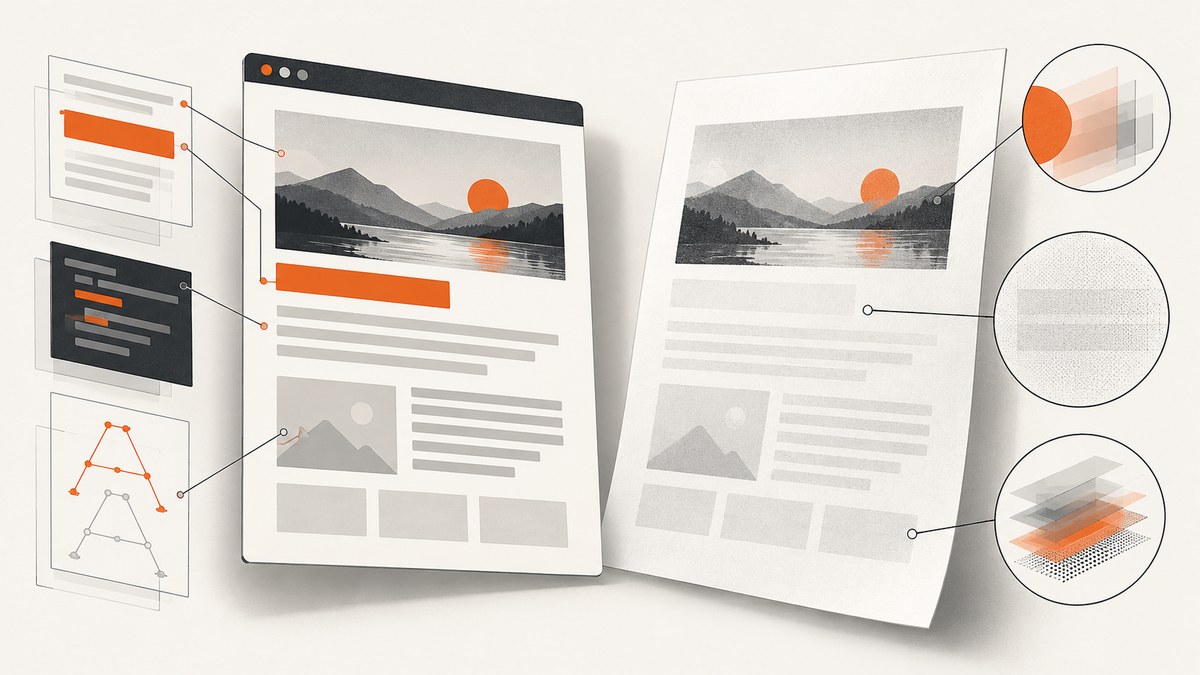
If Puppeteer creates a PDF but its text is missing, clipped, or too faint to read, first compare the page’s default print rendering with its screen rendering. page.pdf() uses print CSS by default, and print color handling can differ from what you see in a browser tab. There is no single documented fix for every page: isolate the difference, then test print styles, color, backgrounds, and fonts against the same page and browser build.
This guide addresses a successfully generated PDF whose text looks wrong. If page.pdf() throws or times out, use the separate error branch below: an exception is not the same problem as invisible text in a valid PDF.
1. Start with a controlled print-versus-screen comparison
Puppeteer documents that page.pdf() generates a PDF with the print CSS media type. A page can therefore look correct in a normal browser tab and still produce a different PDF: styles inside @media print may change a text color, hide an element, adjust opacity, or alter layout. As a diagnostic, generate one PDF with the default print media and one after calling page.emulateMediaType('screen').
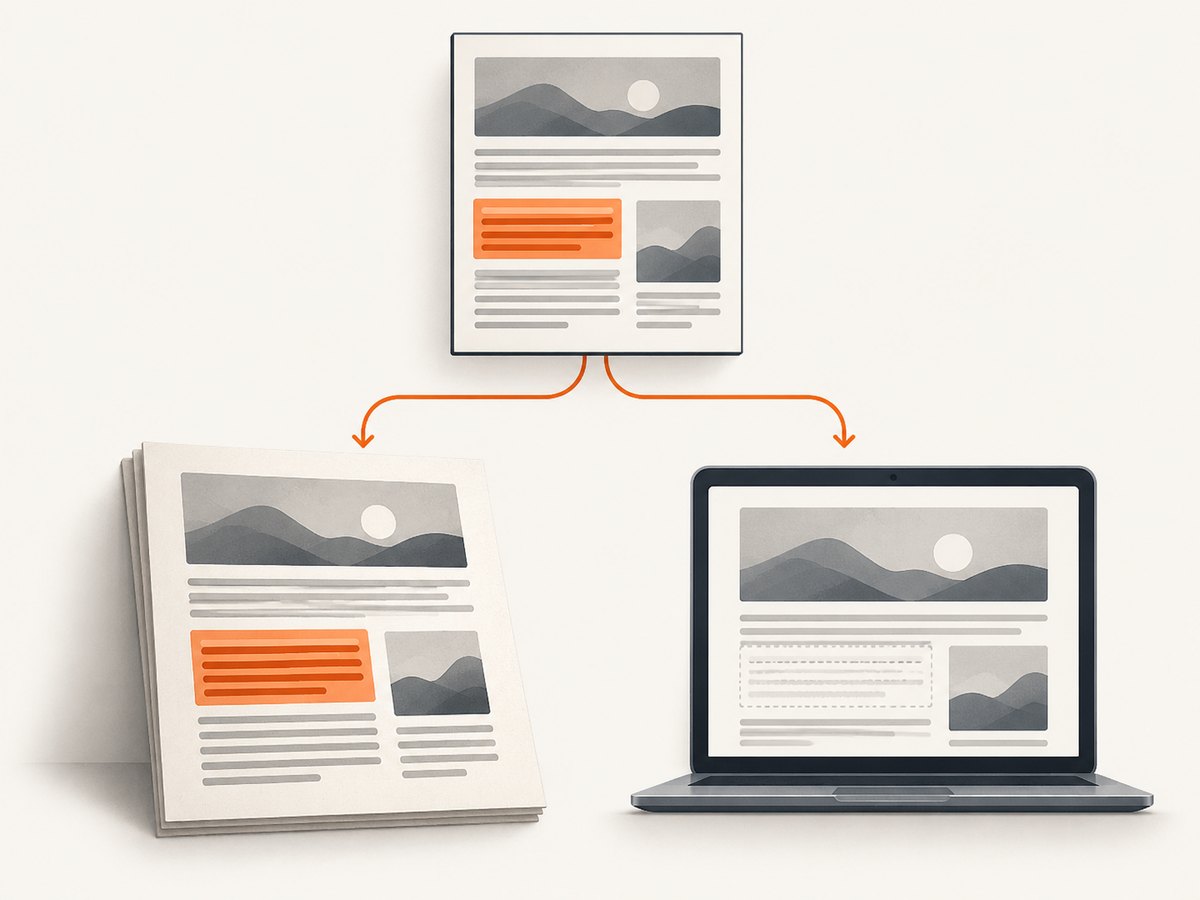
Keep the navigation, page state, viewport, PDF options, and browser version the same for both outputs. The media type should be the variable. If the screen-media PDF shows the text and the print-media PDF does not, inspect the page’s print CSS first. That result narrows the investigation; it does not prove that a particular declaration is the only cause.
const puppeteer = require('puppeteer');

async function savePdf(page, path, mediaType) {
  if (mediaType) {
    await page.emulateMediaType(mediaType);
  }
  await page.pdf({ path, printBackground: true });
}

(async () => {
  const browser = await puppeteer.launch({ headless: true });
  try {
    const page = await browser.newPage();
    await page.goto('https://example.com', { waitUntil: 'networkidle0' });

    // Default page.pdf() behavior uses print media.
    await savePdf(page, 'print.pdf');

    // Compare with the page's screen styles.
    await savePdf(page, 'screen.pdf', 'screen');
  } finally {
    await browser.close();
  }
})();
Replace the example URL with the affected page. This is a comparison harness, not a claim that screen media is the correct final output. If the desired document is meant to follow print styles, fix and validate those styles rather than permanently switching media without checking the layout.
2. Inspect print CSS and color handling
Search the page’s stylesheets and generated styles for rules scoped to @media print. Check the text element and its ancestors for color, visibility, display, opacity, clipping, transforms, and overlapping content. A rule that makes text white or transparent may be invisible on the PDF’s page background. A changed layout may place it outside the printable area. Compare computed styles under print and screen media for the specific element that disappears.
Puppeteer’s API documentation also says PDF generation modifies colors for printing by default. Its documented control for preserving exact CSS colors is -webkit-print-color-adjust. Try it as a targeted diagnostic on the affected text or relevant container:
@media print {
  .report-text {
    -webkit-print-color-adjust: exact;
    print-color-adjust: exact;
  }
}
The key declaration documented by Puppeteer is -webkit-print-color-adjust: exact. The unprefixed property is included here for stylesheet compatibility, but do not infer that this rule repairs every missing-text case. Test against the affected page. If the text remains absent, continue checking visibility, layout, backgrounds, and fonts.
3. Check PDF background options
In Puppeteer’s version 25.12.0 PDF options reference, printBackground defaults to false. Enable it when a page depends on CSS background graphics—for example, a dark panel with light text where the background supplies the contrast. Without the background, the text may technically render but become difficult to see against the PDF page.
omitBackground defaults to false. When enabled, it hides the default white background and allows transparency. If an opaque white page is expected, verify that this option is not being enabled by shared configuration. These settings concern page backgrounds; they do not independently prove why glyphs are missing.
const pdfOptions = {
  path: 'report.pdf',
  printBackground: true,
  omitBackground: false,
};
await page.pdf(pdfOptions);
Change one option at a time and keep a copy of each output. If turning on printBackground restores contrast, review whether the document’s text color is intended to rely on that background. If it does not change the symptom, revert the option and move on.
4. Verify font loading and glyph coverage
Puppeteer’s PDF guide says page.pdf() waits for fonts by default; the 25.12.0 options reference lists waitForFonts with a default of true. That makes a simple “PDF ran before fonts loaded” explanation less likely under the documented default, but it does not rule out a failed font request, an unavailable font in the runtime, or missing glyphs in the chosen font.
Inspect the browser’s network and console output for font-loading failures. Check that the intended font files are reachable in the deployment environment and that the font includes the characters in the text. Test a short reproduction containing the same font declaration and affected characters. If the application explicitly sets waitForFonts: false, compare with the documented default:
await page.pdf({
  path: 'report.pdf',
  waitForFonts: true,
});
Do not treat waitForFonts as a universal cure: if the intended font loaded successfully and has the required glyphs, changing this option may not affect the output. Record the font files and runtime alongside the PDF so that local and deployed rendering can be compared.
5. Use a repeatable minimal reproduction
Once you know which part of the page is affected, reduce the reproduction while preserving the behavior. Keep the same HTML structure, relevant CSS, font assets, Puppeteer and Chrome/Chromium versions, and PDF options. Remove unrelated application code only when doing so does not remove the symptom.
- Save the original PDF and note whether text is absent, faint, clipped, or replaced by missing glyphs.
- Generate a default print-media PDF and a screen-media comparison.
- Change one axis at a time: print CSS, color adjustment, background options, or font availability.
- Record the Puppeteer version, Chrome/Chromium version, operating system, launch mode, and all PDF options for each artifact.
- Retest the smallest reproduction in the same deployed environment before applying the change to the full page.
PDF sizing settings such as format, scale, and preferCSSPageSize can affect page sizing or scaling. Include their values in the comparison because they may change layout, but the cited documentation does not identify them as universal causes of invisible text.
6. A reusable Puppeteer capture with explicit options
This CommonJS example keeps the important settings visible and writes a PDF to disk. It navigates to the target, waits for the page’s network to become idle, and generates using print media. Change the URL and options to match the real page. Network-idle navigation can be unsuitable for pages that keep connections open; if it does not settle, choose a wait condition appropriate to the page and explicitly wait for the content your document needs.
const puppeteer = require('puppeteer');

(async () => {
  const browser = await puppeteer.launch({ headless: true });
  try {
    const page = await browser.newPage();
    await page.goto('https://example.com/report', {
      waitUntil: 'networkidle0',
      timeout: 60000,
    });

    // Use this only when the intended PDF should use screen CSS.
    // Omit it to retain page.pdf()'s default print media.
    // await page.emulateMediaType('screen');

    await page.pdf({
      path: 'report.pdf',
      printBackground: true,
      omitBackground: false,
      waitForFonts: true,
      format: 'A4',
      preferCSSPageSize: true,
    });
  } finally {
    await browser.close();
  }
})();
The defaults and option names can vary across Puppeteer releases, so check the API reference that matches the installed version. The documented facts here about printBackground, omitBackground, and waitForFonts are from the 25.12.0 options reference. Record your installed version rather than assuming that a different version has identical behavior.
7. Common symptoms and fixes to investigate
| Symptom | Likely area to inspect | Useful next check |
|---|---|---|
| Text appears in screen comparison but disappears in default PDF | Print media rules or print color handling | Inspect @media print, computed visibility and color, then test exact print colors. |
| Text is present but has poor contrast | Missing CSS background graphics or print color adjustment | Compare with printBackground: true; inspect foreground and background colors. |
| Page unexpectedly has a transparent background | omitBackground |
Confirm it is not set to true when an opaque white page is intended. |
| Some characters are blank or shown as replacement glyphs | Font request, font availability, or glyph coverage | Check font loading and test the affected characters with the intended font. |
| Text is clipped or shifted rather than absent | Print layout, page sizing, or scaling | Compare media styles and record format, scale, and preferCSSPageSize. |
page.pdf() throws or times out |
Generation/runtime failure, not visual text rendering | Capture the full error and runtime versions; reproduce separately from the PDF appearance issue. |
A historical Puppeteer issue #6220 reported a PrintToPDF is not implemented protocol error with Puppeteer 5.1.0 and Chrome 84 on Windows 10. It documents an old generation exception, not current compatibility advice and not an explanation for a valid PDF with invisible text. Treat present-day exceptions using the exact current error and environment.
8. Reliability, performance, and cost considerations
Each comparison creates another browser rendering and PDF artifact, so keep the test focused: a single affected page, two media modes, and only the option variants needed to isolate the difference. Reusing a browser for a small diagnostic run avoids repeatedly launching it, while closing it in a finally block helps ensure the process is released when navigation or PDF generation fails.
Reliability depends on reproducing the deployed rendering environment. Remote fonts, network-dependent content, consent overlays, and pages that never become network-idle can make captures inconsistent. Wait for the specific content required by the report where possible, save the page and browser versions, and avoid changing several PDF options at once. Puppeteer’s documented font wait helps with font readiness, but it cannot guarantee that a font URL succeeds or contains every glyph.
PDF generation has no per-capture price stated in the research used for this article. Its practical cost is the compute and maintenance of the browser environment, plus time spent diagnosing pages whose styles or resources differ by environment. The most economical debugging path is to reduce repeated full-page runs and use a minimal reproduction that preserves the bug.
9. Troubleshooting checklist
- Was a PDF created, or did
page.pdf()fail? Keep these cases separate. - Does the text appear after
page.emulateMediaType('screen')? - Do print rules change the text’s color, opacity, visibility, clipping, or position?
- Does
printBackground: truerestore a background needed for contrast? - Is
omitBackgroundunintentionally enabled? - Did the intended font load, and does it include the affected glyphs?
- Are Puppeteer, Chrome/Chromium, operating system, launch mode, and PDF options recorded?
- Can the behavior be reproduced with the same runtime using a smaller page?
10. Or skip the browser setup
If your goal is a website capture rather than debugging Puppeteer’s PDF rendering, ScreenshotNeo provides a screenshot API and MCP server. Its API accepts a URL in one GET request. For PDF output, consult the ScreenshotNeo API documentation for the supported request parameters.
curl -G "https://api.screenshotneo.com/v1/shot" \
  -d access_key=YOUR_API_KEY \
  --data-urlencode url=https://stripe.com \
  -o shot.webp
import requests
r = requests.get(
"https://api.screenshotneo.com/v1/shot",
params={"access_key": "YOUR_API_KEY", "url": "https://stripe.com"},
timeout=90,
)
open("shot.webp", "wb").write(r.content)const q = new URLSearchParams({
access_key: 'YOUR_API_KEY',
url: 'https://stripe.com'
});
const res = await fetch(`https://api.screenshotneo.com/v1/shot?${q}`);ScreenshotNeo removes cookie banners, popups, and chat widgets before capture. Bot checks, blank pages, and failed loads are never billed. Its MCP server lets AI agents take screenshots. The free plan includes 1,000 screenshots a month with no card; paid plans start at $5 for 3,000. Sign up for 1,000 free screenshots a month, with no card required.
Frequently asked questions
Does page.pdf() use screen CSS?
No. Puppeteer documents print media as the default for PDF generation. Call page.emulateMediaType('screen') before generating a comparison with screen styles.
Should I always set printBackground: true?
Only when the page needs CSS background graphics in the PDF. The documented default in version 25.12.0 is false; test the effect on your page.
Does waiting for fonts guarantee every character will render?
No. Puppeteer waits for fonts by default, but you still need to verify that the font loaded and includes the required glyphs.
Is a “PrintToPDF is not implemented” error the same issue?
No. That is a PDF generation exception. Diagnose it from its current error and runtime details; it does not explain a successfully created PDF with visually missing text.


