How to Fix IronPDF’s ChromeRenderingEngine DLL Access Denied Error in C#
Resolve IronPDF ChromeRenderingEngine.dll access denied errors by checking runtime identity, temp permissions, architecture, dependencies, and deployment.
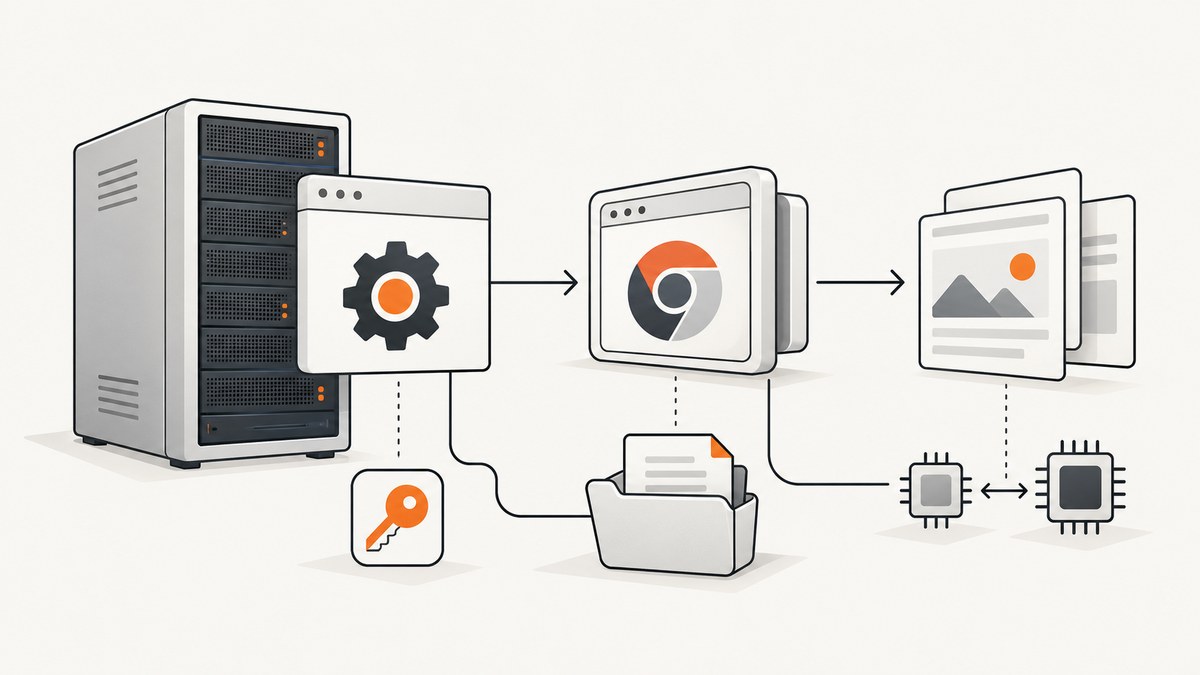
Start with the identity running your process. An IronPDF ChromeRenderingEngine.dll access-denied error usually means the IIS application-pool identity, Windows service account, scheduled-task account, or interactive user cannot read or write the renderer’s extraction directory or temporary folder. It can also result from mismatched process architecture, missing Visual C++ runtimes, stale extracted files, or an incompatible host.
Capture the complete exception, inner exception, stack trace, IronPDF version, .NET runtime, Windows edition, process bitness, and effective Windows identity before changing permissions. Do not treat “run as administrator” as a universal repair: IIS and Windows services continue to use their configured identities.
1. Identify the account and paths involved
Find the identity that actually starts the failing process:
- IIS: check the application pool’s identity. A custom service account,
ApplicationPoolIdentity, or another configured identity may be in use. - Windows service: open the service properties and inspect the Log On account.
- Scheduled task: inspect the task’s configured user and whether it runs only when that user is logged on.
- Console application: use the Windows account that launches the process.
Record the IronPDF installation or extraction directory and the effective temporary directory. A locked-down server may redirect TEMP and TMP, so do not assume that the developer workstation’s path is used in production.
2. Give the process a writable, application-owned temp directory
IronPDF documents configuring Installation.TempFolderPath when the default Windows temp location is restricted. Create a dedicated directory outside protected system locations, then grant the runtime identity the access it needs.
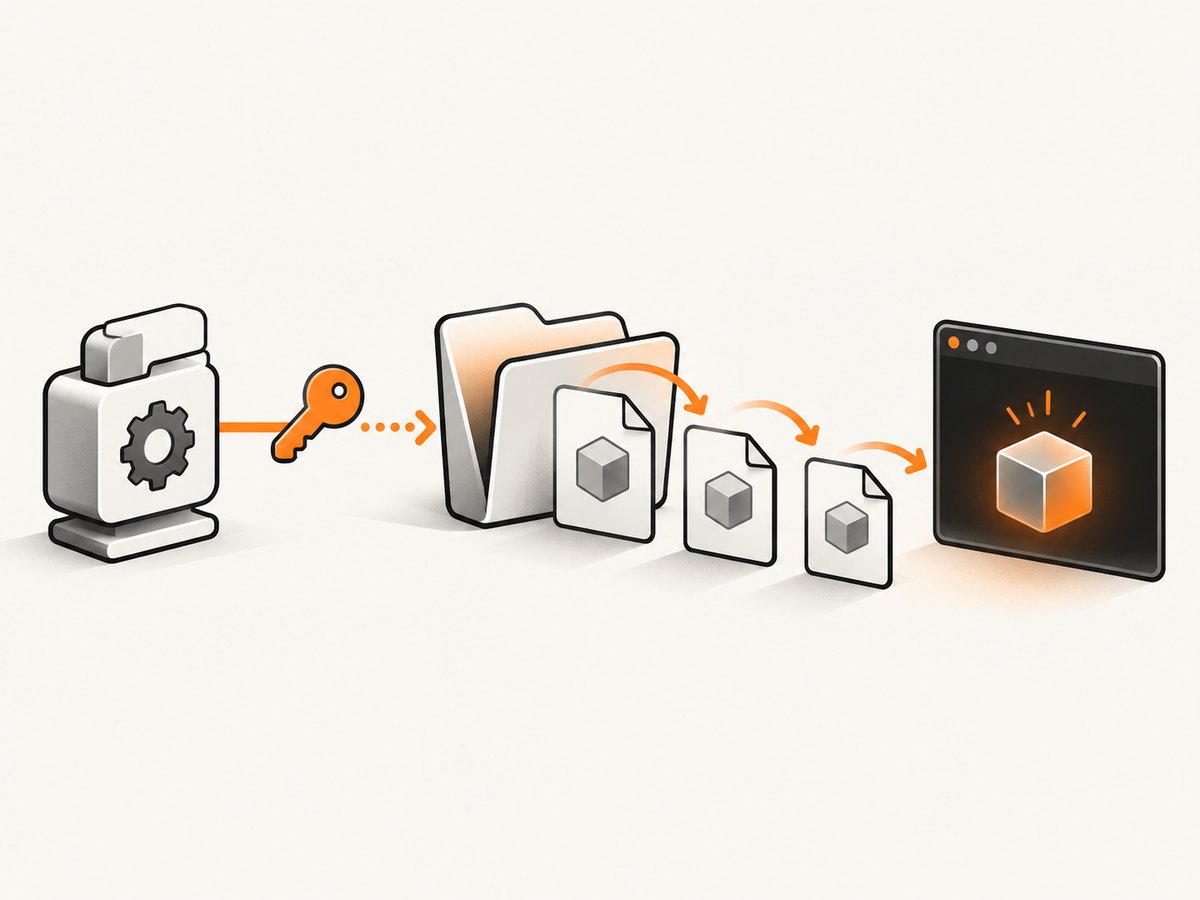
Example: configure IronPDF in C#
using IronPdf;

public static class IronPdfBootstrap
{
    public static void Configure()
    {
        // Create this directory during deployment, not at request time.
        Installation.TempFolderPath = @"D:\\MyApp\\IronPdfTemp";
    }
}

public class PdfService
{
    public byte[] Render(string html)
    {
        var renderer = new ChromePdfRenderer();
        var pdf = renderer.RenderHtmlAsPdf(html);
        return pdf.BinaryData;
    }
}
Call IronPdfBootstrap.Configure() once during application startup, before creating a renderer. The directory must already exist, or your deployment process must create it. Grant the IIS pool or service account permission to create, read, write, modify, and delete the renderer’s temporary files. IronPDF’s troubleshooting guidance specifically calls out Full Control on the relevant temp folder for affected application identities; apply the narrowest practical permission to the dedicated directory rather than broadly opening a system path.
Set TEMP and TMP when the process environment is wrong
The installation guidance also documents setting the process TEMP and TMP variables. Set them for the service or application pool to the same dedicated location when other native components resolve temporary files there:
using System;

Environment.SetEnvironmentVariable("TEMP", @"D:\\MyApp\\IronPdfTemp", EnvironmentVariableTarget.Process);
Environment.SetEnvironmentVariable("TMP",  @"D:\\MyApp\\IronPdfTemp", EnvironmentVariableTarget.Process);
IronPdf.Installation.TempFolderPath = @"D:\\MyApp\\IronPdfTemp";
Set these values before IronPDF initializes. If you set machine-level variables, coordinate with the server administrator because other applications may use them.
3. Verify permissions without weakening the server
- Log the account name from the hosting configuration.
- Confirm that account can traverse the parent directories.
- Confirm read and execute access to the deployed IronPDF files.
- Confirm create, write, modify, and delete access in the dedicated temp/extraction directory.
- Confirm antivirus or endpoint protection is not quarantining or locking the native Chrome files.
- Recycle the application pool or restart the service after changing access rules.
Testing the folder with your interactive administrator account is insufficient if the application runs under another identity. A successful local run can therefore coexist with a production failure.
4. Check process architecture and native dependencies
The Windows package includes Chrome binaries through IronPdf.Native.Chrome.Windows and supports x86 and x64. Verify the architecture on the target server, not only on the development machine.
- Check whether the deployed process is 32-bit or 64-bit.
- On IIS, inspect the application pool’s Enable 32-Bit Applications setting.
- Confirm that the .NET runtime and published application match the intended architecture.
- Install the Microsoft Visual C++ Redistributable required by that architecture. IronPDF’s troubleshooting guidance says x86 machines require x86, while x64 machines require both x86 and x64 versions.
- After changing the runtime or redistributable, restart the host process.
Do not copy a DLL from another machine to “fix” the error. Restore the package version declared by the application so all native files remain consistent.
5. Clean stale renderer files and restore the package
Interrupted deployments can leave partially extracted or locked files. Use a controlled cleanup:
- Stop the IIS application pool, Windows service, or worker process.
- Back up logs and the full exception first.
- Remove stale IronPDF files only from the configured IronPDF temp/extraction directory.
- Clear the relevant local NuGet cache entries if the package contents may be damaged.
- Restore the exact package versions declared by the project.
- Redeploy all managed and native files together.
- Start the host and capture a fresh stack trace if the error remains.
Avoid deleting unrelated application data or an entire server-wide temp directory. The cleanup sequence should be limited to IronPDF’s files and caches.
6. Confirm package installation
The standard Windows installation uses the main IronPDF NuGet package, which depends on IronPdf.Native.Chrome.Windows. Inspect the project assets and published output to confirm that the native package is present for the target runtime.
dotnet list package
 dotnet restore
 dotnet publish -c Release -r win-x64 --self-contained false
Use win-x86 instead when the application is intentionally 32-bit. Keep the runtime identifier, IIS configuration, and native package architecture aligned.
7. Consider remote IronPdfEngine mode
If the host cannot provide compatible local Chrome binaries or writable local storage, IronPDF documents a remote Engine mode. The documented arrangement uses IronPdf.Slim in the client application and a separately hosted IronPdfEngine service. Match the IronPDF and IronPdfEngine versions exactly.
| Concern | Native/local rendering | Remote IronPdfEngine |
|---|---|---|
| Renderer location | Chrome runs with the application deployment. | Rendering runs in a separately hosted engine service. |
| Local permissions | The application needs suitable access to renderer and temp paths. | The client connects to the service; the service still needs its own deployment permissions. |
| Package setup | The full IronPDF package includes native Chrome components. | IronPDF recommends IronPdf.Slim with a running Engine. |
| Versioning | Use the package version deployed by the application. | IronPDF and IronPdfEngine versions must match. |
| Best fit | A supported host where local paths and dependencies are controllable. | A host with platform or local-storage constraints. |
8. Troubleshooting common errors
| Symptom | Likely cause | Fix |
|---|---|---|
Access is denied during renderer startup |
The effective account cannot write to temp or extraction paths. | Identify the account, configure Installation.TempFolderPath, grant access to that directory, and recycle the host. |
| Works locally, fails under IIS | IIS uses a different identity or a 32-bit setting. | Check the application-pool identity and Enable 32-Bit Applications; apply permissions to the pool account. |
| Fails only on one server | Missing Visual C++ runtime, blocked native file, or damaged extraction. | Compare architecture and redistributables, inspect endpoint-security logs, then clean and redeploy. |
| DLL is present but cannot load | Architecture mismatch or missing native dependency. | Align x86/x64 settings and install the required Visual C++ redistributables on the target host. |
| Failure after an interrupted deployment | Stale or partially extracted Chrome files. | Stop the process, remove only IronPDF temp files, clear relevant NuGet cache entries, restore, and redeploy. |
| Changing permissions has no effect | Permissions were granted to the wrong account or wrong directory. | Log the runtime identity and the configured temp path; test those exact values. |
| Local rendering remains impossible | Host compatibility or storage restrictions. | Evaluate remote IronPdfEngine mode with matching versions. |
9. A diagnostic checklist for production
- Full exception, inner exception, and stack trace saved.
- IronPDF package and .NET runtime versions recorded.
- Windows edition and process bitness recorded.
- Effective IIS, service, task, or user identity identified.
- IronPDF extraction and temp paths identified.
- Directory permissions tested for that identity.
Installation.TempFolderPathconfigured when the default path is restricted.- Visual C++ redistributables installed for the running architecture.
- Endpoint-security exclusions or quarantine events reviewed.
- Stale IronPDF files removed only after stopping the process.
- NuGet packages restored and native files redeployed together.
- Remote Engine considered if local deployment remains incompatible.
Or skip the browser setup
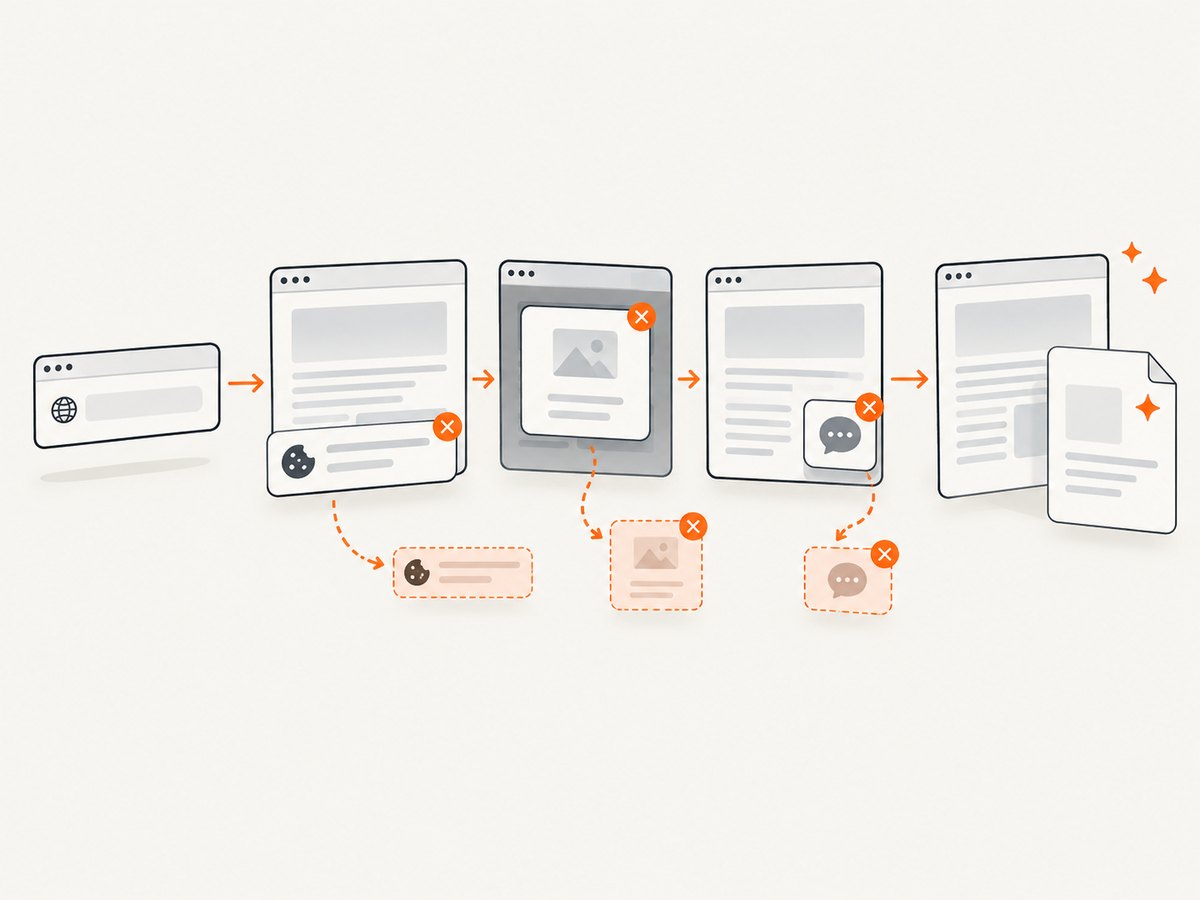
If your actual goal is to obtain a clean image or PDF of a web page rather than run Chrome inside your C# process, ScreenshotNeo provides a single HTTP request. Cookie and consent banners are accepted and removed before capture, along with more than 60 known consent platforms, newsletter popups, and chat widgets. Bot checks, blank pages, failed loads, timeouts, and cache hits are not billed, and response headers report the page verdict and billing result. An MCP server lets Claude, Cursor, and other MCP clients call screenshot, page-info, and PDF tools.
See the ScreenshotNeo API documentation for all options.
cURL
curl -G "https://api.screenshotneo.com/v1/shot" -d access_key=YOUR_API_KEY --data-urlencode url=https://stripe.com -o shot.webpPython
import requests
r = requests.get("https://api.screenshotneo.com/v1/shot", params={"access_key": "YOUR_API_KEY", "url": "https://stripe.com"}, timeout=90)
open("shot.webp", "wb").write(r.content)
Node.js
const q = new URLSearchParams({ access_key: 'YOUR_API_KEY', url: 'https://stripe.com' });
const res = await fetch(`https://api.screenshotneo.com/v1/shot?${q}`);
The free plan includes 1,000 screenshots each month with no card. Paid plans start at $5 for 3,000 shots. Create a free ScreenshotNeo account.
Performance, reliability, and cost notes
- Use a dedicated local temp directory to avoid contention with unrelated applications.
- Keep renderer files on a disk with sufficient free space and stable permissions.
- Warm up the application after deployment so extraction problems appear before user traffic arrives.
- Record the process identity, architecture, package version, and temp path in deployment diagnostics.
- Remote Engine mode adds a service boundary but can remove local native-dependency and filesystem constraints.
- Do not infer a fix rate or performance improvement from this checklist; the vendor material does not provide such measurements.
FAQ
Should I run the application as administrator?
No. That can hide a service-account permission problem and does not change the identity used by IIS or a Windows service. Grant the required access to the actual runtime account.
Where should I put the IronPDF temp folder?
Use an application-owned directory outside restricted system locations, configure Installation.TempFolderPath, and grant the process identity the required file permissions.
Does access denied always mean a Windows ACL problem?
No. Architecture mismatches, missing Visual C++ redistributables, stale extraction files, endpoint-security locks, and incompatible hosts can produce similar failures.
When is remote IronPdfEngine appropriate?
Consider it when the host cannot support local Chrome rendering or cannot provide writable local storage. Match the IronPDF and Engine versions.
Can ScreenshotNeo replace IronPDF for HTML-to-PDF generation?
ScreenshotNeo can return a PDF from a URL and is useful when the source is a web page. It does not change the IronPDF deployment; choose the tool based on whether you need local C# document rendering or an HTTP capture service.


