Fixing JMeter WebDriverSampler Failures with Headless ChromeDriver
Diagnose JMeter WebDriverSampler failures by layer: plugin loading, driver discovery, version mismatch, Chrome startup, synchronization, and sample timing.
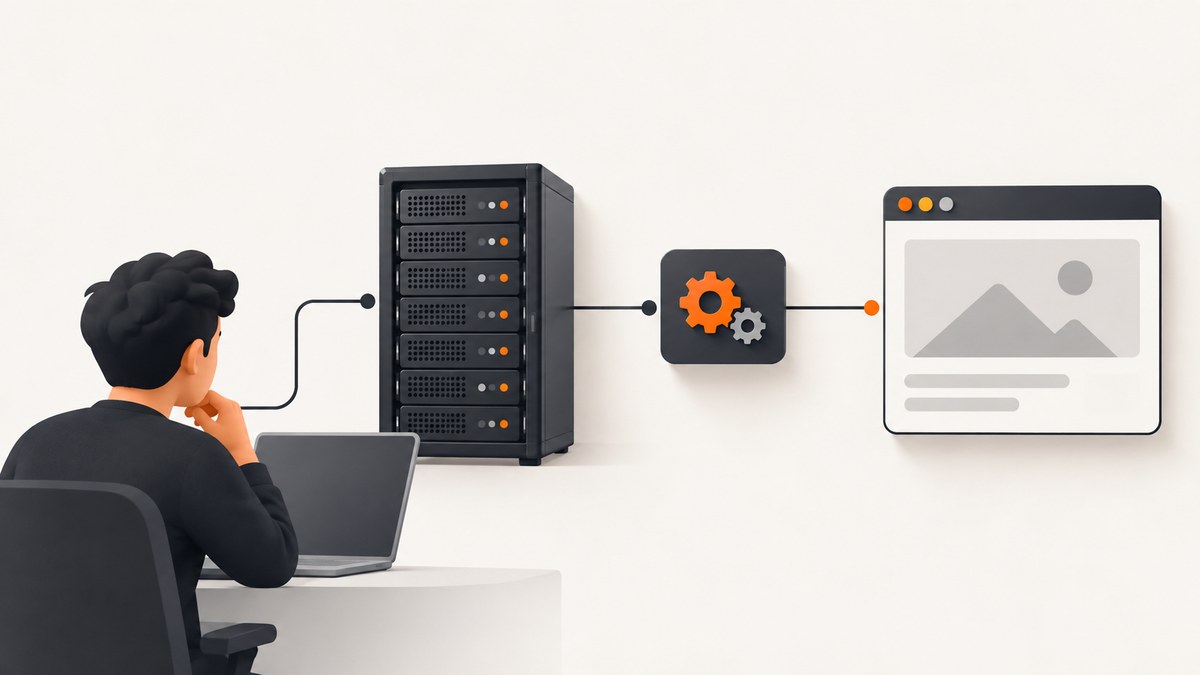
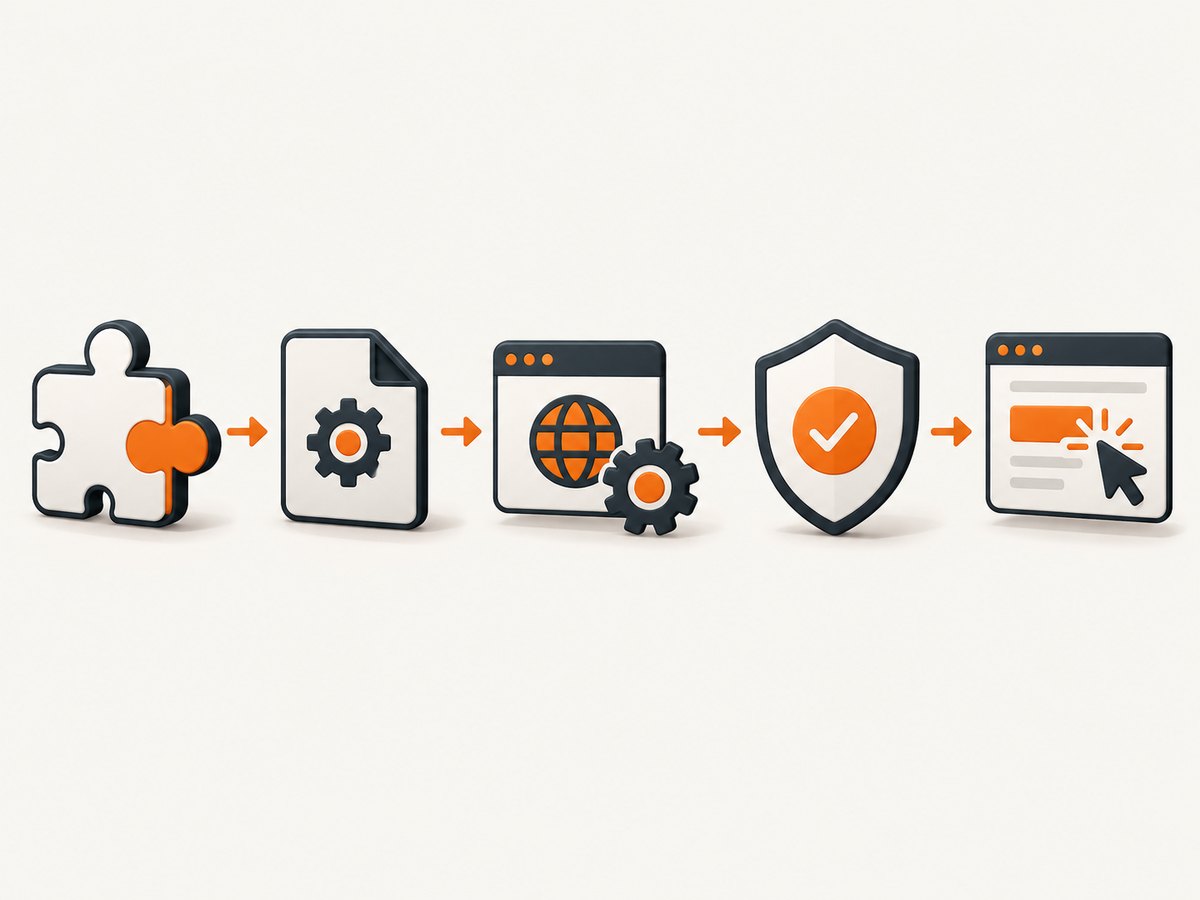
When JMeter’s WebDriverSampler fails with headless Chrome, first identify which layer fails: plugin/classpath loading, ChromeDriver discovery, browser-driver compatibility, Chrome startup/security, or the sampler script’s synchronization and timing. Then verify the exact Chrome and ChromeDriver binaries used by the JMeter worker, match their major versions, test Chrome under the same account outside JMeter, and use explicit waits once the session starts.
Headless mode is configured with Selenium ChromeOptions, commonly using --headless=new. It does not fix a missing driver, a version mismatch, a root-owned Linux startup crash, or an element lookup that runs before the page is ready. This guide walks through each failure layer, gives a representative JMeter plan and script, and explains when browser-based testing is the right load model.
1. Identify where the failure happens
The WebDriverSampler has setup work before its script runs. The JMeter Plugins WebDriver implementation creates a ChromeDriver service using the configured executable path, starts that service, then constructs ChromeDriver with ChromeOptions. Services are maintained per JMeter thread and stopped when the browser quits. A failure can therefore occur before the first script line, during browser startup, or later inside a navigation, lookup, wait, or timed action.
| Layer | Typical clue | First check |
|---|---|---|
| Plugin and classpath | Missing sampler, ClassNotFoundException |
Plugin is installed in the JMeter distribution actually running the test. |
| Driver discovery | Unable to locate ChromeDriver, executable or path error | Configured path exists and is executable on the worker. |
| Compatibility | session not created with a supported-version message |
Chrome and ChromeDriver major versions match. |
| Startup and security | Chrome exits immediately, DevToolsActivePort |
Run the same browser as the same user outside JMeter and inspect logs. |
| Script and timing | Session opens, then lookup, wait, or sample fails | Check URL, locator state, explicit waits, and sampleStart/sampleEnd order. |
Use the table as a decision tree: prove one layer before moving to the next. A browser window opening does not prove the script is synchronized, and a script exception does not necessarily mean ChromeDriver failed to start.
2. Confirm JMeter and plugin loading
- Identify the JMeter installation and Java runtime used for the run. In distributed or CI setups, inspect the worker, not just the controller or your desktop.
- Verify that the Selenium/WebDriver Support plugin is installed in that installation. A WebDriverSampler GUI element missing from the plan editor or a class loading exception points here.
- Check JMeter’s classpath and configured plugin-jar search locations. JMeter supports configurable classpath search locations for plugin classes and dependencies; confirm the plugin and its dependencies are visible to the process that executes the plan.
- Restart JMeter after installing or changing plugin jars, then run a one-thread, one-loop reproduction.
Keep the Java, JMeter, plugin, and Selenium setup consistent between local and CI runs. If the GUI can load a sampler but a non-GUI worker cannot, confirm installation on that worker rather than assuming the controller’s plugin installation is shared.
3. Check the ChromeDriver path and permissions
Set the driver executable in the plugin’s ChromeDriver configuration and confirm it is the path the worker uses. The plugin passes the configured executable path to ChromeDriverService.Builder().usingDriverExecutable(...); a valid path on your laptop says nothing about the filesystem inside a CI container or remote worker.
- Check that the configured file exists on the executing machine.
- Check that the JMeter service account can execute it. On Unix-like systems, verify file ownership and executable permissions.
- Run the binary’s version command as that account and record its output.
- Enable or inspect ChromeDriver logs to confirm which executable actually launched. Compare the logged path with the plan’s configuration.
Do not rely on an interactive shell’s PATH being the same as a system service’s environment. An explicit path is easier to audit and reproduce.
4. Match Chrome and ChromeDriver versions
Read the installed Chrome major version and the ChromeDriver major version on the worker. Selenium’s Chrome guidance says their major versions must match; a mismatch commonly appears as session not created followed by a message that the driver supports a different Chrome version.
- Find the browser binary JMeter will use and query its version under the service account.
- Query the configured ChromeDriver binary’s version.
- Compare the major version numbers, not just whether both commands succeed.
- Install the ChromeDriver release for the browser’s release channel using the Chrome for Testing availability information, then update the JMeter configuration to point at that binary.
- Check driver logs once more. This catches cases where a different Chrome binary or driver was selected at runtime.
Pin and update browser and driver together in a managed test image. When you upgrade one, make the matching change to the other, and retain the version output in CI diagnostics. Avoid copying a driver from a developer workstation into a worker image without verifying its compatibility.
5. Prove Chrome starts outside JMeter
Before changing sampler code, launch the same Chrome binary directly with the same headless arguments, as the same operating-system user and in the same environment. This separates Chrome startup and host security problems from JMeter and Selenium configuration. Inspect ChromeDriver logs to see which browser binary it actually uses.
On Linux, Chrome’s troubleshooting guidance identifies running Chrome as root as a common cause of immediate startup crashes. Run the test as a regular user. The --no-sandbox flag is sometimes mentioned as a workaround for root-related startup failures, but Chrome documents it as unsupported and highly discouraged; do not use it as a general fix. Correct the service account and environment instead.
Compare local and CI conditions directly: user account, Chrome binary, profile directory, filesystem permissions, display environment, Java/JMeter/plugin versions, and available shared libraries. A one-thread, one-loop reproduction makes startup logs manageable.
6. Set headless mode with ChromeOptions
Use the plugin’s Chrome options configuration or create a ChromeOptions object in the sampler script if that is how the installed plugin is configured. The headless argument belongs in ChromeOptions. Selenium lists --headless=new as a common Chrome argument; Chrome’s headless guide also demonstrates enabling headless through Selenium options.
ChromeOptions options = new ChromeOptions();
options.addArguments("--headless=new");
That fragment illustrates Selenium configuration; in JMeter, configure the options through the WebDriver plugin’s ChromeDriver configuration mechanism so they are applied when its driver service and browser session are created. Do not assume adding an option in a sampler script after WDS.browser already exists will change the running browser.
Keep flags minimal and tied to an observed need. A controlled user-data directory can help when profile isolation is required, but use a distinct writable directory per worker or session where concurrent launches would otherwise collide. Remove copied flags that have no diagnosed purpose. More flags create more environment-specific behavior and can obscure the actual failure.
7. Use explicit waits after the session starts
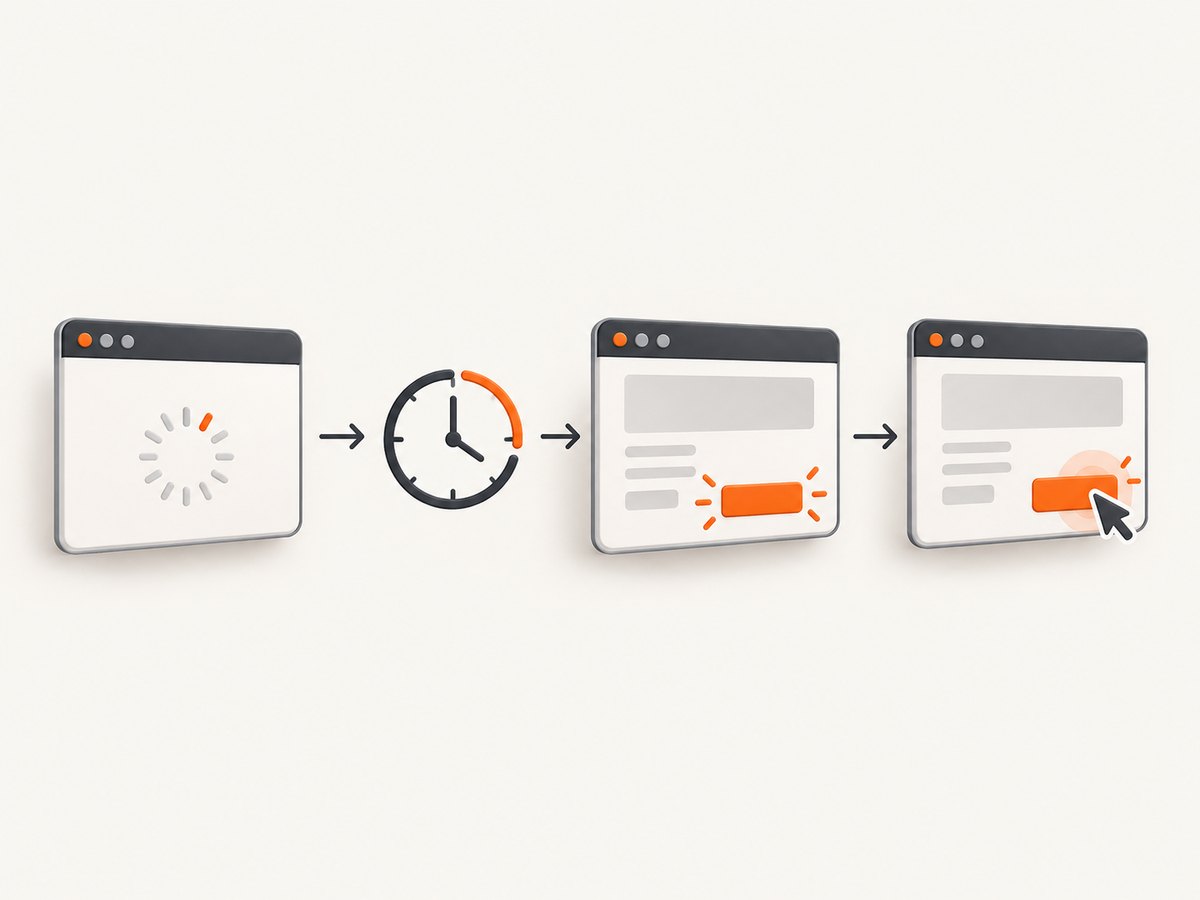
Once Chrome starts and navigation returns, a page may still be rendering or an element may not yet be actionable. Selenium identifies poor synchronization as its most common WebDriver error source. Prefer a wait tied to the exact state needed by the next step over a fixed sleep.
Representative WebDriverSampler script using the plugin’s Groovy-style WDS bindings:
import org.openqa.selenium.By
import org.openqa.selenium.support.ui.ExpectedConditions
import org.openqa.selenium.support.ui.WebDriverWait
import java.time.Duration

WDS.sampleResult.sampleStart()
try {
    WDS.browser.get('https://example.com')

    def wait = new WebDriverWait(WDS.browser, Duration.ofSeconds(15))
    def heading = wait.until(
        ExpectedConditions.visibilityOfElementLocated(By.cssSelector('h1'))
    )

    log.info('Loaded title: ' + WDS.browser.getTitle())
    log.info('Heading: ' + heading.getText())
} finally {
    WDS.sampleResult.sampleEnd()
}
Use a target URL and locator that make sense for your application. The element is only an example. Choose an expected condition that matches the next operation: presence for a DOM lookup, visibility before reading visible text, or clickability before clicking. If the wait times out, record the current URL and page title and inspect whether the element is in a frame, another window, or absent due to a failed navigation.
The finally block ensures the measured sample is ended when an exception occurs. Keep the measured action between sampleStart() and one sampleEnd(); do not end it in both a helper and the outer script. If you want browser startup excluded from a particular measurement, understand when the plugin creates the session and design the sample boundaries accordingly.
8. Representative JMX structure
A working plan typically has a separate ChromeDriverConfig and WebDriverSampler. Configure the executable path on the driver configuration element and use WDS.browser from the sampler. This abbreviated XML shows the relationships; exact serialized properties can differ by plugin version, so creating elements in the installed JMeter GUI and saving the plan is the safest way to obtain version-specific JMX fields.
<TestPlan testname="Headless browser check">
  <ThreadGroup testname="One browser journey" num_threads="1" loops="1">
    <ChromeDriverConfig testname="Chrome driver">
      <stringProp name="chromedriver_path">/opt/chromedriver/chromedriver</stringProp>
      <!-- Set ChromeOptions including --headless=new in the plugin configuration. -->
    </ChromeDriverConfig>
    <WebDriverSampler testname="Open and inspect page">
      <stringProp name="script">
        WDS.browser.get('https://example.com')
        def wait = new WebDriverWait(WDS.browser, Duration.ofSeconds(15))
        wait.until(ExpectedConditions.visibilityOfElementLocated(By.cssSelector('h1')))
      </stringProp>
    </WebDriverSampler>
  </ThreadGroup>
</TestPlan>
This is a structural example, not a complete standalone JMX file: JMeter plans include version-specific element properties and hash-tree structure. Use the installed WebDriver plugin’s GUI to create the config and sampler, save the plan, then add the script and verify the resulting plan in non-GUI mode on the actual worker.
9. Choose the right JMeter load model
JMeter is not a browser and does not render HTML like Chrome. WebDriverSampler is useful for a small number of representative end-to-end journeys where browser behavior matters, but each browser consumes substantially more resources than a protocol sampler. For scalable HTTP or API traffic, model requests with JMeter HTTP samplers and assert protocol responses directly. Keep a smaller set of browser journeys for user-visible paths and browser-specific behavior.
There is no portable concurrency number for browser sampling: capacity depends on the machine, browser version, page, test script, and environment. Measure on the target worker. Increasing threads can multiply Chrome processes, startup cost, memory pressure, and timing variance; it does not turn browser journeys into lightweight protocol requests.
10. Troubleshooting symptom by symptom
| Error or symptom | Likely cause | Fix |
|---|---|---|
ClassNotFoundException or sampler unavailable |
Plugin absent from the executing JMeter distribution or dependencies missing from classpath. | Install/check the WebDriver plugin and classpath on the worker; restart JMeter. |
Unable to locate chromedriver |
Wrong path, missing file, execute permission, or worker-specific filesystem. | Use an explicit path that exists and is executable under the JMeter account; check logs for the binary used. |
session not created, version text |
Chrome and ChromeDriver major versions differ, or an unexpected binary launched. | Match major versions and verify the actual browser and driver in logs. |
Chrome failed to start, DevToolsActivePort, immediate exit |
Chrome startup/security or environment failure. | Run Chrome directly as the same regular user, inspect logs and permissions, and remove unnecessary flags. |
| Browser starts, element wait times out | Page state not ready, wrong locator, wrong frame/window, redirect, or failed page load. | Use an explicit condition; log URL/title; verify frame, window, and locator state. |
setEndTime must be called after setStartTime |
Sample timing calls are out of order, missing, duplicated, or nested incorrectly. | Ensure start occurs before the measured action and end is called exactly once afterward, including error paths. |
| Works in GUI but fails in CI | Different JMeter/plugin/Java versions, account, PATH, browser, profile, display, or permissions. | Compare those inputs and run one thread and one loop on the worker. |
For each failure, preserve the complete exception, ChromeDriver log, browser and driver version output, JMeter/plugin versions, worker identity, and current URL/title where a session exists. These details distinguish setup failures from application timing failures without guessing.
11. Performance, reliability, and cost considerations
Browser sessions have startup and resource costs, and browser rendering adds timing variability. Reuse a browser session within a journey where appropriate, but isolate sessions and profiles when parallel workers could interfere. Use explicit waits with bounded timeouts, fail with useful diagnostics, and keep browser test volume aligned with the number of journeys whose rendered behavior matters.
For reliability, pin compatible browser and driver versions in the worker image, use a regular service user, make the executable path explicit, and validate a minimal journey after environment changes. Avoid arbitrary flags and fixed sleeps. For cost, account for the compute and maintenance required to install, update, and run browser processes; use HTTP samplers for high-volume protocol-level load where rendering is not part of the measurement.
Or skip the browser setup
If your task is simply to capture a webpage image or PDF rather than test a browser journey, ScreenshotNeo provides a website screenshot API and MCP server. One GET request returns an image or PDF. See the API documentation.
curl -G "https://api.screenshotneo.com/v1/shot" -d access_key=YOUR_API_KEY --data-urlencode url=https://stripe.com -o shot.webpimport requests
r = requests.get("https://api.screenshotneo.com/v1/shot", params={"access_key": "YOUR_API_KEY", "url": "https://stripe.com"}, timeout=90)
open("shot.webp", "wb").write(r.content)const q = new URLSearchParams({ access_key: 'YOUR_API_KEY', url: 'https://stripe.com' });
const res = await fetch(`https://api.screenshotneo.com/v1/shot?${q}`);ScreenshotNeo removes cookie banners, popups, and chat widgets before the shot. Bot checks, blank pages, and failed loads are never billed. Its MCP server lets AI agents take screenshots. The free plan includes 1,000 screenshots a month with no card; paid plans start at $5 for 3,000. Sign up for 1,000 free screenshots a month, no card required.
FAQ
Can I fix a ChromeDriver error just by adding --headless=new?
No. It selects headless operation through ChromeOptions. It cannot repair a missing executable, incompatible versions, or an operating-system startup failure.
Why does the test pass on my workstation but fail on a CI worker?
The worker may run a different JMeter/plugin/Java version, account, Chrome binary, PATH, profile, display environment, or permission set. Reproduce with one thread and one loop on the worker and compare those inputs.
Should every JMeter virtual user launch Chrome?
Only when the test needs browser-rendered behavior. For high-volume HTTP/API load, use protocol samplers and reserve WebDriverSampler for representative browser journeys.
Does a page-load return mean my next click is safe?
No. Wait for the specific element state needed by the action, such as visibility or clickability, and capture context when the wait times out.


