How to Fix JPG Images Not Displaying in Wkhtmltopdf
Fix missing JPGs in wkhtmltopdf by checking image flags, local-file permissions, paths, diagnostics, media mode, and minimal test cases.
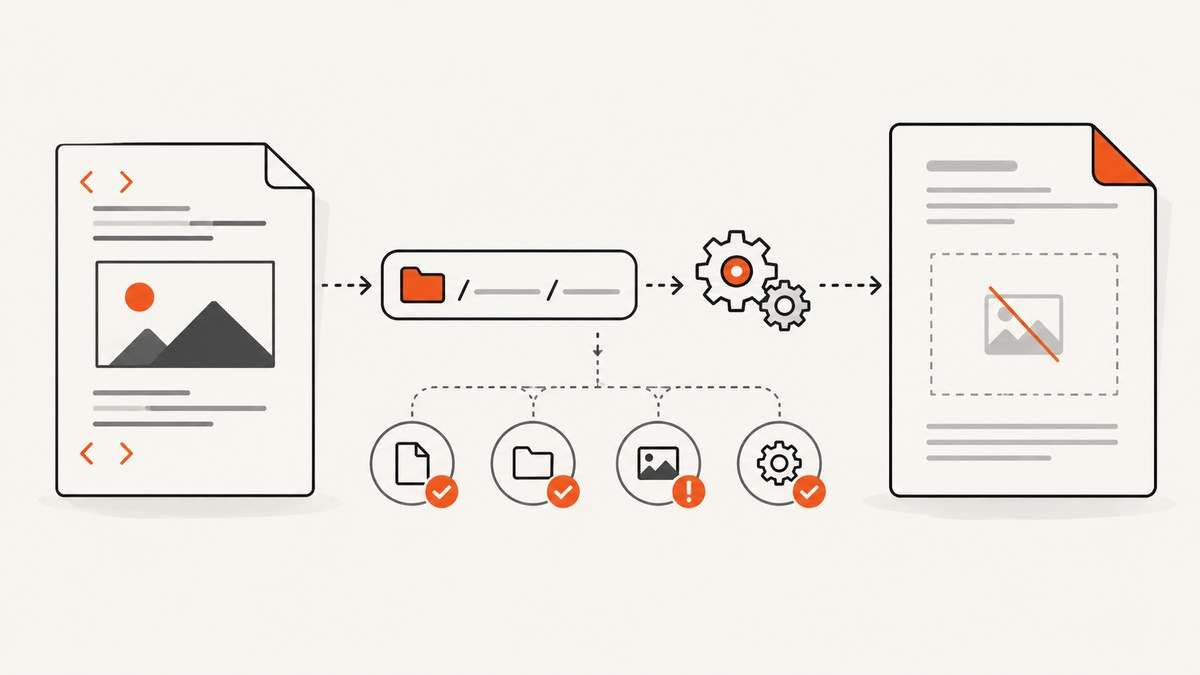
A JPG that appears in a browser but disappears from a wkhtmltopdf PDF is usually caused by one of four things: image loading was disabled, the converter cannot access the local file, the src resolves somewhere different than expected, or the media load failed silently. Start by checking the exact command and resolved path, then test local-file permissions and diagnostics.
wkhtmltopdf 0.12.6 enables image loading by default. The documented switches are --images and --no-images. Local-file access is restricted by default, so a local JPG often requires a narrowly scoped --allow directory or, for a trusted document, --enable-local-file-access. The default media-load error policy is ignore, which means conversion can finish while an image is omitted. See the wkhtmltopdf usage manual for the complete option definitions.
1. Reproduce the failure with a minimal file
Before changing a production command, reduce the problem to one HTML file and one JPG. This separates wkhtmltopdf behavior from CSS, templates, JavaScript, authentication, and application-specific paths.
Create a minimal document
mkdir -p /tmp/wkhtml-test/assets
cp /path/to/photo.jpg /tmp/wkhtml-test/assets/photo.jpg
cat > /tmp/wkhtml-test/index.html <<'HTML'
<!doctype html>
<html>
<head>
  <meta charset="utf-8">
  <style>
    body { font-family: sans-serif; }
    img { width: 600px; height: auto; }
  </style>
</head>
<body>
  <h1>JPG test</h1>
  <img src="assets/photo.jpg" alt="Test photograph">
</body>
</html>
HTML
wkhtmltopdf --enable-local-file-access /tmp/wkhtml-test/index.html /tmp/wkhtml-test/output.pdf
Open output.pdf. If the image appears, your original HTML or wrapper is the problem. If it remains blank, continue with the checks below.
2. Confirm the converter and environment
Record the exact binary, version, operating system, and command. The official downloads page identifies 0.12.6 as the stable series and dates that release to June 11, 2020; distributions and package wrappers can still differ in build options.
wkhtmltopdf --version
uname -a
which wkhtmltopdf
Also record whether the input is a local HTML file, a file:// URL, or an HTTP/HTTPS URL. A browser preview may run as your user, while a worker, container, web server, or queue process runs with a different current directory and filesystem permissions.
3. Check that image loading is enabled
The manual lists --images as the default and --no-images as the disabling switch. Inspect shell scripts, Docker entrypoints, CI commands, and language wrappers for an inherited --no-images argument.
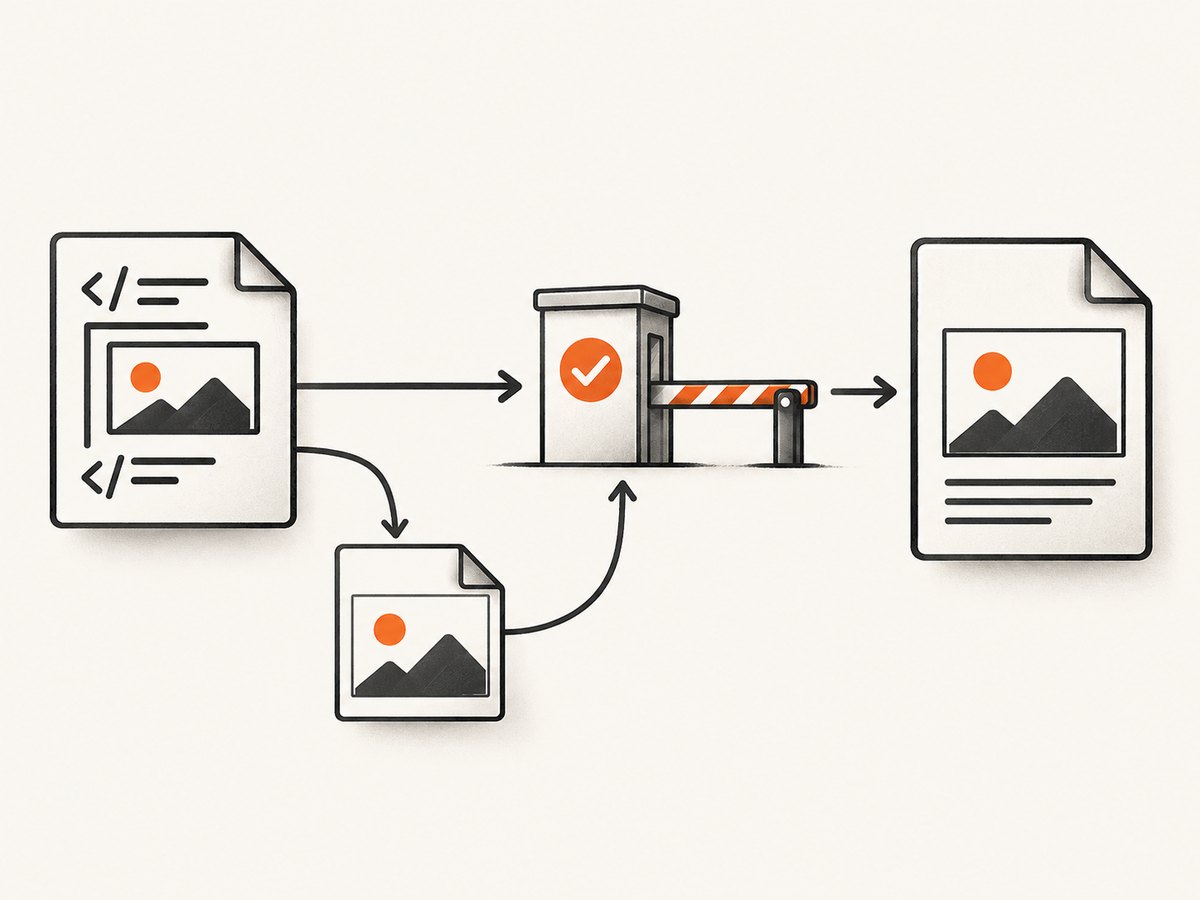
# Explicitly enable image loading while debugging
wkhtmltopdf --images input.html output.pdf

# Search a script or configuration directory
rg --hidden --glob '!node_modules' --glob '!vendor' -- "no-images|images" .
Do not assume a global setting is disabled just because one document is missing images. Confirm the actual invocation that produced the PDF.
4. Fix local-file access safely
In wkhtmltopdf 0.12.6, local-file access is restricted by default. A relative or absolute JPG can therefore be visible to a browser but unavailable to the converter. The manual documents both --allow and --enable-local-file-access.
Prefer a narrow allow-list
wkhtmltopdf \
  --allow /srv/app/public \
  /srv/app/render/page.html \
  /srv/app/render/page.pdf
Use --allow for the directory containing the required assets. Keep the path as narrow as practical, especially when HTML can contain user-controlled content.
Use global access only for trusted input
wkhtmltopdf \
  --enable-local-file-access \
  /srv/app/render/page.html \
  /srv/app/render/page.pdf
This is useful for a controlled batch conversion or a minimal diagnostic. It does not repair a wrong path, a missing file, or insufficient operating-system permissions.
5. Verify the exact image path
Inspect the rendered HTML as seen by the conversion process. Check spelling, case, extension, symlinks, and permissions. On case-sensitive filesystems, Photo.JPG and photo.jpg are different files.
# Check that the file exists and is readable by the conversion user
ls -l /srv/app/public/assets/photo.jpg
file /srv/app/public/assets/photo.jpg
namei -l /srv/app/public/assets/photo.jpg

# Resolve a relative path from the HTML document's directory
cd /srv/app/render
realpath ../public/assets/photo.jpg
A relative URL such as assets/photo.jpg resolves from the HTML document’s location or URL base, not necessarily from the shell directory where you launched the command. If a template is generated into a temporary directory, its relative references may point to that directory instead of your source tree.
Use an explicit file URL when appropriate
<img src="file:///srv/app/public/assets/photo.jpg" alt="Photo">A file URL still requires local-file access and filesystem permissions. It is not a substitute for --allow or --enable-local-file-access.
6. Turn silent media failures into useful diagnostics
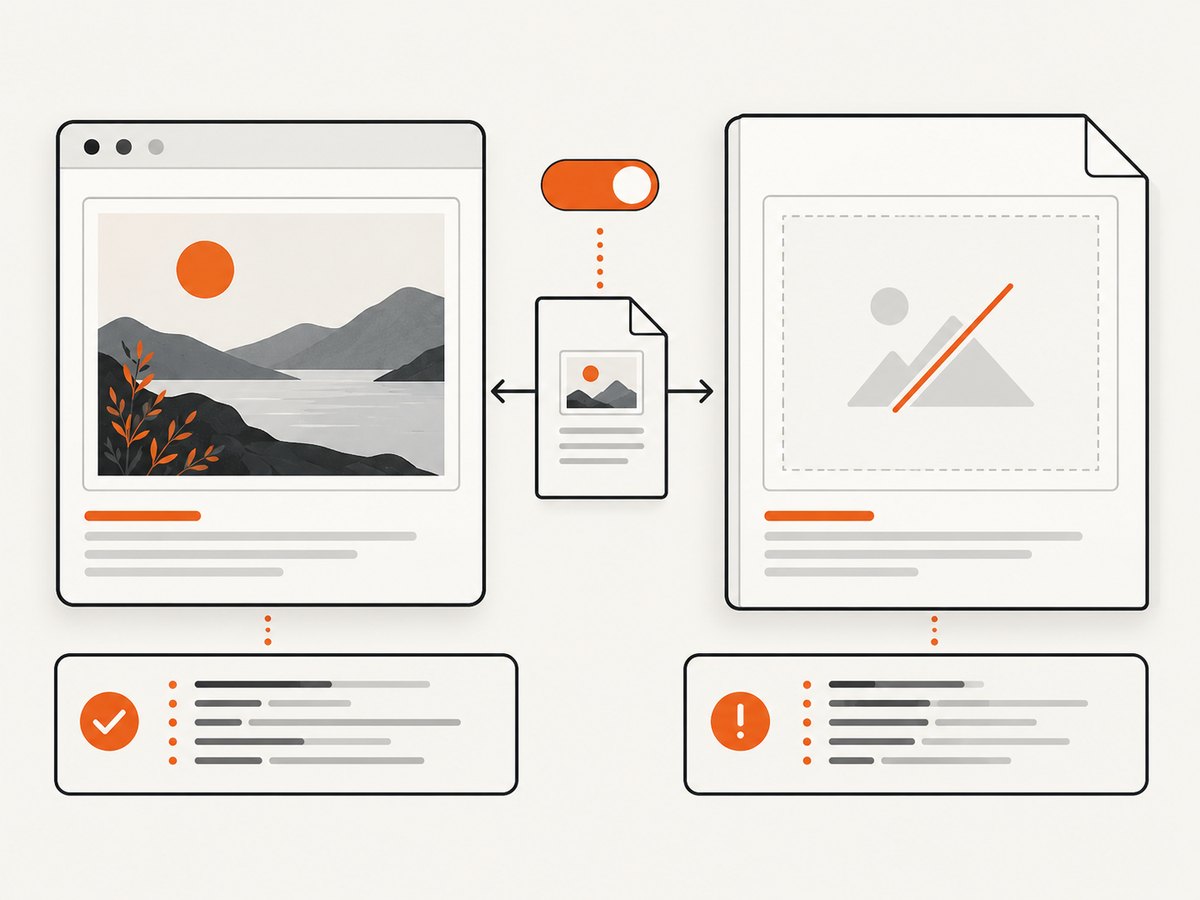
The manual documents --load-media-error-handling and states that its default is ignore. A conversion can therefore print progress, finish with “Done,” and still omit a JPG. Capture stderr and increase verbosity while investigating.
wkhtmltopdf \
  --enable-local-file-access \
  --load-media-error-handling abort \
  --log-level info \
  /tmp/wkhtml-test/index.html \
  /tmp/wkhtml-test/output.pdf \
  2>/tmp/wkhtml-test/wkhtmltopdf.log

cat /tmp/wkhtml-test/wkhtmltopdf.log
If abort prevents a PDF from being created, change it to skip after you have identified the failing asset and want the rest of the document to render. Keep ignore only when omitted media is acceptable and you monitor the resulting document another way.
7. Test print-media behavior separately
One reported setup involving wkhtmltopdf 0.12.6 with patched Qt on macOS 12.6.1 found that image behavior changed when --print-media-type was used. That report is environment-specific, so treat it as a comparison test rather than a universal defect.
# Baseline
wkhtmltopdf page.html baseline.pdf

# Compare print media
wkhtmltopdf --print-media-type page.html print-media.pdf
Inspect the CSS for @media print rules that hide images, change their dimensions, or replace backgrounds. A JPG in an <img> element is different from a CSS background-image; verify both separately.
8. Check image format, dimensions, and decoding
Confirm that the file is a valid JPEG rather than a renamed PNG, truncated download, or unsupported progressive variant produced by an upstream service.
file photo.jpg
identify photo.jpg  # ImageMagick, if installed
jpeginfo -c photo.jpg  # jpeginfo, if installed
Try a small baseline JPEG as a control. Very large dimensions can increase memory use and conversion time; resize oversized source files before PDF generation when print resolution does not require the original pixels.
9. Check timing, JavaScript, and remote images
For an HTTP page, the converter must resolve DNS, connect, receive the response, and decode the image before the page is captured. A page that looks complete in a modern browser may still be changing when wkhtmltopdf renders it.
wkhtmltopdf \
  --javascript-delay 1500 \
  --load-error-handling abort \
  https://example.com/page \
  page.pdf
Use a delay only when the image is genuinely inserted after load. For local images, JavaScript delay will not repair a blocked path. For remote assets, check TLS certificates, redirects, authentication, hotlink protection, and whether the server requires headers or cookies that wkhtmltopdf does not send.
10. Common errors and fixes
| Symptom | Likely cause | Fix |
|---|---|---|
| All images are missing | --no-images in the command or wrapper |
Remove it or add --images; inspect the final argument list. |
| Only local JPGs are missing | Local-file access restriction | Use a narrow --allow /asset/dir or enable access for trusted input. |
| Relative paths fail | Unexpected document base directory | Use a correct absolute path or file URL and verify with realpath. |
| Command says Done with no error | Media errors are ignored by default | Capture stderr and set --load-media-error-handling abort while debugging. |
| One filename fails on Linux | Case mismatch or invalid extension | Compare exact names and run file or identify. |
| Remote image fails only in production | Different network, TLS, cookies, headers, or proxy | Fetch the image as the conversion user and compare response headers. |
| Image disappears with print mode | Print CSS or environment-specific behavior | Compare with and without --print-media-type; inspect @media print. |
| Image is clipped or blank after scaling | CSS dimensions, overflow, or huge source bitmap | Set explicit width and height, remove conflicting overflow, and test a resized JPG. |
11. A repeatable production checklist
- Save
wkhtmltopdf --version, OS details, and the exact command. - Reduce the page to one JPG and one HTML file.
- Confirm
--imagesis active and--no-imagesis absent. - Resolve the image path from the generated HTML location.
- Check readability as the same user that runs wkhtmltopdf.
- Allow only the asset directory, or enable local access for trusted test input.
- Capture stderr and use a non-ignoring media error policy.
- Compare runs with and without
--print-media-type. - Validate the JPEG itself and test a small baseline control image.
- Reintroduce CSS, JavaScript, remote resources, and templates one layer at a time.
12. Performance, reliability, and cost considerations
Local assets avoid network latency but still consume filesystem and image-decoding time. Remote assets add DNS, TLS, server response, and authentication failure points. Keep source dimensions appropriate for the PDF, avoid unnecessary JavaScript delays, and reuse a stable conversion environment so differences in patched Qt builds do not surprise you.
For batch jobs, log the input URL or file, command-line options, exit status, stderr, and output size. Treat a successful process exit as insufficient evidence that every image loaded when media errors are configured to be ignored. A minimal control document can be run periodically to detect broken packaging or permissions.
Or skip the browser setup
If your goal is a reliable image or PDF capture rather than maintaining a wkhtmltopdf environment, ScreenshotNeo provides a GET-based screenshot API and PDF capture. The API accepts a URL and returns PNG, JPEG, WebP, or PDF; its documentation lists the request options.
curl -G "https://api.screenshotneo.com/v1/shot" -d access_key=YOUR_API_KEY --data-urlencode url=https://stripe.com -o shot.webpimport requests
r = requests.get("https://api.screenshotneo.com/v1/shot", params={"access_key": "YOUR_API_KEY", "url": "https://stripe.com"}, timeout=90)
open("shot.webp", "wb").write(r.content)const q = new URLSearchParams({ access_key: 'YOUR_API_KEY', url: 'https://stripe.com' });
const res = await fetch(`https://api.screenshotneo.com/v1/shot?${q}`);Before capture, ScreenshotNeo accepts cookie and consent banners and removes more than 60 known consent platforms, newsletter popups, and chat widgets; each step can be turned off. Bot checks, blank pages, timeouts, failed loads, and cache hits are not billed, and the response identifies the result with X-Page-Verdict and X-Billed headers. Its MCP server lets Claude, Cursor, and other MCP clients call take_screenshot, get_page_info, and capture_pdf. The Free plan includes 1,000 screenshots per month with no card; paid plans start at $5 for 3,000 shots.
Create a free ScreenshotNeo account and try the API with 1,000 screenshots per month and no card.
FAQ
Does wkhtmltopdf support JPG files?
Yes. When a valid JPEG is reachable, image loading is enabled, and local-file policy permits access, JPGs can be rendered in the PDF.
Should I always use --enable-local-file-access?
No. Prefer --allow for the specific asset directory. Use global access for trusted, controlled input or diagnosis.
Why does the browser show the image but wkhtmltopdf does not?
The browser and converter may use different base paths, users, permissions, network access, media rules, or local-file policies. Reproduce with a minimal HTML file under the converter’s runtime user.
Can --print-media-type break images?
It can expose print-specific CSS and has been associated with image issues in at least one version and operating-system setup. Compare both modes and inspect print rules.
What is the fastest diagnostic?
Run a one-image HTML file with --images, a narrow --allow directory, and captured stderr using a non-ignoring media error policy.


