How to Fix jsPDF “Provided Element Is Not Within a Document” Errors
Fix jsPDF and html2canvas document errors by checking the element, DOM attachment, and framework timing before debugging PDF settings.
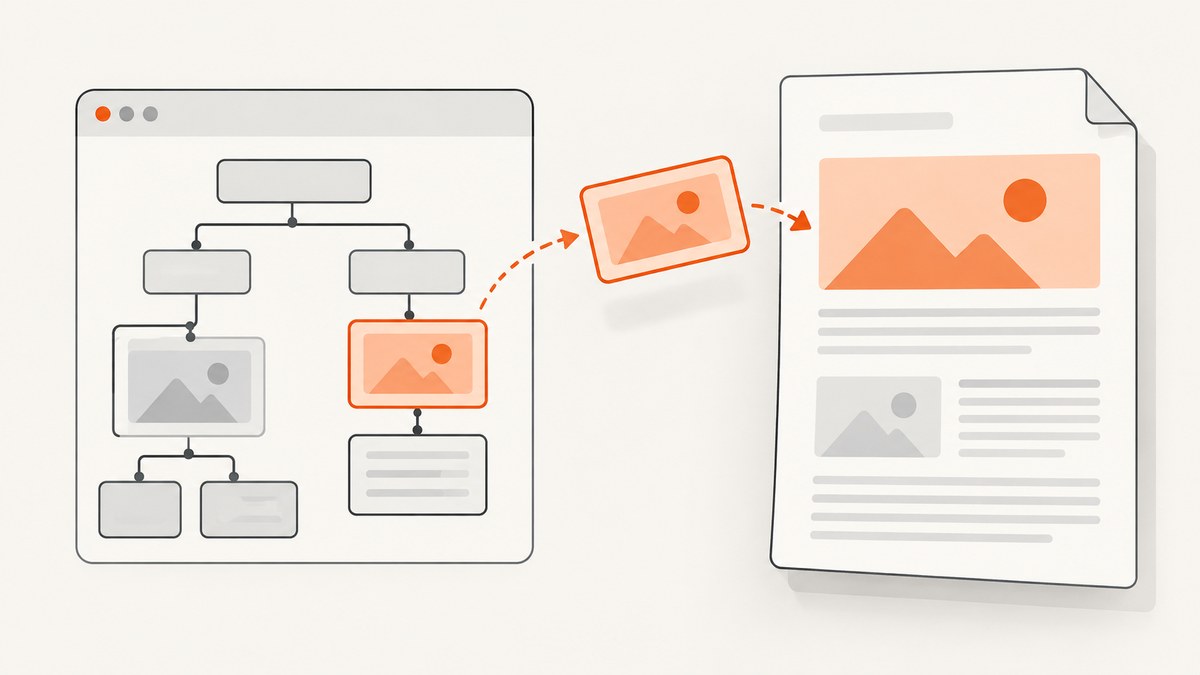
The “Provided element is not within a Document” error means html2canvas received an element that is not attached to a live, window-backed DOM document. jsPDF’s HTML rendering path calls html2canvas, so PDF options such as page size or margins are not the first thing to change. Pass an actual HTMLElement, wait until it is mounted, confirm it remains attached during capture, and handle the returned Promise.
For a selector, start with document.querySelector('#invoice') and check the result. For jQuery, pass $('#invoice')[0], not the jQuery collection. For React or Vue, capture from a mounted DOM ref after the view or modal has rendered. The examples below cover both direct html2canvas rendering and jsPDF’s html() method.
1. What the error means
html2canvas expects an element it can trace back through ownerDocument to a document with a defaultView. Depending on the version and invalid input, it may reject with an invalid-element message, “Element is not attached to a Document,” or “Document is not attached to a Window.” The common underlying problem is that the value is not a usable, attached DOM element at capture time.
A selector that matches nothing returns null. A jQuery lookup returns a collection rather than the element itself. Framework component objects and virtual DOM nodes are not browser elements. A valid node can also become stale if its modal closes or its component unmounts before an asynchronous render begins.
The exact wording and validation can vary by installed version. The historic html2canvas issue with this title was closed as “Needs More Information,” so it is useful context but does not establish one universal fix. The reliable diagnostic is to inspect the value and its document relationship before changing rendering options.
2. Diagnose the element before generating the PDF
Run these checks immediately before calling html2canvas or pdf.html():
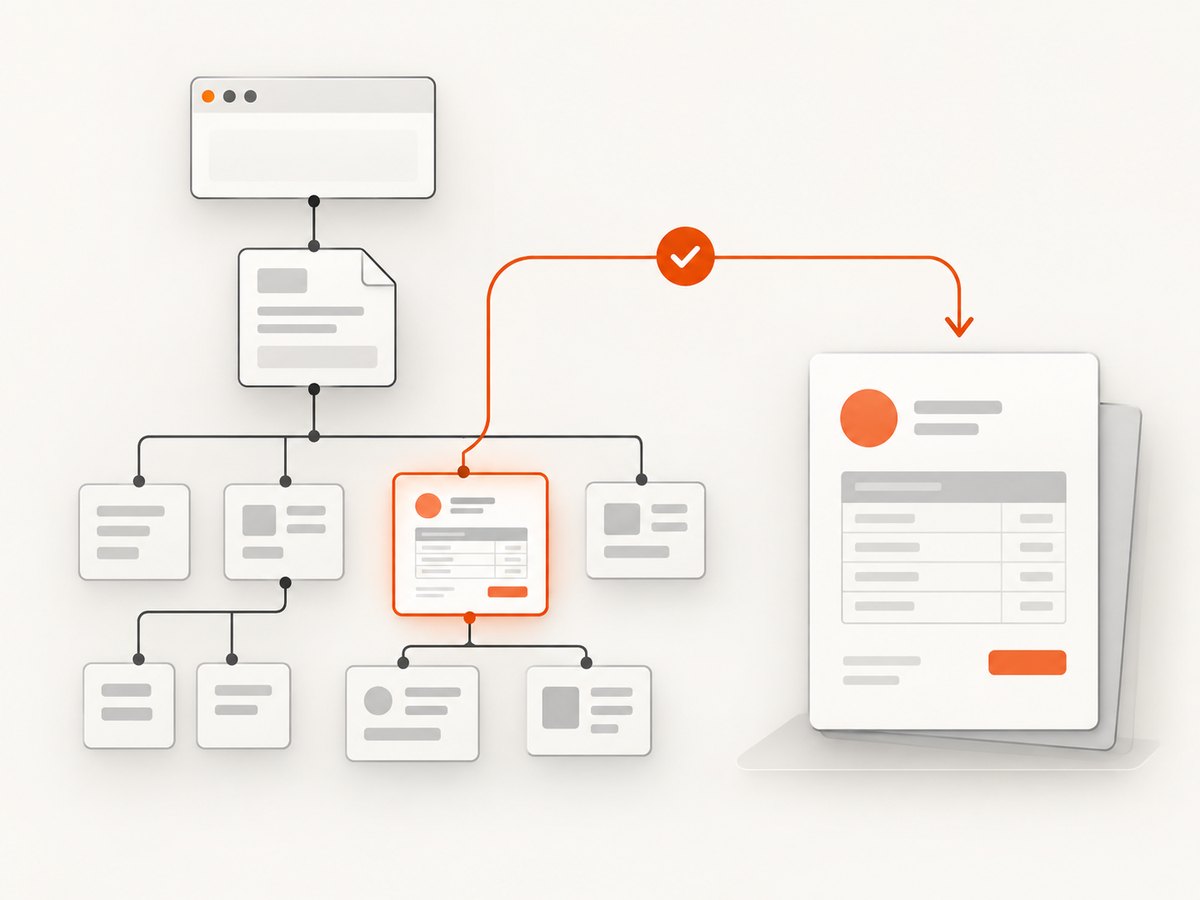
const element = document.querySelector('#invoice');

if (!element) {
  throw new Error('Invoice element not found');
}
if (!(element instanceof HTMLElement)) {
  throw new Error('Capture target is not an HTMLElement');
}
if (!element.ownerDocument) {
  throw new Error('Element has no ownerDocument');
}
if (!element.ownerDocument.defaultView) {
  throw new Error('Element document has no window');
}
if (!document.body.contains(element)) {
  throw new Error('Invoice is not attached to document.body');
}
document.body.contains(element) is a useful check for ordinary page content. If the content intentionally lives in another document, such as an iframe, compare against that document and ensure its window exists instead of comparing everything to the top-level document. Do not use instanceof HTMLElement across iframe boundaries as the only test: each window has its own constructors. The ownership and attachment checks are more useful there.
Also check whether the node is connected when the rendering Promise starts, not only when a button is clicked. An event handler may start an asynchronous action and then close or replace the view before html2canvas clones it.
3. Fix the common causes
Selector matches nothing
Use a stable selector, check for null, and report a useful error rather than passing the missing value downstream:

const element = document.querySelector('[data-pdf="invoice"]');
if (!element) {
  throw new Error('PDF content is not present in the page');
}
Check spelling, whether the target is conditionally rendered, and whether the query runs before the relevant route or component has mounted.
A jQuery collection was passed
html2canvas expects a DOM element. A jQuery object wraps zero or more elements, so extract the first node and validate it:
const element = $('#invoice').get(0);
if (!element) throw new Error('Invoice element not found');
html2canvas(element);
The framework has not mounted the target
In React, keep a ref to the rendered node and trigger capture after the state that displays it has committed. A ref is null before mount and becomes stale after unmount:
import { useRef } from 'react';
import { jsPDF } from 'jspdf';

function Invoice() {
  const invoiceRef = useRef(null);

  async function download() {
    const element = invoiceRef.current;
    if (!element || !element.isConnected) {
      throw new Error('Invoice is not mounted');
    }
    const pdf = new jsPDF();
    await pdf.html(element, {
      callback: doc => doc.save('invoice.pdf')
    });
  }

  return (
    <>
      <section ref={invoiceRef}>Invoice content</section>
      <button onClick={download}>Download PDF</button>
    </>
  );
}
If the invoice is in a modal, open it first and capture after the modal has rendered. Avoid a sequence that sets “open” and immediately reads the ref in the same event handler; the framework may not have committed the update yet. In Vue, wait for nextTick() after changing the state that displays the target, then read the template ref. The same rule applies to transitions: wait until the node exists and its layout is ready.
The node is detached or belongs to an unsuitable document
Do not remove the capture target until rendering completes. If content is built in a detached fragment or a document created without a window, append or render it into the live page first. When working with an iframe, query its document and pass an element from that document while it remains loaded and attached.
Old callback examples are being used
Prefer the Promise-based html2canvas API and catch rejections. Older onrendered examples are deprecated; jsPDF’s HTML module removes that option before it calls html2canvas. Update examples that depend on that callback instead of mixing old and current APIs.
4. Complete browser examples
Direct html2canvas plus jsPDF
This approach gives you the canvas explicitly, then places it in the PDF. Install html2canvas and jspdf in your application, and run the code in a browser after the target exists:
import html2canvas from 'html2canvas';
import { jsPDF } from 'jspdf';

async function downloadInvoice() {
  const element = document.querySelector('#invoice');
  if (!element) throw new Error('Invoice element not found');
  if (!element.isConnected || !element.ownerDocument?.defaultView) {
    throw new Error('Invoice must be attached to a live document');
  }

  const canvas = await html2canvas(element, { useCORS: true });
  const image = canvas.toDataURL('image/png');
  const pdf = new jsPDF({ orientation: 'portrait', unit: 'mm', format: 'a4' });
  const pageWidth = pdf.internal.pageSize.getWidth();
  const pageHeight = pdf.internal.pageSize.getHeight();
  const ratio = Math.min(pageWidth / canvas.width, pageHeight / canvas.height);
  const width = canvas.width * ratio;
  const height = canvas.height * ratio;
  pdf.addImage(image, 'PNG', 0, 0, width, height);
  pdf.save('invoice.pdf');
}

downloadInvoice().catch(error => {
  console.error('Could not create invoice PDF:', error);
});
This minimal placement fits the rendered canvas on one page and may scale a tall invoice down considerably. For multipage documents, split the rendered content or use jsPDF’s HTML rendering path and configure page handling for the layout you need. Do not interpret a one-page fit as pagination.
jsPDF HTML module
For a DOM element that jsPDF can render through its HTML module, use pdf.html(). The module clones the element into an overlay/container attached to document.body, invokes html2canvas on that attached container, and removes the overlay when rendering finishes:
import { jsPDF } from 'jspdf';

async function saveInvoice() {
  const element = document.querySelector('#invoice');
  if (!element || !element.isConnected) {
    throw new Error('Invoice element is missing or detached');
  }

  const pdf = new jsPDF({ orientation: 'portrait', unit: 'mm', format: 'a4' });
  await pdf.html(element, {
    margin: [10, 10, 10, 10],
    autoPaging: 'text',
    html2canvas: { scale: 1, useCORS: true },
    callback: doc => doc.save('invoice.pdf')
  });
}

saveInvoice().catch(console.error);
The error callback here is separate from the callback option: the latter runs after document rendering to save the file. Keep asynchronous failures visible in logs or in the application’s error UI.
5. Rendering options and output limitations
Once attachment checks pass, then investigate rendering configuration. Options do not repair an element that is missing or detached.
- html2canvas
useCORS: permits attempts to load images with cross-origin access where the remote server allows it. It does not bypass browser security. A cross-origin image without suitable CORS headers may be omitted or make canvas pixel access unavailable. - Scale: increases or reduces canvas pixel dimensions and affects memory use and output sharpness. Larger captures consume more memory; select a scale appropriate to the target size.
- jsPDF format and orientation: select page dimensions and portrait or landscape layout. These control the PDF page, not whether the input element is attached.
- Margins and auto paging: shape placement and page flow for
pdf.html(). Validate long documents and page breaks with representative content. - CSS support: html2canvas traverses the DOM and reconstructs a rendering from CSS properties it understands. It is not a pixel screenshot, so unsupported styles can differ from the browser’s display.
Images usually need to be same-origin or served with appropriate CORS headers, or loaded through a proxy configured for your application. A blank or incomplete image, font, or style is a rendering/resource issue, distinct from “not within a Document.”
6. Troubleshooting table
| Symptom | Likely cause | Fix |
|---|---|---|
| “Invalid element provided as first argument” | Null, string, jQuery collection, component instance, or other non-element value | Log the value; pass an actual DOM element and check the selector result |
| “Element is not attached to a Document” | Detached node, stale ref, or node removed before capture | Wait for mount; check isConnected; keep it mounted through rendering |
| “Document is not attached to a Window” | Owner document has no window-backed browsing context | Render in the live page or a loaded iframe document with a window |
| Works on click but fails in a modal | Capture runs before modal mount, or close/unmount races the render | Capture after the modal opens and its target ref is present; do not unmount early |
| Promise rejection is unhandled | Async rendering failed with no rejection handler | Use await in try/catch or append .catch() |
| PDF is blank despite passing attachment checks | Unsupported styles, unloaded assets, cross-origin images, or wrong element | Wait for content/assets; inspect html2canvas resource handling; simplify unsupported CSS |
| PDF has content but poor pagination | Canvas is fitted to one page or HTML flow does not suit the content | Use HTML rendering with paging options or implement explicit canvas slicing |
7. Version, performance, reliability, and cost
Record the versions before debugging behavior that differs between machines:
npm ls jspdf html2canvasCompare the installed versions and API in your lockfile with the examples for those versions. The relevant html2canvas source cited in the research was current master viewed September 29, 2026; validation details can change between releases.
Canvas work is performed in the browser and grows with the pixel area being rendered. Full-page or high-scale captures can use substantial memory, especially on long documents or pages with large images. Keep the capture target focused, avoid an unnecessarily large scale, and consider splitting very long documents. There is no source-supported universal performance winner between direct html2canvas plus manual addImage and jsPDF.html(); choose based on pagination and layout requirements, then measure your own page.
For reliability, wait for data and images the PDF depends on, keep the node mounted until the Promise settles, and surface errors to the user. Treat browser rendering as best effort for CSS fidelity, because html2canvas reconstructs rather than captures browser pixels. There is no cost per request imposed by jsPDF or html2canvas themselves; your operational costs are the browser/device resources and any infrastructure you add, such as a rendering proxy or hosted capture service.
8. Or skip the browser setup
If you need a clean website capture rather than a PDF of a live application component, ScreenshotNeo returns a screenshot or PDF from one API request. It removes cookie and consent banners, newsletter popups, and chat widgets before capture. Bot checks, blank pages, failed loads, and cache hits cost nothing, and response headers report the page verdict and billing status. Its MCP server lets AI agents use take_screenshot, get_page_info, and capture_pdf.
Here is the one-call PDF request; see the API documentation for request options:
curl -G "https://api.screenshotneo.com/v1/shot" \
  -d access_key=YOUR_API_KEY \
  --data-urlencode url=https://stripe.com \
  -d format=pdf \
  -o page.pdf
There are 1,000 screenshots per month on the free plan with no card. Paid plans start at $5 for 3,000 shots; every feature is on every plan. Sign up for 1,000 free screenshots a month, with no card.
9. Frequently asked questions
Does changing the jsPDF page format fix this error?
No. Page format applies after the HTML target is accepted. First make sure the value is a live, attached element.
Can I pass an HTML string to html2canvas?
No. It expects an element. Put the markup into a rendered DOM node and pass that node.
Can a hidden element be captured?
A node can be attached while hidden, but its layout or visibility may produce an empty or unexpected result. Make it renderable and wait for layout before capture; that is different from detachment.
Why does a screenshot service not use my jsPDF component?
A website screenshot API captures a URL rendered by its capture service. It does not receive a DOM ref from your local application. Use client-side jsPDF for a specific live component, or a URL-based API when the desired input is a web page.


