How to Fix HTML-to-PDF Conversion Failures With jsPDF
Diagnose blank PDFs, missing images, CSS differences, broken page breaks, canvas limits, fonts, and Node.js runtime issues in jsPDF.
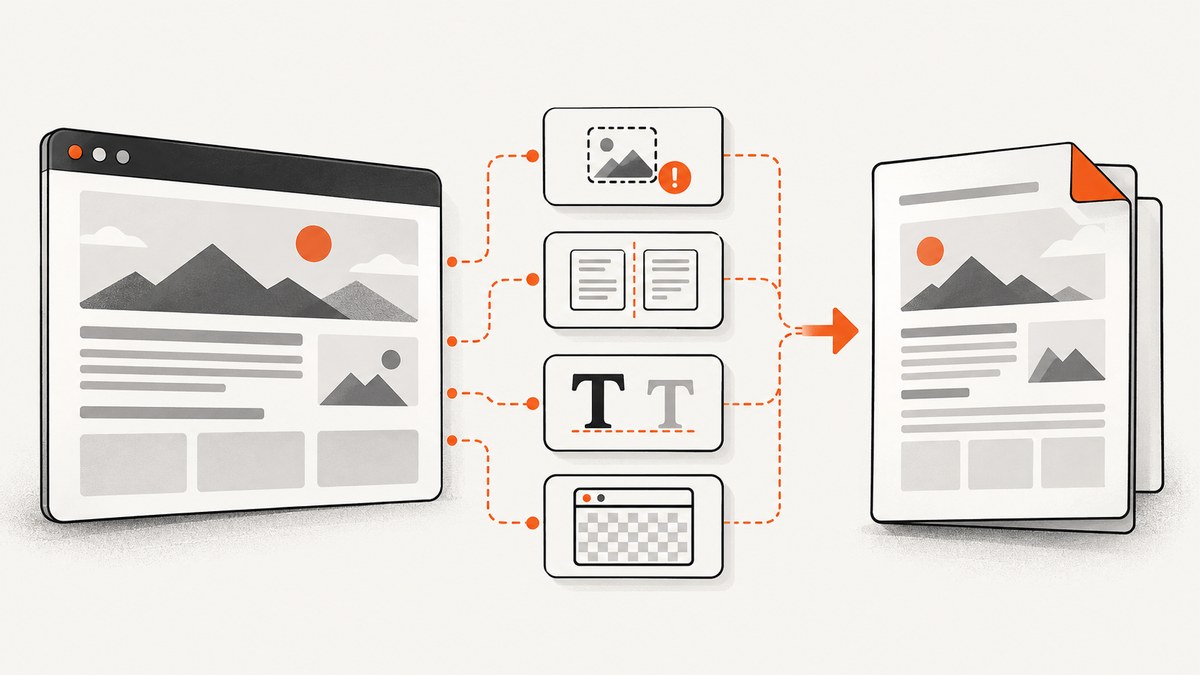
Direct answer: jsPDF HTML conversion failures usually come from one of four stages: missing browser-side dependencies, resources that the browser cannot load (especially cross-origin images), CSS that html2canvas does not support, or a canvas that is too large for the device. Start with a tiny same-origin element, confirm doc.html() runs, then diagnose images, CSS, canvas size, pagination, fonts, and runtime separately.
doc.html() renders through html2canvas; it reconstructs the DOM from supported styles rather than taking a native browser screenshot. If you pass an HTML string instead of an element, the path also needs DOMPurify. The jsPDF API documents the relevant html() options, including margins, pagination, image settings, html2canvas settings, font faces, position, width, and a callback: jsPDF html() documentation.
1. Reduce the failure to a minimal conversion
Use a real browser page and one small element first. This separates dependency and runtime problems from layout problems.
<!doctype html>
<html>
<head>
  <meta charset="utf-8">
  <title>jsPDF diagnostic</title>
  <script src="https://cdn.jsdelivr.net/npm/jspdf@latest/dist/jspdf.umd.min.js"></script>
  <script src="https://cdn.jsdelivr.net/npm/html2canvas@latest/dist/html2canvas.min.js"></script>
</head>
<body>
  <article id="invoice">
    <h1>Invoice</h1>
    <p>Start with plain, same-origin content.</p>
  </article>
  <button id="download">Download PDF</button>
  <script>
    document.querySelector('#download').addEventListener('click', () => {
      const { jsPDF } = window.jspdf;
      const doc = new jsPDF({ unit: 'pt', format: 'a4' });
      const element = document.querySelector('#invoice');
      doc.html(element, {
        margin: [36, 36, 36, 36],
        autoPaging: 'text',
        html2canvas: {
          scale: 1,
          useCORS: true,
          logging: true
        },
        callback: (pdf) => pdf.save('diagnostic.pdf')
      });
    });
  </script>
</body>
</html>
Open the browser console and build output before changing CSS. A missing html2canvas import, an incompatible bundle, or a dynamic-import failure must be fixed before layout debugging. For an HTML string, install and expose DOMPurify as required by your jsPDF build, and sanitize untrusted content first. The jsPDF documentation explicitly advises sanitizing user input before passing it to jsPDF.
2. Understand what jsPDF is rendering
html2canvas walks the DOM, reads computed styles, and paints its own representation. It is not a screenshot of the browser compositor and does not implement every CSS property. A successful PDF can therefore differ from the visible page.
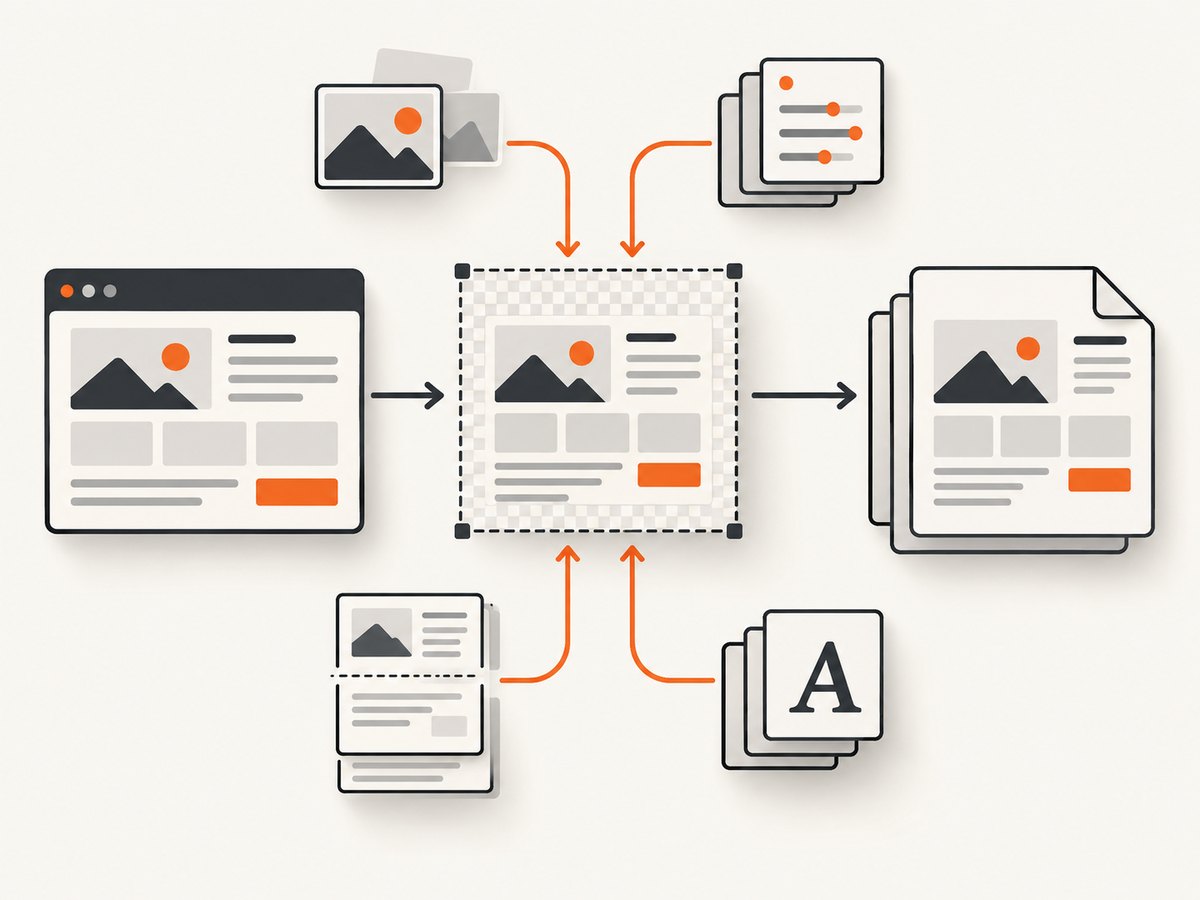
| Symptom | Likely stage | First action |
|---|---|---|
| Nothing downloads or an exception appears | Dependency or runtime | Check imports, console errors, and the element reference |
| Blank PDF or half a page | Canvas pressure or invalid dimensions | Capture a smaller region and reduce scale |
| Images absent | Origin or resource loading | Check CORS headers, useCORS, and proxy options |
| Colors, shadows, transforms, or layout differ | Unsupported CSS | Replace unsupported effects with simpler print styles |
| Text is cut between pages | Pagination | Try autoPaging: 'text' and adjust margins/width |
| Accented or non-Latin text is garbled | Font encoding | Embed a TTF containing the required glyphs |
3. Fix missing images and other resources
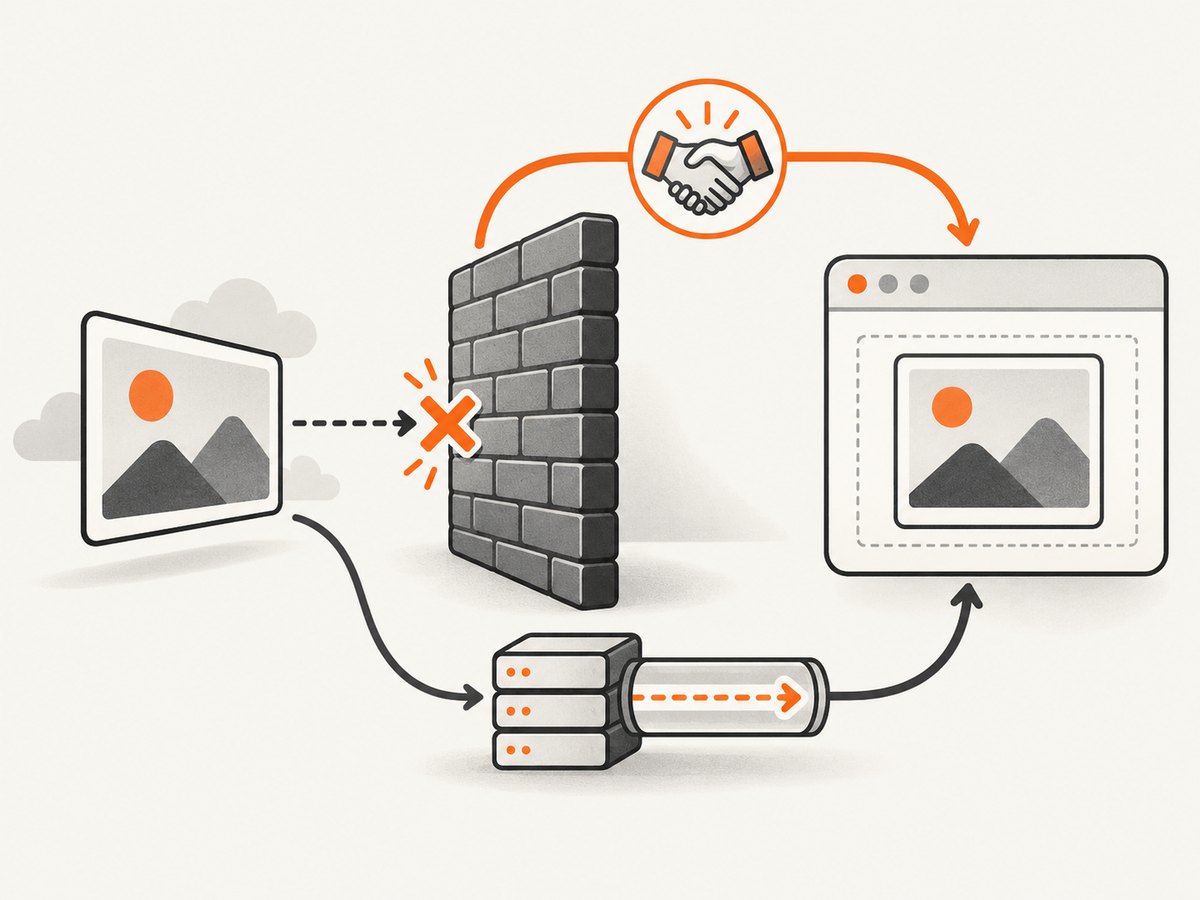
“Why aren’t my images rendered?” is usually a browser origin-policy issue. A cross-origin image can taint the canvas. With the default allowTaint: false, html2canvas skips resources it cannot safely read.
Same-origin images
Serve the image from the same origin as the page, wait until it has loaded, and then call doc.html(). For lazy images, trigger loading before conversion and verify that their naturalWidth is non-zero.
CORS-enabled images
const images = [...document.querySelectorAll('#invoice img')];
await Promise.all(images.map(img => img.complete
  ? Promise.resolve()
  : new Promise(resolve => {
      img.addEventListener('load', resolve, { once: true });
      img.addEventListener('error', resolve, { once: true });
    })));

const doc = new jspdf.jsPDF();
doc.html(document.querySelector('#invoice'), {
  html2canvas: {
    useCORS: true,
    allowTaint: false,
    logging: true,
    onclone: (clonedDocument) => {
      clonedDocument.querySelectorAll('img').forEach(img => {
        img.crossOrigin = 'anonymous';
      });
    }
  },
  callback: pdf => pdf.save('with-images.pdf')
});
useCORS: true only works when the image server sends a suitable Access-Control-Allow-Origin response. JavaScript cannot override that browser policy. If you control neither origin, use an approved same-origin proxy that fetches the resource and returns it with appropriate headers. Do not set allowTaint: true as a general fix: a tainted canvas cannot be read reliably.
Use the html2canvas configuration reference for useCORS, allowTaint, proxy, imageTimeout, logging, and callbacks: html2canvas configuration. The onError hook and console logging help identify the URL that failed.
iframes
Same-origin iframe documents can be supported when the browser exposes them. Cross-origin iframe documents cannot be read by page JavaScript. Replace the iframe with a server-rendered representation or capture it in the owning origin.
4. Fix CSS that does not match the page
Check html2canvas’s supported feature list before assuming jsPDF is corrupting the PDF: supported CSS features. Simplify or replace effects that are not implemented, such as complex filters, unsupported blend modes, or layout combinations that depend on browser painting details.
A reliable pattern is a PDF-specific class applied during conversion:
const element = document.querySelector('#invoice');
element.classList.add('pdf-mode');
try {
  const doc = new jspdf.jsPDF({ unit: 'pt', format: 'a4' });
  await new Promise(resolve => doc.html(element, {
    width: 520,
    margin: [32, 32, 32, 32],
    autoPaging: 'text',
    html2canvas: {
      backgroundColor: '#ffffff',
      windowWidth: element.scrollWidth,
      windowHeight: element.scrollHeight,
      scale: 1
    },
    callback: pdf => { pdf.save('print-layout.pdf'); resolve(); }
  }));
} finally {
  element.classList.remove('pdf-mode');
}
.pdf-mode {
box-shadow: none;
filter: none;
position: static;
overflow: visible;
}
.pdf-mode table, .pdf-mode img {
break-inside: avoid;
}5. Fix blank, oversized, or truncated canvases
“Why is the produced canvas empty or cuts off half way?” Often the capture area is too large for the browser, operating system, GPU, or available memory. Limits vary by platform, so treat a blank result as a sizing failure rather than relying on one universal maximum.
- Capture the smallest failing element instead of the whole document.
- Set
scaleto1or lower it temporarily. - Set
windowWidthandwindowHeightto sensible scroll dimensions when viewport sizing is wrong. - Split very long documents into sections and add them as separate PDF pages.
- Remove enormous off-screen canvases, animations, and high-resolution images from the cloned document.
const target = document.querySelector('#long-report');
const canvas = await html2canvas(target, {
  scale: 1,
  windowWidth: Math.min(target.scrollWidth, 1600),
  windowHeight: Math.min(target.scrollHeight, 12000),
  logging: true
});
console.log(canvas.width, canvas.height);
If the canvas itself is blank, fix html2canvas inputs before involving jsPDF. If the canvas is correct but the PDF is wrong, inspect page size, margins, image format, and pagination.
6. Choose pagination deliberately
html() enables automatic paging by default. The 'slice' mode prioritizes slicing content to fit a page and can cut text at a boundary. The 'text' mode tries to keep text together and is generally better for mostly single-column documents. Large tables, positioned elements, and multi-column layouts need individual inspection.
const doc = new jspdf.jsPDF({ unit: 'pt', format: 'a4' });
doc.html(document.querySelector('#report'), {
  margin: [40, 40, 48, 40],
  autoPaging: 'text',
  width: 515,
  x: 40,
  y: 40,
  callback: pdf => pdf.save('report.pdf')
});
When a block must stay together, reduce its size, avoid absolute positioning, and use print CSS. For a mostly text document, changing from 'slice' to 'text' is often the first pagination experiment.
7. Fix missing or garbled characters
jsPDF’s 14 standard PDF fonts are limited to the ASCII codepage. Missing glyphs can appear as boxes or garbled characters. Embed a TTF font containing every character you need and provide it through jsPDF’s font registration and the fontFaces option used by HTML rendering.
// The exact font file and registration depend on your build.
// Register a TTF that contains the required glyphs, then resolve it in html().
const doc = new jspdf.jsPDF();
doc.addFileToVFS('NotoSans-Regular.ttf', notoSansBase64);
doc.addFont('NotoSans-Regular.ttf', 'NotoSans', 'normal');
doc.setFont('NotoSans');
doc.html(document.querySelector('#content'), {
  fontFaces: [{
    family: 'Noto Sans',
    style: 'normal',
    weight: '400',
    src: [{ src: notoSansBase64, format: 'truetype' }]
  }],
  callback: pdf => pdf.save('unicode.pdf')
});
Confirm that the font actually contains the script, symbols, and combining marks in your content. A browser fallback font does not automatically become an embedded PDF font.
8. Use the correct runtime
html2canvas requires window, document, and computed styles, so it is client-side browser code. jsPDF has a Node build for PDF operations, but that does not provide a DOM renderer. For server-side HTML rendering, drive a real browser with Puppeteer or Playwright, or use a screenshot/PDF service.
9. Complete browser-side diagnostic checklist
- Confirm the element exists and has non-zero dimensions.
- Confirm
jspdf,html2canvas, and, for HTML strings, DOMPurify are present in the build. - Run a plain same-origin element with one paragraph.
- Enable html2canvas logging and inspect failed resource URLs.
- Wait for fonts, images, lazy content, and data-driven rendering to finish.
- Test same-origin images before cross-origin images.
- Lower
scaleand reduce the capture area for blank or partial canvases. - Try
autoPaging: 'text'for text-heavy documents. - Embed a font for non-ASCII text.
- Sanitize every user-controlled HTML string before conversion.
10. cURL, Python, and Node.js alternatives
When the requirement is a server-side capture of a live URL rather than a browser-local DOM conversion, an HTTP screenshot/PDF service avoids installing and maintaining a browser runtime. ScreenshotNeo is a website screenshot API and MCP server for developers.
cURL
curl -G "https://api.screenshotneo.com/v1/shot" -d access_key=YOUR_API_KEY --data-urlencode url=https://stripe.com -o shot.webpPython
import requests
r = requests.get("https://api.screenshotneo.com/v1/shot", params={"access_key": "YOUR_API_KEY", "url": "https://stripe.com"}, timeout=90)
open("shot.webp", "wb").write(r.content)
Node.js
const q = new URLSearchParams({ access_key: 'YOUR_API_KEY', url: 'https://stripe.com' });
const res = await fetch(`https://api.screenshotneo.com/v1/shot?${q}`);
See the ScreenshotNeo API documentation for request options. It supports full-page capture, element selectors, device and viewport settings, retina scale, PDF output, custom CSS and JavaScript, waits, request blocking, headers, cookies, user agents, timezone, geolocation, transparent backgrounds, resizing, caching, signed links, asynchronous jobs, bulk capture, usage data, and an OpenAPI specification.
Or skip the browser setup
ScreenshotNeo accepts cookie and consent banners before capture and removes more than 60 known consent platforms, newsletter popups, and chat widgets. Bot checks, blank pages, failed loads, timeouts, and cache hits are not billed; the response identifies the page verdict and billing status in X-Page-Verdict and X-Billed headers. Its MCP server provides take_screenshot, get_page_info, and capture_pdf tools for Claude, Cursor, and other MCP clients. The Free plan includes 1,000 screenshots each month with no card, and paid plans start at $5 for 3,000 shots. Create a free ScreenshotNeo account.
11. Performance, reliability, and cost
Performance
- Reduce the DOM subtree and image dimensions before rendering.
- Use a sensible html2canvas
scale; higher scale increases canvas memory and PDF work. - Wait for required resources once instead of repeatedly converting the same page.
- Split very long reports into predictable sections.
- Disable animations and transitions in a PDF-specific stylesheet.
Reliability
- Keep a minimal reproduction page for every production template.
- Record browser console errors, resource failures, canvas dimensions, and the jsPDF/html2canvas versions.
- Test on the browsers and devices that generate PDFs because canvas limits and font availability vary.
- For server workloads, use a real browser process or a service designed to render URLs; do not call html2canvas from plain Node.js.
Cost
Local jsPDF conversion has no API request charge, but it consumes browser CPU and memory and requires maintenance of the rendering environment. A hosted service adds request cost but moves browser setup, resource loading, and capture infrastructure out of your application. ScreenshotNeo bills only clean shots; failed loads, bot checks, blank pages, timeouts, and cache hits cost nothing.
12. Troubleshooting reference
| Error or symptom | Cause | Fix |
|---|---|---|
doc.html is not a function |
Wrong jsPDF build or missing HTML module | Use a current browser bundle that includes the HTML plugin and verify the import. |
| HTML string fails while an element works | DOMPurify is missing or not configured in the build | Add the optional dependency and sanitize the string. |
| Images disappear with no obvious exception | Cross-origin image is not CORS-readable | Enable server CORS, use useCORS, or proxy through an approved same-origin endpoint. |
| Canvas is empty or stops halfway | Capture exceeds a platform canvas limit or memory budget | Capture smaller regions, lower scale, and split pages. |
| CSS property is ignored | html2canvas does not implement that property | Check the supported-features page and add a simpler PDF stylesheet. |
| Text overlaps or splits badly | Width, margins, positioned content, or pagination mode is unsuitable | Set an explicit width, adjust margins, and try autoPaging: 'text'. |
| Unicode characters are boxes | Standard PDF font lacks glyphs | Embed a TTF with the required characters and select it during HTML rendering. |
| Works in the browser but not in Node.js | html2canvas needs DOM and browser APIs | Run conversion in a browser or use Puppeteer/Playwright/server capture. |
13. FAQ
Can jsPDF reproduce any webpage exactly?
No. html2canvas reconstructs supported DOM and CSS; it is not a native browser screenshot.
Can JavaScript bypass CORS for an image?
No. The image server must grant access, or the resource must pass through an appropriate proxy.
Should I always use allowTaint: true?
No. It can make a canvas unreadable. Prefer same-origin resources, valid CORS, or a proxy.
Which pagination mode should I start with?
Use 'text' for mostly single-column text and inspect complex tables or positioned layouts separately.
Can I run the same html2canvas code in a serverless Node function?
Not without a browser environment. Use a browser automation runtime or a hosted capture service.
Why is a PDF generated but visually wrong?
Successful file creation only proves the pipeline ran; unsupported CSS, fonts, resources, and pagination can still change the result.
Primary references: jsPDF HTML API, html2canvas FAQ, html2canvas configuration, and html2canvas supported features.


