How to Fix Browser Crashes When Adding Images with jsPDF
Diagnose jsPDF image crashes by controlling pixels, memory, formats, and batching, with runnable browser examples and a ScreenshotNeo alternative.
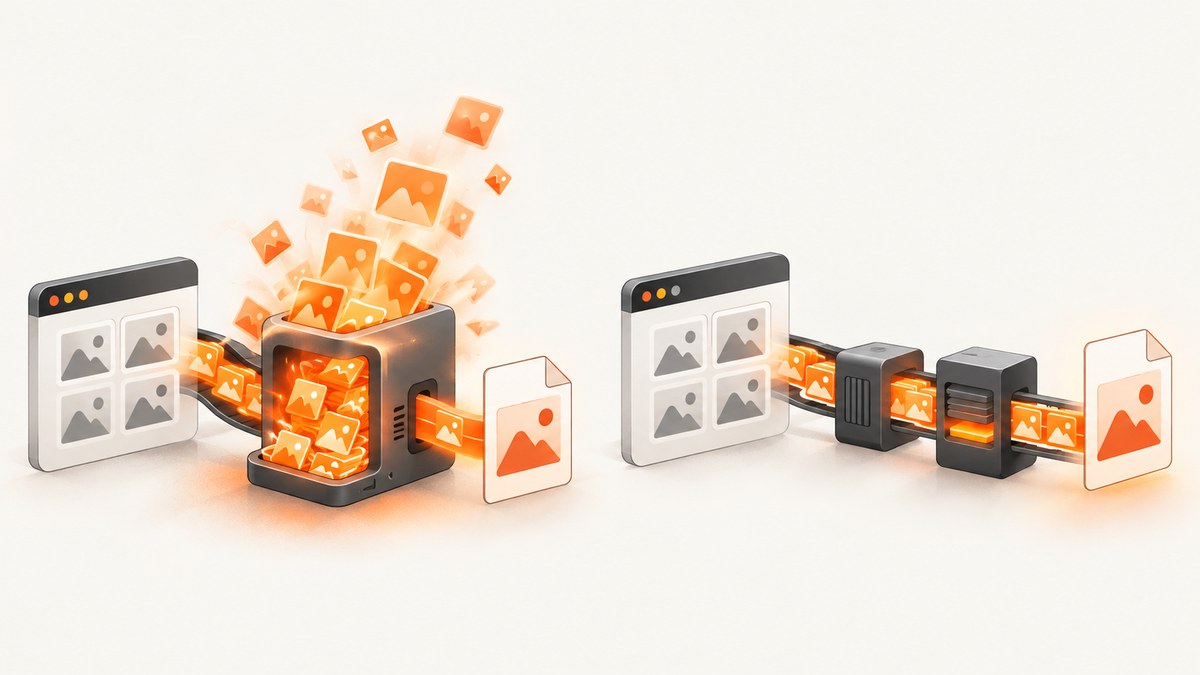
When jsPDF crashes the browser while adding images, start by reducing the amount of image data held and processed at once. Resize images to the pixels required by the PDF, avoid keeping several full-resolution canvases and base64 strings alive, and process large exports in smaller batches. Then verify that each value passed to addImage is a supported input type and that the image format is supplied when recognition may fail.
A large PDF file and a browser crash are different symptoms. A historical jsPDF report documents unexpectedly large output from a canvas image, but it does not prove that data URLs always cause crashes or establish a universal conversion ratio. Likewise, an issue about memory rising during HTML-to-PDF rendering contains a proposal to reuse canvases, not a confirmed fix for every browser or jsPDF version. Treat the steps below as a reproducible diagnostic and mitigation process, not a guaranteed threshold.
What addImage accepts
The jsPDF addImage API accepts a base64 data URL, HTMLImageElement, HTMLCanvasElement, Uint8Array, or RGBA data. A call supplies the format, x and y position, width and height, followed by optional alias, compression, and rotation arguments. If file-type detection fails, pass the format explicitly. Canvas input defaults to JPEG according to the documentation.
doc.addImage(imageData, format, x, y, width, height, alias, compression, rotation);The repository’s current TypeScript declarations corroborate those input forms and the compression parameter. A valid JavaScript value can still be too large for the browser: decoded pixels, canvas backing stores, encoded strings, and PDF buffers may coexist during one export.
First response: make the export reproducible
- Record the jsPDF version, browser and operating system.
- Record each image’s source type, format, pixel width and height, displayed PDF size, and byte length where available.
- Record the number of images and whether they came from users, remote URLs, canvases, or an HTML-to-canvas renderer.
- Capture the symptom: tab termination, “out of memory”, a frozen UI, a failed
save(), or merely an unexpectedly large file.
Do not begin by guessing a browser pixel limit. The available evidence does not establish a universal threshold, browser/version matrix, or guaranteed upgrade that resolves this exact crash.
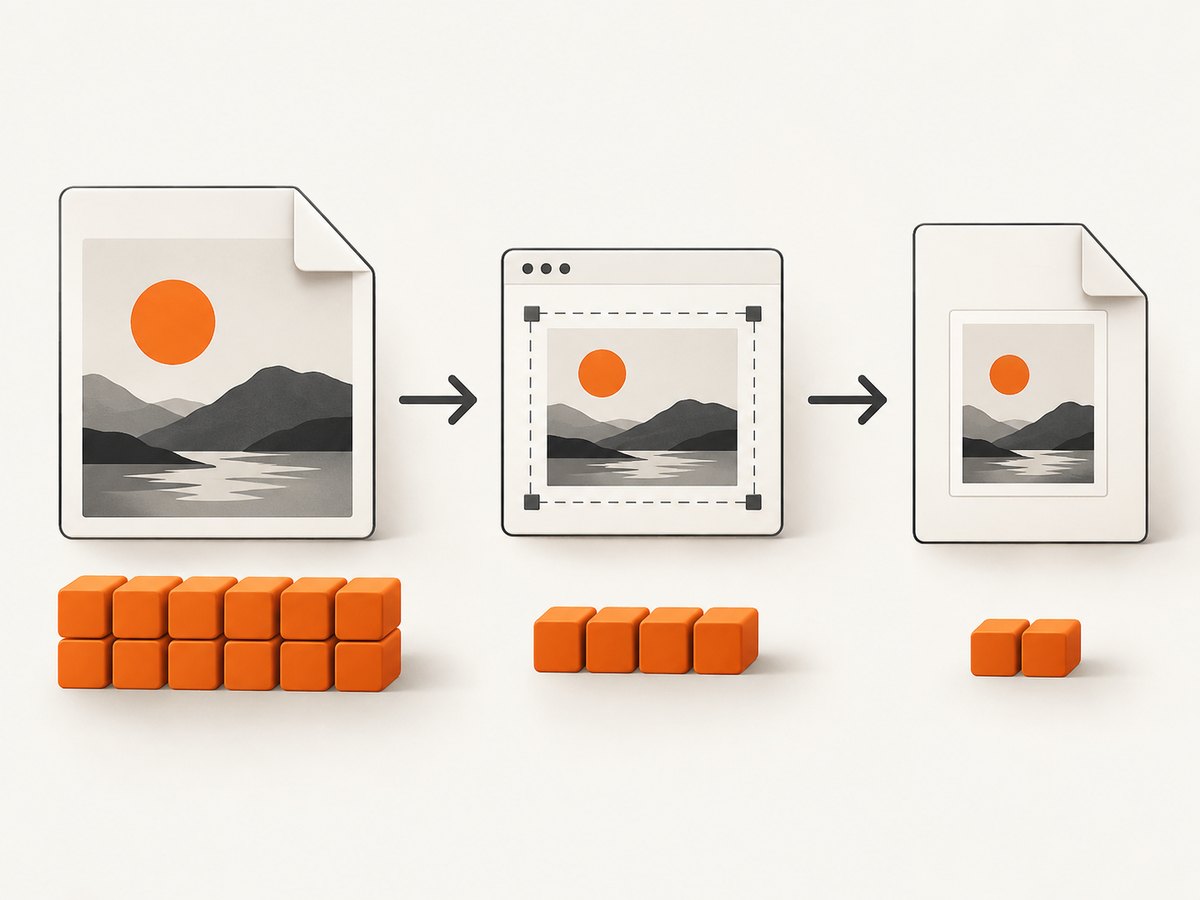
Use a bounded image pipeline
1. Resize to the printed dimensions
If an image will occupy 600 CSS pixels at a chosen PDF scale, a multi-megapixel source still costs memory even though those pixels cannot appear in the output. Resize before calling addImage. Keep the temporary canvas no larger than the target dimensions multiplied by the intended print scale.
async function loadAndResize(url, maxWidth, maxHeight) {
  const image = new Image();
  image.crossOrigin = 'anonymous';
  image.src = url;
  await image.decode();

  const scale = Math.min(1, maxWidth / image.naturalWidth, maxHeight / image.naturalHeight);
  const canvas = document.createElement('canvas');
  canvas.width = Math.max(1, Math.round(image.naturalWidth * scale));
  canvas.height = Math.max(1, Math.round(image.naturalHeight * scale));
  const context = canvas.getContext('2d', { alpha: false });
  context.drawImage(image, 0, 0, canvas.width, canvas.height);

  return { canvas, width: canvas.width, height: canvas.height };
}
After converting the canvas to a data URL or byte array, release references to the image, canvas, and string as soon as that image has been added. JavaScript garbage collection is not immediate, but removing references prevents your code from retaining temporary objects.
2. Prefer bytes over long-lived base64 strings
A data URL is convenient, but it adds an encoded string alongside the decoded image. If your pipeline already has binary bytes, pass a Uint8Array and avoid creating a second representation. When using a canvas, create the data URL only for the duration of the addImage call.
const jpegUrl = canvas.toDataURL('image/jpeg', 0.82);
doc.addImage(jpegUrl, 'JPEG', x, y, width, height);
// Do not store jpegUrl in an array for every page.
3. Add images one at a time
Do not build an array containing every full-resolution canvas and encoded string. Load, resize, add, and discard each image sequentially. For long documents, save or hand off smaller documents in batches if your product permits it, then compare memory use and output quality in the target browser.
for (const item of imageJobs) {
  const { canvas, width, height } = await loadAndResize(item.url, item.maxWidth, item.maxHeight);
  const data = canvas.toDataURL('image/jpeg', 0.82);
  if (index > 0) doc.addPage();
  doc.addImage(data, 'JPEG', 20, 20, item.pdfWidth, item.pdfHeight);
  canvas.width = 1;
  canvas.height = 1;
  // data goes out of scope before the next iteration.
}
A complete browser example
This example creates a document from URLs, limits temporary canvas dimensions, specifies JPEG explicitly, and yields between images so the UI can repaint. It does not bypass cross-origin restrictions: images must provide appropriate CORS headers or be same-origin.
import { jsPDF } from 'jspdf';

async function addUrl(doc, url, first, options) {
  const image = new Image();
  image.crossOrigin = 'anonymous';
  image.src = url;
  await image.decode();

  const scale = Math.min(1, options.maxPixels / image.naturalWidth,
    options.maxPixels / image.naturalHeight);
  const canvas = document.createElement('canvas');
  canvas.width = Math.max(1, Math.floor(image.naturalWidth * scale));
  canvas.height = Math.max(1, Math.floor(image.naturalHeight * scale));
  const ctx = canvas.getContext('2d', { alpha: false });
  ctx.drawImage(image, 0, 0, canvas.width, canvas.height);

  if (!first) doc.addPage();
  const encoded = canvas.toDataURL('image/jpeg', options.quality);
  doc.addImage(encoded, 'JPEG', 15, 15, options.pdfWidth, options.pdfHeight);

  canvas.width = 1;
  canvas.height = 1;
}

export async function makePdf(urls) {
  const doc = new jsPDF({ unit: 'mm', format: 'a4' });
  for (let i = 0; i < urls.length; i += 1) {
    await addUrl(doc, urls[i], i === 0, {
      maxPixels: 1800,
      quality: 0.82,
      pdfWidth: 180,
      pdfHeight: 110
    });
    await new Promise(requestAnimationFrame);
  }
  doc.save('images.pdf');
}
Check format, dimensions, and color assumptions
Pass 'JPEG', 'PNG', or another documented format that matches the bytes. A mismatch can produce decoding errors or confusing output. Confirm that width and height are finite, positive numbers and use the same units as the document. For RGBA input, provide the documented object shape and a correctly sized Uint8ClampedArray; do not pass a CSS image string where raw pixels are expected.
Transparent PNGs can consume more memory than an opaque JPEG at similar dimensions. JPEG is often appropriate for photographs; PNG is useful for transparency or sharp UI graphics. Compression changes quality and file size, but it does not make a massive decoded canvas cheap. Measure peak memory in the browser you support rather than relying on file size alone.
HTML-to-PDF and canvas-heavy pages
HTML-to-canvas workflows can create one canvas context per rendered element. A 2025 jsPDF issue reports rising memory during this process and proposes reusing canvases. The report's estimated improvements are author estimates, not independently verified benchmarks. Reduce the number of rendered elements, split the page into regions, reuse a rendering surface where your renderer allows it, and release completed canvases.
When output is image-heavy, compare two designs in the target browser: one large render versus several smaller regions. Record peak memory, elapsed time, PDF byte size, and visual quality. The research does not prove that either architecture wins for every document.
Security and untrusted images
If users can upload images, validate dimensions and formats before decoding. A GitLab advisory for CVE-2026-25535 reports that malicious GIF dimensions passed to addImage can trigger out-of-memory conditions and denial of service. The surfaced advisory does not establish the current affected and fixed version range, so check its live details and your dependency's release notes before choosing a version.
Apply limits before creating an Image or canvas where possible: maximum file bytes, allowed MIME types, maximum width and height, and a maximum image count per job. Treat client-side checks as a usability measure; enforce resource limits on any server-side conversion service too.
Troubleshooting checklist
| Symptom | Likely cause | Fix |
|---|---|---|
| Tab freezes or crashes | Several decoded images, canvases, and strings retained together | Resize, process sequentially, clear references, and batch exports. |
| “Invalid image” or blank page | Wrong format, incomplete data, or tainted canvas | Wait for decode(), pass the explicit format, verify bytes, and configure CORS. |
| PDF is much larger than expected | Large canvas encoded at source dimensions or lossless PNG data | Resize first, choose an appropriate format and quality, and avoid duplicate representations. |
| Only remote images fail | Cross-origin policy prevents canvas export | Use same-origin assets or response headers that permit your origin; do not assume crossOrigin alone is sufficient. |
| Crash follows a dependency update | Version-specific image behavior | Record the exact version, consult current release notes and advisories, and reproduce with a minimal image. |
| Failure occurs on one uploaded GIF | Suspicious dimensions or decoder resource exhaustion | Reject dimensions before decode and review the CVE advisory. |
When to move capture out of the browser
If your goal is to turn web pages into images or PDFs rather than compose user-supplied images, a remote browser can remove the canvas and Chromium memory burden from the user's tab. ScreenshotNeo is a website screenshot API and MCP server. It captures PNG, JPEG, WebP, or PDF from one GET request and supports full-page shots, CSS-element capture, custom CSS and JavaScript, waits, blocking rules, device presets, retina scale, PDF margins and page ranges, caching, signed links, async jobs, bulk capture, and usage reporting.
Or skip the browser setup
Use the same URL-to-image approach without maintaining a browser automation stack. See the ScreenshotNeo API documentation for all options.
curl -G "https://api.screenshotneo.com/v1/shot" -d access_key=YOUR_API_KEY --data-urlencode url=https://stripe.com -o shot.webpimport requests
r = requests.get("https://api.screenshotneo.com/v1/shot", params={"access_key": "YOUR_API_KEY", "url": "https://stripe.com"}, timeout=90)
open("shot.webp", "wb").write(r.content)const q = new URLSearchParams({ access_key: 'YOUR_API_KEY', url: 'https://stripe.com' });
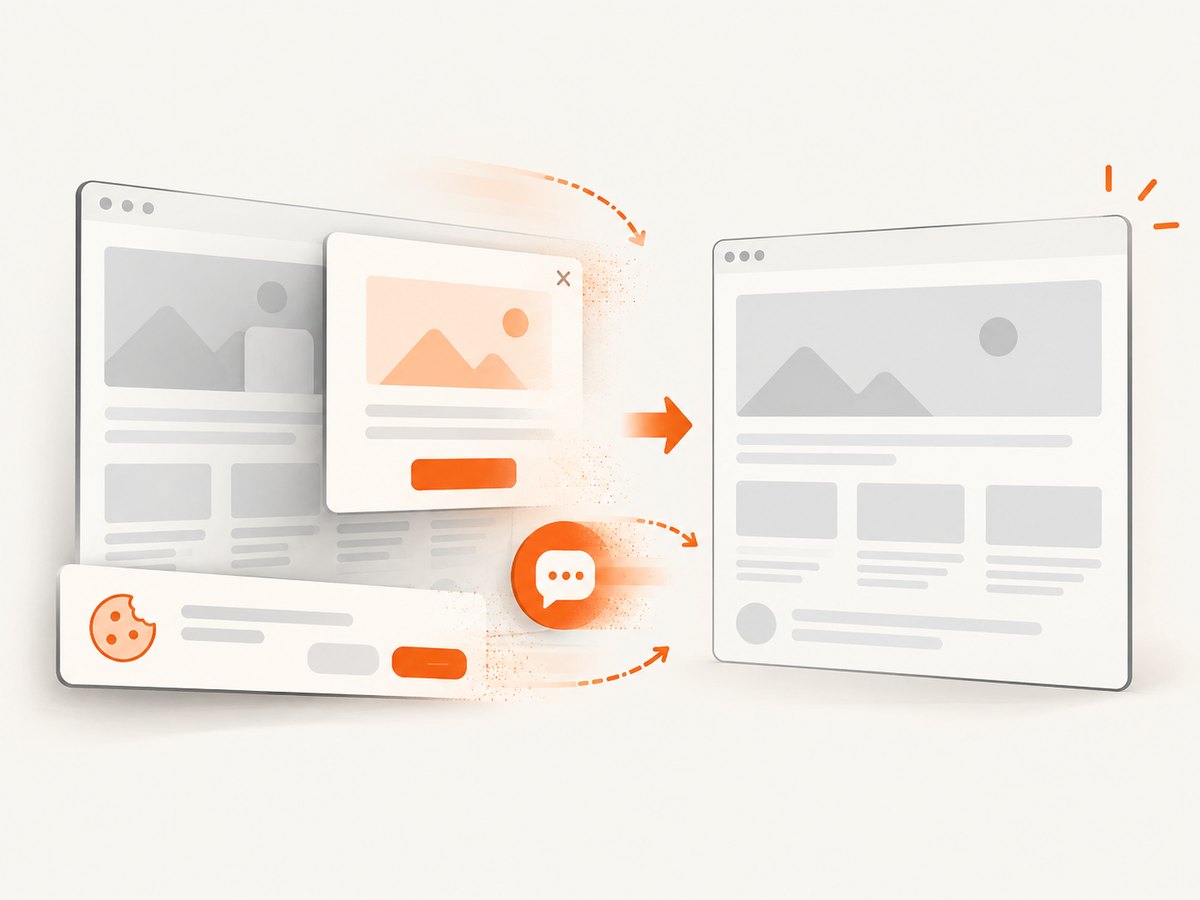
const res = await fetch(`https://api.screenshotneo.com/v1/shot?${q}`);Before capture, ScreenshotNeo accepts cookie and consent banners and removes more than 60 known consent platforms, newsletter popups, and chat widgets; each step can be turned off. Bot checks, blank pages, timeouts, failed loads, and cache hits cost nothing, and the response identifies the result with X-Page-Verdict and X-Billed headers. Its MCP server exposes take_screenshot, get_page_info, and capture_pdf to Claude, Cursor, and other MCP clients. The Free plan includes 1,000 shots per month with no card; paid plans start at $5 for 3,000 shots. Create a free ScreenshotNeo account.
Performance, reliability, and cost notes
- Measure peak memory, not only final PDF bytes.
- Keep concurrency low when each job decodes large images; increase it only after measuring.
- Cache immutable source images and avoid re-encoding the same canvas.
- Use deterministic dimensions and formats so failures are reproducible.
- For remote capture, choose a cache TTL, waits, resource blocking, and async jobs that match page complexity. Bulk capture accepts up to 100 URLs per call.
- Compare the cost of client CPU, failed retries, and operational browser maintenance with an API plan. ScreenshotNeo lists every feature on every plan; yearly billing gives two months free.
FAQ
Does a bigger PDF prove jsPDF caused the crash?
No. A historical issue documents unexpectedly large output, while crash causes can include peak decoded memory, canvas count, or malicious dimensions.
Should I always convert PNG to JPEG?
No. Use JPEG for photographic content when losing transparency is acceptable; retain PNG for transparency or sharp graphics, then resize either format.
Will upgrading jsPDF fix the problem?
Not necessarily. Version-specific reports exist, but the evidence does not establish a universal version fix. Reproduce with a minimal case and consult current advisories.
Can I capture a page without handling cookie banners?
Yes. ScreenshotNeo can accept consent banners and remove known consent, newsletter, and chat overlays before the shot.
Where should limits be enforced?
Enforce them before decoding in the browser and again in any server-side worker. Limit bytes, dimensions, formats, image count, and job duration.
Summary
Diagnose jsPDF crashes by separating image count from pixel dimensions, resizing before encoding, processing one image at a time, releasing temporary references, and validating the exact addImage input and format. Treat large output, browser memory pressure, cross-origin failures, and security issues as separate cases. When the task is webpage capture, moving rendering to ScreenshotNeo can avoid browser setup while preserving controls for waits, elements, PDFs, caching, and clean page output.


