How to Fix Overlapping Text in jsPDF 2.0.0 With Custom Fonts
Diagnose and fix overlapping jsPDF 2.0.0 text by checking font registration, rendering paths, line height, metrics, and glyph coverage.
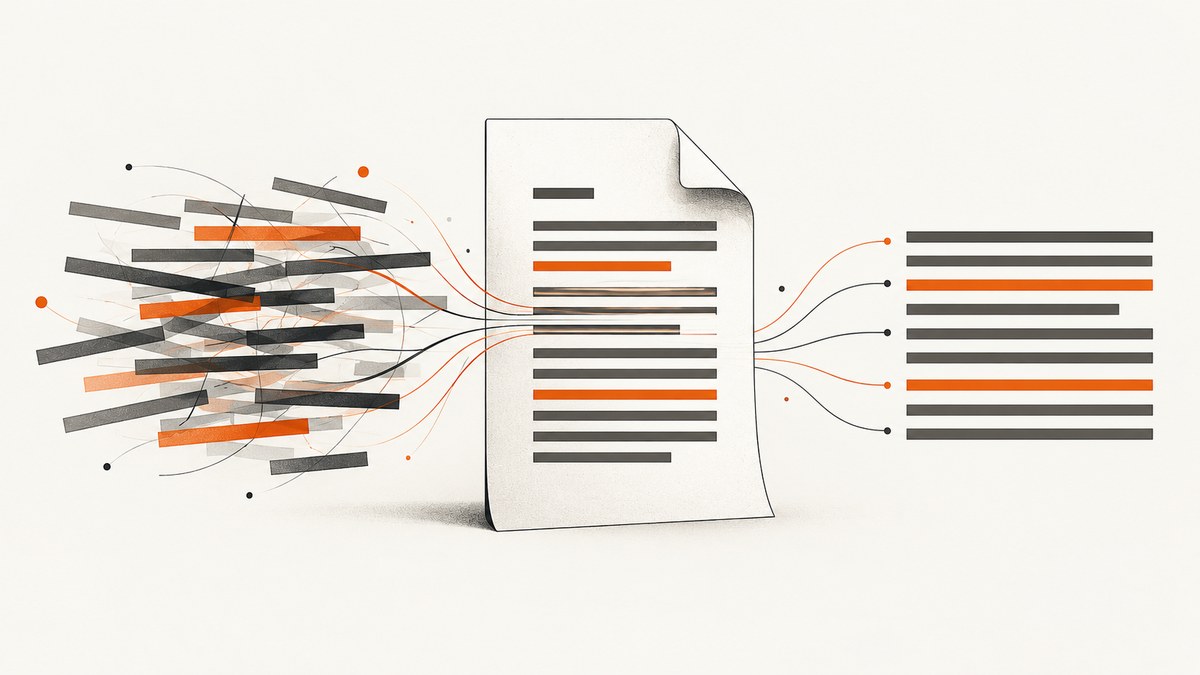
Overlapping text in jsPDF 2.0.0 usually comes from one of four places: the custom font was not registered or selected as expected, the HTML/context2d renderer is involved, vertical line spacing is too small, or width measurements and manually calculated x positions do not match the selected font. Diagnose those dimensions separately instead of applying one global font-size change.
The practical sequence is:
- Reduce the document to a short string and one TTF font.
- Register the TTF in jsPDF’s virtual file system, add the font, and select it explicitly.
- Identify whether the PDF is produced with
text()or withhtml()/context2d. - Classify the symptom as vertical baseline collision or within-line horizontal collision.
- Change one variable at a time: font selection, font size, line height, or x-position calculations.
1. Build a minimal reproduction
Start with the same TTF and a short string containing the characters that overlap. A minimal reproduction tells you whether the problem is in font registration, layout calculations, or the HTML renderer.
<!doctype html>
<html>
<body>
  <button id="make-pdf">Create PDF</button>
  <script src="https://cdn.jsdelivr.net/npm/jspdf@2.0.0/dist/jspdf.umd.min.js"></script>
  <script>
    const { jsPDF } = window.jspdf;

    // Replace this with the base64 contents of your TTF file.
    const FONT_BASE64 = "PASTE_TTF_BASE64_HERE";

    document.querySelector('#make-pdf').addEventListener('click', () => {
      const doc = new jsPDF({ unit: 'pt', format: 'a4' });

      doc.addFileToVFS('CustomFont.ttf', FONT_BASE64);
      doc.addFont('CustomFont.ttf', 'CustomFont', 'normal');
      doc.setFont('CustomFont', 'normal');
      doc.setFontSize(14);

      doc.text('A short string with the troublesome characters', 72, 96);
      doc.save('font-debug.pdf');
    });
  </script>
</body>
</html>
The documented custom-font workflow is to add the TTF data to the virtual file system, register it with addFont, and select it with setFont. Keep the family and style names identical between registration and selection. See the jsPDF README and the current API documentation.
2. Verify registration and selection
A font can appear to be loaded while jsPDF is still using a different face or style. Make the selection explicit immediately before output:
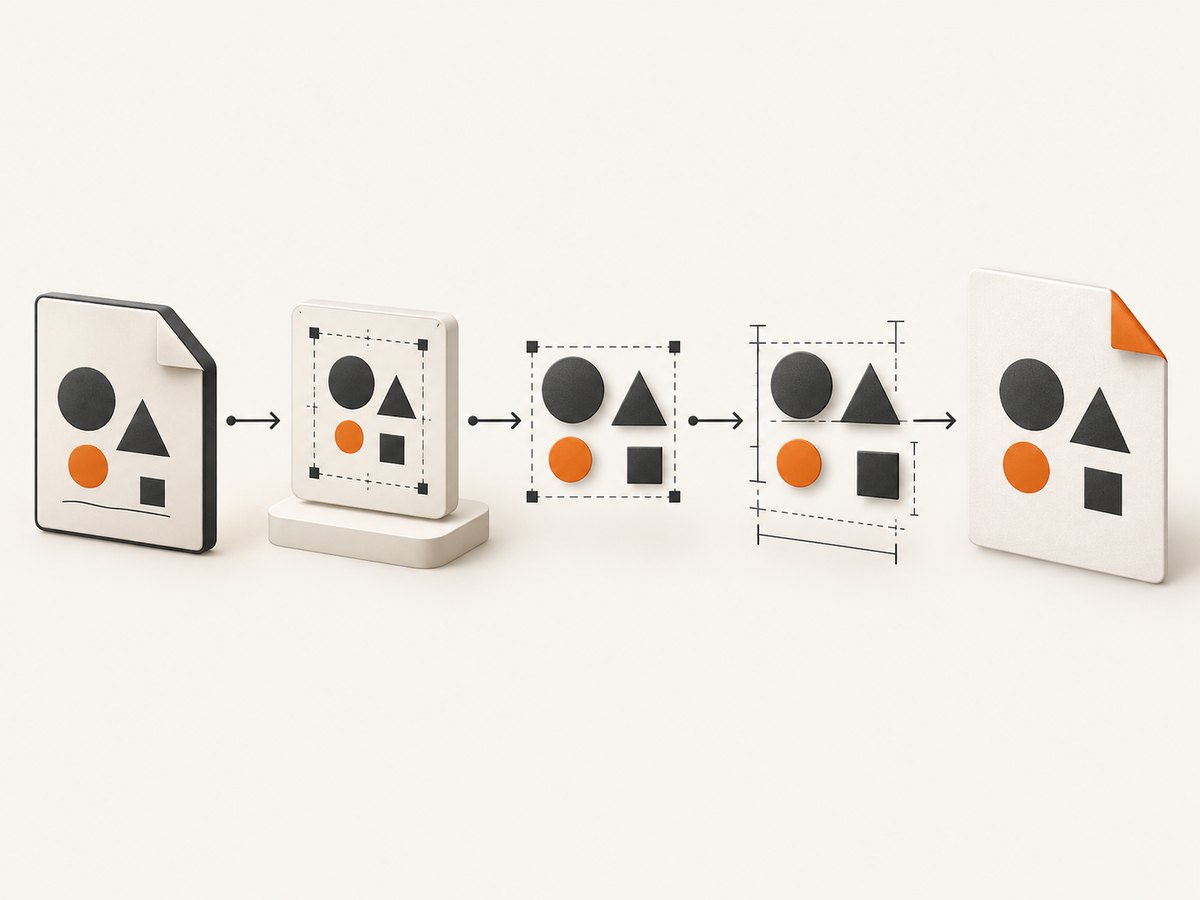
doc.addFileToVFS('CustomFont.ttf', FONT_BASE64);
doc.addFont('CustomFont.ttf', 'CustomFont', 'normal');
doc.setFont('CustomFont', 'normal');
doc.setFontSize(12);

doc.text('One line for diagnosis', 72, 72);
Check these details:
- The VFS filename passed to
addFileToVFSis the filename registered byaddFont. - The family name in
setFontexactly matches the name passed toaddFont. - The style is registered and selected consistently, such as
normal,bold, oritalic. - The call to
setFonthappens after any code that might change the font. - The TTF actually contains the required glyphs, especially for non-Latin text.
3. Separate direct text from html/context2d rendering
Test a direct text() call independently from the HTML route. The jsPDF 2.0.0 release notes record a fix for “usage of custom fonts in context2d/when using the html method” (issue #2834). That release-note item is relevant when your document uses those APIs, but it does not establish a universal fix for every font or rendering path. Read the jsPDF 2.0.0 release notes.
const doc = new jsPDF();
doc.addFileToVFS('CustomFont.ttf', FONT_BASE64);
doc.addFont('CustomFont.ttf', 'CustomFont', 'normal');
doc.setFont('CustomFont', 'normal');

doc.text('Direct text() path', 40, 40);

// Test the HTML route separately when your application uses it.
const element = document.querySelector('#content');
doc.html(element, {
  callback: generated => generated.save('html-path.pdf'),
  x: 40,
  y: 60,
  width: 520
});
If direct text is correct but HTML output overlaps, isolate the HTML/context2d integration. If both paths overlap, inspect registration, metrics, and your layout calculations first.
4. Identify the type of overlap
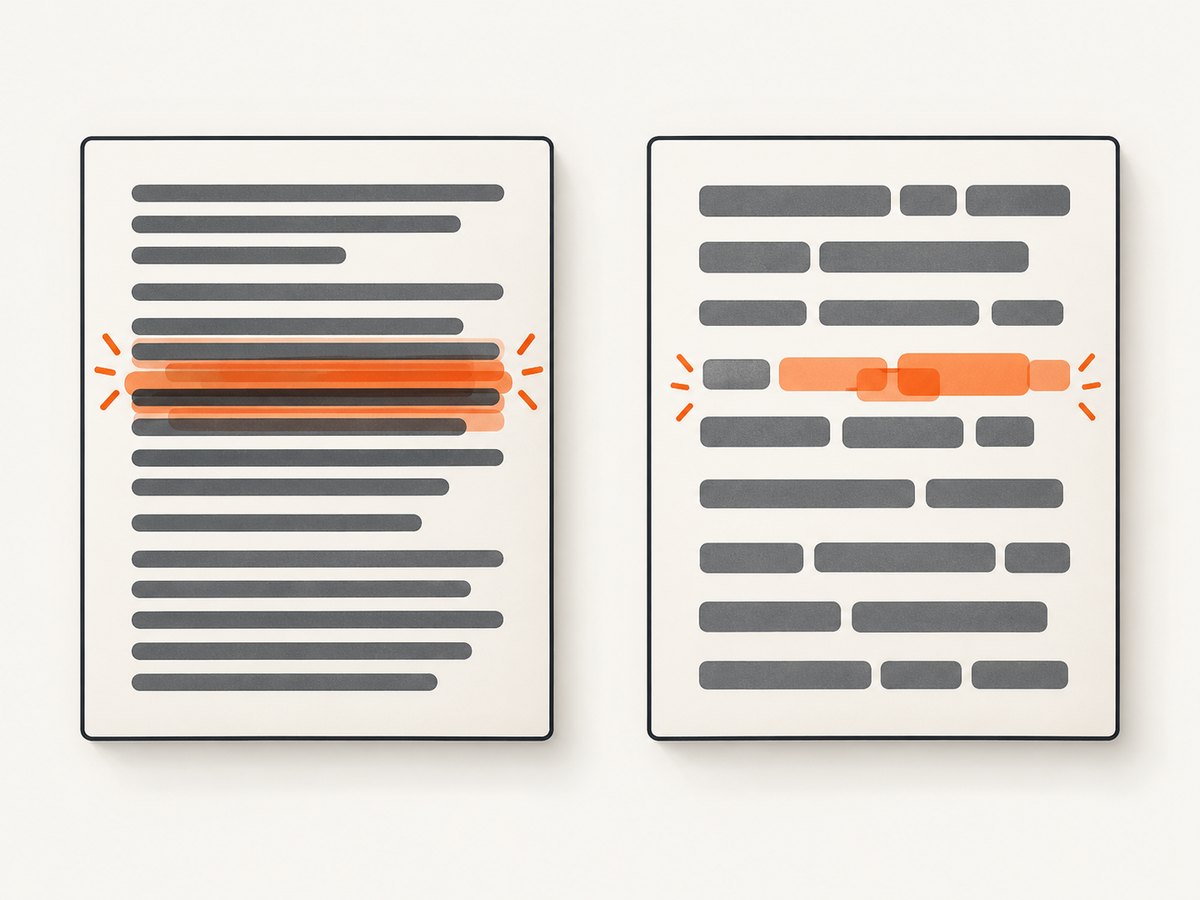
Vertical baseline collision
When consecutive lines run into each other, inspect the y coordinates and the line height. Do not assume that a CSS line-height value was transferred correctly to a PDF coordinate system. Use an explicit increment while debugging:
const x = 72;
const firstBaseline = 100;
const lineStep = 20;

doc.setFont('CustomFont', 'normal');
doc.setFontSize(14);
doc.text('First line', x, firstBaseline);
doc.text('Second line', x, firstBaseline + lineStep);
doc.text('Third line', x, firstBaseline + lineStep * 2);
Increase lineStep temporarily. If the collision disappears, tune the line spacing for the selected font and size, then keep the value explicit in your layout code.
Within-line or horizontal collision
If characters touch each other or the next word starts at the wrong x position, line height is not the relevant variable. Check that the selected font is the intended one, that glyphs are present, and that width measurements use the same font and size as output. Avoid manually advancing x with a width measured before calling setFont.
doc.setFont('CustomFont', 'normal');
doc.setFontSize(14);

const label = 'Custom font label';
const value = 'Value';
const x = 72;
const y = 100;
const gap = 8;

doc.text(label, x, y);
const labelWidth = doc.getTextWidth(label);
doc.text(value, x + labelWidth + gap, y);
Measure after selecting the font and size. A mismatch between the measurement font and output font can place later words on top of earlier glyphs.
5. Check glyph coverage and substitutions
Missing glyphs usually show up as missing characters, replacement boxes, or substituted shapes rather than ordinary line-spacing overlap. Confirm that the TTF contains every character in the troublesome string. Test plain ASCII and then add the affected characters one at a time:
const samples = [
  'Plain ASCII',
  'Accents: café naïve',
  'Symbols: € £ ¥',
  'Required non-Latin text'
];

samples.forEach((sample, index) => {
  doc.text(sample, 72, 90 + index * 24);
});
If only a particular character set fails, replace or regenerate the TTF with the needed glyph coverage and repeat the minimal test.
6. Apply changes in a controlled order
Change one layout variable, regenerate the PDF, and inspect it before changing another. A useful order is:
- Register and select the font explicitly.
- Confirm the rendering path with a direct
text()test. - Set a known font size.
- For vertical collisions, increase the baseline increment or line height.
- For horizontal collisions, recheck width measurement and x-position arithmetic.
- Check glyph coverage when characters are missing or substituted.
An issue report about overlapping words recommends explicit font selection plus font-size and line-height adjustments for its particular case. Treat those as candidate checks, not as a guaranteed repair for every custom font or document. See issue #3655.
7. Complete browser example with wrapped lines
<script src="https://cdn.jsdelivr.net/npm/jspdf@2.0.0/dist/jspdf.umd.min.js"></script>
<script>
  const { jsPDF } = window.jspdf;
  const FONT_BASE64 = 'PASTE_TTF_BASE64_HERE';

  function createPdf() {
    const doc = new jsPDF({ unit: 'pt', format: 'a4' });
    doc.addFileToVFS('CustomFont.ttf', FONT_BASE64);
    doc.addFont('CustomFont.ttf', 'CustomFont', 'normal');
    doc.setFont('CustomFont', 'normal');
    doc.setFontSize(14);

    const margin = 72;
    const maxWidth = 450;
    const lineHeight = 22;
    const text = 'Replace this paragraph with the text that overlaps in your application.';
    const lines = doc.splitTextToSize(text, maxWidth);

    lines.forEach((line, index) => {
      doc.text(line, margin, 100 + index * lineHeight);
    });

    doc.save('custom-font-debug.pdf');
  }
</script>
<button onclick="createPdf()">Create PDF</button>
This example makes the font, size, wrapping width, and baseline increment explicit. If it renders correctly, compare each value with the production path until the differing variable is found.
8. Troubleshooting checklist
| Symptom | Likely area | Fix |
|---|---|---|
| Every line overlaps vertically | Baseline increment or line height | Use explicit y positions and increase the line step. |
| Words overlap within one line | Font selection or width calculation | Call setFont and setFontSize before measuring and drawing. |
| Only HTML output overlaps | html()/context2d integration |
Compare with a direct text() reproduction and inspect the 2.0.0 integration. |
| Characters are missing or replaced | TTF glyph coverage | Use a TTF containing the required glyphs. |
| Changing font size has no effect | Font is being reset later | Search for later setFont or style changes and select the font immediately before output. |
| Only one style fails | Style registration mismatch | Register and select the exact family/style pair for that face. |
9. Performance, reliability, and version notes
- Keep the minimal reproduction small so font registration and coordinate changes are easy to inspect.
- Reuse one correctly registered font in a document instead of repeatedly registering it during layout.
- For HTML output, treat the browser layout and jsPDF conversion as separate stages; a correct browser layout does not prove that the PDF conversion uses identical metrics.
- Current jsPDF API documentation may describe APIs added or changed after 2.0.0. Label advice from current documentation as current when maintaining a 2.0.0 application.
- There is no single verified root cause for an unspecified font and code sample. Preserve the smallest reproduction when reporting the issue so the rendering path, font, characters, and coordinates are visible.
10. Or skip the browser setup
If your goal is a clean image or PDF of a web page rather than a locally generated jsPDF document, ScreenshotNeo provides a single screenshot API request. It accepts a URL and returns PNG, JPEG, WebP, or PDF; its options include custom CSS and JavaScript, full-page capture, element capture, waiting rules, device settings, and PDF page controls. See the ScreenshotNeo API documentation.
curl -G "https://api.screenshotneo.com/v1/shot" -d access_key=YOUR_API_KEY --data-urlencode url=https://stripe.com -o shot.webpimport requests
r = requests.get("https://api.screenshotneo.com/v1/shot", params={"access_key": "YOUR_API_KEY", "url": "https://stripe.com"}, timeout=90)
open("shot.webp", "wb").write(r.content)const q = new URLSearchParams({ access_key: 'YOUR_API_KEY', url: 'https://stripe.com' });
const res = await fetch(`https://api.screenshotneo.com/v1/shot?${q}`);Cookie banners, newsletter popups, and chat widgets are removed before the shot. Bot checks, blank pages, timeouts, failed loads, and cache hits are not billed, and the response identifies the result with X-Page-Verdict and X-Billed headers. An MCP server provides take_screenshot, get_page_info, and capture_pdf tools for Claude, Cursor, and other MCP clients. The Free plan includes 1,000 screenshots per month with no card; paid plans start at $5 for 3,000 shots. Create a free ScreenshotNeo account.
FAQ
Does increasing the font size always fix overlap?
No. It can change line spacing or metrics, but it cannot repair an unselected font, an incorrect width calculation, or missing glyphs.
Should I upgrade from jsPDF 2.0.0?
First isolate the rendering path and font. The 2.0.0 release notes document a custom-font fix for context2d/HTML use; current API documentation reflects a newer documentation state.
Why does direct text work while HTML output fails?
The two paths use different layout and conversion code. Compare them with the same registered font and a short string, then debug the HTML/context2d path separately.
How do I know whether the problem is vertical or horizontal?
Look at the geometry: colliding consecutive baselines indicate vertical spacing; characters or words colliding on one baseline indicate font metrics or x-position calculations.


