How to Fix “Could Not Attach to MCP Server” in Kapture Browser Automation
Trace the connection between Claude Desktop, Kapture’s MCP server, and its Chrome extension to find where attachment is failing—and what to check next.
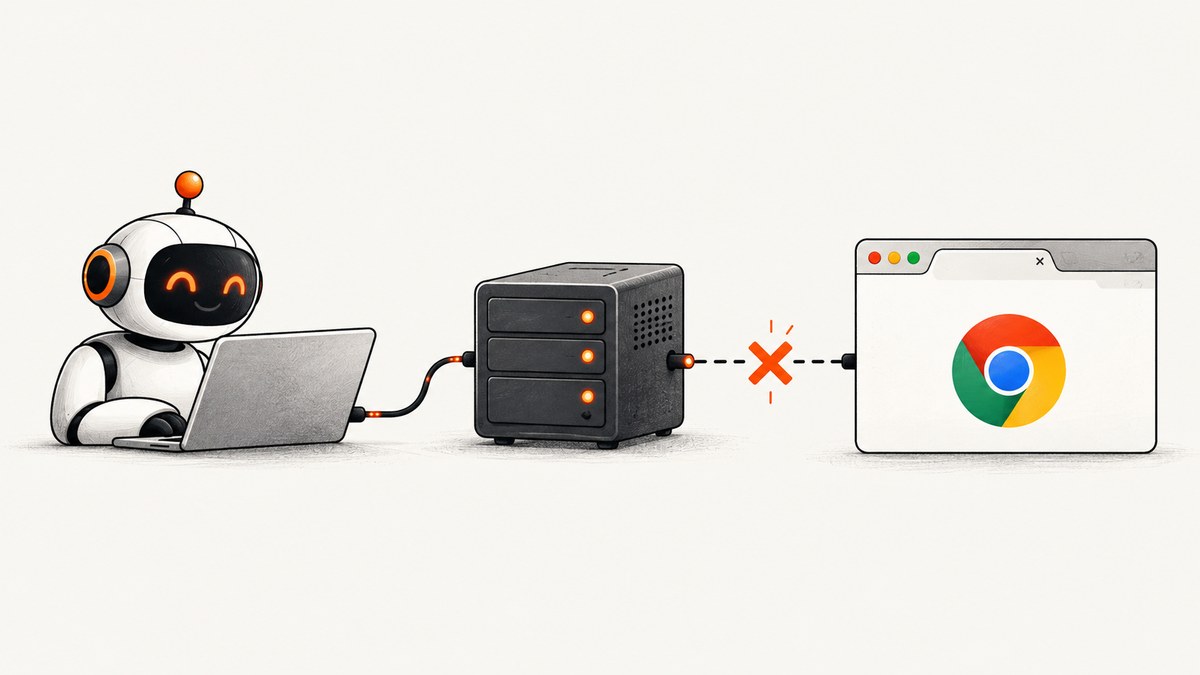
The error “Could not attach to MCP server Kapture Browser Automation” does not identify one universal cause. Diagnose the connection in three parts: Claude Desktop must connect to Kapture’s MCP server; the server must start; and Kapture’s Chrome extension must connect to a browser tab. Check each link separately before changing configuration.
For the usual Claude Desktop setup, Kapture recommends bridge mode with npx -y kapture-mcp@latest bridge. Kapture documents Node.js 18 or later, Chrome with the extension installed, and port 61822. The bridge starts the server and translates between Claude’s stdio connection and Kapture’s WebSocket connection. See the Kapture project README and its server setup instructions. A generic attachment message alone cannot tell you which link failed.
1. Identify which connection is failing
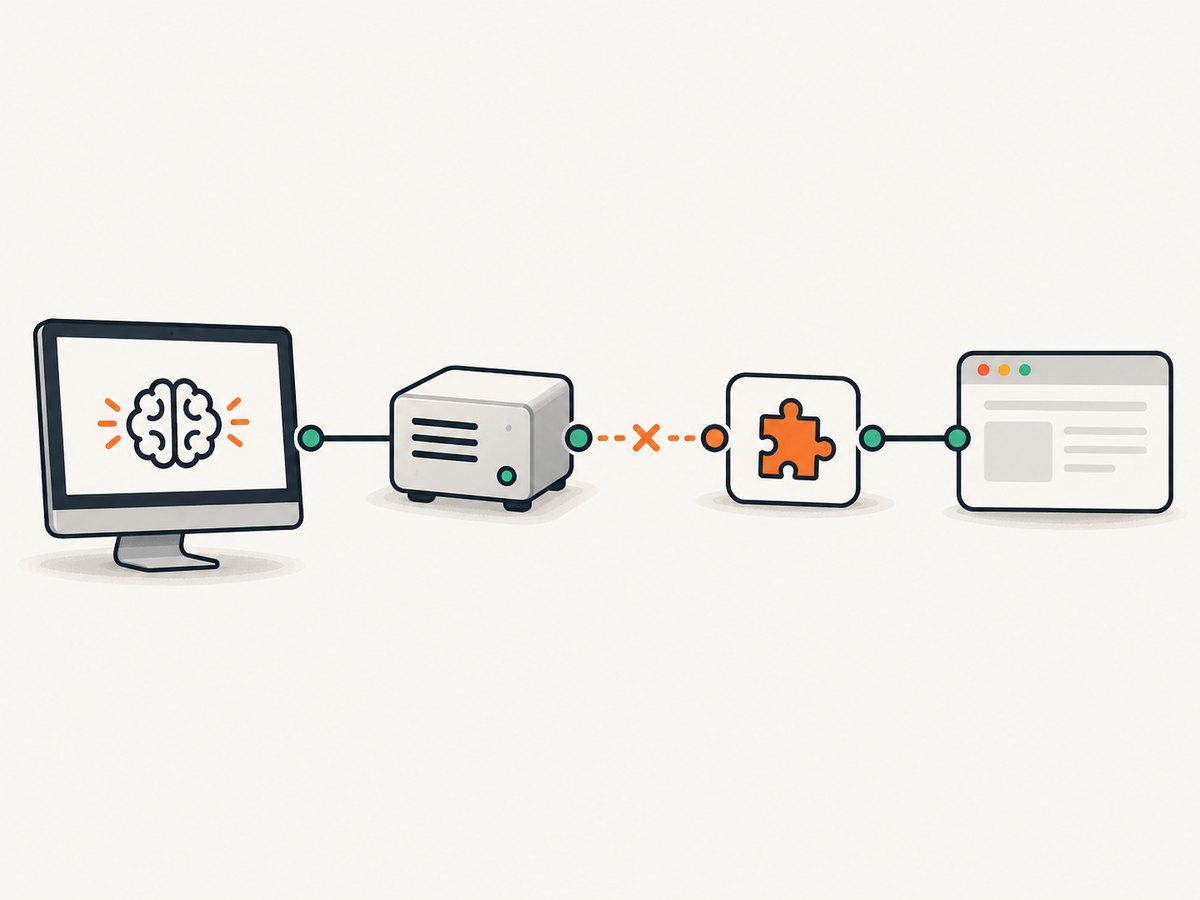
Kapture’s documented architecture has three relevant pieces. Use their states as a simple diagnostic map:
| Connection | What to check | What the result tells you |
|---|---|---|
| Claude Desktop → MCP server | Claude’s Developer settings, server status, and logs | If disconnected or logs show startup errors, investigate the client configuration or server process. |
| MCP server → Chrome extension | Whether the server is running and listening on Kapture’s documented port, 61822 | If the process does not start or the extension cannot reach it, investigate runtime, server startup, and local connectivity. |
| Chrome extension → tab | Kapture’s toolbar badge and the extension’s connection toggle | If the badge does not show a check mark, connect a Chrome tab even if Claude reports that its MCP server is connected. |
These are separate states. A connected Claude server does not prove that a Chrome tab is attached, and a connected extension badge does not prove that Claude’s MCP client can launch the server.
2. Check Claude Desktop’s MCP diagnostics
- Open Claude Desktop’s Developer settings and inspect the Kapture connection status.
- Review the available server or extension logs for startup failures, configuration errors, or an immediate disconnect.
- If Kapture appears installed but its tools are unavailable, verify its configuration and restart Claude Desktop.
Anthropic’s guidance for local MCP and desktop extensions recommends checking Developer diagnostics and logs, required configuration, and restarting Claude Desktop when tools are unavailable. Those are useful client-side checks; they do not establish a Kapture-specific root cause. Refer to Anthropic’s local MCP troubleshooting guidance.
Record the status and the first meaningful error line before editing anything. For example, “process failed to launch” points toward command/runtime configuration, while “connected” in Claude with no Chrome tab points to the extension side. Avoid treating the word “attach” as proof that Chrome permissions are the cause.
3. Compare the Claude configuration with Kapture’s bridge setup
For Claude Desktop, the Kapture README documents this bridge configuration:
{
  "mcpServers": {
    "kapture": {
      "command": "npx",
      "args": ["-y", "kapture-mcp@latest", "bridge"]
    }
  }
}
Use the configuration file location appropriate to your Claude Desktop installation; the cited project instructions specify the entry but do not provide one path that applies to every operating system or installation. Preserve the JSON structure already in your configuration, and make sure there is only one comma between neighboring entries. A malformed JSON file can prevent a server from starting even when the Kapture entry itself looks right.
Bridge mode is the documented recommendation for Claude Desktop because it starts the server and handles stdio-to-WebSocket translation. Check that the command is exactly npx and that the arguments are separate JSON strings in the shown order. If npx is not found, check whether Node.js is installed and whether the Claude Desktop process can access its executable through its environment. Kapture lists Node.js 18+ as a requirement.
After saving the configuration, restart Claude Desktop and check Developer status and logs again. If the server still fails to start, note the operating system, Claude Desktop version, Node.js version, exact configuration entry, and complete startup error. The sources do not establish that reinstalling Kapture, changing permissions, or changing networks fixes every occurrence.
4. Verify Node.js and server startup
Kapture’s project instructions list Node.js 18 or later and Chrome with the Kapture extension installed. Verify the runtime in a terminal:
node --version
npx --version
Confirm that Node reports version 18 or later and that npx can run. The bridge configuration invokes npx; an environment that works in your terminal may differ from the environment used by a desktop app. If Claude’s logs say the command cannot be found, resolve that executable-path issue or use the project’s documented manual server mode only if you can manage its lifecycle.
Kapture’s server uses local port 61822. If startup logs indicate a port conflict or the extension cannot connect while the server is running, check whether another process is already using that port and whether local security software or policy blocks local connections. The supplied project documentation identifies the port; it does not provide a universal firewall rule or a guarantee that changing network settings is the fix.
5. Check Chrome’s extension and tab connection
- Open Chrome and a website tab you want Kapture to control.
- Click the Kapture toolbar icon and turn on the connection.
- Look for a check mark on the extension badge, which the project documents as the connected state.
- If needed, use Kapture’s panel in Chrome DevTools to connect, or load a page with
?kapture-connect=trueto auto-connect.
If Claude shows the server as connected but the badge has no check mark, keep the diagnosis on the browser side: confirm that the extension is installed in the same Chrome profile as the tab, then retry the documented connection action. Do not infer that the MCP server is broken solely because no tab is connected.
Also confirm that you are using Chrome with Kapture installed, as listed in the project requirements. The available documentation does not establish support for every Chromium-based browser, profile arrangement, managed-device policy, or extension-install method. If the toolbar icon is absent, inspect Chrome’s extension list and the profile currently in use before changing Claude’s MCP entry.
6. Compare bridge mode with direct WebSocket mode
| Mode | Configuration | When it fits | Trade-off |
|---|---|---|---|
| Bridge | npx -y kapture-mcp@latest bridge |
Typical Claude Desktop configuration | The client launches the bridge, which handles stdio-to-WebSocket translation. |
| Direct WebSocket | ws://localhost:61822/mcp |
Advanced setups where you want to manage the server separately | You must start and manage the server lifecycle manually. |
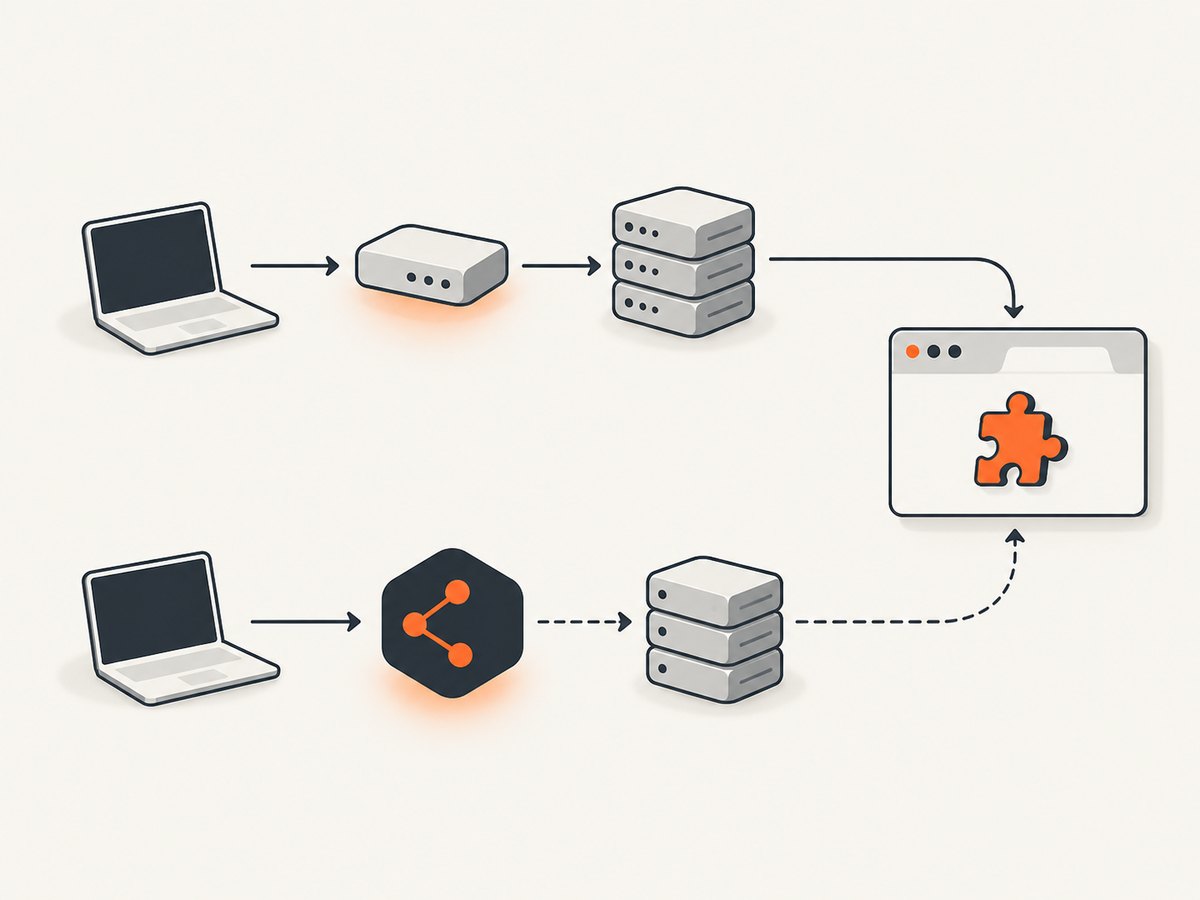
The project documents direct mode as an advanced alternative. Its configuration is shown below for reference:
{
  "mcpServers": {
    "kapture": {
      "transport": "websocket",
      "url": "ws://localhost:61822/mcp"
    }
  }
}
In direct mode, start the server separately using the project’s documented command, npx kapture-mcp, and keep it running while Claude uses it. Check the exact transport configuration supported by your Claude Desktop version. If the server is not running, the local WebSocket endpoint cannot serve the connection. Bridge mode avoids this separate lifecycle step for the standard setup.
7. Troubleshoot by symptom
| Symptom | Likely area to inspect | Next action |
|---|---|---|
| Claude immediately says it cannot attach; logs show command or spawn failure | Claude configuration or runtime | Check JSON syntax, npx availability, Node.js 18+, and the bridge arguments. |
| Claude’s status is disconnected and the server never appears to start | Client-to-server startup | Inspect Developer logs, compare the entry with Kapture’s recommended bridge configuration, then restart Claude Desktop. |
| Claude reports connected, but Kapture tools cannot operate on a page | Extension-to-tab connection | Connect a Chrome tab from the toolbar and verify the badge’s check mark. |
| Extension is installed but no toolbar icon appears | Chrome profile or extension installation | Check Chrome’s extension list and confirm you are using the profile where Kapture is installed. |
| Extension does not connect to the server | Server startup or local port | Check that Kapture’s server is running on port 61822 and inspect server output for startup or port errors. |
| It worked before a client or package update | Version or environment change | Capture the current versions and logs, then reproduce with the documented configuration. A report describing similar wording after an update does not establish that the update caused every such failure. |
There is no source-supported universal fix for this exact message. Avoid deleting configurations or repeatedly reinstalling components before saving the evidence that would distinguish client startup from browser attachment.
8. macOS anecdote: Apple Events setting
A Reddit user reported that enabling View > Developer > Allow JavaScript events from Apple Events in Chrome helped in their case. A commenter suggested checking macOS Local Network permission. These are user reports, not official Kapture or Anthropic troubleshooting instructions, and they do not show that either setting is a general fix.
Consider these only after checking the documented Claude, server, and extension links above. Verify that the setting exists in your version of Chrome and macOS before relying on it. If it is unavailable, do not treat that absence as evidence of a broken Kapture installation. The report also cannot isolate Kapture as the cause.
9. Collect a useful diagnostic report
If the connection remains broken, collect enough information to reproduce it:
- Operating system and Claude Desktop version.
- Kapture configuration entry, with any secrets removed.
- Node.js version and whether
npxruns. - Claude Developer connection status and relevant server log lines.
- Whether the Kapture server starts and whether output mentions port
61822. - Chrome version/profile, whether the extension icon appears, and whether the badge shows a check mark.
- The exact sequence of actions and the full error text, including whether it says “Could not attach to MCP server kapture” or “MCP kapture: Server disconnected.”
This report narrows the failing link. The reviewed sources do not provide a complete Kapture-specific decision tree keyed to the exact attachment message, so avoid presenting a guess as a confirmed cause.
Or skip the browser setup
If your goal is to capture a website screenshot rather than automate a live Chrome tab, ScreenshotNeo is a website screenshot API and MCP server. It returns a PNG, JPEG, WebP, or PDF from one GET request. Its MCP server provides take_screenshot, get_page_info, and capture_pdf for Claude, Cursor, and other MCP clients. See the ScreenshotNeo API documentation.
curl -G "https://api.screenshotneo.com/v1/shot" -d access_key=YOUR_API_KEY --data-urlencode url=https://stripe.com -o shot.webpCookie banners, newsletter popups, and chat widgets are removed before the shot; each step can be turned off. Bot checks, blank pages, timeouts, failed loads, and cache hits cost nothing, and response headers identify the page verdict and billing status. The free plan includes 1,000 screenshots per month with no card; paid plans start at $5 for 3,000. Create a free ScreenshotNeo account.
Performance, reliability, and cost notes
Kapture runs through a local server and a connected Chrome extension, so its availability depends on the client process, server process, and browser tab all being available. Bridge mode starts the server with the MCP connection; direct WebSocket mode puts server startup and shutdown in your hands. When an attachment fails, collect logs before restarting so a transient startup failure does not erase useful clues.
The supplied Kapture sources do not state a price, performance benchmark, uptime figure, or request limit. Do not infer these from the local port or the use of npx. For screenshot-only jobs, ScreenshotNeo’s published plan options are Free: 1,000 per month; Starter: $5 for 3,000; Growth: $15 for 15,000; Pro: $39 for 60,000; Scale: $99 for 250,000; and Business: $249 for 1,000,000. Yearly billing gives two months free, and every feature is on every plan. These numbers are ScreenshotNeo plan details, not a Kapture comparison or benchmark.
FAQ
Does this error mean Kapture is broken?
No. It reports an attachment failure but does not identify which connection failed. Check Claude status, server startup, and the Chrome tab connection independently.
Should I use bridge mode or direct WebSocket?
Use bridge mode for the documented standard Claude Desktop setup. Direct WebSocket mode is an advanced option when you can manage the server process separately.
Does a connected server mean the browser tab is ready?
No. Check Kapture’s extension badge for the connected check mark on the tab you want to automate.
Is the Apple Events setting an official fix?
No. It is an anecdotal user report. Verify the setting exists in your Chrome/macOS version and try it only after the documented connection checks.
Can I use ScreenshotNeo instead of Kapture?
Use ScreenshotNeo when you need a website screenshot or PDF through an API or MCP tool. Kapture’s described workflow connects an AI client to a live Chrome tab for browser automation, which is a different task.


