How to Fix Karma Tests Hanging With Headless Chrome in Angular
Diagnose where Angular’s Karma run stalls, fix ChromeHeadless startup and CI issues, and make tests exit cleanly with reliable browser and timeout settings.
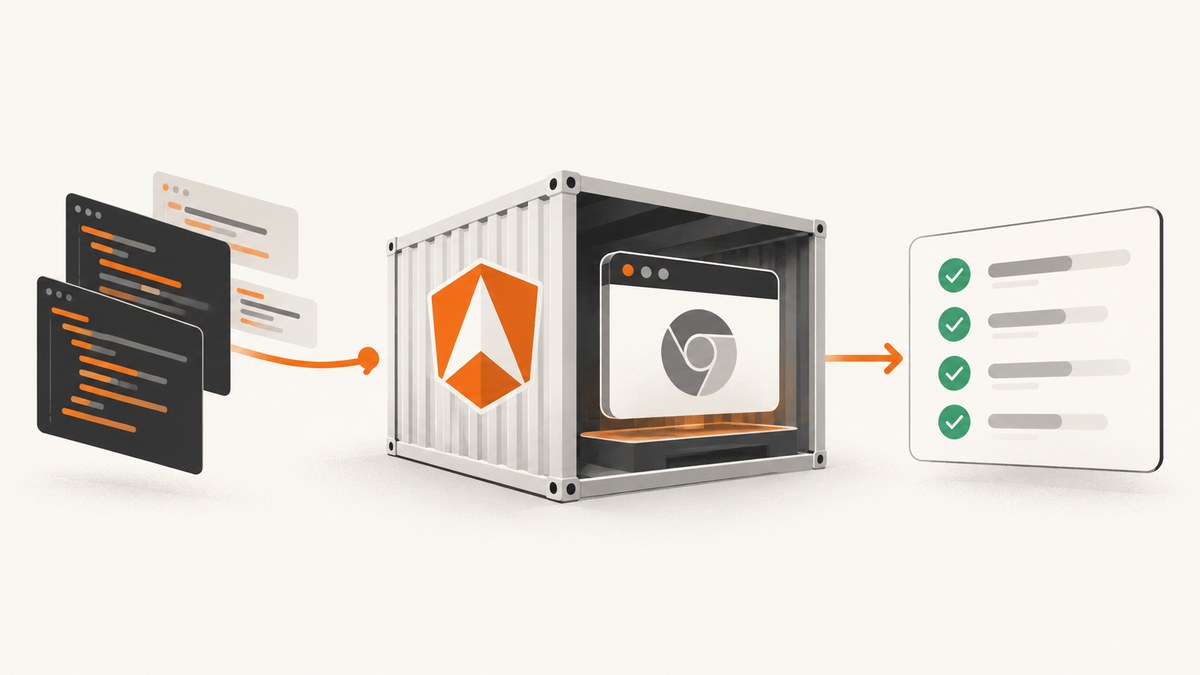
If Angular’s Karma tests hang with ChromeHeadless, first identify whether Chrome never connects, connects and then stops reporting activity, or finishes the tests but leaves the process watching. For CI, start with Angular’s recommended one-shot command:
ng test --no-watch --no-progress --browsers=ChromeHeadlessThose flags handle the common “tests passed but the job never exits” case. If the run stalls earlier, changing watch settings will not fix Chrome startup or a stalled test. Diagnose the phase first, then change the browser, environment, or timeout setting that matches it.
1. Identify where the run stops
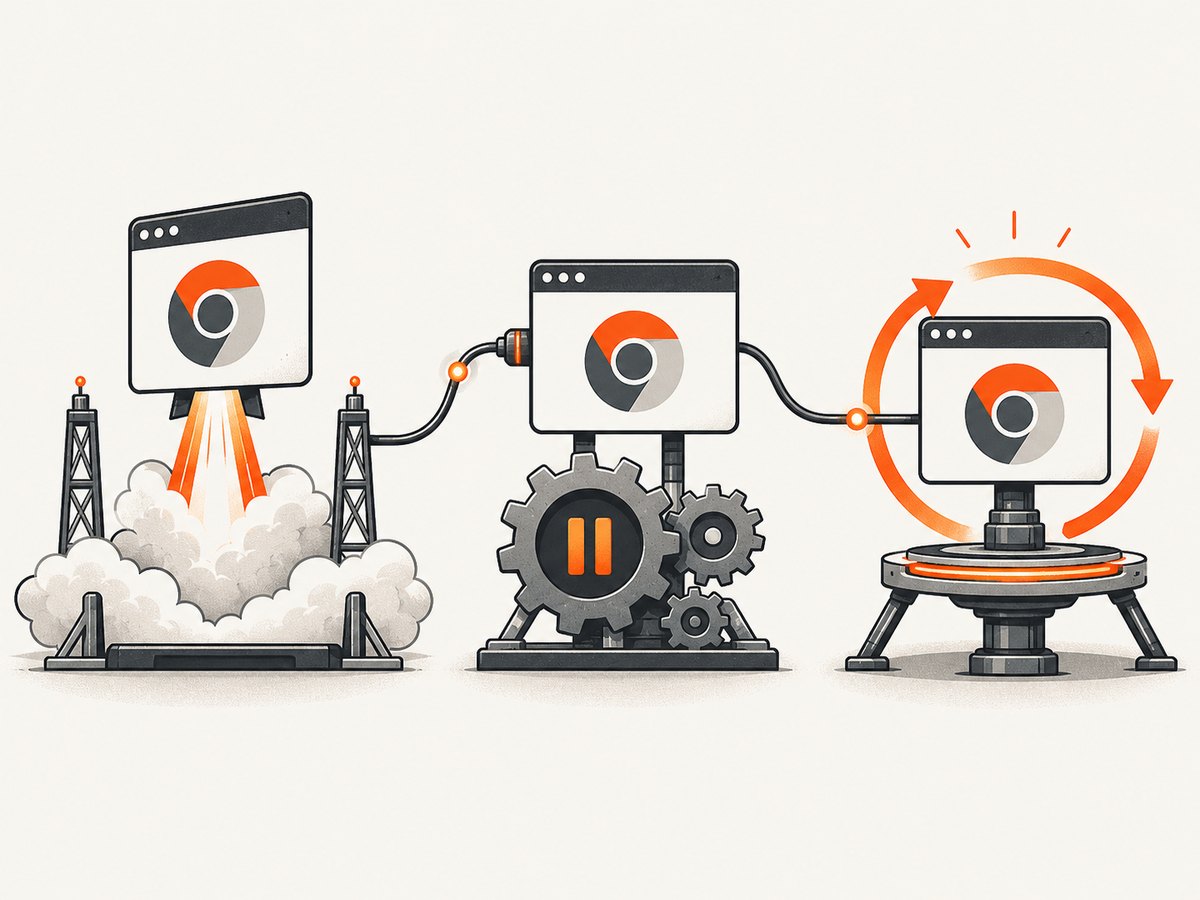
Read the last Karma log messages and classify the failure before changing configuration. Karma distinguishes browser startup from inactivity during a test run, and from a process that remains alive after completion.
| What you see | Likely phase | First checks |
|---|---|---|
| Repeated “Launching” or “Attempting to capture” messages; no connected browser | Chrome startup or capture | Binary path, executable permissions, launcher installation, headless support, container sandbox logs |
| Chrome connects, then no test progress or browser messages | Test execution or browser activity | Failing spec, unresolved async work, browser console, network waits, memory or resource pressure |
| Browser disconnects, then reconnects | Transient browser or communication failure | Crash logs, container resources, disconnect settings after confirming the failure is transient |
| Tests pass, but the command does not exit | Watch mode or persistent process | --no-watch, --no-progress, and the ChromeHeadless browser flag |
Keep the distinction between “Chrome never connected” and “Chrome connected but stopped responding” in mind. The former points toward the launcher and environment; the latter points toward tests, browser health, or resources.
2. Run Angular tests once in CI
Use this as the baseline command for a CI job:
ng test --no-watch --no-progress --browsers=ChromeHeadlessAngular’s Karma guide calls --no-watch and --no-progress crucial for CI so tests run once and exit cleanly. It also calls --browsers=ChromeHeadless essential for running in a browser environment without a graphical interface. See the Angular Karma testing guide.
Confirm that your installed Angular CLI accepts these options with ng test --help. If your workspace uses a custom test target or script, make sure the flags reach the ng test process rather than being swallowed by a wrapper. For example, with an npm script named test:ci, pass the arguments after --:
npm run test:ci -- --no-watch --no-progress --browsers=ChromeHeadlessFor a direct Karma setup, configure a single run rather than continuous watching:
module.exports = function (config) {
  config.set({
    browsers: ['ChromeHeadless'],
    autoWatch: false,
    singleRun: true
  });
};
Prefer the configuration generated for your Angular workspace and make only the changes needed there. CLI flags and config settings address run mode; they do not repair a missing Chrome executable or a test that never settles.
3. Make Chrome’s binary reproducible
A launcher can only start a browser it can find. Local machines may have Chrome in a familiar system path, while a clean CI worker or container may not. The karma-chrome-launcher documentation supports CHROME_BIN, lists ChromeHeadless and ChromiumHeadless, and documents using Puppeteer’s installed executable path for CI.
Install the launcher as a development dependency if the project does not already include it, and provision a browser binary in the CI image or job. If Puppeteer is already part of your project and provisions Chromium, point Karma to that executable:
// karma.conf.js
process.env.CHROME_BIN = require('puppeteer').executablePath();

module.exports = function (config) {
  config.set({
    browsers: ['ChromeHeadless'],
    autoWatch: false,
    singleRun: true
  });
};
Run this only where Puppeteer and its browser are installed. Otherwise set CHROME_BIN in the CI environment to the actual executable path. Check that the file exists and can be executed by the job user. Pinning or explicitly provisioning the browser makes local and CI runs easier to reproduce than relying on whichever system Chrome happens to be present.
The launcher documentation says headless mode requires a sufficiently recent browser, version 59 or newer. If Chrome starts locally but not on an older CI image, check the browser version and update the provisioned binary.
4. Handle container sandbox errors narrowly
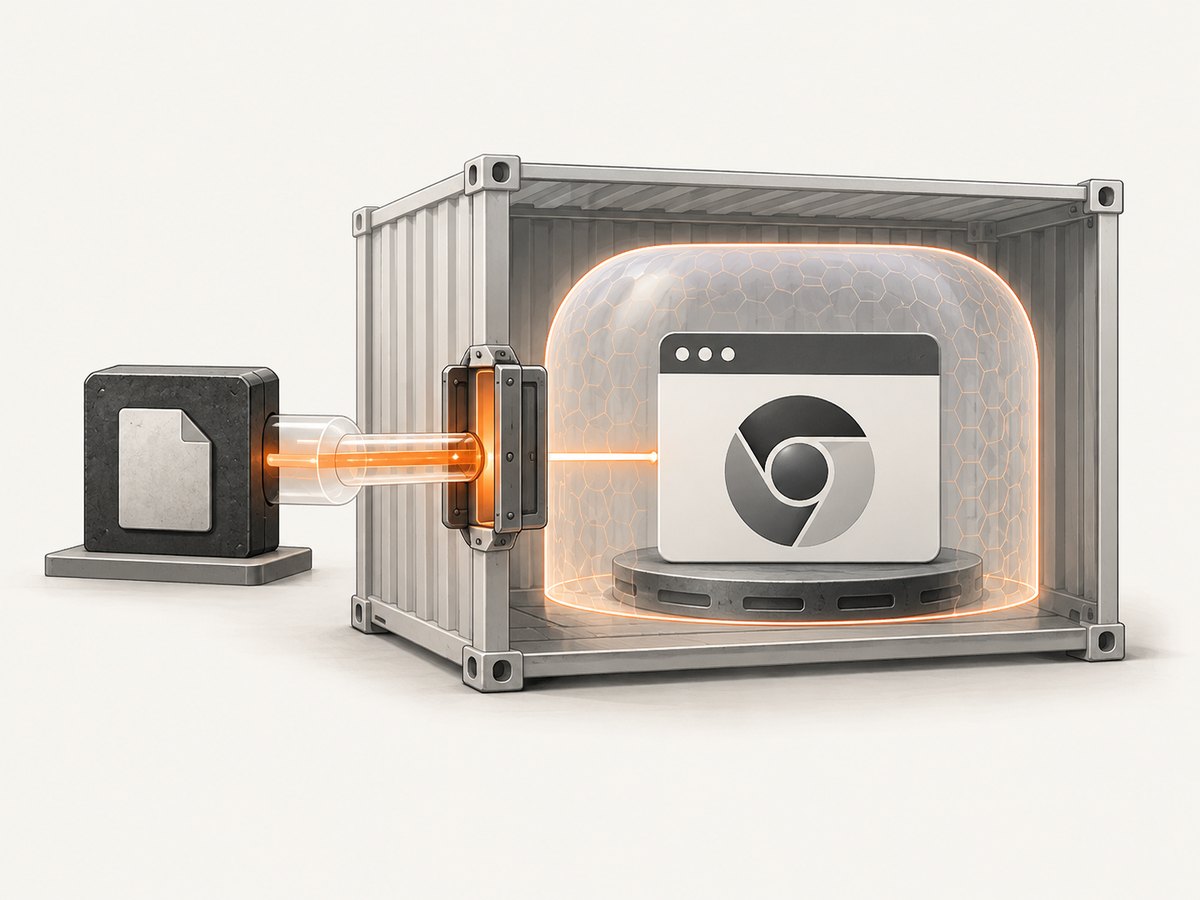
Some restricted containers prevent Chrome’s namespace sandbox from starting. Look for a matching sandbox or namespace permission error in Chrome’s stderr. If that is the observed failure, a custom launcher can add --no-sandbox:
// karma.conf.js
module.exports = function (config) {
  config.set({
    browsers: ['ChromeHeadlessCI'],
    customLaunchers: {
      ChromeHeadlessCI: {
        base: 'ChromeHeadless',
        flags: ['--no-sandbox']
      }
    },
    autoWatch: false,
    singleRun: true
  });
};
This workaround is environment-specific and weakens Chrome’s sandbox protection. Use it only when the container is trusted and the logs identify the sandbox permission failure. A documented karma-chrome-launcher issue records this kind of namespace failure and workaround. Do not add the flag to every developer machine or CI job by default. Some container setups also need a shared-memory adjustment, but choose that only when the container’s resource or browser error points to it.
5. Tune the timeout for the phase that stalls
Timeout increases can hide a slow environment or unresolved test, so first confirm the stage and observe how long it takes. Karma’s 6.4 configuration reference documents separate controls:
| Setting | Controls | Default in the 6.4 reference | When to adjust |
|---|---|---|---|
captureTimeout |
Maximum time for a browser to start and connect | 60,000 ms | Chrome reliably connects, but measured cold startup in the CI environment exceeds the current limit |
browserNoActivityTimeout |
How long Karma waits without a message from the browser during execution | 30,000 ms | A known, legitimate long-running operation needs more time and the browser remains healthy |
browserDisconnectTimeout |
How long Karma waits for a disconnected browser to reconnect | Set for your version/configuration | A confirmed transient disconnect takes longer to recover than the configured interval |
browserDisconnectTolerance |
How many disconnects Karma tolerates | Set for your version/configuration | A known transient connection issue is being investigated and a limited retry tolerance is appropriate |
For example, after measuring slow browser startup, you can increase only the capture limit:
module.exports = function (config) {
  config.set({
    browsers: ['ChromeHeadless'],
    captureTimeout: 120000,
    autoWatch: false,
    singleRun: true
  });
};
Use values appropriate to your runner and Karma version; the example doubles the reference default and is not a universal recommendation. Keep single-run settings independent from timeout choices. A larger inactivity timeout will not make an unresolved promise finish, and a larger capture timeout will not make a missing binary appear.
6. Debug a browser that connects but stops
- Reproduce the exact run locally. Use the CI command and the same browser version if possible. A headed browser can make page errors and test behavior easier to inspect.
- Open Karma’s browser or debug view. Angular’s Karma workflow supports browser debugging; use developer tools to inspect the failing spec and console errors.
- Find work that never settles. Check unresolved promises, timers, subscriptions, callbacks, and tests waiting on network requests. Ensure each asynchronous test resolves, rejects, or reaches its intended timeout.
- Check browser and runner resources. Look for a Chrome crash, memory pressure, exhausted shared memory, or a CI process limit. Compare a small test subset with the full suite.
- Return to headless CI mode. After identifying the browser-side issue, verify the fix using the same ChromeHeadless command used by CI.
Raise Karma logging verbosity where supported by your setup and preserve browser console output in job logs. The objective is to capture the first browser or test error; repeated timeout increases can move the symptom without fixing its cause.
7. Know whether the workspace still uses Karma
Karma remains supported for existing Angular projects, but current Angular projects default to Vitest. Check the workspace’s test builder and configuration before applying Karma-specific launcher advice. Angular documents both the Karma workflow and its current testing setup in the Angular testing guide. If ng test runs Vitest, ChromeHeadless and Karma’s capture or inactivity timers do not govern that test process.
8. Common errors and fixes
| Error or symptom | Cause to verify | Fix |
|---|---|---|
| “No binary for ChromeHeadless browser on your platform” | Chrome is absent or Karma cannot locate it | Provision Chrome/Chromium and set CHROME_BIN to the executable path |
| Chrome exits with namespace or sandbox permission errors | Container restrictions prevent sandbox startup | Use a targeted custom launcher workaround only in a trusted container after confirming the log matches |
| Chrome launches but capture times out | Slow startup, wrong binary, permissions, or browser startup failure | Inspect Chrome stderr and binary permissions; increase captureTimeout only if measured startup justifies it |
| Browser connects and Karma reports no activity | Browser crash, stalled test, or unreported async operation | Inspect console/spec behavior and runner resources; tune browserNoActivityTimeout only for legitimate measured work |
| Tests pass but CI remains running | Watch mode or a command wrapper keeping the watcher active | Pass --no-watch --no-progress --browsers=ChromeHeadless through to Angular CLI |
| Failure occurs only in an older CI image | Browser or launcher environment differs from local | Check Chrome version, launcher dependency, executable path, and job user permissions |
9. Keep CI runs reliable and efficient
- Provision the browser deliberately. Use a known executable and record how CI obtains it. Avoid accidental dependence on a developer workstation’s system installation.
- Keep logs useful. Preserve the first Chrome startup error and browser console output. A final timeout line alone often hides the cause.
- Separate startup from execution time. A cold browser launch and a long test suite need different remedies. Tune only the relevant timeout.
- Do not mask flaky tests with generous limits. Extra time can be reasonable for measured CI variation, but broad increases may lengthen failed jobs and obscure hangs.
- Account for environment resources. Container CPU and memory constraints can affect startup and browser stability. Compare runner capacity and test suite size when failures are intermittent.
- Keep sandbox changes scoped. Removing Chrome’s sandbox is a security tradeoff; confine it to the environment that requires it.
There is no single timeout or launch flag that fixes every hang. Reliability comes from using one-shot execution, a reproducible browser, stage-specific diagnosis, and small configuration changes tied to logs.
Or skip the browser setup
If you need website screenshots as part of a tool or workflow rather than an Angular test run, ScreenshotNeo provides a website screenshot API and MCP server. It is separate from Karma and does not run your Angular unit tests. One GET request captures a URL as an image or PDF. See the ScreenshotNeo API documentation.
curl -G "https://api.screenshotneo.com/v1/shot" -d access_key=YOUR_API_KEY --data-urlencode url=https://stripe.com -o shot.webpScreenshotNeo accepts cookie banners before capture and removes 60+ known consent platforms, newsletter popups, and chat widgets. Bot checks, blank pages, failed loads, timeouts, and cache hits are not billed, with response headers identifying the page verdict and billing status. Its MCP server gives AI agents tools for screenshots, page information, and PDF capture. The free plan includes 1,000 screenshots a month with no card; paid plans start at $5 for 3,000. Sign up free for 1,000 screenshots a month, no card required.
FAQ
Why does Karma say the browser is captured but still hang?
Capture confirms the browser connected. Check test progress, browser console errors, unresolved asynchronous work, crashes, and resource limits. Use the inactivity timeout only if a legitimate operation needs more time.
Should I always add --no-sandbox in Docker?
No. Add it only when Chrome logs show the container’s sandbox or namespace permission failure, and only in a trusted environment where the security tradeoff is acceptable.
Does ChromeHeadless mean Angular is using Karma?
No. Check the workspace test builder. Current Angular projects default to Vitest, while Karma remains supported for existing projects.
Can I fix a hanging test by raising every timeout?
That can delay failure without addressing a missing browser, crashed process, or test that never resolves. Identify the phase and adjust only its relevant timeout.


