How to Fix Kerning Issues in Headless Chrome Screenshots
Fix inconsistent text spacing in headless Chrome by checking font selection, font loading, kerning settings, and capture mode in a repeatable workflow.
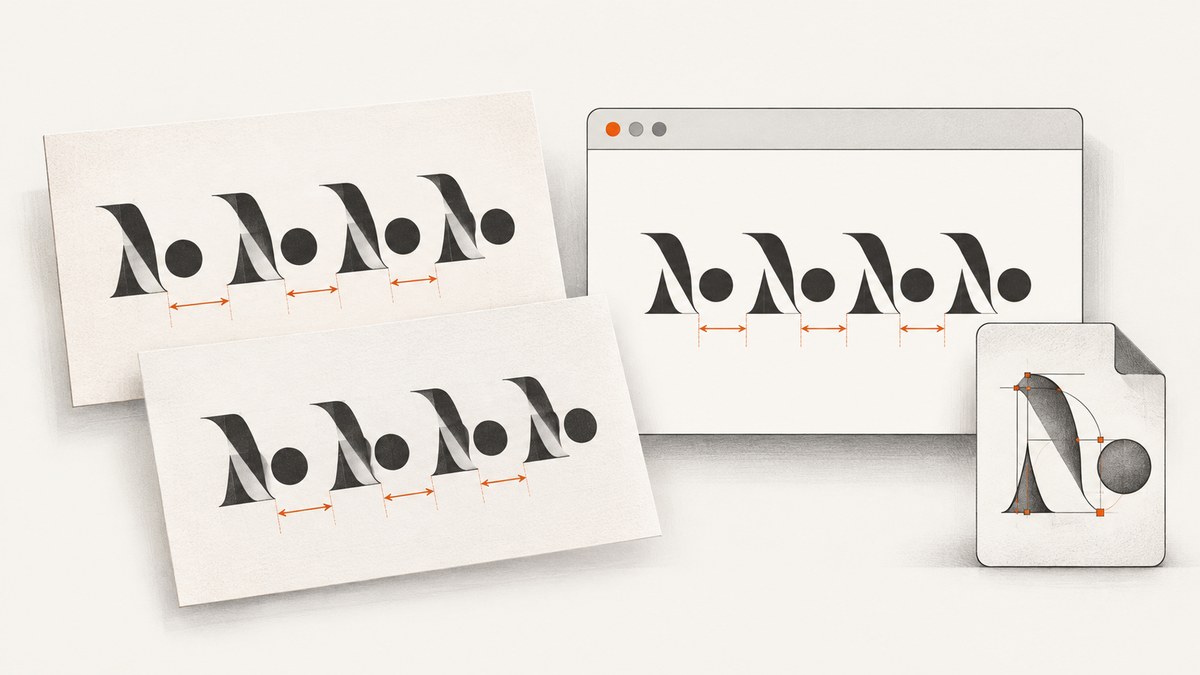
Kerning that looks wrong in a headless Chrome screenshot can come from three different problems: the selected font has different kerning behavior, the intended font has not loaded (or was never selected), or the browser mode and capture timing differ from the environment you are comparing against. Start by waiting for used fonts and layout to settle, verify the actual font and its network requests, then compare font-kerning: normal and none on the same font. Also record whether Playwright is using its headless shell or the real Chrome browser in new headless mode. No single CSS setting fixes every case.MDN
This guide uses Playwright with JavaScript for a reproducible diagnosis, then covers the same synchronization idea in Python and Puppeteer. It distinguishes glyph-pair spacing from font substitution and pixel rasterization so you can change the part of the pipeline that is actually responsible.
1. Identify which kind of text difference you have
Kerning adjusts the spacing of particular glyph pairs using information in the selected font. It is not the same as letter spacing, fallback-font substitution, line wrapping, or the way glyph edges are rasterized into pixels.
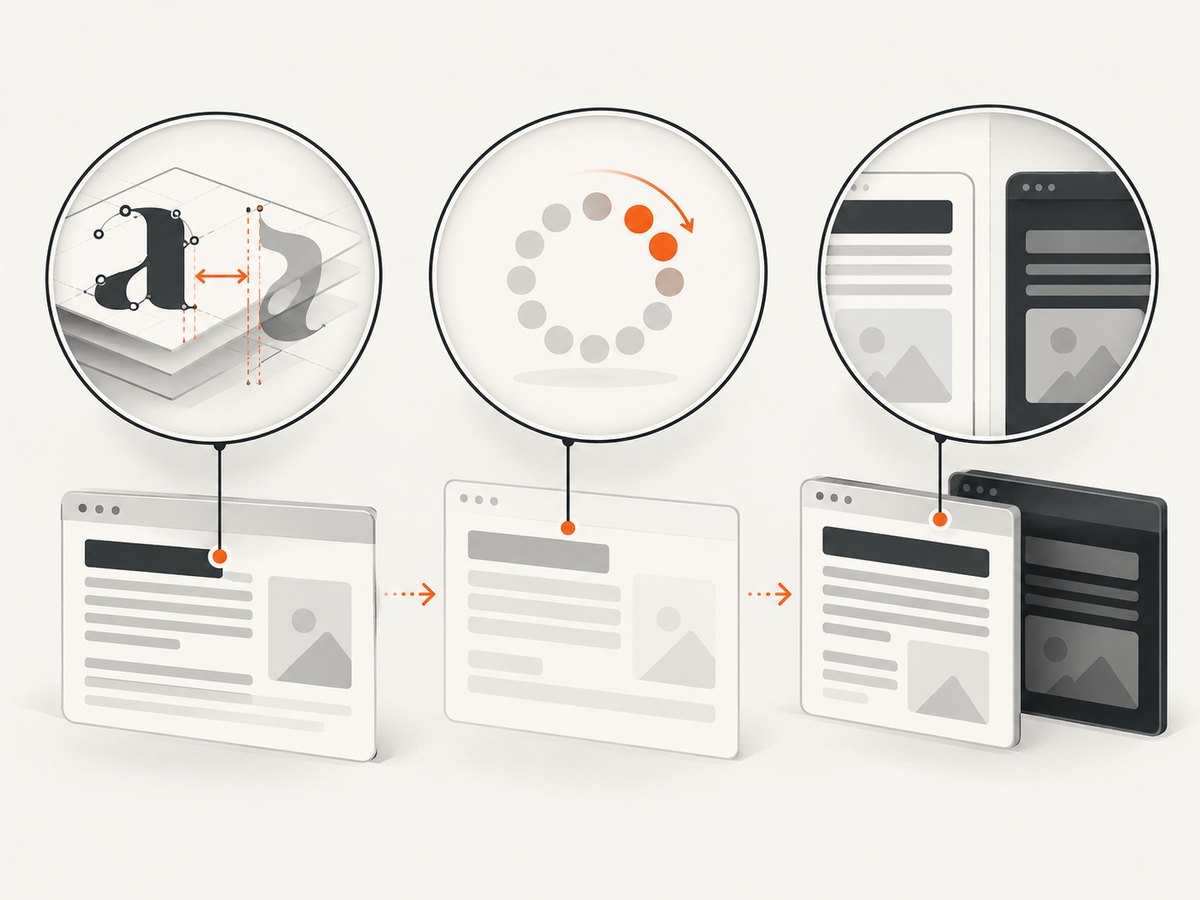
| What you see | Likely class of cause | First check |
|---|---|---|
| Pairs such as AV look too loose or tight, but the typeface is right | Kerning behavior or font data | Compare normal and none on a known font |
| The whole text block has different widths or shapes | Fallback font, wrong weight/style, or unavailable font file | Computed family, font requests, and installed assets |
| Text wraps differently or shifts after capture begins | Font loading or layout timing | Wait for document.fonts.ready and inspect requests |
| Geometry is similar, but edges look darker or softer | Rasterization, scale, OS, or browser build | Fix browser version, OS, viewport, and screenshot scale |
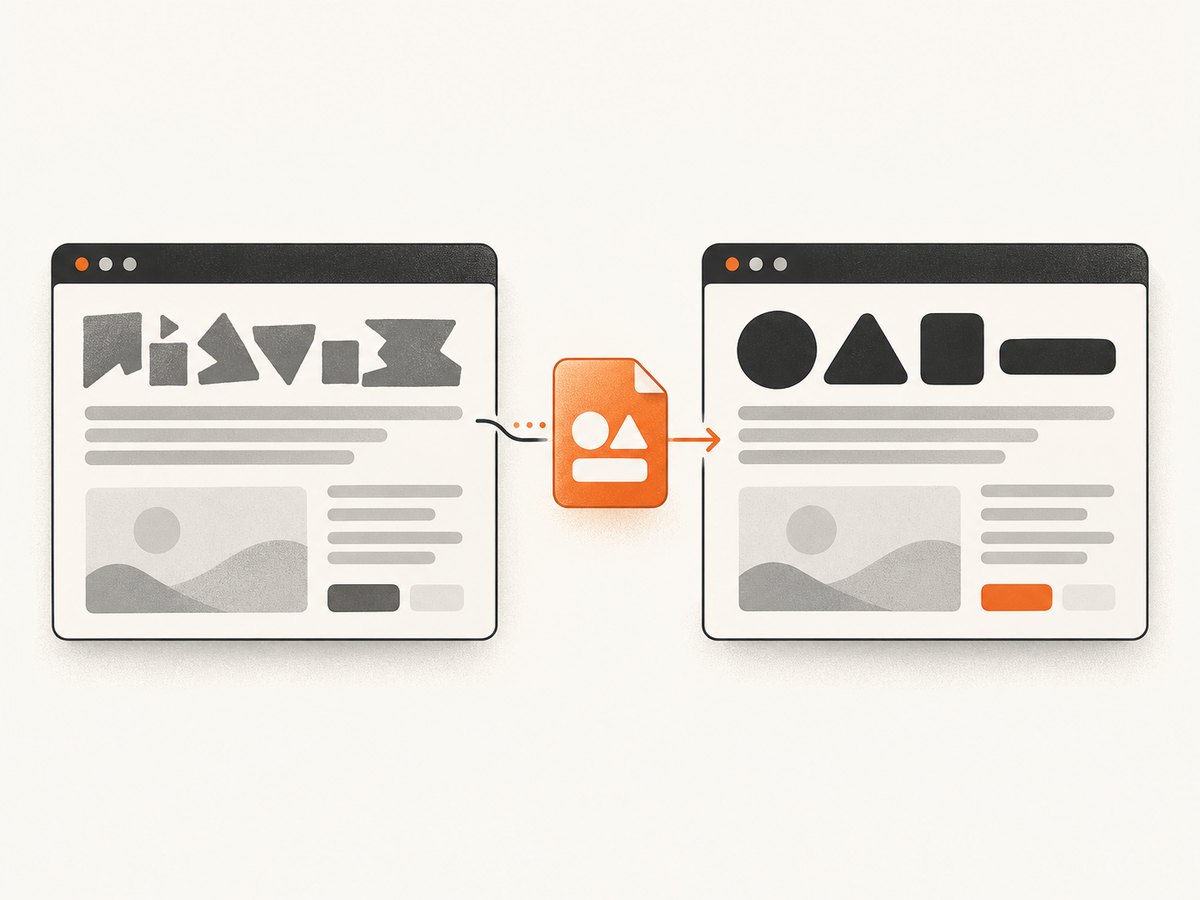
A CSS kerning change cannot make a missing custom font appear. Diagnose selection and loading first, then evaluate the font’s kerning data.
2. Make the screenshot inputs reproducible
Before changing code, capture the exact same URL with the same viewport, device scale, browser version, operating system or container image, and font assets. Record whether the run is headed, uses Playwright’s headless shell, or uses the new headless mode through the chromium channel. Playwright documents these as distinct Chromium configurations; keep the installed Playwright release in mind when following its current browser documentation.Playwright browser documentation
Also keep screenshot scale fixed. Playwright’s screenshot API supports scale: 'css' and scale: 'device'; comparing captures with different scale settings changes the output raster and can make text edges appear different even when layout is unchanged.Playwright screenshot API
3. Wait for fonts and layout before capture
document.fonts.ready fulfills when fonts currently used by the document have loaded and related layout operations are complete. This is a useful synchronization point, but it does not prove that every declared font face loaded or that a particular face won font matching. Check the actual faces and network activity too.MDN Document.fonts
const { chromium } = require('playwright');

(async () => {
  const browser = await chromium.launch({ headless: true });
  const page = await browser.newPage({
    viewport: { width: 1440, height: 900 },
    deviceScaleFactor: 1
  });

  await page.goto('https://example.com', { waitUntil: 'load' });
  await page.evaluate(() => document.fonts.ready);
  await page.screenshot({ path: 'headless.png', fullPage: true, scale: 'css' });
  await browser.close();
})();
Save this as capture.js, install Playwright in the project, install the browser build required by that Playwright version, then run node capture.js. Replace the example URL with the page under investigation. The important synchronization line is after navigation and before the screenshot.
If a page loads fonts after a user interaction, delayed script, or route transition, reproduce that action before waiting on fonts. Waiting too early only covers the fonts used at that time. Where the page has an application-specific “ready” signal, wait for it as well.
4. Verify which font the browser actually uses
Inspect the computed font-family, weight, and style for the affected element. Then inspect the font requests in the browser’s network log: check status, URL, content type, and whether cross-origin requests or asset paths fail in CI. The CSS Font Loading API exposes the document’s FontFaceSet so you can inspect faces and their status; a declaration in a stylesheet alone does not establish that the face was successfully loaded and selected.MDN CSS Font Loading API
const diagnostics = await page.locator('.headline').evaluate(el => {
  const style = getComputedStyle(el);
  return {
    family: style.fontFamily,
    weight: style.fontWeight,
    style: style.fontStyle,
    kerning: style.fontKerning,
    loadedFaces: [...document.fonts].map(face => ({
      family: face.family,
      weight: face.weight,
      style: face.style,
      status: face.status
    }))
  };
});
console.log(diagnostics);
Font matching uses more than the family name: weight and style matter. If the page asks for a bold face but only a regular file is available, the browser may synthesize or choose another face. Compare the requested CSS values with the actual @font-face declarations and the files present in the capture environment.
5. Test kerning on the intended font
Once you have confirmed that the desired face is selected, compare the browser’s kerning modes on a diagnostic sample. The CSS property accepts auto, normal, and none: normal requires kerning, none disables it, and auto leaves the decision to the browser. Kerning works from information in the selected font, so this property cannot repair font substitution or missing font data.MDN font-kerning
/* Apply only to a diagnostic sample first. */
.diagnostic {
  font-family: "SiteFont", sans-serif;
  font-kerning: normal;
}

.diagnostic.no-kerning {
  font-kerning: none;
}
Use a short string with varied pairs, such as AV, Ta, and We, in the actual font and size that look wrong. Capture both variants under otherwise identical conditions. If the difference is localized to pair spacing and toggling the property changes it, kerning is relevant. If the entire line changes shape or width, return to font selection and matching.
Do not apply a site-wide override before checking a representative element. The property can change typography across the page, and the correct visual result depends on the design and font.
6. Compare headed and headless modes precisely
Playwright’s standard Chromium package includes a separate headless shell, while its documentation also describes opting into the new headless mode using real Chrome through the chromium channel. Record which one you use; “headless Chrome” by itself is not precise enough to reproduce a result.Playwright browser documentation
const { chromium } = require('playwright');

(async () => {
  // Default headless shell:
  const shell = await chromium.launch({ headless: true });
  const shellPage = await shell.newPage();
  await shellPage.goto('https://example.com');
  await shellPage.evaluate(() => document.fonts.ready);
  await shellPage.screenshot({ path: 'shell.png' });
  await shell.close();

  // New headless mode using installed Google Chrome:
  const chrome = await chromium.launch({ channel: 'chromium', headless: true });
  const chromePage = await chrome.newPage();
  await chromePage.goto('https://example.com');
  await chromePage.evaluate(() => document.fonts.ready);
  await chromePage.screenshot({ path: 'chrome.png' });
  await chrome.close();
})();
Use the second configuration only when the real Chrome channel is installed and supported by the Playwright setup. Follow the browser installation instructions for the same Playwright release as the project. Compare the two images and the reported font diagnostics; do not assume the channel is a universal kerning fix.
7. Python Playwright equivalent
If your capture pipeline is Python, the same checks apply. This runnable synchronous example waits for the page load and used fonts, prints font diagnostics, and saves a full-page image.
from playwright.sync_api import sync_playwright

with sync_playwright() as p:
    browser = p.chromium.launch(headless=True)
    page = browser.new_page(
        viewport={"width": 1440, "height": 900},
        device_scale_factor=1,
    )
    page.goto("https://example.com", wait_until="load")
    page.evaluate("() => document.fonts.ready")
    info = page.locator(".headline").evaluate("el => {")
    # For a real diagnostic, evaluate a serializable function:
    info = page.locator(".headline").evaluate("el => ({
        family: getComputedStyle(el).fontFamily,
        weight: getComputedStyle(el).fontWeight,
        kerning: getComputedStyle(el).fontKerning,
        faces: [...document.fonts].map(f => ({family: f.family, status: f.status}))
    })")
    print(info)
    page.screenshot(path="headless.png", full_page=True, scale="css")
    browser.close()
For Python strings, keep the JavaScript expression as a valid string literal in your source file; the example above illustrates the expression but its embedded multiline quoting needs adjustment for a literal script. A straightforward valid version uses a triple-quoted string:
info = page.locator(".headline").evaluate("""el => ({
  family: getComputedStyle(el).fontFamily,
  weight: getComputedStyle(el).fontWeight,
  kerning: getComputedStyle(el).fontKerning,
  faces: [...document.fonts].map(f => ({ family: f.family, status: f.status }))
})""")
8. Puppeteer equivalent
Puppeteer users can synchronize on the page’s font readiness promise in the same way. Keep the browser version, operating system, viewport, and device scale fixed when comparing output.
const puppeteer = require('puppeteer');

(async () => {
  const browser = await puppeteer.launch({ headless: true });
  const page = await browser.newPage();
  await page.setViewport({ width: 1440, height: 900, deviceScaleFactor: 1 });
  await page.goto('https://example.com', { waitUntil: 'load' });
  await page.evaluate(() => document.fonts.ready);
  const info = await page.$eval('.headline', el => ({
    family: getComputedStyle(el).fontFamily,
    weight: getComputedStyle(el).fontWeight,
    kerning: getComputedStyle(el).fontKerning,
    faces: [...document.fonts].map(face => ({ family: face.family, status: face.status }))
  }));
  console.log(info);
  await page.screenshot({ path: 'headless.png', fullPage: true });
  await browser.close();
})();
9. A disciplined troubleshooting workflow
- Reproduce the mismatch. Fix the URL, viewport, scale, browser version, OS/container, and font assets. Capture headed and headless results if both matter.
- Wait at the right time. Trigger any app actions that reveal content, then await
document.fonts.readyimmediately before capture. - Inspect selected typography. Read computed family, weight, and style; inspect
document.fontsand font network requests. - Validate assets. Make sure the expected files are available to CI, their URLs resolve, and the page declares the correct weights/styles.
- Test kerning directly. Compare
normalwithnoneon a small sample in the confirmed face. - Compare browser configurations. Record the exact Playwright and Chromium versions and whether the run uses headless shell or the
chromiumchannel. - Repeat captures. If results vary between runs, capture several times with the same inputs and inspect whether font requests or selection change around screenshot time.
10. Known capture-timing edge case
A Playwright issue reports a scenario in which a full-page screenshot was associated with repeated font requests and a changed font selection; the reporter later described bundling fonts and installing them in CI as a workaround. A maintainer characterized the behavior as flaky. This is evidence to investigate capture timing in a matching setup, not proof of a universal Playwright defect or a general fix.Playwright issue #29968
If your symptom matches, first bundle or reliably serve the font in the test environment, await font readiness after the page reaches its final state, and inspect the request log before and during capture. Treat copying fonts into CI as a scenario-specific mitigation to evaluate, not a guarantee.
11. Common errors and fixes
| Symptom or mistake | Why it happens | What to do |
|---|---|---|
font-kerning: normal changes nothing |
The selected face may lack useful kerning data, or the expected font is not selected | Inspect actual face and font requests before changing more CSS |
document.fonts.ready resolves but the wrong font remains |
The promise covers fonts currently used and layout completion, not every declaration or the intended face | Check computed style, face status, matching weight/style, and network results |
| CI differs from a developer laptop | Different assets, OS/container, browser build, or capture configuration | Pin and record runtime inputs; make font files available locally or through a reliable test asset path |
| Text changes during full-page capture | Capture timing or a setup-specific font request interaction may be involved | Log requests, wait after final layout, and compare repeated captures; consult the issue only as a related report |
| Text looks jagged but spacing is correct | Rasterization or scale can affect edge pixels without changing kerning | Hold OS, browser, and screenshot scale constant; do not treat a hinting flag as a proven kerning fix |
| Changing to the Chrome channel has no effect | The root cause may be font availability or CSS, not browser mode | Compare diagnostics in both modes and fix the first differing input |
A historical Puppeteer issue contains a user suggestion to try --font-render-hinting=none, but that report does not establish that the flag fixes kerning or remains effective in current Chromium. Do not use it as the default remedy; first distinguish rasterization from spacing and confirm current browser behavior.Historical Puppeteer issue
12. Performance, reliability, and cost
Waiting for fonts adds only the time needed for currently used fonts and their layout to settle, but a font that never resolves can expose a separate loading problem. Set navigation and operation timeouts appropriate to the page, log failed font requests, and avoid adding a long fixed sleep as the primary synchronization mechanism: a delay may still be too short on a slow run and waste time on a fast one.
For repeatability, keep browser and font assets available in the same CI image, pin dependency versions, and store the diagnostics with the screenshot artifact. Compare repeated captures before treating a one-off difference as a stable CSS result. The source material establishes no general performance benchmark or cross-platform result for the proposed fixes, so validate them in the browser and operating system you deploy.
13. Or skip the browser setup
If you need an image capture without maintaining browser installation and capture code, ScreenshotNeo provides a website screenshot API and MCP server. It cannot change the typography rules of the source page, so use the diagnostic steps above when kerning itself is the issue. For a straightforward capture, one GET request returns an image or PDF. See the ScreenshotNeo API documentation.
curl -G "https://api.screenshotneo.com/v1/shot" -d access_key=YOUR_API_KEY --data-urlencode url=https://stripe.com -o shot.webpimport requests
r = requests.get("https://api.screenshotneo.com/v1/shot", params={"access_key": "YOUR_API_KEY", "url": "https://stripe.com"}, timeout=90)
open("shot.webp", "wb").write(r.content)const q = new URLSearchParams({ access_key: 'YOUR_API_KEY', url: 'https://stripe.com' });
const res = await fetch(`https://api.screenshotneo.com/v1/shot?${q}`);ScreenshotNeo accepts cookie and consent banners and removes more than 60 known consent platforms, newsletter popups, and chat widgets before capture; each of those steps can be turned off. Bot checks, blank pages, timeouts, failed loads, and cache hits cost nothing, and response headers identify the page verdict and billing status. Its MCP server gives AI agents tools to take screenshots, get page information, and capture PDFs.
The free plan includes 1,000 screenshots a month with no card. Paid plans start at $5 for 3,000; every feature is available on every plan. Try it with 1,000 free screenshots a month, no card required.
14. FAQ
Does font-kerning: normal guarantee identical screenshots?
No. It controls kerning use in the chosen font; browser build, font selection, timing, operating system, and raster scale can still differ.
Does document.fonts.ready prove my custom font loaded?
No. It signals readiness for fonts currently used and associated layout, not successful loading of every declared face or selection of a particular face.
Should I switch to the new headless mode to fix spacing?
Use it as a controlled comparison if your current setup differs from real Chrome. It is a diagnostic option, not a universal typography fix.
Is a hinting launch flag a kerning fix?
The cited historical report does not establish that. Hinting concerns raster appearance; confirm that the problem is glyph-pair spacing before considering rasterization settings.
Sources
- Playwright browser modes and screenshot API.
- MDN on font-kerning, Document.fonts, and the CSS Font Loading API.
- Playwright issue #29968 and Puppeteer issue #2410.


