How to Fix PDF Generation Problems With Laravel Browsershot
Trace Laravel Browsershot PDF failures from missing dependencies and bad paths to inaccessible assets, then fix the cause in your runtime.
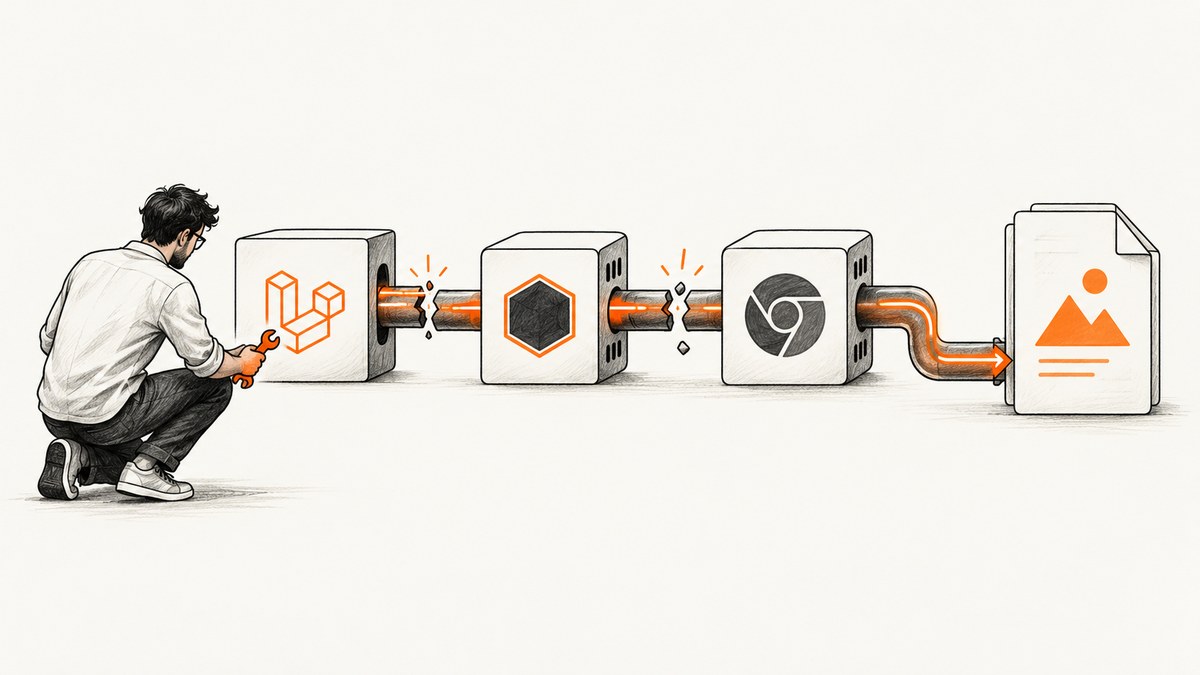
Laravel Browsershot PDF failures usually come down to one of four things: the process cannot find Node.js or Chrome/Chromium, the installed package or selected driver is wrong, Chrome cannot access a local asset, or PDF generation succeeds but saving or delivery fails. Start by capturing the exact exception and checking the environment of the PHP process that generates the document. An interactive shell can have different paths and permissions from a web server or queue worker.
This guide covers Laravel PDF with its Browsershot driver. The specific configuration names and driver behavior depend on the installed package version, so check your lockfile and the matching documentation before copying settings. The official requirements list Node.js and Chrome or Chromium for the Browsershot driver. Laravel PDF requirements
1. Identify where generation fails
Do not treat every blank PDF or exception as a browser installation problem. Establish whether the failure happens before Chrome starts, while the page is loading, during PDF output, or after a file was produced.
- Record the full exception and stack trace. Include the job or request context, package versions, and whether it runs on a web request or queue worker. Avoid logging secrets from HTML, headers, or cookies.
- Check whether a PDF file was created. If it exists and has a plausible size, inspect whether the issue is rendering, storage permissions, or the HTTP response.
- Reproduce with minimal HTML. Render a simple heading with no CSS, remote assets, or application data. If that fails too, investigate runtime dependencies and paths first.
- Compare environments. Run diagnostics under the same container, operating-system user, PATH, and worker configuration as the failing process.
These steps narrow the failure stage; they do not replace the exact exception message. The Laravel PDF documentation describes dependencies and configuration, but does not define a complete exception-to-cause lookup table.
2. Confirm the runtime dependencies and paths
The Browsershot driver relies on Browsershot, Node.js, and a Chrome or Chromium executable. A successful command in your SSH session does not prove a queued job can find it: service managers, PHP-FPM, containers, and queue supervisors can provide different PATH values.
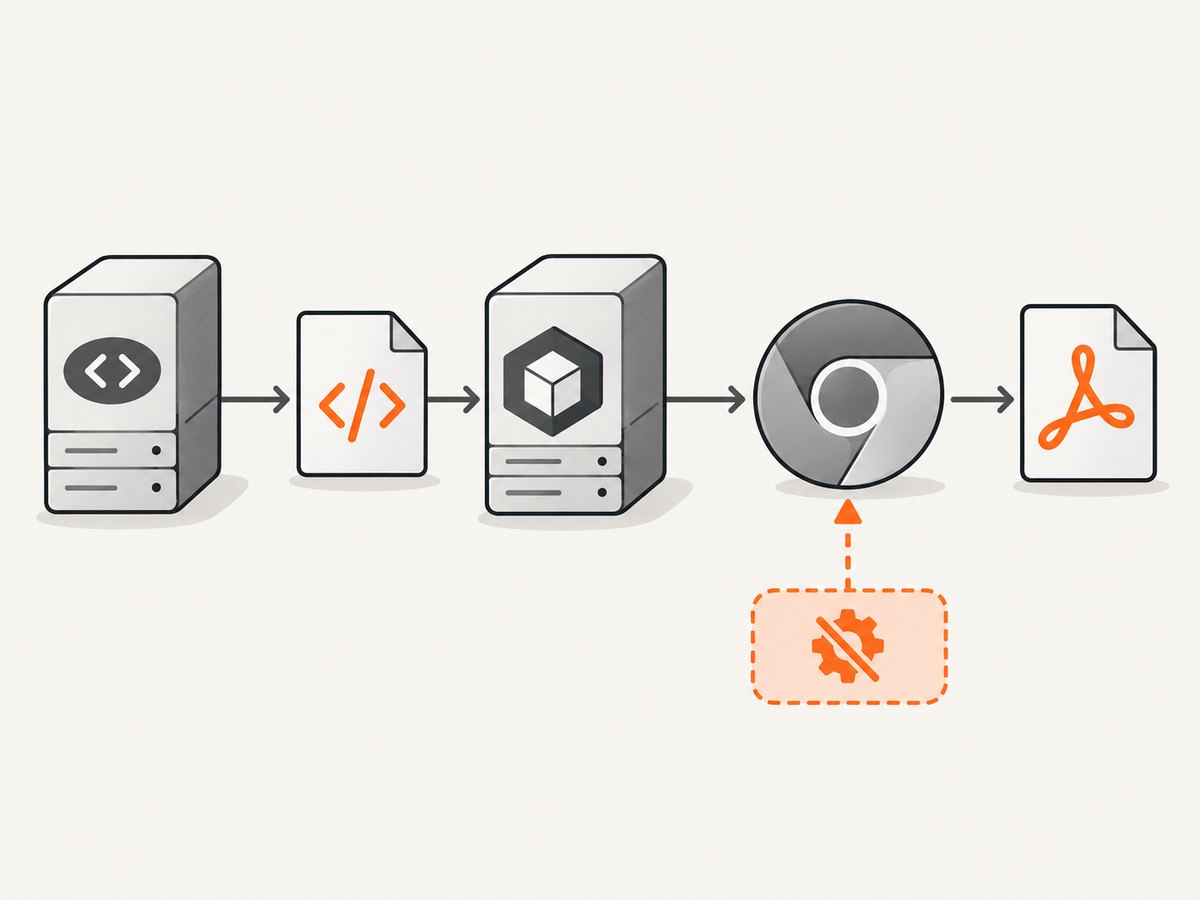
Inspect the runtime as the account that actually generates PDFs. Where available, check node --version, npm --version, and the installed Chrome/Chromium executable. Also verify executable permissions and that temporary and output directories are writable. If command discovery is inconsistent, configure explicit paths rather than depending on PATH.
Laravel PDF documents configurable paths for Node, npm, Chrome, node_modules, the Browsershot binary, and temporary files, as well as a no-sandbox option. Use the names and structure in the configuration documentation for your installed version. Laravel PDF driver configuration
Check the worker, not just the shell
- Confirm the queue worker has been restarted after deployment or environment changes.
- Check that the configured paths exist inside the deployed container or host, not only on the build machine.
- Confirm the PHP process user can execute the binaries and read application templates and assets.
- Check available disk space and write access for temporary files and the destination storage disk.
For example, an absolute binary path may resolve on a developer workstation but not in a production image. Likewise, a Node installation available to a login shell may not be visible to a service launched with a minimal environment. Use deployment-specific configuration where paths differ.
3. Check package versions and the selected driver
If the problem began after an upgrade, verify the installed Laravel PDF version, the lockfile, and the configured driver before changing browser flags. Laravel PDF v2 moved Browsershot to a suggested dependency. Applications that use its Browsershot driver must install spatie/browsershot explicitly; the upgrade guide identifies a CouldNotGeneratePdf exception as a possible result if that dependency is missing.
Review the official Laravel PDF v1 to v2 upgrade guide, then verify the dependency is present in the deployed release and not just in a local vendor directory. Compare the configured driver with the driver you intend to use. Do not assume configuration from v1 applies unchanged to v2.
Deployment checklist
- The lockfile resolves the package versions expected by the release.
- The Browsershot package is explicitly installed when using the v2 Browsershot driver.
- The application is configured to use the intended PDF driver.
- Production dependencies were installed during deployment, and the worker is running the new release.
4. Fix missing CSS, images, and fonts
A PDF can be generated successfully while looking incomplete. First determine how the HTML references each asset. A remote URL must be reachable from the rendering environment; a local path must be readable by Chrome and permitted by its file-access settings. Check network access, authentication requirements, URL typos, and whether the rendered HTML points to assets that exist in production.

Spatie’s customization documentation explains that local assets may require Chrome options that allow file access, and that Browsershot can be customized globally or for a particular PDF. It also describes disabling web security for certain local-resource or CORS cases. Treat that as a targeted diagnostic setting: apply only what the asset-loading case requires and limit its scope to the rendering context. Customizing Browsershot
- Render a minimal document with one asset at a time.
- Try a reachable absolute asset URL, if appropriate, to distinguish local-file access from general rendering.
- Check the process can read the local file and that its path is correct in production.
- Apply the relevant documented Chrome option to the specific PDF or rendering configuration, then test the output again.
Do not turn off browser security broadly as a first response to every missing image. It changes browser behavior and may expand access in the rendering context. Understand which resource is blocked and why before changing that setting.
5. Separate browser rendering from saving and delivery
If simple HTML renders but the application still reports failure, isolate the output path. Browsershot supports saving a PDF to a path ending in .pdf, calling savePdf explicitly, rendering supplied HTML with Browsershot::html(...)->savePdf(...), and returning PDF data as base64. The appropriate method depends on the API and version in your application; see Browsershot PDF creation.
Use a controlled writable path to check whether the browser can produce output independently of your storage or response layer. If that works, inspect Laravel’s configured disk, directory permissions, filenames, and the code that streams or uploads the result. In a restricted or serverless environment, base64 output can avoid writing the generated PDF to a local file, but your application still needs to upload or deliver those bytes.
Minimal isolation example
This Browsershot API example illustrates the standalone HTML route documented by Spatie. Ensure the class is installed and available in the project before running it, and use a destination path writable by the PHP process.
<?php

use Spatie\Browsershot\Browsershot;

Browsershot::html('<h1>PDF smoke test</h1>')
    ->savePdf(storage_path('app/pdf-smoke-test.pdf'));
If the minimal output succeeds, progressively add the application template, styles, fonts, and images. This reveals which dependency or resource introduces the failure.
6. Choose another driver only if it fits the constraint
Changing drivers changes runtime requirements; it does not guarantee that all external dependencies disappear. Laravel PDF’s Chrome driver can avoid Node.js and Puppeteer, but still requires Chrome or Chromium installed locally. The documentation says it does not download or bundle a browser; locked-down environments may need its documented no-sandbox configuration.
The requirements documentation also describes DOMPDF as a PHP-based option without external binaries, and lists Gotenberg, WeasyPrint, and Cloudflare Browser Run with their own requirements. Compare HTML/CSS needs, deployment permissions, browser availability, and whether you want a local executable, a container, or an external service. The documented drivers have different runtime needs and are not automatically interchangeable. Driver requirements · Using the Chrome driver
| Constraint | What to evaluate |
|---|---|
| Cannot run Node.js | Consider the Chrome driver, while accounting for its local Chrome/Chromium requirement. |
| Cannot install browser binaries | Compare the requirements of a PHP-based driver or a hosted/container service. |
| Complex browser-rendered HTML | Confirm the candidate driver supports the page features and assets your templates use. |
| Restricted or serverless filesystem | Check temporary-file behavior and whether the driver supports your output/delivery design. |
7. Common errors and practical fixes
| Symptom | Likely area | What to check |
|---|---|---|
CouldNotGeneratePdf after upgrading |
Missing suggested dependency or version/config mismatch | For Laravel PDF v2, install Browsershot explicitly if using that driver; compare lockfile and upgrade guide. |
| Node or Chrome cannot be found | PATH or binary configuration | Check paths in the actual worker environment; configure explicit executable paths where needed. |
| Works locally, fails in production | Different user, PATH, filesystem, or permissions | Verify paths and permissions in the deployed runtime and restart workers after deployment. |
| PDF exists but assets are absent | Unreachable URLs or local-file access | Test asset reachability and permissions; apply the narrowly relevant documented Chrome options. |
| Blank or partial PDF | Page loading, template, or asset issue | Reduce to minimal HTML, then add resources in stages to find the failing input. |
| Rendered output works but request fails | Storage or response stage | Test a known writable destination and inspect disk configuration and delivery code. |
These are diagnostic categories, not guaranteed mappings from an exception name to a single cause. Keep the full exception and test one change at a time so the fix remains attributable.
8. Performance, reliability, and cost considerations
PDF generation runs a browser workload. Keep templates and assets bounded, avoid unnecessary remote resources, and reuse stable assets where your architecture allows. A slow or unreachable asset can delay page readiness; a large document or image set can increase time and memory use. Measure representative documents in the same environment that runs production jobs rather than relying on a local shell result.
For reliability, run generation in a queue when request latency is a concern, and define application-level handling for failed jobs and delivery retries. Make output storage and temporary paths explicit. If a retry can create a duplicate record or upload, make that operation idempotent. Do not mask generation failures by returning an empty or stale PDF as if it were current.
Costs depend on the chosen runtime and deployment model: local browser capacity consumes your server resources, while hosted rendering has a provider’s own pricing and operational constraints. Compare the actual requirements and failure modes against your document volume and fidelity needs; the cited Laravel PDF documentation does not establish a universal cost winner.
9. Or skip the browser setup
If your immediate need is a visual capture of a rendered web page while you troubleshoot PDF infrastructure, ScreenshotNeo can return a screenshot or PDF from one API request. It is a website screenshot API and MCP server; it does not replace a Laravel PDF pipeline for generating application documents or guarantee that a particular page’s PDF will match your template.
See the ScreenshotNeo docs for API details. Example cURL request:
curl -G "https://api.screenshotneo.com/v1/shot" -d access_key=YOUR_API_KEY --data-urlencode url=https://stripe.com -o shot.webpPython:
import requests

r = requests.get(
    "https://api.screenshotneo.com/v1/shot",
    params={"access_key": "YOUR_API_KEY", "url": "https://stripe.com"},
    timeout=90,
)
open("shot.webp", "wb").write(r.content)
Node.js:
const q = new URLSearchParams({ access_key: 'YOUR_API_KEY', url: 'https://stripe.com' });
const res = await fetch(`https://api.screenshotneo.com/v1/shot?${q}`);- Cookie banners, popups, and chat widgets are removed before the shot.
- Bot checks, blank pages, and failed loads are never billed; response headers report the page verdict and billing status.
- An MCP server lets AI agents use screenshot tools.
- 1,000 screenshots a month are free with no card; paid plans start at $5 for 3,000.
Sign up for 1,000 free screenshots a month, with no card required.
10. FAQ
Why does Browsershot work in a terminal but fail in a queue?
The queue process may run with a different PATH, user, filesystem, or environment. Check configured executable paths and permissions from the worker runtime, then restart workers after deployment changes.
Does switching to Laravel PDF’s Chrome driver remove Chrome?
No. It avoids Node.js and Puppeteer, but still requires a local Chrome or Chromium executable.
Can base64 output solve a read-only filesystem problem?
It can avoid writing the generated PDF locally. Your application still needs a way to upload, store, or return the resulting data.
Should I disable web security to fix missing local images?
Only consider it for a diagnosed local-resource or CORS case and within the limited rendering context that needs it. First verify asset paths, reachability, and file permissions.


