How to Fix the Missing libnss3.so Error with Puppeteer on AWS Lambda
The libnss3.so error means Chromium cannot find a required Linux library. Diagnose the deployed browser and package its compatible dependencies for Lambda.
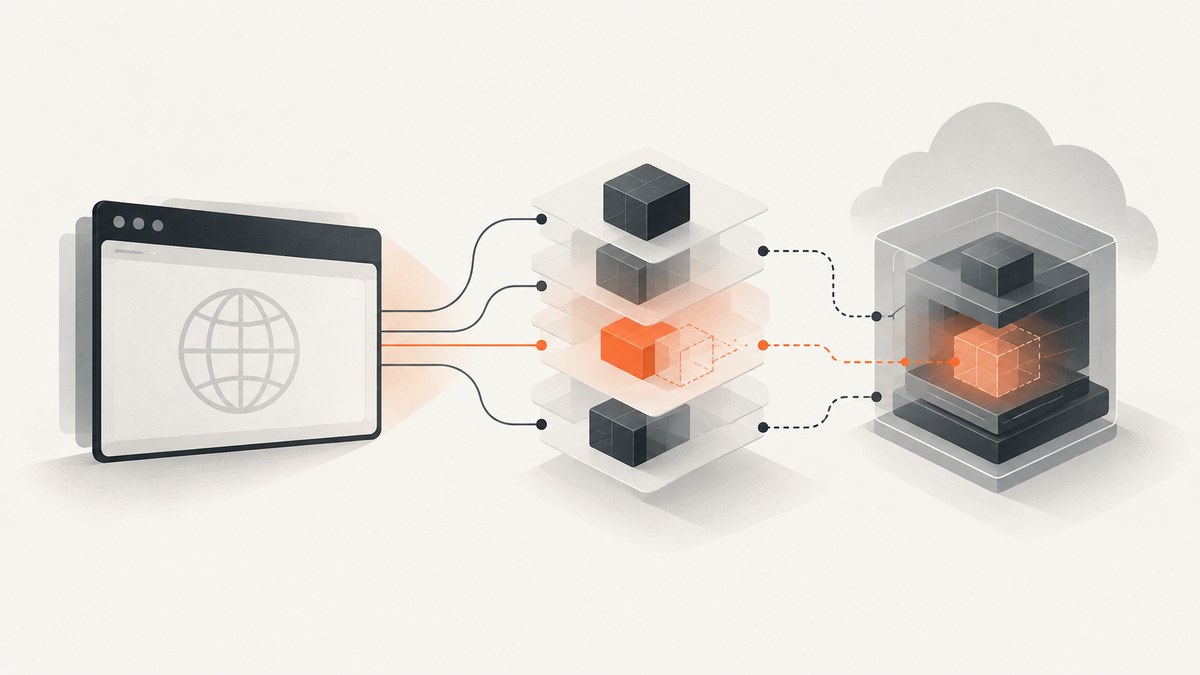
error while loading shared libraries: libnss3.so: cannot open shared object file: No such file or directory means the Chromium executable Puppeteer launched cannot find the NSS library in the Lambda environment. Fix it by identifying the exact browser binary in your deployed artifact, checking its unresolved libraries in a matching Linux environment, and packaging a compatible browser and its complete runtime dependencies with the function. Installing Puppeteer alone does not guarantee that the Lambda runtime has Chromium’s system libraries.
The reliable process is: identify the executable, inspect it with ldd, align browser and package versions with the Lambda runtime and architecture, then test the built deployment artifact. The steps below show how to diagnose the error without assuming one install command works across every Lambda base image.
1. Understand what the error is telling you
libnss3.so is part of NSS, a shared library dependency expected by Chromium. Linux’s dynamic loader must locate it when Chromium starts. If it cannot, the browser process exits before Puppeteer can connect or navigate. Puppeteer’s Linux troubleshooting guide includes libnss3 among Chromium’s dependencies and recommends checking unresolved libraries with ldd (Puppeteer: Chrome doesn’t launch on Linux).
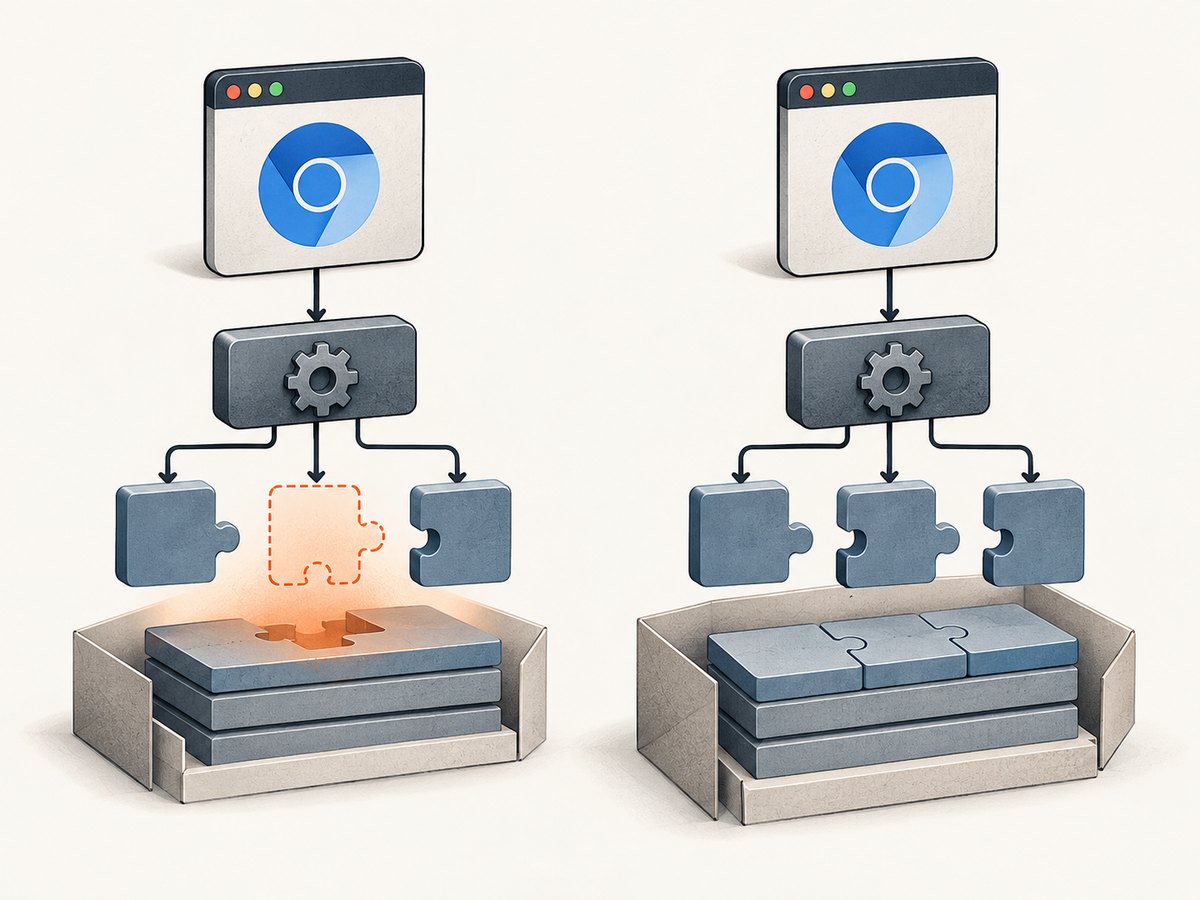
This is generally a deployment or browser compatibility problem, not an error in page.goto() or screenshot code. The same symptom can have different fixes depending on whether your artifact contains Puppeteer’s downloaded Chrome for Testing, a separate Chromium binary, or a Lambda-oriented Chromium package. A machine with the library installed locally can launch successfully while the deployed Lambda artifact still fails.
2. Find the browser Lambda actually launches
- Check the launch configuration. Search your handler and shared browser helper for
puppeteer.launch(),executablePath, and the Chromium package import. Note the resolved executable path. - Check the build output. Inspect the function ZIP, layer contents, or container image. Confirm the browser executable is present where the deployed code expects it. A browser cached on a developer’s machine is not automatically included in the deployment.
- Record the environment. Note the Lambda runtime, CPU architecture, Puppeteer or
puppeteer-coreversion, Chromium package and version, and packaging method. These details are needed to choose compatible binaries and libraries. - Reproduce against the artifact. Use a Linux environment aligned as closely as possible with the Lambda runtime and architecture. Test the browser from the built package rather than a global browser installed on your workstation.
Do not assume that setting executablePath fixes a missing shared library. It can point Puppeteer at the correct binary, but the operating system still has to load that binary’s dependencies.
3. Inspect Chromium’s missing dependencies
Run Puppeteer’s documented check against the browser executable from your artifact:
ldd /path/to/deployed/chrome | grep 'not found'For example, if the artifact uses the Puppeteer cache path shown in the error, substitute the full deployed path:
ldd /workspace/.cache/puppeteer/chrome/linux-1069273/chrome-linux/chrome | grep 'not found'If the command reports libnss3.so => not found, the immediate missing dependency is confirmed. If it reports other libraries too, treat the entire list as the problem: Chromium may simply stop at the first library it cannot load. The dependency names and package names used to provide them vary by Linux distribution, so do not copy an apt or yum command into a different base image without checking its package manager and repository.
If ldd reports no missing libraries but Lambda still fails, check that you inspected the same executable path and architecture as the runtime, and read the full startup error from CloudWatch logs. Also check executable permissions and whether your deployment launches a different binary than your local reproduction.
4. Package the browser and libraries for Lambda
Choose one of these packaging patterns. Both require the browser and its runtime dependencies to match the target environment.
Option A: Function artifact or Lambda layer
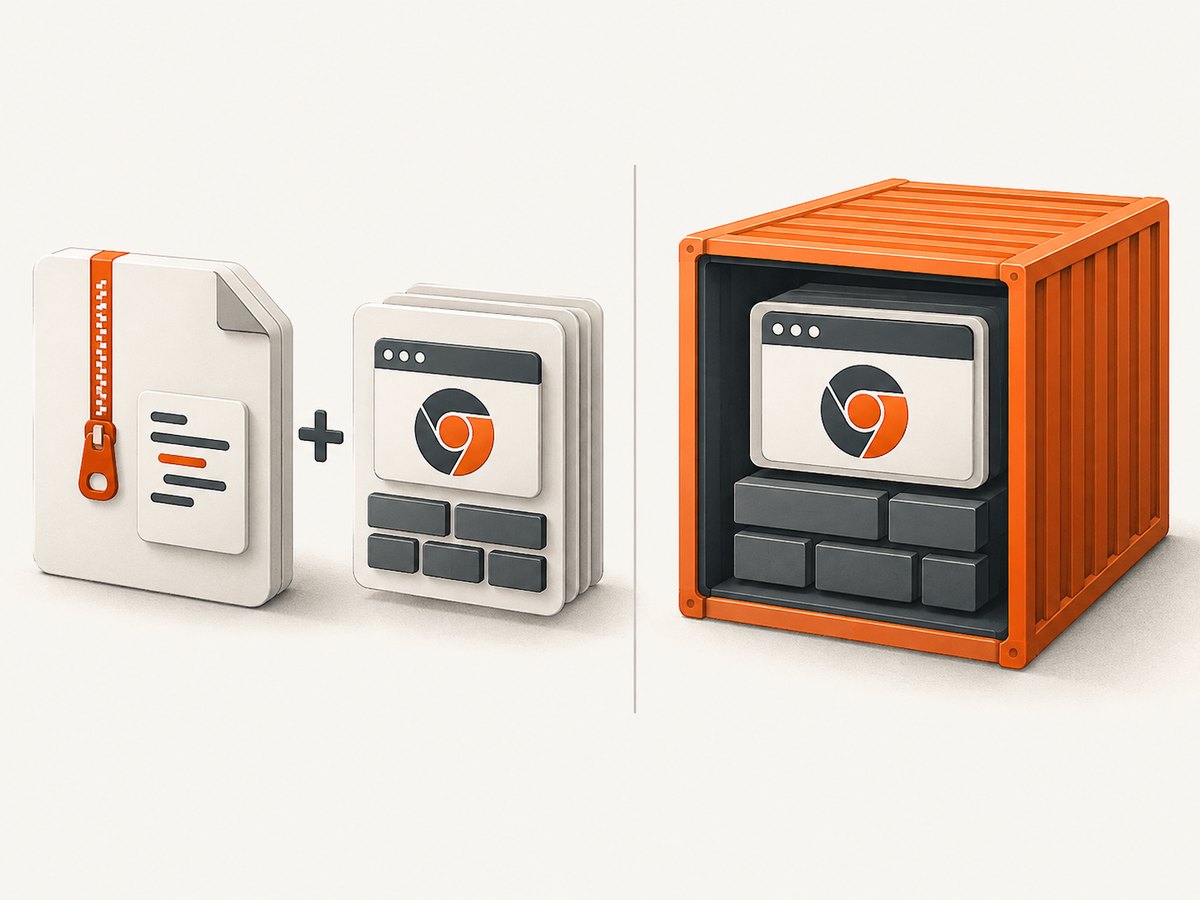
Use a ZIP deployment when your browser package and dependencies fit your packaging approach. Put the binary and required libraries in the artifact or a layer attached to the function. Make sure the browser can resolve shared libraries at runtime; simply placing a file named libnss3.so somewhere in the ZIP does not guarantee the dynamic loader searches that directory. Build and inspect the final ZIP or layer, and launch the packaged browser in a compatible environment before release.
This approach can keep application code and browser files in separate deployment units, but you must track the layer version, library paths, and compatibility whenever the runtime or browser package changes. Puppeteer’s troubleshooting page notes that Lambda deployment-package size constraints can make browser packaging challenging; check AWS’s current quotas for the deployment method you use.
Option B: Lambda container image
A container image lets you build the function, browser binary, and system libraries into one runtime image. AWS has documented Puppeteer browser automation using Lambda container image support in its Puppeteer on Lambda architecture article. Choose a base image and install libraries using that image’s own package manager. Then build for the Lambda runtime and architecture, run ldd inside the built image, and test the resulting image locally with an appropriate Lambda container workflow before publishing it.
A container does not remove the compatibility requirement: a browser compiled for a different architecture or expecting a different system ABI can still fail. The advantage is that you control which OS packages and browser files are present in the image.
Keep Puppeteer and Chromium compatible
Pair the Puppeteer package with the Chromium build it is intended to drive. Some Lambda Chromium packages publish explicit compatibility guidance; for example, the Serverless Framework’s @sparticuz/chromium example calls out its architecture assumptions and the need to align its Chromium major version with puppeteer-core. Treat that as package-specific guidance, not a rule for every Chromium distribution. Confirm the current package’s supported architecture, runtime and version pairing before adopting it.
Use puppeteer when you intend to use the browser that Puppeteer installs and package it deliberately. Use puppeteer-core when you provide and manage the browser separately. Neither choice automatically supplies all Linux system libraries to an arbitrary Lambda runtime.
5. A Lambda handler pattern to verify your deployment
This example shows the launch and cleanup pattern when an application already packages a Lambda-compatible Chromium module alongside puppeteer-core. It assumes that the installed Chromium module exposes executablePath() and args; verify those exports and its compatibility instructions for the version you pin. This code cannot supply a missing operating-system library by itself.
const puppeteer = require('puppeteer-core');
const chromium = require('@sparticuz/chromium');

exports.handler = async () => {
  let browser;
  try {
    const executablePath = await chromium.executablePath();
    browser = await puppeteer.launch({
      args: chromium.args,
      executablePath,
      headless: true,
    });

    const page = await browser.newPage();
    await page.goto('https://example.com', {
      waitUntil: 'domcontentloaded',
      timeout: 30000,
    });
    const title = await page.title();

    return { statusCode: 200, body: JSON.stringify({ title }) };
  } finally {
    if (browser) await browser.close();
  }
};
Keep the package versions explicit in your lockfile and deploy the lockfile-built artifact. Avoid fetching an unpinned browser during Lambda initialization: that adds network dependence, increases cold-start work, and can silently change the browser under a previously deployed function. A handler should close the browser in a finally block so normal navigation errors do not leave the process holding browser resources.
6. Verify the exact deployed result
- Rebuild the ZIP, layer, or image from the committed dependency lockfile.
- Inspect the package to confirm the expected browser executable and required libraries are present.
- Run
lddon that executable in the matching Linux environment and resolve every “not found” result. - Launch the browser using the same path and options used by the Lambda handler.
- Deploy the artifact and invoke the function. Check CloudWatch logs for the executable path, launch error, and navigation result.
- Repeat this check when changing the runtime, architecture, browser, Chromium package, or base image.
Logging the selected executable path and browser/package versions at startup can make future deployment failures easier to distinguish from page-load failures. Avoid logging cookies, authorization headers, or other secrets while diagnosing launch issues.
7. Common errors and their fixes
| Symptom | Likely cause | What to do |
|---|---|---|
libnss3.so: cannot open shared object file |
The loader cannot find NSS for the launched binary. | Run ldd against that exact executable; package the compatible library with the artifact, layer, or image. |
Several libraries show as not found |
The browser’s broader Linux dependency set is absent. | Resolve every missing dependency for the chosen base image. Do not stop after fixing NSS. |
| Works locally, fails in Lambda | Your local OS has libraries or browser files absent from the deployment. | Inspect and test the built artifact in a Lambda-compatible environment. |
Failed to launch browser process after adding a library |
Another library may be missing, the browser path may be wrong, or the browser may not match the runtime. | Read the complete launch output, rerun ldd, and verify architecture, permissions, and executable path. |
| Browser executable is missing | The install step did not package Puppeteer’s browser, or the code expects another path. | Confirm the deployment includes the selected browser. Check Puppeteer’s browser installation and executable configuration. |
| Browser starts but navigation times out | This is a later-stage network, page, or timeout problem rather than the original loader error. | Confirm launch succeeds first, then investigate outbound networking, target behavior, and the navigation wait condition separately. |
| Works on one Lambda architecture only | Browser binary and function architecture do not match. | Build or select a browser package for the configured architecture; verify the package’s own support statement. |
8. Runtime, architecture, performance, and cost considerations
Runtime matters. A Lambda function’s runtime does not mean every Linux library needed by an arbitrary Chrome build is available. CloudWatch Synthetics is a separate managed product with its own runtime and bundled dependency combinations. AWS publishes the Puppeteer and Chromium versions for those Synthetics runtimes; that table describes canaries, not the libraries installed in every customer-created Lambda function (AWS: Synthetics Node.js Puppeteer runtime versions).
Architecture must line up. Select a browser build compatible with the function’s configured CPU architecture. Check this when building locally or in CI: an executable for the wrong architecture can fail even if all its shared libraries appear to be present.
Cold starts and artifact size are part of the design. A packaged browser and its libraries increase the deployed browser payload and may affect build, deployment, and initialization work. A container can make dependency composition explicit; a ZIP or layer may suit a smaller or reusable package. Measure your own function’s initialization and invocation behavior rather than relying on a benchmark from another runtime or browser build.
Reliability comes from repeatable builds. Pin package versions, build for the target runtime, inspect the final artifact, and keep a launch smoke check in your release process. Browser upgrades can alter both the expected system libraries and the Puppeteer compatibility pairing, so re-run the dependency inspection after upgrades.
Cost is workload-specific. Browser memory use, invocation duration, concurrency, and how often the function runs affect Lambda usage. The research sources do not establish a universal browser cost or latency figure. Estimate from your deployed function’s measured memory and duration, and include the build and maintenance effort of keeping Chromium and its libraries current.
Or skip the browser setup
If the task is simply to capture a website, ScreenshotNeo provides a website screenshot API. One GET request returns an image or PDF; see the API documentation for parameters and response details.
curl -G "https://api.screenshotneo.com/v1/shot" -d access_key=YOUR_API_KEY --data-urlencode url=https://stripe.com -o shot.webpimport requests
r = requests.get("https://api.screenshotneo.com/v1/shot", params={"access_key": "YOUR_API_KEY", "url": "https://stripe.com"}, timeout=90)
open("shot.webp", "wb").write(r.content)const q = new URLSearchParams({ access_key: 'YOUR_API_KEY', url: 'https://stripe.com' });
const res = await fetch(`https://api.screenshotneo.com/v1/shot?${q}`);- Cookie and consent banners are accepted like a visitor, and known consent platforms, newsletter popups, and chat widgets are removed before the shot; each step can be turned off.
- Bot checks, blank pages, timeouts, failed loads, and cache hits cost nothing; response headers indicate the page verdict and billing status.
- An MCP server gives AI agents tools to take screenshots, get page information, and capture PDFs.
- The free plan includes 1,000 screenshots a month with no card; paid plans start at $5 for 3,000 screenshots.
Create a free ScreenshotNeo account to try 1,000 screenshots a month with no card.
FAQ
Is libnss3.so part of Puppeteer?
No. It is a Linux shared library dependency used by Chromium. Puppeteer launches the browser, while the operating environment must make the browser’s required libraries available.
Can I fix this by adding --no-sandbox?
That flag changes Chromium sandbox behavior; it does not install or locate libnss3.so. Resolve the missing shared library first.
Does using CloudWatch Synthetics prove my Lambda has the same dependencies?
No. Synthetics runtimes bundle and version their own dependencies. Their version list applies to managed canaries, not automatically to a separately packaged Lambda function.
Should I use a layer or a container?
Choose based on how you want to build, deploy, and maintain the browser and system libraries. Either can work when the complete dependency set is compatible with the target runtime and architecture.


