How to Fix the Lost UI Shared Context Error in Headless Chrome
Learn what Chrome’s “Lost UI shared context” message means, when to ignore it, and how to fix the real headless test failure.
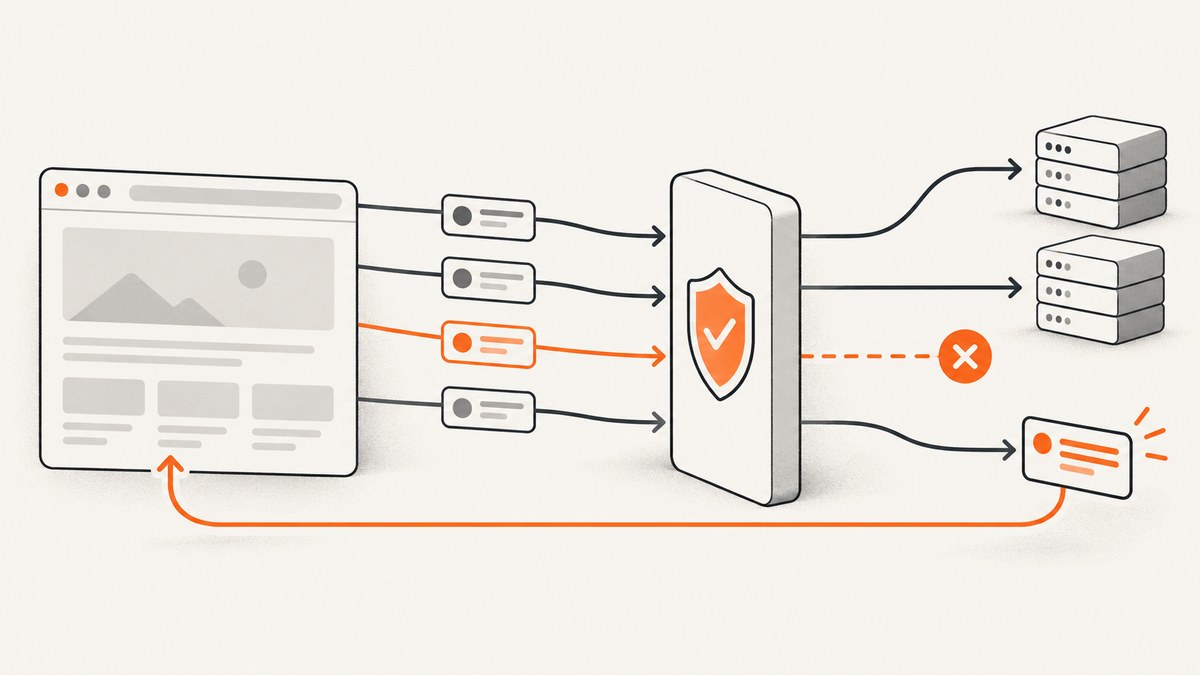
Short answer: ERROR:gpu_process_transport_factory.cc(1007): Lost UI shared context is usually a GPU-process log line, not proof that Headless Chrome failed. If Chrome starts, navigates, renders the page, and your assertions pass, treat the message as diagnostic noise. If the test also has a timeout, missing element, blank screenshot, or navigation failure, debug that observable failure separately.
On Linux and macOS, remove a leftover --disable-gpu argument and reproduce the test. Chrome’s current documentation says that flag is no longer required on those platforms; it remains a Windows-specific temporary workaround for some bugs. Also check viewport size, page readiness, browser and driver compatibility, and whether your project is using current Headless Chrome rather than copying flags from the original headless shell documentation.
This guide gives a repeatable investigation sequence, working Selenium and Playwright examples, platform-specific settings, failure patterns, and a browser-free option with ScreenshotNeo.
What “Lost UI shared context” means
The message comes from Chrome’s GPU process while running in headless mode. Historical WebDriver reports show it appearing while Chrome continued to launch and operate normally. The WWW::Mechanize::Chrome documentation also lists it as a known headless-mode issue that did not affect operation in that module.
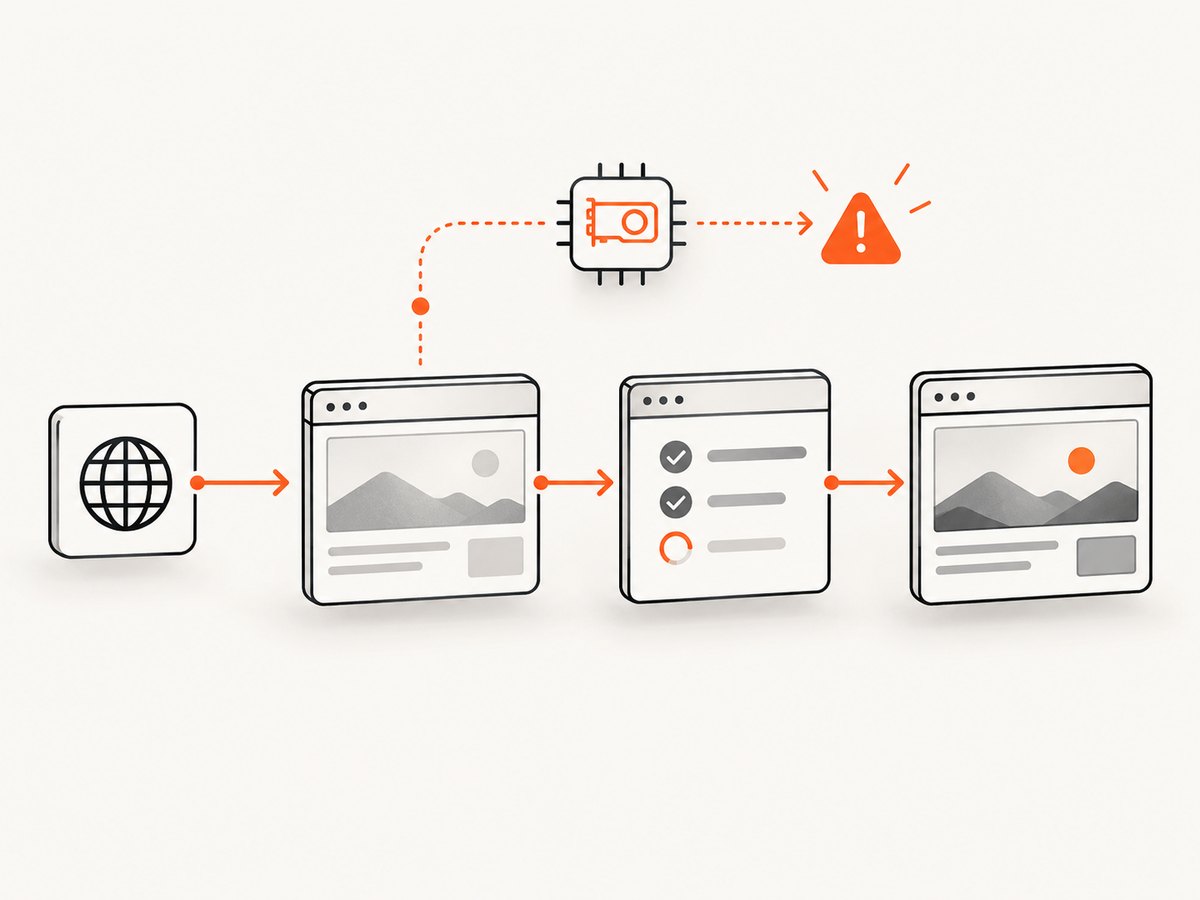
The line alone cannot tell you whether a test passed. Use independent evidence:
- Did the driver process start without an exception?
- Did the browser reach the requested URL?
- What title, URL, and HTTP result did the page produce?
- Did the expected element become visible and interactable?
- Is the screenshot actually blank, or does it show a responsive layout you did not expect?
- What is the first assertion or timeout that fails?
If those checks are good, lower the log level or filter the known message in CI output. Do not hide other browser errors.
A safe troubleshooting sequence
- Record the environment. Save Chrome version, ChromeDriver version, operating system, automation framework version, launch arguments, complete startup log, viewport, and the first failing assertion. The old reports involved Chrome 66–69 and Windows 7/10; those versions are historical examples, not current requirements.
- Prove whether Chrome can navigate. Run one test that opens a stable URL, prints the final URL and title, and saves a screenshot. A successful navigation means the GPU line is not a sufficient explanation for a later selector failure.
- Change one flag at a time. On Linux or macOS, remove
--disable-gpuif you added it from an old recipe. On Windows, keep it only when your Chrome documentation or an actual rendering bug requires it. Chrome’s FAQ summarizes the platform rule as: “Only on Windows. Other platforms no longer require it.” See the Chrome Headless documentation for the current context. - Set an explicit viewport. A small window such as the historical 800×600 configuration can trigger a mobile or tablet breakpoint, hide controls, or produce a screenshot that looks blank. Match the dimensions your assertions expect.
- Wait for state, not time alone. For Angular, React, Vue, and other client-rendered pages, wait for a selector, URL condition, network idle state, or framework-specific readiness signal. A fixed sleep can finish before the element exists.
- Capture failure evidence. Save HTML, a screenshot, browser console output, network errors, and the current URL when a test fails. Compare the failure page with a headed run at the same viewport.
- Check version compatibility. Use a current Chrome and a compatible ChromeDriver or an automation library that manages the driver. Do not copy 2018-era version pins or the original headless-shell assumptions into a current project.
Launch settings by operating system
| Platform | Recommended starting point | What to investigate |
|---|---|---|
| Linux | --headless=new (or your framework’s current headless mode), explicit --window-size |
Remove --disable-gpu; check sandbox and shared-memory settings only when their errors are present |
| macOS | Current headless mode and an explicit viewport | Remove --disable-gpu; check permissions and driver/browser versions |
| Windows | Current headless mode; add --disable-gpu only for a documented rendering bug |
Check GPU driver behavior, Chrome version, and whether the failure reproduces headed |
The --headless=new spelling is useful in older transition periods, but let your current automation framework choose its supported mode. Chrome’s documentation labels the original headless-shell page deprecated and explains that a newer implementation now ships with Chrome.
Minimal Selenium reproduction in Python
Run this outside your full test suite. It distinguishes a startup log from a navigation or rendering failure.
from selenium import webdriver
from selenium.webdriver.chrome.options import Options

options = Options()
options.add_argument("--headless=new")
options.add_argument("--window-size=1365,900")
# On Linux and macOS, do not add --disable-gpu by default.

with webdriver.Chrome(options=options) as driver:
    driver.get("https://example.com")
    print("URL:", driver.current_url)
    print("TITLE:", driver.title)
    driver.save_screenshot("diagnostic.png")
If this script prints a title and produces a non-blank image, the shared-context line is not preventing Chrome from working. Add your application URL next, then add the failing selector and wait condition.
Waiting for the actual condition
A missing element commonly gets misattributed to the GPU message. Use an explicit expected condition in Selenium:
from selenium.webdriver.common.by import By
from selenium.webdriver.support.ui import WebDriverWait
from selenium.webdriver.support import expected_conditions as EC

wait = WebDriverWait(driver, 30)
button = wait.until(
    EC.element_to_be_clickable((By.CSS_SELECTOR, "button[data-testid='checkout']"))
)
button.click()
For a single-page app, wait for the route or a stable application marker. For a page that loads images lazily, scroll or wait for the image selector before taking a full-page capture. If the condition times out, inspect the saved HTML and screenshot: the selector may be wrong, the page may be behind authentication, or a consent dialog may be covering it.
Node.js example with Playwright
Playwright exposes the same evidence with a small script:
const { chromium } = require('playwright');

(async () => {
  const browser = await chromium.launch({ headless: true });
  const page = await browser.newPage({ viewport: { width: 1365, height: 900 } });
  page.on('console', msg => console.log('console:', msg.type(), msg.text()));
  await page.goto('https://example.com', { waitUntil: 'domcontentloaded', timeout: 30000 });
  await page.screenshot({ path: 'diagnostic.png', fullPage: true });
  console.log('URL:', page.url());
  console.log('TITLE:', await page.title());
  await browser.close();
})();
Use waitUntil: 'networkidle' only when it matches the page. Analytics, WebSockets, and polling can keep a page technically busy forever. A selector-based wait is often more reliable:
await page.goto('https://your-site.example', { waitUntil: 'domcontentloaded' });
await page.locator('[data-testid="app-ready"]').waitFor({ state: 'visible', timeout: 30000 });
Common errors that appear alongside the message
| Symptom | Likely cause | Fix |
|---|---|---|
| Chrome starts and tests pass | GPU-process diagnostic log | Keep the environment, reduce noise, and monitor real failures |
| Missing element or timeout | Selector, authentication, responsive layout, or readiness problem | Save HTML/screenshot, set the expected viewport, and wait for the element or route |
| Blank-looking screenshot | Wrong viewport, page not ready, blocked navigation, or a blank response | Print URL/title, wait for a page marker, inspect console/network output, and compare headed mode |
| Browser exits immediately | Driver mismatch, invalid flag, crashed renderer, or host resource limit | Run a minimal script, verify versions, remove flags, and inspect the first startup exception |
| Works headed but not headless | Different viewport, timing, permissions, or headless implementation | Use identical dimensions, explicit waits, and current headless mode; compare page state |
| Linux CI crash mentioning shared memory | Container resource or /dev/shm limit |
Fix the container resource configuration; add workaround flags only when the error specifically points there |
Viewport, responsive design, and page readiness
The historical Protractor report used 800×600 and described blank screenshots and missing elements. A narrow viewport can activate a hamburger menu, hide a desktop-only control, or alter lazy-loading thresholds. Set the viewport deliberately in the driver or context and assert it in diagnostics.
Do not solve every timing issue by increasing a global timeout. Prefer a condition that represents readiness: a visible selector, a URL change, a completed form request, or an application-specific “ready” attribute. When a page has a cookie banner, newsletter modal, or chat widget, close it before testing the underlying control, or configure your test fixture to start from a clean state.
Performance, reliability, and cost considerations
- Performance: Reuse a browser process when your framework supports isolated contexts. Repeated cold starts amplify CI time and make transient startup failures more likely.
- Reliability: Pin a tested browser channel in CI, but update it deliberately. Record versions with each failure so a browser update is distinguishable from an application change.
- Concurrency: Limit parallel pages to the CPU and memory available. Renderer starvation can look like a navigation timeout.
- Network: Use realistic timeouts and retry only idempotent navigation or capture operations. A retry cannot fix a bad selector or an authorization failure.
- Cost: Self-hosted Chrome consumes your CI machines and maintenance time. If you only need screenshots, a screenshot API can avoid browser installation, driver management, and recurring debugging of headless flags.

Or skip the browser setup
ScreenshotNeo provides a website screenshot API and MCP server. It accepts one GET request and returns PNG, JPEG, WebP, or PDF. Cookie and consent banners are accepted before capture, and more than 60 known consent platforms, newsletter popups, and chat widgets can be removed; each step can be disabled. Bot checks/CAPTCHAs, blank pages, timeouts, failed loads, and cache hits are not billed, and response headers identify the page verdict and billing result.
Use the ScreenshotNeo API documentation for all options. A basic request looks like this:
curl -G "https://api.screenshotneo.com/v1/shot" -d access_key=YOUR_API_KEY --data-urlencode url=https://stripe.com -o shot.webpimport requests
r = requests.get("https://api.screenshotneo.com/v1/shot", params={"access_key": "YOUR_API_KEY", "url": "https://stripe.com"}, timeout=90)
open("shot.webp", "wb").write(r.content)
const q = new URLSearchParams({ access_key: 'YOUR_API_KEY', url: 'https://stripe.com' });
const res = await fetch(`https://api.screenshotneo.com/v1/shot?${q}`);
const body = Buffer.from(await res.arrayBuffer());
require('fs').writeFileSync('shot.webp', body);
For automation, ScreenshotNeo includes full-page capture with lazy images loaded, CSS-selector element capture, dark mode, 12 device presets plus custom viewports, retina scale, custom CSS and JavaScript, clicks, selector or network-idle waits, ad/tracker/request blocking, headers, cookies, user agents, Authorization, timezone, geolocation, transparent backgrounds, resizing, configurable caching, signed image links, asynchronous jobs with signed webhooks, bulk capture of up to 100 URLs per call, a usage API, and an OpenAPI specification. An MCP server exposes take_screenshot, get_page_info, and capture_pdf for Claude, Cursor, and other MCP clients.
There is a free allowance of 1,000 screenshots per month with no card. Paid plans start at $5 for 3,000 screenshots, and every feature is available on every plan. Create a free ScreenshotNeo account.
FAQ
Should I suppress the log in CI?
Only after you confirm that navigation, assertions, and screenshots are healthy. Filter the exact line at the logging layer while preserving other Chrome and driver errors.
Is --disable-gpu required for headless Chrome?
Chrome’s current documentation says Linux and macOS no longer require it; it remains a Windows-only temporary workaround for some bugs. Test your actual environment rather than applying it universally.
Can this message cause a blank screenshot?
The message alone does not establish that. A blank image can result from an unready page, blocked navigation, wrong viewport, authentication, or a renderer crash. Capture page state and logs to identify which one occurred.
Should I use the old headless-shell binary?
Usually no. The original headless-shell documentation is marked deprecated, and current Chrome includes a newer Headless implementation. Follow current browser and driver guidance for your framework.
What is the fastest way to isolate a framework bug?
Run the minimal script against a stable public URL, print the title and final URL, save a screenshot, then add your application URL and one assertion. This separates browser startup from application timing and selector problems.


