How to Fix Low Brightness in html2canvas Exported Images
Find out why html2canvas exports look dark, how to inspect the pixels, fix backgrounds and CSS effects, and choose a reliable capture path.
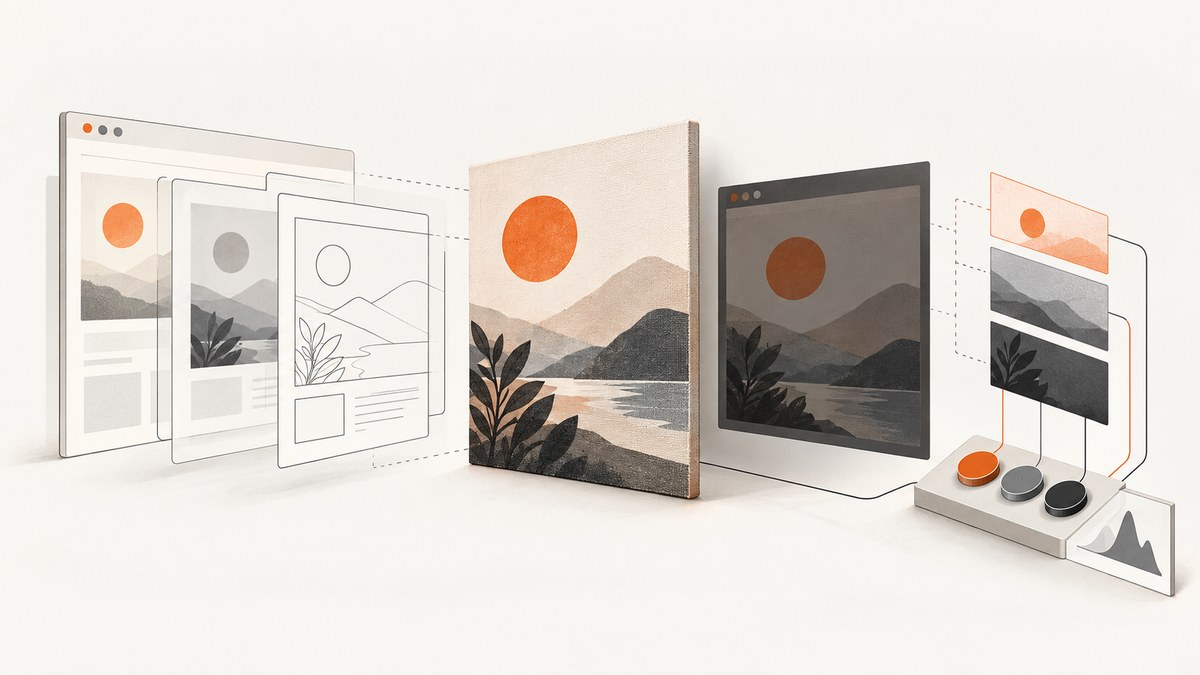
Direct answer: html2canvas has no documented brightness setting. A dark-looking export usually comes from one of three places: the PNG pixels are actually darker, the display makes the same file appear darker, or a CSS effect/background/transparency choice is reconstructed differently from the live page. First inspect the exported file itself on more than one display and sample its RGB values. Then check computed styles, backgrounds, transparency, CSS effects, and any post-processing. Use scale only for output size and sharpness; it is not a luminance control.
html2canvas rebuilds an image from DOM information instead of taking a native screenshot of browser pixels. The project therefore warns that the result may not exactly match the real representation, and that CSS support is necessarily incomplete because properties are implemented individually. Those two facts explain why a page can look correct in the browser while its export looks darker or has different contrast. See the html2canvas documentation, supported features, and FAQ when isolating a rendering difference.
1. Establish whether the file or the display is dark
A report of a PNG looking darker on a second monitor is useful evidence, but it does not prove a universal html2canvas bug or identify a root cause. Separate the two possibilities before changing code.
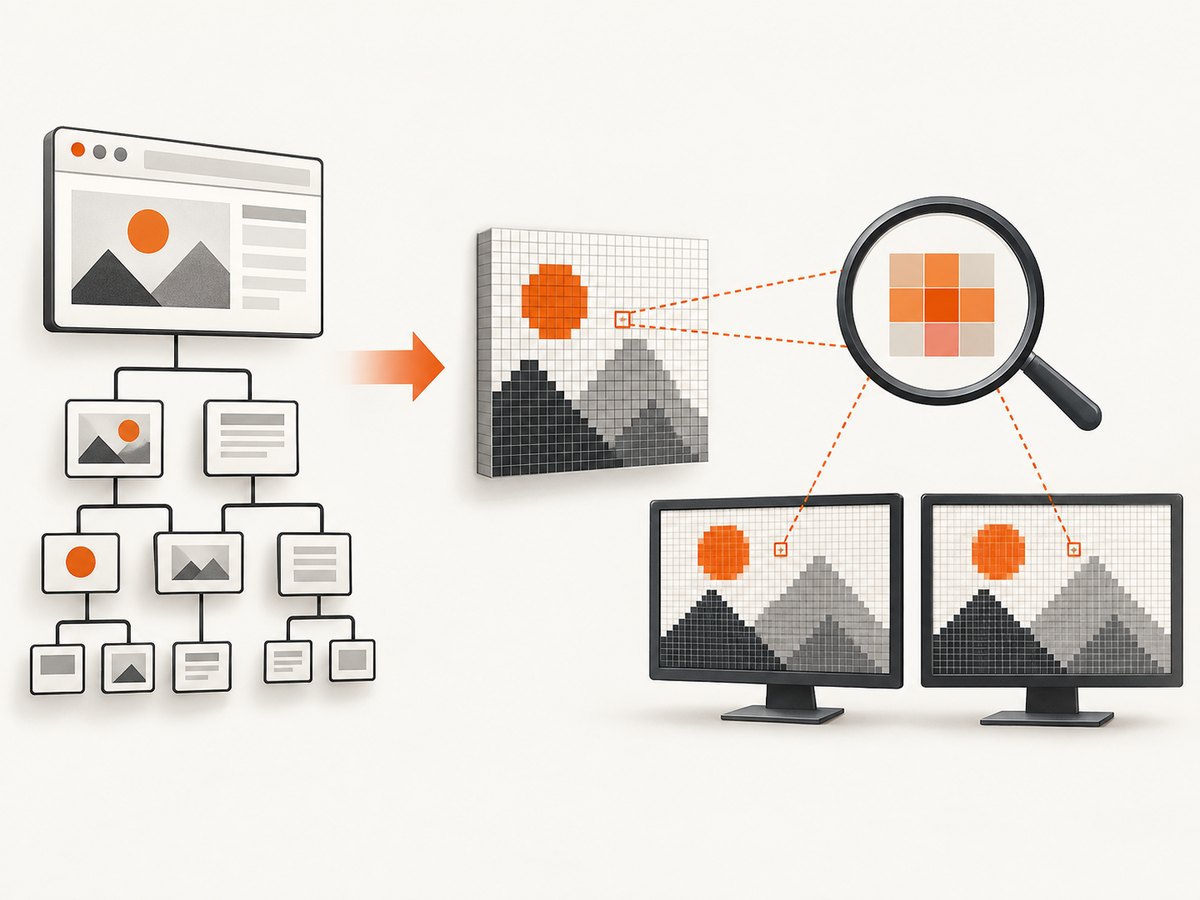
- Save one export without resizing or recompressing it.
- Open that exact file on two displays, in two image viewers if available.
- Inspect representative pixels with an image editor or a small script. Compare a known white background, a mid-tone surface, and a dark foreground.
- Compare those values with the source element’s computed colors in browser developer tools.
If the RGB values are the same but the image looks different, investigate the display, viewer, color profile, or browser presentation. If the exported RGB values are lower than expected, continue through the rendering checks below. This diagnostic sequence is an inference from the reported symptom; it is not a documented html2canvas brightness fix.
// Save pixels for a quick, repeatable check.
const canvas = await html2canvas(document.querySelector('#capture'));
const ctx = canvas.getContext('2d', { willReadFrequently: true });
const pixel = ctx.getImageData(10, 10, 1, 1).data;
console.log({ r: pixel[0], g: pixel[1], b: pixel[2], a: pixel[3] });
canvas.toBlob(blob => {
  const link = document.createElement('a');
  link.href = URL.createObjectURL(blob);
  link.download = 'capture.png';
  link.click();
  URL.revokeObjectURL(link.href);
}, 'image/png');
2. Make the intended background explicit
The backgroundColor option controls the canvas backdrop when the DOM does not provide one. The documented default is white; null requests transparency. It does not brighten text, images, borders, or other foreground content.
const element = document.querySelector('#capture');
const canvas = await html2canvas(element, {
  // Use the real intended backdrop when the element has no background.
  backgroundColor: '#ffffff'
});
const png = canvas.toDataURL('image/png');
Use an explicit color when the exported image must have a solid background:
const canvas = await html2canvas(document.querySelector('#capture'), {
  backgroundColor: '#f7f7f8'
});
Use transparency only when downstream compositing expects it:
const transparentCanvas = await html2canvas(document.querySelector('#capture'), {
  backgroundColor: null
});
Also set the element’s own CSS background when that is part of the design. This makes the source state unambiguous and helps you distinguish a missing backdrop from a foreground rendering problem.
#capture {
  background: #ffffff;
  color: #202124;
}
3. Check computed styles and CSS effects
Inspect the captured element and every relevant ancestor in the computed-style panel. Look for:
opacitybelow1, including opacity on a parent.filter, especially brightness, contrast, opacity, blur, or a chained filter.mix-blend-modeandbackground-blend-mode.- Semi-transparent overlays, gradients, pseudo-elements, and positioned masks.
- Inherited text color, background color, and CSS variables that differ in the cloned state.
- Images with an embedded color profile or an application-level conversion after export.
Because html2canvas reconstructs the DOM, a property that is unsupported or implemented differently can change the apparent brightness. Reduce the page to a minimal reproduction containing one element, one background, and one suspect effect. If the minimal version is correct, add effects back one at a time.
const node = document.querySelector('#capture');
const style = getComputedStyle(node);
console.table({
  color: style.color,
  backgroundColor: style.backgroundColor,
  opacity: style.opacity,
  filter: style.filter,
  mixBlendMode: style.mixBlendMode,
  backgroundImage: style.backgroundImage
});
For a diagnostic capture, temporarily remove effects from the source element. Do this only to identify the cause; restore the intended design for the production export.
const target = document.querySelector('#capture');
const previous = {
  filter: target.style.filter,
  opacity: target.style.opacity,
  mixBlendMode: target.style.mixBlendMode
};
target.style.filter = 'none';
target.style.opacity = '1';
target.style.mixBlendMode = 'normal';
try {
  const canvas = await html2canvas(target, { backgroundColor: '#fff' });
  document.body.appendChild(canvas);
} finally {
  target.style.filter = previous.filter;
  target.style.opacity = previous.opacity;
  target.style.mixBlendMode = previous.mixBlendMode;
}
4. Use scale for resolution, never as a brightness fix
html2canvas documents scale as a render-scale option. Its default is window.devicePixelRatio, which commonly produces sharper high-DPI output. Changing it can alter dimensions, antialiasing, and the apparent edge contrast, but it is not documented as a luminance adjustment.
const canvas = await html2canvas(document.querySelector('#capture'), {
  backgroundColor: '#ffffff',
  // Resolution and sharpness only.
  scale: window.devicePixelRatio
});
For predictable dimensions, choose a fixed value and record it with your export settings:
const canvas = await html2canvas(document.querySelector('#capture'), {
  scale: 2,
  width: 1200,
  height: 800,
  backgroundColor: '#ffffff'
});
If an export is too large, lower the scale or resize the resulting bitmap deliberately. Do not increase scale expecting a brighter image.
5. Check export and post-processing steps
The canvas may be correct while a later step changes the result. Review every operation between rendering and delivery:
toDataURL()ortoBlob()format and quality arguments.- Canvas compositing onto another canvas with
globalAlpha,globalCompositeOperation, or a fill layer. - Image conversion, thumbnail generation, optimization, or upload processing.
- CSS applied when the image is displayed, including opacity and blend modes.
- Viewer-specific color management.
const canvas = await html2canvas(document.querySelector('#capture'), {
  backgroundColor: '#ffffff'
});

// Keep the original pixels for comparison.
canvas.toBlob(async blob => {
  const original = await blob.arrayBuffer();
  console.log('PNG bytes:', original.byteLength);
}, 'image/png');
Compare the original downloaded PNG with the file after each pipeline stage. This identifies the first operation that changes pixel values instead of attributing every difference to html2canvas.
6. A complete browser-side capture example
The following example waits for fonts and images, captures a specific element, uses an explicit background, and downloads a PNG. It keeps brightness-related decisions separate from resolution settings.
import html2canvas from 'html2canvas';

async function exportCard() {
  const element = document.querySelector('#capture');
  if (!element) throw new Error('Missing #capture element');

  if (document.fonts?.ready) await document.fonts.ready;
  const images = [...element.querySelectorAll('img')];
  await Promise.all(images.map(img => {
    if (img.complete) return Promise.resolve();
    return new Promise(resolve => {
      img.addEventListener('load', resolve, { once: true });
      img.addEventListener('error', resolve, { once: true });
    });
  }));

  const canvas = await html2canvas(element, {
    backgroundColor: '#ffffff',
    scale: window.devicePixelRatio,
    useCORS: true
  });

  canvas.toBlob(blob => {
    if (!blob) throw new Error('PNG encoding failed');
    const url = URL.createObjectURL(blob);
    const link = document.createElement('a');
    link.href = url;
    link.download = 'card.png';
    link.click();
    setTimeout(() => URL.revokeObjectURL(url), 0);
  }, 'image/png');
}

exportCard().catch(console.error);
useCORS helps with images that permit cross-origin requests, but it cannot bypass a server’s CORS policy. If a cross-origin image is not readable, remove it for the reproduction or configure the image host correctly.
7. Common errors and fixes
| Symptom | Likely cause | Fix |
|---|---|---|
| Everything has a dark veil | Parent opacity, overlay, filter, or blend mode | Inspect ancestors and temporarily set opacity to 1, filter to none, and blend mode to normal. |
| Only the background is wrong | No DOM background or unintended transparency | Set the element background and pass backgroundColor explicitly; use null only for intentional transparency. |
| Text is darker than in the browser | Unsupported or differently reconstructed CSS, inherited color, antialiasing | Check computed color and effects, then isolate the text in a minimal reproduction. |
| Images disappear or change tone | CORS restrictions or a later image conversion | Verify the image response headers, use useCORS where appropriate, and compare the file before and after processing. |
| Changing scale seems to help | Different edge antialiasing or display size | Keep scale tied to required resolution; do not treat it as a brightness setting. |
| Canvas is blank | Capture ran before content loaded, element dimensions are zero, or a script failed | Wait for fonts/images, check dimensions, and log the promise rejection. |
| Colors differ by monitor | Display or viewer presentation, or genuinely different file pixels | Sample RGB values from the same file before changing CSS. |
8. Reliability and performance considerations
Large full-page DOM trees require more memory and time than a small element capture. Capture the smallest required element, avoid unnecessarily high scale, and release object URLs after downloads. Wait for fonts and images so a fast export does not capture fallback content. For repeated captures, keep the page state deterministic: set the viewport, theme, locale, and data before calling html2canvas.

When a capture must match browser pixels exactly, html2canvas may be the wrong layer because it reconstructs the page. A browser’s native screenshot capability can be more faithful for the application context. The html2canvas FAQ discusses native screenshot APIs in the context of browser extensions; do not assume that extension-specific guidance automatically applies to every web application.
Or skip the browser setup
If you need a server-side screenshot instead of debugging a DOM reconstruction, ScreenshotNeo accepts one GET request and returns PNG, JPEG, WebP, or PDF. Before capture it accepts cookie or consent banners and removes more than 60 known consent platforms, newsletter popups, and chat widgets. Bot checks, blank pages, timeouts, failed loads, and cache hits are not billed, and the response identifies the result with X-Page-Verdict and X-Billed headers. It also provides an MCP server for AI agents with take_screenshot, get_page_info, and capture_pdf.
See the ScreenshotNeo API documentation for all options, including full-page and element capture, dark mode, device presets, retina scale, custom CSS and JavaScript, waits, request blocking, headers, cookies, geolocation, resizing, caching, signed links, asynchronous jobs, bulk capture, and usage reporting.
cURL
curl -G "https://api.screenshotneo.com/v1/shot" \
  -d access_key=YOUR_API_KEY \
  --data-urlencode url=https://stripe.com \
  -o shot.webp
Python
import requests

r = requests.get(
    "https://api.screenshotneo.com/v1/shot",
    params={"access_key": "YOUR_API_KEY", "url": "https://stripe.com"},
    timeout=90,
)
r.raise_for_status()
open("shot.webp", "wb").write(r.content)
Node.js
const q = new URLSearchParams({ access_key: 'YOUR_API_KEY', url: 'https://stripe.com' });
const res = await fetch(`https://api.screenshotneo.com/v1/shot?${q}`);
if (!res.ok) throw new Error(`Screenshot failed: ${res.status}`);
const buffer = Buffer.from(await res.arrayBuffer());
await import('node:fs/promises').then(fs => fs.writeFile('shot.webp', buffer));
The Free plan includes 1,000 shots per month with no card. Paid plans start at $5 for 3,000 shots; every feature is available on every plan. Create a free ScreenshotNeo account to get started.
9. Practical decision checklist
- Did you inspect the same exported file on more than one display?
- Did you sample pixels instead of judging brightness by eye?
- Is the intended background explicit in CSS or
backgroundColor? - Did you inspect ancestor opacity, filters, overlays, and blend modes?
- Did you test a minimal reproduction for unsupported CSS?
- Are fonts, images, and data loaded before capture?
- Did you verify that post-processing did not alter the pixels?
- Are you using
scaleonly for dimensions and sharpness? - Would a native browser screenshot or a server screenshot API better match your requirement?
FAQ
Does html2canvas have a brightness option?
No documented option changes brightness. Brightness must be corrected in the source styles, background choice, rendering path, or a deliberate post-processing step.
Will backgroundColor: '#fff' brighten dark text?
No. It only supplies the canvas backdrop when the DOM does not define one. Foreground colors and effects must be fixed separately.
Should I increase scale for a brighter PNG?
No. Scale controls render resolution and sharpness. Choose it based on required output dimensions.
Why does the same PNG look different on two monitors?
The report may reflect display or viewer presentation, or different pixel data introduced earlier. Compare RGB samples from the same file before changing the capture code.
When should I stop using html2canvas?
Use another capture path when pixel-accurate native browser output, complex unsupported CSS, or reliable server-side rendering matters more than a DOM-based client capture.


