How to Fix MCP Browser Automation When the Cursor Is Missing
Learn whether the missing cursor is a visual overlay, coordinate tool, or unavailable browser server—and fix the right MCP configuration.
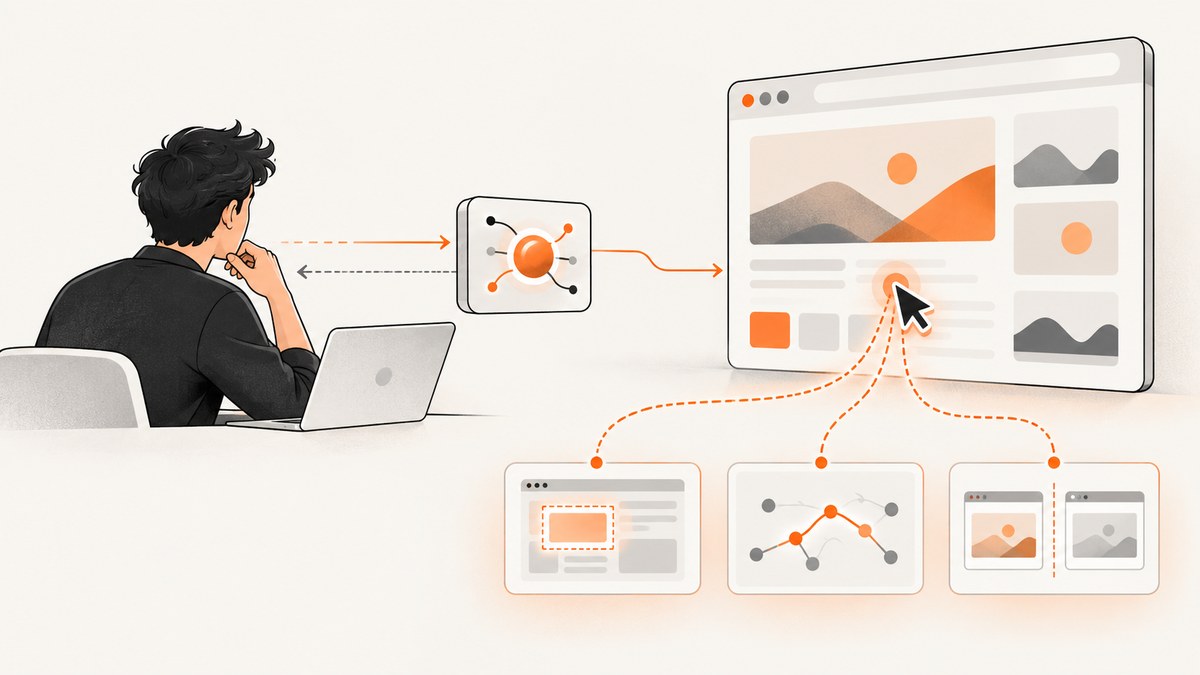
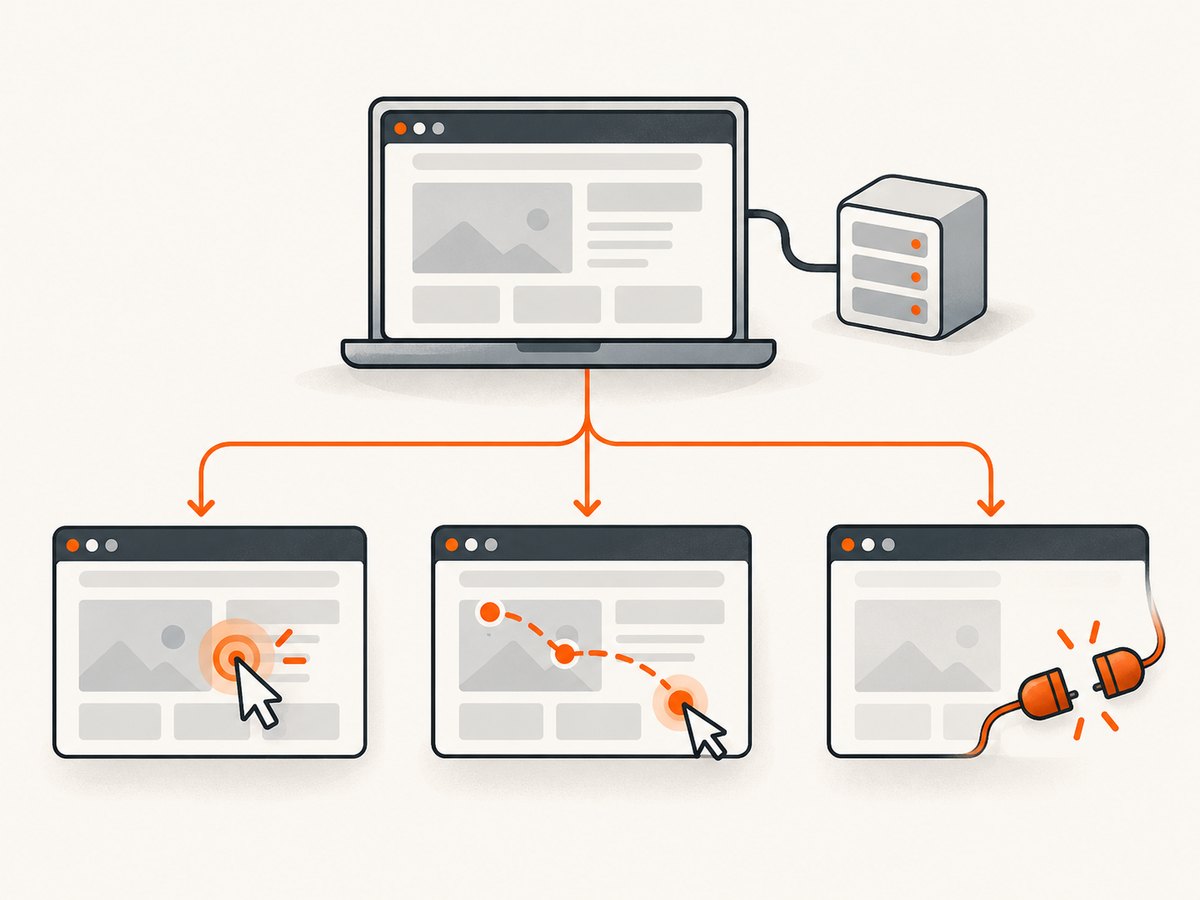
A missing cursor in MCP browser automation can describe three different problems: a pointer decoration is not drawn, coordinate-based mouse movement is unavailable, or the browser automation tools themselves do not appear in Cursor. These symptoms have different causes and fixes. Start by identifying your MCP server, client, browser, and the exact thing that is absent.
The Microsoft Playwright MCP server provides structured browser interaction through accessibility snapshots. Its coordinate mouse tools are optional vision capabilities, while its pointer decoration is only a visual overlay. The distinction matters: hiding an animated pointer does not stop clicks, and enabling coordinate tools does not repair a disconnected browser.
Identify what “cursor” means
| What you observe | Likely meaning | First check |
|---|---|---|
| Actions work, but no animated pointer or action marker is visible | Pointer decoration is disabled or hidden | Playwright MCP cursor decoration setting |
| You need to move or click at x/y coordinates, but no such tool exists | Vision capability is not enabled | Run the server with --caps=vision |
| No browser tools appear in Cursor | The MCP server is not installed, enabled, or exposed to the client | Cursor MCP configuration and server logs |
| The server starts but cannot reach a browser tab | Connection mode, profile, endpoint, or browser state is wrong | Channel, CDP, Playwright endpoint, or extension configuration |
Do not begin by reinstalling everything. Record the client (Cursor Browser Tab, Cursor MCP, Claude, or another MCP host), server package and version, browser and version, operating system, and the exact error or missing tool name. A version-specific issue cannot be diagnosed reliably from the word “cursor” alone.
Install and verify Playwright MCP
The official Playwright MCP introduction describes an MCP server that lets an LLM interact with web pages through structured accessibility snapshots. Install the current package with the command appropriate for your MCP client, then restart the client so it reloads its server list.
npx @playwright/mcp@latestIn Cursor, open Settings → MCP, add a server with command npx, and arguments @playwright/mcp@latest. The exact menu labels can change between Cursor releases, so verify that the server shows as connected before debugging pointer behavior. The Playwright repository documents client configuration examples and the available tools: Playwright MCP on GitHub.
Ask the MCP client to list tools. A normal structured setup exposes navigation, snapshot, locator, keyboard, and pointer-action tools. If browser_mouse_move_xy is absent, that is expected until vision capability is enabled; it is not evidence that the browser pointer is broken.
Fix a missing visual pointer or action decoration
Playwright MCP’s pointer decoration belongs to its action-visualization feature. The documented cursor option defaults to pointer, which animates a pointer from the previous action point to the next. Setting it to none disables that decoration. This setting does not remove the browser’s real mouse state and does not prevent a locator click.
If your actions succeed but the overlay is absent:
- Check whether action annotations or video action display are enabled.
- Inspect the MCP configuration for a cursor option set to
none. - Use the documented default,
pointer, when you want the animated decoration. - Confirm that you are looking at the MCP visualization output, not the page’s own cursor CSS.
{
  "mcpServers": {
    "playwright": {
      "command": "npx",
      "args": ["@playwright/mcp@latest"]
    }
  }
}
The overlay is useful for demonstrations and recorded actions, but it is not required for reliable automation. Prefer accessibility snapshots and locators for normal tasks. They identify elements by role, label, text, or selector and do not depend on a pointer being visible.
Fix missing coordinate movement
Coordinate movement is a separate capability. The Playwright MCP tool browser_mouse_move_xy is listed among the tools available in vision mode. It accepts screenshot pixel coordinates, so the coordinates must match the current viewport and device scale.
Start the server with vision enabled:
npx @playwright/mcp@latest --caps=visionAfter restarting the MCP client, inspect the tool list again. You should see coordinate tools such as browser_mouse_move_xy, browser_mouse_click_xy, and drag operations. The repository’s capability tests and tool documentation are available in the official repository.
Use coordinate tools only when the task requires pixel input, such as a canvas, map, chart, or remote desktop surface. For ordinary HTML controls, use structured interaction:
1. Take an accessibility snapshot.
2. Find the button, link, textbox, or combobox by its role and name.
3. Click or fill that element through the locator-based MCP tool.
4. Take another snapshot to verify the result.
Common coordinate mistakes include using coordinates from an old screenshot, forgetting that a device scale factor changes pixel dimensions, scrolling after capturing the screenshot, or targeting an overlay that disappeared. Capture a fresh screenshot immediately before moving, keep the viewport fixed, and verify the target after the action.
Fix missing browser tools in Cursor
Cursor’s built-in Browser Tab and an external Playwright MCP server are different integration paths. A Browser Tab can provide browser automation inside Cursor without appearing as a separately named MCP server. If you need control of an existing Chrome session, installed extensions, or a browser outside Cursor’s built-in tab, configure the official Playwright MCP server explicitly.
- Open Cursor’s MCP settings and confirm the Playwright server entry is enabled.
- Run the server command manually in a terminal to catch Node.js, package, or permission errors.
- Restart Cursor after changing the configuration.
- Check the MCP log for a successful initialize request and a tool list.
- Ask the client to open a simple public page before testing an authenticated site.
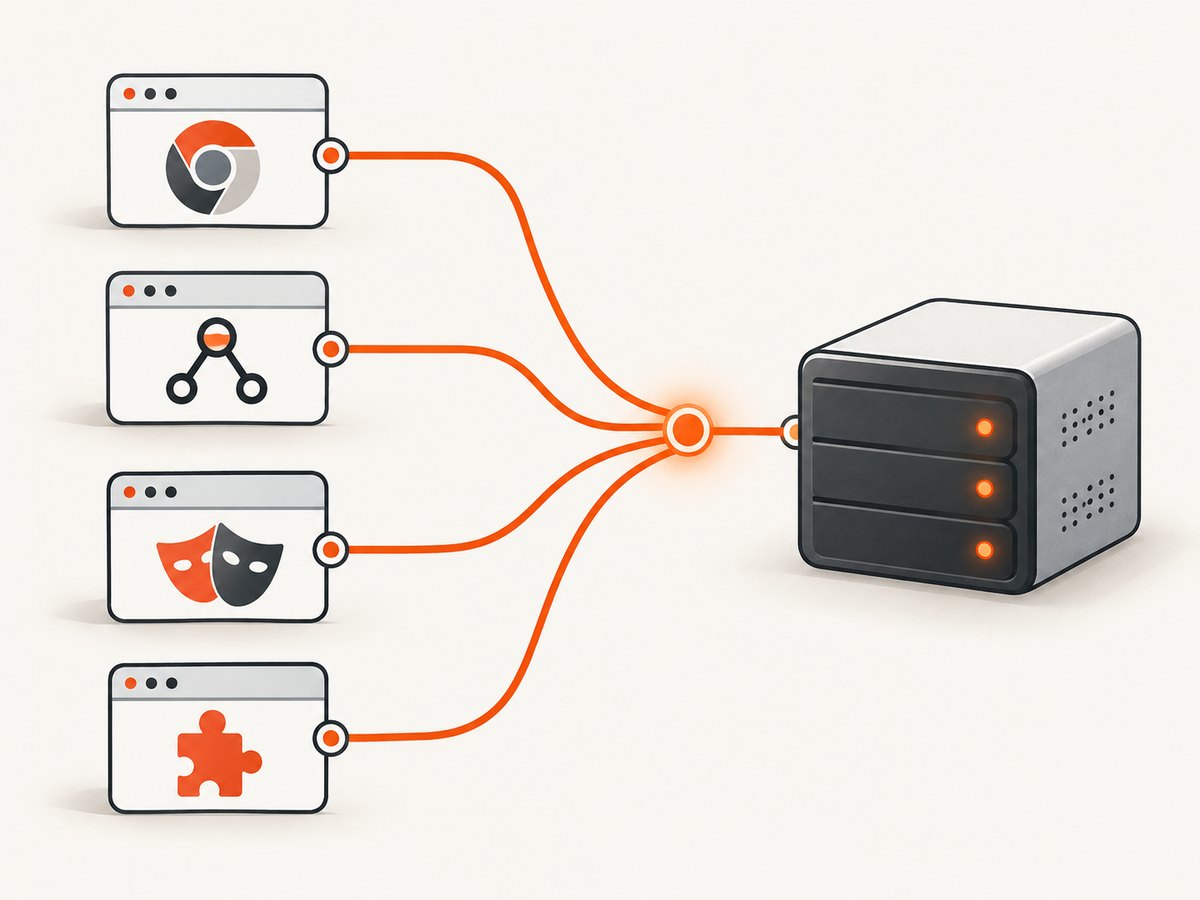
If the server is connected but no browser is available, choose a browser connection route instead of changing cursor decoration. The official Playwright browser connection guide documents four routes.
Choose the correct browser connection
Connect by Chrome or Edge channel
Use a supported channel when you want Playwright MCP to attach to a running Chrome or Edge instance without managing a port. Supported names include chrome, chrome-beta, chrome-dev, chrome-canary, msedge, and their beta, dev, and canary variants.
npx @playwright/mcp@latest --cdp-endpoint=chromeConnect through a CDP endpoint
Use a CDP URL for Chromium started with remote debugging, Edge, Electron, or a hosted Chromium service.
npx @playwright/mcp@latest --cdp-endpoint=http://localhost:9222Confirm that the endpoint is reachable from the same machine or container running MCP. A refused connection means the browser is not listening, the port is blocked, or the URL is wrong.
Connect to a Playwright server endpoint
If another process owns the browser and exposes a Playwright endpoint, use:
npx @playwright/mcp@latest --endpoint=ws://localhost:3000/This route is different from CDP. Do not substitute a WebSocket Playwright endpoint for a CDP URL.
Use the browser extension for an existing session
The Playwright extension can attach to existing Chrome or Edge tabs and reuse login state, cookies, and installed extensions. Install the extension, then run:
npx @playwright/mcp@latest --extensionBy default, it attaches to the last-used profile that has the extension installed. Select another profile when necessary:
npx @playwright/mcp@latest --extension --profile-dir-name='Profile 1'Extension mode is appropriate for SSO, 2FA-completed sessions, browser extensions, and tabs you already have open. It is not a fix for a missing pointer overlay; it fixes attachment to the right browser context.
A deterministic troubleshooting checklist
- Classify the symptom. Is the visual decoration missing, is an x/y tool missing, or are all browser tools missing?
- Verify the server. Confirm the MCP process starts and the client receives an initialize response.
- Inspect capabilities. Add
--caps=visiononly for coordinate tools; do not enable it as a generic repair. - Check the browser route. Choose channel, CDP, Playwright endpoint, or extension based on whether you need an existing session.
- Check profile and permissions. An extension in one Chrome profile is invisible to another; a CDP endpoint may be bound only to localhost.
- Reproduce on a simple page. Navigate to a public page, take a snapshot, and perform one locator-based action.
- Capture exact diagnostics. Save the package version, client version, browser version, operating system, command line, and complete error text before changing versions.
Common errors and fixes
| Error or symptom | Cause | Fix |
|---|---|---|
| “Tool not found: browser_mouse_move_xy” | Vision capability is disabled | Restart with --caps=vision, then refresh the client tool list. |
| Actions work but no pointer animation appears | Decoration is set to none or action visualization is hidden |
Use pointer and enable action display if you need the overlay. |
| Playwright MCP starts, but no tab is controlled | Wrong connection route or browser profile | Use channel, CDP, endpoint, or extension mode and select the correct profile. |
| CDP connection refused | Browser is not listening on the URL or the port is inaccessible | Start remote debugging, verify the port locally, and use the exact endpoint. |
| Extension mode attaches to the wrong account | The extension is installed in another profile | Install it in the intended profile or pass --profile-dir-name. |
| Clicks miss after scrolling | Coordinates came from a stale screenshot | Capture again immediately before the coordinate action. |
| Cursor appears on video but not during normal use | Video cursor rendering and live action decoration are separate features | Configure the feature you actually need; video settings do not change locator behavior. |
| No MCP server appears in Cursor | Invalid configuration, disabled entry, or client not restarted | Validate the command, restart Cursor, and inspect MCP logs. |
Reliability, performance, and security notes
Locator-based actions are usually more reliable than coordinates because they follow the page’s accessibility structure rather than a particular viewport. Coordinates are appropriate for visual surfaces but require stable viewport size, scroll position, zoom, and device scale. Keep screenshots close to the action that uses them.
Connecting to an existing browser saves login time but shares that browser’s cookies, extensions, and tabs with the automation process. Use a dedicated profile for repeatable jobs. Treat CDP URLs and MCP endpoints as sensitive: they can provide control over the browser. Bind local services to localhost unless remote access is required, and avoid exposing debugging ports publicly.
For performance, avoid enabling vision mode when structured tools are sufficient, keep pages focused on the required origin, and reuse a browser context when your workflow needs several related actions. For reliability, record the server command and package version with each automation job so a future update can be reproduced or rolled back after investigation.
Or skip the browser setup
If your goal is a clean screenshot rather than interactive browser control, ScreenshotNeo provides a single HTTP request to return PNG, JPEG, WebP, or PDF. Its capture flow accepts consent banners like a visitor and removes more than 60 known consent platforms, newsletter popups, and chat widgets before the shot; each step can be turned off. Bot checks, blank pages, timeouts, failed loads, and cache hits are not billed, and the response identifies the result with X-Page-Verdict and X-Billed headers. An MCP server provides take_screenshot, get_page_info, and capture_pdf tools for Claude, Cursor, and other MCP clients.
See the ScreenshotNeo API documentation for all options, including full-page capture with lazy images, CSS-selector element capture, dark mode, device presets, custom viewports, retina scale, PDF paper and margin settings, custom CSS and JavaScript, clicks, waits, request blocking, headers, cookies, user agents, authorization, timezone, geolocation, transparent backgrounds, resizing, TTL caching, signed links, async webhooks, bulk capture, usage, and OpenAPI compatibility.
cURL
curl -G 'https://api.screenshotneo.com/v1/shot' \
  -d access_key=YOUR_API_KEY \
  --data-urlencode url=https://stripe.com \
  -o shot.webp
Python
import requests

r = requests.get(
    'https://api.screenshotneo.com/v1/shot',
    params={'access_key': 'YOUR_API_KEY', 'url': 'https://stripe.com'},
    timeout=90,
)
r.raise_for_status()
open('shot.webp', 'wb').write(r.content)
Node.js
const q = new URLSearchParams({
  access_key: 'YOUR_API_KEY',
  url: 'https://stripe.com'
});
const res = await fetch(`https://api.screenshotneo.com/v1/shot?${q}`);
if (!res.ok) throw new Error(`HTTP ${res.status}`);
const image = Buffer.from(await res.arrayBuffer());
require('fs').writeFileSync('shot.webp', image);
ScreenshotNeo has 1,000 screenshots per month free with no card. Paid plans start at $5 for 3,000 shots; yearly billing gives two months free, and every feature is available on every plan. Create a free ScreenshotNeo account.
FAQ
Does a missing pointer mean clicks are failing?
No. The pointer decoration is visual. Test a locator-based action and verify the page state before diagnosing a browser connection problem.
Can I use coordinate tools without vision mode?
Playwright MCP documents coordinate mouse tools as vision capabilities. Start the server with --caps=vision and reload the MCP client.
Which connection mode should I use for a logged-in tab?
Use extension mode when you need an existing Chrome or Edge tab, its cookies, or installed extensions. Use CDP or a channel when you control the browser process directly.
Should I downgrade Playwright MCP?
Only after collecting the exact client, server, browser, operating system, and error versions. The documented sources do not identify one universal cursor bug or prescribe a universal downgrade.
Can ScreenshotNeo replace interactive MCP automation?
It replaces the browser setup when the deliverable is a screenshot, page description, or PDF. Interactive workflows that must inspect and manipulate a live session still need a browser automation server.


