How to Fix MCP Server Spawn npx ENOENT Errors
Fix MCP spawn npx ENOENT errors by checking command resolution, PATH inheritance, Windows wrappers, explicit paths, and client versions.
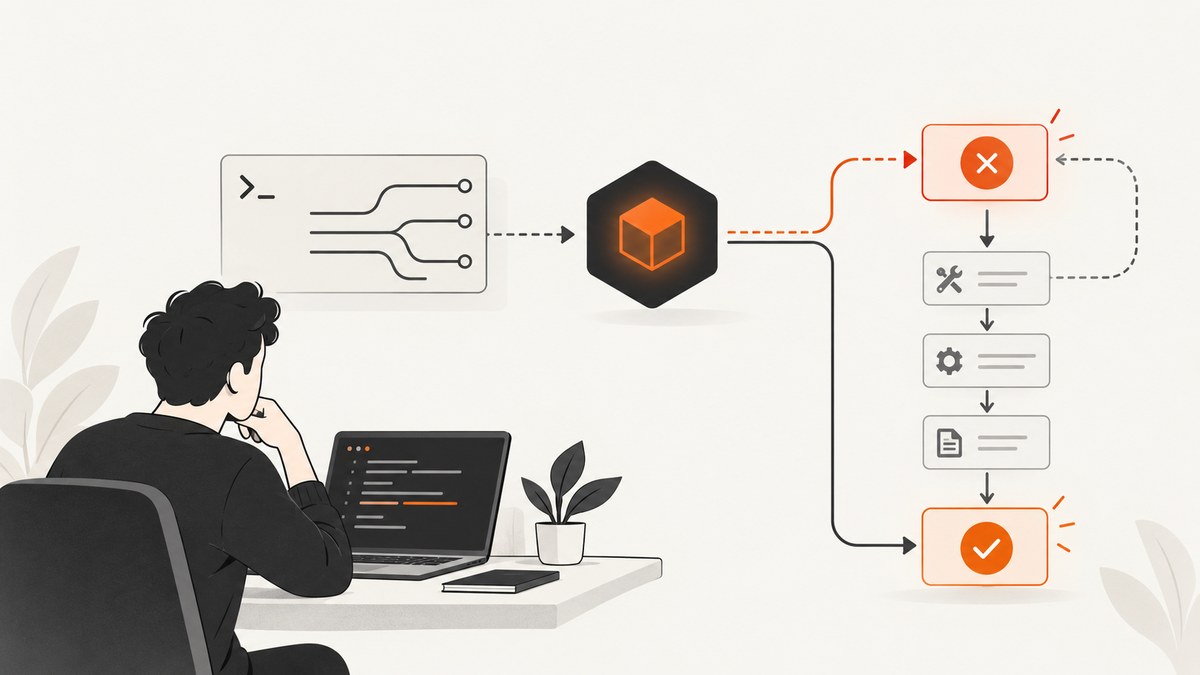
Short answer: spawn npx ENOENT means your MCP client could not find or start the configured npx executable. Verify Node.js, npm, and npx in a fresh terminal, then verify that the MCP client inherits the same PATH. On Windows, try the documented cmd /c npx pattern. If lookup is still unreliable, configure an absolute path to Node or update the client.
What ENOENT means during MCP startup
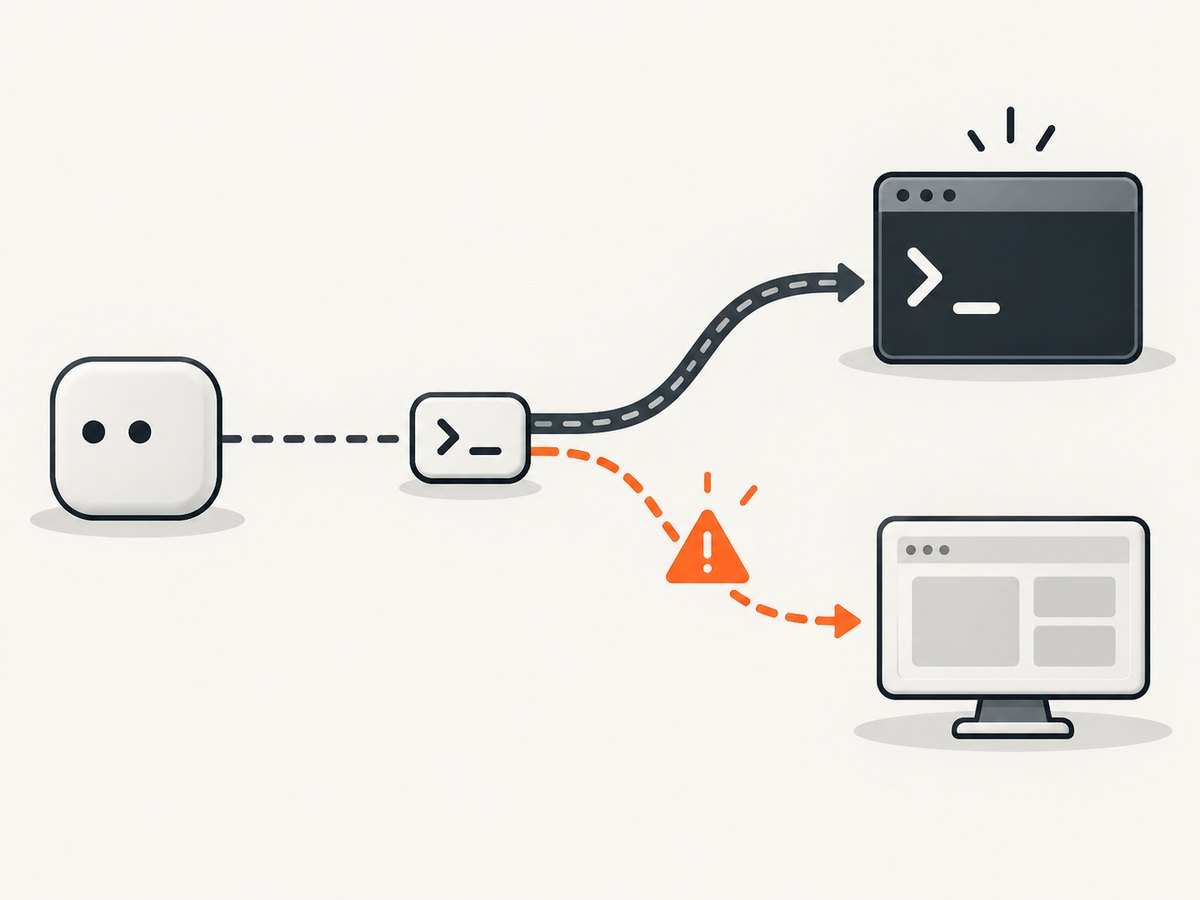
ENOENT is reported at process-spawn time. The client has not necessarily reached the MCP handshake, loaded the server package, or contacted a tool. Start by proving that the executable named in your configuration exists and is visible to the process launching it.
If the process starts and then exits, reports a package error, or fails during protocol negotiation, you have moved past the original spawn problem. Capture the client’s exact command and diagnostics before changing server code.
Fix it step by step
1. Check Node.js, npm, and npx in a new terminal
Use a fresh shell under the same operating-system account that runs your MCP client.
# macOS or Linux
node --version
npm --version
npx --version
command -v node
command -v npm
command -v npx

# Windows PowerShell
node --version
npm --version
npx --version
Get-Command node
Get-Command npm
Get-Command npx
where.exe node
where.exe npm
where.exe npx
Every version command should return a version, and each lookup command should return a real executable path. If a command is missing, install Node.js from the official Node.js downloads page, then open a new terminal and repeat the checks.
2. Compare the MCP client’s environment with your terminal
A terminal succeeding does not prove that a desktop app or CLI client sees the same PATH. Apps started before Node was installed can retain an older environment. Node installations managed by a version manager can also be available only in interactive shells.
- Quit and reopen the MCP client after changing Node or PATH.
- Check the client’s diagnostic view for the command it attempted and its environment, if available.
- Compare the reported Node path with the path from
command -v node,Get-Command node, orwhere.exe node. - Use the same OS account and architecture for the terminal and client.
3. Use the Windows cmd /c wrapper
The official Model Context Protocol filesystem server documentation shows Windows configuration that invokes cmd with /c before npx. Adapt the package name and server arguments to your server:
{
  "command": "cmd",
  "args": ["/c", "npx", "-y", "<package-name>", "<server-arguments>"]
}
This is a documented configuration pattern, not a requirement for every MCP client. Keep JSON valid and preserve any arguments required by the server.
4. Try an explicit Node executable path
If PATH lookup remains the uncertain step and your MCP client supports an executable path, point the configuration at the Node binary reported by your machine. A full path separates PATH problems from later launch failures.
{
  "command": "C:\\Program Files\\nodejs\\node.exe",
  "args": ["C:\\path\\to\\server-entry.js", "--your-argument"]
}
Replace both paths with values from your system. Do not copy a path from another machine. Some clients require the Node path in a dedicated runtime field; follow that client’s schema.
5. Check client version-specific behavior
MCP clients differ in how they resolve shell commands. A Copilot CLI issue documented Windows failures for stdio servers configured with command: "npx" in versions 1.0.56-0 and 1.0.56-1; a maintainer later stated that the latest stable release fixed that case on August 27, 2026. Scope that report to Copilot CLI and those versions. Check your installed client version and its current release notes before applying a client-specific workaround.
Configuration examples
Direct npx configuration
{
  "command": "npx",
  "args": ["-y", "<package-name>", "<server-arguments>"]
}
Windows wrapper configuration
{
  "command": "cmd",
  "args": ["/c", "npx", "-y", "<package-name>", "<server-arguments>"]
}
Absolute Node path configuration
{
  "command": "/absolute/path/to/node",
  "args": ["/absolute/path/to/server-entry.js"]
}
The exact configuration file and field names belong to your MCP client. Keep the server package, arguments, and working directory unchanged while testing command resolution so each change has one clear purpose.
Diagnose the next error after spawn succeeds
| Observed message | Likely stage | Next action |
|---|---|---|
spawn npx ENOENT |
Executable lookup | Check Node/npm/npx and the client PATH. |
spawn cmd ENOENT |
Windows command lookup | Verify cmd.exe resolution and client environment. |
| Package not found | npx started | Check package name, registry access, and package version. |
| Server exits immediately | Server startup | Run the exact command manually and inspect stderr. |
| Handshake or protocol error | MCP communication | Check client/server versions, stdio configuration, and startup output. |
ENOENT alone does not show that the MCP server package is broken. Reclassify the issue once the process can be launched.
Common causes and fixes
- Node is not installed: install Node.js, reopen the shell and client, then rerun the version checks.
- PATH changed after the client started: fully quit and relaunch the client.
- Version manager only initializes interactive shells: configure the client with a stable absolute path or make the runtime available to that process.
- Windows shim resolution fails: use the documented
cmd /cwrapper. - Wrong executable path: copy the path returned by your machine’s command lookup, accounting for spaces and escaping.
- Client defect: check the client version and its issue tracker; do not assume a workaround for one client applies to another.
- Malformed JSON: validate quotes, commas, and backslashes before debugging runtime behavior.
Performance, reliability, and cost considerations
Checking command resolution is effectively free and fast. An explicit executable path can reduce dependence on shell initialization, while the cmd /c wrapper adds a Windows command interpreter to the launch chain. Keep the configuration minimal during diagnosis, then restore required server arguments.
For production agents, pin a known Node and server version where your client supports it, record the client version with deployment configuration, and capture stderr plus exit codes. A restart may repair a stale environment, but it does not fix a missing runtime or invalid path.
Or skip the browser setup
If your MCP workflow ultimately needs website screenshots, ScreenshotNeo provides an HTTP API and an MCP server, so an agent can call a screenshot tool without you maintaining a local browser launcher.
One GET request returns PNG, JPEG, WebP, or PDF. The service accepts consent banners before capture and removes more than 60 known consent platforms, newsletter popups, and chat widgets; each step can be disabled. Bot checks, blank pages, timeouts, failed loads, and cache hits are not billed, and responses identify the result with X-Page-Verdict and X-Billed headers. Its MCP server exposes take_screenshot, get_page_info, and capture_pdf for Claude, Cursor, and other MCP clients.
# cURL
curl -G "https://api.screenshotneo.com/v1/shot" -d access_key=YOUR_API_KEY --data-urlencode url=https://stripe.com -o shot.webp

# Python
import requests
r = requests.get("https://api.screenshotneo.com/v1/shot", params={"access_key": "YOUR_API_KEY", "url": "https://stripe.com"}, timeout=90)
open("shot.webp", "wb").write(r.content)

# Node.js
const q = new URLSearchParams({ access_key: 'YOUR_API_KEY', url: 'https://stripe.com' });
const res = await fetch(`https://api.screenshotneo.com/v1/shot?${q}`);
See the ScreenshotNeo API documentation for options such as full-page capture, CSS selectors, device presets, custom headers and cookies, waits, blocking rules, PDFs, caching, signed links, asynchronous jobs, bulk capture, and usage reporting. The free plan includes 1,000 screenshots each month with no card; paid plans start at $5 for 3,000.
Create a free ScreenshotNeo account and try the 1,000 included screenshots.
FAQ
Does ENOENT mean my MCP server package is missing?
Usually it means the client could not resolve the executable it was asked to spawn. A missing package produces a later npx or package error after npx starts.

Should I always use cmd /c on Windows?
No. The MCP filesystem README documents it as a Windows launch pattern. Use it when direct npx resolution fails, and check your client’s own guidance.
Why does npx work in PowerShell but fail in my desktop client?
The desktop process may have started with a different or older PATH, or your Node version manager may initialize only interactive shells.
What should I collect before asking for help?
Record the OS, MCP client and version, Node/npm/npx versions, executable paths, exact configuration, and the client’s complete launch error.


