How to Fix Microsoft CAPTCHA Not Working
Stuck on “Let’s help you move forward”? Follow Microsoft’s browser, network, and account checks, and learn what to do if the issue is really a sign-in loop or missing code.

If Microsoft keeps showing “Let’s help you move forward,” or a CAPTCHA will not load or validate, start with a regular browser window, temporarily turn off blockers, disconnect a VPN or proxy, and check that cookies and JavaScript are enabled. Then retry once. Microsoft says these security checks rely on browser data and can fail when browser settings, extensions, or the network interfere. If the symptom is instead a sign-in loop, Error 400, or a verification code that never arrives, use the separate steps below.
This guide covers the repeated Microsoft security check first, then helps you tell it apart from nearby account problems. Make one change at a time where practical; that makes it easier to see whether the cause follows your browser, device, network, or account. Microsoft’s official procedure is in its “Let’s help you move forward” troubleshooting article.
1. Identify which Microsoft problem you have
People use “Microsoft CAPTCHA not working” to describe several different failures. Match what you see before changing settings:
| What happens | Likely branch | Start here |
|---|---|---|
| The page repeats “Let’s help you move forward,” or the challenge fails again after you complete it. | Repeated security check | Follow the browser and network sequence below. |
| The CAPTCHA is missing, blank, or never finishes loading during sign-up. | Page scripts, cookies, browser, or network may be interfering. | Check blockers, JavaScript, cookies, browser, then network. |
| You sign in, but Microsoft sends you back to the same login page. | Sign-in loop | Use Microsoft’s separate support.microsoft.com sign-in troubleshooting. |
| You see Error 400 while signing in. | Sign-in or request problem | Use the Error 400 guidance. |
| Microsoft asks for a code, but no email or text arrives. | Verification delivery problem | Follow the verification-code troubleshooting steps. |
A CAPTCHA that fails to validate and a verification code that never arrives are not the same issue. The first is a browser or security-check path; the second is an account verification delivery path. Use the matching branch so you do not waste attempts on the wrong fix.
2. Fix a repeated “Let’s help you move forward” check
Work through these steps in order. Retry the check after each meaningful change, rather than changing many settings at once.

- Leave private or incognito mode. Open a normal browser window and try once. Microsoft’s security check may rely on browser data used to establish that a real person is completing it. Private modes can limit or discard that data.
- Temporarily disable blockers. Turn off ad blockers, tracker or privacy blockers, script-blocking extensions, and similar browser add-ons. If your router or network security product filters ads or web content, check whether it is blocking the page’s scripts. Retry the check, then re-enable extensions one at a time to identify a conflict.
- Disconnect VPNs and proxies. Switch to your ordinary internet connection and retry. Microsoft identifies VPN and proxy connections as possible reasons a security check cannot validate the connection. If you are on a managed work network, do not change organizational settings without your administrator.
- Allow cookies and JavaScript. Check the browser’s site and privacy settings, allow both, reload Microsoft’s page, and retry. Microsoft Support states: “Security checks require cookies and JavaScript to work correctly.” See its official guidance.
- Try a different network. A shared office, school, university, or hotel connection may be treated as unusual. Test on a personal network. On a phone, turn Wi-Fi off and try cellular data, as Microsoft recommends. If that works, the issue may be associated with the original network rather than your account.
- Try another current browser. Microsoft names Edge, Chrome, Firefox, and Safari as examples. Install updates if needed. If the check succeeds in another browser on the same device and network, focus on the first browser’s extensions, settings, or stored data.
- Clear cache and cookies. Stale or corrupted site data can stop a check from completing. Clear the relevant browser data, reopen the page, and retry. Clearing cookies can sign you out of websites, so make sure you know how to sign back in before doing it.
- Update and restart. Install browser updates, close and reopen the browser, and restart the device. If the connection itself seems stuck, restart your internet connection and retry once.
- Pause if failures continue. Stop rapid retries. Microsoft warns that repeated failed attempts can trigger additional security checks. It does not promise a fixed wait time for this CAPTCHA error, so avoid relying on an invented countdown. After a pause, try a different device/network combination to isolate the cause.
Change one variable at a time
Use a small comparison rather than repeatedly changing everything:
| Test | If it works | What that suggests |
|---|---|---|
| Same device and network, different browser | Second browser passes | First browser’s data, settings, or extensions are likely involved. |
| Same device and browser, different network | Second network passes | The original network, shared IP, VPN, proxy, or filtering may be involved. |
| Regular window instead of private mode | Regular window passes | Private browsing behavior or missing browser state may have interfered. |
| Blockers on versus temporarily off | Check passes while off | Re-enable one blocker at a time to find the setting or extension causing the conflict. |
3. If the CAPTCHA is blank or does not appear
A blank challenge often points to page resources that did not load. First reload once in a regular window. If it remains blank:
- Confirm JavaScript and cookies are enabled.
- Temporarily disable script, ad, privacy, and tracking blockers.
- Check whether a router, DNS filter, or security product blocks page content.
- Try a current browser and a different network.
- Clear cached site data if the other checks do not help.
If the same account and page work on another device and network, that is useful evidence that the problem is local to the original setup. If the check fails across browsers and networks, stop retrying and use Microsoft’s account support route instead of treating it as a simple rendering problem.
4. Handle adjacent sign-in and verification problems
The support page returns to the login page
Microsoft documents a sign-in loop affecting support.microsoft.com that can involve cookies and browser security zones in Internet Explorer and Edge. Its guidance discusses whether microsoft.com, support.microsoft.com and its subdomains, login.live.com, and login.microsoftonline.com are in the trusted-site list. Organizations that require those entries should keep the relevant domains together so cookies can be shared. This is specific to that support-site loop and older browser security-zone behavior; it is not a general CAPTCHA fix. See Microsoft’s sign-in-loop article.
You see Error 400
Microsoft says Error 400 can follow too many sign-in attempts or result from an app, browser, device, or network issue. Try another sign-in method already configured on the account, another device, or another network. If the error occurs in a Microsoft app, Microsoft suggests reinstalling the current version. Follow the current steps in Microsoft’s Error 400 help; do not assume a failed CAPTCHA caused the error.
A verification code does not arrive
- Check that the email address or phone number shown is one you can access.
- For email, check spam and junk folders. Microsoft says valid email codes come from an
@accountprotection.microsoft.comaddress. - Use another verification method already configured on the account if available.
- Avoid repeatedly requesting codes. Unusual activity or excessive requests can lead to a temporary block. Try another network, wait, and then use Microsoft’s recommended account recovery route if needed.
Microsoft says some blocks resolve after time passes; its code troubleshooting page advises waiting and avoiding repeated attempts, with a longer wait potentially needed if 24 hours brings no change. Check the current code troubleshooting article for the applicable case.
An account security prompt asks for contact information
Enter an alternate email address or phone number that you can access, retrieve the code, and complete verification. Microsoft says the alternate contact does not have to belong to the account holder; the important point is that you can receive its code. See Microsoft’s account security instructions.
You use a work or school account
The repeated “Let’s help you move forward” article addresses Microsoft accounts. Work and school identities are managed by an organization. If browser and network checks do not resolve the issue, contact your IT administrator; they can determine whether organizational policies or account settings are involved.
5. Common errors, causes, and fixes
| Symptom or error | Possible cause | What to do |
|---|---|---|
| “Let’s help you move forward” repeats | Browser data, blockers, VPN/proxy, cookies or JavaScript, shared network, or repeated failed attempts | Use the ordered checks in section 2; pause if failures continue. |
| Challenge area is blank | Blocked scripts or page resources; stale browser data | Allow scripts and cookies, disable blockers temporarily, try another network/browser, then clear site data. |
| Sign-in page loops | Support-site cookie/security-zone issue or another sign-in problem | Use Microsoft’s support.microsoft.com sign-in-loop guidance. |
| Error 400 | Too many attempts or an app, browser, device, or network issue | Try an existing alternate sign-in method, device, or network; consult Microsoft’s Error 400 page. |
| Verification code missing | Wrong destination, spam filtering, delivery delay, unusual activity, or temporary request block | Check destination and junk mail, use another configured method, and avoid repeated requests. |
| Work/school login still fails | Managed account policy or organization-specific issue | Contact the organization’s IT administrator. |
6. When to stop troubleshooting locally
If a current browser, regular window, enabled cookies and JavaScript, disabled blockers, and a different network do not help, the remaining issue may be account-specific or on Microsoft’s side. Avoid cycling through rapid retries or repeatedly asking for codes. Use Microsoft’s Sign-in Helper and account sign-in support. For a managed work or school identity, contact your IT administrator.
Microsoft’s procedures can change, so use the linked support pages for the latest account-specific instructions. None of these steps guarantees that every challenge failure is caused by local browser settings.
7. Or skip the browser setup
If you are a developer who needs screenshots of pages you control or are authorized to capture, ScreenshotNeo is a website screenshot API and MCP server. It does not fix or bypass Microsoft’s account CAPTCHA; use Microsoft’s official account help for that. For ordinary website captures, one GET request returns an image or PDF. See the ScreenshotNeo API documentation.
curl -G "https://api.screenshotneo.com/v1/shot" -d access_key=YOUR_API_KEY --data-urlencode url=https://stripe.com -o shot.webpimport requests
r = requests.get(
"https://api.screenshotneo.com/v1/shot",
params={"access_key": "YOUR_API_KEY", "url": "https://stripe.com"},
timeout=90,
)
open("shot.webp", "wb").write(r.content)const q = new URLSearchParams({ access_key: 'YOUR_API_KEY', url: 'https://stripe.com' });
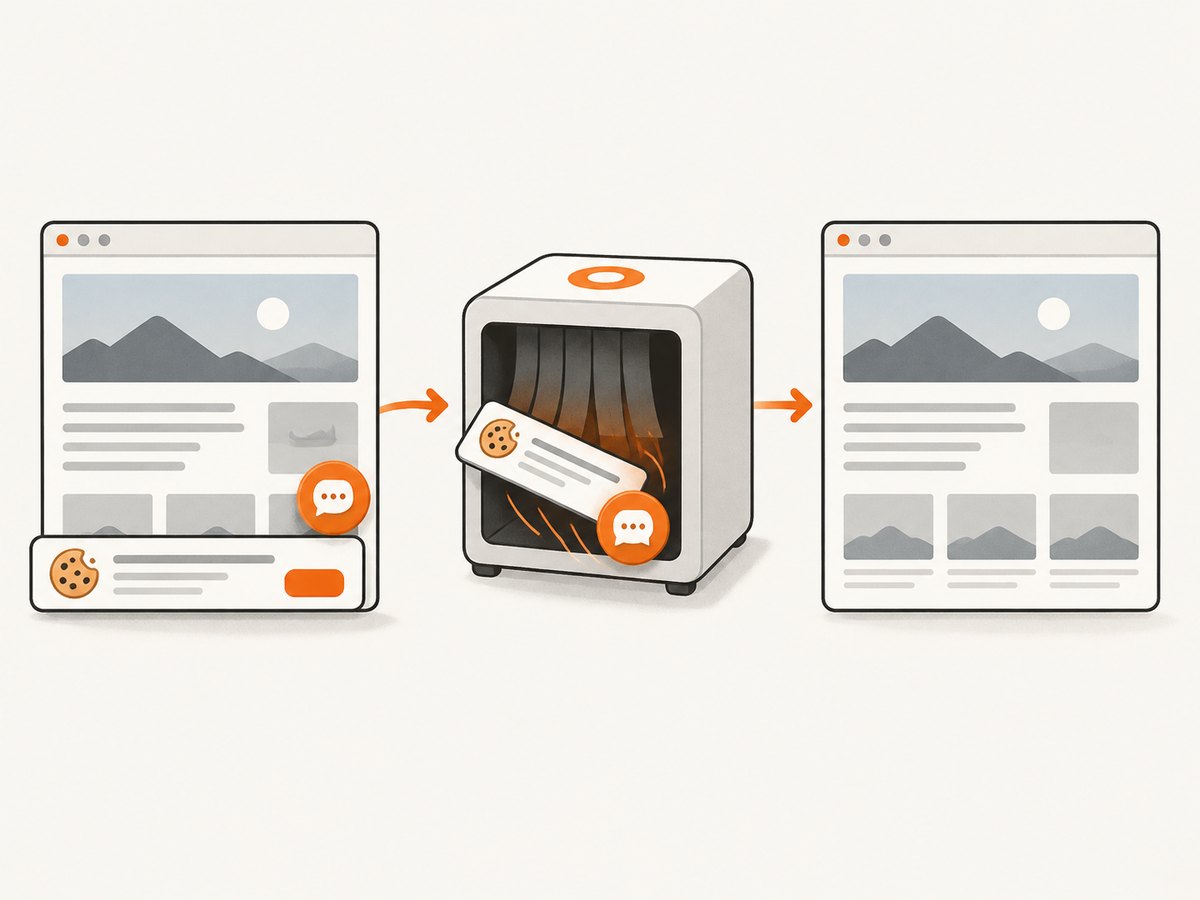
const res = await fetch(`https://api.screenshotneo.com/v1/shot?${q}`);ScreenshotNeo accepts cookie or consent banners like a visitor and removes more than 60 known consent platforms, newsletter popups, and chat widgets before capture; each of those steps can be turned off. Bot checks and CAPTCHAs, blank pages, timeouts, failed loads, and cache hits are not billed, and responses identify the page verdict and billing status. Its MCP server offers take_screenshot, get_page_info, and capture_pdf for Claude, Cursor, and other MCP clients. The free plan includes 1,000 screenshots a month with no card; paid plans start at $5 for 3,000 screenshots. Every feature is on every plan.
Sign up free for 1,000 screenshots a month, with no card required.
Frequently asked questions
Does Microsoft CAPTCHA need cookies and JavaScript?
Microsoft says its security checks require both. Enable them for the browser, reload the page, and try again.
Will switching browsers tell me whether my account is blocked?
It helps isolate browser-specific issues, but a successful or failed test alone does not prove an account is blocked. Compare another network or device too, and use Microsoft’s Sign-in Helper if access remains unavailable.
Should I keep requesting a verification code?
No. Repeated requests can contribute to temporary blocks. Check the destination and spam folder, try another configured method, and follow Microsoft’s waiting guidance.
Can a screenshot API solve Microsoft’s CAPTCHA?
No. A screenshot API captures a webpage; it is not an account recovery or CAPTCHA bypass tool. Use Microsoft’s official recovery steps for Microsoft sign-in.


