How to Fix the Missing Chromium Error in Python requests-html
Diagnose requests-html Chromium errors by separating download, cache, and launch failures, with fixes for local, CI, container, and notebook setups.
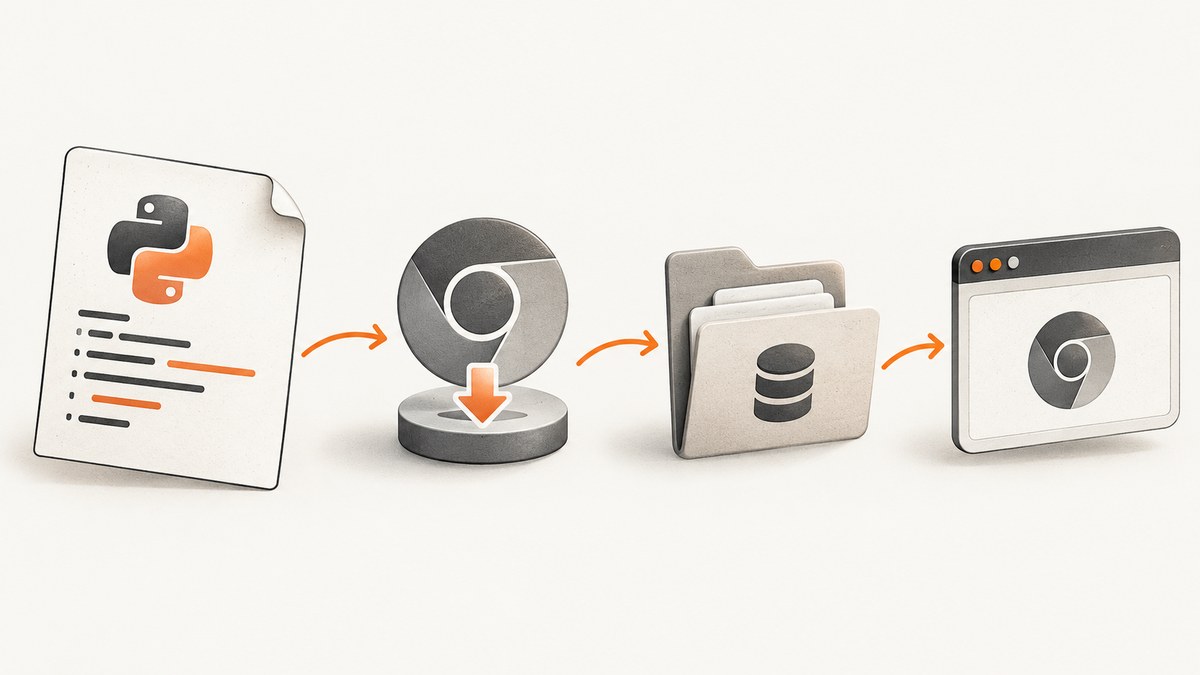
Direct answer: a missing Chromium error in requests-html usually means one of three different things: Chromium was never downloaded, it was downloaded into a cache your process cannot see, or it exists but cannot launch. Read the complete traceback, identify the failing stage, then test the smallest render() call in the same environment as your application.
requests-html uses Chromium through pyppeteer for JavaScript rendering. Its documentation says the first call to render() downloads Chromium into a pyppeteer directory, so first-use network access and writable storage are part of setup. See the requests-html documentation and project repository.
1. Reproduce the exact failure
python -m venv .venv
. .venv/bin/activate
python -m pip install -U requests-html
python - <<'PY'
from requests_html import HTMLSession
session = HTMLSession()
r = session.get('https://example.com', timeout=30)
r.html.render(timeout=30)
print(r.html.html[:200])
PY
Record the versions from the same interpreter:
python --version
python -m pip show requests-html pyppeteer
python -m pip freeze | grep -E 'requests-html|pyppeteer|websockets'
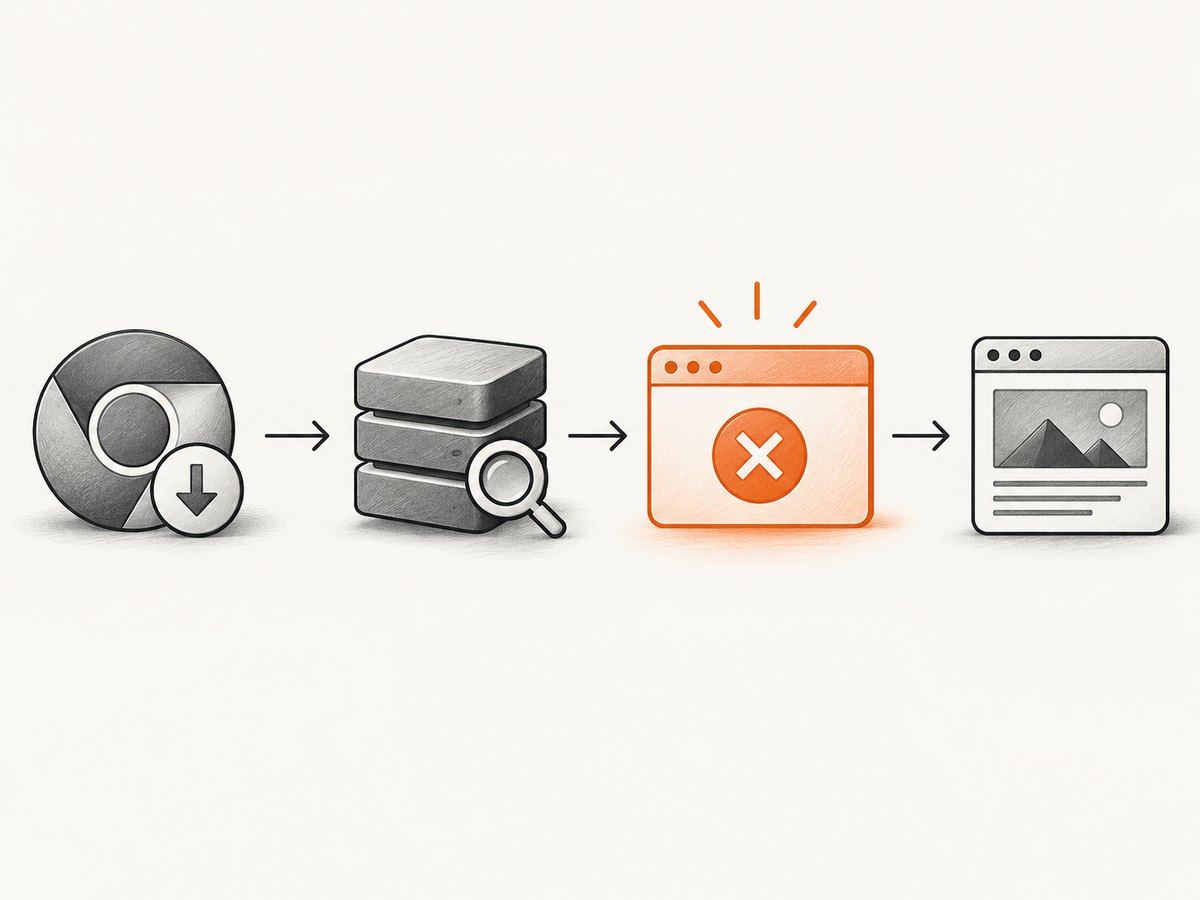
2. Separate download, cache, and launch failures
| Traceback pattern | Stage | Inspect |
|---|---|---|
| Download, HTTP, proxy, revision, host, or permission error | Chromium download | Network route, proxy policy, writable storage |
| Executable not found after a prior download | Cache lookup | User account, PYPPETEER_HOME, image layers, installed version |
| Browser exits, “failed to launch”, or exit code 1 | Runtime launch | Full stderr, OS libraries, permissions, sandbox policy |
| Revision or download-host setting appears | Configuration | PYPPETEER_CHROMIUM_REVISION and PYPPETEER_DOWNLOAD_HOST |
A historical requests-html issue shows Chromium exiting after a successful download. Use it only to understand the distinction between downloading and launching; it is not a universal current fix.
3. Fix a download that never completes
The first render needs outbound access to the download host and a writable pyppeteer directory. In CI, containers, and restricted networks, check:
- DNS and HTTPS access from the process that runs Python.
- Proxy variables and corporate allowlists.
- Disk space and write permission for the process user.
- Whether the filesystem or home directory is read-only or ephemeral.
These are possible causes inferred from the documented first-use download. Confirm them with the first network or permission exception in your traceback.
Pyppeteer documents a pyppeteer-install command:
python -m pip install -U pyppeteer
pyppeteer-install
Run it in the same virtual environment, container, and user account as the application. The pyppeteer repository describes the first download as approximately 150 MB; treat that as an approximate, version-dependent figure. Its repository also describes itself as unmaintained and states Python 3.8 or newer for that repository version, while requests-html documents Python 3.6 or newer. Check your installed versions and dependency constraints rather than assuming blanket compatibility.
4. Fix a cache mismatch
If Chromium downloaded successfully but a later process cannot find it, compare the account, home directory, container layer, and environment used for both operations. Print the relevant values:
python - <<'PY'
import os
for name in ('USER', 'HOME', 'PYPPETEER_HOME', 'PYPPETEER_CHROMIUM_REVISION', 'PYPPETEER_DOWNLOAD_HOST'):
    print(f'{name}={os.environ.get(name)}')
PY
The pyppeteer API reference documents PYPPETEER_HOME for browser storage. That reference is old, so verify behavior against your installed release. Set a persistent writable directory before installing the browser:
export PYPPETEER_HOME=/var/cache/pyppeteer
mkdir -p "$PYPPETEER_HOME"
pyppeteer-install
Use PYPPETEER_CHROMIUM_REVISION or PYPPETEER_DOWNLOAD_HOST only when the traceback or deployment policy points to that setting. Unnecessary overrides can create a mismatch.
5. Fix a browser that will not launch
When the executable exists but exits immediately, this is a launch problem rather than a missing-download problem. Check:
- OS and CPU architecture match the downloaded browser.
- The process user can execute the binary and write its temporary files.
- Your container or sandbox permits the browser process model.
- Linux runtime libraries required by your distribution are installed.
The requests-html documentation warns that Linux may need additional packages but does not provide one complete package list for every distribution. Start with the exact launch error and your base image’s package manager instead of copying an unrelated apt-get recipe. Change sandbox flags only when your security policy allows it.
6. Make rendering deterministic
from requests_html import HTMLSession

session = HTMLSession()
r = session.get('https://example.com', timeout=30)
r.html.render(retries=2, timeout=30, wait=1, sleep=0, scrolldown=0)
print(r.html.find('h1', first=True).text)
Keep the first successful render small. Add scrolling, delays, or custom JavaScript only after Chromium starts reliably. Reuse a session for multiple pages, bound each job with an outer timeout, and close workers during shutdown.
7. Environment checklists
Local development
- Activate the intended virtual environment.
- Run
pip showand the minimal render in that shell. - Confirm the cache directory is writable by your user.
CI and containers
- Download during image build or an explicit startup step.
- Persist the pyppeteer cache between jobs when appropriate.
- Run the smoke test as the same non-root user used in production.
- Reserve enough disk and memory for Chromium.
Notebooks and hosted runtimes
- Install with the kernel interpreter:
sys.executable -m pip. - Restart the kernel after changing browser or environment settings.
- Expect ephemeral home directories to require setup on each fresh instance.
8. Common errors
| Error | Likely cause | Fix |
|---|---|---|
| Executable missing on first render | Download failed or never ran | Read the preceding network or permission error; verify access and run pyppeteer-install. |
| Missing only in production | Different user, home, image layer, or cache path | Set and persist PYPPETEER_HOME; install and run as the same user. |
| Exit code 1 after download | Launch dependency or sandbox issue | Inspect full stderr, OS libraries, permissions, architecture, and policy. |
| Revision or host error | Incompatible override or mirror | Remove unnecessary overrides and verify settings for your installed version. |
| Render timeout | Page never reaches the requested state | Increase timeout carefully, reduce waits, and test the URL directly. |
9. Reliability, performance, and cost
Browser rendering has a cold-start cost in network, disk, and startup time. Long-lived workers avoid repeated startup; ephemeral jobs should cache the browser or perform an explicit startup download. Bound concurrency so multiple Chromium processes do not exhaust memory. The supplied sources provide no universal timing or resource benchmark.

Review requests-html and pyppeteer versions together. Their compatibility statements refer to different project and version contexts, and pyppeteer’s maintenance status means upgrades deserve a smoke test. Keep the traceback, Python version, OS image, and package versions with every failure report.
Or skip the browser setup
ScreenshotNeo is a website screenshot API and MCP server. It returns PNG, JPEG, WebP, or PDF without requiring you to manage Chromium. See the ScreenshotNeo API docs.
curl -G "https://api.screenshotneo.com/v1/shot" -d access_key=YOUR_API_KEY --data-urlencode url=https://stripe.com -o shot.webpimport requests
r = requests.get("https://api.screenshotneo.com/v1/shot", params={"access_key": "YOUR_API_KEY", "url": "https://stripe.com"}, timeout=90)
open("shot.webp", "wb").write(r.content)const q = new URLSearchParams({ access_key: 'YOUR_API_KEY', url: 'https://stripe.com' });
const res = await fetch(`https://api.screenshotneo.com/v1/shot?${q}`);Cookie and consent banners, newsletter popups, and chat widgets are removed before capture. Bot checks, blank pages, failed loads, timeouts, and cache hits are not billed, and response headers identify the page verdict and billing status. Its MCP server lets Claude, Cursor, and other MCP clients call take_screenshot, get_page_info, and capture_pdf. The free plan includes 1,000 screenshots per month with no card; paid plans start at $5 for 3,000 shots. Create a free ScreenshotNeo account.
10. FAQ
Does reinstalling requests-html download Chromium?
Not necessarily. Pyppeteer performs the browser download on first render, and reinstalling the wrapper does not prove the cache is present or writable.
Can one Linux package command fix every failure?
No. The documentation only says extra packages may be needed. Use the exact launch error and your distribution.
Should I change the Chromium revision?
Only when your traceback or deployment requires it. Verify the setting against your installed pyppeteer version.
Is a successful download proof that rendering works?
No. Download, cache lookup, and launch are separate stages. Validate the complete path with a minimal render in the target environment.


