How to Fix Missing Content in Puppeteer-Generated PDFs
Find why Puppeteer PDFs lose text, images, backgrounds, or pages with a practical diagnostic workflow and fixes for CSS, fonts, timing, and layout.
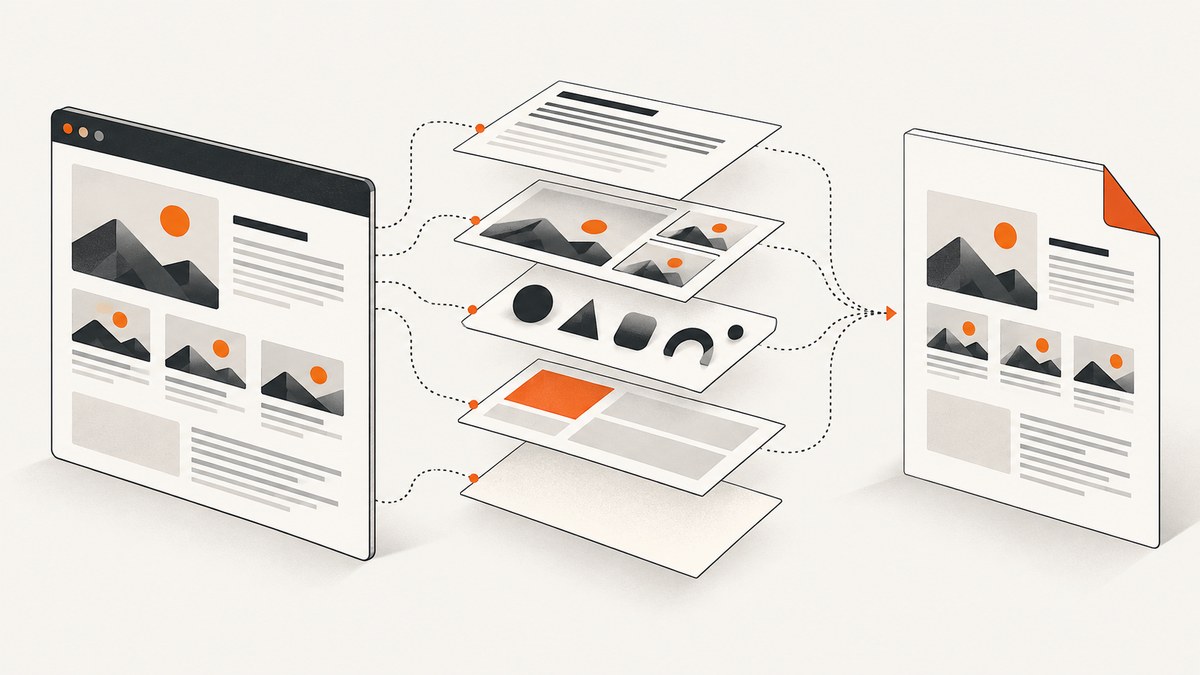
Missing content in a Puppeteer PDF usually comes from one of five places: print CSS hides it, background printing is disabled, the page has not finished rendering, fonts or browser dependencies are unavailable, or PDF geometry excludes or clips it. Diagnose those in that order, inspecting the DOM immediately before page.pdf().
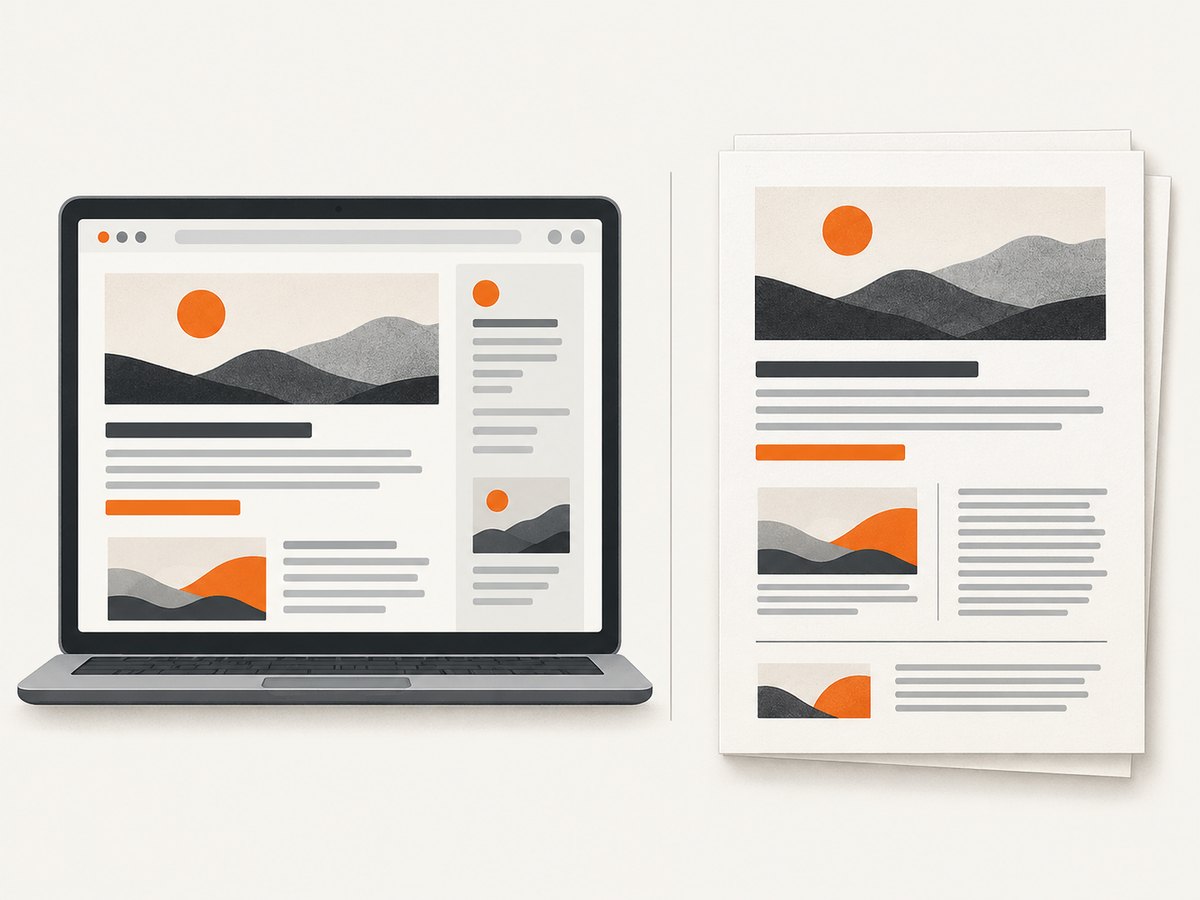
Puppeteer’s Page.pdf() uses the print CSS media type, so the page you see on screen may not be the page Puppeteer prints. The official API describes it as generating “a PDF of the page with the print CSS media type.” Test the media difference, confirm application content is ready, enable backgrounds when required, then check fonts, ranges, dimensions, and the deployed browser environment.
1. Confirm the content exists before PDF generation
First determine whether the missing material exists in the browser DOM. A PDF renderer cannot print an element that was never rendered, was populated after printing, or was removed by application logic.
- Navigate with a useful wait condition such as
networkidle2. - Wait for the application’s own ready signal: a selector, a data attribute, a framework state, or a known API response.
- Inspect the node’s text, dimensions, and computed visibility.
- Log failed requests and browser console errors.
- Only then call
page.pdf().
networkidle2 means that navigation reached a period with few active connections; it does not prove that every client-side component, chart, iframe, or lazy image is complete. The page-specific readiness check is therefore essential.
import puppeteer from 'puppeteer';

const browser = await puppeteer.launch({headless: true});
const page = await browser.newPage();

page.on('requestfailed', request => {
  console.error('Request failed:', request.url(), request.failure()?.errorText);
});
page.on('console', message => {
  console.error('Browser console:', message.type(), message.text());
});

await page.goto('https://example.com/report', {
  waitUntil: 'networkidle2',
  timeout: 60000
});

await page.waitForSelector('[data-report-ready="true"]', {timeout: 30000});

const state = await page.$eval('#report', element => {
  const style = getComputedStyle(element);
  const rect = element.getBoundingClientRect();
  return {
    textLength: element.textContent?.length ?? 0,
    display: style.display,
    visibility: style.visibility,
    rect: {width: rect.width, height: rect.height}
  };
});
console.log(state);

await page.pdf({path: 'report.pdf', format: 'A4'});
await browser.close();
If textLength is zero, fix data loading or application timing. If the element has zero dimensions, inspect CSS, collapsed containers, and virtualized lists. If the element is populated and visible before printing, continue with print-media diagnostics.
2. Compare print CSS with screen CSS
Because Puppeteer prints with the print media type, rules inside @media print can hide sections, change colors, remove navigation, or replace layouts. Search the stylesheet for:
display: noneorvisibility: hidden.- Print-only selectors that remove charts, cards, or images.
- Color and opacity changes that make content appear blank.
- Different positioning, overflow, or height rules.
- Print styles that replace a background with a plain color.
If the intended PDF should resemble the screen, temporarily emulate screen media before generating it:
await page.emulateMediaType('screen');
await page.pdf({
  path: 'screen-styled.pdf',
  printBackground: true,
  format: 'A4'
});
This changes the media mode; it is not automatically the correct production choice. Use screen media when visual fidelity to the web page is the requirement. Use print media when the document has a deliberate print stylesheet, and repair that stylesheet instead.
3. Enable background graphics
Background graphics are disabled by default. A CSS background image, gradient, or background color carrying meaningful content can therefore disappear while foreground images remain intact.
await page.pdf({
  path: 'with-backgrounds.pdf',
  format: 'A4',
  printBackground: true
});
printBackground: true does not restore a missing DOM node, fix a failed image request, or override CSS that hides an element. Inspect the element type first:
- For
<img>or inline SVG, inspect its request, dimensions, and visibility. - For
background-image, enableprintBackgroundand inspect print CSS. - For a canvas or chart, wait until its drawing code completes.
- For an iframe, wait for its own load and application-ready state.
4. Wait for fonts and verify glyph coverage
Current Puppeteer PDF options document waitForFonts as true by default, waiting for document.fonts.ready. That helps with timing, but it cannot install a missing font or repair a failed font request.
await page.evaluate(async () => {
  await document.fonts.ready;
  if (document.fonts.status !== 'loaded') {
    throw new Error(`Font status: ${document.fonts.status}`);
  }
});

await page.pdf({
  path: 'fonts-checked.pdf',
  format: 'A4',
  waitForFonts: true
});
Check font requests in the browser log, inspect document.fonts, and verify that the production container has the required font files. This matters especially for Chinese, Japanese, Korean, emoji, and other scripts that may not be covered by the base image. A fallback font can change line wrapping, page count, and apparent missing text.
5. Check ranges, dimensions, and pagination
Content can be present but excluded or clipped by PDF geometry. Review these options together:
| Option | What to check |
|---|---|
pageRanges |
Ensure the requested pages include the missing section. The empty default means all pages. |
format |
Paper preset such as A4 or Letter. It takes priority over width and height. |
width, height |
Explicit page dimensions when a preset is unsuitable. |
margin |
Large margins reduce printable space and can change pagination. |
scale |
Defaults to 1 and is constrained between 0.1 and 2. |
preferCSSPageSize |
When true, CSS @page size takes priority over Puppeteer’s computed paper size. Default is false. |
landscape |
Use when wide tables or charts are clipped in portrait mode. |
await page.pdf({
  path: 'controlled-layout.pdf',
  format: 'A4',
  landscape: false,
  margin: {top: '18mm', right: '14mm', bottom: '18mm', left: '14mm'},
  scale: 1,
  preferCSSPageSize: false,
  pageRanges: ''
});
Also inspect CSS @page declarations and fixed-height containers. A section may be clipped because an ancestor uses overflow: hidden, a fixed pixel height, or absolute positioning designed for a viewport rather than a page.
6. Compare local and deployed browser environments
If the same URL works locally but loses content in CI or Docker, record the Puppeteer version and Chrome or Chromium version in both environments. Check:
- Chrome’s required shared libraries in the container.
- Installed fonts and font configuration.
- Browser launch flags and sandbox settings.
- Puppeteer and browser version compatibility.
- Network access to image, stylesheet, API, and font origins.
Puppeteer’s troubleshooting guidance calls out missing shared dependencies in Docker and recommends using a browser version supported by the installed Puppeteer when pairing Puppeteer with an external Chromium package. Do not assume that a browser binary that starts successfully has every library or font the page needs.
7. A complete diagnostic script
This example combines request logging, readiness checks, font waiting, screen-media comparison, and explicit PDF options. Adapt the selector and readiness condition to the application.
import puppeteer from 'puppeteer';

const browser = await puppeteer.launch({headless: true});
const page = await browser.newPage();
page.setDefaultNavigationTimeout(60000);

page.on('requestfailed', request => {
  console.error('FAILED', request.method(), request.url(), request.failure());
});
page.on('response', response => {
  if (response.status() >= 400) {
    console.error('HTTP', response.status(), response.url());
  }
});
page.on('pageerror', error => console.error('PAGE ERROR', error));

await page.goto('https://example.com/report', {waitUntil: 'networkidle2'});
await page.waitForSelector('#report[data-ready="yes"]', {timeout: 30000});

await page.evaluate(async () => {
  await document.fonts.ready;
  window.scrollTo(0, document.body.scrollHeight);
});
await new Promise(resolve => setTimeout(resolve, 500));

const check = await page.$eval('#report', node => {
  const style = getComputedStyle(node);
  const rect = node.getBoundingClientRect();
  return {
    text: node.textContent?.trim().slice(0, 200),
    display: style.display,
    visibility: style.visibility,
    opacity: style.opacity,
    width: rect.width,
    height: rect.height
  };
});
console.log('Before PDF:', check);

await page.emulateMediaType('screen');
await page.pdf({
  path: 'diagnostic.pdf',
  format: 'A4',
  printBackground: true,
  waitForFonts: true,
  preferCSSPageSize: false,
  pageRanges: ''
});

await browser.close();
8. Troubleshooting common symptoms
Text is present in the browser but absent in the PDF
Inspect @media print rules and computed styles under print media. Test emulateMediaType('screen'). If the text uses a web font, inspect failed font requests and installed fonts. Also check opacity, color, and an ancestor with display: none.
Images are blank or missing
Log failed requests and check whether the image is lazy-loaded. Scroll through the page or trigger the application’s image-ready state before printing. Confirm that the image has dimensions and that its URL is reachable from the deployed browser. Set printBackground: true only when the image is a CSS background.
Colors, cards, or hero artwork disappear
Enable printBackground. Then inspect print CSS for replaced backgrounds or hidden decorative elements. Foreground content requires a different diagnosis.
A chart or dashboard is incomplete
Wait for the chart library’s completion event or a selector that proves the chart exists. Network idle alone may happen before a delayed API callback, animation, canvas draw, or iframe update.
Only some pages are missing
Check pageRanges, page size, margins, and fixed-height or overflow rules. Compare page count with Chrome’s print preview using the same browser version and equivalent settings.
Characters become boxes or text changes shape
Check font network responses, document.fonts.status, and fonts installed in the runtime. Add the required font files to the container and confirm language coverage.
The PDF is blank in Docker
Inspect missing shared libraries, browser launch output, and the Puppeteer/browser version pairing. A separately installed Chromium must be supported by the Puppeteer version in use.
Local output differs from production
Capture the exact versions, environment variables, viewport, timezone, locale, network permissions, fonts, and browser executable path. Reduce the case to a minimal HTML page with the same print rules and PDF options.
9. Reduce the case and compare outputs
When the cause remains unclear, save the DOM immediately before PDF generation and create a minimal reproduction containing the same content type, fonts, media rules, and PDF options. Compare:
- Screen and print media screenshots.
- DOM content and computed styles before printing.
- Failed requests and console errors.
- Page count, paper size, margins, and scale.
- Local and deployed browser versions.
A historical Puppeteer issue reported blank pages and pagination differences in a particular macOS and Puppeteer 19.2.2 setup. That report is useful evidence that environment-specific discrepancies can occur, but it is not a universal explanation or current fix. Verify the behavior against the version your project installs.
10. Or skip the browser setup
If your goal is a reliable screenshot or PDF endpoint rather than maintaining Chromium, ScreenshotNeo provides a single request API. See the ScreenshotNeo documentation for the full option set.
cURL:
curl -G "https://api.screenshotneo.com/v1/shot" -d access_key=YOUR_API_KEY --data-urlencode url=https://stripe.com -o shot.webpPython:
import requests
r = requests.get("https://api.screenshotneo.com/v1/shot", params={"access_key": "YOUR_API_KEY", "url": "https://stripe.com"}, timeout=90)
open("shot.webp", "wb").write(r.content)
Node.js:
const q = new URLSearchParams({ access_key: 'YOUR_API_KEY', url: 'https://stripe.com' });
const res = await fetch(`https://api.screenshotneo.com/v1/shot?${q}`);
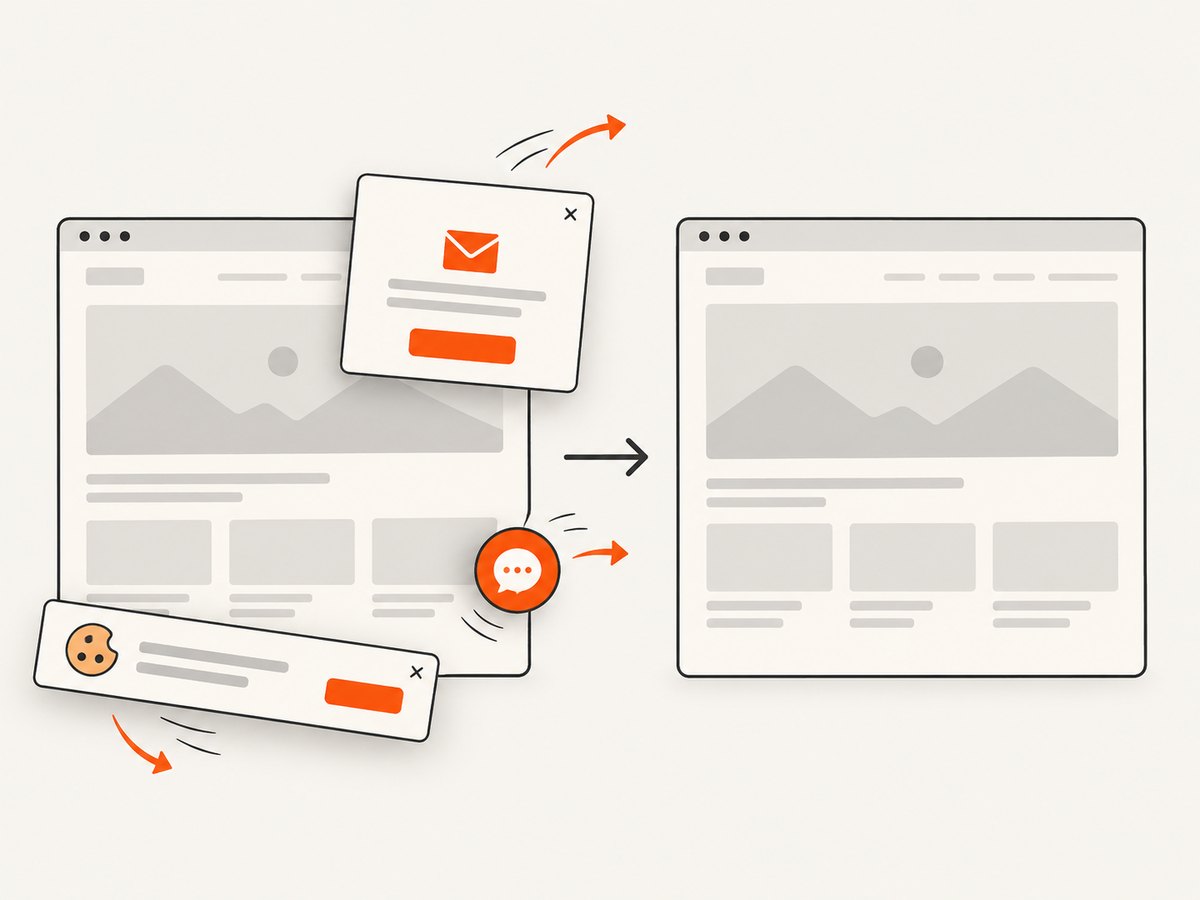
ScreenshotNeo removes cookie banners, newsletter popups, and chat widgets before the shot. Bot checks, blank pages, and failed loads are never billed, and response headers identify the page verdict and billing result. Its MCP server lets AI agents take screenshots, inspect pages, and capture PDFs. The free plan includes 1,000 screenshots each month with no card; paid plans start at $5 for 3,000 shots.
Sign up free for ScreenshotNeo and start with 1,000 screenshots per month without adding a card.
11. Performance, reliability, and cost notes
- Performance: Waiting for application readiness, fonts, and lazy content adds time, but produces more consistent output than relying on navigation alone. Reuse a browser process when your service captures many pages, while isolating page state.
- Reliability: Log failed requests, console errors, versions, viewport, media type, PDF options, and page verdicts. Keep a minimal reproduction for regressions.
- Cost: Browser rendering consumes CPU and memory, especially for large full-page documents, multiple pages, fonts, and charts. Limit concurrency and avoid unnecessary retries.
- Output size: Backgrounds, high-resolution images, and large page dimensions increase PDF size. Choose the smallest paper size, scale, and image resolution that meets the requirement.
FAQ
Does Puppeteer always use print CSS for PDFs?
Yes. Page.pdf() uses the print media type unless you explicitly emulate screen media first.
Will printBackground: true fix missing images?
Only when the missing visual is a CSS background. It does not fix failed foreground image requests or absent DOM content.
Is networkidle2 enough?
No. It is a navigation wait condition, not proof that application-specific rendering, charts, iframes, or lazy content has completed.
Why does changing fonts alter pagination?
Different glyph metrics change line wrapping and element heights, which can move content across page boundaries.
What should I record for a bug report?
Record Puppeteer and browser versions, runtime environment, URL, viewport, media type, PDF options, failed requests, console errors, and a minimal reproduction.


