How to Fix Missing Screenshots in Extent Reports on Other Machines
Make ExtentReports screenshots portable: diagnose broken paths, package media correctly, configure Cucumber, and choose Base64 when appropriate.

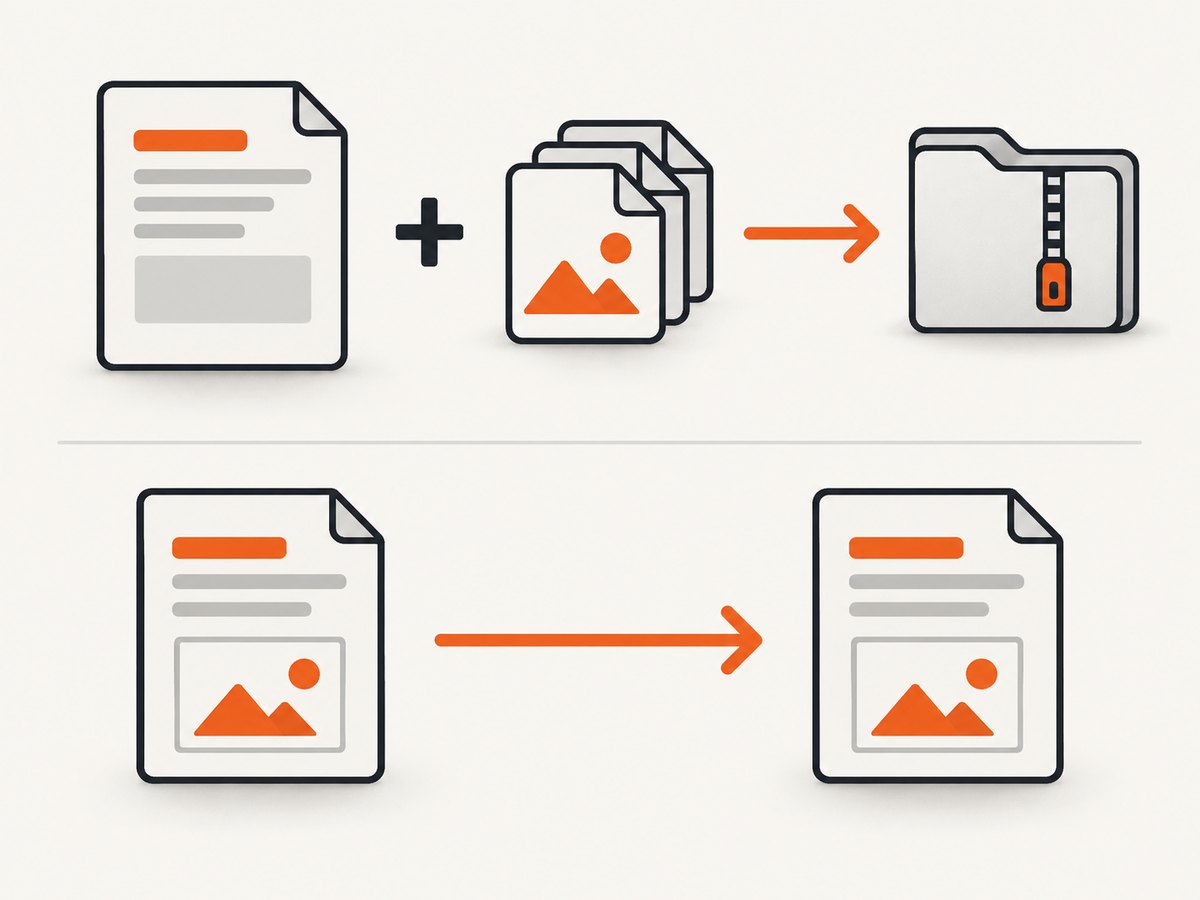
If screenshots appear in an Extent report on your machine but disappear when someone opens the report elsewhere, the report and image files were separated or the image paths no longer resolve. File-based ExtentReports screenshots are saved as separate files and referenced by an <img> element; an HTML file alone is not a self-contained report.
The reliable fix is:
- Inspect the generated HTML and read each screenshot’s
src. - Resolve relative paths from the report file’s directory.
- Copy the screenshot directory with the report, preserving its layout.
- Make your reporter or adapter configuration match that layout.
- Use Base64 embedding only when your exact reporter and version support it and the report size is acceptable.
What ExtentReports actually stores
The ExtentReports v4 documentation explains that file-based reporters do not attach the image bytes to the report. The screenshot is written to disk and the report contains an image reference. This is why a report can work in a build workspace and fail after being emailed, zipped incorrectly, or published as a single CI artifact. See the ExtentReports v4 Java documentation.

There are two delivery models:
| Model | How it works | Portability | Trade-off |
|---|---|---|---|
| External files | HTML points to PNG/JPEG files on disk | Good when the complete directory tree is copied | Small report, but paths and artifacts must stay together |
| Base64 | Image bytes are embedded in the HTML | High; fewer external files | Much larger HTML and potentially higher memory use |
Diagnose the broken screenshot before changing code
1. Record the exact integration
Write down the ExtentReports version, reporter (Spark, Logger, or an adapter-managed reporter), Java binding, test framework, and adapter version. Configuration names are not universal. A setting documented for the v4 LoggerReporter should not be copied into a SparkReporter setup without checking the matching API.
2. Inspect the generated HTML
Open the report source and search for <img, src=, or the screenshot filename. Classify the value:
- Absolute path: such as a drive letter or a path under the original workspace. It will usually fail on another computer.
- Relative path: calculate it from the directory containing the HTML report, not from the test process’s current working directory.
- Malformed path: look for duplicated separators, an unexpected
../, URL encoding problems, or a filename that was renamed during packaging.
3. Resolve the path on the destination machine
If the report is artifacts/report/Spark.html and its source is ../screenshots/failure.png, the expected file is artifacts/screenshots/failure.png. Check that exact location after extracting the ZIP or downloading the CI artifact. Do not test only in the original build directory.
4. Check the artifact contents
A common mistake is publishing Spark.html while leaving screenshots/ outside the uploaded artifact. Package the report and media together:
artifacts/
  report/
    Spark.html
  screenshots/
    failure-login.png
    checkout-timeout.png
Then open the report from the extracted destination directory. This catches packaging errors that are hidden when a local browser still has access to the original workspace.
Build a portable Java example with external files
The following pattern creates one known artifact root and stores screenshots beneath it. The important property is the directory relationship, not the particular folder names.
import com.aventstack.extentreports.ExtentReports;
import com.aventstack.extentreports.ExtentTest;
import com.aventstack.extentreports.reporter.ExtentSparkReporter;
import org.openqa.selenium.OutputType;
import org.openqa.selenium.TakesScreenshot;
import org.openqa.selenium.WebDriver;
import java.io.File;
import java.nio.file.Files;
import java.nio.file.Path;
import java.nio.file.StandardCopyOption;

public class PortableExtentReport {
  public static void main(String[] args) throws Exception {
    Path root = Path.of("artifacts");
    Path reportDir = root.resolve("report");
    Path imageDir = root.resolve("screenshots");
    Files.createDirectories(reportDir);
    Files.createDirectories(imageDir);

    ExtentSparkReporter spark = new ExtentSparkReporter(
        reportDir.resolve("Spark.html").toString());
    ExtentReports extent = new ExtentReports();
    extent.attachReporter(spark);

    ExtentTest test = extent.createTest("Login");
    WebDriver driver = createDriver();
    try {
      driver.get("https://example.com/login");
      // Run your assertions here.
      test.pass("Login page loaded");
    } catch (Throwable failure) {
      File source = ((TakesScreenshot) driver).getScreenshotAs(OutputType.FILE);
      Path target = imageDir.resolve("login-failure.png");
      Files.copy(source.toPath(), target, StandardCopyOption.REPLACE_EXISTING);

      // The path is relative from report/Spark.html to screenshots/.
      String reportRelativePath = "../screenshots/" + target.getFileName();
      test.fail(failure,
          com.aventstack.extentreports.MediaEntityBuilder
              .createScreenCaptureFromPath(reportRelativePath)
              .build());
    } finally {
      driver.quit();
      extent.flush();
    }
  }

  private static WebDriver createDriver() {
    // Return your configured Selenium driver.
    throw new UnsupportedOperationException("Configure your WebDriver");
  }
}
The example deliberately keeps Spark.html under artifacts/report and the image under artifacts/screenshots. If you change either location, recalculate the relative path. A path beginning with ../ is correct only when the directory nesting makes it correct.
Cucumber-JVM adapter settings
The Cucumber-JVM 7 adapter documents two settings that are frequently confused:
screenshot.diris the directory where attachments are stored.screenshot.rel.pathis the relative path from the report file to that screenshot directory.
For example, if the adapter produces this structure:
test-output/
  screenshots/
    scenario-failed.png
  SparkReport/
    Spark.html
the relative path from SparkReport/Spark.html to screenshots/ is ../screenshots/. A configuration might therefore resemble:
screenshot.dir=test-output/screenshots/
screenshot.rel.path=../screenshots/
Use those values only if your generated tree matches. The adapter README’s sample values are an example, not a universal drop-in configuration. Compare the actual report location and screenshot location after one test run. See the Cucumber reporting adapter documentation for the option names and version-specific behavior.
LoggerReporter and automatic relative media
For ExtentReports v4 LoggerReporter, the official reporter documentation describes:
logger.config().setAutoCreateRelativePathMedia(true);This option copies media to a directory relative to the report and references the copied files there. You still need to move the generated report and media directory together. The documentation also notes that incremented extent-media directories are not automatically removed, so clean old output as part of your build.
LoggerReporter has been deprecated since version 4.1.3 and replaced by ExtentSparkReporter. Treat this setting as LoggerReporter-specific guidance; it is not evidence of a universal SparkReporter option.
Base64 embedding: when it solves the problem
When the exact ExtentReports API or adapter supports it, Base64 removes the external path dependency. ExtentReports v4 documents addScreenCaptureFromBase64String for tests and MediaEntityBuilder.createScreenCaptureFromBase64String for log entries. A simplified log-entry example is:
String base64 = ((TakesScreenshot) driver)
    .getScreenshotAs(OutputType.BASE64);

test.fail("Assertion failed",
    MediaEntityBuilder
        .createScreenCaptureFromBase64String(base64)
        .build());
Verify the method against your exact library version and integration before adopting it. Base64 can make a report substantially larger and may increase memory use when many screenshots are included. It is a reasonable choice for a small report that must be a single portable HTML file. For a large suite, external files plus a complete artifact tree are usually easier to publish and archive.
Packaging checklist for CI, email, and bug reports
- Flush or close the Extent report before collecting artifacts.
- Include the HTML report and every referenced screenshot directory.
- Preserve case-sensitive filenames and directory names.
- Keep the report’s relative location unchanged when extracting the archive.
- Open the report from the extracted artifact, not from the build workspace.
- For a static web server, publish the media directory under the same URL-relative path.
- For email, use Base64 only if the integration supports it and report size is acceptable; otherwise send a ZIP or hosted artifact.
Common errors and fixes
| Symptom | Likely cause | Fix |
|---|---|---|
| Works locally, broken after download | Only HTML was copied | Publish the screenshot directory with the report and preserve its layout. |
| Source contains a local drive path | Absolute path generated by screenshot code | Write media under the artifact root and pass a report-relative path. |
| 404 in browser developer tools | Relative path resolves to a missing destination | Resolve src from the HTML directory and inspect the extracted tree. |
| Every image is one directory too high or low | screenshot.rel.path does not match report nesting |
Count directory levels from the report file to the screenshot directory. |
| Only some scenarios have images | Some attachments were written to another run directory or were not copied | Search the HTML for each filename and collect every referenced media folder. |
| Report becomes very large after switching methods | Base64 embeds every image in HTML | Use external files for large suites, reduce screenshot count, or embed only small reports. |
| Logger setting has no effect | Running SparkReporter or a newer integration | Confirm reporter and version; do not assume LoggerReporter settings apply. |
| Paths are built by splitting on a folder name | Brittle custom path logic | Build paths from known artifact directories and use standard relative-path calculation. |
Avoid brittle path generation
An old issue example split a screenshot path on the literal directory name reports and prepended ../. That works only for one folder naming convention and nesting depth. If a CI job changes the directory name, the resulting reference points somewhere else. Treat such code as a diagnostic clue, not a general ExtentReports fix.
Prefer one configured artifact root and derive both locations from it. In Java, Path.relativize makes the relationship explicit:
Path reportFile = Path.of("artifacts/report/Spark.html");
Path screenshot = Path.of("artifacts/screenshots/failure.png");
String src = reportFile.getParent().relativize(screenshot).toString()
    .replace(File.separatorChar, '/');
System.out.println(src); // ../screenshots/failure.png
Performance, reliability, and cost considerations
External images keep HTML parsing and transfer smaller, but the artifact contains more files and must be copied atomically. Base64 reduces file-count and path failures, but increases HTML size, memory use, and browser work. For parallel tests, use unique filenames or per-run directories so two workers do not overwrite the same screenshot. Flush the report only after all screenshots have been written.
There is no single path option that applies to every ExtentReports reporter and adapter. The dependable workflow is to inspect generated HTML and the final artifact, then adjust the configuration to the observed directory tree. Pin versions in CI and document the expected artifact layout so upgrades reveal path changes immediately.
Or skip the browser setup
If your goal is to capture reliable screenshots rather than maintain Selenium and ExtentReports media paths, ScreenshotNeo provides a one-request website screenshot API. It accepts a URL and returns PNG, JPEG, WebP, or PDF. Before capture it accepts cookie and consent banners and removes more than 60 known consent platforms, newsletter popups, and chat widgets; each step can be disabled.
Only clean shots are billed. Bot checks or CAPTCHAs, blank pages, timeouts, failed loads, and cache hits cost nothing, and response headers identify the page verdict and billing status. ScreenshotNeo also provides an MCP server with take_screenshot, get_page_info, and capture_pdf tools for Claude, Cursor, and other MCP clients.
See the ScreenshotNeo API documentation for all options, including full-page and element capture, device presets, retina scale, custom CSS and JavaScript, waits, request blocking, headers, cookies, geolocation, caching, signed links, asynchronous jobs, bulk capture, and usage reporting.
cURL
curl -G "https://api.screenshotneo.com/v1/shot" \
  -d access_key=YOUR_API_KEY \
  --data-urlencode url=https://stripe.com \
  -o shot.webp
Python
import requests

r = requests.get(
    "https://api.screenshotneo.com/v1/shot",
    params={"access_key": "YOUR_API_KEY", "url": "https://stripe.com"},
    timeout=90,
)
r.raise_for_status()
open("shot.webp", "wb").write(r.content)
Node.js
const q = new URLSearchParams({
  access_key: 'YOUR_API_KEY',
  url: 'https://stripe.com'
});
const res = await fetch(`https://api.screenshotneo.com/v1/shot?${q}`);
if (!res.ok) throw new Error(`Screenshot failed: ${res.status}`);
require('fs').writeFileSync('shot.webp', Buffer.from(await res.arrayBuffer()));
The free plan includes 1,000 screenshots a month with no card. Paid plans start at $5 for 3,000 shots, and every feature is available on every plan. Create a free ScreenshotNeo account.
FAQ
Does copying only the HTML ever work?
Yes, when screenshots are embedded as Base64 data. It does not work when the HTML references external image files.
Where is a relative image path resolved?
From the directory containing the HTML report. It is not resolved from the test process’s working directory.
Should every team use Base64?
No. Choose it for small, self-contained reports when supported. For many or large screenshots, publish external media with the report.
Is setAutoCreateRelativePathMedia a SparkReporter fix?
The documented option is for v4 LoggerReporter, which is deprecated since 4.1.3. Confirm the reporter and version before using it.
Why do screenshots fail only on a web server?
The server is exposing a different directory layout or URL base than the local filesystem. Inspect the browser’s requested image URL and publish the media at that exact relative location.


