How to Fix Missing Firebase Images in Puppeteer PDFs
Find why Firebase Storage images disappear from Puppeteer PDFs, then fix object access, CORS, loading waits, or blocked requests with runnable diagnostics.

Missing Firebase Storage images in a Puppeteer PDF can mean several different things: the object does not exist, the renderer cannot read it, a browser-side byte download is blocked by CORS, Puppeteer prints before the image loads, or request handling blocks the image. Diagnose those stages separately; adding CORS or waiting longer is not a universal fix.
The fastest reliable approach is to verify the exact image URL, check the object’s access path, inspect the browser’s response status, and confirm every required image has loaded before calling page.pdf(). This guide includes runnable Puppeteer diagnostics and explains when a server-side byte path makes more sense.
1. Confirm the Firebase object and URL
Start with the actual object path and the URL that the rendered page uses. A plausible-looking URL does not establish that the object exists or that the PDF renderer can read it. Firebase’s web Storage guide shows how to obtain a download URL from a Storage reference and distinguishes errors such as object-not-found and unauthorized access. See Firebase: Download files with Cloud Storage on the web.
- Log the Storage path used by the application, including its bucket and object name.
- Resolve the reference with
getDownloadURL()in the context where that operation is expected to work. - Log the resulting URL and confirm that it is the URL assigned to the image in the HTML sent to Puppeteer.
- Open the URL through the same network and identity used by the PDF worker, or inspect its request in the renderer. Check redirects and the final response status.
import { getStorage, ref, getDownloadURL } from 'firebase/storage';

const storage = getStorage();
const imageRef = ref(storage, 'invoices/123/receipt.png');

try {
  const imageUrl = await getDownloadURL(imageRef);
  console.log('Firebase image URL:', imageUrl);
  // Pass this exact URL to the HTML rendered by Puppeteer.
} catch (error) {
  console.error('Could not resolve Firebase image URL:', error.code, error.message);
  throw error;
}
If URL resolution fails, fix the reference, object existence, or access first. If URL resolution succeeds but Puppeteer receives an error, continue with the renderer’s access and request logs. Avoid putting long-lived credentials into a URL or making a private object public just to see whether the PDF changes.
2. Check which identity reads the image
Storage Security Rules decide whether an object read is allowed. A user who can see an image in the application may not be the same identity as a headless browser running in a server-side PDF worker. Firebase notes that Storage actions require Firebase Authentication by default unless rules are changed. Review the rules and the renderer’s authentication context in the Firebase Storage Security Rules documentation.
Ask these questions before changing rules:
- Does the application generate a Firebase download URL before rendering, or does the page call the Firebase SDK itself?
- Does the PDF worker have the same Firebase user session and relevant claims as the application?
- Is the object intentionally private, and which service or user should be allowed to read it?
- Does the failing request return an authorization error, a missing-object response, or a network error?
Keep production rules scoped to the intended users or service. Broadening access can hide an identity or configuration bug while exposing private files. If the worker needs privileged access, prefer a controlled server-side retrieval path and keep its credentials on the server.
3. Apply CORS to the operation that needs it
CORS is relevant when browser code reads object bytes through fetch, XHR, or an SDK operation such as getBlob() or getBytes(). Firebase’s web documentation says bucket CORS must be configured for direct browser data downloads. Configure the bucket to permit the rendering origin and required method, and scope allowed origins to the real application origins in production.
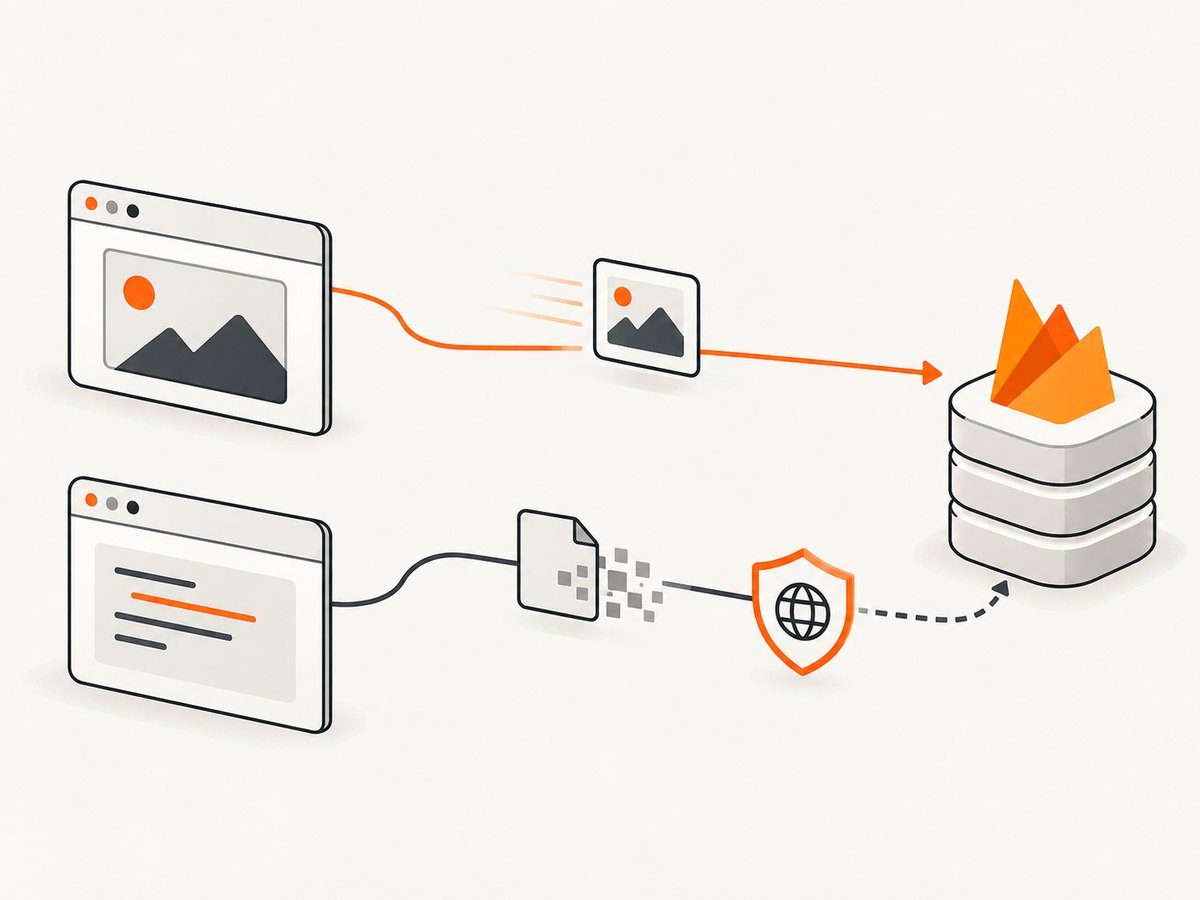
Do not assume CORS explains every missing plain <img src="...">. First identify the loading path. A cross-origin image element can often display an image without granting JavaScript access to its bytes; a byte-reading operation has different browser permission requirements. Inspect the console and network request to determine whether the browser rejected a CORS check, the server denied access, or the URL returned an HTTP error.
| Loading path | What to inspect | Likely next step |
|---|---|---|
<img src> URL |
Request URL, redirects, response status, image element state | Check object, URL, access, and readiness before changing CORS. |
fetch / XHR |
Console CORS message, request origin and method, bucket response headers | Allow the actual origin and method in bucket CORS configuration. |
| Firebase SDK byte download | SDK error, user identity, bucket CORS, requested object | Check rules and CORS for the direct data-download flow. |
| Server-side download | Server credentials, object permissions, returned bytes and content type | Use a narrowly authorized server path; browser CORS does not govern server-to-server retrieval. |
4. Wait for images before generating the PDF
PDF generation timing is separate from Firebase authorization. Puppeteer’s PDF guide demonstrates navigation with waitUntil: 'networkidle2', and the API also provides page.waitForNetworkIdle(). Network idle can help, but an explicit image check gives a more direct answer: did each required image finish loading with nonzero natural dimensions?
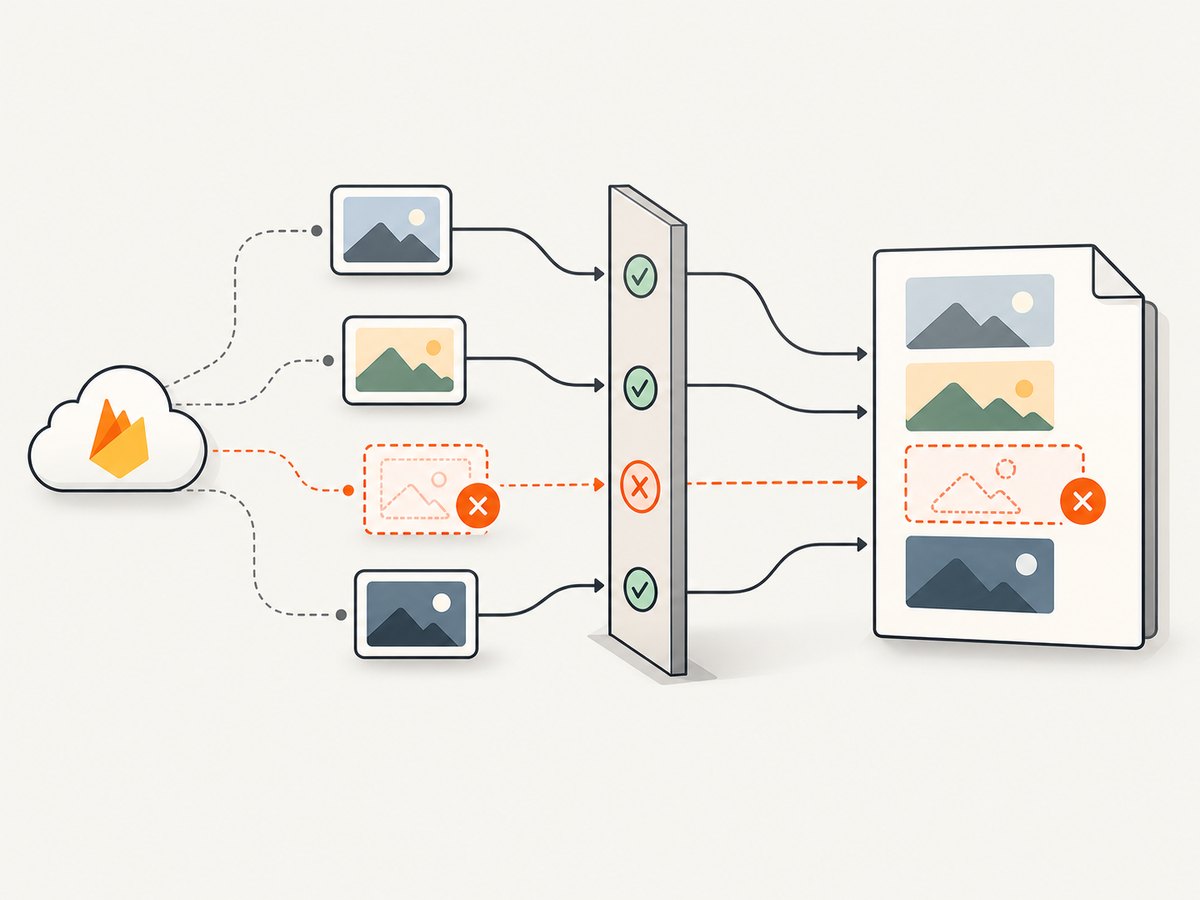
For regular navigation, wait for navigation and then check image readiness. For HTML injected with page.setContent(), note that its waitUntil type excludes networkidle0 and networkidle2; set the content, then run a deliberate readiness check. See Puppeteer Page.setContent().
import puppeteer from 'puppeteer';

const browser = await puppeteer.launch({ headless: true });
try {
  const page = await browser.newPage();
  page.setDefaultNavigationTimeout(45_000);

  // Replace this with your app URL. For injected HTML, call setContent()
  // and run the same waitForImages() function below afterward.
  await page.goto('https://your-app.example/invoice/123', {
    waitUntil: 'networkidle2',
    timeout: 45_000,
  });

  async function waitForImages(timeoutMs = 20_000) {
    const result = await page.evaluate(async (timeout) => {
      const images = Array.from(document.images);
      const pending = images.map((img) => {
        if (img.complete) return Promise.resolve();
        return new Promise((resolve) => {
          img.addEventListener('load', resolve, { once: true });
          img.addEventListener('error', resolve, { once: true });
        });
      });

      await Promise.race([
        Promise.all(pending),
        new Promise((resolve) => setTimeout(resolve, timeout)),
      ]);

      return images.map((img) => ({
        src: img.currentSrc || img.src,
        complete: img.complete,
        naturalWidth: img.naturalWidth,
        naturalHeight: img.naturalHeight,
      }));
    }, timeoutMs);

    const failed = result.filter((img) => !img.complete || img.naturalWidth === 0);
    if (failed.length) {
      throw new Error(`Images not ready: ${JSON.stringify(failed)}`);
    }
  }

  await waitForImages();
  const pdf = await page.pdf({ format: 'A4', printBackground: true });
  await import('node:fs/promises').then(({ writeFile }) => writeFile('invoice.pdf', pdf));
} finally {
  await browser.close();
}
The check treats a broken image as a failure instead of silently printing a PDF with a blank slot. It also has a bound, so a page with a permanently stalled request does not wait forever. If some images are intentionally optional, filter those out or report them separately rather than removing the readiness check for all images.
For injected markup, the sequence is: await page.setContent(html, { waitUntil: 'load' }), run the image check, then call page.pdf(). Use a bounded selector or explicit application-ready signal when the page creates image elements asynchronously after initial load.
5. Log response statuses and request failures
Puppeteer distinguishes network failures from HTTP error responses. A 404 or 503 can still produce a completed request event, so listening only for requestfailed misses useful failures. Capture the URL and response status for image requests, and also log failed requests. The Puppeteer PageEvent API documents these page events.
page.on('response', (response) => {
  const request = response.request();
  if (request.resourceType() === 'image') {
    console.log('Image response', response.status(), response.url());
  }
});

page.on('requestfailed', (request) => {
  if (request.resourceType() === 'image') {
    console.error('Image request failed', request.url(), request.failure());
  }
});
Check the exact final URL, status, redirect chain, request method, and any console message. A successful HTTP response does not guarantee the browser decoded a valid image, which is why the naturalWidth check remains useful.
6. Audit request interception
If interception is enabled, every intercepted request must be continued, responded to, or aborted intentionally. An unresolved intercepted request stalls; an overly broad abort rule can remove images. Puppeteer’s network interception guide explains the handling requirements.
await page.setRequestInterception(true);
page.on('request', (request) => {
  const isImage = request.resourceType() === 'image';
  const isAllowedHost = new URL(request.url()).hostname.endsWith('googleapis.com');

  if (isImage || isAllowedHost) {
    request.continue().catch((error) => console.error('continue failed', error));
  } else {
    request.continue().catch((error) => console.error('continue failed', error));
  }
});
The example continues all requests to make the behavior explicit. If you add blocking rules, test them against the Firebase image host and redirects. For a blocked resource type, inspect the rule that made the decision rather than disabling all interception without understanding its purpose.
7. Consider retrieving private image bytes on the server
When the PDF worker must read private objects, there are two broad designs:
- Browser URL path: render an image URL in the page with an identity and access model that permits the request. This can preserve ordinary browser loading, but you must manage the renderer’s identity and investigate browser CORS when the page reads bytes directly.
- Server-side byte path: retrieve the object through Firebase Admin or Google Cloud Storage APIs, then embed the bytes as a data URL or serve them from a controlled, authorized endpoint. This moves credentials and object access to the server and requires the PDF worker to handle the bytes and memory.
Firebase documents Node-side stream access and Admin-side download URL support in its Storage download material. Choose the approach that matches the existing authentication design. Do not send service credentials to the browser or expose a long-lived privileged URL to solve a renderer problem.
8. Troubleshooting: symptom, cause, and fix
| Symptom | Likely cause | Fix |
|---|---|---|
object-not-found while resolving URL |
Wrong bucket, object path, or deleted object | Verify the reference path and object in the expected bucket before starting Puppeteer. |
| Unauthorized response or SDK error | Storage Rules reject the renderer’s identity | Use the intended authenticated context or a narrowly authorized server-side retrieval path. |
Console reports CORS on fetch or byte download |
Bucket CORS does not allow the renderer’s origin or method | Configure the actual origin and method; confirm the request is a direct byte read. |
| Image request returns 404 or 503 | Bad URL, missing object, transient server/network issue, or redirect problem | Log response status and final URL; correct the path or address the failing upstream request. |
| Image loads in app but is blank in PDF | PDF is printed before loading finishes, or PDF worker has a different identity | Compare request logs and identity, then wait for complete and nonzero naturalWidth. |
| Navigation never becomes idle | Long polling, analytics, or persistent requests keep the page busy | Use a bounded navigation wait and explicit image readiness checks instead of treating idle as proof. |
| Some images disappear after enabling interception | Image request was aborted or left unresolved | Log interception decisions and ensure each request is continued, fulfilled, or aborted deliberately. |
| Image element is complete but still blank | Failed decode or empty image; complete alone is insufficient |
Also require naturalWidth > 0, and inspect response status and content. |
9. Performance, reliability, and cost considerations
Waiting for every request to become idle can make PDF generation slow or unreliable on pages with analytics, polling, or other long-lived connections. Prefer a reasonable navigation timeout plus image-specific readiness checks. Bound image waits and report the failed sources so one unreachable object does not consume a worker indefinitely.
Server-side byte retrieval provides clearer control over private access, but adds a download step and memory handling. Large images can increase worker memory and PDF size; resize or optimize source assets when the document’s visual requirements allow it. Cache retrieved bytes only when the cache respects object permissions and freshness requirements. For intermittent upstream failures, retry only operations that are safe to repeat and use a finite retry limit.
There is no universal CORS, wait, or cost fix: the right choice depends on the object access model, loading path, image size, and PDF workload. Measure the stages separately—URL resolution, image response, decode/readiness, and PDF generation—so latency or repeated downloads can be attributed to a specific step.
10. Or skip the browser setup
If your task is to capture a public page as an image or PDF rather than generate an authenticated application document, ScreenshotNeo offers a website screenshot API and MCP server. It does not replace Puppeteer’s Firebase authentication or private-object workflow; it is an option for public page captures. See the ScreenshotNeo API docs.
curl -G "https://api.screenshotneo.com/v1/shot" \
  -d access_key=YOUR_API_KEY \
  --data-urlencode url=https://stripe.com \
  -o shot.webp
import requests
r = requests.get(
"https://api.screenshotneo.com/v1/shot",
params={"access_key": "YOUR_API_KEY", "url": "https://stripe.com"},
timeout=90,
)
open("shot.webp", "wb").write(r.content)const q = new URLSearchParams({ access_key: 'YOUR_API_KEY', url: 'https://stripe.com' });
const res = await fetch(`https://api.screenshotneo.com/v1/shot?${q}`);
if (!res.ok) throw new Error(`Screenshot request failed: ${res.status}`);
await import('node:fs/promises').then(async ({ writeFile }) => {
await writeFile('shot.webp', Buffer.from(await res.arrayBuffer()));
});ScreenshotNeo removes cookie banners, popups, and chat widgets before the shot; bot checks, blank pages, and failed loads are never billed; its MCP server lets AI agents take screenshots; and 1,000 screenshots a month are free with no card, with paid plans starting at $5 for 3,000. Sign up for 1,000 free screenshots a month, with no card required.
11. Frequently asked questions
Why are my Firebase images missing in Puppeteer PDFs?
The object may be missing, inaccessible to the renderer, blocked during a browser-side byte download, unfinished when printing starts, or intercepted. Use the diagnostic sequence to identify which stage fails.
How do I wait for Firebase Storage images before generating a Puppeteer PDF?
After navigation or setContent(), wait until relevant image elements are complete and have a nonzero naturalWidth, with a timeout that reports failed sources. Then call page.pdf().
Should I make the Firebase bucket public?
No blanket change is needed. Keep Storage Rules aligned with the intended users or service. For private PDF work, use the right renderer identity or retrieve bytes through a controlled server-side path.
Does a 200 response prove the image will appear?
No. Check that the browser decoded the resource by inspecting the image element’s dimensions, and verify the URL and response content when it did not.


