How to Fix Missing Font Glyphs in Python 3 pdfkit PDFs
Missing characters or black squares in pdfkit PDFs usually point to font coverage or renderer environment. Diagnose the exact glyphs, fonts, and wkhtmltopdf process.
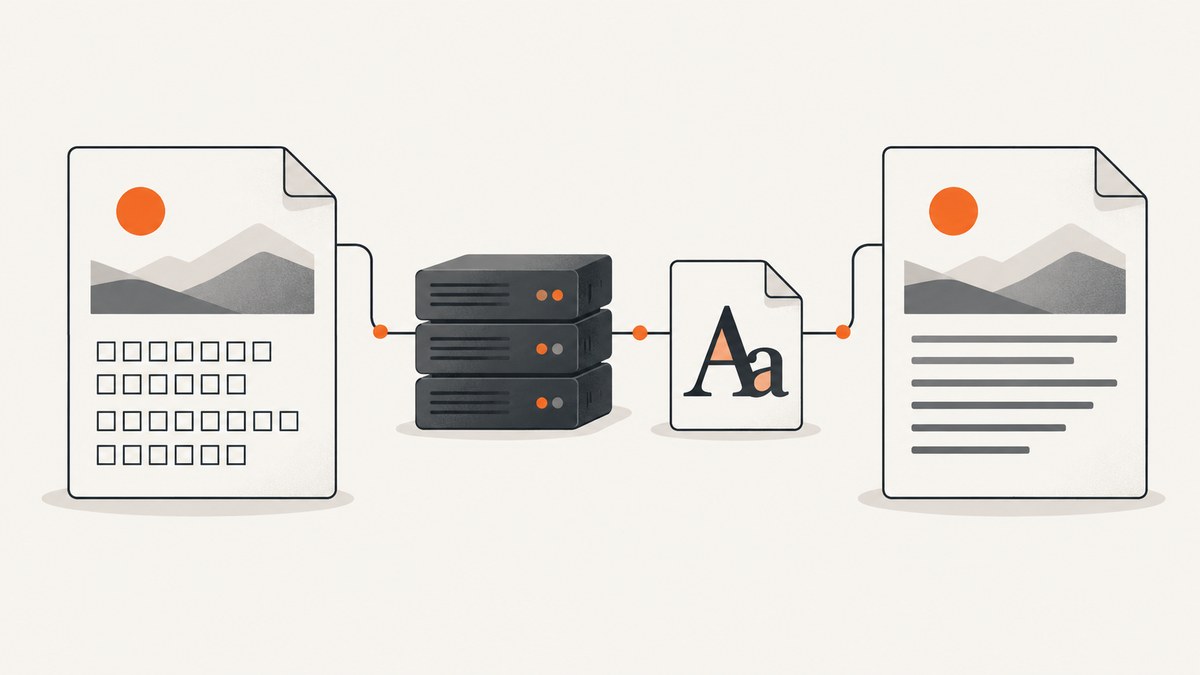
When Unicode characters are missing, appear as empty boxes, or render as black squares in a Python 3 pdfkit PDF, the first thing to check is the font available to the process that runs wkhtmltopdf. pdfkit is a Python wrapper; wkhtmltopdf performs the rendering. The font must contain the exact characters, be accessible in the deployed environment, and actually be selected by the renderer. A browser preview does not prove those conditions hold for PDF generation. pdfkit documentation
Use this sequence: identify the failing code points, confirm a candidate font covers them, install or expose that font to the production renderer, select it in the HTML/CSS, then inspect a PDF generated with the same binary and options used by the application. Change one variable at a time. A font described as Unicode-capable may still lack a particular character or the shaping behavior your script requires.
1. Identify what is failing
Record a minimal sample containing the exact affected text. Distinguish among missing glyphs and other rendering problems:
- Empty space: the character may have no available glyph, or the selected font may not contain it.
- Square or tofu: a replacement glyph is being shown because the renderer could not render the requested character from the selected font or its fallback.
- Black blocks or squared letters: this can look like a coverage issue, but it does not prove that installing a font or refreshing a font cache will fix it.
- Characters present but ordered or shaped incorrectly: investigate script shaping and renderer compatibility as well as font coverage.
Keep punctuation, combining marks, and neighboring characters in the sample. A base character may render while a combining mark does not. For scripts that need shaping, a font containing individual characters does not by itself prove that the whole sequence will render correctly.
2. Confirm which renderer pdfkit invokes
The Python wrapper invokes an external wkhtmltopdf executable. Find the executable path and version in the same environment and under the same account that generates the PDF. A developer laptop, web process, job worker, and container may each use different binaries or installed fonts.
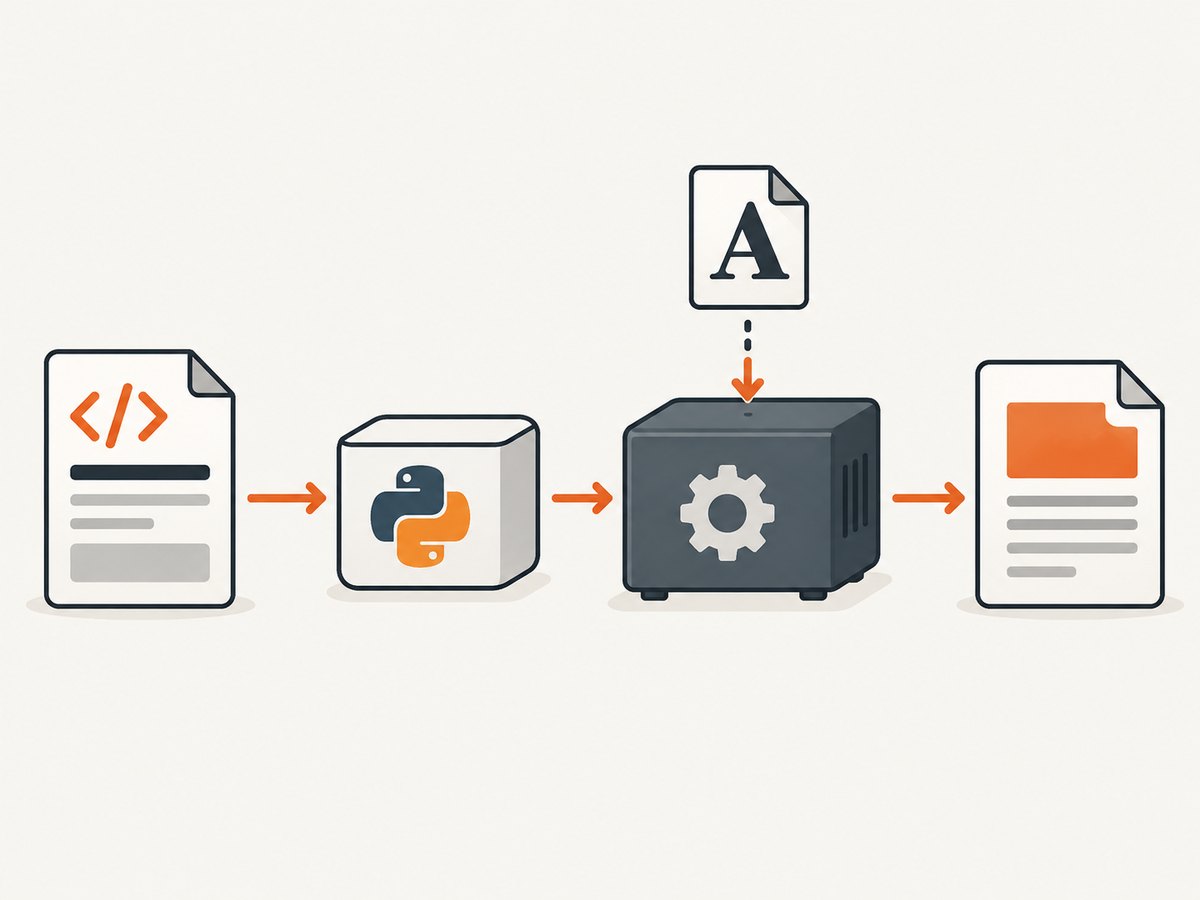
python3 - <<'PY'
import pdfkit

config = pdfkit.configuration()
print("wkhtmltopdf:", config.wkhtmltopdf)
PY

wkhtmltopdf --version
If pdfkit.configuration() raises an error, the executable may not be on the current process’s PATH. Point pdfkit at the executable explicitly, using the actual path in your environment:
python3 - <<'PY'
import pdfkit

config = pdfkit.configuration(wkhtmltopdf="/usr/local/bin/wkhtmltopdf")
pdfkit.from_string("<p>Renderer check</p>", "renderer-check.pdf", configuration=config)
PY
Replace that example path with the binary your deployment uses. A version string is useful diagnostic information, not a guarantee of identical behavior across operating systems, builds, or fonts. The cited wkhtmltopdf reports are historical examples; they do not establish a current compatibility promise. The wkhtmltopdf usage documentation describes renderer command options.
3. Check font coverage and availability
Check whether the candidate font contains the exact missing characters, and whether the PDF-rendering process can read it. Do not infer coverage from a font’s name or from its ability to render another script. In a historical report, adding the right fonts to a remote CentOS 7 server resolved one reporter’s missing-character problem. Another issue described browser fallback fonts on Windows that were not used in the same way by PDF output. Those reports illustrate why the renderer’s environment matters; they are not universal installation recipes. CentOS report · Windows fallback report
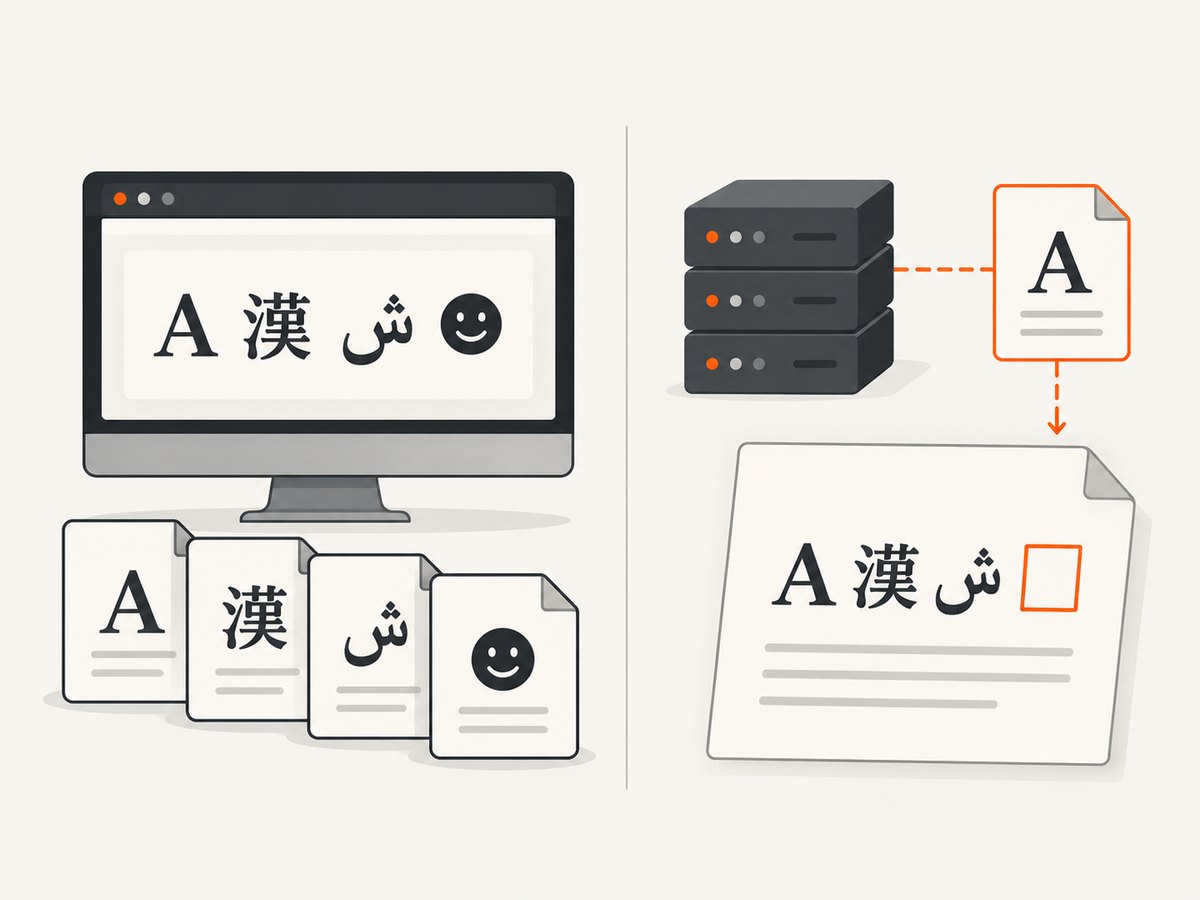
Where available, use your platform’s font-inspection tools to check the actual character range and font metadata. Then install an appropriate font through the operating system or make a permitted font file available to the renderer. Restart or rebuild the worker/container when required by the installation method. Check the selected font’s license before embedding or redistributing it.
One report about Noto Sans Thaana described black squares even after trying Noto fonts, @font-face, and a font-cache refresh. That is a useful caution: cache refreshes and successful font installation do not prove the renderer selected a suitable font or can shape the script. Thaana report
4. Select the font in HTML and CSS
Set a specific family for the affected content. Keep a fallback list, but do not assume that the renderer has the same fallback fonts as a desktop browser. This minimal HTML uses an illustrative family name; replace it with a family available to your renderer.
<!doctype html>
<html lang="en">
<head>
  <meta charset="utf-8">
  <style>
    body {
      font-family: "Your Script-Covering Font", sans-serif;
    }
  </style>
</head>
<body>
  <p>Replace this with the exact text that failed in your PDF.</p>
</body>
</html>
The UTF-8 declaration helps the HTML document be interpreted as intended, but it cannot add a glyph to a font. If a local font file is needed, @font-face is one possible route, provided the deployed renderer can access the file and supports the resource-loading setup. A URL that works in a browser may be unreachable from a worker, blocked by authentication, or denied by local-file access settings.
<style>
@font-face {
  font-family: "Local Script Font";
  src: url("file:///app/assets/script-font.woff2") format("woff2");
}
body {
  font-family: "Local Script Font", sans-serif;
}
</style>
This is a configuration pattern, not a guarantee that a particular font format or path works with every wkhtmltopdf build. Verify resource permissions and supported formats for the deployed renderer. pdfkit passes options through to wkhtmltopdf; inspect the options and generated command rather than assuming Python itself loaded the font. pdfkit advanced usage
5. Make a minimal production-equivalent PDF
Before changing a large template, create a tiny HTML document containing just the failing string, its script context, and the explicit font declaration. Render it with the same operating system or container, executable, user, and relevant options as production. Inspect the resulting PDF itself. This isolates whether the problem is in font access/rendering or in the larger page’s CSS, templates, or assets.
python3 - <<'PY'
import pdfkit

html = """<!doctype html>
<html><head>
<meta charset='utf-8'>
<style>body { font-family: 'Your Script-Covering Font', sans-serif; }</style>
</head><body>
<p>Paste the exact failing text here.</p>
</body></html>"""

config = pdfkit.configuration(wkhtmltopdf="/usr/local/bin/wkhtmltopdf")
pdfkit.from_string(html, "glyph-check.pdf", configuration=config)
PY
Substitute the real executable path, font family, and exact text. If the minimal document fails, change one factor at a time: first verify font coverage, then font visibility, then explicit selection and resource access, then investigate shaping and renderer build limitations. If it works but the full document fails, compare the templates’ CSS, character encoding, resource paths, and process options.
Common fixes that are not conclusive
- “It renders in Chrome.” The browser may use a fallback font installed on your workstation that is absent from the server or worker. Test the PDF renderer’s actual environment.
- “The HTML declares UTF-8.” Encoding and font coverage are separate. A correct code point can still lack a rendered glyph.
- “I installed a Unicode font.” Confirm coverage for the exact characters and required shaping. “Unicode” does not mean every character is present.
- “I refreshed the font cache.” A cache refresh cannot fix an unsuitable font, inaccessible file, unsupported loading path, or shaping issue.
- “I added @font-face.” Confirm that the renderer can read the font resource and that its format and access settings work in the deployed build.
Troubleshooting table
| Symptom | Likely cause to check | Next action |
|---|---|---|
| Blank spaces for some characters | The selected font or available fallback lacks those glyphs | Check exact character coverage and make a suitable font visible to the renderer |
| Squares or black blocks | Missing glyph, fallback difference, resource issue, or shaping/build limitation | Use the minimal test and inspect font coverage, selection, and resource access separately |
| Works locally, fails in production | Different wkhtmltopdf binary, OS fonts, user permissions, container image, or options | Compare executable path/version and font availability in the production worker |
| System font works but local @font-face does not | Path, format, URL, local-file access, or renderer resource-loading behavior | Verify the file is readable from the worker and the renderer can load that resource |
| Characters exist but look disconnected or reordered | Script shaping or renderer compatibility rather than simple coverage | Test a font known to cover the script and investigate renderer/build limitations |
| Only the full template fails | Template CSS, encoding, asset loading, or page-specific options | Compare against the minimal passing document, then reintroduce template pieces one at a time |
Reliability, performance, and cost considerations
For repeatable output, treat fonts as deployment dependencies. Include approved font files or installation steps in the same image/build used by PDF workers, and keep the font family explicit in the relevant CSS. Record the renderer path and version with deployment diagnostics so local and production behavior can be compared. Verify output after changing the font, base image, binary, or resource permissions.
Font diagnosis itself is inexpensive; rendering large documents repeatedly while guessing is slower and makes cause and effect harder to see. A minimal page lets you isolate the font and renderer before rerunning full jobs. For normal production reliability, capture renderer errors and inspect generated PDFs when deploying a change that affects fonts. No single cache command, package name, or font family is supported as a cross-platform fix by the cited cases.
Or skip the browser setup
If your task is to capture a web page as an image or PDF while debugging how it renders in a browser, ScreenshotNeo offers a website screenshot API and MCP server. It is not a replacement for fixing font coverage in your own pdfkit renderer, but it can provide a browser capture without maintaining browser automation setup.
One-call example (see the ScreenshotNeo API documentation for options):
curl -G "https://api.screenshotneo.com/v1/shot" \
  -d access_key=YOUR_API_KEY \
  --data-urlencode url=https://stripe.com \
  -o shot.webp
ScreenshotNeo removes cookie banners, newsletter popups, and chat widgets before capture. Bot checks, blank pages, and failed loads are never billed. An MCP server lets AI agents take screenshots. The free plan includes 1,000 screenshots a month with no card; paid plans start at $5 for 3,000. Sign up for 1,000 free screenshots a month, no card required.
FAQ
Can I fix missing glyphs by changing pdfkit’s Python configuration?
Configuration can select the executable and pass renderer options, but it cannot create a glyph absent from available fonts. Start with font coverage and renderer access.
Why does the same HTML look right in a browser?
The browser and wkhtmltopdf may have different fallback fonts, binaries, operating systems, or resource permissions. Compare the environments that actually render each output.
Will Noto fonts always solve missing Unicode characters?
No. Confirm coverage and shaping for the exact script and test the chosen font with the deployed renderer. A historical Thaana issue remained unresolved despite Noto font attempts.
Should I always use @font-face?
No. A system-installed font may be simpler when available. Use a font resource route that the renderer can access, and verify it with an actual PDF.


