How to Fix the Missing HiQPdf.dep File Build Error
Fix missing HiQPdf.dep errors by restoring the dependency, correcting deployment paths, permissions, and SetDepFilePath configuration.
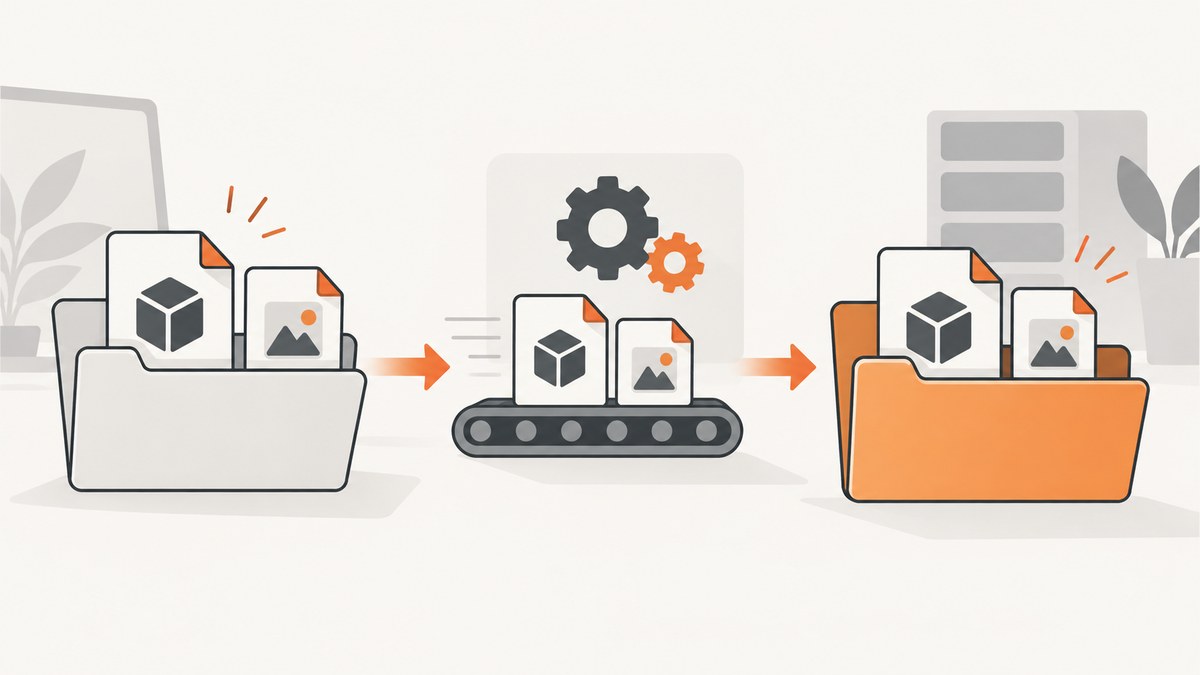
HiQPdf.dep is a required resource file for HiQPdf.dll. The usual fix is to restore the matching file from the HiQPdf distribution or package, ensure it is copied beside HiQPdf.dll in the build and deployment output, and verify the running process can read and execute it. If you intentionally keep the file elsewhere, configure HiQPdf with SetDepFilePath and a fully qualified path.
What the error means
A build message such as Could not copy the file '..\\HiQPdf.dep' because it was not found means the project’s copy step cannot find the dependency at the configured source path. A runtime error usually means the file was omitted during deployment, separated from HiQPdf.dll, blocked by Windows, or inaccessible to the application identity.
HiQPdf’s official guidance says Visual Studio normally copies HiQPdf.dll and its dependent files, including HiQPdf.dep, into the application’s Bin folder when you build a referencing application. See the HiQPdf FAQ for the vendor’s installation notes.
Fix the build error step by step
1. Find the matching dependency
- Open the HiQPdf package, installer output, or extracted distribution used by this project.
- Locate
HiQPdf.dlland confirm thatHiQPdf.depis present in the same distribution. - Use files from the same HiQPdf version and architecture. Do not copy an arbitrary
.depfile from another installation.
If the file is absent from the package you received, obtain a complete matching distribution from the HiQPdf source rather than creating an empty replacement.
2. Check the reference and copy source
In Visual Studio, inspect the HiQPdf reference’s path and the project or package directory it points to. Compare that path with the actual location of HiQPdf.dep. A stale relative path, moved vendor folder, or incomplete extraction is a common cause.
There is no single project-file edit that applies to every HiQPdf version and build configuration. Correct the source path used by your project, then rebuild. If your project uses a manually managed DLL reference, keep the dependency in the same source folder as the referenced assembly.
3. Verify the build output
After building, inspect the actual output directory, not only the project tree. The normal arrangement is:
bin/
  Debug/
    YourApplication.exe
    HiQPdf.dll
    HiQPdf.dep
For SDK-style projects, check the selected target framework and configuration. For older .NET Framework projects, check the project’s Bin directory. Clean and rebuild after correcting the source path so an old output directory does not hide the result.
4. Verify deployment
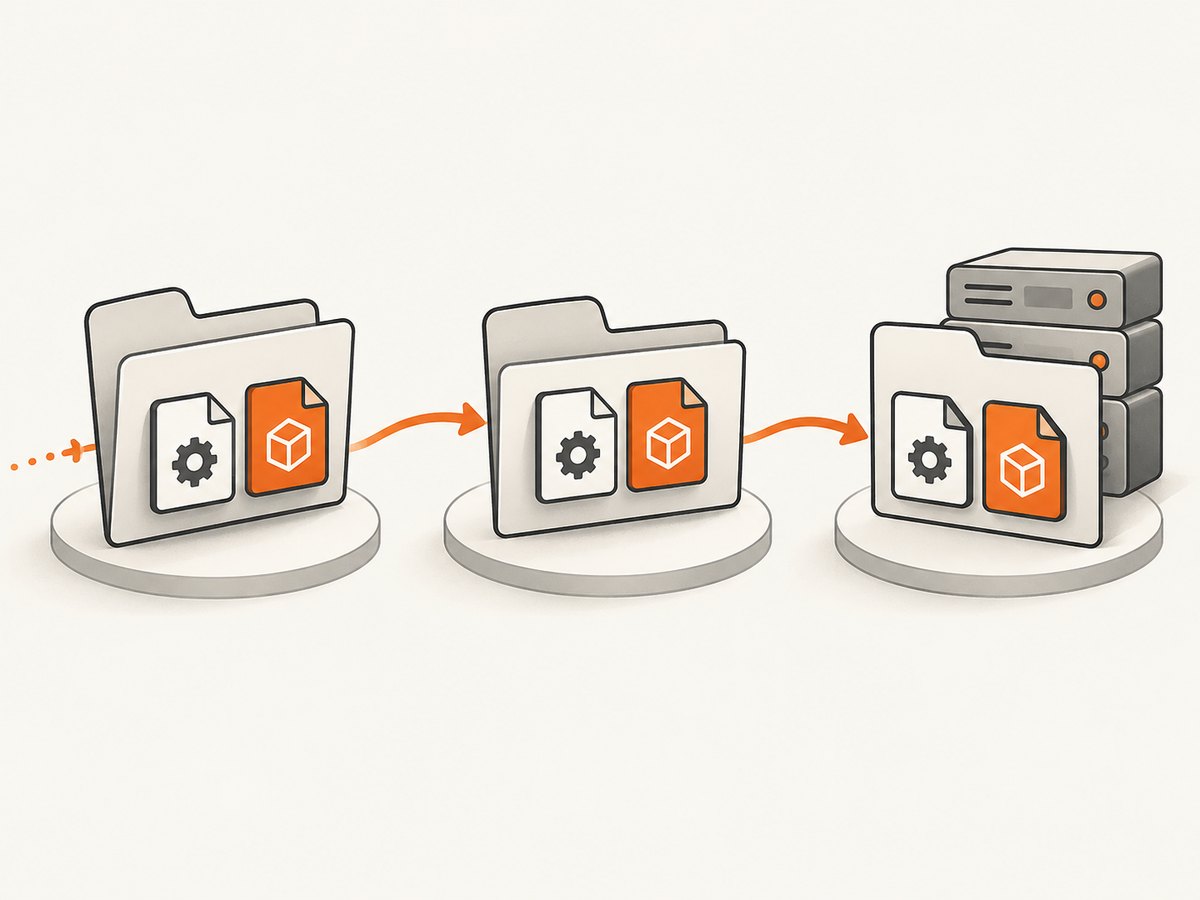
Copy both files to the server, container, Windows service directory, or job runner that starts the application. Manual deployment, publish scripts, packaging rules, and shadow-copy behavior can separate the resource from the DLL even when the local build succeeds.
Check the deployed directory directly:
dir /b C:\path\to\app\HiQPdf.dll
 dir /b C:\path\to\app\HiQPdf.dep
On Linux-based build or deployment tooling, use:
ls -l /path/to/app/HiQPdf.dll /path/to/app/HiQPdf.depWhen the dependency lives in another folder
If your deployment intentionally stores HiQPdf.dep outside the assembly directory, use the documented SetDepFilePath API with the file’s fully qualified path on the relevant HiQPdf HTML object or converter.
using System;
using HiQPdf;

class PdfExample
{
    static void Main()
    {
        var converter = new HtmlToPdf();
        converter.SetDepFilePath(@"C:\ProgramData\MyApp\HiQPdf\HiQPdf.dep");

        // Configure the converter and perform your normal conversion here.
        // Keep the file at this path for the lifetime of the application.
    }
}
Use the API available in your HiQPdf version and confirm that the process can reach the path at runtime. A relative path is fragile because the process working directory can differ between Visual Studio, IIS, a Windows service, and a scheduled task.
Permissions and Windows blocking
HiQPdf’s guidance requires the runtime identity to have read and execute access to the dependency. Grant the minimum access needed to the application pool, service account, container user, or other identity that runs the converter.
Downloaded archives and extracted files can carry a Windows block mark. In File Explorer, open the file’s Properties and use Unblock when that option is present, or remove the block from the trusted package before deployment. Do not weaken system-wide security settings to work around one file.
Troubleshooting checklist
| Symptom | Likely cause | Fix |
|---|---|---|
| Build says the file could not be copied | The configured source path does not contain HiQPdf.dep |
Restore the matching file and correct the reference or copy source. |
| Local build works, server fails | The deployment omitted the dependency or copied only the DLL | Deploy HiQPdf.dll and HiQPdf.dep together; inspect the server directory. |
| Files exist but runtime still fails | Process identity lacks read or execute access | Grant required permissions to the actual runtime account and retry. |
| Failure occurs only after extracting a download | Windows marked the file as blocked | Unblock the trusted extracted file, then redeploy. |
| Dependency is stored outside the application folder | HiQPdf is searching beside the DLL | Call SetDepFilePath with a fully qualified path. |
| Works in Visual Studio but not as a service | Different working directory, identity, or shadow-copy location | Use an absolute path, inspect the service directory, and verify service-account permissions. |
| Only one configuration fails | Debug and Release (or target frameworks) use different output or package paths | Inspect each configuration’s resolved output and deployment contents. |
Reliable verification before release
- Build from a clean checkout using the same configuration used for deployment.
- Assert that
HiQPdf.dllandHiQPdf.depare both present in the published artifact. - Install or copy that artifact to a staging machine.
- Run the application under the same identity used in production.
- Confirm the configured absolute dependency path, if any, and test a real conversion.
- Archive the exact HiQPdf distribution version with the deployment record so future updates do not mix DLL and resource files.
Performance, reliability, and cost notes
Keeping the dependency beside HiQPdf.dll follows HiQPdf’s normal loading arrangement and reduces path-specific deployment failures. An alternate path can work reliably when it is absolute, stable, included in deployment, and accessible to the runtime identity. The file itself does not remove the need to diagnose page conversion time, memory use, or application-level timeouts.
This fix concerns file availability and loading. It does not change HiQPdf licensing or add a separate hosted-service charge. Avoid replacing the dependency with an empty file or a version from another release; that can turn a clear build error into an obscure runtime failure.
Or skip the browser setup
If your goal is simply to capture web pages as images or PDFs instead of maintaining a local browser and rendering dependency, ScreenshotNeo provides a single HTTP endpoint. Its cleanup steps accept cookie or consent banners and remove more than 60 known consent platforms, newsletter popups, and chat widgets before capture. Bot checks, blank pages, failed loads, timeouts, and cache hits are not billed, and response headers identify the page verdict and billing status.
ScreenshotNeo also provides an MCP server with take_screenshot, get_page_info, and capture_pdf for Claude, Cursor, and other MCP clients. The API supports PNG, JPEG, WebP, and PDF output plus full-page capture, element selectors, device presets, custom CSS and JavaScript, waits, blocking rules, headers, cookies, geolocation, caching, signed links, asynchronous jobs, bulk capture, and a usage API.
See the ScreenshotNeo documentation for all request options.
curl -G "https://api.screenshotneo.com/v1/shot" -d access_key=YOUR_API_KEY --data-urlencode url=https://stripe.com -o shot.webpimport requests
r = requests.get("https://api.screenshotneo.com/v1/shot", params={"access_key": "YOUR_API_KEY", "url": "https://stripe.com"}, timeout=90)
open("shot.webp", "wb").write(r.content)const q = new URLSearchParams({ access_key: 'YOUR_API_KEY', url: 'https://stripe.com' });
const res = await fetch(`https://api.screenshotneo.com/v1/shot?${q}`);Free usage includes 1,000 screenshots per month with no card. Paid plans start at $5 for 3,000 shots. Create a free ScreenshotNeo account.
FAQ
Is HiQPdf.dep an optional file?
No. HiQPdf documents it as a required resource for HiQPdf.dll.
Can I rename the file?
Keep the vendor filename unless your installed HiQPdf version explicitly documents another arrangement. Renaming can prevent discovery.
Should I add the file to source control?
Follow your organization’s vendor-binary policy. Whatever storage method you use, the build and deployment artifact must contain the matching dependency.
Why does SetDepFilePath need a full path?
An absolute path avoids differences in process working directories between development, web hosting, services, and scheduled jobs.
Where should I look first when the error returns?
Compare the exact runtime or build path with the directory containing HiQPdf.dep, then check deployment contents and the runtime account’s permissions.


