How to Fix Missing Images in ASP.NET Core HTML-to-PDF Conversion
Fix missing images in ASP.NET Core HTML-to-PDF exports by tracing URLs, setting a base path, serving static files, and handling waits and print backgrounds.

Missing images in an ASP.NET Core HTML-to-PDF export almost always mean the PDF engine requested a different URL (or no URL) than your browser did. Find the final image URL, make ASP.NET Core serve it, and give an HTML-string render an explicit base URL that the rendering process can reach. Only after those checks should you investigate JavaScript timing or print-background settings.
1. Trace the image URL the renderer must fetch
For every missing image, record the literal src and the URL it resolves to. An HTML fragment such as images/logo.png has no dependable page location when passed as a string. The same rule applies to CSS url(...) references. Microsoft documents that static files are addressed by a path relative to the web root; SelectPdf and IronPDF document passing a base URL or path for relative resources.
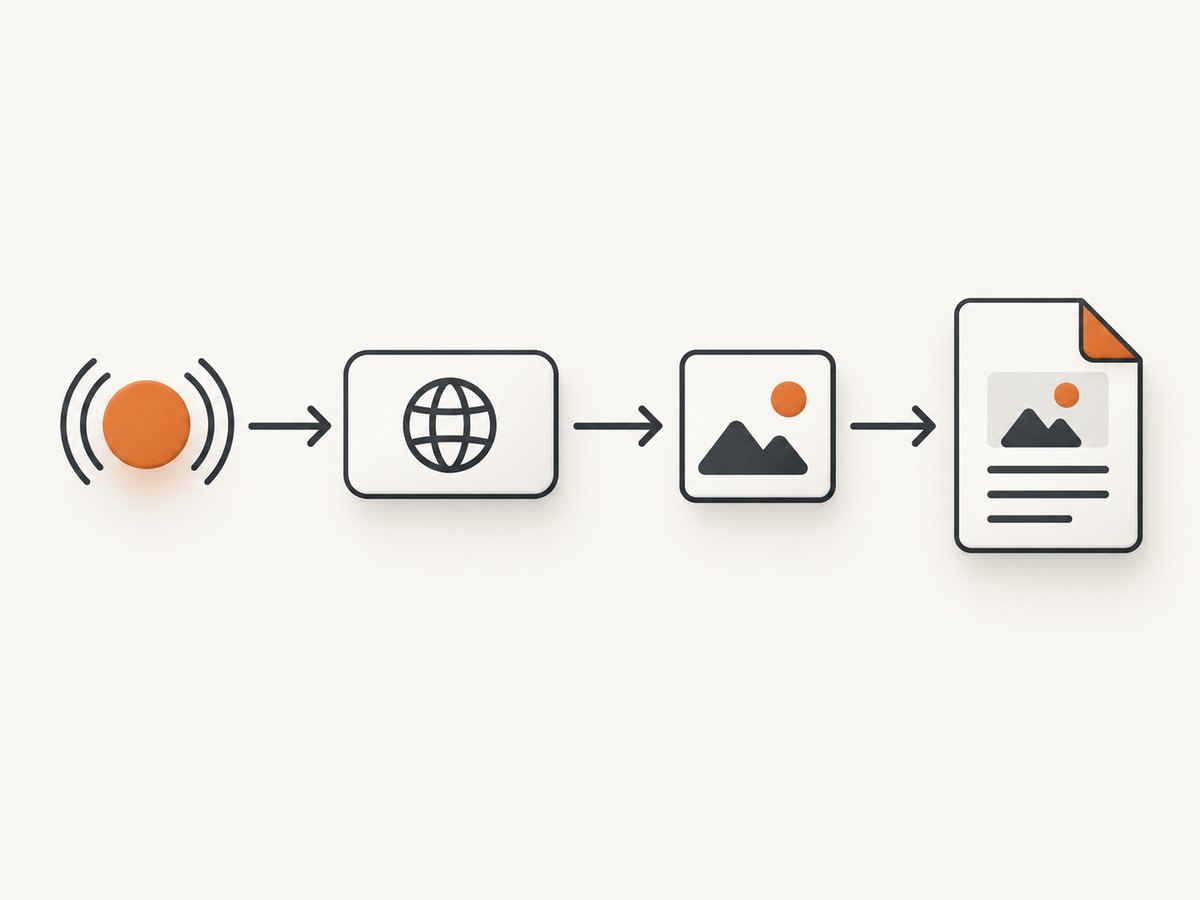
- Inspect the generated HTML, including CSS backgrounds.
- Resolve each relative path against the page URL, supplied base URL, or local HTML file location.
- Request the resulting absolute URL from the same container, worker, or remote host that runs the PDF engine.
- Check status code, redirects, HTTPS certificate trust, host reachability, path casing, and authorization.
Use the exact URL in a browser only as a secondary check. A URL reachable from your laptop can still be unreachable from a background worker or isolated renderer.
2. Serve images from ASP.NET Core
Put public files under wwwroot. For example, wwwroot/images/logo.png is requested as /images/logo.png (or an absolute URL with your host). In a conventional pipeline, enable static files:
var builder = WebApplication.CreateBuilder(args);
var app = builder.Build();

app.UseStaticFiles();
app.MapControllers();
app.Run();
Current ASP.NET Core templates can also use app.MapStaticAssets(); choose the approach matching your target framework and template. See Microsoft’s static-file guidance.
Verify the published file
- Confirm the image exists in the deployed publish directory, not only in the source tree.
- Check project content and copy settings if it works in development but returns 404 after publishing.
- Use a request from the renderer’s network namespace:
curl -I https://app.example.com/images/logo.png. - Check Linux filename case;
Logo.pngandlogo.pngare different paths.
3. Pass a base URL when rendering an HTML string
When a Razor view is converted to a string, pass a base URL (or the renderer’s equivalent local base path). This pattern is intentionally renderer-neutral; verify the method name for your installed package.
string html = await RenderViewToStringAsync("Invoice", model);
string baseUrl = $"{HttpContext.Request.Scheme}://{HttpContext.Request.Host}";
var pdf = renderer.RenderHtmlAsPdf(html, baseUrl);
return File(pdf.BinaryData, "application/pdf", "invoice.pdf");
The host must be reachable by the PDF process. In a container or worker, use an internal service name, a public origin, or a local asset directory supported by that renderer. Do not substitute a physical path such as /app/wwwroot for an HTTP URL unless the library explicitly documents that mode.
SelectPdf
SelectPdf documents the ConvertHtmlString(String, String) overload for relative image and CSS URLs:
var converter = new HtmlToPdf();
string html = await RenderViewToStringAsync("Invoice", model);
string baseUrl = $"{Request.Scheme}://{Request.Host}";
PdfDocument document = converter.ConvertHtmlString(html, baseUrl);
byte[] bytes = document.Save();
document.Close();
See SelectPdf’s HTML-string documentation. Its troubleshooting page also describes a page-load timeout; increasing that setting addresses navigation timeouts, not an incorrect URL.
IronPDF
IronPDF calls the argument BaseUrlOrPath and accepts an HTTP URL or a local filesystem path, depending on the rendering method:
string html = await RenderViewToStringAsync("Invoice", model);
string baseUrl = $"{Request.Scheme}://{Request.Host}";
var document = renderer.RenderHtmlAsPdf(html, baseUrl);
return File(document.BinaryData, "application/pdf");
Follow the API version installed in your project and the IronPDF base URL guide. These are vendor-specific APIs, not ASP.NET Core features.
4. Distinguish URL, string, and local-file rendering
| Input mode | How relative images resolve | What to check |
|---|---|---|
| Page URL | Against that page’s URL | Renderer can reach the host, redirects, authentication |
| HTML string | Only against an explicit base URL/path | Base points to a reachable origin or documented local path |
| Local HTML file | Against the file location or supplied base | File permissions and paths valid inside the renderer process |
A physical path, web URL, and relative URL are different inputs. Follow the selected library’s documented semantics rather than guessing.
5. Handle delayed and non-<img> images
JavaScript, lazy loading, and API-generated images
If the image is inserted after page load, the renderer must wait for the script or network request. Look for lazy-loading attributes, client-side templates, and API calls in browser developer tools. Then use the renderer’s documented wait-for-selector, delay, network-idle, or navigation-timeout option. There is no universal wait setting. SelectPdf’s documented 60-second default and MaxPageLoadTime apply to its navigation timeout only.
For deterministic PDFs, render the image URL directly in the HTML when possible, or wait for a selector that appears only after the image has loaded. A longer timeout cannot fix a 404, blocked host, or invalid base URL.
CSS background images
An image can be present but invisible when it is a CSS background and print output omits backgrounds. IronPDF demonstrates PrintHtmlBackgrounds = true for that case:
var printOptions = new ChromePdfRenderOptions {
    PrintHtmlBackgrounds = true
};
var pdf = renderer.RenderHtmlAsPdf(html, printOptions);
Use the equivalent option for your engine only after confirming the asset is a background. This setting does not repair a missing <img> URL. See IronPDF’s ASP.NET Core example.
6. A repeatable diagnostic checklist
- Save the exact HTML sent to the converter.
- List every
srcand CSSurl(), then compute an absolute URL. - Request each URL from the renderer host and record status, content type, and redirects.
- Confirm
UseStaticFilesorMapStaticAssetsand verify the published file. - For a string render, pass a base URL/path; for a URL render, verify the starting page URL.
- Check authentication, custom headers, cookies, HTTPS trust, and outbound firewall rules.
- If the image is generated in JavaScript, configure the library’s documented wait condition.
- If it is a CSS background, enable print backgrounds in that library.
- Compare a minimal HTML page containing one absolute image URL with the full document.
7. Common errors and fixes
| Symptom | Likely cause | Fix |
|---|---|---|
| Works in browser, absent in PDF | Renderer cannot reach the host or relative URL has no base | Test from renderer runtime and pass a reachable base URL |
404 for images/x.png |
Static files are not mapped, file was not published, or path casing differs | Enable static serving, inspect publish output, correct the URL |
| Only Razor string conversion fails | HTML string has no document location | Use the renderer’s base URL/path overload |
| Local path fails in a container | Path exists on the web server but not inside the renderer process | Mount/copy the asset or use a reachable HTTP origin |
| Image appears in HTML but not print | It is a CSS background and backgrounds are disabled | Enable the engine’s print-background option |
| Late image is missing intermittently | Capture occurs before JavaScript or lazy loading finishes | Wait for a selector/network idle or make the URL static |
| HTTPS resource is skipped | Renderer does not trust the certificate or cannot resolve DNS | Fix certificate/DNS for that runtime; avoid disabling validation in production |
8. Performance, reliability, and cost considerations
- Prefer absolute, cacheable image URLs and stable dimensions to reduce layout reflow.
- Keep images reasonably sized; very large originals increase download and PDF memory use.
- Serve assets from the same reachable network as the renderer when possible.
- Use a deterministic wait condition instead of an arbitrary long delay.
- Log the resolved URL, HTTP status, render mode, and renderer version for failed jobs.
- Cache immutable assets and avoid regenerating the same image for every request.
Renderer licensing and hosting costs depend on the library and deployment; the cited documentation does not provide a cross-engine benchmark. Measure your own pages after fixing URL resolution.

Or skip the browser setup
ScreenshotNeo can capture a page or produce a PDF through one request, so you do not need to operate a headless browser for this asset-fetching path. Before capture it accepts cookie/consent banners and removes more than 60 known consent platforms, newsletter popups, and chat widgets. Bot checks, blank pages, timeouts, failed loads, and cache hits are not billed, and each response identifies the verdict and billing with X-Page-Verdict and X-Billed headers. Its MCP server provides take_screenshot, get_page_info, and capture_pdf tools for Claude, Cursor, and other MCP clients. The free plan includes 1,000 shots per month with no card; paid plans start at $5 for 3,000 shots.
For the complete option list, see the ScreenshotNeo API docs. A PDF capture can be requested with the same endpoint and your target URL:
curl -G "https://api.screenshotneo.com/v1/shot" -d access_key=YOUR_API_KEY --data-urlencode url=https://example.com -o page.pdfimport requests
r = requests.get("https://api.screenshotneo.com/v1/shot", params={"access_key": "YOUR_API_KEY", "url": "https://example.com"}, timeout=90)
r.raise_for_status()
open("page.pdf", "wb").write(r.content)const q = new URLSearchParams({ access_key: 'YOUR_API_KEY', url: 'https://example.com' });
const res = await fetch(`https://api.screenshotneo.com/v1/shot?${q}`);
if (!res.ok) throw new Error(`HTTP ${res.status}`);
require('fs').writeFileSync('page.pdf', Buffer.from(await res.arrayBuffer()));Create a free ScreenshotNeo account with 1,000 screenshots each month and no credit card.
FAQ
Do I need an absolute URL in every image tag?
No. Relative URLs are fine when the renderer has a correct page URL or explicit base location. They are unsafe in a raw HTML string without one.
Should I increase the timeout first?
No. First prove that the final URL returns the image from the renderer runtime. Increase a documented wait or navigation timeout only for genuinely slow or asynchronous pages.
Why do SVGs or data URIs behave differently?
They may bypass an HTTP fetch, while external SVGs still depend on URL resolution, MIME type, and renderer support. Test each asset form separately.
Is wwwroot required?
It is the default public web root for static files. You can use another provider or a controller endpoint, but that endpoint must be reachable and return the image to the renderer.
Which renderer should I choose?
Choose one whose documented input mode, base-path behavior, wait controls, and print-background support match your deployment. The missing-image diagnosis is the same regardless of vendor.


