How to Fix Missing Images in Headless Chrome Print-to-PDF
Fix missing images in Puppeteer PDFs by triggering lazy content, checking image loads and decoding, and accounting for print CSS and backgrounds.

When images disappear from a headless Chrome PDF, first check whether they are ordinary <img> elements or CSS background artwork. Puppeteer’s page.pdf() renders with print media, and its printBackground option defaults to false. For document images, trigger any application-specific lazy loading, then check that each required image succeeded and decoded before writing the PDF. A navigation wait such as networkidle2 is useful for general settling, but it does not prove that every image loaded.
This guide uses Puppeteer and Node.js. It covers a complete diagnostic flow, a runnable example with bounded waits, print styling, lazy images, common failures, and operational tradeoffs.
1. Identify which kind of image is missing
Start by separating image elements from CSS artwork. They use different browser paths and have different fixes.
| What is missing | First checks | Likely area to inspect |
|---|---|---|
An <img> element |
currentSrc, complete, naturalWidth, request and console errors |
Lazy loading, source selection, failed request, decoding |
| A CSS background image | Computed styles and @media print rules |
Print CSS and printBackground |
| Only images below the fold | Whether the page triggered its lazy-loading behavior | Scroll or application-specific reveal step |
| Image differs from the screen version | Compare print-media rendering with screen-media rendering | Print styles and responsive source selection |
For an image element, inspect the selected URL rather than assuming the HTML src is the requested resource: responsive markup can select currentSrc. A nonzero naturalWidth is a practical success check. The complete property alone is insufficient: it can be true for an image that failed.
2. Use a readiness sequence that checks the images
A dependable sequence is: navigate, reveal required content, collect the images, wait for load or error, verify dimensions, await decoding, then create the PDF. Add a deadline so a stalled request cannot hold the job forever.
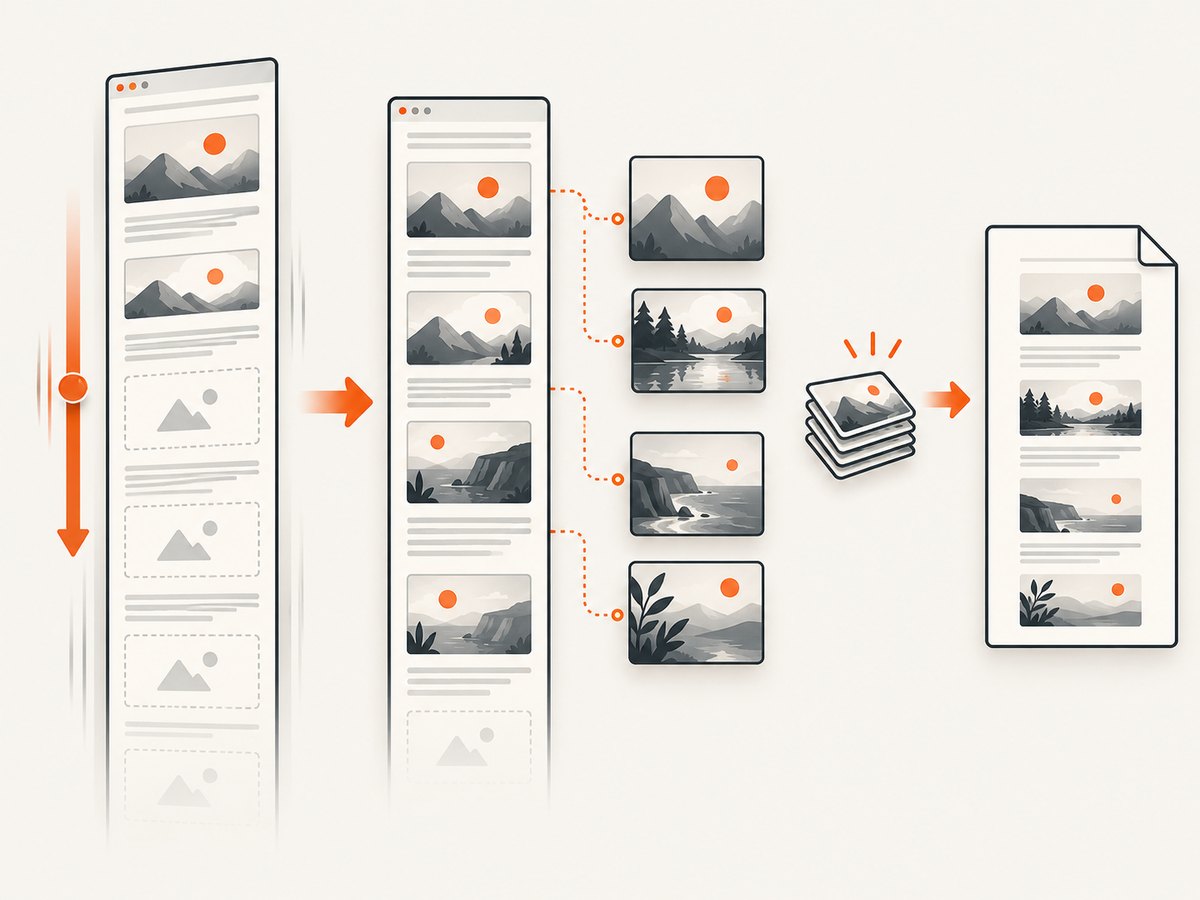
- Navigate with a bounded timeout.
networkidle2waits for broad network inactivity and can help the page settle. - Trigger the page’s own lazy-loading behavior. For a long document, this may mean scrolling through it or using an application-specific control.
- Collect the image elements after revealing content, so newly inserted images are included.
- Wait for each image to settle and decode, and fail with the affected URL if it did not load.
- Generate the PDF with print backgrounds enabled if CSS background artwork is part of the document.
The following script is a runnable baseline. Install Puppeteer in a Node.js project with npm install puppeteer, save this as pdf.js, then run node pdf.js https://example.com. Replace the example URL with a page you are authorized to capture.
const puppeteer = require('puppeteer');

const url = process.argv[2];
if (!url) throw new Error('Usage: node pdf.js https://example.com');

const IMAGE_TIMEOUT_MS = 15000;

async function main() {
  const browser = await puppeteer.launch({ headless: true });
  try {
    const page = await browser.newPage();
    page.setDefaultNavigationTimeout(45000);

    page.on('requestfailed', request => {
      console.error('Request failed:', request.url(), request.failure()?.errorText);
    });
    page.on('console', message => {
      if (message.type() === 'error') console.error('Page console:', message.text());
    });

    await page.goto(url, { waitUntil: 'networkidle2', timeout: 45000 });

    // Generic trigger for common viewport-based lazy loading. Pages with
    // custom reveal logic may need a site-specific action here.
    await page.evaluate(async () => {
      const step = Math.max(300, Math.floor(window.innerHeight * 0.8));
      for (let y = 0; y < document.documentElement.scrollHeight; y += step) {
        window.scrollTo(0, y);
        await new Promise(resolve => setTimeout(resolve, 100));
      }
      window.scrollTo(0, 0);
    });

    const result = await page.evaluate(async timeoutMs => {
      const images = [...document.images];
      const waitForImage = img => new Promise(resolve => {
        if (img.complete) return resolve();
        let done = false;
        const finish = () => {
          if (done) return;
          done = true;
          clearTimeout(timer);
          img.removeEventListener('load', finish);
          img.removeEventListener('error', finish);
          resolve();
        };
        const timer = setTimeout(finish, timeoutMs);
        img.addEventListener('load', finish, { once: true });
        img.addEventListener('error', finish, { once: true });
      });

      await Promise.all(images.map(waitForImage));
      await Promise.all(images.map(img =>
        img.naturalWidth > 0 ? img.decode().catch(() => {}) : Promise.resolve()
      ));

      return {
        total: images.length,
        broken: images
          .filter(img => !img.complete || img.naturalWidth === 0)
          .map(img => img.currentSrc || img.src || '(no source)')
      };
    }, IMAGE_TIMEOUT_MS);

    console.log(`Found ${result.total} image elements`);
    if (result.broken.length) {
      throw new Error(`Images failed or timed out:\n${result.broken.join('\n')}`);
    }

    await page.pdf({
      path: 'output.pdf',
      format: 'A4',
      printBackground: true
    });
    console.log('Wrote output.pdf');
  } finally {
    await browser.close();
  }
}

main().catch(error => {
  console.error(error);
  process.exitCode = 1;
});
The scrolling loop is only a generic trigger. It cannot guarantee that every site loads every asset: a page may require a specific button, an intersection observer with different behavior, or content that is inserted only after an application action. Adapt the reveal step to the page, and keep the image check after it. The timeout prevents indefinite waits; increase it only when slow but valid image delivery is expected.
3. Handle lazy images and dynamic pages
Native loading="lazy" lets the browser defer offscreen image requests until it expects them to be needed. As a result, the window load event does not establish that every lazy image is ready, and an offscreen image may remain unfetched. For a full-document PDF, explicitly trigger the content needed in print.
For a page you control, a print-specific approach is to switch images to eager loading before waiting:
await page.evaluate(() => {
  for (const img of document.images) img.loading = 'eager';
});
This helps when the image elements already exist. If the application creates elements only when scrolled into view, changing existing elements is not enough; trigger the page’s reveal behavior first, then re-query document.images. If an infinite-scroll page has no natural end, decide which content belongs in the PDF and use a page-specific stop condition instead of scrolling indefinitely.
When only a subset of images is required, check that subset and report failures explicitly. A failed decorative icon may be tolerable in one workflow, while a missing chart may invalidate a report. Make that acceptance rule part of the application rather than silently treating every image as optional.
4. Check print media, backgrounds, and PDF options
Puppeteer’s page.pdf() generates using print media. A page may therefore select different styles, hide elements, change colors, or use a different image source from its screen rendering. Inspect its @media print CSS when the browser view looks correct but the PDF does not.
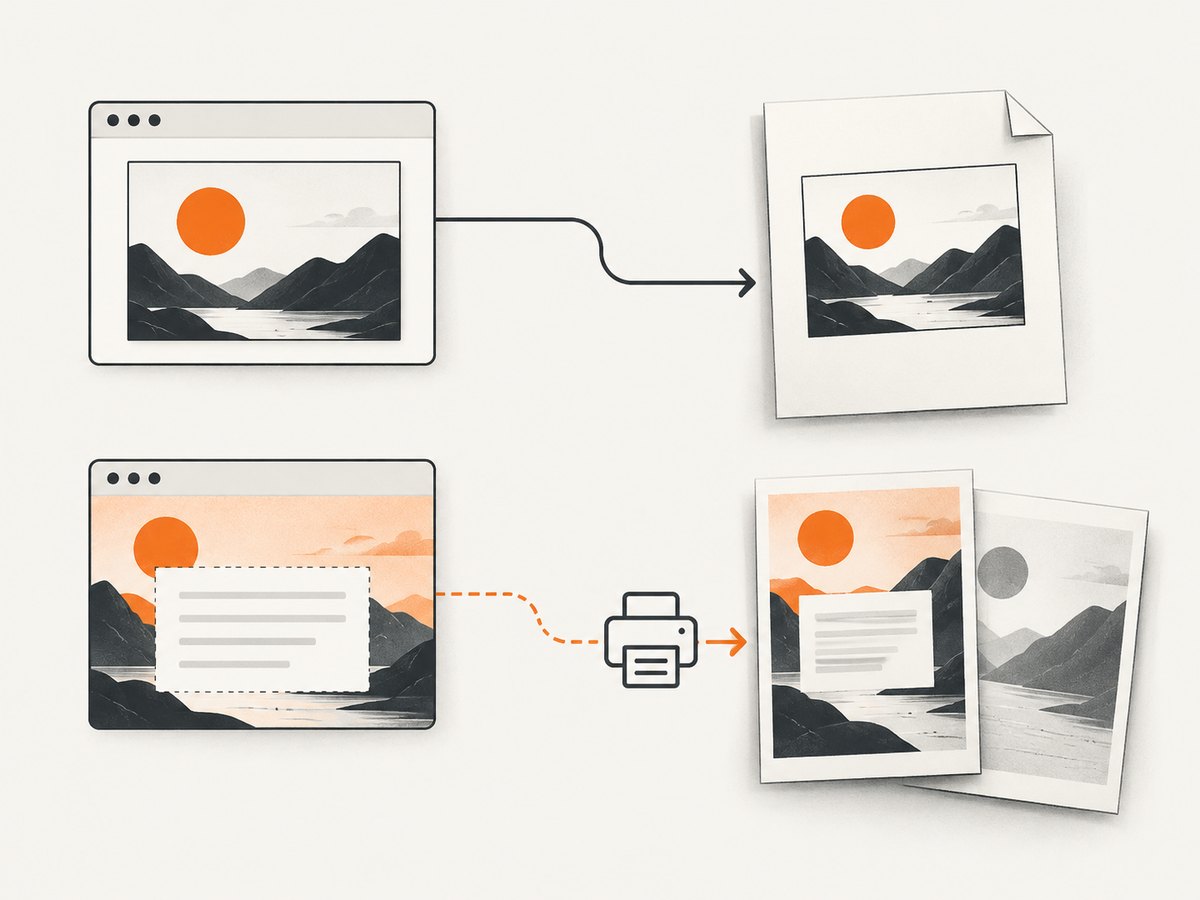
CSS background-image artwork needs special attention: PDF background printing is disabled by default. Set printBackground: true when those backgrounds must appear. This option does not repair a failed <img> request; diagnose that element through its URL and load state.
Useful Puppeteer PDF settings include:
| Option or method | Use | Watch for |
|---|---|---|
printBackground: true |
Include CSS background graphics | Does not fix broken image elements |
format |
Choose a standard paper size such as A4 or Letter | Page dimensions can change line wrapping and pagination |
landscape: true |
Use landscape page orientation | Check the page’s print layout at the selected width |
margin |
Set print margins | Large margins can clip or reflow content |
preferCSSPageSize: true |
Honor CSS @page size |
Use when the document defines its own print page dimensions |
scale |
Adjust rendered page scale | Can affect text and image size; validate legibility |
For a visual mismatch, compare with screen media in a diagnostic run using page.emulateMediaType('screen') before PDF generation. Restore print media for the actual print output. This comparison helps locate a CSS difference; it does not make screen styles the right choice for a print document.
5. Diagnose failures with URLs and browser signals
When the check reports an image failure, record the failed currentSrc and inspect the browser’s failed-request events and console errors. Reproduce with the same authentication state and network conditions as the renderer. A URL that works in a logged-in interactive browser may not work in a fresh headless context.
- Confirm that the image URL is valid and reachable from the rendering environment.
- Check whether the request needs the same cookies, headers, or session as the page.
- Look for an HTTP failure, blocked request, browser console error, or an image decode rejection.
- Check responsive source selection and print CSS if a different asset is selected only during PDF generation.
- Log the image URL, outcome, and timeout separately so a transient request failure is distinguishable from a CSS omission.
Without the target page and its logs, authentication issues, remote blocking, invalid URLs, and application-specific loading logic are possibilities to investigate, not established causes. Use the actual failed URL and request evidence to narrow the diagnosis.
6. Troubleshooting: common symptoms and fixes
| Symptom | Likely cause | Fix |
|---|---|---|
networkidle2 completes, but an image is absent |
Network inactivity is not a per-image success check; a lazy image may not have been requested | Trigger lazy content, then inspect image state and dimensions |
img.complete is true but the image is broken |
Completion can also describe a failed load | Check naturalWidth and the failed request URL |
| Background artwork is missing | PDF background printing is off, or print CSS removes the background | Set printBackground: true and inspect @media print |
| Images below the fold are missing | Lazy loading was never triggered | Scroll or run the application’s reveal action before collecting images |
| PDF differs from the browser view | page.pdf() uses print media |
Compare screen and print media; fix the relevant print styles or source selection |
| Script hangs waiting for image readiness | A request never settles or a page-specific image wait is unbounded | Use a bounded timeout, report timed-out URLs, and close the browser in finally |
| Image URL fails only in headless capture | The rendering context may differ in cookies, headers, or network access | Compare request and console logs under the same authorized context |
| Decode rejects despite a load event | The resource may not decode as usable image data | Record the URL and treat decode failure according to the document’s acceptance rule |
7. Performance, reliability, and cost
Waiting for every image improves confidence but adds latency, particularly on long pages with many remote assets. A broad network-idle wait can also be delayed by pages that keep network activity open. Set navigation and image deadlines, keep the browser lifecycle in a try/finally, and log failed URLs so a single slow asset does not make a job opaque.
Scrolling the full page triggers more requests and may cause application work. Limit it to the content required for the PDF, and account for infinite-scroll pages. Reusing a browser process across jobs can reduce repeated startup work in a service, but isolate page state and close pages reliably. Choose whether a failed image should fail the PDF based on the document’s purpose; for an archival or reporting document, silently accepting missing charts is usually a poor signal.
Self-hosting means you operate Chromium, page lifecycle, storage, and retries. Operational cost depends on page length, image volume, runtime, concurrency, and infrastructure; there is no universal cost or timing figure. Measure those values in your own workload and set limits for navigation, image waits, and total job duration.
Or skip the browser setup
If you need a screenshot or PDF without maintaining a browser capture flow, ScreenshotNeo provides a website screenshot API and MCP server. Its one-request API returns a screenshot or PDF; use the PDF format for this task. The API accepts a URL and supports full-page capture with lazy images loaded. Its response identifies page verdict and billing status in headers.
See the ScreenshotNeo API documentation for request options. This cURL example requests a PDF; check the docs for the current format parameter syntax before adapting it:
curl -G "https://api.screenshotneo.com/v1/shot" \
  -d access_key=YOUR_API_KEY \
  --data-urlencode url=https://stripe.com \
  -d format=pdf \
  -o page.pdf
For reference, the same endpoint’s basic request pattern in Python and Node.js is:
import requests

r = requests.get(
    "https://api.screenshotneo.com/v1/shot",
    params={"access_key": "YOUR_API_KEY", "url": "https://stripe.com"},
    timeout=90,
)
open("shot.webp", "wb").write(r.content)
const q = new URLSearchParams({ access_key: 'YOUR_API_KEY', url: 'https://stripe.com' });
const res = await fetch(`https://api.screenshotneo.com/v1/shot?${q}`);- Cookie and consent banners, newsletter popups, and chat widgets are removed before the shot.
- Bot checks, blank pages, failed loads, timeouts, and cache hits are not billed.
- An MCP server lets AI agents use
take_screenshot,get_page_info, andcapture_pdf. - The free plan includes 1,000 screenshots a month with no card; paid plans start at $5 for 3,000.
Sign up free for 1,000 screenshots a month, with no card required.
FAQ
Does waitUntil: 'load' guarantee every image is ready?
No. In particular, offscreen lazy images may not have been fetched when the window load event fires. Check the required images after triggering the content.
Should every broken image fail PDF generation?
That depends on the document. Define which images are required and surface failures for those assets instead of silently ignoring all errors.
Why is networkidle2 still useful?
It provides a broad settling point after navigation. Pair it with per-image checks because it does not establish that each image succeeded or decoded.
Does printBackground restore a missing <img>?
No. It controls background graphics. Diagnose an image element through its source URL, request outcome, dimensions, and decode result.


