How to Fix Missing Embedded Images in PDFKit Webpage Captures
Find why images disappear in PDFKit webpage PDFs and fix paths, JavaScript timing, server access, local files, and renderer limitations.
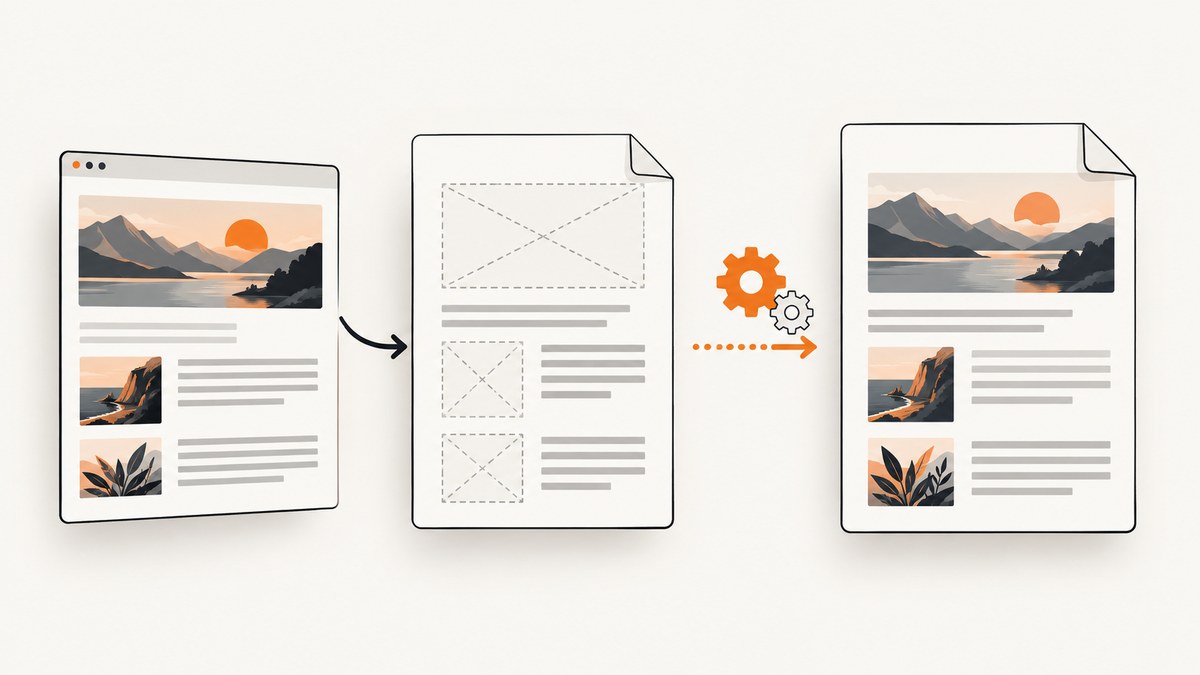
Direct answer: first confirm which “PDFKit” you use. JavaScript PDFKit inserts a JPEG or PNG that you provide; Ruby PDFKit and Python pdfkit usually call wkhtmltopdf to render a webpage. Missing images in the webpage workflow usually come from an unresolvable relative URL, a request that the converter cannot reach, JavaScript or lazy loading that has not finished, local-file restrictions, or a single-worker server deadlock. Check the exact image URL and converter log before changing settings.
This guide gives a diagnostic order that works for Ruby PDFKit, Python pdfkit, and direct wkhtmltopdf commands. It also explains when a browser renderer is the better fit and shows a managed alternative at the end.
1. Identify the PDFKit implementation
The name is ambiguous, and the fix depends on the input path.
| Implementation | What it does | Image failure to investigate |
|---|---|---|
| JavaScript PDFKit | Generates a PDF document in Node.js and places image data supplied by your code. | Wrong path, unreadable buffer, unsupported format, or invalid base64 data. |
| Ruby PDFKit | Wraps wkhtmltopdf to convert a URL or HTML into a PDF. |
Relative URLs, resource reachability, JavaScript timing, local-file access, or server concurrency. |
Python pdfkit |
Commonly wraps the wkhtmltopdf executable. |
The same renderer and command-line settings as Ruby PDFKit. |
Check your dependency file and import statement. In Node, require('pdfkit') or import PDFDocument from 'pdfkit' indicates document generation. In Ruby, require 'pdfkit' generally indicates the wkhtmltopdf wrapper. In Python, import pdfkit is the wrapper. Print the executable path and version so you know which binary receives your options.
JavaScript PDFKit: supply the image yourself
JavaScript PDFKit does not crawl an arbitrary webpage. Download the image first, then pass a filesystem path, a buffer, or a supported data URI. Its documented image support includes JPEG and PNG. A minimal runnable example is:
const PDFDocument = require('pdfkit');
const fs = require('fs');

const doc = new PDFDocument();
doc.pipe(fs.createWriteStream('output.pdf'));
doc.image('./assets/diagram.png', 50, 50, { width: 500 });
doc.end();
If the image is remote, fetch it before calling doc.image(), verify the response status and content type, and pass the resulting buffer. A webpage’s <img src> attributes are not automatically resolved by this library. See the PDFKit image documentation for the accepted input forms.
2. Reproduce the missing image with one tiny page
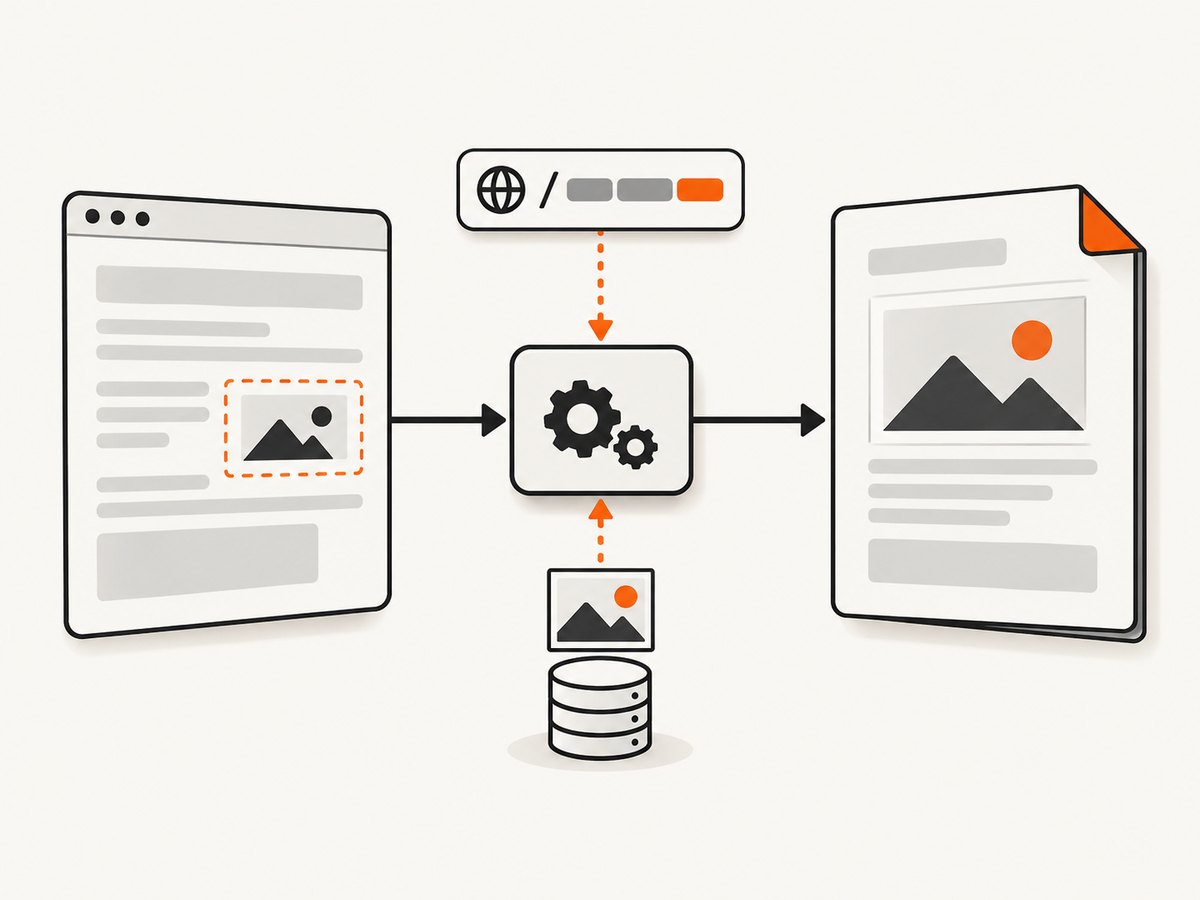
Reduce the problem to one HTML file and one image. This separates URL resolution from layout, fonts, JavaScript, and unrelated page errors.
<!doctype html>
<html>
  <body>
    <h1>Image check</h1>
    <img src="https://cdn.example.com/assets/test.png" alt="test">
  </body>
</html>
Open the exact image URL from the same machine, container, or worker that runs wkhtmltopdf. Check the HTTP status, redirects, TLS certificate, authentication requirements, and Content-Type. A browser on your laptop reaching the URL does not prove that the converter’s runtime can reach it.
For raw HTML, make the resource path unambiguous. Prefer an absolute HTTPS URL. If you must use a relative path, give the renderer a base URL. Ruby PDFKit documents root_url and protocol controls for this purpose; consult the PDFKit documentation for the wrapper version you installed.
Common path mistakes
src="images/logo.png"is resolved relative to the document URL, which may be a temporary file or an unexpected directory.src="/images/logo.png"needs a host. From a local file, it can resolve to no useful origin.src="//cdn.example.com/logo.png"needs a protocol. Addhttps:when the input is not loaded from an HTTPS page.- CSS
background-imageURLs are resolved relative to the stylesheet, not the HTML file. - Generated markup may contain a different URL from the template you inspected. Save and inspect the final HTML.
3. Read wkhtmltopdf warnings instead of trusting the PDF exit code
A PDF file can be created even when individual image requests failed. Capture standard error and preserve it with the build artifact.
wkhtmltopdf --log-level info https://example.com page.pdf 2>wkhtmltopdf.log
cat wkhtmltopdf.log
The official wkhtmltopdf settings expose image loading through web.loadImages. They also expose load.loadErrorHandling, which controls whether a failed object aborts, skips, or is ignored. For diagnosis, use a mode that leaves a visible warning and inspect the log; do not assume “command succeeded” means every asset loaded.
4. Fix images that arrive after page load
Many pages add image URLs with JavaScript, replace placeholders after an API call, or lazy-load images only when they enter the viewport. wkhtmltopdf provides web.enableJavascript and load.jsdelay. The delay is measured after the page load event and can end earlier when page JavaScript calls window.print().

wkhtmltopdf \
  --enable-javascript \
  --javascript-delay 3000 \
  https://example.com page.pdf
In Python:
import pdfkit

options = {
    "enable-javascript": "",
    "javascript-delay": 3000,
    "load-error-handling": "ignore",
}
pdfkit.from_url("https://example.com", "page.pdf", options=options)
In Ruby:
require "pdfkit"

kit = PDFKit.new(
  "https://example.com",
  enable_javascript: true,
  javascript_delay: 3000,
  load_error_handling: "ignore"
)
File.binwrite("page.pdf", kit.to_pdf)
Increase the delay as a diagnostic experiment, not as a permanent cure. A longer wait cannot repair an invalid URL, a blocked request, or a page that never finishes its image request. If the page uses lazy loading, make the image visible in the DOM, replace lazy attributes with real URLs in a print-specific template, or run a script that scrolls through the page before capture. Validate the result at the smallest delay that consistently works.
5. Check server reachability and concurrency
A particularly confusing failure occurs with a single-thread development server. The request that renders the page occupies the only worker. While rendering, wkhtmltopdf requests the page’s images, CSS, or JavaScript from that same server, but no worker is available to answer. The result looks like missing assets or a timeout.
- Run the converter against a production-like server with multiple workers.
- Try the same URL from a separate process to confirm that assets respond while the page is being rendered.
- For a static document, embed small images as data URIs or serve them from a separate asset host.
- Check reverse-proxy limits, authentication middleware, and host allowlists.
This deadlock is documented in the Ruby PDFKit troubleshooting guidance. It is a server architecture problem, so changing PNG or JPEG settings will not solve it.
6. Handle local files deliberately
When HTML references file:/// images, the installed wkhtmltopdf binary may block those reads. The setting is named load.blockLocalFileAccess. Review the options supported by your exact binary and enable only the directory access required by trusted input.
wkhtmltopdf \
  --enable-local-file-access \
  /srv/render/page.html page.pdf
Use absolute filesystem paths in the HTML, verify Unix permissions for the user running the converter, and ensure the image exists inside the container or worker. Do not broadly expose arbitrary host paths to untrusted HTML.
7. Test authentication, certificates, and protected assets
The available evidence does not identify one universal fix for authenticated resources, content-security policy, hotlink protection, or TLS failures. Confirm each one from the converter runtime:
- Use
curl -Iwith the same URL and required headers. - Check whether the image redirects to a login page or an expiring URL.
- Compare the response’s
Content-Typewith the file extension. - Inspect the certificate chain inside the container.
- Look for
403,401,404, and mixed-content warnings in the converter log.
If the image requires cookies or an Authorization header, configure the wrapper’s header and cookie options or generate a short-lived, accessible asset URL. Avoid turning off certificate verification globally; fix the trust store or endpoint instead.
8. Decide whether wkhtmltopdf is the right renderer
wkhtmltopdf renders with Qt WebKit. The project advises considering a browser automation renderer such as Puppeteer for sites that depend heavily on dynamic JavaScript. This is a renderer change, not a guaranteed layout-preserving upgrade.
| Keep PDFKit/wkhtmltopdf when… | Consider a browser renderer when… |
|---|---|
| The HTML is mostly static and assets have stable absolute URLs. | Images are inserted after several API calls or by modern client-side frameworks. |
| You need the existing print CSS and predictable legacy output. | The page needs browser APIs, complex lazy loading, or scrolling before capture. |
| Your deployment can provide concurrent asset requests. | You need authenticated sessions, custom headers, or scripted interactions. |
Before migrating, record representative pages, expected page breaks, fonts, image dimensions, and print CSS. Compare output after every change because different renderers can produce different pagination and spacing.
9. A complete diagnostic checklist
- Identify JavaScript PDFKit versus Ruby/Python PDFKit.
- Save the final HTML and inspect the exact
srcor CSS URL. - Request that URL from the same host, container, and user as the converter.
- Capture stderr and check image-loading and load-error warnings.
- Confirm JavaScript is enabled and test a measured delay.
- Check lazy-loading behavior and whether the image enters the viewport.
- Test the page with a multi-worker server to rule out deadlock.
- Review local-file access, permissions, redirects, cookies, headers, and TLS.
- Only then change the renderer or rewrite the page for print.
10. Performance, reliability, and cost considerations
Every extra JavaScript delay increases wall-clock time for every capture, so use a readiness condition or print-specific HTML where possible. A single large page can also consume more memory when full-page images are decoded. Keep source images at a sensible resolution, remove unnecessary third-party requests, and cache stable assets at your edge.
For reliability, make captures repeatable: pin the converter version, log the command and options, preserve stderr, use deterministic test pages, and retry only transient network failures. Do not hide all load errors permanently; an “ignore” policy can produce a PDF that looks complete while silently omitting important images.
Self-hosting costs include worker CPU, memory, storage, browser or converter maintenance, and engineering time for authentication and retries. A managed screenshot service trades that infrastructure work for per-capture pricing. Compare the cost of successful captures, failed jobs, cache behavior, and the time needed to maintain your renderer.
11. Or skip the browser setup
ScreenshotNeo provides a website screenshot API and MCP server. It can capture a clean PNG, JPEG, WebP, or PDF with one request. The API removes cookie and consent banners, newsletter popups, and chat widgets before capture. Bot checks, blank pages, timeouts, failed loads, and cache hits are not billed, and the response identifies the result with X-Page-Verdict and X-Billed headers.
For a one-call capture, see the ScreenshotNeo API documentation:
curl -G "https://api.screenshotneo.com/v1/shot" -d access_key=YOUR_API_KEY --data-urlencode url=https://stripe.com -o shot.webpimport requests
r = requests.get("https://api.screenshotneo.com/v1/shot", params={"access_key": "YOUR_API_KEY", "url": "https://stripe.com"}, timeout=90)
open("shot.webp", "wb").write(r.content)const q = new URLSearchParams({ access_key: 'YOUR_API_KEY', url: 'https://stripe.com' });
const res = await fetch(`https://api.screenshotneo.com/v1/shot?${q}`);ScreenshotNeo supports full-page captures with lazy images loaded, CSS-selector element captures, dark mode, device presets and custom viewports, retina scale, PDF paper and margin settings, custom CSS and JavaScript, clicks, selector or network-idle waits, blocked resources, custom headers and cookies, timezone and geolocation, transparent backgrounds, resizing, caching with a chosen TTL, signed image links, asynchronous jobs with signed webhooks, bulk capture of up to 100 URLs per call, and a usage API. Its MCP server exposes take_screenshot, get_page_info, and capture_pdf for Claude, Cursor, and other MCP clients.
There is a free tier of 1,000 screenshots per month with no card. Paid plans start at $5 for 3,000 screenshots; yearly billing gives two months free. Create a free ScreenshotNeo account and start with the free monthly allowance.
12. Frequently asked questions
Why does the PDF open successfully when an image is missing?
PDF creation and individual resource success are separate. wkhtmltopdf can finish the document while skipping failed image requests. Read stderr and inspect the output against the source page.
Will converting PNGs to JPEG fix the problem?
Only if the renderer reports a format-decoding problem. Path resolution, blocked requests, JavaScript timing, and server deadlocks affect both formats.
How long should javascript-delay be?
There is no universal value. Start with a small delay, measure when the image appears, and replace timing with an explicit readiness signal or print template when possible.
Can JavaScript PDFKit capture a webpage directly?
No. It places image data supplied to your program. Use a browser or webpage renderer to load the page, then pass downloaded image buffers to PDFKit if you need a generated document.
What information is needed to diagnose a specific failure?
Provide the package and version, wkhtmltopdf version, URL or HTML input, command options, exact image URL, runtime environment, and converter warnings. Without those details, claiming one cause is guesswork.


