How to Fix Missing Images in Puppeteer PDF Exports
Images can vanish from Puppeteer PDFs even when the page looks complete. Diagnose loading, paths, lazy images, canvas timing, and print settings.
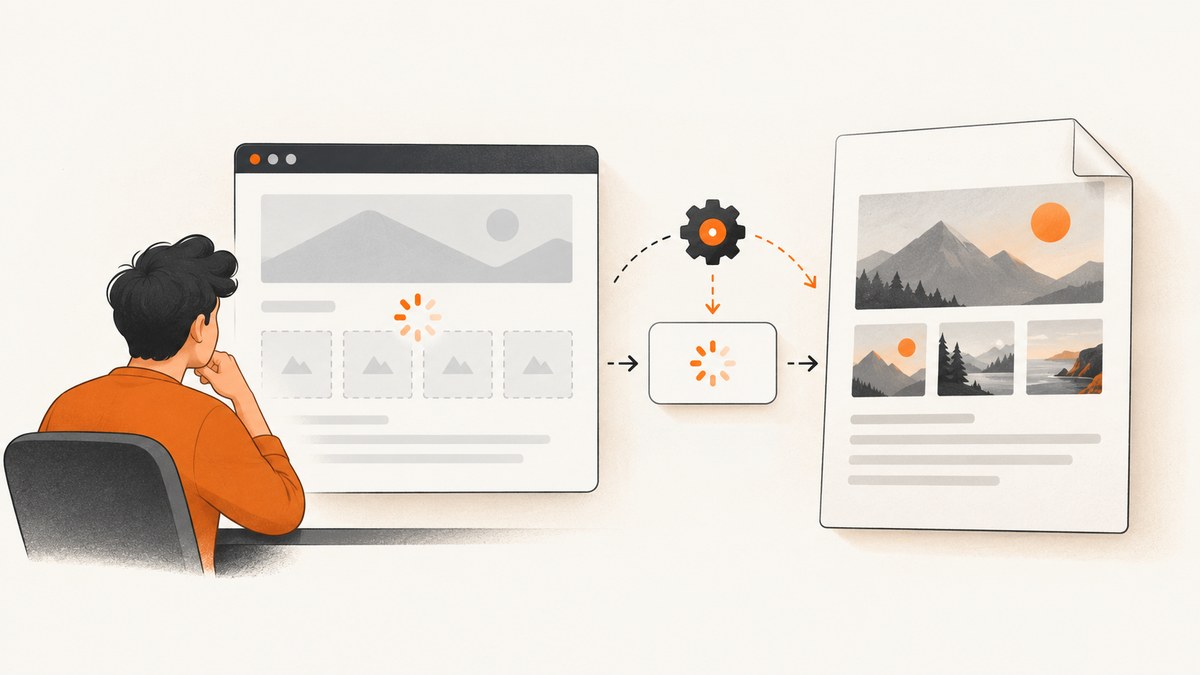
An image can be visible in a browser and still be absent from a Puppeteer PDF. The reliable fix is to wait for the image resources and application rendering to finish before calling page.pdf(), then verify that each image actually decoded. Waiting for an img element to exist or waiting for general network idleness alone is not enough.
Puppeteer’s PDF guide says that Page.pdf() waits for fonts by default. The waitForFonts option concerns document.fonts.ready; it does not guarantee that images, lazy-loaded content, canvas drawings, or CSS background images are ready. See the Puppeteer PDF generation guide and the PDFOptions reference.
1. Use a bounded image-readiness check before PDF generation
Start by checking the actual image URL and its decoded dimensions. An image is normally usable when complete is true and both naturalWidth and naturalHeight are greater than zero. A completed request can still represent a broken image, so record failures instead of treating every completed element as successful.
import puppeteer from 'puppeteer';

const browser = await puppeteer.launch();
const page = await browser.newPage();

page.on('console', message => {
  console.log(`[browser:${message.type()}] ${message.text()}`);
});
page.on('requestfailed', request => {
  console.error('Request failed:', request.url(), request.failure()?.errorText);
});

await page.goto('https://example.com/report', {
  waitUntil: 'networkidle2',
  timeout: 60_000,
});

const imageReport = await page.evaluate(async () => {
  const images = [...document.images];

  await Promise.all(images.map(image => {
    if (image.complete) return Promise.resolve();
    return new Promise(resolve => {
      image.addEventListener('load', resolve, { once: true });
      image.addEventListener('error', resolve, { once: true });
    });
  }));

  return images.map(image => ({
    src: image.currentSrc || image.src,
    complete: image.complete,
    loaded: image.naturalWidth > 0 && image.naturalHeight > 0,
    width: image.naturalWidth,
    height: image.naturalHeight,
  }));
});

const failedImages = imageReport.filter(image => !image.loaded);
if (failedImages.length) {
  console.error('Images that did not decode:', failedImages);
}

await page.pdf({
  path: 'output.pdf',
  format: 'A4',
  printBackground: true,
  waitForFonts: true,
});

await browser.close();
This check has a deliberate timeout boundary at the page-navigation level, but the per-image promises themselves can wait indefinitely if a page leaves an image request pending. For production jobs, add a separate deadline around the readiness evaluation and report the URLs that exceeded it. The important distinction is that an error or timeout is visible in your logs instead of silently producing an incomplete PDF.
2. Diagnose the image source before changing Puppeteer options
Remote images
Inspect currentSrc, not only the original src. Responsive images can select a different URL from srcset. A remote request may also be blocked by authentication, an expired signed URL, hotlink protection, a certificate problem, or a server response that is not an image. Use the browser’s requestfailed event and console output, and verify the response in the same Chromium environment that creates the PDF.
If an image requires a session, set cookies before navigation. If it requires an authorization header, add that header with page.setExtraHTTPHeaders() before loading the page. Do not assume that a URL working in your desktop browser is public to a fresh Puppeteer context.
Local files and page origin
Local images are especially sensitive to how the document is loaded. A historical issue used file:// image sources inside a data:text/html page: the remote image rendered while the local image did not. Another older report described disk images missing even after trying networkidle0. These reports are clues to reproduce, not proof of a universal Puppeteer limitation.
Prefer a correctly rooted page with resolvable paths. If you generate HTML yourself, serve it from a local HTTP origin or use an explicit resource strategy that your Chromium version supports. Log the final URL, page origin, and every failed request. Check that the process can read the file and that the path is not relative to a different working directory than you expect.
import path from 'node:path';
import { pathToFileURL } from 'node:url';

const htmlPath = path.resolve('build/report.html');
await page.goto(pathToFileURL(htmlPath).href, {
  waitUntil: 'load',
  timeout: 30_000,
});
For generated documents, an alternative is to embed small assets as data URLs or serve the assets from a local HTTP server. Choose the approach that matches your security and size requirements, then test it with the exact Chromium build used in production.
Data URLs and inline SVG
Data URLs avoid a second network request, but the encoded content still has to be valid and decodable. Check the MIME type, encoding, and resulting dimensions. Inline SVG can be affected by missing external resources, incorrect viewBox dimensions, or CSS that only exists in the application shell.
3. Lazy loading needs an explicit trigger
An img loading="lazy" element can exist in the DOM while its request has not started. Network idle does not force every off-screen image to load. A community report in the PuppeteerSharp project found that removing lazy loading fixed one PDF case; behavior can differ with Chromium versions and page layout.
Before the readiness check, trigger the page’s lazy-loading behavior. Scrolling through the document is a practical method for pages that use viewport-based loading:
await page.evaluate(async () => {
  await new Promise(resolve => {
    let y = 0;
    const step = 700;
    const timer = setInterval(() => {
      window.scrollBy(0, step);
      y += step;
      if (y >= document.body.scrollHeight) {
        clearInterval(timer);
        resolve();
      }
    }, 50);
  });
  window.scrollTo(0, 0);
});

await page.waitForFunction(() => {
  return [...document.images].every(image => image.complete);
}, { timeout: 30_000 });
Scrolling alone is not a guarantee. Some applications load images after an intersection observer callback, a route transition, or a custom promise. If the application exposes a readiness flag, wait for it directly:
await page.waitForFunction(() => window.reportReady === true, {
  timeout: 30_000,
});
4. Separate ordinary images from canvas and CSS backgrounds
Canvas content
The document.images check cannot see pixels drawn into a canvas. Wait for the application’s render-complete condition, such as a state flag or a known chart element, before printing. A 2023 report using Puppeteer 20.5.0 described flaky canvas imagery in a Google Docs PDF. The author reported that taking a screenshot and then generating a second PDF worked in that case, but this is a case-specific workaround rather than an established Puppeteer practice.
Build a minimal reproduction with your current Puppeteer and Chromium versions. Confirm whether the canvas is empty, whether it is resized during print, and whether fonts or images used by the drawing are ready. If the canvas is under your control, expose a promise that resolves after the final drawing operation and await it from Puppeteer.
CSS background images
A background graphic is not an img element, and it can disappear simply because print backgrounds are disabled. Puppeteer’s printBackground option defaults to false. Enable it when the missing visual is a CSS background:
await page.pdf({
  path: 'output.pdf',
  format: 'A4',
  printBackground: true,
});
This setting does not repair a failed <img> request. Inspect the computed style and the network log to determine which class of image you are dealing with.
5. Configure navigation and PDF options deliberately
| Option or signal | Use it for | Limit |
|---|---|---|
waitUntil: 'load' |
Waiting for the document load event | Does not prove images decoded or app rendering finished |
waitUntil: 'networkidle2' |
Reducing activity before your own checks | Requests can be lazy, cached, long-lived, or start later |
waitUntil: 'networkidle0' |
Pages expected to become completely quiet | Can hang on analytics, sockets, or polling; still not an image-decoding guarantee |
waitForFonts: true |
Waiting for document.fonts.ready |
Concerns fonts, not image readiness |
printBackground: true |
Printing CSS background colors and images | Does not fix failed resource loads |
format, width, height |
Choosing the PDF page geometry | Changing layout can move lazy images in or out of the viewport |
preferCSSPageSize |
Honoring CSS @page dimensions |
Can change pagination and trigger different responsive image variants |
pageRanges |
Exporting selected pages | Does not change whether source images loaded |
Set the media type when your page has different screen and print rules:
await page.emulateMediaType('screen');

await page.pdf({
  path: 'output.pdf',
  format: 'A4',
  margin: { top: '16mm', right: '16mm', bottom: '16mm', left: '16mm' },
  printBackground: true,
  preferCSSPageSize: true,
  waitForFonts: true,
});
Use a fixed viewport and device scale when responsive layout affects image selection. A different viewport can select a different srcset candidate or hide an image behind a mobile-only rule. Keep navigation, readiness, and PDF generation in one controlled job so that the page cannot change between the final check and printing.
6. A complete diagnostic workflow
- Capture versions. Record Puppeteer, Chromium, operating system, and the URL or HTML input.
- Log failures. Attach
requestfailed, console, and optionally response listeners. Look for 403, 404, certificate, DNS, and decoding errors. - Inspect image state. Return
currentSrc,complete, natural dimensions, and the bounding rectangle from page context. - Trigger deferred content. Scroll, open the relevant tab, click a “load more” control, or await the application’s own render promise.
- Wait with a deadline. Resolve both load and error events, and report zero-dimension images instead of silently continuing.
- Classify the visual. Decide whether it is an
img, CSS background, inline SVG, or canvas drawing. - Print with appropriate settings. Enable
printBackgroundfor backgrounds and keepwaitForFontsenabled when typography matters. - Compare artifacts. Save a screenshot immediately before
page.pdf(). If the screenshot is also missing the image, the problem is loading or rendering; if the screenshot is correct but the PDF is not, inspect print CSS, page geometry, and canvas behavior.
7. Common errors and fixes
| Symptom | Likely cause | Fix |
|---|---|---|
| The element exists but the PDF is blank | Request failed, image has zero natural dimensions, or decoding is incomplete | Inspect currentSrc, dimensions, console, and requestfailed; wait for load or error and fail clearly |
| Remote images work but local images do not | Incorrect path or incompatible document origin | Resolve absolute paths, serve the document from a controlled origin, and verify file permissions |
| Only below-the-fold images are missing | Lazy loading never triggered | Scroll or invoke the application’s loading mechanism before checking images |
| CSS hero art is absent | Print backgrounds are disabled | Set printBackground: true and verify print CSS |
| Canvas charts are intermittent | Drawing happens after the image check or during print | Await an app-level render signal; reproduce with current versions |
Changing to networkidle0 changes nothing |
Network idle is not an image decode or application-ready signal | Keep navigation waiting, then add explicit resource and application checks |
| Images disappear only in print layout | @media print, page size, or responsive rules hide or replace them |
Use emulateMediaType, inspect computed styles, and compare screen and print screenshots |
| Navigation times out | Polling, analytics, or a slow resource keeps the page active | Use a bounded navigation timeout and an explicit readiness condition instead of waiting forever for idle |
8. Reliability, performance, and cost considerations
Readiness checks add work, but they prevent expensive retries and unusable documents. Keep the check targeted: inspect the images that must appear rather than waiting for every third-party tracking pixel. Use a per-job deadline and include failed URLs in structured logs. Cache stable assets at the application or HTTP layer where appropriate, but do not reuse a PDF just because a previous request reached network idle.
Full-page documents can be tall and memory intensive. Set a deliberate viewport, avoid unnecessary animations, and disable transitions in print CSS when they can leave an image midway through a fade. If you capture many documents, reuse a browser process carefully while isolating pages and contexts; a failed resource in one job should not be hidden by state left in another.
For intermittent failures, save the HTML, console log, request failures, image report, screenshot, and generated PDF for the same run. This gives you evidence about whether the defect happened before printing or during PDF pagination. Do not turn an anecdotal workaround into a production guarantee without reproducing it on your target Puppeteer and Chromium versions.
9. Or skip the browser setup
If you need a clean PDF or screenshot without maintaining Chromium launch code, ScreenshotNeo accepts one GET request and returns a PNG, JPEG, WebP, or PDF. It can load lazy images, wait for a selector, delay, or network idle, and supports custom CSS and JavaScript, headers, cookies, user agents, authorization, viewport and device presets, dark mode, full-page capture, and PDF paper, margin, landscape, and page-range settings. The ScreenshotNeo API documentation lists the request parameters.
curl -G "https://api.screenshotneo.com/v1/shot" \
  -d access_key=YOUR_API_KEY \
  --data-urlencode url=https://stripe.com \
  -d format=pdf \
  -o report.pdf
import requests
r = requests.get(
"https://api.screenshotneo.com/v1/shot",
params={
"access_key": "YOUR_API_KEY",
"url": "https://stripe.com",
"format": "pdf",
},
timeout=90,
)
r.raise_for_status()
open("report.pdf", "wb").write(r.content)const q = new URLSearchParams({
access_key: 'YOUR_API_KEY',
url: 'https://stripe.com',
format: 'pdf',
});
const res = await fetch(`https://api.screenshotneo.com/v1/shot?${q}`);
if (!res.ok) throw new Error(`ScreenshotNeo HTTP ${res.status}`);
const body = Buffer.from(await res.arrayBuffer());
await import('node:fs/promises').then(fs => fs.writeFile('report.pdf', body));ScreenshotNeo removes cookie and consent banners, newsletter popups, and chat widgets before capture. Bot checks, blank pages, timeouts, failed loads, and cache hits are not billed, and the response identifies the result with X-Page-Verdict and X-Billed headers. Its MCP server provides take_screenshot, get_page_info, and capture_pdf tools for Claude, Cursor, and other MCP clients. The free plan includes 1,000 screenshots per month with no card; paid plans start at $5 for 3,000.
Create a free ScreenshotNeo account and start with 1,000 screenshots a month at no cost.
10. FAQ
Does networkidle2 guarantee that every image is ready?
No. It only describes observed network activity. Images may be lazy, cached, blocked, decoded later, or drawn into a canvas. Add an explicit readiness check.
Why does waitForFonts not solve missing images?
It waits for document.fonts.ready. Fonts and images have separate loading and decoding lifecycles.
Should I always remove loading="lazy"?
No. Trigger the intended lazy-loading behavior first. Remove or override it only when that matches your document-generation requirements and you have verified the result.
Is taking a screenshot before the PDF a supported fix?
It was reported as a workaround for one canvas case. Treat it as a diagnostic clue and verify it against your current versions rather than relying on it universally.
What should I log when an image disappears?
Log the final URL, page origin, currentSrc, natural dimensions, request failures, browser console errors, Puppeteer and Chromium versions, viewport, and PDF options. That separates path, access, timing, and print-layout problems.


