How to Fix Missing Images in Puppeteer Screenshots
Make Puppeteer screenshots include every intended image by triggering lazy loads, checking image success, waiting for decode, and diagnosing failed requests.
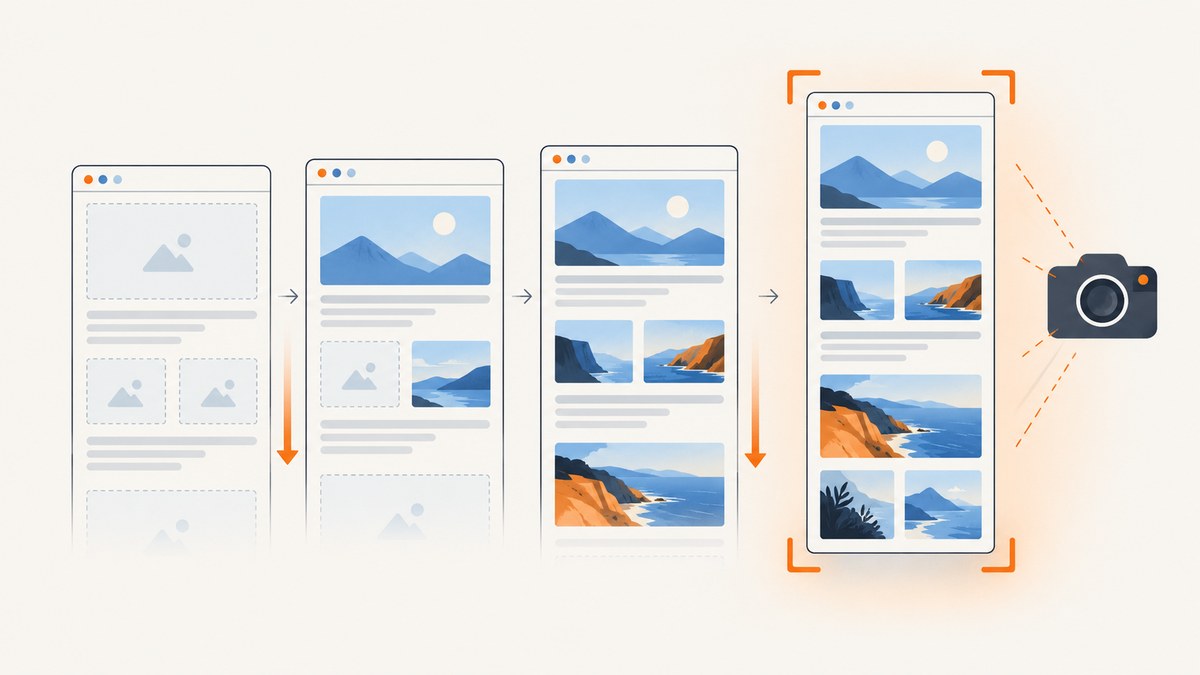
Missing images in a Puppeteer screenshot usually have one of four causes: navigation finished before image requests did, lazy-loaded images were never triggered, an image request failed, or the image was fetched but had not finished decoding. The reliable fix is to treat image readiness as a separate condition from page navigation.
Use page.goto() with a sensible navigation wait, trigger lazy loading by scrolling, verify each relevant <img> has a successful source, await img.decode(), and only then call page.screenshot(). The complete example below does that for a full-page capture.
1. A complete Puppeteer solution
This Node.js script launches Chromium, opens a page, scrolls through the document to activate lazy loading, waits for image requests to complete, waits for decoding, reports failures, and saves a full-page PNG.
import puppeteer from 'puppeteer';

const url = 'https://example.com/page';
const browser = await puppeteer.launch({
  headless: true,
  // executablePath: '/path/to/chrome' // Set this only when needed
});

try {
  const page = await browser.newPage();
  await page.setViewport({ width: 1440, height: 900, deviceScaleFactor: 1 });

  await page.goto(url, {
    waitUntil: 'networkidle2',
    timeout: 60_000
  });

  // Trigger loading=\"lazy\" images and image-backed components lower on the page.
  await page.evaluate(async () => {
    await new Promise(resolve => {
      let lastHeight = 0;
      const step = Math.max(window.innerHeight * 0.8, 400);
      const timer = setInterval(() => {
        window.scrollBy(0, step);
        const height = document.documentElement.scrollHeight;
        if (window.scrollY + window.innerHeight >= height || height === lastHeight) {
          clearInterval(timer);
          window.scrollTo(0, 0);
          resolve();
        }
        lastHeight = height;
      }, 150);
    });
  });

  // Wait until every image with a source has completed its request.
  await page.waitForFunction(() => {
    const images = [...document.images].filter(img => img.currentSrc || img.src);
    return images.length > 0 && images.every(img => img.complete);
  }, { timeout: 30_000 });

  // Decode each image and retain useful diagnostics.
  const imageResults = await page.evaluate(async () => {
    const images = [...document.images].filter(img => img.currentSrc || img.src);
    return Promise.all(images.map(async img => {
      const src = img.currentSrc || img.src;
      try {
        await img.decode();
        return { src, ok: img.naturalWidth > 0, naturalWidth: img.naturalWidth };
      } catch (error) {
        return { src, ok: false, error: String(error), naturalWidth: img.naturalWidth };
      }
    }));
  });

  const failedImages = imageResults.filter(result => !result.ok);
  if (failedImages.length) {
    console.error('Images that did not load or decode:', failedImages);
  }

  await page.screenshot({
    path: 'page.png',
    fullPage: true,
    type: 'png'
  });
} finally {
  await browser.close();
}
Puppeteer’s screenshot guide demonstrates navigation with waitUntil: 'networkidle2' before calling page.screenshot(). That condition is useful, but it does not prove that every desired image was requested, loaded successfully, or decoded. See the official screenshot guide and the Page API.
2. Why network idle is not enough
networkidle2 means that Puppeteer observed no more than two active network connections for the required idle period during navigation. It is a navigation condition, not an image-quality assertion. A page can be network-idle while an image is still represented by a placeholder, while a lazy image has never entered the viewport, or while a request completed with a broken response.

Single-page applications can also continue rendering after navigation. A framework may insert <img> elements after the initial document is quiet. In that case, wait for a page-specific signal such as a gallery count, a known selector, or successful image state with page.waitForFunction(). Avoid treating a fixed sleep as proof that the page is ready.
3. Trigger lazy-loaded images
Browsers defer images marked loading="lazy" until they are close to the viewport. The same visible behavior can be implemented by an image component, an intersection observer, or application code that swaps a placeholder for a real URL. A full-page screenshot does not automatically guarantee that every lower-page image was ever near the viewport.
Scrolling in steps is a practical way to activate those loaders:
await page.evaluate(async () => {
  const pause = ms => new Promise(resolve => setTimeout(resolve, ms));
  const step = Math.max(window.innerHeight * 0.75, 300);

  for (let y = 0; y < document.documentElement.scrollHeight; y += step) {
    window.scrollTo(0, y);
    await pause(200);
  }

  // Give observers one final opportunity to run, then restore the top.
  await pause(300);
  window.scrollTo(0, 0);
});
Recheck the document height while scrolling. Infinite-scroll pages can add content, so one pass may not be enough. Set a maximum number of iterations for unbounded feeds, or wait for the application’s own “loaded” condition. A historical Puppeteer issue discussed lazy images in a full-page capture; it concerns an old Puppeteer version and should be treated as context rather than evidence of a current universal defect. Current behavior depends on the page and browser version.
4. Check image success, not just completion
The HTMLImageElement.complete property can be true when loading succeeded, when loading failed, or when the element has no usable source. Therefore this check is unsafe:
await page.waitForFunction(() => [...document.images].every(img => img.complete));For a basic success test, combine completion with naturalWidth > 0:
await page.waitForFunction(() => {
  const images = [...document.images].filter(img => img.currentSrc || img.src);
  return images.every(img => img.complete && img.naturalWidth > 0);
}, { timeout: 30_000 });
MDN documents that naturalWidth is zero when intrinsic image dimensions are unavailable. This test covers ordinary HTML image elements; it does not automatically validate CSS backgrounds, canvas drawing, images in inaccessible cross-origin frames, or custom placeholders.
5. Wait for decoding
An image can have a successful response and still be waiting for decoded image data. img.decode() returns a promise that resolves when the image is ready for use and rejects when fetching or decoding fails, or when the source changes. Catch the rejection so you can identify the URL:
const results = await page.evaluate(async () => {
  return Promise.all([...document.images].map(async img => {
    const src = img.currentSrc || img.src;
    if (!src) return { src, ok: false, error: 'empty source' };

    try {
      await img.decode();
      return { src, ok: img.naturalWidth > 0 };
    } catch (error) {
      return { src, ok: false, error: String(error) };
    }
  }));
});
Use the result as a diagnostic rather than silently replacing broken images. Depending on your application, you may fail the job, log the URL and continue, or render a deliberate placeholder.
6. Responsive images and the URL that really loaded
When a page uses srcset and sizes, the browser chooses a candidate based on viewport width, device scale factor, and declared sizes. The selected URL may differ from the src attribute. Inspect currentSrc:
const sources = await page.evaluate(() => [...document.images].map(img => ({
  src: img.src,
  currentSrc: img.currentSrc,
  srcset: img.srcset,
  sizes: img.sizes,
  complete: img.complete,
  naturalWidth: img.naturalWidth,
  naturalHeight: img.naturalHeight
})));
console.table(sources);
If the chosen candidate is unexpectedly small or unavailable, compare the viewport and deviceScaleFactor with the conditions under which the page was designed. A screenshot can be correct while still selecting a different responsive asset than your manual browser session.
7. Diagnose requests, responses, and console errors
When DOM checks do not explain the missing image, inspect the actual request. Log failed requests and image responses:
page.on('requestfailed', request => {
  if (request.resourceType() === 'image') {
    console.error('Image request failed:', request.url(), request.failure());
  }
});

page.on('response', async response => {
  const request = response.request();
  if (request.resourceType() === 'image' && !response.ok()) {
    console.error('Image response error:', response.status(), response.url());
  }
});

page.on('console', message => {
  if (message.type() === 'error') console.error('Page console:', message.text());
});
Common causes include a 404 or 500 response, an expired signed image URL, a blocked request, a certificate problem, a redirect to an HTML error page, or an image server that rejects the browser’s headers. The Puppeteer Page API includes waitForResponse() when you need to wait for a particular response:
await page.waitForResponse(
  response => response.url().includes('/hero.webp') && response.ok(),
  { timeout: 30_000 }
);
Use this for a known critical asset. For pages with many images, aggregate results and report every failing URL instead of waiting on one guessed path.
8. Viewport screenshots versus full-page screenshots
Puppeteer’s default screenshot captures the current viewport. A full-document capture requires fullPage: true:
await page.screenshot({ path: 'viewport.png' });
await page.screenshot({ path: 'document.png', fullPage: true });
If an image is below the viewport, it may be absent from the first file simply because that area was never captured. Conversely, a full-page image can still omit a lazy asset if scrolling never triggered its request. Confirm the intended capture scope before debugging loading.
9. CSS backgrounds, canvases, iframes, and placeholders
The document.images collection only contains HTML <img> elements. Check other rendering paths separately:
- CSS backgrounds: inspect computed styles for
background-imageURLs and wait for those resources through request logging. - Canvas: wait for the application’s drawing signal; canvas pixels are not represented by
HTMLImageElement. - Cross-origin iframes: use a frame-specific wait when permitted. A parent page cannot inspect a cross-origin document’s DOM.
- Placeholder components: wait for the real source or a class/data attribute that means the component has finished.
- Animated images: decide whether a particular animation frame is required. Decoding confirms usability, not visual stability.
10. A reusable readiness helper
Keeping the checks in a helper makes screenshot jobs consistent:
async function waitForImages(page, { timeout = 30_000 } = {}) {
  await page.waitForFunction(() => {
    const images = [...document.images].filter(img => img.currentSrc || img.src);
    return images.every(img => img.complete);
  }, { timeout });

  return page.evaluate(async () => {
    const images = [...document.images].filter(img => img.currentSrc || img.src);
    const results = await Promise.all(images.map(async img => {
      const src = img.currentSrc || img.src;
      try {
        await img.decode();
        return { src, ok: img.naturalWidth > 0 };
      } catch (error) {
        return { src, ok: false, error: String(error) };
      }
    }));
    return {
      results,
      failed: results.filter(result => !result.ok)
    };
  });
}

const report = await waitForImages(page);
if (report.failed.length) {
  throw new Error(`Image readiness failed for ${report.failed.length} image(s)`);
}
await page.screenshot({ path: 'ready.png', fullPage: true });
11. Performance and reliability considerations
- Do not scroll forever: cap scrolling iterations on infinite feeds and record the final document height.
- Prefer page signals: a gallery-ready selector or known image count is faster and more reliable than a long arbitrary delay.
- Use a realistic timeout: slow image CDNs need more than a local development page, but an unbounded timeout hides failures.
- Control the viewport: it affects responsive candidates and which lazy images approach the viewport.
- Reuse browsers carefully: reusing a Chromium process improves throughput, while a fresh page per job prevents state leaking between captures.
- Keep diagnostics: store failed URLs, status codes, final URL, console errors, and the readiness report with the job.
- Retry selectively: retry transient network failures, but do not repeatedly retry a deterministic 404 or a page that requires authentication you did not provide.
Large full-page screenshots also consume memory. Limit concurrency, choose JPEG or WebP when appropriate, and avoid loading unnecessary resources only after confirming that they are not part of the intended capture.
12. Troubleshooting checklist
| Symptom | Likely cause | Fix |
|---|---|---|
| Only images near the top appear | Lazy loading was never triggered | Scroll in steps, wait for observers, then recheck. |
complete is true but the image is blank |
The request failed or the source is empty | Require naturalWidth > 0 and inspect the URL. |
| Decode rejects | Fetch, format, or source-change failure | Log currentSrc, request failures, status, and console errors. |
| Wrong image resolution | srcset selected another candidate |
Inspect currentSrc; set the intended viewport and scale. |
| Full-page image is missing lower content | Viewport capture or unfinished dynamic page | Use fullPage: true and wait for an application-specific signal. |
| Image works manually but not in CI | Different headers, browser, fonts, network, or authentication | Compare request headers, user agent, final URL, and browser versions. |
| Screenshot times out | Never-ending requests or an overly strict condition | Set bounded timeouts, identify the stuck resource, and define the required image scope. |
13. Or skip the browser setup
If your goal is a dependable image or PDF rather than browser automation code, ScreenshotNeo provides a one-request screenshot API. Its capture flow accepts cookie and consent banners, removes more than 60 known consent platforms plus newsletter popups and chat widgets, and lets you turn each cleanup step off. Clean shots are billed; bot checks and CAPTCHAs, blank pages, timeouts, failed loads, and cache hits cost nothing, with the result identified by X-Page-Verdict and X-Billed headers.

See the ScreenshotNeo API documentation for all options, including full-page capture with lazy images loaded, element selectors, custom CSS and JavaScript, waits, blocked resource types, headers, cookies, user agents, timezone, geolocation, caching, signed links, asynchronous jobs, bulk capture, PDFs, and usage reporting.
cURL
curl -G "https://api.screenshotneo.com/v1/shot" \
  -d access_key=YOUR_API_KEY \
  --data-urlencode url=https://stripe.com \
  -o shot.webp
Python
import requests

r = requests.get(
    "https://api.screenshotneo.com/v1/shot",
    params={"access_key": "YOUR_API_KEY", "url": "https://stripe.com"},
    timeout=90,
)
r.raise_for_status()
open("shot.webp", "wb").write(r.content)
Node.js
const q = new URLSearchParams({
  access_key: 'YOUR_API_KEY',
  url: 'https://stripe.com'
});
const res = await fetch(`https://api.screenshotneo.com/v1/shot?${q}`);
if (!res.ok) throw new Error(`Screenshot failed: ${res.status}`);
const fs = await import('node:fs/promises');
await fs.writeFile('shot.webp', Buffer.from(await res.arrayBuffer()));
ScreenshotNeo also has an MCP server with take_screenshot, get_page_info, and capture_pdf tools, so Claude, Cursor, and other MCP clients can capture pages without you maintaining Chromium setup. The free plan includes 1,000 screenshots each month with no card; paid plans start at $5 for 3,000. Create a free ScreenshotNeo account.
14. FAQ
Should I always use networkidle2?
Use it as a navigation condition when it matches the page, then add image-specific and application-specific readiness checks. It is not a guarantee that every image is present.
Is img.complete enough?
No. A broken image can also be complete. Combine it with a nonzero naturalWidth and, when useful, decode().
Why does scrolling change the result?
Scrolling activates lazy loaders and intersection observers. It can also trigger infinite-scroll content, so recheck document height and bound the operation.
Does this detect CSS background images?
No. The examples inspect HTML image elements. Backgrounds, canvas, and cross-origin frames need separate, page-specific checks.
What should I log when one image is missing?
Log currentSrc, the request URL and status, request failure details, the final page URL, console errors, viewport settings, and whether the image decoded successfully.


