How to Fix Missing Pages When Converting R Markdown Slides from HTML to PDF
Find out whether missing slides are lost in R Markdown, Pandoc, or browser printing, then fix the route with practical checks and code.

Start by locating where the content disappears. Open the generated HTML deck before creating the PDF. If the slide is missing in HTML, inspect the R Markdown structure and slide boundaries. If it appears in HTML but not in print preview or the saved PDF, the problem is in browser printing, print CSS, pagination, or the conversion route.
Also confirm the output format. ioslides_presentation and slidy_presentation create HTML presentations, while beamer_presentation renders a PDF presentation through LaTeX. These are different pipelines, so a fix for one does not automatically fix the others.
1. Identify your R Markdown output and conversion route
Inspect the YAML header in the .Rmd file:
---
title: "My presentation"
output: ioslides_presentation
---
Common routes are:
| Route | Use it when | What to check |
|---|---|---|
| Print HTML from a browser | You need the HTML deck’s visual styles | HTML completeness, print preview, browser print CSS, custom CSS |
| Render with Beamer | You need a PDF slide deck generated directly from R Markdown | LaTeX installation, slide level, engine, retained .tex |
| Inspect slide structure | Slides or content are already absent in HTML | Heading levels, horizontal rules, and manual breaks |
The ioslides reference documents browser printing and says: “To create a PDF version of a presentation you can use Print to PDF from Google Chrome.” It also notes that browsers with good print-CSS support are preferable and names Chrome as having the best support at the time of writing.
2. Determine whether HTML or PDF printing loses the pages
- Render the
.Rmdfile. - Open the resulting HTML and move through every slide.
- Write down the first heading or content block that is absent.
- Open the browser’s print preview and compare its page count with the HTML deck.
- Save the PDF and compare it with the preview.
This gives you three useful cases:
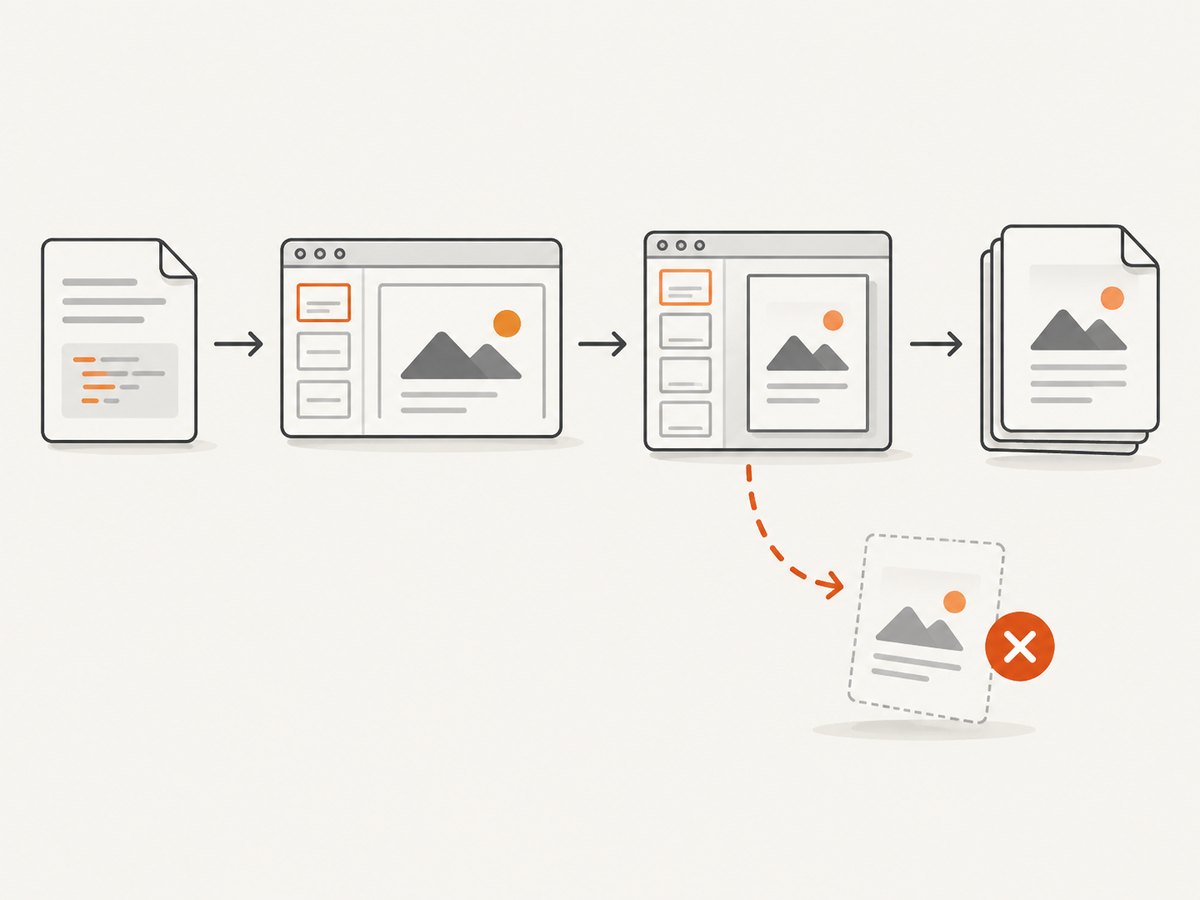
- Missing in HTML: investigate the source document, YAML, Pandoc slide level, and slide separators.
- Present in HTML but missing in print preview: investigate browser print behavior, print CSS, custom templates, and pagination.
- Present in preview but missing in the saved file: retry with a current browser, check the output path and PDF viewer, and compare the file page count with another viewer.
This separation is a diagnostic inference from the independent HTML and browser-print workflows; it does not identify the cause of a particular document without the source and generated files.
3. Check headings, horizontal rules, and manual slide breaks
Pandoc uses a selected slide level to decide which headings begin slides. It also treats horizontal rules as slide starts. A heading at the wrong level can therefore combine intended slides or turn a slide into a section or segue.
Review the headings around the first missing item:
# Opening slide

## First topic
Content for the first topic.

## Second topic
Content for the second topic.
If your format expects level-two headings but your content uses level-three headings, either change the headings or set the format’s slide level explicitly. Keep the hierarchy consistent throughout the document.
The R Markdown lesson documents three asterisks as a manual slide break:
Content that ends one slide.

***

Content that starts the next slide.
Also inspect horizontal rules created by Markdown or included through templates. A rule may create an unexpected boundary, while missing or moved separators may merge content into a preceding slide.
4. Print an HTML presentation with Chrome
For ioslides, use the browser’s print-to-PDF flow:
- Open the generated HTML file in Google Chrome.
- Advance through the deck once so dynamically loaded content has a chance to render.
- Choose Print, select Save to PDF, and inspect the preview before saving.
- Check the page count and the first page after the last known-good slide.
- Save the PDF and reopen it in a second viewer if pages appear missing.
In print preview, temporarily disable custom print CSS or template changes and compare the result. The ioslides documentation describes CSS and template customization, but it does not guarantee that every custom rule will paginate correctly in every browser version.
For repeatable command-line printing, the R Markdown book also describes pagedown::chrome_print() as a Chrome-based way to print an R Markdown or HTML file:
install.packages("pagedown")
library(pagedown)
chrome_print("presentation.html", output = "presentation.pdf")
Use the same diagnostic comparison: inspect the HTML, then the generated PDF, and record the first missing slide.
5. Render a PDF presentation directly with Beamer
If the required artifact is a PDF slide deck rather than a printed copy of an HTML deck, use beamer_presentation:
---
title: "My presentation"
author: "Author"
output:
  beamer_presentation:
    slide_level: 2
    keep_tex: true
    latex_engine: pdflatex
---

# Opening slide

## First topic
Content for the first topic.
slide_level controls which heading level starts slides. keep_tex: true retains the intermediate LaTeX file for inspection. The documented engines include pdflatex, xelatex, and lualatex; choose one installed on your system.
Use Beamer when you want a direct PDF presentation route. Expect visual differences from ioslides because the rendering engine, fonts, layout rules, and pagination are different.
6. A minimal reproducible diagnostic file
Create a small file that exercises headings and a manual break:
---
title: "Slide boundary test"
output: ioslides_presentation
---

# Slide one

Visible content.

## Slide two

Second slide content.

***

# Slide three

Third slide content.
Render it and print it. If all slides survive, compare its YAML, heading levels, CSS, and embedded resources with the failing presentation. If the minimal file also fails, focus on the browser, R Markdown/Pandoc versions, and the print route.
7. Troubleshooting common missing-page causes
| Symptom | Likely cause | Fix |
|---|---|---|
| A whole slide is absent in HTML | Heading is below the configured slide level or content was folded into another section | Check heading levels and set slide_level where supported. |
| Content appears in the source but not HTML | R Markdown render error, conditional code, or an earlier chunk failure | Render with visible errors, inspect the render log, and isolate the first failing chunk. |
| HTML shows the slide but print preview does not | Browser print CSS, custom CSS, or pagination behavior | Compare preview with custom CSS disabled; try Chrome and inspect preview before saving. |
| Only slides with large images or widgets vanish | Resources have not finished loading before printing | Wait for the deck to settle, reload, then print; use a controlled Chrome print step. |
| Several slides collapse into one page | Unexpected heading hierarchy or missing slide separators | Normalize headings and add a documented manual break such as ***. |
| Beamer fails before producing a PDF | Missing LaTeX distribution or unavailable selected engine | Install the required LaTeX toolchain or select an installed engine; keep the .tex file for inspection. |
| Page count differs between viewers | Viewer rendering or an incomplete saved file | Compare file size, reopen in another viewer, and regenerate from print preview. |
| Custom template changes remove content | Template or print-specific CSS changes layout or visibility | Reproduce with the default template, then reintroduce custom rules one at a time. |
8. Reliability and performance checks
- Use a fixed browser version in automated jobs so print CSS behavior does not change unexpectedly.
- Wait for network-loaded images, fonts, widgets, and charts before printing.
- Keep a minimal test deck in version control to detect changes in R Markdown, Pandoc, browser, or LaTeX behavior.
- Record the output format, slide level, browser and version, print command, custom CSS, and the first missing slide when reporting a failure.
- For large decks, reduce oversized images and unnecessary client-side widgets; this lowers load time and makes print timing more predictable.
- Render once, inspect the HTML, inspect print preview, then inspect the final PDF. Comparing only the final file hides where the loss occurred.
9. What to collect for a case-specific diagnosis
When the general checks do not identify the cause, collect:

- the
outputYAML and relevant options; - R Markdown, Pandoc, browser, and LaTeX versions;
- the source
.Rmd, generated HTML, and PDF; - the browser and print-to-PDF method;
- custom CSS, templates, JavaScript, and external resources;
- the first slide or page that disappears.
Without those files and details, it is not possible to establish whether the failure is in slide generation, browser pagination, or PDF creation.
Or skip the browser setup
If your goal is to capture the rendered HTML deck or a page from it, ScreenshotNeo provides a single website screenshot API request. Its capture pipeline accepts consent banners before the shot and removes more than 60 known consent platforms, newsletter popups, and chat widgets; each step can be turned off. Bot checks, blank pages, timeouts, failed loads, and cache hits are not billed, and the response identifies the result with X-Page-Verdict and X-Billed headers.
See the ScreenshotNeo API documentation for all options. A direct cURL request is:
curl -G "https://api.screenshotneo.com/v1/shot" \
  -d access_key=YOUR_API_KEY \
  --data-urlencode url=https://example.com/presentation.html \
  -o shot.webp
Python:
import requests

r = requests.get(
    "https://api.screenshotneo.com/v1/shot",
    params={"access_key": "YOUR_API_KEY", "url": "https://example.com/presentation.html"},
    timeout=90,
)
r.raise_for_status()
open("shot.webp", "wb").write(r.content)
Node.js:
const q = new URLSearchParams({
  access_key: 'YOUR_API_KEY',
  url: 'https://example.com/presentation.html'
});
const res = await fetch(`https://api.screenshotneo.com/v1/shot?${q}`);
if (!res.ok) throw new Error(`HTTP ${res.status}`);
const data = Buffer.from(await res.arrayBuffer());
require('fs').writeFileSync('shot.webp', data);
ScreenshotNeo also has an MCP server with take_screenshot, get_page_info, and capture_pdf tools for Claude, Cursor, and other MCP clients. It supports full-page capture, element selectors, custom CSS and JavaScript, waits for selectors or network idle, device and viewport settings, PDF options, headers and cookies, blocking rules, caching, signed links, asynchronous jobs, bulk capture, and a usage API.
The Free plan includes 1,000 screenshots per month with no card. Paid plans start at $5 for 3,000 shots. Create a free ScreenshotNeo account.
FAQ
Should I use ioslides or Beamer for a PDF?
Use ioslides plus browser printing when preserving the HTML deck’s visual style matters. Use Beamer when a direct LaTeX-generated PDF slide deck is the intended output.
Does changing the browser always fix missing pages?
No. If the slide is absent in HTML, browser changes cannot restore it. First determine whether the loss occurs before or during printing.
Why keep the intermediate .tex file?
With Beamer, keep_tex: true lets you inspect the generated LaTeX when the PDF stage fails or produces unexpected slide structure.
What is the fastest useful debugging detail?
The first missing slide, the output format, and whether that slide appears in the generated HTML usually narrow the problem quickly.


