How to Fix Missing Background Colors in Headless Chrome PDFs
Fix missing or altered colors in headless Chrome PDFs. Learn which Puppeteer option, print CSS rule, or Chrome CLI setting to use—and how to diagnose the result.
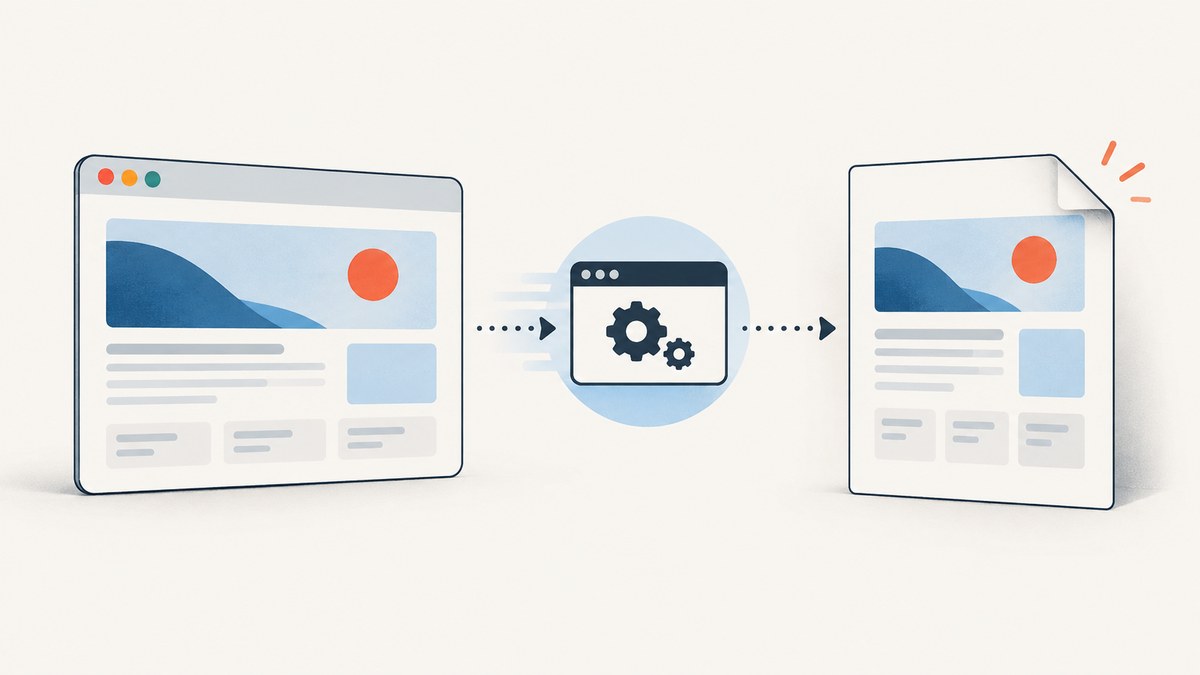
In Puppeteer, set printBackground: true in page.pdf() to include background graphics. Its documented default is false. If colors are still changed or suppressed by print rendering, add print-color-adjust: exact (and its Chromium-prefixed form) to the affected elements. These settings solve different problems: the PDF option includes backgrounds; the CSS property asks the browser to preserve authored print colors.
Puppeteer generates PDFs with the print CSS media type by default, so also inspect your @media print rules. The steps below cover Puppeteer, direct Chrome Headless capture, timing issues, common errors, and alternatives when you do not want to manage a browser process.
1. Why are background colors missing in my Puppeteer PDF?
There are three likely causes: Puppeteer is omitting background graphics, print styles differ from screen styles, or print color adjustment is changing authored colors. Check them in that order.
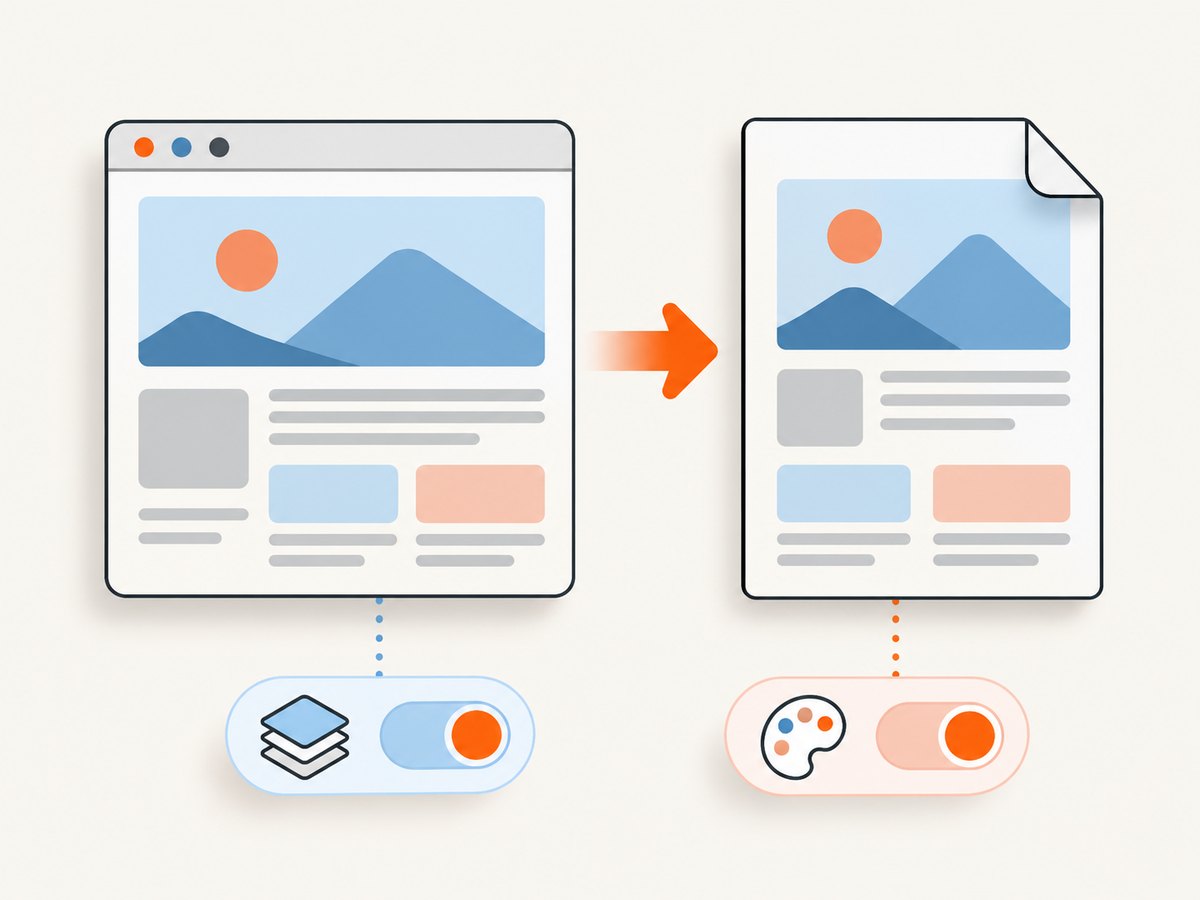
- Enable PDF backgrounds. Set
printBackground: truein the options passed topage.pdf(). This is the first fix when a CSS background is absent. [Puppeteer PDFOptions](https://pptr.dev/api/puppeteer.pdfoptions) - Inspect print-specific styles. Puppeteer uses print media for PDF generation. Rules inside
@media printcan override a screen background, hide an element, or set a different color. [Puppeteer Page.pdf()](https://pptr.dev/api/puppeteer.page.pdf) - Ask Chromium to preserve intentional colors. Apply
print-color-adjust: exactto the relevant elements. Puppeteer also documents the Chromium-compatible-webkit-print-color-adjustproperty for forcing exact colors in its PDF workflow. [Puppeteer Page.pdf()](https://pptr.dev/api/puppeteer.page.pdf) [MDN print-color-adjust](https://developer.mozilla.org/en-US/docs/Web/CSS/Reference/Properties/print-color-adjust)
Do not treat the CSS property as a replacement for printBackground. If both the inclusion and color treatment matter, use both controls.
2. The complete Puppeteer fix
Here is a runnable Node.js example. It opens a page, waits for the document to load, and saves a PDF with background graphics enabled. Install Puppeteer in your project first; its package normally manages a compatible browser for the Puppeteer version you install.
const puppeteer = require('puppeteer');

async function main() {
  const browser = await puppeteer.launch({ headless: true });
  try {
    const page = await browser.newPage();
    await page.goto('https://example.com', {
      waitUntil: 'networkidle0',
      timeout: 30000,
    });

    await page.pdf({
      path: 'output.pdf',
      format: 'A4',
      printBackground: true,
    });
  } finally {
    await browser.close();
  }
}

main().catch((error) => {
  console.error(error);
  process.exitCode = 1;
});
The key setting is printBackground: true. Puppeteer documents its default as false, so leaving it out can produce a PDF without CSS background graphics. The option is a boolean in Puppeteer’s PDFOptions. [Puppeteer PDFOptions](https://pptr.dev/api/puppeteer.pdfoptions)
For a page you control, add print color rules to the specific components whose fills or color imagery matter:
@media print {
  .colored-panel,
  .status-badge,
  .brand-mark {
    -webkit-print-color-adjust: exact;
    print-color-adjust: exact;
  }
}
Apply this narrowly to intentional color. The standard print-color-adjust: exact value tells the user agent that authored colors and images should not be altered for print optimization. It does not guarantee that a physical printer, a PDF viewer, or user print preferences will produce display-matched color. [MDN print-color-adjust](https://developer.mozilla.org/en-US/docs/Web/CSS/Reference/Properties/print-color-adjust)
Set the media type only when you mean it
If the PDF should reproduce screen styles rather than print styles, call page.emulateMediaType('screen') before generating it:
await page.emulateMediaType('screen');
await page.pdf({ path: 'screen-layout.pdf', printBackground: true });
This changes the media environment used for layout. It can also change pagination, line breaks, visibility, and page dimensions. It is not the general fix for missing backgrounds; use it only when screen media is actually the desired PDF design. [Puppeteer Page.pdf()](https://pptr.dev/api/puppeteer.page.pdf)
3. Check the print stylesheet
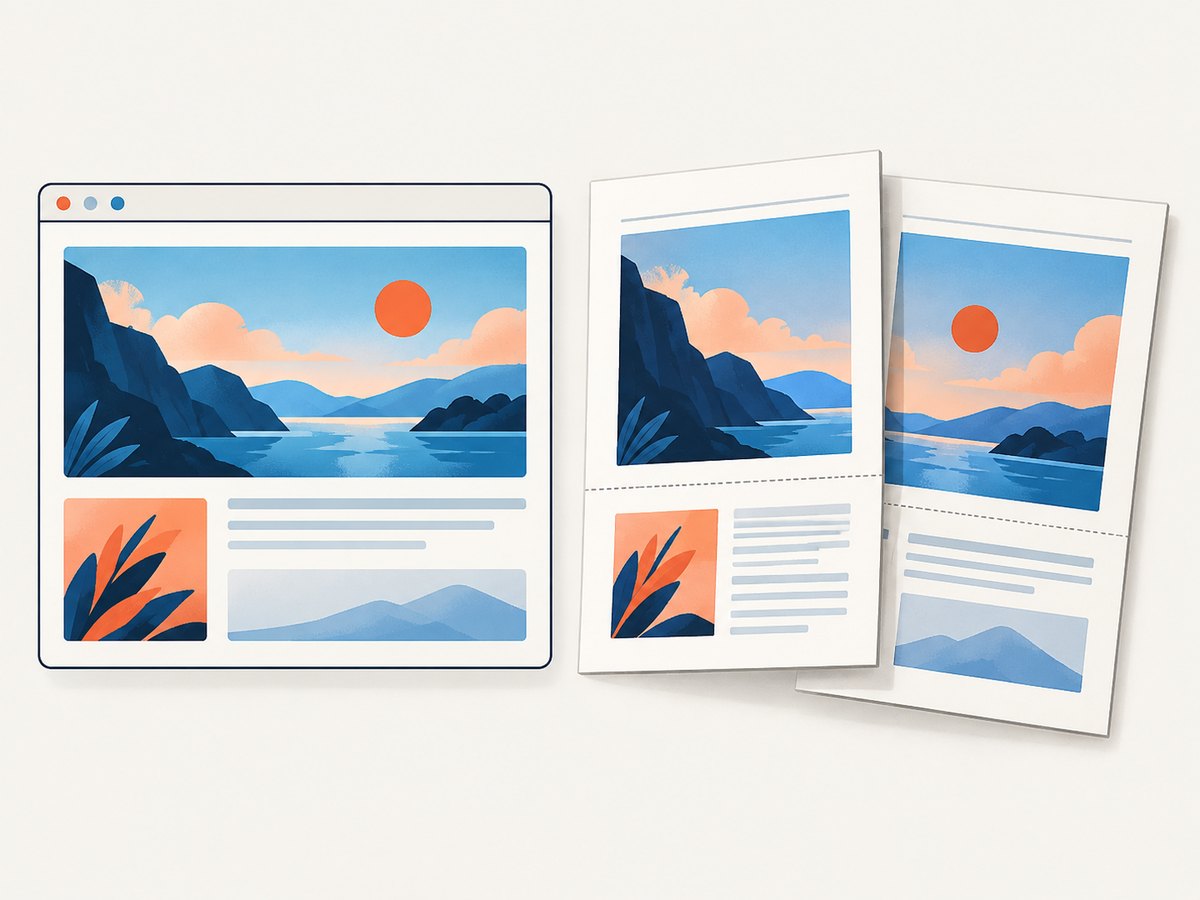
Because PDF generation uses print media by default, a page that looks correct in a browser tab can be different when rendered to PDF. Look for rules that remove colors for ink saving, change backgrounds, hide navigation or content, or alter dimensions.
@media print {
  .colored-panel {
    background: #e8f1ff;
    color: #12345a;
    -webkit-print-color-adjust: exact;
    print-color-adjust: exact;
  }
}
For a problem on a third-party site, you may not be able to edit its stylesheet. You can inject a targeted rule before capture if the page permits it:
await page.addStyleTag({
  content: `
    @media print {
      .colored-panel {
        -webkit-print-color-adjust: exact;
        print-color-adjust: exact;
      }
    }
  `,
});

await page.pdf({ path: 'output.pdf', printBackground: true });
Replace .colored-panel with a selector from the page. If the site changes its markup, that selector may stop matching. Avoid broadly forcing every element to exact color unless that is your intended print design.
4. Chrome Headless command-line PDF capture
Chrome Headless can save a page as a PDF with --print-to-pdf. A basic command is:
chrome --headless --print-to-pdf=output.pdf https://example.comThe precise executable name and location depend on how Chrome is installed. The Chrome Headless documentation also describes --timeout, which sets a maximum wait in milliseconds before capture, and --virtual-time-budget, which advances time-dependent JavaScript as if time passed. [Chrome Headless CLI](https://developer.chrome.com/docs/automation-and-testing/headless-cli)
chrome --headless --timeout=5000 --print-to-pdf=output.pdf https://example.comUse these timing options only to address a demonstrated loading or time-dependent rendering issue. They do not prove that every image, font, API request, or application-specific rendering step has completed. Check the resulting document against the page’s actual loading behavior.
The cited Chrome CLI reference documents PDF capture and timing flags; it does not document a CLI flag equivalent to Puppeteer’s printBackground PDF option. Do not assume that a CSS rule is a command-line substitute for that option. If the command-line workflow omits backgrounds and you need explicit control over PDF options, use Puppeteer’s page.pdf() API. Verify flags against the Chrome version installed on your machine: command-line options can differ between versions. [Chrome Headless CLI](https://developer.chrome.com/docs/automation-and-testing/headless-cli)
5. A quick diagnosis checklist
- Are backgrounds missing entirely? In Puppeteer, confirm that the call to
page.pdf()includesprintBackground: true. - Does the layout look like a print page? That is expected by default. Inspect
@media printrules and print-specific styles. - Are backgrounds present but colors look faded, substituted, or removed? Add both
-webkit-print-color-adjust: exactandprint-color-adjust: exactto the affected print elements. - Does the PDF have the wrong layout? Check whether print media is appropriate. Use screen media only if the screen layout is the intended output, and review pagination afterward.
- Does content appear late or not at all? Check when the page’s app, fonts, images, and network-driven content become ready. Choose a wait condition based on that behavior; an arbitrary timeout alone may not make rendering deterministic.
- Is the result still wrong? Separate the issue: inspect whether the CSS rule matches, whether print CSS overrides it, whether Puppeteer backgrounds are enabled, and whether the discrepancy is in the PDF viewer or physical printer.
6. Troubleshooting common errors
| Symptom | Likely cause | Fix |
|---|---|---|
| All CSS backgrounds are absent | printBackground was omitted or is false. |
Pass printBackground: true to page.pdf(). |
| One component has no fill in the PDF | A print rule overrides it, hides it, or the intended selector does not match. | Inspect computed styles under print media; correct the print rule or inject a targeted style. |
| Color appears different from the page on screen | Print color adjustment is optimizing for output. | Apply both exact color adjustment declarations to the affected element and check the PDF itself. |
| Screen and PDF layouts differ | page.pdf() uses print media by default. |
Fix the print stylesheet, or explicitly emulate screen media if screen layout is required. |
| Some images or content are missing intermittently | Capture starts before dynamic rendering or external resources finish. | Wait for the page’s real readiness condition; inspect app-specific loading and use CLI timing controls only as a measured adjustment. |
| The PDF looks correct on screen but prints differently | Viewer, printer, paper, or user print settings affect physical output. | Check color output settings and remember that CSS cannot guarantee a physical color match. |
7. Performance, reliability, and cost considerations
For a one-off page, Chrome’s CLI avoids writing browser-control code. For repeatable jobs, Puppeteer makes the PDF options explicit and lets your application control navigation and readiness. In either case, wait for the page’s actual content state: waiting too little risks incomplete pages, while waiting much longer than needed adds time to every capture.
Keep browser cleanup in a finally block, as in the example, so failures do not leave a process running. Set a navigation timeout appropriate to your environment and handle rejected navigation or PDF-generation promises. For batch generation, bound concurrency to what your machine can render reliably; launching many browser pages at once can raise memory and CPU use. The exact resource cost depends on the pages and runtime, so measure your own workload rather than relying on a universal throughput figure.
Generated files consume storage, and external pages may vary over time or depend on fonts, APIs, authentication, or anti-bot checks. For reliable archival output, capture pages you are authorized to access, record the URL and capture time in your own job metadata, and validate representative PDFs after changes to Chrome or the source site. No single CSS property can make external rendering deterministic.
8. Or skip the browser setup
If you need a screenshot rather than a PDF, ScreenshotNeo is a website screenshot API and MCP server. Its PDF API supports paper size, margins, landscape, and page ranges. The one-call PDF request below uses the published API endpoint and API documentation; use the PDF format parameter for your request:
curl -G "https://api.screenshotneo.com/v1/shot" \
  -d access_key=YOUR_API_KEY \
  --data-urlencode url=https://example.com \
  -d format=pdf \
  -o output.pdf
ScreenshotNeo removes cookie banners, newsletter popups, and chat widgets before capture. Bot checks, blank pages, failed loads, timeouts, and cache hits are not billed, and response headers identify the page verdict and billing status. Its MCP server lets AI agents—including Claude, Cursor, and other MCP clients—take screenshots. The Free plan includes 1,000 screenshots a month with no card; paid plans start at $5 for 3,000. Every feature is on every plan.
Sign up for ScreenshotNeo’s free plan to get 1,000 screenshots a month with no card.
9. FAQ
Does print-color-adjust: exact turn on PDF backgrounds?
No. In Puppeteer, use printBackground: true to include background graphics. The CSS property addresses print color adjustment.
Will exact color adjustment make a physical printout match my monitor?
No. It asks the browser to preserve authored colors during print rendering. Printer hardware, PDF viewer behavior, and user settings can still affect the physical result.
Should I always use screen media for PDFs?
No. Screen media can produce a layout that does not paginate as intended. Use it when the screen styling is the desired PDF output; otherwise, design and inspect print styles.
Is a longer timeout enough for dynamic pages?
Not necessarily. A timeout is a time limit, not proof that an application has finished rendering. Wait for a meaningful page condition and validate the output.


