How to Fix Missing Selectors in Headless Puppeteer
Diagnose Puppeteer selector timeouts with a practical sequence covering timing, frames, shadow DOM, visibility, navigation, and headless debugging.
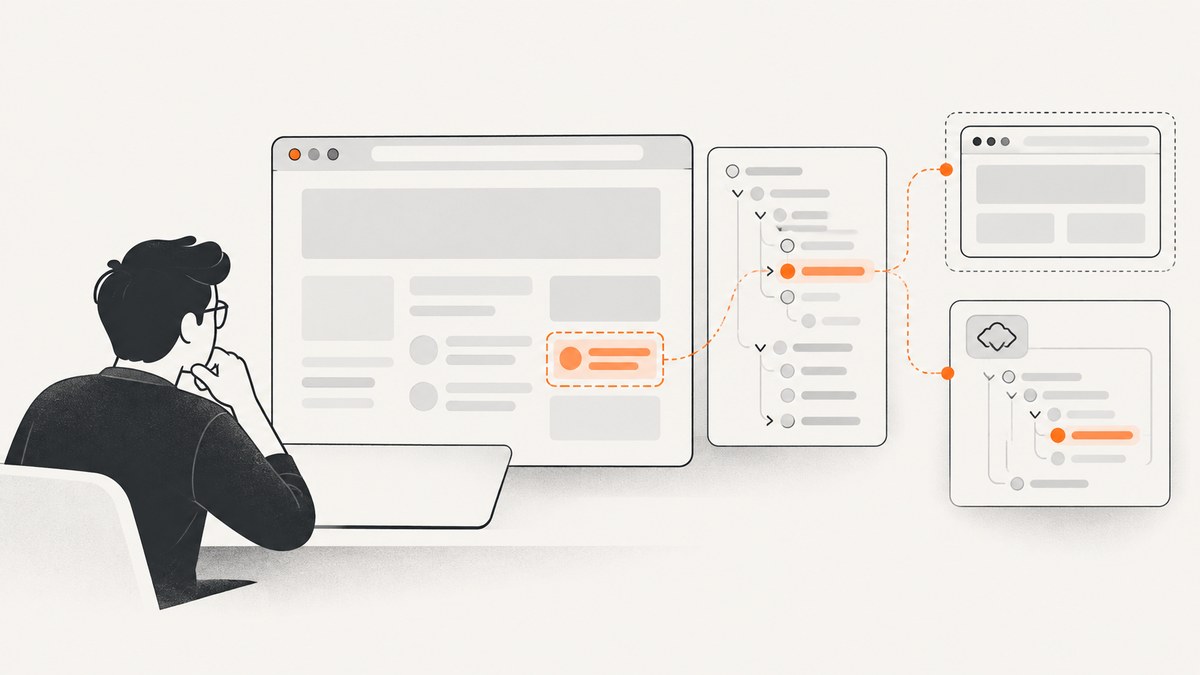
A missing selector in headless Puppeteer usually has one of five causes: the page is different from what you inspected, the element has not rendered yet, the selector does not match the markup, the element is in another frame or shadow root, or the element exists but is hidden. Start by proving which case you have instead of increasing the timeout blindly.
Use a locator when you are about to interact with an element. Use page.waitForSelector() when you need an explicit DOM wait. Then inspect frames, shadow roots, navigation timing, visibility, browser logs, and headless mode differences.
1. Reproduce the failure with evidence
Make the failing URL, selector, browser mode, and timeout visible in a small script. Save a screenshot and the HTML when the wait fails. This tells you whether the page is empty, redirected, blocked, or simply using different markup.
import puppeteer from 'puppeteer';
import fs from 'node:fs/promises';

const url = 'https://example.com';
const selector = '#target';

const browser = await puppeteer.launch({headless: true});
const page = await browser.newPage();
page.on('console', message => console.log('[browser]', message.type(), message.text()));
page.on('pageerror', error => console.error('[pageerror]', error.message));
page.on('requestfailed', request => console.error('[requestfailed]', request.url(), request.failure()?.errorText));

try {
  const response = await page.goto(url, {waitUntil: 'domcontentloaded', timeout: 60000});
  console.log('status:', response?.status(), 'final URL:', page.url());
  await page.waitForSelector(selector, {timeout: 30000});
  console.log('found:', selector);
} catch (error) {
  console.error(error.message);
  await page.screenshot({path: 'selector-failure.png', fullPage: true});
  await fs.writeFile('selector-failure.html', await page.content());
} finally {
  await browser.close();
}
Check the final URL and response status first. A redirect to a login page, consent page, bot check, error document, or a different locale can make a correct selector appear to be missing.
2. Verify that the selector matches the current DOM
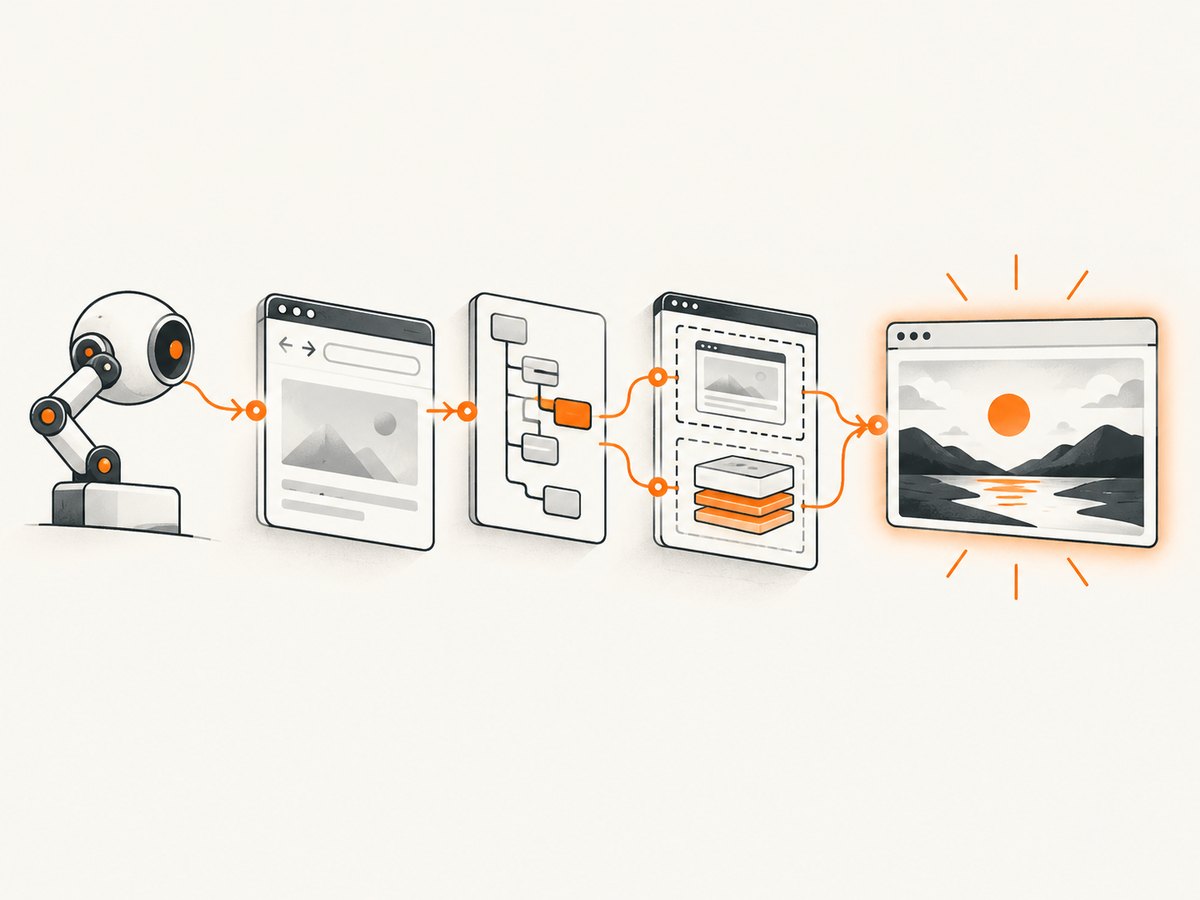
Inspect the exact document Puppeteer loaded. In DevTools, copy the selector from the live element and compare its tag, classes, attributes, nesting, and spelling. A selector that worked before a redesign, A/B test, or authentication change may no longer identify anything.
const summary = await page.evaluate(() => ({
  title: document.title,
  readyState: document.readyState,
  bodyText: document.body?.innerText.slice(0, 500),
  links: [...document.querySelectorAll('a')].slice(0, 10).map(a => ({text: a.textContent?.trim(), href: a.href}))
}));
console.dir(summary, {depth: null});

console.log('matches:', await page.$$eval('#target', nodes => nodes.length));
Remember that CSS selectors are evaluated against the current document. If a framework changes an ID, renders a different component for mobile, or replaces a server-rendered node, the old selector can fail even though the page looks familiar.
Puppeteer also supports selector syntax for text, accessibility attributes, XPath, and shadow-root traversal. Use the syntax documented in the page interactions guide when CSS alone cannot express the target.
3. Wait for asynchronous rendering
page.waitForSelector(selector) resolves when the selector appears in the document and returns immediately if it already exists. Its default timeout is 30 seconds. You can override the timeout per call, change the page default, or use timeout: 0 to disable the timeout.
await page.setDefaultTimeout(45000);
await page.waitForSelector('[data-testid="results"]', {timeout: 45000});

// Presence only
await page.waitForSelector('.menu');

// The node must be present and visible
await page.waitForSelector('.menu', {visible: true});

// Resolve when it is absent or hidden
await page.waitForSelector('.loading-spinner', {hidden: true});
A wait only helps if the element eventually appears in the document or frame being searched. If the application renders after an API request, wait for a meaningful application signal instead of an arbitrary sleep.
await page.waitForFunction(() => {
  return document.querySelectorAll('[data-row]').length > 0;
}, {timeout: 30000});
Use a delay only when you have no observable condition. Delays slow every run and still fail when network or server timing varies.
4. Prefer locators for interactions
Puppeteer recommends locators for actions such as clicking and typing. A locator automatically waits for the element to exist and for action preconditions, including viewport presence, visibility, enabled state, and a stable bounding box. A waitForSelector call is a lower-level wait; it returns an element handle but does not retry your later action.
const submit = page.locator('button[type="submit"]');
await submit.click();

const email = page.locator('input[name="email"]');
await email.fill('dev@example.com');
If you need to inspect or manipulate the node directly, an explicit wait remains appropriate:
const handle = await page.waitForSelector('[data-testid="total"]', {visible: true});
const text = await handle?.evaluate(node => node.textContent?.trim());
console.log(text);
5. Check iframe boundaries
A selector evaluated in the main page does not automatically search an iframe. List the frames, identify the child frame by URL or name, and run the wait against that frame.
console.table(page.frames().map(frame => ({name: frame.name(), url: frame.url()})));

const checkout = page.frames().find(frame => frame.url().includes('/checkout/'));
if (!checkout) throw new Error('Checkout frame was not found');

await checkout.waitForSelector('#card-number', {visible: true});
await checkout.locator('#card-number').fill('4242424242424242');
If the iframe is created later, wait for the frame element first, then locate the matching child frame. Cross-origin frames are still addressable through Puppeteer’s frame object, but browser security rules continue to apply to what page JavaScript can read.
6. Check shadow DOM boundaries
Standard CSS selectors do not cross a shadow root. A component may appear in the Elements panel while remaining invisible to document.querySelector() in the light DOM. Use Puppeteer’s documented shadow selector syntax or evaluate inside the appropriate root.
// Puppeteer selector syntax can pierce open shadow roots.
await page.waitForSelector('my-component >>> button.submit', {visible: true});

// Equivalent inspection for an open shadow root.
const label = await page.evaluate(() => {
  const host = document.querySelector('my-component');
  return host?.shadowRoot?.querySelector('button.submit')?.textContent?.trim();
});
console.log(label);
Closed shadow roots cannot be queried from page JavaScript. Use a public component API, an accessible interaction, or a test hook exposed by the application.
7. Distinguish absent, hidden, detached, and covered elements
These states produce different fixes:
| State | What you observe | What to do |
|---|---|---|
| Absent | querySelector returns null |
Verify markup, frame, shadow root, route, and rendering trigger. |
| Present but hidden | Selector matches, but it has no visible layout | Use {visible: true} or wait for the state that reveals it. |
| Detached | An old element handle becomes invalid after re-render | Find the element again or use a locator. |
| Covered | It is visible but a modal or overlay intercepts input | Close the overlay, wait for it to disappear, or target the correct layer. |
const state = await page.$eval('#target', node => {
  const style = getComputedStyle(node);
  const box = node.getBoundingClientRect();
  return {
    hiddenAttribute: node.hasAttribute('hidden'),
    display: style.display,
    visibility: style.visibility,
    opacity: style.opacity,
    width: box.width,
    height: box.height
  };
});
console.log(state);
An ElementHandle wait is scoped to that element and does not work across navigation or after the element is detached. Page and frame waits target the document or frame and can continue across navigations.
8. Coordinate clicks and navigation
A common race occurs when a click starts navigation before the script has registered its wait. Start both operations together:
await Promise.all([
  page.waitForNavigation({waitUntil: 'networkidle2', timeout: 60000}),
  page.locator('a.next-page').click()
]);

await page.waitForSelector('main article', {visible: true});
For single-page applications, a click may change the URL without a traditional navigation. Wait for the route-specific element or URL instead:
await page.locator('button.load-more').click();
await page.waitForFunction(() => location.pathname === '/results');
await page.waitForSelector('[data-testid="results"]', {visible: true});
9. Compare headless and headful execution
Current Puppeteer headless mode uses modern Chrome headless behavior. The older mode is now called chrome-headless-shell and does not completely match regular Chrome. If a selector fails only in headless execution, launch a visible browser and slow operations down so you can inspect the actual page.
const browser = await puppeteer.launch({
  headless: false,
  slowMo: 100,
  devtools: true
});
Compare viewport, user agent, locale, permissions, authentication state, and feature flags. A responsive layout can render a different navigation tree at a narrow default viewport.
await page.setViewport({width: 1440, height: 900, deviceScaleFactor: 1});
console.log(await page.evaluate(() => ({width: innerWidth, height: innerHeight, dpr: devicePixelRatio})));
console.log(await page.evaluate(() => navigator.userAgent));
For difficult cases, use the Puppeteer debugging guide. Protocol logs can contain cookies, tokens, URLs, and form data, so store and share them carefully.
10. Capture browser-side clues
Messages written by console.* in the browser do not automatically appear in Node.js. Attach listeners before navigation so you see startup errors and failed requests.
page.on('console', message => {
  console.log(`[console:${message.type()}]`, message.text());
});
page.on('pageerror', error => console.error('[pageerror]', error.stack));
page.on('response', response => {
  if (response.status() >= 400) console.warn('HTTP', response.status(), response.url());
});
11. A repeatable diagnostic checklist
- Print the final URL, response status, title, and a short body preview.
- Confirm the selector against the current DOM, including spelling and nesting.
- Check whether the target is rendered asynchronously and wait for an application signal.
- Use a locator for an interaction; use
waitForSelectorfor an explicit wait. - List frames and run the selector in the correct frame.
- Check shadow-root boundaries and use shadow selector syntax when needed.
- Distinguish presence from visibility and check overlays or disabled controls.
- Register navigation waits before clicking.
- Run headful with
slowMoand compare viewport and user agent. - Forward console, page errors, and failed requests to Node.js.
12. Common errors and fixes
“Waiting for selector … failed: timeout”
The node never appeared in the searched document, frame, or shadow scope. Verify the final URL and markup, then inspect frames and rendering triggers before increasing the timeout.
The selector matches in DevTools but not Puppeteer
DevTools may be inspecting a different URL, authenticated profile, viewport, or frame. Save page.content(), print page.url(), and run the query in the matching frame.
The element exists but click fails
It may be hidden, disabled, unstable, outside the viewport, or covered. Use a locator, wait for visibility, close overlays, and inspect its bounding box.
It works headful but not headless
Compare modern headless with regular Chrome, viewport, user agent, permissions, and timing. Capture a headless screenshot and browser logs to identify a bot check, error page, or responsive variant.
The element disappears after it is found
A framework re-render detached the handle. Do not keep a stale ElementHandle; use a locator or query the node again immediately before the action.
Navigation makes the next wait fail
Pair the click and navigation wait with Promise.all. For a single-page route change, wait for the route or a page-specific element instead.
13. Performance, reliability, and cost
Short, condition-based waits are faster and more reliable than long fixed delays. Set a realistic navigation timeout, reuse a browser process for batches, create isolated pages or contexts for independent sessions, and close pages in a finally block. Avoid disabling timeouts globally unless you also have an external job deadline.

Reduce work that cannot affect the selector: block analytics or large media only when doing so does not change application behavior, and wait for the smallest useful readiness signal instead of full network idle. Keep screenshots and HTML failure artifacts for intermittent failures, but redact credentials and personal data.
Headless Puppeteer consumes your own compute and browser memory. A managed screenshot API can shift browser maintenance and capture failures to a service, which is useful for scheduled jobs, previews, and large URL batches.
Or skip the browser setup
If your goal is a clean page image rather than browser automation, ScreenshotNeo provides a single GET request that returns PNG, JPEG, WebP, or PDF. Its capture flow accepts cookie and consent banners, removes more than 60 known consent platforms plus newsletter popups and chat widgets, and lets you turn each step off. Bot checks, blank pages, timeouts, failed loads, and cache hits are not billed; response headers identify the page verdict and billing status.
See the ScreenshotNeo API documentation for all options, including full-page capture with lazy images, CSS element capture, dark mode, device presets, custom viewports, retina scale, PDF paper and margin settings, custom CSS and JavaScript, clicks, selector waits, delays, network idle, request blocking, headers, cookies, user agents, authorization, timezone, geolocation, transparent backgrounds, resizing, TTL caching, signed links, asynchronous jobs, webhooks, bulk capture, usage data, and the OpenAPI specification.
cURL
curl -G "https://api.screenshotneo.com/v1/shot" \
  -d access_key=YOUR_API_KEY \
  --data-urlencode url=https://stripe.com \
  -o shot.webp
Python
import requests

r = requests.get(
    "https://api.screenshotneo.com/v1/shot",
    params={"access_key": "YOUR_API_KEY", "url": "https://stripe.com"},
    timeout=90,
)
r.raise_for_status()
open("shot.webp", "wb").write(r.content)
Node.js
const q = new URLSearchParams({
  access_key: 'YOUR_API_KEY',
  url: 'https://stripe.com'
});
const res = await fetch(`https://api.screenshotneo.com/v1/shot?${q}`);
if (!res.ok) throw new Error(`HTTP ${res.status}`);
const data = Buffer.from(await res.arrayBuffer());
require('node:fs').writeFileSync('shot.webp', data);
ScreenshotNeo also includes an MCP server with take_screenshot, get_page_info, and capture_pdf tools for Claude, Cursor, and other MCP clients. The free plan includes 1,000 screenshots per month with no card; paid plans start at $5 for 3,000 screenshots. Create a free ScreenshotNeo account.
FAQ
Should I always use waitForSelector?
No. Use locators for interactions because they wait for action readiness. Use waitForSelector when you need an explicit presence or visibility condition.
Does a longer timeout fix a missing selector?
Only when the element is expected to appear later in the same document or frame. It cannot fix a wrong selector, iframe scope, shadow root, redirect, or hidden element.
Can Puppeteer query an iframe?
Yes. Find the child frame and call its wait, locator, or query methods. A page-level selector does not search iframe documents automatically.
Why does a selector work once and then fail?
Dynamic applications may re-render, change routes, use experiments, or return different markup based on session and viewport. Log the final URL and save failure HTML to compare runs.
When should I use an API instead of Puppeteer?
Use Puppeteer when you need custom browser interactions or application-specific automation. Use a screenshot API when you need repeatable captures without maintaining browser setup, especially for batches or agent workflows.


