How to Fix Missing Text in PhantomJS Screenshots
Diagnose whether PhantomJS failed to load text or rendered it invisibly. Check requests, JavaScript errors, page.plainText, fonts, and legacy WebKit behavior.

When text is missing from a PhantomJS screenshot, first find out whether the page contains the text at all. Log resource requests and JavaScript errors, then compare the expected content with page.plainText. If the text is present there but absent from the image, investigate the fonts visible to the account running PhantomJS and the rendering environment. If it is absent from both, start with navigation, failed resources, or application code.
PhantomJS captures pages with WebKit: open a page, wait for the content you need, and call page.render(). Its development is suspended, so sites using newer browser behavior may expose compatibility problems that cannot be fixed reliably with a font installation or a longer wait. PhantomJS screen-capture documentation · PhantomJS project status.
1. Identify which kind of failure you have
There are two broad cases, and they point to different investigations:
- The text is missing from the page content. The page may not have navigated successfully, a script may have failed, a resource may have timed out, or the application may not have populated its content before capture.
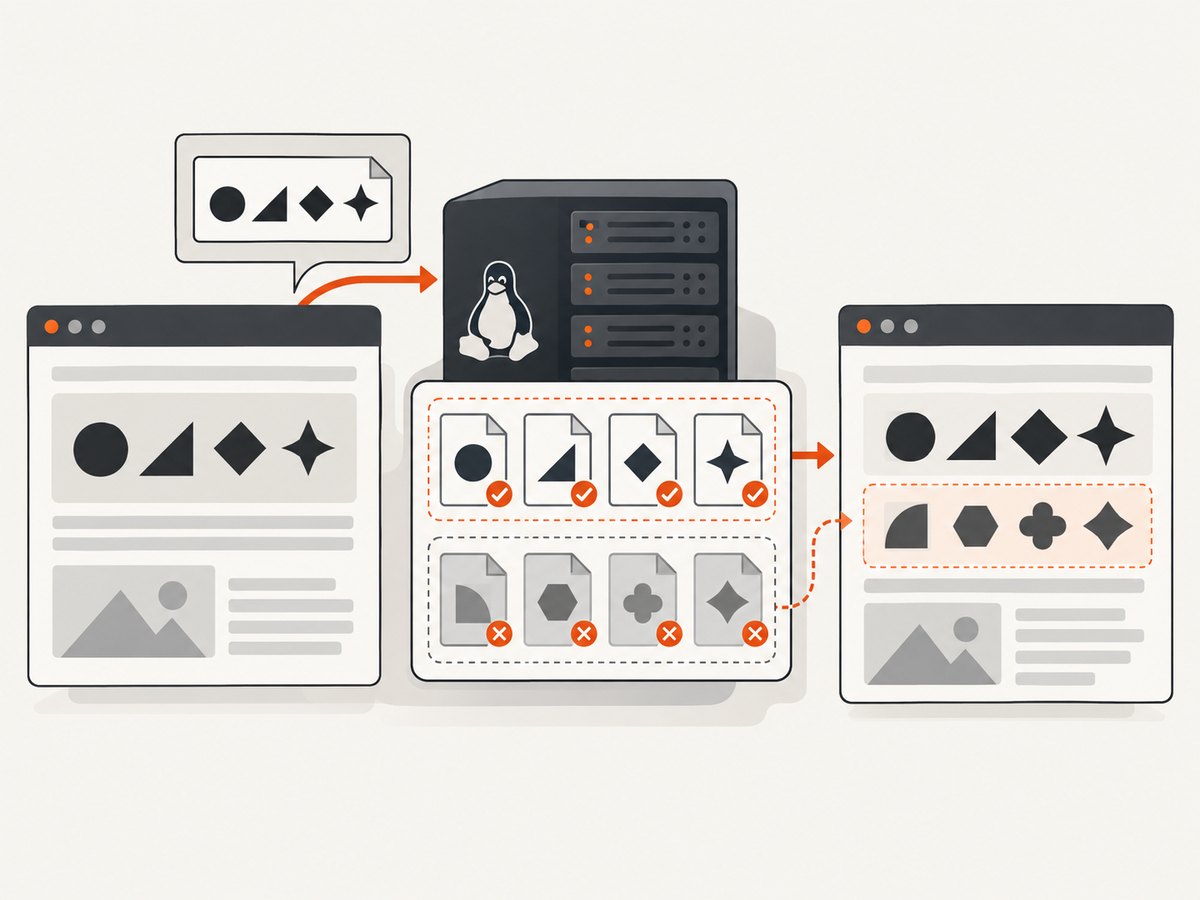
- The text is in the page content but invisible in the screenshot. Check the fonts available to the PhantomJS process, the requested font family and fallbacks, and whether the legacy rendering engine handles the page’s CSS and fonts as expected.
A screenshot alone does not distinguish these cases. Extracting the page’s main-frame text gives you another signal: PhantomJS’s page.plainText property returns text without markup. It is not a complete check of every frame or every rendering detail, but it helps narrow the search. See the plainText API reference.
2. Run a diagnostic capture
Save the following as diagnose.js, then run it with phantomjs diagnose.js https://example.com output.png. Replace the example URL and, if necessary, change the output extension to a format supported by your setup. The script prints the version, request activity, JavaScript errors, page text and navigation status. It waits for the document load callback before capturing; for a page that renders content later, add a page-specific readiness check as shown below.

var page = require('webpage').create();
var system = require('system');

var targetUrl = system.args[1] || 'https://example.com';
var outputPath = system.args[2] || 'phantomjs-shot.png';

page.settings.resourceTimeout = 20000;
page.onResourceRequested = function (request) {
  console.log('REQUEST ' + request.method + ' ' + request.url);
};
page.onResourceReceived = function (response) {
  if (response.stage === 'end') {
    console.log('RESPONSE ' + response.status + ' ' + response.url);
  }
};
page.onResourceTimeout = function (request) {
  console.log('TIMEOUT ' + request.url);
};
page.onResourceError = function (error) {
  console.log('RESOURCE ERROR ' + error.errorCode + ' ' + error.url + ': ' + error.errorString);
};
page.onError = function (message, trace) {
  console.log('PAGE ERROR ' + message);
  trace.forEach(function (frame) {
    console.log('  at ' + frame.file + ':' + frame.line);
  });
};

console.log('PhantomJS ' + phantom.version.major + '.' + phantom.version.minor + '.' + phantom.version.patch);
page.open(targetUrl, function (status) {
  console.log('OPEN STATUS ' + status);
  console.log('PAGE TITLE ' + page.title);
  console.log('PLAIN TEXT START');
  console.log(page.plainText);
  console.log('PLAIN TEXT END');

  if (status !== 'success') {
    console.log('Navigation failed; inspect request and resource errors above.');
    phantom.exit(1);
    return;
  }

  page.render(outputPath);
  console.log('WROTE ' + outputPath);
  phantom.exit();
});
The request hooks and resource timeout follow the mechanisms documented by PhantomJS. JavaScript and image loading are enabled by default in its WebPage settings, but confirm that your script has not overridden those settings. See PhantomJS troubleshooting and WebPage settings.
3. Read the diagnostic output
- Check the executable and version. Run
phantomjs --versionin the same environment that runs your capture job. If multiple installations are present, the shell, service, or container may be invoking a different binary than you expect. PhantomJS troubleshooting explicitly calls out version confusion as a possible issue. - Check
OPEN STATUS. If it is notsuccess, inspect failed requests, DNS and proxy configuration, TLS compatibility, and the target URL. A successful open callback is useful, but does not guarantee that every application-specific asynchronous update has completed. - Look for resource errors and timeouts. A missing stylesheet or font request can change how text appears; a failed script can prevent the text from being created. The sample prints completed responses, request timeouts and resource errors so you can see which URLs need attention.
- Look for page errors. A JavaScript exception may prevent the application from populating the page. Fix errors in your page code where you control it; if the site depends on browser APIs that PhantomJS lacks, test the same route in a maintained browser engine before investing in workarounds.
- Compare
PLAIN TEXTto the expected content. If it is missing, investigate page loading and application behavior first. If it is present but visually absent, proceed to font and rendering checks.
4. Check asynchronous content and fonts
Many pages load content after the initial document navigation: a client-side app may fetch data, render a component, and then request a web font. There is no universal delay that works for every site. A fixed sleep can help diagnose a timing issue, but it can also make captures slower without guaranteeing that the right content is ready.
Prefer waiting for an observable condition that matters to your page, such as the appearance of a known selector. PhantomJS is an older tool, and its available APIs may not offer the same waiting conveniences as newer automation frameworks. If your page exposes an application-specific readiness flag, you can poll it using PhantomJS’s page evaluation and a timer. Keep a maximum wait so a broken page does not hang the capture indefinitely.
var attempts = 0;
var maxAttempts = 40;
var poll = setInterval(function () {
  attempts += 1;
  var ready = page.evaluate(function () {
    return !!document.querySelector('.report-ready');
  });
  if (ready || attempts >= maxAttempts) {
    clearInterval(poll);
    console.log('CONTENT READY ' + ready);
    console.log(page.plainText);
    page.render(outputPath);
    phantom.exit(ready ? 0 : 2);
  }
}, 250);
This example belongs inside the successful page.open callback instead of rendering immediately. Change .report-ready to a selector that means the text you need is actually present. It waits for up to ten seconds; tune that limit to your application and capture budget. A selector appearing does not prove that a remote font has finished loading, so also inspect the font request logs and resulting image.
On Linux, check which font family the page requests, whether the runtime user can see that family, and whether an appropriate fallback font is installed. Do this as the same user and in the same container or host that runs PhantomJS; an interactive shell may have a different font environment from a service account. Use the current package instructions for the distribution you run. There is no single cross-distribution package command established by the sources here.
There are reports where adding system fonts resolved invisible text: one CentOS user described a system with no fonts installed, and a separate GitHub issue comment described a Linux PDF case resolved after adding local TTF files and refreshing the font cache. These are individual reports, not proof that fonts explain every missing-text screenshot. Treat font installation as a targeted diagnostic when the content is present but not rendered, not as a universal fix. CentOS user report · Linux PDF issue report.
5. Capture the page after it is ready
Once diagnostics show the page has loaded and the intended content is present, use page.render() to write the screenshot. This minimal runnable script captures after the navigation callback and exits with a useful status code:
var page = require('webpage').create();
var system = require('system');
var url = system.args[1] || 'https://example.com';
var output = system.args[2] || 'capture.png';

page.open(url, function (status) {
  if (status !== 'success') {
    console.log('Could not load ' + url);
    phantom.exit(1);
    return;
  }
  page.render(output);
  console.log('Saved ' + output);
  phantom.exit(0);
});
PhantomJS documents page.render() as the screenshot method. Keep diagnostics enabled until the capture is stable; then retain enough logging in production to identify version changes, failed resources, and empty page content when a screenshot is wrong.
6. Troubleshooting by symptom
| Symptom | Likely direction | What to do |
|---|---|---|
Expected text is absent from page.plainText |
Navigation, script, or content timing problem | Check open status, JavaScript errors, failed requests, and whether the app’s data request completed. Wait for a page-specific readiness condition before rendering. |
| Text is present in plain text but not visible in the image | Font availability or rendering problem | Check requested font families and font resource responses. Confirm the PhantomJS runtime account has fonts and fallbacks available; test a known local font if practical. |
| Some pages work but newer pages do not | Legacy engine compatibility | Reduce the problem to a representative page and compare behavior in a maintained browser engine. PhantomJS uses WebKit, and its development is suspended. |
| Capture works locally but fails in scheduled jobs | Different executable, user, environment, or network | Log the version and executable path in both places. Compare service-account fonts, environment variables, proxy settings, and access to the same resources. |
| Text is clipped, tiny, or unexpectedly wrapped | Viewport, zoom, CSS, or fallback metrics | Record the viewport and page styles. Check whether the requested family loaded; a fallback with different glyph metrics can change line wrapping and height. |
| Waiting longer fixes some captures but not others | Unstable asynchronous readiness | Replace arbitrary delays with a selector or application readiness signal. Keep a timeout and log whether readiness was reached. |
| Different PhantomJS behavior than expected | Multiple versions installed | Check phantomjs --version and the exact executable used by the service or job runner. See the official troubleshooting guidance. |
7. Reliability, performance, and migration
For reliability, make the capture observable: log the PhantomJS version, navigation status, resource failures, readiness result, extracted text when appropriate, and output path. Set a resource timeout so a stalled request is visible rather than silently holding the job. Avoid interpreting a generated image file as proof of a successful capture; a file can exist even when navigation or page content failed.
For performance, capture only after the page-specific condition you need is satisfied. Waiting for every network connection to become idle can be unsuitable for pages with polling or long-lived connections, while a fixed delay makes fast pages wait unnecessarily. The diagnostic script’s 20-second resource timeout and the polling example’s 10-second limit are sample values, not universal recommendations. Choose limits from the needs of your own job, and record timeout outcomes.
If you maintain a PhantomJS pipeline, account for the project’s suspended development and WebKit rendering behavior. A migration decision should compare compatibility with your target site, maintenance status, asynchronous font and resource handling, and fit with your existing pipeline. Test representative pages rather than assuming one replacement is best for every setup; the sources here do not establish a universal winner. See the project homepage for the status statement.
8. FAQ
Does page.open success guarantee that all text is ready?
No. It indicates that the page opened successfully, but application-specific asynchronous content and fonts may still be loading. Wait for the condition that represents readiness for your page.
Is installing fonts always the fix?
No. It helped in particular reported Linux cases. First confirm the text exists in page.plainText and that the page’s font requests and rendering environment support the font theory.
Can page.plainText prove the screenshot is correct?
No. It helps separate missing main-frame content from a visual rendering issue. It does not verify glyph appearance, layout, every frame, or image quality.
Should I keep debugging PhantomJS or migrate?
For a stable page and pipeline, a focused diagnosis may be enough. If failures track modern site behavior or you need ongoing compatibility, include migration in the evaluation because PhantomJS development is suspended.
Or skip the browser setup
If you need a clean capture without maintaining PhantomJS on a host, ScreenshotNeo is a website screenshot API and MCP server. Its API accepts one GET request for a URL and returns an image or PDF. See the API documentation.
curl -G "https://api.screenshotneo.com/v1/shot" -d access_key=YOUR_API_KEY --data-urlencode url=https://stripe.com -o shot.webpimport requests
r = requests.get("https://api.screenshotneo.com/v1/shot", params={"access_key": "YOUR_API_KEY", "url": "https://stripe.com"}, timeout=90)
open("shot.webp", "wb").write(r.content)const q = new URLSearchParams({ access_key: 'YOUR_API_KEY', url: 'https://stripe.com' });
const res = await fetch(`https://api.screenshotneo.com/v1/shot?${q}`);ScreenshotNeo accepts cookie and consent banners as a visitor and removes 60+ known consent platforms, newsletter popups, and chat widgets before capture; each step can be turned off. Bot checks, blank pages, timeouts, failed loads, and cache hits cost nothing, and response headers say which page verdict applied and whether the request was billed. Its MCP server lets AI agents use take_screenshot, get_page_info, and capture_pdf. The Free plan includes 1,000 screenshots per month with no card; paid plans start at $5 for 3,000. Every feature is on every plan.
Start with 1,000 free screenshots a month, no card required.


