How to Fix Missing Web Capture in Microsoft Edge
Web Capture is now called Screenshot in Edge. Learn why it disappears, restore Ctrl+Shift+S, check policy, repair Edge, and capture pages with an API.
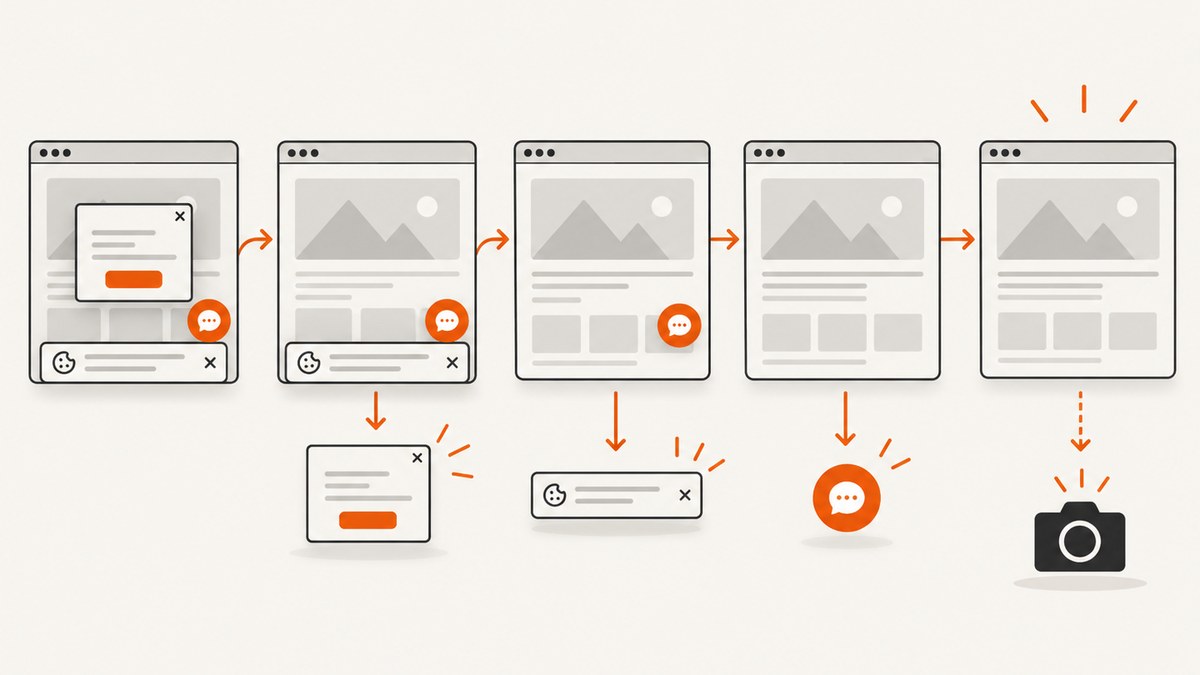
Web Capture has been renamed Screenshot in current Microsoft Edge. Open the three-dots Settings and more menu and look for Screenshot, or press Ctrl+Shift+S. If neither works, the usual causes are a disabled management policy, an outdated or damaged Edge installation, conflicting extensions, or cached browser data.
Work through the fixes below in order. The first steps take seconds; the later ones address managed computers and damaged installations.
1. Look for the renamed Screenshot command
- Open Microsoft Edge.
- Select the three dots in the upper-right corner.
- Look for Screenshot. In older documentation and user reports, this feature is called Web Capture.
- Select Screenshot, then choose the area or page capture option shown by your Edge version.
- You can also press Ctrl+Shift+S. Microsoft documents this as the Web Capture shortcut.
If the menu command is present but the shortcut does nothing, continue with the extension and update checks below. If both the command and shortcut are missing, check policy first.
2. Check whether a policy disabled Screenshot
On a personal computer, Edge normally exposes Screenshot in the context menu, the Settings and more menu, and the keyboard shortcut. Microsoft’s policy documentation says that when the WebCaptureEnabled policy is enabled or not configured, the Screenshot option appears in all three places. A disabled policy hides the feature.
How to identify a managed installation
- Open
edge://policyin the address bar. - Look for a policy named
WebCaptureEnabledor other policies set by your organization. - Check whether Edge shows a message such as “Managed by your organization” in Settings.
- If policy controls, updates, or repair options are locked, treat the device as organization-managed.
Do not change registry policy settings on a work or school computer without administrator approval. Ask your IT administrator to enable WebCaptureEnabled or confirm the organization’s approved capture method.
3. Update Edge and restart it
- Select the three dots.
- Choose Help and feedback → About Microsoft Edge.
- Allow Edge to check for and install an available update.
- Restart Edge, then test Ctrl+Shift+S again.
Microsoft recommends keeping Edge current for security and working browser features. If the update control is unavailable, the browser may be managed by your organization.
4. Isolate extension conflicts
Extensions can interfere with browser commands, page overlays, keyboard shortcuts, or menus. Test with extensions disabled before removing anything permanently.
- Open the three-dots menu.
- Select Extensions → Manage extensions.
- Turn extensions off temporarily.
- Restart Edge and test Screenshot.
- If the feature returns, re-enable extensions one at a time until the conflict is identified.
- Remove the confirmed conflicting extension only after reproducing the result.
5. Clear cached browsing data
Corrupted or stale browser data can cause browser controls and pages to behave incorrectly. Clearing cached files is a supported general troubleshooting step.
- Open Edge Settings.
- Find Delete browsing data.
- Clear at least Cached images and files.
- Restart Edge and try Screenshot again.
If you also clear cookies or site data, you may be signed out of websites. Save any unsent form data first.
6. Repair Edge on Windows
Use Edge Repair when the command is still absent after updating, testing extensions, and clearing cached data. Microsoft says Repair requires an internet connection and should not affect browser data or settings.
- Close Edge windows.
- Open Start → Settings → Apps → Installed apps.
- Find Microsoft Edge, open its menu, and select Modify.
- Choose Repair and complete the prompts.
- Open Edge and test the Screenshot command.
The Modify or Repair controls may be unavailable on a managed installation. Contact your administrator in that case.
7. Windows, macOS, and managed-device differences
| Situation | What to check |
|---|---|
| Windows personal PC | Use Screenshot or Ctrl+Shift+S; update Edge, disable extensions, clear cache, then use Edge Repair. |
| Windows work or school PC | Check edge://policy. A disabled WebCaptureEnabled policy or locked settings requires an administrator. |
| macOS | Use the current Screenshot command and shortcut. Windows’ Modify → Repair workflow is not available; update Edge and isolate extensions instead. |
| Shortcut fails but menu works | Test another page, check keyboard remapping software, and try the menu command. The feature itself may be available. |
| Menu and shortcut both fail after an update | Check policy, then extensions, cached data, and installation repair. |
8. Troubleshooting common symptoms
“Web Capture” is missing, but Screenshot is present
This is expected in current Edge. Use Screenshot; the underlying feature was renamed.
Ctrl+Shift+S does nothing
Confirm that Screenshot appears in the menu. If it does, disable extensions and test again, then check whether another application remaps the shortcut. Use the menu command as a temporary workaround.
Screenshot is missing from every menu
Check edge://policy for WebCaptureEnabled. If it is disabled or the browser is managed, only an administrator can restore the command.
The update will not install
Restart Edge and Windows, retry About Microsoft Edge, and check whether organization policy controls updates. Escalate to IT if update controls are locked.
Repair is unavailable
Repair is a Windows installation option and may be hidden by organization management. Ask the administrator to repair or redeploy Edge.
Capture opens but the page is blank or incomplete
Try the page after it finishes loading, disable extensions that alter page content, and test a different site. Pages protected by bot checks, pages that require authentication, and dynamic content may need a browser automation workflow or a screenshot service with wait, cookie, and authentication controls.
9. Or skip the browser setup
If you need repeatable screenshots from code instead of a local Edge command, ScreenshotNeo provides a website screenshot API and MCP server. It accepts one GET request and returns PNG, JPEG, WebP, or PDF. Before capture, it accepts cookie or consent banners and removes more than 60 known consent platforms, newsletter popups, and chat widgets. Bot checks, blank pages, timeouts, failed loads, and cache hits are not billed, and response headers report the page verdict and billing result.
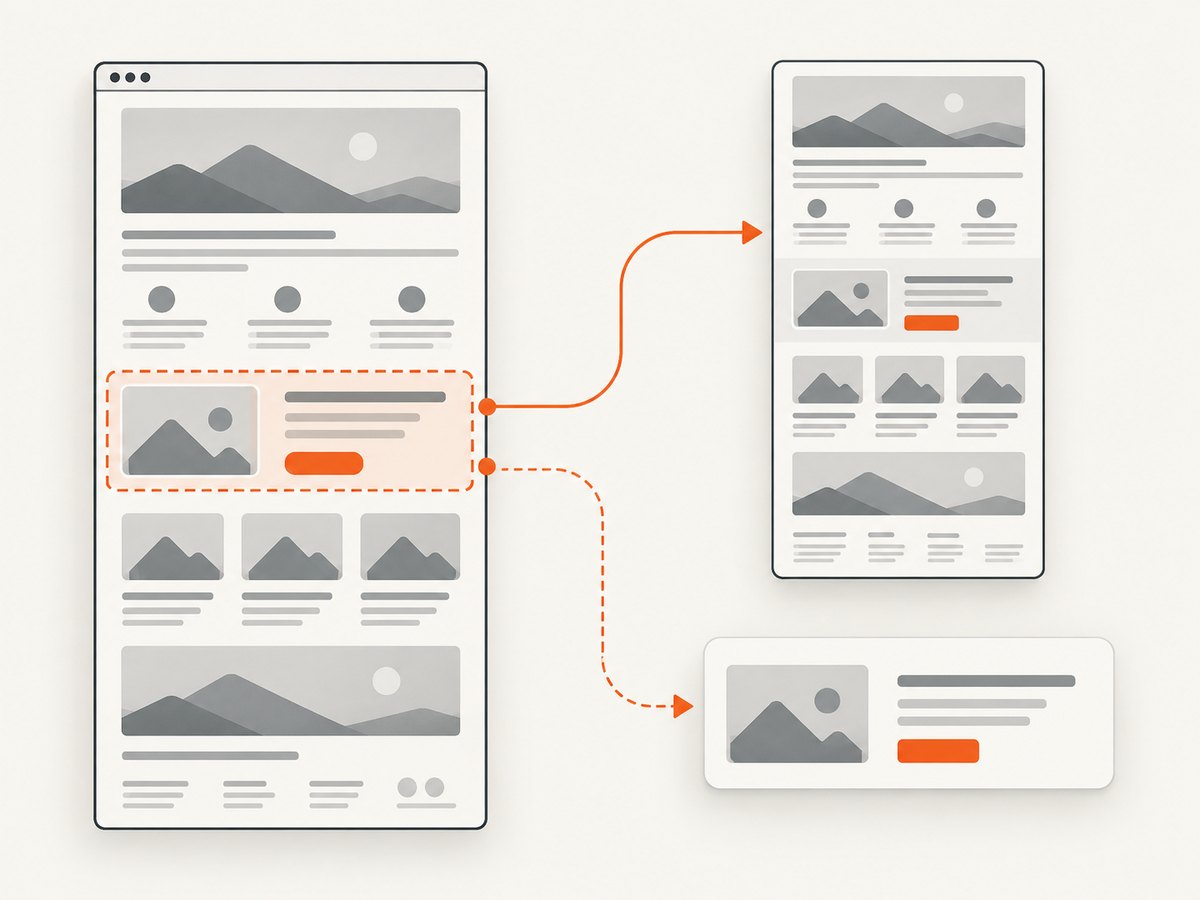
See the ScreenshotNeo API documentation for the full option list. A basic request looks like this:
cURL
curl -G "https://api.screenshotneo.com/v1/shot" \
  -d access_key=YOUR_API_KEY \
  --data-urlencode url=https://stripe.com \
  -o shot.webp
Python
import requests

r = requests.get(
    "https://api.screenshotneo.com/v1/shot",
    params={"access_key": "YOUR_API_KEY", "url": "https://stripe.com"},
    timeout=90,
)
r.raise_for_status()
open("shot.webp", "wb").write(r.content)
Node.js
const q = new URLSearchParams({
  access_key: 'YOUR_API_KEY',
  url: 'https://stripe.com'
});
const res = await fetch(`https://api.screenshotneo.com/v1/shot?${q}`);
if (!res.ok) throw new Error(`Screenshot failed: ${res.status}`);
const fs = await import('node:fs/promises');
await fs.writeFile('shot.webp', Buffer.from(await res.arrayBuffer()));
Useful capture options
- Full-page capture with lazy images loaded, or one element selected by CSS selector.
- Viewport presets, custom viewport sizes, retina scale, dark mode, and transparent backgrounds.
- Wait for a selector, a delay, or network idle; click an element before capture; hide selectors; and run custom CSS or JavaScript.
- Block ads, trackers, requests, or resource types.
- Send custom headers, cookies, user agents, Authorization, timezone, and geolocation.
- Resize images, choose a cache TTL, create signed links for public
<img>tags, submit asynchronous jobs with signed webhooks, capture up to 100 URLs per call, and read usage through the usage API. - Create PDFs with paper size, margins, landscape mode, and page ranges.
ScreenshotNeo also offers an MCP server with take_screenshot, get_page_info, and capture_pdf for Claude, Cursor, and other MCP clients. It has 1,000 free screenshots per month with no card; paid plans start at $5 for 3,000 screenshots. Create a free ScreenshotNeo account.
10. Reliability, performance, and cost considerations
- For occasional manual captures: Edge Screenshot is the simplest option once the command is restored.
- For repeatable automation: An API avoids maintaining a local browser profile and exposes wait, cookie, viewport, and blocking controls as request options.
- For dynamic pages: Wait for a selector or network idle instead of relying only on a fixed delay. Use a longer client timeout when a page loads slowly.
- For private pages: Supply authentication headers or cookies carefully and avoid logging secrets in URLs or application logs.
- For high-volume jobs: Use caching with a chosen TTL, bulk capture, or asynchronous jobs with signed webhooks. Check the usage API and the
X-Billedresponse header. - For cost control: ScreenshotNeo bills only clean shots; bot checks, blank pages, timeouts, failed loads, and cache hits cost nothing.
FAQ
Did Microsoft remove Web Capture?
No. In current Edge, Microsoft presents it as Screenshot. The documented shortcut remains Ctrl+Shift+S.
What policy controls the feature?
WebCaptureEnabled. When enabled or not configured, Microsoft says Screenshot appears in the context menu, Settings and more menu, and keyboard shortcut. A disabled policy hides it.
Can I restore Screenshot without administrator access?
On a personal device, update Edge, test extensions, clear cached data, and use Windows Repair. On a managed device, policy and locked controls require your administrator.
Is Edge Repair available on macOS?
The documented Modify → Repair workflow applies to Windows. On macOS, update Edge and isolate extensions; contact your administrator if the installation is managed.
What should I use for scheduled screenshots?
Use a screenshot API such as ScreenshotNeo when you need repeatable captures, configurable waits, authentication, PDFs, bulk jobs, or an MCP workflow for AI agents.


