How to Fix Node.js HTML-to-Image and PDF Rendering Failures on Servers
Fix missing browsers, sandbox errors, fonts, blank captures, timeouts, and incorrect PDF output in Node.js server rendering.
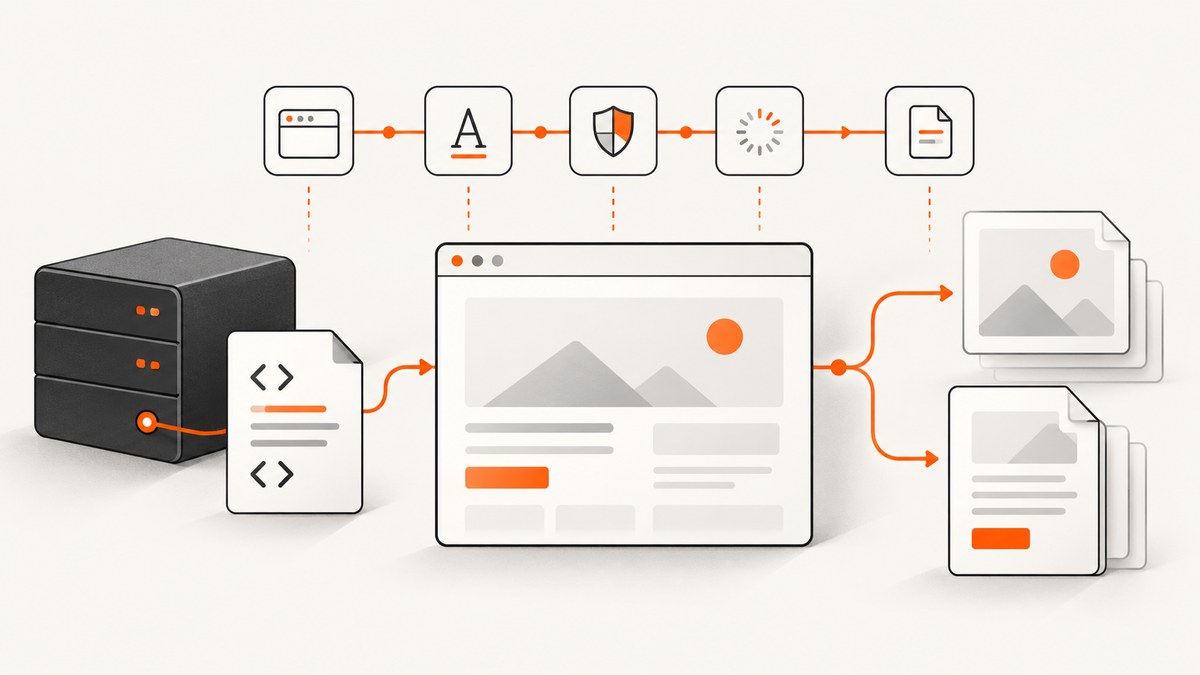
Server-side HTML rendering usually fails before the screenshot or PDF step. Check the deployed browser executable, OS libraries, fonts, writable directories, sandbox support, page readiness, and PDF media settings in that order. A page that loads locally can still fail in production because the runtime image, user, browser cache, or hosting lifecycle is different.
This guide gives a repeatable diagnostic process for Puppeteer and related Node.js renderers, with runnable image and PDF examples, deployment checks, troubleshooting fixes, and a managed alternative.
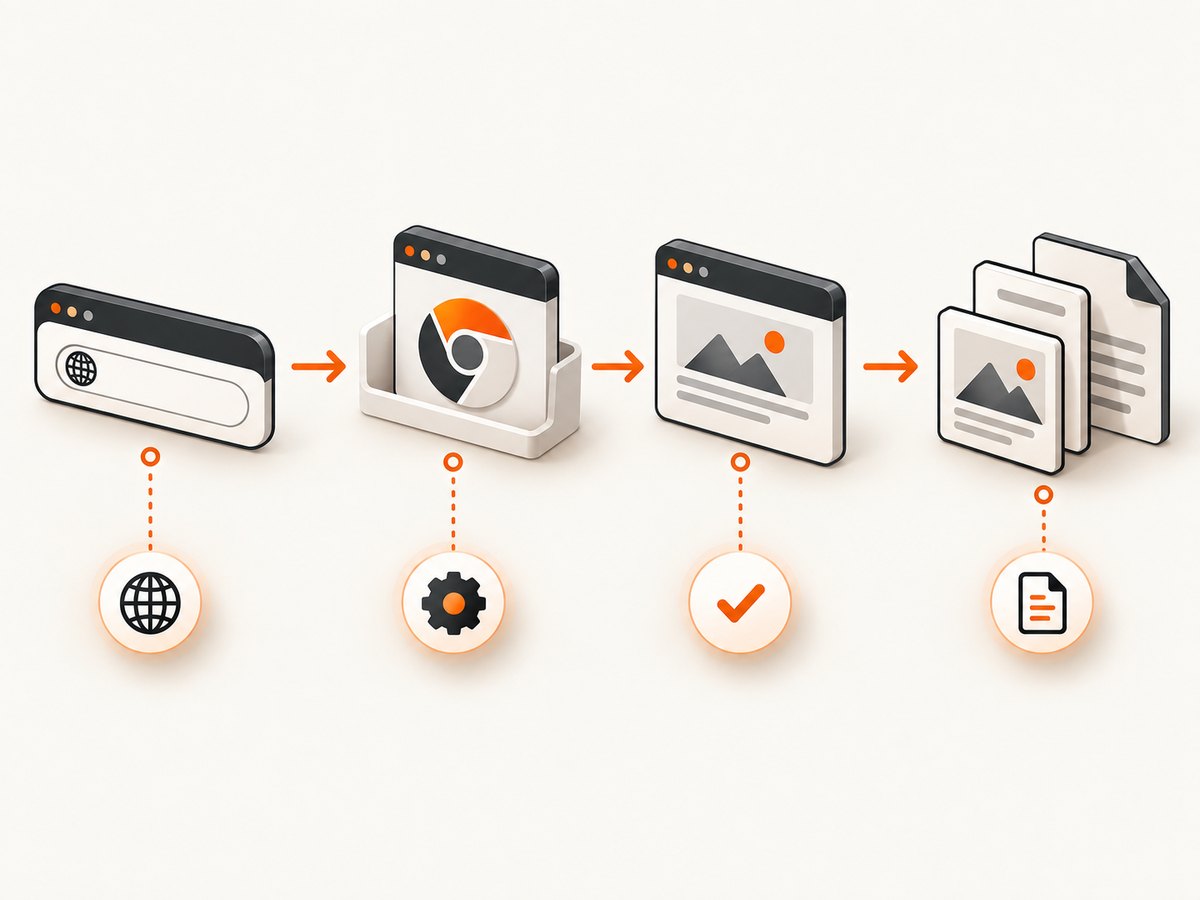
1. Identify which stage is failing
Add logs around each stage instead of reporting only “render failed.” The stage determines the fix.
| Stage | Typical symptoms | What to inspect |
|---|---|---|
| Browser launch | Could not find Chrome, executable errors, No usable sandbox! |
Installed browser revision, executable path, OS libraries, runtime user, sandbox permissions |
| Navigation | Timeouts, DNS errors, redirects, authentication failures | Final URL, response status, request failures, proxy and DNS configuration |
| Application readiness | Blank or partially rendered image/PDF | Expected selector, client-side data, console errors, long polling, delayed fonts |
| Output | Missing fonts, colors, backgrounds, wrong paper size | Installed fonts, media type, print options, CSS @page |
| Hosting lifecycle | Slow or abandoned jobs after a response | CPU allocation, request timeout, temporary storage, process shutdown behavior |
2. Confirm the production browser installation
Browser installation and browser launch are separate problems. Reproduce the launch in the final container or deployed runtime, not only on a workstation. Check the Puppeteer version, expected browser revision, install output, executable path, and the user that runs the service. Package-manager policies can block browser install scripts; in that case install the required revision explicitly and configure its cache.
Minimal launch diagnostic
const puppeteer = require('puppeteer');

(async () => {
  console.log({
    puppeteerVersion: require('puppeteer/package.json').version,
    executablePath: puppeteer.executablePath(),
    user: process.env.USER || process.env.USERNAME,
    cacheDir: process.env.PUPPETEER_CACHE_DIR || '(default)'
  });

  const browser = await puppeteer.launch({ headless: true });
  console.log('browser launched');
  await browser.close();
})();
If the executable path points to a file that does not exist, fix the install or set the path deliberately. Puppeteer documents PUPPETEER_CACHE_DIR and project-local caches for environments where the default home-directory cache is unavailable. Do not assume a system Chromium binary is compatible with every Puppeteer release; match the browser revision and dependencies to the installed package. See the Puppeteer troubleshooting documentation.
Production checklist
- Keep Puppeteer in the production dependency set.
- Verify the browser install script was allowed to run, or install the expected revision during the image build.
- Ensure the runtime user can read and execute the browser binary.
- Ensure profile, temporary, cache, and output directories are writable.
- Log the resolved executable path and package version at startup.
- Use the dependency instructions for the exact browser build and Linux distribution.
3. Install OS libraries and fonts
Minimal containers often omit shared libraries required by Chromium. Fonts are a separate dependency: a valid CSS font-family still renders fallback glyphs when the requested font is absent. Puppeteer’s documentation warns that Chrome does not support Alpine out of the box without compatible dependencies and calls out additional Chinese, Japanese, and Korean fonts.
When glyphs are missing, compare the output with a known installed font, inspect browser console and network errors for failed webfont requests, and package the required fonts in the runtime image where licensing permits. Avoid copying a universal package list between distributions; use the dependency list for your selected browser build.
4. Fix sandbox launch errors safely
No usable sandbox! means Chrome cannot find a usable sandbox in the host configuration. Check user namespaces, AppArmor or equivalent policy, container privileges, and file permissions. Puppeteer says: “Running without a sandbox is strongly discouraged. Consider configuring a sandbox instead.” Read the project guidance at Puppeteer’s sandbox troubleshooting section.
Prefer correcting the host or container sandbox configuration. Treat --no-sandbox as a deliberate security tradeoff that requires the environment owner to understand the content and threat model; do not add it merely because a local command used it.
5. Make navigation and application readiness explicit
A completed navigation event does not prove that a client-rendered application has finished producing the content you need. Use a navigation condition plus an application-specific readiness check.
const browser = await puppeteer.launch({ headless: true });
try {
  const page = await browser.newPage();
  page.setDefaultNavigationTimeout(45_000);
  page.setDefaultTimeout(15_000);

  page.on('console', msg => console.log('browser console:', msg.type(), msg.text()));
  page.on('requestfailed', request =>
    console.error('request failed:', request.url(), request.failure()?.errorText));

  const response = await page.goto('https://example.com/dashboard', {
    waitUntil: 'networkidle2',
    timeout: 45_000
  });
  console.log('status:', response?.status(), 'url:', page.url());

  await page.waitForSelector('[data-render-ready="true"]', {
    visible: true,
    timeout: 15_000
  });

  await page.screenshot({ path: 'dashboard.png', fullPage: true });
} finally {
  await browser.close();
}
networkidle2 is a useful example, not a universal setting. Polling, streaming, analytics, and long-lived connections can prevent network idleness. Prefer a selector, application state flag, or bounded delay that represents readiness. Inspect the final URL, HTTP response, console errors, failed requests, and expected DOM before increasing timeouts.
Playwright exposes configurable timeouts and cancellation through its page APIs. Cancellation does not remove the operation timeout, so configure both deliberately when using Playwright. See the Page API documentation.
6. Generate reliable screenshots
const puppeteer = require('puppeteer');

(async () => {
  const browser = await puppeteer.launch({ headless: true });
  try {
    const page = await browser.newPage();
    await page.setViewport({ width: 1440, height: 900, deviceScaleFactor: 1 });
    await page.goto('https://example.com', {
      waitUntil: 'domcontentloaded',
      timeout: 45_000
    });
    await page.waitForSelector('main', { visible: true, timeout: 15_000 });
    await page.screenshot({
      path: 'page.webp',
      type: 'webp',
      quality: 86,
      fullPage: true,
      omitBackground: false
    });
  } finally {
    await browser.close();
  }
})();
Useful screenshot controls
| Requirement | Control | Failure to watch for |
|---|---|---|
| Entire document | fullPage: true |
Lazy content may not load until scrolled; trigger loading before capture. |
| Retina-sized output | deviceScaleFactor |
Higher values increase memory and output size. |
| Transparent image | omitBackground: true |
Page CSS may still paint an opaque element background. |
| Exact viewport | page.setViewport() |
Responsive breakpoints can change layout and content. |
| Specific component | elementHandle.screenshot() |
Hidden or zero-size elements cannot produce useful output. |
7. Fix PDF media, colors, fonts, and paper sizing
Puppeteer generates PDFs using print behavior by default. To use screen styles, call page.emulateMediaType('screen'). Printing modifies colors by default; use -webkit-print-color-adjust: exact when exact colors are required. The current PDF options document printBackground as false, a 30,000 ms default timeout, waitForFonts as true, and preferCSSPageSize for giving CSS @page priority. These defaults are version-sensitive, so verify them against the installed Puppeteer version. See the Puppeteer PDF guide and PDFOptions reference.
const puppeteer = require('puppeteer');

(async () => {
  const browser = await puppeteer.launch({ headless: true });
  try {
    const page = await browser.newPage();
    await page.goto('https://example.com/invoice', {
      waitUntil: 'networkidle2',
      timeout: 45_000
    });

    await page.emulateMediaType('screen');
    await page.waitForSelector('[data-invoice-ready="true"]', {
      visible: true,
      timeout: 15_000
    });

    await page.pdf({
      path: 'invoice.pdf',
      format: 'A4',
      landscape: false,
      printBackground: true,
      preferCSSPageSize: true,
      displayHeaderFooter: false,
      waitForFonts: true,
      timeout: 30_000,
      margin: { top: '16mm', right: '14mm', bottom: '16mm', left: '14mm' }
    });
  } finally {
    await browser.close();
  }
})();
@page {
size: A4;
margin: 16mm 14mm;
}
html {
-webkit-print-color-adjust: exact;
print-color-adjust: exact;
}
.keep-together {
break-inside: avoid;
}PDF failure checklist
- Use screen media when the document depends on screen-only CSS.
- Set
printBackground: truefor colored panels and backgrounds. - Wait for the required fonts and verify that the runtime contains them.
- Choose either explicit dimensions or CSS
@page; usepreferCSSPageSizewhen CSS should win. - Check page ranges, margins, orientation, and print breaks for multipage documents.
- Use a bounded PDF timeout and log whether navigation or PDF creation timed out.
8. Hosting platform and container lifecycle
The hosting platform is part of the rendering stack. Puppeteer’s Cloud Run notes explain that the default Node.js runtime may lack Headless Chrome dependencies, so a custom image can be required. They also warn that CPU can be disabled after an HTTP response is written, making work started after responding appear extremely slow. Complete synchronous rendering before sending the response, or configure CPU behavior for a background-job design. Recheck the current platform settings because they can change.
Keep browser launch, navigation, readiness, output, and shutdown inside one bounded job. Use temporary paths that are writable in the deployed runtime, close every page and browser in finally blocks, and record the job ID, URL, stage, elapsed time, and error class.
9. Performance, reliability, and cost controls
Performance
- Reuse a browser process when your isolation model permits it, while creating a fresh page per job.
- Measure launch, navigation, readiness, and output separately before tuning concurrency.
- Block unnecessary third-party requests only when doing so cannot change the rendered result.
- Use a selector readiness signal instead of an arbitrary long sleep.
- Keep image dimensions and device scale factor proportional to the required output.
Reliability
- Apply independent timeouts to launch, navigation, readiness, screenshot/PDF, and shutdown.
- Retry only transient failures such as network errors; do not blindly retry missing executables, invalid selectors, or sandbox policy errors.
- Capture the final URL, response status, console errors, failed requests, and browser version in structured logs.
- Use a queue for long documents and make jobs idempotent so a retry does not duplicate external side effects.
- Do not publish a universal memory limit or safe browser-pool size; measure those values in the target deployment.
Cost
Rendering cost is driven by browser startup, CPU time, memory, network traffic, storage, and retries. Cache only when the page can safely be reused, and include the relevant URL, viewport, locale, authentication state, and content version in the cache key. Track successful and failed jobs separately so retries and infrastructure failures are visible.
10. Common errors and fixes
| Error or symptom | Likely cause | Fix |
|---|---|---|
Could not find Chrome |
Browser revision was not installed or cache is unavailable. | Install the revision expected by Puppeteer, configure PUPPETEER_CACHE_DIR, and verify the executable path in production. |
Failed to launch the browser process |
Missing shared library, incompatible browser binary, or permission issue. | Use the dependency list for the exact image and browser, match versions, and test as the runtime user. |
No usable sandbox! |
Host sandbox or user-namespace configuration blocks Chrome. | Correct host/container permissions and sandbox support; treat --no-sandbox only as an explicitly accepted tradeoff. |
| Blank screenshot | Client rendering is incomplete, navigation reached an error page, or the target is hidden. | Log final URL and status, inspect console and failed requests, wait for an application-specific selector, and verify visibility. |
| Navigation timeout | Slow origin, blocked request, polling, or an overly strict readiness condition. | Inspect request failures and long-lived connections; use a suitable waitUntil value and bounded application readiness check. |
| Missing glyphs | Font is absent, webfont failed to load, or CSS selects the wrong family. | Install/package the required font, inspect webfont requests, and test with a known installed fallback. |
| Missing PDF colors/backgrounds | Print defaults suppress backgrounds or alter colors. | Set printBackground: true, emulate the intended media type, and use print-color adjustment CSS. |
| Wrong paper size | Explicit PDF dimensions override CSS @page. |
Set preferCSSPageSize: true when CSS should control size, or remove conflicting dimensions. |
| Work becomes slow after response | Platform CPU is paused after the HTTP response. | Finish rendering before responding or configure the platform for background CPU allocation. |
11. Or skip the browser setup
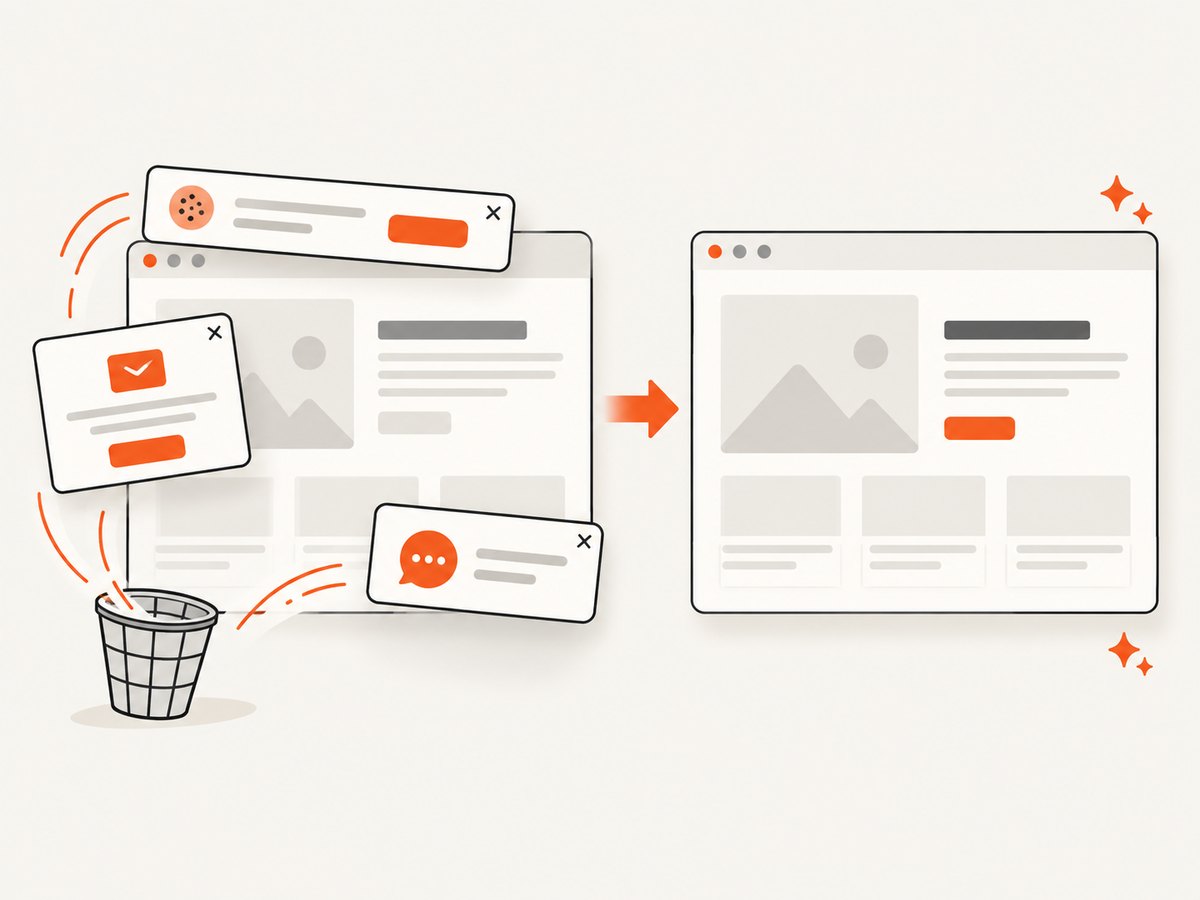
ScreenshotNeo provides a website screenshot API and MCP server. One GET request returns PNG, JPEG, WebP, or PDF. It accepts cookie and consent banners before capture and removes more than 60 known consent platforms, newsletter popups, and chat widgets; each step can be turned off. Bot checks, blank pages, timeouts, failed loads, and cache hits are not billed, and each response reports the result through X-Page-Verdict and X-Billed headers.
See the ScreenshotNeo API documentation for the full option set, including full-page capture with lazy images loaded, CSS selector element capture, dark mode, device presets and custom viewports, retina scale, PDF paper settings and page ranges, custom CSS and JavaScript, clicks, waits, request blocking, headers, cookies, user agents, authorization, timezone, geolocation, transparent backgrounds, resizing, TTL caching, signed links, asynchronous jobs and signed webhooks, bulk capture, usage, and the OpenAPI specification.
cURL
curl -G "https://api.screenshotneo.com/v1/shot" \
  -d access_key=YOUR_API_KEY \
  --data-urlencode url=https://stripe.com \
  -o shot.webp
Python
import requests

r = requests.get(
    "https://api.screenshotneo.com/v1/shot",
    params={"access_key": "YOUR_API_KEY", "url": "https://stripe.com"},
    timeout=90,
)
r.raise_for_status()
open("shot.webp", "wb").write(r.content)
Node.js
const q = new URLSearchParams({
  access_key: 'YOUR_API_KEY',
  url: 'https://stripe.com'
});
const res = await fetch(`https://api.screenshotneo.com/v1/shot?${q}`);
if (!res.ok) throw new Error(`Screenshot failed: ${res.status}`);
const image = Buffer.from(await res.arrayBuffer());
require('fs').writeFileSync('shot.webp', image);
An MCP server lets Claude, Cursor, and other MCP clients call take_screenshot, get_page_info, and capture_pdf. The Free plan includes 1,000 screenshots a month with no card; paid plans start at $5 for 3,000 shots. Create a free ScreenshotNeo account.
12. FAQ
Should I switch from Puppeteer to Playwright?
Choose based on browser packaging, API controls, readiness strategy, and deployment constraints. Switching libraries does not by itself install missing OS dependencies or repair host sandbox policy.
Is networkidle2 always the right wait condition?
No. It can be unsuitable for pages with polling, streaming, or long-lived requests. A bounded selector or application readiness signal is usually more meaningful.
Why does a PDF differ from the browser view?
PDF output uses print behavior by default. Media emulation, print backgrounds, color adjustment, fonts, paper sizing, and CSS page breaks can all change the result.
Can I solve every server failure with a longer timeout?
No. Longer timeouts cannot fix a missing executable, absent font, blocked sandbox, failed DNS request, or selector that never appears. Identify the failing stage first.
When is a hosted screenshot API useful?
It is useful when maintaining browser binaries, OS dependencies, sandbox configuration, readiness handling, and PDF options inside your own service is more work than the rendering feature requires.


