How to Fix Node.js Hanging During Puppeteer PDF Generation
Find the exact Puppeteer stage that hangs, fix navigation, fonts, PDF timeouts, and cleanup with a production-ready Node.js workflow.
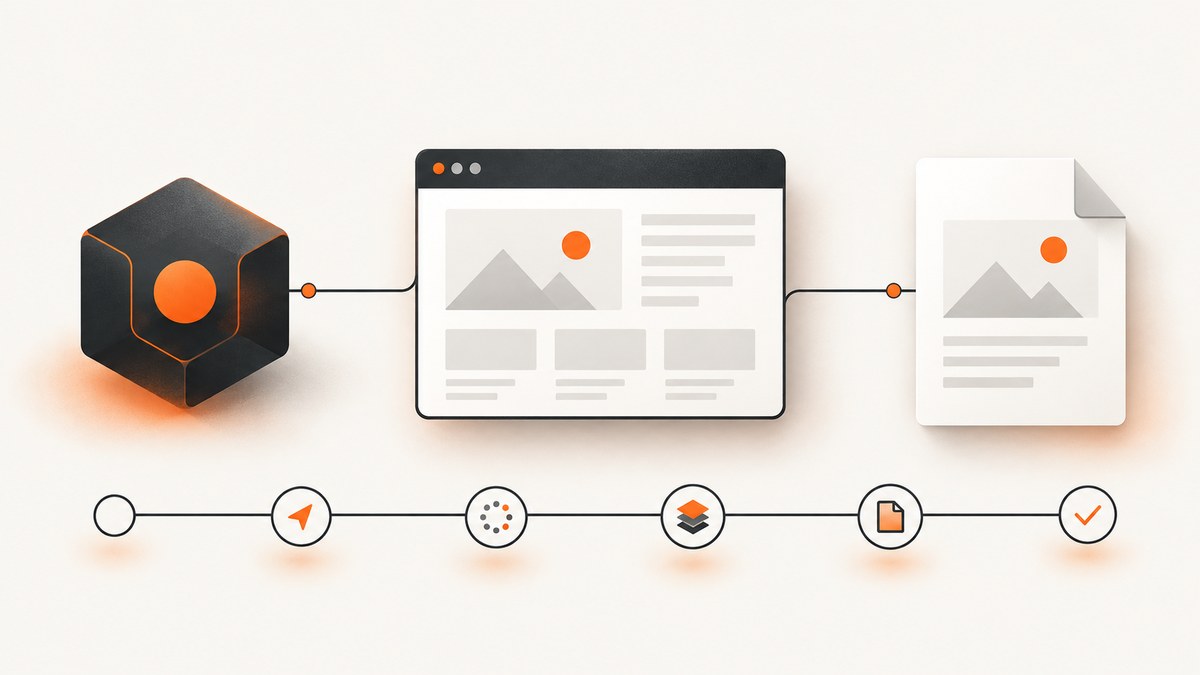
Start by finding which awaited operation is stuck. “Puppeteer is hanging during PDF generation” can describe several different failures: navigation never reaches its wait condition, the page is still rendering, font readiness never resolves, page.pdf() exceeds its timeout, browser cleanup is stalled, or PDF generation has already finished while another Node.js resource keeps the process alive.
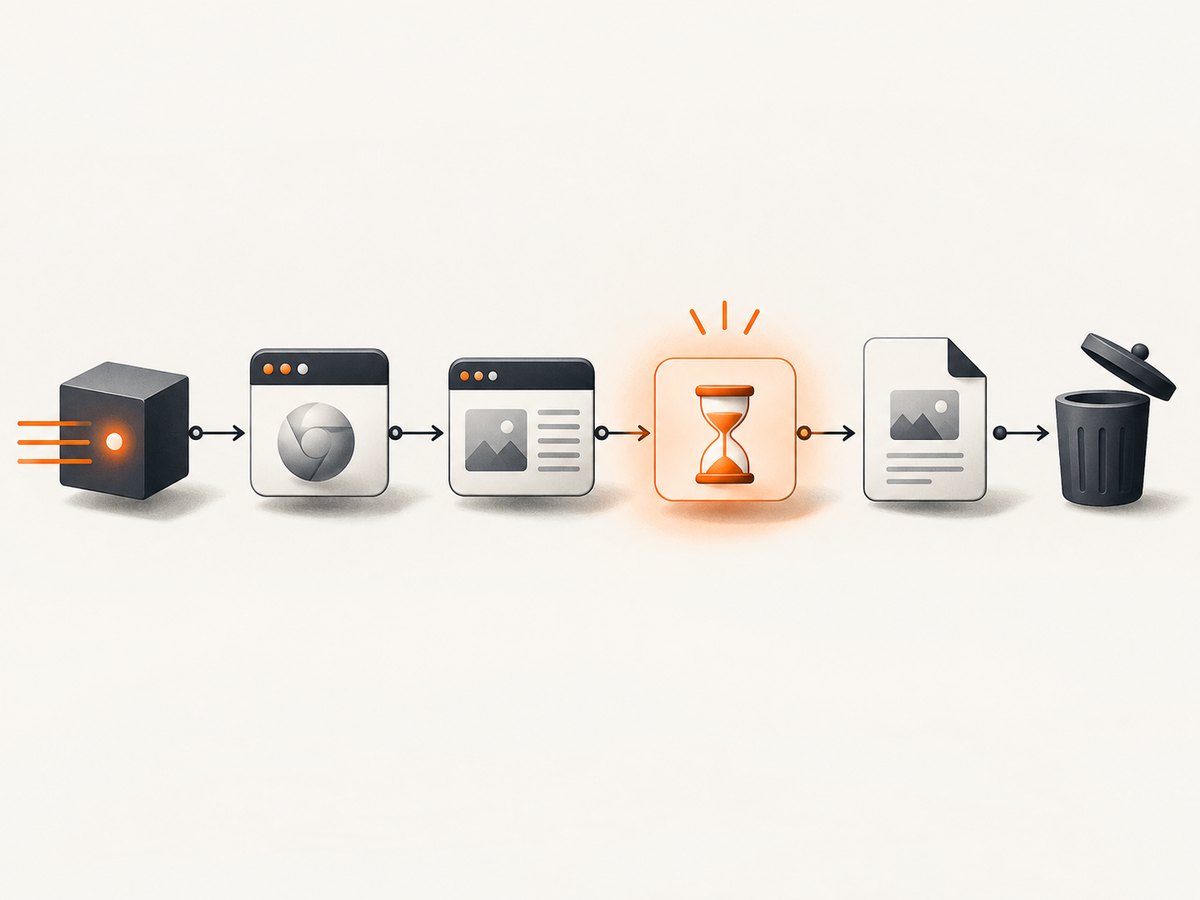
Puppeteer’s documented PDF workflow is: launch a browser, create a page, navigate, call page.pdf(), and close the browser. The official guide uses networkidle2 in its example and states that PDF generation waits for fonts by default. See the Puppeteer PDF generation guide, PDFOptions reference, and Page.goto() reference.
1. Identify the pending stage before changing settings
Add a timestamp immediately before and after every awaited stage. The first “before” message without a matching “after” message identifies the operation to investigate.
const puppeteer = require('puppeteer');

async function makePdf(url) {
  const started = Date.now();
  const log = (message) => console.log(`${new Date().toISOString()} ${message}`);
  let browser;

  try {
    log('launch:begin');
    browser = await puppeteer.launch();
    log(`launch:end elapsed=${Date.now() - started}ms`);

    log('newPage:begin');
    const page = await browser.newPage();
    log(`newPage:end elapsed=${Date.now() - started}ms`);

    log(`goto:begin url=${url}`);
    const response = await page.goto(url, {
      waitUntil: 'domcontentloaded',
      timeout: 30_000,
    });
    log(`goto:end status=${response ? response.status() : 'null'} elapsed=${Date.now() - started}ms`);

    // Replace this with the signal your application actually provides.
    log('readiness:begin');
    await page.waitForSelector('[data-print-ready]', { timeout: 15_000 });
    log(`readiness:end elapsed=${Date.now() - started}ms`);

    log('pdf:begin');
    const pdf = await page.pdf({
      path: 'output.pdf',
      format: 'A4',
      printBackground: true,
      timeout: 30_000,
      waitForFonts: true,
    });
    log(`pdf:end bytes=${pdf.length} elapsed=${Date.now() - started}ms`);
    return pdf;
  } finally {
    if (browser) {
      log('close:begin');
      await browser.close();
      log(`close:end elapsed=${Date.now() - started}ms`);
    }
  }
}

makePdf('https://example.com').catch((error) => {
  console.error(error);
  process.exitCode = 1;
});
This code uses a 30-second PDF timeout to match the documented default. It is an example deadline, not a promise that every page should finish within 30 seconds. Keep a separate application-level deadline for an HTTP request or queue job.
2. If page.goto() is the operation that hangs
Page.goto() navigates to a URL and resolves with the main resource response. A navigation wait condition is also a readiness policy. A page can finish its initial HTML while charts, images, client-side data, or fonts are still loading. Conversely, a page may keep connections open forever because of analytics, WebSockets, long polling, or advertisements.
Choose a readiness signal that matches the PDF
| Requirement | Useful approach | Risk |
|---|---|---|
| Only initial HTML is needed | waitUntil: 'domcontentloaded' |
Client-rendered content may be missing. |
| Most network requests should finish | waitUntil: 'networkidle2' |
Persistent connections can delay or prevent completion. |
| A known application state is required | Navigate, then wait for a selector or explicit page signal. | The signal must be emitted reliably on every successful render. |
| A fixed animation or chart delay is unavoidable | Use a short, measured delay after the readiness signal. | Arbitrary sleeps are fragile when load varies. |
The official guide’s networkidle2 example is a documented example, not a universal recommendation. Compare it with DOM readiness plus an application-specific signal. For example:
await page.goto(url, {
  waitUntil: 'domcontentloaded',
  timeout: 30_000,
});
await page.waitForSelector('#report-rendered', { timeout: 15_000 });
If your own page can cooperate, set a marker only after data, images, and charts are ready:
// In the page application
window.addEventListener('load', () => {
  document.documentElement.dataset.printReady = 'true';
});

// In Puppeteer
await page.waitForFunction(
  () => document.documentElement.dataset.printReady === 'true',
  { timeout: 15_000 }
);
Inspect the response as well. Same-URL fragment navigations and about:blank can resolve with null. A valid HTTP error response does not automatically throw, so check status codes when a server error could produce an unusable page. If the URL itself serves a PDF, that is a different operation from rendering HTML with page.pdf(); headless shell also cannot navigate to a PDF document.
3. If page.pdf() is the operation that hangs
The PDFOptions reference documents a default PDF timeout of 30,000 milliseconds. timeout: 0 disables that timeout. It also documents waitForFonts: true by default, which waits for document.fonts.ready. A background page may need to be brought to the front for the font wait.
Check font readiness first
await page.bringToFront();
await page.goto(url, { waitUntil: 'domcontentloaded', timeout: 30_000 });
await page.waitForSelector('[data-print-ready]', { timeout: 15_000 });

const pdf = await page.pdf({
  path: 'output.pdf',
  format: 'A4',
  printBackground: true,
  timeout: 30_000,
  waitForFonts: true,
});
As a diagnostic experiment, set waitForFonts: false. If the call then completes, font readiness is a likely contributor. This can change typography, fallback behavior, and line wrapping, so validate the PDF before using the setting in production. Disabling the wait is not a general fix.
const pdf = await page.pdf({
  path: 'diagnostic.pdf',
  format: 'A4',
  waitForFonts: false,
  timeout: 30_000,
});
Separate slow rendering from an unresolved wait
Increasing the PDF timeout can help distinguish a genuinely slow document from a promise that never settles. It does not make an unresolved operation complete. If a render can legitimately take two minutes, set a suitable PDF timeout and enforce a separate caller deadline. If it should take seconds but never completes, investigate the page, fonts, resources, and browser state instead of setting timeout: 0 immediately.
Puppeteer prints with print media by default. A print stylesheet can hide or rearrange content without causing a hang. If the symptom includes different styling rather than liveness, test print CSS separately. When screen styling is required, emulate screen media before generating the PDF:
await page.emulateMediaType('screen');
await page.pdf({
  path: 'screen-styled.pdf',
  format: 'A4',
  printBackground: true,
});
4. If the PDF is complete but Node.js does not exit
Look for the pdf:end log. If it appears, PDF generation has resolved. The remaining process may be held open by browser cleanup, an HTTP server, a timer, a database pool, a queue consumer, a file watcher, or another application resource.
Always close the browser in a finally block, including error paths. If browser.close() is the pending stage, record that separately and inspect browser process output and container limits. If close completes but Node remains alive, review resources created outside Puppeteer. Do not label the problem a PDF hang after the PDF promise has already resolved.
let browser;
try {
  browser = await puppeteer.launch();
  // navigation, readiness, and PDF work
} catch (error) {
  console.error('PDF job failed', error);
  throw error;
} finally {
  await browser?.close();
}
5. A production diagnostic checklist
- Record Node.js, Puppeteer, Chromium, operating system, and container details.
- Log before and after launch, page creation, navigation, readiness, PDF generation, and close.
- Capture the URL, wait condition, timeout values, and elapsed time.
- Check whether navigation returned a response and inspect its status.
- Replace broad network-idle waiting with a page-specific readiness signal when persistent connections are present.
- Check fonts and bring a background page to the front.
- Try
waitForFonts: falseonly as a controlled diagnostic, then compare typography. - Keep PDF, navigation, and application deadlines separate.
- Confirm cleanup runs on both success and failure.
- Build a minimal reproduction and include the first missing “after” log when asking for help.
6. Common errors and targeted fixes
| Symptom | Likely stage | Fix to try |
|---|---|---|
No log after goto:begin |
Navigation | Use a finite timeout, inspect the URL and response, and compare domcontentloaded with networkidle2. |
| Navigation finishes but content is empty | Application readiness | Wait for a selector or explicit render marker. |
No log after pdf:begin |
Fonts or print rendering | Bring the page to the front, inspect document.fonts.status, and test waitForFonts: false diagnostically. |
| Timeout error from PDF | PDF deadline | Measure rendering, reduce page work, or raise the timeout while retaining an outer job deadline. |
| PDF exists but process stays alive | Cleanup or another handle | Verify browser.close(), then inspect servers, timers, pools, watchers, and queue consumers. |
| Output differs from the browser view | Print media | Review print CSS or call page.emulateMediaType('screen') when appropriate. |
7. Performance, reliability, and cost considerations
Browser startup is often a separate cost from page rendering. Reusing a controlled browser can reduce startup work, while isolating jobs in separate browser contexts can limit state leakage. Whichever model you choose, close pages and browsers deterministically and cap concurrent PDF jobs so CPU, memory, and file descriptors do not become the next apparent hang.

Use the narrowest readiness condition that guarantees correct output. Waiting for every network connection can add latency without improving the document. Waiting only for DOM content can produce incomplete charts or images. A page-owned readiness marker gives the application responsibility for deciding when its content is printable.
For reliability, keep a job deadline outside Puppeteer, log the stage and URL for every failure, and retry only failures that are safe to repeat. A retry cannot repair a deterministic font or application-rendering issue and may multiply load on the target site.
Or skip the browser setup
If your goal is a clean screenshot or PDF endpoint rather than maintaining Chromium yourself, ScreenshotNeo provides a single GET request for a PNG, JPEG, WebP, or PDF. Its cleanup steps accept cookie and consent banners and remove more than 60 known consent platforms, newsletter popups, and chat widgets before capture; each step can be turned off. Bot checks and CAPTCHAs, blank pages, timeouts, failed loads, and cache hits are not billed, and responses identify the result with X-Page-Verdict and X-Billed headers.
See the ScreenshotNeo API documentation for the complete option list. It supports full-page capture with lazy images loaded, CSS element capture, dark mode, 12 device presets and custom viewports, retina scale, PDF paper size, margins, landscape mode and page ranges, HTML/CSS to image, custom CSS and JavaScript, clicks, selector waits, delays, network-idle waits, request blocking, headers, cookies, user agents, Authorization, timezone, geolocation, transparent backgrounds, resizing, selectable cache TTLs, signed links, asynchronous jobs with signed webhooks, bulk capture for up to 100 URLs per call, a usage API, and an OpenAPI specification.
curl -G "https://api.screenshotneo.com/v1/shot" -d access_key=YOUR_API_KEY --data-urlencode url=https://stripe.com -o shot.webpimport requests
r = requests.get("https://api.screenshotneo.com/v1/shot", params={"access_key": "YOUR_API_KEY", "url": "https://stripe.com"}, timeout=90)
open("shot.webp", "wb").write(r.content)const q = new URLSearchParams({ access_key: 'YOUR_API_KEY', url: 'https://stripe.com' });
const res = await fetch(`https://api.screenshotneo.com/v1/shot?${q}`);ScreenshotNeo also provides an MCP server with take_screenshot, get_page_info, and capture_pdf tools for Claude, Cursor, and other MCP clients. The Free plan includes 1,000 shots each month with no card; paid plans start at $5 for 3,000 shots, and every feature is available on every plan.
Create a free ScreenshotNeo account to get 1,000 screenshots a month with no card.
8. FAQ
Does networkidle2 always prevent hangs?
No. It is the wait condition shown in Puppeteer’s guide example, but persistent connections can make it unsuitable. Use the readiness signal your page actually needs.
Should I set timeout: 0?
Only for a deliberate, externally bounded workflow. It disables Puppeteer’s PDF timeout; it does not solve a stuck render.
Can missing fonts cause an apparent PDF hang?
They can be a contributing condition because fonts are awaited by default. Test font readiness and compare a controlled run with waitForFonts: false.
Why does goto() return null?
Puppeteer documents null for about:blank and same-URL fragment navigations. Handle that case explicitly when inspecting responses.
What information should I include in a bug report?
Include the smallest reproducible code, the first stage without an “after” log, exact Node.js, Puppeteer and browser versions, operating system or container details, URL behavior, timeout values, and whether cleanup completes.


