How to Fix the NReco HtmlToPdfConverter Executable OS Platform Error
Diagnose NReco HtmlToPdfConverter platform errors by matching the NuGet package, wkhtmltopdf binary, path, permissions, and host support.
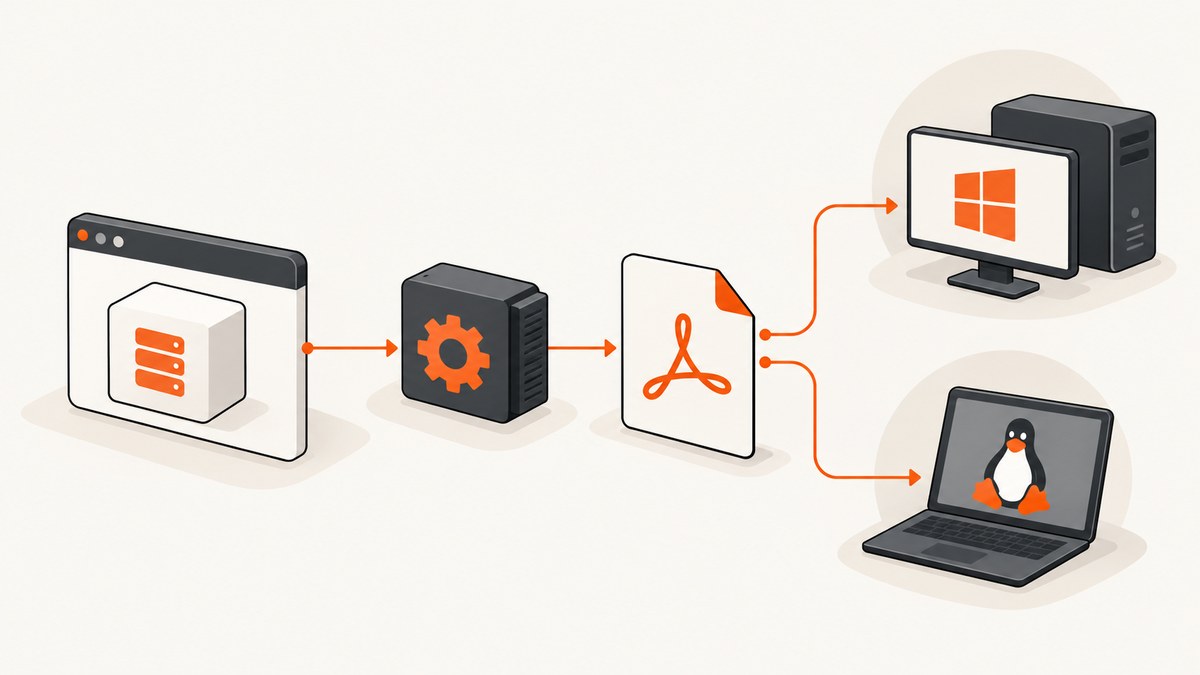
The NReco HtmlToPdfConverter executable OS platform error usually means that the deployed application, NReco package, wkhtmltopdf binary, configured filename or hosting environment does not match the operating system. Check those five items in order.
NReco launches wkhtmltopdf as a separate process. The executable must exist in the deployed environment, match its operating system and architecture, and be launchable by the application identity. NReco’s standard package for modern .NET is Windows-only; Linux, macOS and Docker deployments should use NReco.PdfGenerator.LT and deploy a compatible wkhtmltopdf binary separately. See the NReco product guidance.
1. Identify what the error actually means
“Executable OS platform error” is not a single uniquely defined NReco diagnostic. Treat it as a deployment mismatch until the subprocess log proves otherwise. Record:
- Operating system and architecture of the deployed host, not your development machine.
- .NET runtime and deployment mode.
- The referenced NReco NuGet package.
- The exact wkhtmltopdf filename and directory present after deployment.
- The account running the application and whether it may execute child processes.
2. Match the NuGet package to the target OS
| Target | Package choice | Binary deployment |
|---|---|---|
| Modern .NET on Windows | NReco.PdfGenerator |
The standard package can provide simplified bundled deployment. |
| Linux, macOS or Docker | NReco.PdfGenerator.LT |
Deploy a wkhtmltopdf build for each target platform yourself. |
| Windows VM or supported Windows server | Use the package appropriate to your .NET version | Ensure the tool directory is writable and executable by the service account. |
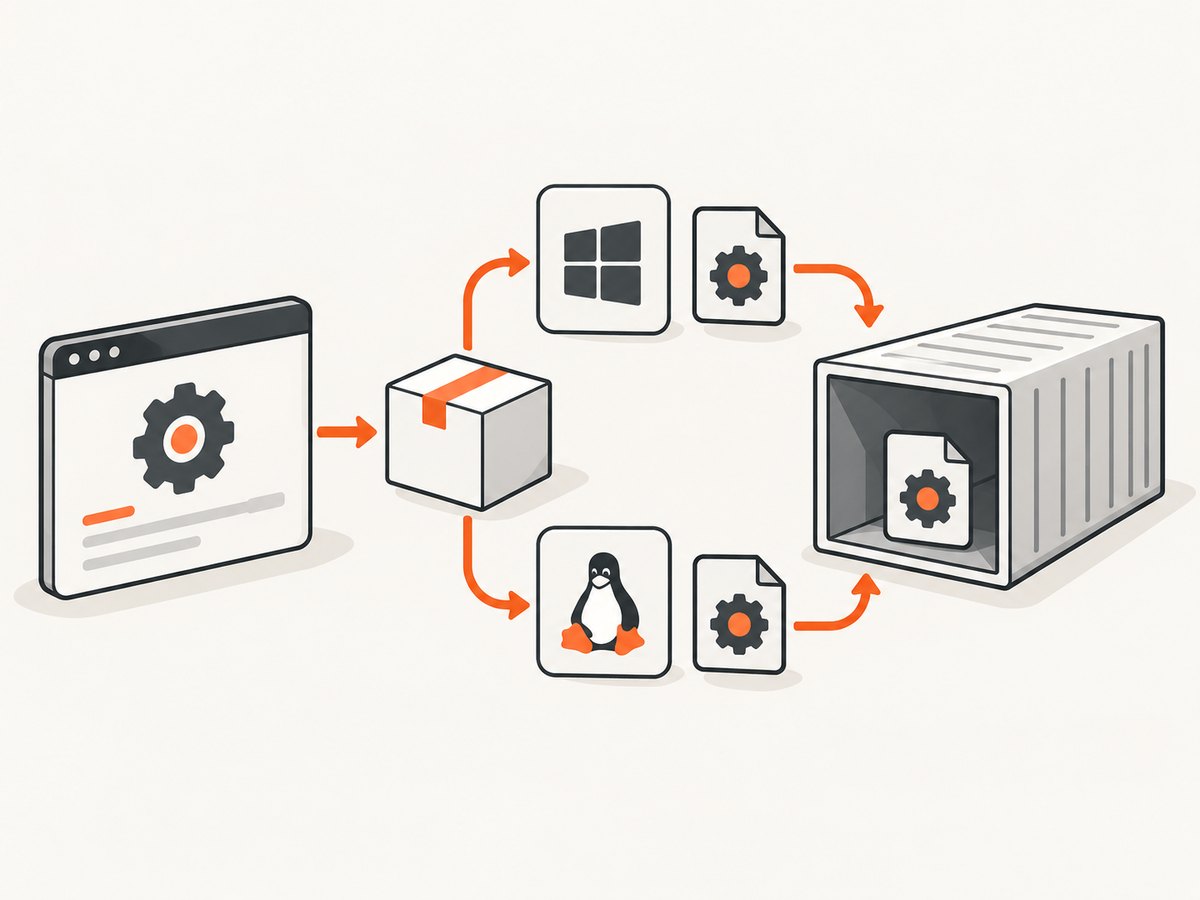
NReco states that its modern .NET standard package works only for Windows deployments. The LT package keeps the same C# API but does not contain wkhtmltopdf binaries, so those binaries must be deployed separately for Linux, macOS or Docker.
Check the package in the project file
<ItemGroup>
  <!-- Windows modern .NET deployment -->
  <PackageReference Include="NReco.PdfGenerator" Version="YOUR_VERSION" />

  <!-- Use this instead for Linux, macOS or Docker -->
  <!-- <PackageReference Include="NReco.PdfGenerator.LT" Version="YOUR_VERSION" /> -->
</ItemGroup>
Do not reference both packages accidentally. Remove the package that does not match the deployment target, restore, publish again and inspect the published output.
3. Verify the binary, filename and directory
For LT deployments, configure the name and directory to match the files actually installed. NReco documents WkHtmlToPdfExeName as the executable filename (defaulting to wkhtmltopdf.exe) and PdfToolPath as the folder containing the tool. See the WkHtmlToPdfExeName reference and PdfToolPath reference.
Linux or macOS configuration
using NReco.PdfGenerator;

var converter = new HtmlToPdfConverter
{
    WkHtmlToPdfExeName = "wkhtmltopdf",
    PdfToolPath = "/opt/wkhtmltopdf"
};

converter.GeneratePdfFromFile(
    "https://example.com",
    null,
    "output.pdf");
Windows configuration
using NReco.PdfGenerator;

var converter = new HtmlToPdfConverter
{
    WkHtmlToPdfExeName = "wkhtmltopdf.exe",
    PdfToolPath = @"C:\app\wkhtmltopdf"
};

converter.GeneratePdfFromFile(
    "https://example.com",
    null,
    "output.pdf");
Use an absolute path while diagnosing. Relative paths can resolve differently under IIS, a worker service, a container entrypoint or a scheduled task. Confirm that the published artifact contains the executable and that its permissions allow execution.
Inspect the deployed files
# Linux/macOS
uname -a
ls -l /opt/wkhtmltopdf/wkhtmltopdf
file /opt/wkhtmltopdf/wkhtmltopdf
/opt/wkhtmltopdf/wkhtmltopdf --version

# Windows PowerShell
Get-ComputerInfo | Select-Object WindowsProductName, OsArchitecture
Get-Item 'C:\app\wkhtmltopdf\wkhtmltopdf.exe'
& 'C:\app\wkhtmltopdf\wkhtmltopdf.exe' --version
If the file command reports a Windows executable on Linux, or an x64 binary is used by an incompatible architecture, replace it with a build for the actual target. If the manual --version command fails, fix that failure before changing NReco settings.
4. Confirm that the host allows child processes
NReco runs wkhtmltopdf through System.Diagnostics.Process. The host must permit executable files and child-process creation. A correct path cannot fix a platform that blocks process launch.
- Normal Windows or Linux virtual machines generally provide the required process access.
- Some shared ASP.NET hosting plans, UWP applications and mobile environments do not allow installing or launching the executable.
- NReco documents VM-based Windows Azure plans as supported with a path adjustment when needed, while the shared Azure Apps plan is not supported.
- Linux Azure Functions and AWS Lambda require an LT package plus a platform-specific deployment approach.
Check the hosting provider’s process-execution policy and the identity’s permissions. If process creation is prohibited, move the converter to a host that permits it or choose a PDF architecture that does not depend on a local child process.
5. Turn on diagnostics before changing more settings
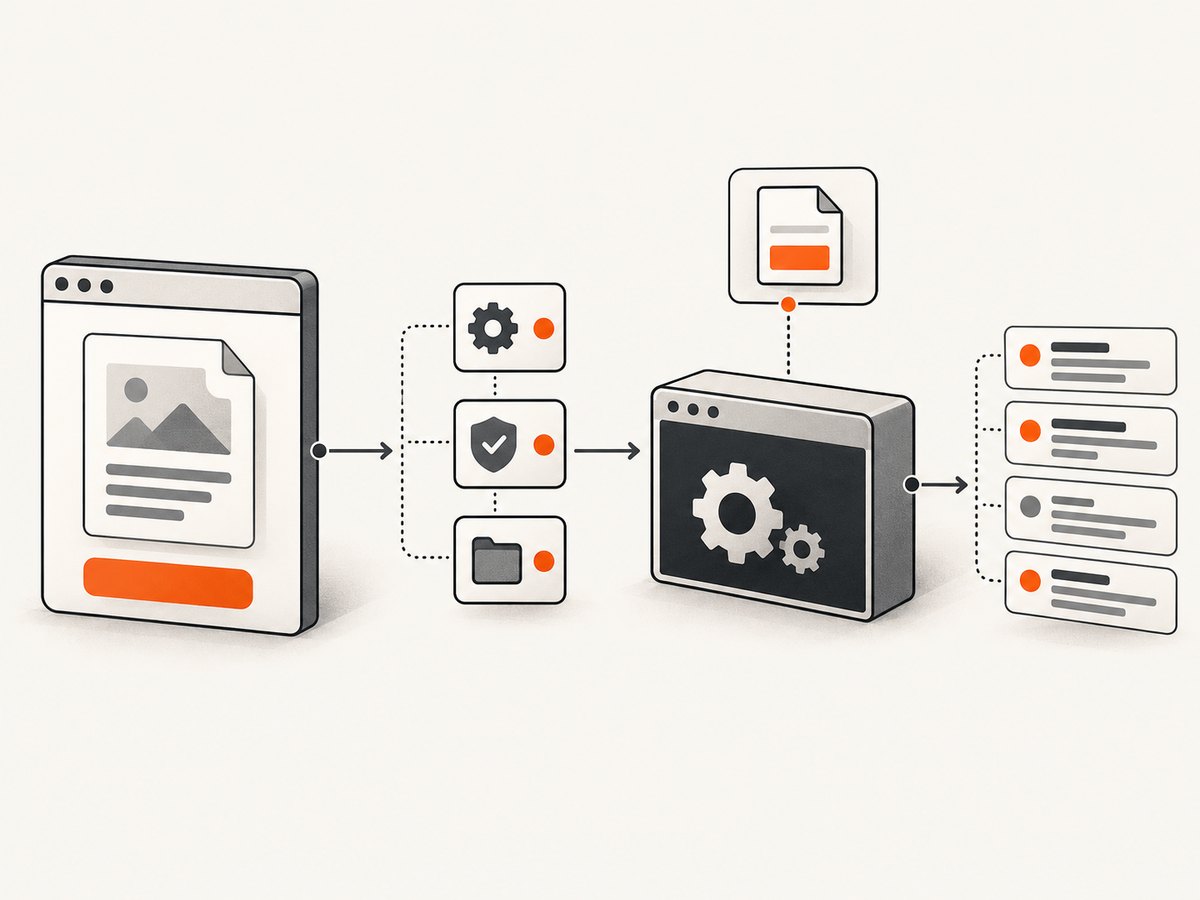
By default, Quiet suppresses wkhtmltopdf informational and debug output. Disable it and subscribe to LogReceived while reproducing the error. NReco documents the property and event in its Quiet reference and LogReceived reference.
using NReco.PdfGenerator;

var converter = new HtmlToPdfConverter
{
    Quiet = false,
    WkHtmlToPdfExeName = OperatingSystem.IsWindows()
        ? "wkhtmltopdf.exe"
        : "wkhtmltopdf",
    PdfToolPath = OperatingSystem.IsWindows()
        ? @"C:\app\wkhtmltopdf"
        : "/opt/wkhtmltopdf"
};

converter.LogReceived += (sender, eventArgs) =>
{
    Console.WriteLine($"wkhtmltopdf: {eventArgs.Data}");
};

converter.GeneratePdfFromFile(
    "https://example.com",
    null,
    "output.pdf");
Separate a process-start failure from a later rendering error. “File not found,” “permission denied” or an OS loader message points to deployment. A page-load, SSL, font or HTML error means the executable started and needs a different investigation.
6. Use a repeatable deployment checklist
- Run
uname -a,fileor the Windows architecture check on the real host. - Confirm the package: standard NReco for modern Windows, LT for Linux, macOS and Docker.
- List the published files and locate wkhtmltopdf.
- Set
WkHtmlToPdfExeNameexactly, including or omitting.exeas appropriate. - Set
PdfToolPathto the directory containing that file. - Run the binary manually as the application service account.
- Check execute permissions, temporary-directory access and security-policy logs.
- Confirm that the host permits
System.Diagnostics.Process. - Enable
Quiet = falseand captureLogReceived. - Republish and retest after changing one deployment variable at a time.
Common errors, causes and fixes
| Symptom | Likely cause | Fix |
|---|---|---|
| Works on Windows, fails in Linux container | Windows-only standard package or Windows binary | Use NReco.PdfGenerator.LT and deploy a Linux-compatible wkhtmltopdf. |
| “File not found” despite the file being visible | Wrong working directory, filename or tool path | Use absolute PdfToolPath; set the exact executable name and inspect the published directory. |
| Permission denied | Service account cannot execute the file or access its directory | Grant the minimum required execute/read permissions and test under that identity. |
| Exec format or bad image error | Binary architecture or OS does not match the host | Install a wkhtmltopdf build compiled for the target OS and architecture. |
| No useful diagnostic output | Quiet remains true |
Set Quiet = false and attach LogReceived. |
| Works locally but not in managed hosting | Host blocks child processes or executable files | Verify the hosting plan; move to a VM/container that permits process execution if required. |
| Process starts, then conversion fails | Page, network, certificate, font or HTML problem | Keep the OS deployment fixed and diagnose the wkhtmltopdf log as a rendering issue. |
Performance, reliability and operational notes
- Startup cost: each conversion launches an external process. Reuse NReco’s batch features where appropriate and avoid spawning unnecessary conversions.
- Temporary files: ensure the configured or system temporary directory is writable and has enough space.
- Concurrency: limit parallel conversions to what the host’s CPU and memory can sustain; external browser processes can exhaust a small container quickly.
- Reproducibility: pin the package and wkhtmltopdf build, and publish the binary as part of the deployment artifact.
- Observability: retain exit codes and converter logs during diagnosis, but avoid logging sensitive HTML, cookies or authorization headers.
- Security: treat URLs and HTML as untrusted input; apply your network egress and sandbox rules before allowing arbitrary pages to be converted.
Or skip the browser setup
If your application only needs a clean screenshot or PDF from a URL, ScreenshotNeo provides a hosted GET API instead of requiring wkhtmltopdf binaries, OS-specific paths or child-process permissions. Read the ScreenshotNeo API documentation for all options.
One request with cURL
curl -G "https://api.screenshotneo.com/v1/shot" -d access_key=YOUR_API_KEY --data-urlencode url=https://stripe.com -o shot.webpPython
import requests

r = requests.get(
    "https://api.screenshotneo.com/v1/shot",
    params={"access_key": "YOUR_API_KEY", "url": "https://stripe.com"},
    timeout=90,
)
r.raise_for_status()
open("shot.webp", "wb").write(r.content)
Node.js
const q = new URLSearchParams({ access_key: 'YOUR_API_KEY', url: 'https://stripe.com' });
const res = await fetch(`https://api.screenshotneo.com/v1/shot?${q}`);
if (!res.ok) throw new Error(`Screenshot failed: ${res.status}`);
const fs = await import('node:fs/promises');
await fs.writeFile('shot.webp', Buffer.from(await res.arrayBuffer()));
ScreenshotNeo removes cookie and consent banners, newsletter popups and chat widgets before capture. Bot checks, blank pages, failed loads and cache hits are not billed, and response headers identify the page verdict and whether the request was billed. Its MCP server lets Claude, Cursor and other MCP clients use take_screenshot, get_page_info and capture_pdf. The Free plan includes 1,000 screenshots per month with no card; paid plans start at $5 for 3,000 shots. Start with 1,000 free screenshots.
FAQ
Does changing only PdfToolPath fix the error?
Only when the package, binary and host are already compatible and the configured directory is wrong. It cannot make a Windows executable run on Linux or bypass a host policy that blocks child processes.
Should Linux use wkhtmltopdf.exe?
No. Use the filename of the Linux binary, normally wkhtmltopdf, and configure WkHtmlToPdfExeName accordingly.
Can the standard package be used in Docker?
For Linux Docker deployments, use the LT package and provide a Linux-compatible wkhtmltopdf binary in the image.
What if the error appears only after deployment?
Compare the deployed OS, architecture, package, published files, service identity and hosting restrictions with the development environment. Deployment is where these assumptions most often diverge.
When should I stop treating it as an OS error?
Once the wkhtmltopdf process starts successfully. From that point, use its log output to investigate page loading, certificates, fonts, JavaScript or HTML rendering.


