How to Fix Open Graph Images Not Updating in WordPress
Facebook still shows an old WordPress image? Trace the live og:image, fix the winning setting, clear the right caches, and scrape the exact URL again.
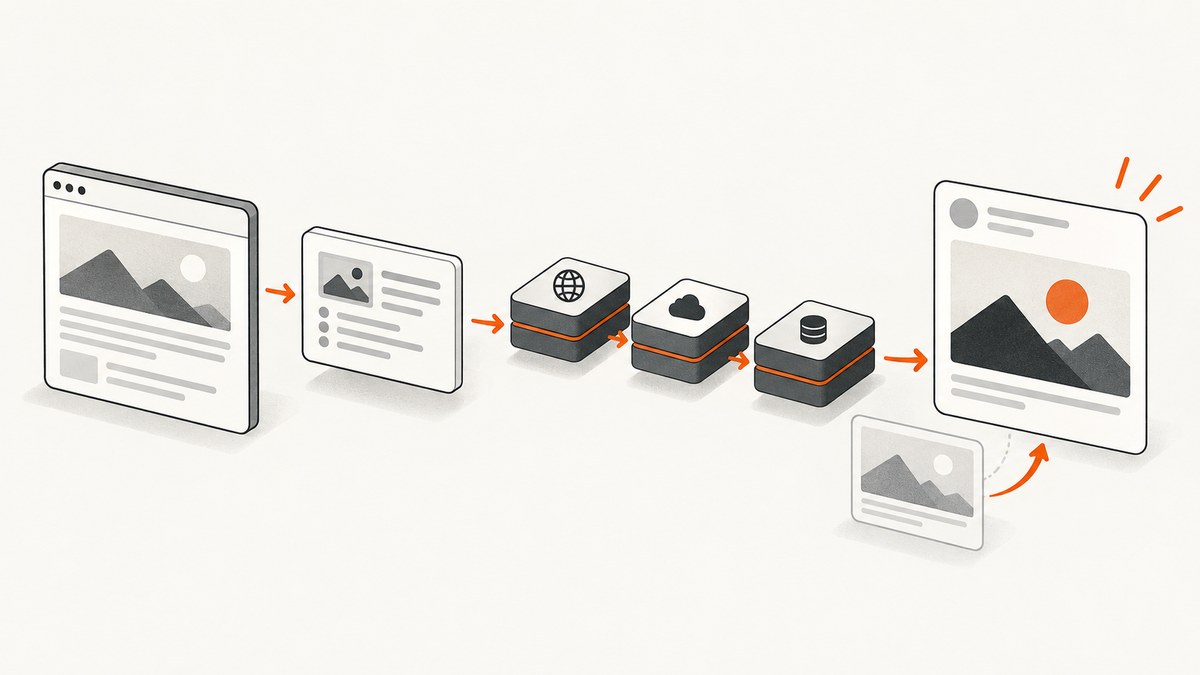
If Facebook keeps showing an old image for a WordPress page, first inspect the page’s published HTML and find its og:image value. That is the image URL Facebook can fetch; an editor preview or featured-image setting does not prove that the public page is serving the intended tag. Fix the image at the setting that actually wins, make sure the image URL is publicly fetchable, purge caches that serve stale HTML or image bytes, then ask Facebook to scrape the exact URL again.
Use this order to avoid repeatedly changing the image file when the problem is actually metadata precedence or a cached response:
- Check live source and the exact
og:image. - Correct the highest-priority image setting and remove duplicate metadata output.
- Validate the image URL and asset.
- Purge WordPress, host, CDN, and object caches where present.
- Run Facebook Sharing Debugger and select Scrape Again.
1. Check what the public page serves
Open the published page in a private browser window or a logged-out session. View its source (often right-click → View Page Source) and search for og:image. Inspect the raw HTML, not just the rendered DOM inspector: social crawlers request the page and read its response. You can also fetch the public HTML from a terminal:
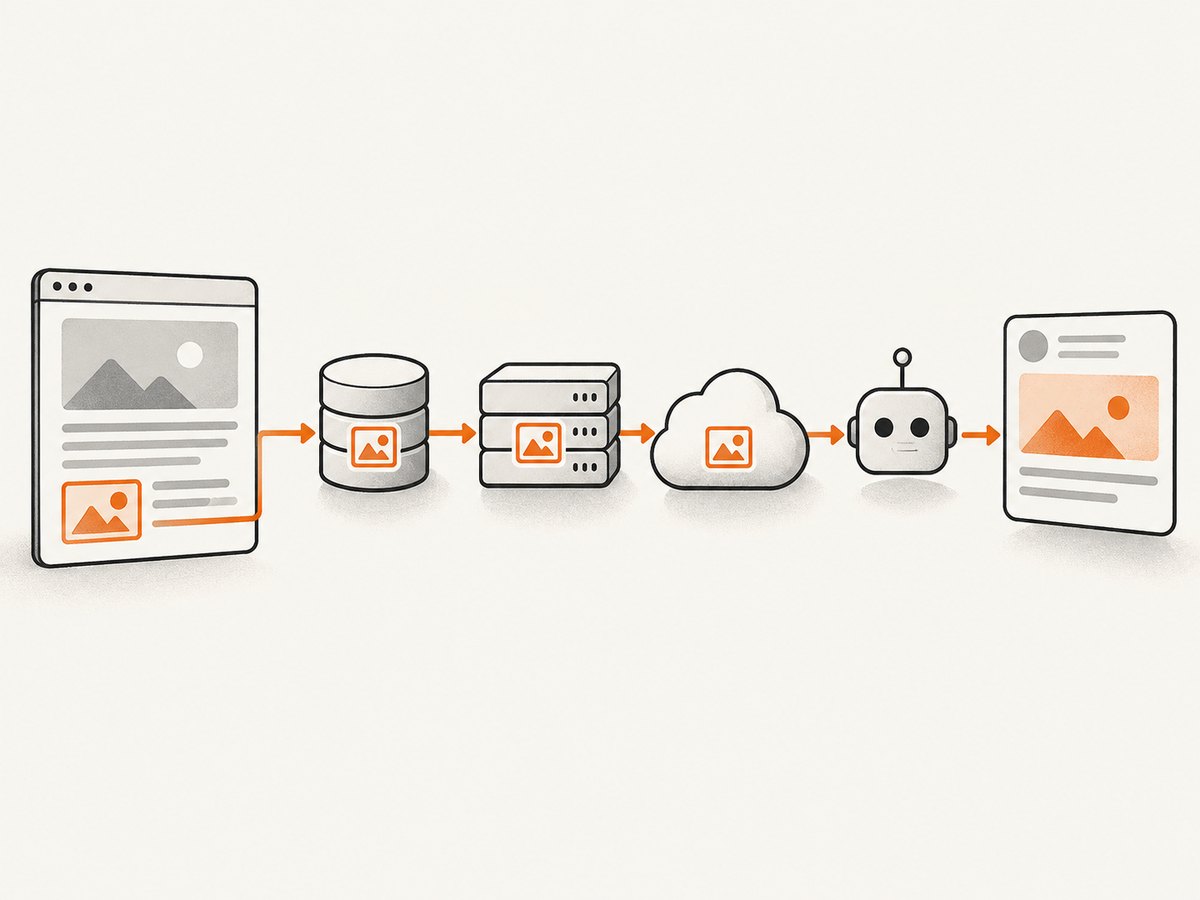
curl -L --max-time 30 -A "Mozilla/5.0" "https://example.com/your-page/" -o page.html
grep -i -n 'og:image' page.html
Replace the example URL with the exact canonical page being shared. The result should contain one intended, absolute image URL, for example https://example.com/wp-content/uploads/social-card.jpg. If the command shows the old URL, the problem is still in WordPress, a plugin, a firewall, or a cache. If it shows the new URL but Facebook’s debugger reports the old one, focus on Facebook’s fetched response and the platform cache.
To inspect the response headers and image endpoint as well, use:
curl -sS -L -D page-headers.txt -o page.html "https://example.com/your-page/"
curl -sS -L -I "https://example.com/wp-content/uploads/social-card.jpg"
Confirm the final image request succeeds without authentication and returns an image content type such as image/jpeg or image/png. Redirects can be valid, but verify that the final destination is public and stable. If the image is behind a login, hotlink restriction, firewall, or expiring signed URL, a crawler may not be able to retrieve it.
2. Correct the image at the setting with precedence
SEO plugins commonly combine page-specific settings with fallback images. Changing only the WordPress featured image may not change the social image. Yoast documents this image order: a page-level social image, the featured image, a prominent image in the content, the content-type default social image, then the site-wide fallback. Check the levels from highest to lowest; an image configured at a higher level can keep winning even after the featured image changes. See Yoast’s Facebook sharing guidance and its current support documentation for social settings.
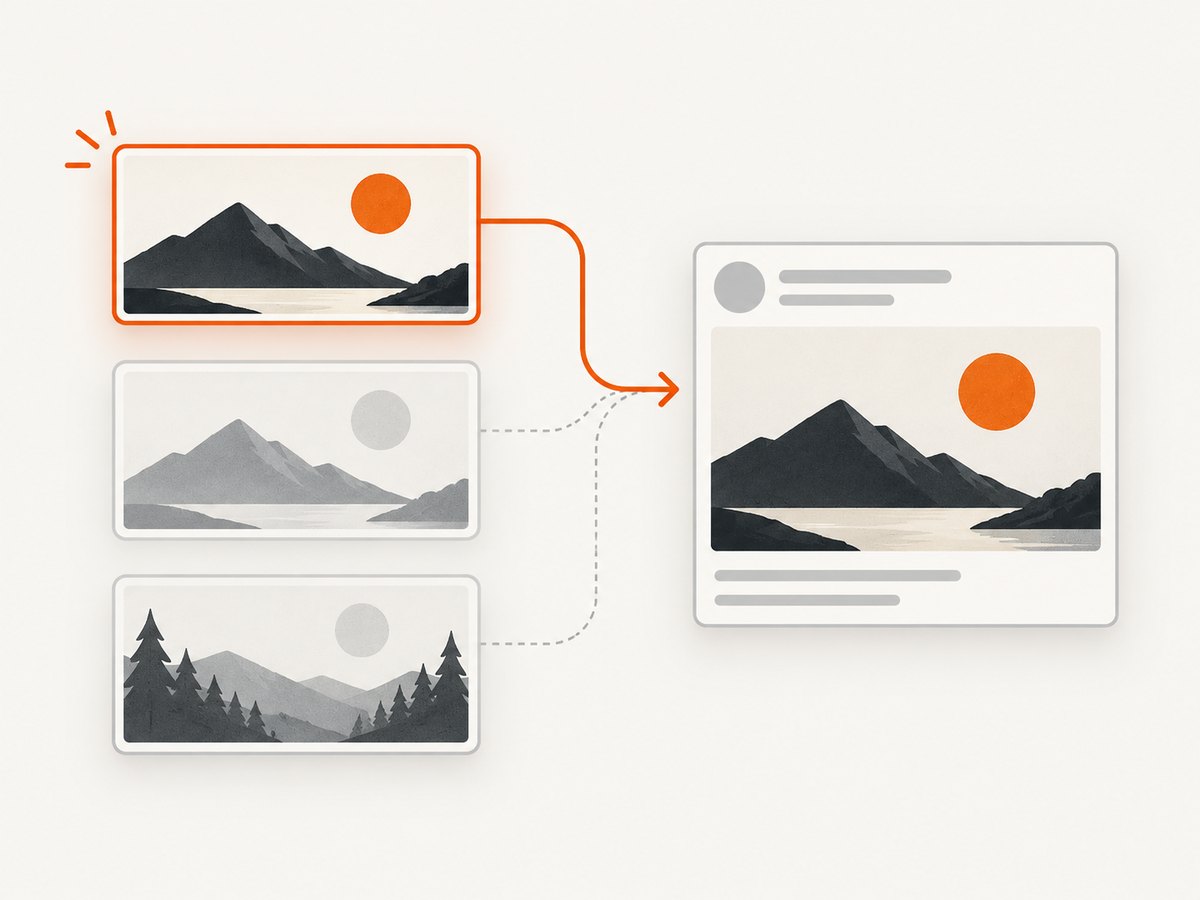
In the WordPress editor, open the SEO plugin’s social or Facebook preview panel and inspect the image assigned specifically to that page. If it is correct, inspect the post’s featured image and then the plugin’s content-type and global defaults. Make the change at the intended scope:
- One page: set the page-level Facebook/social image in the SEO plugin.
- Many pages of one type: review the content-type default, such as Posts or Pages.
- Fallback only: change the site-wide default without overwriting page-level choices.
Plugin labels and menus differ by version, but the principle is the same: the most specific applicable override usually takes precedence over broader fallbacks. Rank Math documents its own hierarchy as Open Graph image, featured image, first image in the post, then default Open Graph thumbnail; its order is not identical to Yoast’s. Use the documentation for the plugin actually generating your tags. Rank Math’s Open Graph guide describes those settings and recommends 1200 × 630 pixels for the thumbnail.
After saving, reload the public source and confirm the emitted value changed. If the value did not change at all, check whether a security plugin or web application firewall blocked the SEO plugin’s save request. Rank Math support identifies a blocked request to /wp-json/rankmath/v1/updateMeta as a possible cause; inspect the firewall log and allow that route if the rule is the cause.
3. Make sure only one system owns Open Graph tags
Two SEO plugins, a theme, or a social-sharing plugin can each emit Open Graph metadata. The source may then contain multiple og:image tags with different URLs. A crawler’s choice can be inconsistent, and a preview panel can show one value while the HTML contains another.
Search the full source for every occurrence of og:image. If more than one component emits it, choose one metadata owner and disable the other component’s Open Graph output. Avoid disabling an entire SEO plugin if its other features are in use; look for a specific social/Open Graph setting or a theme integration. Recheck the live source after the change and make sure it contains one intended image value. Rank Math’s guide to the explicit og:image property also recommends confirming the tag in page source.
4. Validate the image asset
Once the HTML points at the correct URL, check the asset itself. Rank Math lists JPEG, PNG, GIF, WebP, and AVIF among supported formats and recommends a 1200 × 630 pixel image for social sharing. Its support guidance covers format, dimensions, and server cache checks. For broad compatibility, JPEG or PNG is a conservative choice when you control the asset.
- The
og:imagevalue is an absolute HTTPS URL, not a relative path. - The image can be fetched without signing in, a cookie, or a browser session.
- The final response is an image, not an HTML error page or access-denied page.
- The URL does not rely on a short-lived token or a redirect that only works for logged-in visitors.
- The file has suitable dimensions and aspect ratio; 1200 × 630 pixels is a commonly documented recommendation.
When checking with curl -I, remember that some servers treat HEAD requests differently from normal image fetches. If the headers look suspicious, make a normal GET request and inspect its status and content type:
curl -sS -L -D image-headers.txt -o /dev/null "https://example.com/wp-content/uploads/social-card.jpg"A successful response should end at the expected image and report an image media type. If a CDN serves the file, purge that asset’s cached version when you replace an image at the same URL. An alternative is to publish the replacement under a new filename, which creates a distinct URL; still update og:image and scrape the page again.
5. Purge caches in the right order
Purging the browser cache alone does not change the HTML or image a social crawler receives. Work outward through the layers your site uses, checking the public source after each relevant purge:
- Clear the active WordPress page-cache plugin.
- Purge the hosting provider or origin server cache.
- Purge the CDN cache, such as Cloudflare, if configured. Purge both the page and image URL when applicable.
- Clear an object cache such as Redis or Memcached if the hosting setup exposes one and it is involved in serving stale page data.
Cache controls vary by host and plugin. Use their purge operation for the affected URL or a broader purge if the system does not support targeted clearing. Then fetch the page source again. If the source still contains an old tag, Facebook is not the first problem to solve: the origin or one of its caches has not begun serving the update.
6. Ask Facebook to scrape the exact URL again
After the public HTML and image are correct, open Facebook Sharing Debugger. Enter the exact canonical URL you share, choose Debug, and under the last-scrape details choose Scrape Again. Yoast’s step-by-step guidance recommends this sequence to refresh Facebook’s cached metadata.
Inspect the new preview and any warnings. If the preview is wrong, use Show All Raw Tags to see which values Facebook received. Compare its og:image with the public source:
- Both show the old URL: return to the plugin settings, duplicate emitters, firewall, and cache layers.
- Source is new but raw tags are old: verify that you debugged the same canonical URL and that public fetches are not varying by user agent, location, or cache key.
- Raw tags are new and debugger preview is right: the page metadata is now being read correctly. A particular feed or an already-shared post may continue to display its own cached or rendered copy; refresh that platform’s preview using its available tools.
Do not add fb:app_id just to silence a warning. Yoast states that the tag is not required; the warning does not by itself mean the Open Graph image is broken. See Yoast’s explanation of the fb:app_id warning.
7. Troubleshooting by symptom
| Symptom | Likely cause | Next action |
|---|---|---|
| Editor preview is right; public source is wrong | A save failed, a higher-priority override remains, or cached HTML is being served. | Check the page-level social field and plugin fallbacks; inspect firewall logs for blocked metadata saves; purge page and origin caches. |
Source contains two or more og:image tags |
Multiple plugins or the theme emit Open Graph tags. | Choose one owner, disable duplicate output, then confirm one intended tag in source. |
| Debugger cannot fetch the image | Private asset, hotlink protection, firewall rule, broken redirect, or wrong content type. | Fetch the image URL without a session; permit crawler access and correct the URL or server response. |
| Image URL is new, but the old pixels still appear | The image itself is cached at the same URL by a CDN or social platform. | Purge the CDN asset; consider a new filename; scrape the page again. |
| Debugger is correct, feed is stale | The feed may still show a platform-cached or already-rendered preview. | Confirm the exact shared URL and use the platform’s refresh mechanism where available. |
Debugger warns that fb:app_id is missing |
This is a warning about an optional tag, not proof that og:image failed. |
Check raw tags for the image. Yoast says the app ID is not required. |
| Rank Math social image will not save | A firewall or security rule may be blocking its metadata REST request. | Review logs for /wp-json/rankmath/v1/updateMeta and adjust the matching rule if appropriate. |
8. A repeatable check for developers
For a site with many URLs, keep the debugging steps reproducible. This Python example downloads a page and lists its Open Graph image tags. It does not emulate Facebook’s crawler or bypass access controls; it simply shows what a normal HTTP client receives.
import requests
from bs4 import BeautifulSoup

url = "https://example.com/your-page/"
response = requests.get(url, timeout=30, headers={"User-Agent": "Mozilla/5.0"})
response.raise_for_status()

soup = BeautifulSoup(response.text, "html.parser")
for tag in soup.select('meta[property="og:image"]'):
    print(tag.get("content", ""))
Install its dependencies with python -m pip install requests beautifulsoup4. For a Node.js check using built-in fetch:
const url = 'https://example.com/your-page/';
const response = await fetch(url, { redirect: 'follow' });
if (!response.ok) throw new Error(`Page request failed: ${response.status}`);
const html = await response.text();
const matches = [...html.matchAll(/<meta\s+[^>]*property=["']og:image["'][^>]*content=["']([^"']+)["'][^>]*>/gi)];
console.log(matches.map((match) => match[1]));
HTML attribute order can vary, so a regular expression is only a quick diagnostic. For robust parsing, use an HTML parser and read tags by their attributes. In either case, compare the output against Facebook’s raw tags, since a request from your machine can receive a different response due to caching or request filtering.
9. Performance, reliability, and cost
For one changed page, the sequence above is usually a short manual check. For a site release affecting many pages, first verify representative URLs and then check the rest in batches; avoid repeatedly scraping while origin caches still return the old HTML. Each repeat request adds work but does not repair a wrong tag or inaccessible file.
Keep social-image URLs stable until the preview is correct, and use a new filename when replacing bytes would otherwise be hidden by long-lived asset caching. Confirm the canonical URL before debugging: HTTP versus HTTPS, trailing slashes, query parameters, and alternate URL forms may be treated as separate resources. Save the page URL, emitted image URL, response status, cache purge performed, and debugger result when handing an issue to a hosting or plugin team. These observations distinguish a metadata bug from a delivery or platform-cache issue.
The manual checks use free tools and ordinary HTTP requests. If your application also needs repeatable page screenshots for debugging or documentation, ScreenshotNeo is a website screenshot API and MCP server. Its API can return a screenshot or PDF, and the capture options include waiting for a selector, a delay, or network idle. Pricing starts with 1,000 shots per month free and no card; paid plans start at $5 for 3,000 shots. Treat a screenshot as a visual aid alongside source and debugger inspection: it does not replace checking the metadata Facebook fetched.
Or skip the browser setup
If you need a screenshot of the public page while documenting or diagnosing the result, ScreenshotNeo can capture it with one request. See the ScreenshotNeo API documentation for request options.
curl -G "https://api.screenshotneo.com/v1/shot" -d access_key=YOUR_API_KEY --data-urlencode url=https://example.com/your-page/ -o shot.webpimport requests
r = requests.get("https://api.screenshotneo.com/v1/shot", params={"access_key": "YOUR_API_KEY", "url": "https://example.com/your-page/"}, timeout=90)
open("shot.webp", "wb").write(r.content)const q = new URLSearchParams({ access_key: 'YOUR_API_KEY', url: 'https://example.com/your-page/' });
const res = await fetch(`https://api.screenshotneo.com/v1/shot?${q}`);
if (!res.ok) throw new Error(`Screenshot request failed: ${res.status}`);
await Bun.write('shot.webp', res);ScreenshotNeo accepts cookie and consent banners like a visitor and removes more than 60 known consent platforms, newsletter popups, and chat widgets before capture; each step can be turned off. Bot checks, blank pages, failed loads, timeouts, and cache hits are not billed, and the response identifies the page verdict and billing status in headers. Its MCP server offers take_screenshot, get_page_info, and capture_pdf to AI agents and other MCP clients. The free plan includes 1,000 screenshots a month with no card; paid plans start at $5 for 3,000, and every feature is on every plan. Sign up for 1,000 free screenshots a month, with no card required.
FAQ
Does changing the image filename force Facebook to update?
A new filename gives the asset a distinct URL and can avoid stale CDN bytes for a reused path. It does not update the page’s og:image tag or automatically refresh Facebook’s scrape; do both checks.
Should I delete and repost the link?
First verify the canonical page and Facebook debugger. Reposting before fixing the source can share the same stale metadata again.
Why does another social network show a different image?
Platforms can parse metadata and cache previews independently. Confirm the page’s tags, then use that platform’s own preview/debug tool if it provides one.
Is an SEO plugin required for Open Graph?
No. WordPress themes or custom code can emit metadata too. The key is to have one clear source of the intended tags and verify the public HTML.


