How to Fix Huge Margins When Exporting HTML to PDF with Pandoc
Find which PDF engine Pandoc uses, then set margins in the right place. This guide covers WeasyPrint, wkhtmltopdf, CSS padding, and common layout traps.
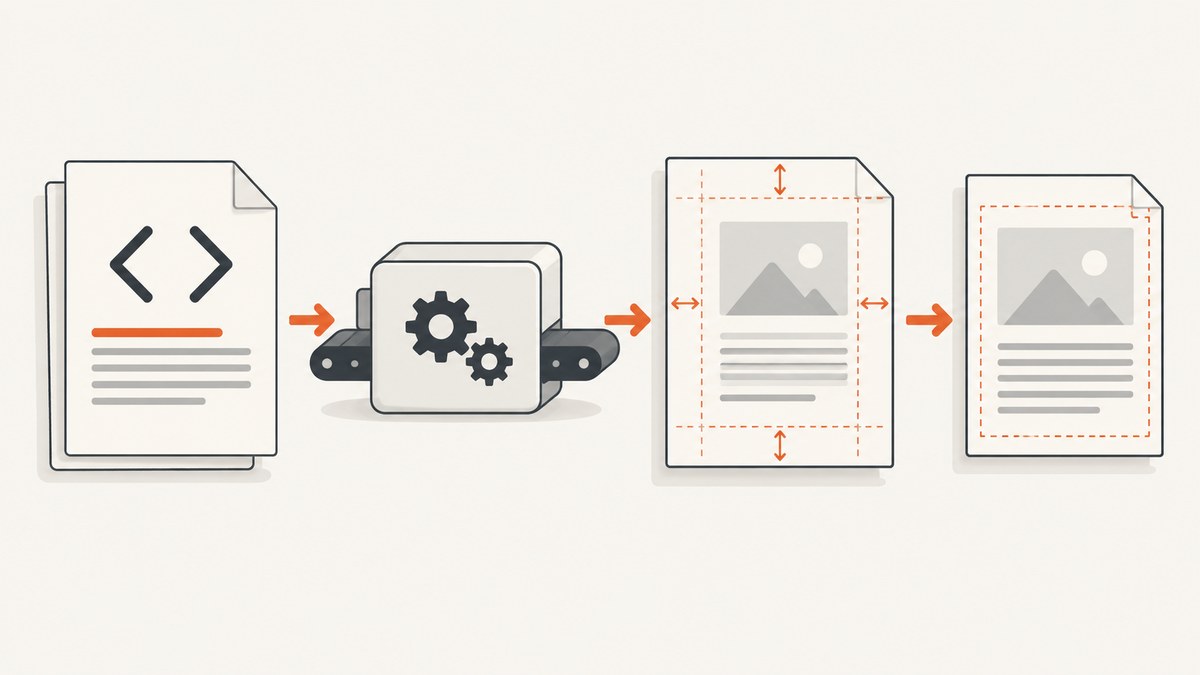
Huge margins in a Pandoc PDF usually mean the margin setting was applied at the wrong layer. First identify the PDF engine Pandoc actually runs. For HTML-to-PDF with WeasyPrint, set page margins in CSS with @page { margin: ...; }. Pandoc’s HTML margin-left, margin-right, margin-top, and margin-bottom variables set padding on the HTML body; they are not WeasyPrint page margins. If the engine is wkhtmltopdf, those Pandoc variables are documented as page margins. The fix depends on the engine and output route.
This guide walks through identifying that route, applying the right setting, and checking the generated HTML and PDF when the page still looks wrong.
1. Identify Pandoc’s PDF engine and output route
A file ending in .pdf does not reveal which renderer created it. Pandoc can use several PDF paths, including LaTeX, ConTeXt, roff/ms, and HTML intermediates. Its current manual lists WeasyPrint as the default PDF engine for HTML output, alongside alternatives such as Prince, wkhtmltopdf, and pagedjs-cli. The installed Pandoc version and the command line determine what applies to your build. See Pandoc’s PDF creation and HTML variables documentation.
- Find the exact build command in your script, CI job, Makefile, or task runner.
- Look for
--pdf-engine=...and output format arguments such as-t htmlor--to=html. - Check the installed version with
pandoc --version, then inspect the resulting PDF rather than assuming a setting took effect.
pandoc --version
pandoc report.md -o report.pdf --verbose
If the command explicitly selects an engine, use its configuration rules below. If it does not, verbose output and the installed Pandoc version help establish the actual route. Pandoc 3.4, released September 9, 2024, changed the default HTML PDF engine to WeasyPrint and deprecated wkhtmltopdf; its release notes also say pagedjs-cli may yield better results. That is version-specific context, so verify your installation rather than projecting current defaults onto an older build. See the Pandoc 3.4 release notes.
2. Fix page margins for WeasyPrint
For an HTML intermediate rendered by WeasyPrint, put page dimensions and margins in a CSS @page rule. WeasyPrint documents that its command line has no flags for page size or document margins; use CSS in the HTML or a stylesheet instead. The following is a complete minimal Pandoc invocation and stylesheet:
cat > print.css <<'CSS'
@page {
  size: A4;
  margin: 1.5cm;
}

body {
  padding: 0;
  margin: 0;
}
CSS

pandoc report.md \
  --to=html \
  --pdf-engine=weasyprint \
  --css=print.css \
  -o report.pdf
Adjust size and margin to the intended paper and layout. A4 and 1.5cm are examples, not a universal prescription. WeasyPrint’s page dimensions documentation shows this @page approach. Pandoc’s --css option applies a stylesheet when HTML is the intermediate format.
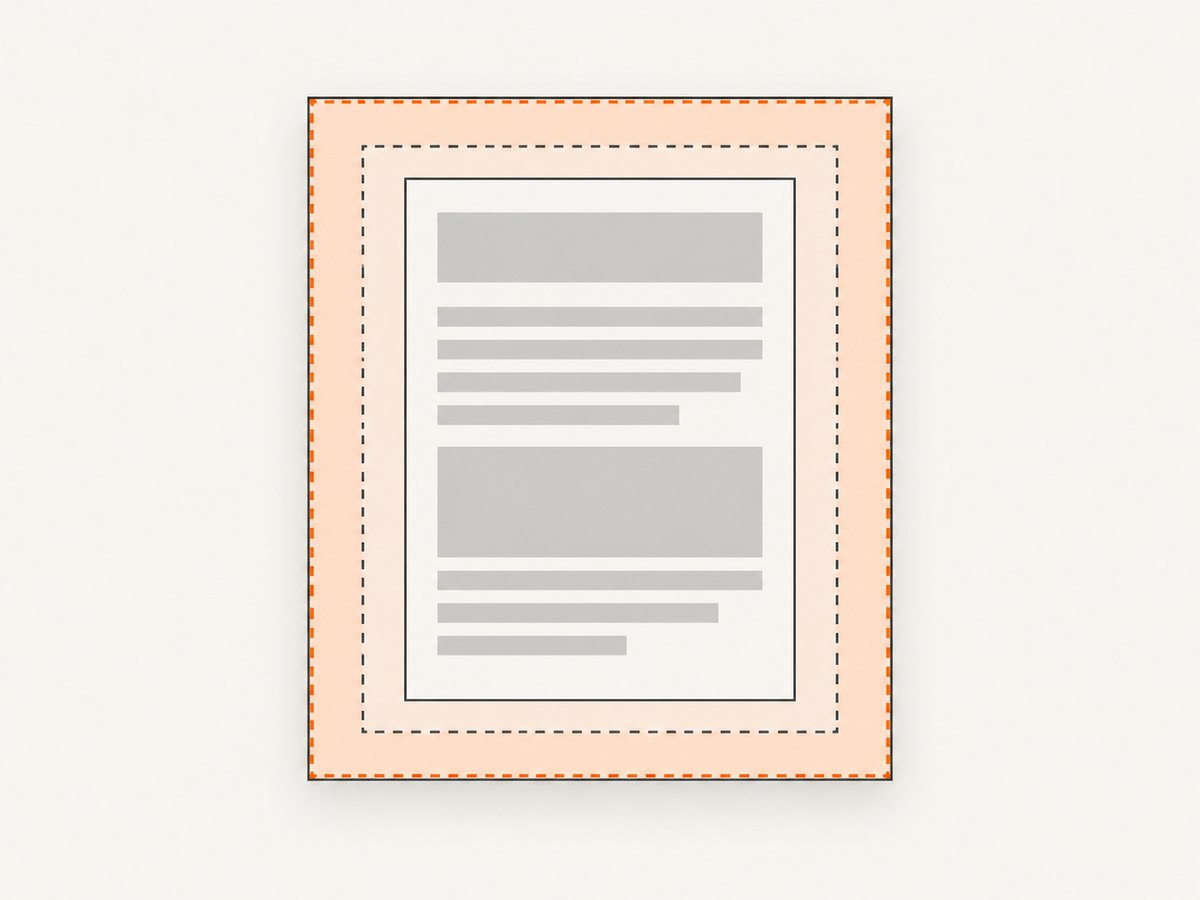
Do not confuse the page box with the content box. @page margin defines the printable page area around the document. CSS such as body { padding: 2cm; } adds another inset inside that area. If the outer page margin is now correct but content remains too far from the edge, inspect body padding, element margins, and container widths. Resetting body padding can help isolate which rule is responsible, but retain any spacing the design actually needs.
For diagnosis, save and inspect the intermediate HTML. You can ask Pandoc to write HTML rather than PDF:
pandoc report.md --to=html --standalone --css=print.css -o report.htmlInspect linked stylesheets and embedded style blocks for @page, body padding, wrapper widths, and print-specific rules. A fixed-width content wrapper can look like wide margins even when the page box is correct.
3. Fix page margins for wkhtmltopdf
If the command uses wkhtmltopdf, use the page margin variables appropriate to that engine. Pandoc documents margin-left, margin-right, margin-top, and margin-bottom as page margins in the wkhtmltopdf route. For example:
pandoc report.md \
  --to=html \
  --pdf-engine=wkhtmltopdf \
  -V margin-left=12mm \
  -V margin-right=12mm \
  -V margin-top=15mm \
  -V margin-bottom=15mm \
  -o report.pdf
Use units consistently and set all four sides explicitly when you want a predictable result. The corresponding wkhtmltopdf command-line options are --margin-left, --margin-right, --margin-top, and --margin-bottom; its settings documentation also describes page size and orientation. If you pass options through Pandoc’s engine arguments, confirm the syntax supported by your installed Pandoc version.
Headers and footers can affect the space available for content. wkhtmltopdf warns that excessive header spacing can put a header outside the PDF page and describes adjusting the top margin to correct it. If the top margin looks especially large, check both margin-top and header/footer spacing rather than repeatedly changing only one value. See the wkhtmltopdf usage reference.
wkhtmltopdf is deprecated in Pandoc 3.4. Existing projects can still need it, but record the Pandoc and wkhtmltopdf versions and avoid assuming an old build’s behavior matches a newer environment.
4. Check other causes of wide blank edges
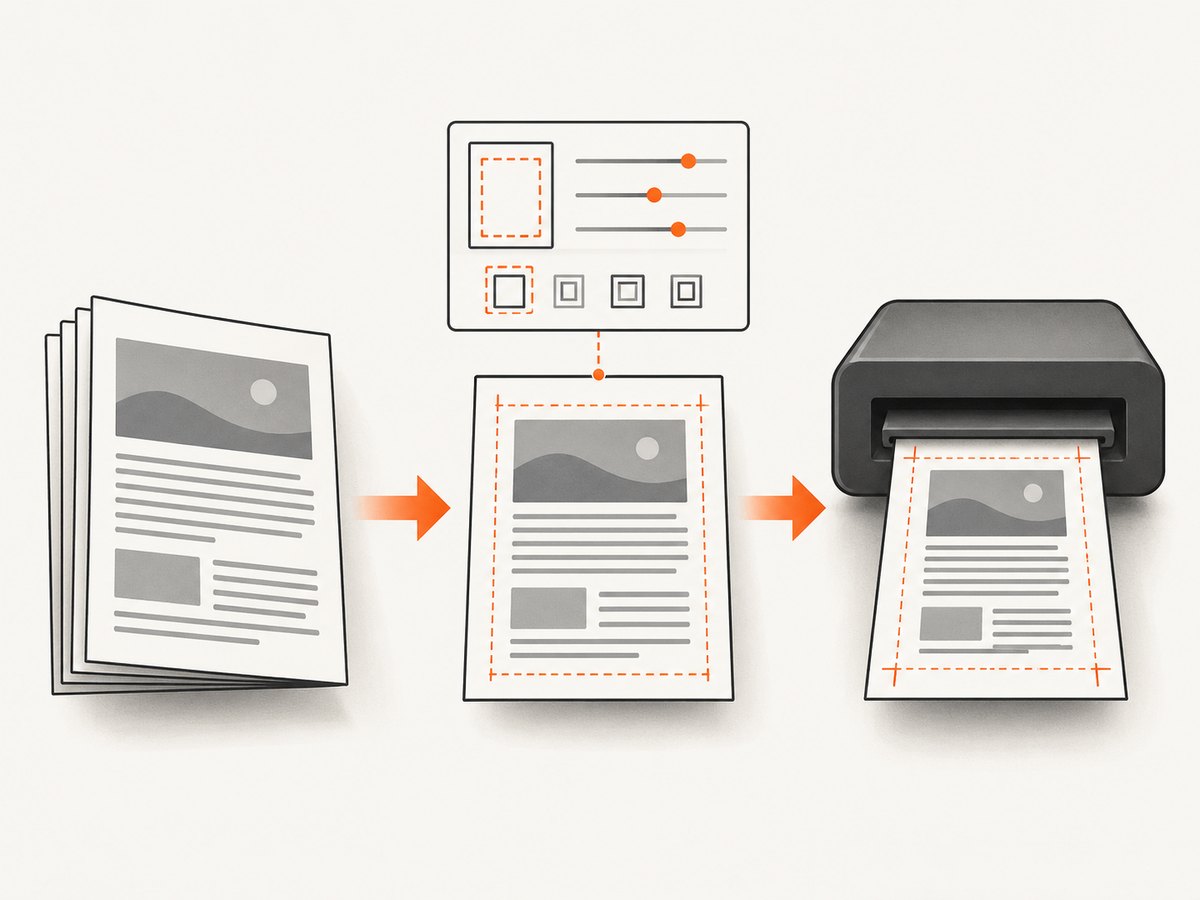
If changing the engine’s page margin does not resolve the layout, distinguish among these four layers:
| What looks wrong | Where to inspect | Typical correction |
|---|---|---|
| Blank edge from paper to content | Engine’s page margin or CSS @page |
Set the page margin using the active renderer’s method. |
| Content inset inside the page area | Body padding, wrapper padding, element margins | Adjust the CSS rule creating the extra inset. |
| Content area unexpectedly narrow | Paper size, orientation, fixed-width containers | Set the intended paper and orientation; review container sizing. |
| Top area reserved for header/footer | Header/footer options and spacing | Review header spacing alongside the top page margin. |
Pandoc’s intermediate representation does not preserve every formatting detail across formats. Its manual explicitly cautions that conversion may not preserve formatting details such as margin size. That is why a setting from one output path may not control another. Do not copy LaTeX’s geometry configuration into an HTML/WeasyPrint route and expect it to set CSS page margins. If your command actually uses LaTeX, use that route’s LaTeX-specific controls.
For a useful comparison, generate a small document with a visible border around the content wrapper and a known page size. If the border starts close to the page edge, the page margin is probably small and the content layout is at fault. If the border itself is far inward, inspect @page or engine margin settings. Remove the diagnostic border after the source of the spacing is clear.
5. Choose whether to keep or change renderers
You do not need to switch PDF engines just because margins are wrong. First configure the engine already installed in the build environment. Consider another renderer only if your project has a concrete requirement the current route does not meet, or the current engine is difficult to maintain in your environment.
- Existing environment: Can the chosen engine run consistently on local machines and CI?
- Layout controls: Can it express the page size, margins, headers, and footers your document needs?
- Version constraints: Is the project relying on a deprecated engine or legacy behavior?
- Validation: Can you compare output on representative long documents, tables, and page breaks?
Pandoc documents Prince and pagedjs-cli as alternatives in the HTML route, and Prince is a commercial HTML-to-PDF option. The cited documentation does not establish a current comparative benchmark or a universal compatibility ranking, so evaluate against your own document and requirements. A renderer change can alter more than margins; recheck page breaks and headers too.
6. Troubleshooting common margin problems
| Symptom | Likely cause | What to do |
|---|---|---|
Setting margin-left has no effect with WeasyPrint |
Pandoc’s HTML variable is body padding, not the WeasyPrint page margin. | Set @page { margin: ... } in the CSS passed to the HTML route. |
Margins get larger after adding @page |
Page margin and body or wrapper padding are both adding space. | Inspect the CSS cascade; temporarily set body padding and wrapper padding to zero to isolate the extra inset. |
| Command works locally but CI output differs | Different Pandoc or PDF-engine versions, or a different default engine. | Print versions in both environments and pin the intended engine in the command. |
| Only the top margin is excessive | Header/footer spacing, top margin, or a print-specific CSS rule. | Inspect all three; for wkhtmltopdf, review header spacing with margin.top. |
| CSS changes do not appear in output | The stylesheet was not included in the actual HTML route, or another rule overrides it. | Generate the intermediate HTML and confirm the stylesheet link and cascade. |
| LaTeX margin options have no effect | The PDF is being generated via HTML rather than LaTeX. | Check --pdf-engine and output route; configure the active engine. |
| Content looks narrow on every page | Paper size/orientation or a fixed-width container is constraining the content. | Set the intended page size and orientation and review wrapper width rules. |
| Header falls outside the page | Header spacing exceeds the available top area. | Reduce header spacing or adjust the top margin, then inspect the resulting page. |
7. Keep PDF output reliable and efficient
Margin configuration itself is inexpensive; the reliability work is making the conversion environment and inputs reproducible. Pin Pandoc and renderer versions in the build image, specify the PDF engine explicitly, keep the CSS stylesheet in source control, and record the paper size and intended margins alongside it. This prevents a version or default change from silently switching the route.
When adjusting styles, use a small representative document first, then verify a longer document with tables, lists, images, headers, and page breaks. Check more than the first page: a top margin that seems correct on page one can be obscured by a repeating header or a later page layout. Keep a known-good output for visual comparison if your project maintains document artifacts.
For CI, make conversion errors visible and preserve the generated HTML when practical. That intermediate file helps distinguish a Pandoc conversion issue from a CSS or renderer issue. Avoid adding multiple overlapping margin mechanisms unless the interaction is intentional. There is no universal speed or cost figure for these renderers established by the sources here; measure conversion time and resource use with your own document and build environment.
Or skip the browser setup
If the immediate need is a clean screenshot of a web page rather than control over a locally generated PDF’s page margins, ScreenshotNeo provides a website screenshot API. One GET request captures a URL as PNG, JPEG, WebP, or PDF. The code below saves a screenshot response; it does not configure Pandoc or replace the CSS margin fix above. See the ScreenshotNeo API documentation for request options.
curl -G "https://api.screenshotneo.com/v1/shot" \
  -d access_key=YOUR_API_KEY \
  --data-urlencode url=https://stripe.com \
  -o shot.webp
import requests
r = requests.get(
"https://api.screenshotneo.com/v1/shot",
params={"access_key": "YOUR_API_KEY", "url": "https://stripe.com"},
timeout=90,
)
open("shot.webp", "wb").write(r.content)const q = new URLSearchParams({
access_key: 'YOUR_API_KEY',
url: 'https://stripe.com'
});
const res = await fetch(`https://api.screenshotneo.com/v1/shot?${q}`);
const bytes = new Uint8Array(await res.arrayBuffer());
await import('node:fs/promises').then(fs => fs.writeFile('shot.webp', bytes));ScreenshotNeo accepts cookie and consent banners like a visitor and removes more than 60 known consent platforms, newsletter popups, and chat widgets before the shot; each step can be turned off. Bot checks, blank pages, failed loads, timeouts, and cache hits cost nothing, with response headers indicating the page verdict and billing status. Its MCP server lets AI agents use take_screenshot, get_page_info, and capture_pdf. The free plan includes 1,000 screenshots a month with no card; paid plans start at $5 for 3,000. Sign up for free and get 1,000 screenshots a month with no card.
FAQ
Does changing Pandoc’s HTML margin variable set the page margin?
For HTML output, Pandoc documents those variables as CSS body padding. Whether they act as page margins depends on the PDF engine and route; wkhtmltopdf is a documented exception in Pandoc’s engine-specific handling.
Should I use @page with every HTML-to-PDF engine?
@page is the documented WeasyPrint method. Confirm the active renderer’s support and configuration rules before applying it elsewhere.
What should I change if only one side has too much whitespace?
Check that side’s page margin first, then inspect body and wrapper padding. Confirm the paper size and orientation before making a renderer change.
Will changing the margin fix page breaks?
It can change the space available to content and therefore affect pagination, but page-break behavior has separate layout causes. Recheck page breaks after adjusting margins.
Quick checklist: identify the engine; set margins at the page-layout layer; inspect body and wrapper padding; verify paper size, orientation, and header spacing; then review the generated PDF across multiple pages.


