How to Fix Incorrect PDF Cross-Reference Pages with Next.js, Paged.js, and Puppeteer
Fix wrong PDF cross-reference page numbers by checking Paged.js targets and layout readiness, then isolate Chromium destination errors in Puppeteer.

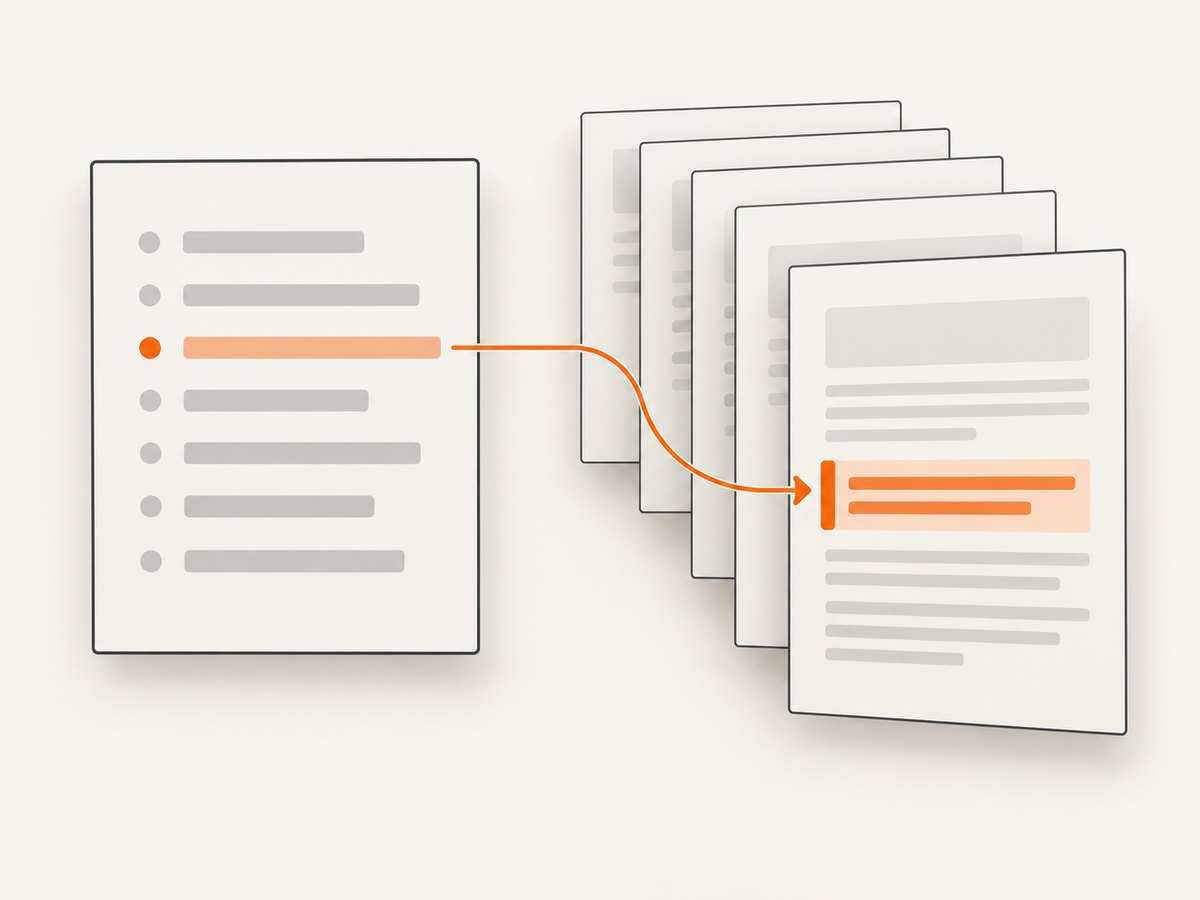
When PDF table-of-contents links land on the wrong page in a Next.js, Paged.js, and Puppeteer pipeline, debug two separate things: the page number generated by Paged.js and the clickable destination written by Chromium. First verify that every link points to one unique, in-document id, then wait for Paged.js pagination and layout-affecting assets to finish before calling Puppeteer’s page.pdf(). If the visible page number is right but the click target is offset, compare the exact Puppeteer and Chromium versions and inspect the exported PDF in a viewer.
This distinction matters: a browser can navigate an HTML fragment correctly while the PDF destination coordinates are wrong. Reports describe this behavior in the same broad stack and in Puppeteer after upgrades, but they do not establish one Chromium version that fixes every case. Treat version changes as a controlled diagnostic, not a universal remedy.
1. Understand which stage is wrong
Paged.js paginates the document and generates cross-reference content. Puppeteer performs the final browser print operation through Page.pdf(), using print CSS. The output can fail in either stage:
| Symptom | Likely area | First check |
|---|---|---|
| TOC shows page 0 or no page text | Paged.js fragment lookup or timing | Matching ID, document scope, and pagination completion |
| Displayed page number is wrong | Paged.js pagination or generated content | Target uniqueness, layout stability, and print styles |
| Displayed number is right, click lands elsewhere | PDF destination coordinates or Chromium | Viewer behavior and exact browser binary/version |
| HTML preview works, PDF click is offset | Final print/export path | Reproduce with a minimal fixture and compare Chromium pairs |
Paged.js target-counter() resolves a fragment target in the current document and can return zero if the fragment is missing, out of scope, or not available when processed. Puppeteer’s PDF step is therefore not interchangeable with the paginated HTML preview: test both the generated text and the actual clickable link in the resulting file.
2. Build reliable in-document references
Give each destination a stable, unique ID. Link to that exact fragment, and use Paged.js generated content to display the target’s page number:
<nav aria-label="Contents">
  <ol>
    <li><a class="toc-link" href="#installation">Installation</a></li>
    <li><a class="toc-link" href="#troubleshooting">Troubleshooting</a></li>
  </ol>
</nav>

<section id="installation">
  <h2>Installation</h2>
  ...
</section>

<section id="troubleshooting">
  <h2>Troubleshooting</h2>
  ...
</section>
.toc-link::after {
content: ", page " target-counter(attr(href url), page);
}The attr(href url) value supplies the fragment destination to target-counter(). Paged.js documents this pattern for generating the page number where the element with the matching identifier appears. Keep the ID and href authored from the same source when possible, rather than constructing them independently.
Target checklist
- Every TOC href begins with
#and refers to an element in the same rendered document. - Each target ID occurs exactly once. Duplicate IDs make fragment resolution ambiguous.
- There is no leading/trailing whitespace, case mismatch, or accidental encoding difference.
- Client-side routing has not split the target onto another page or left the TOC pointing at a different route.
- Generated content is applied to the link element that actually has the matching href.
External URLs are not in-document targets for this page-counter pattern. If a link points to another route or document, render an ordinary link or build a separate cross-document page mapping; do not expect target-counter() to infer a page there.
3. Wait for Paged.js and assets before printing
Do not call page.pdf() immediately after navigation if the application still needs to load data, fonts, images, or run Paged.js. A target that has not loaded when Paged.js evaluates the reference can produce an empty value or zero. The exact readiness signal depends on how the app integrates Paged.js, so expose an explicit application-owned flag after pagination completes.

Example client code can set a flag after Paged.js reports completion. The event/API wiring varies by Paged.js integration; the important contract is that the flag means pagination has completed, not merely that the React component mounted:
// In the page's client-side Paged.js integration:
window.__PAGED_READY__ = false;

// Set true from the integration's pagination-complete callback:
function onPaginationComplete() {
  window.__PAGED_READY__ = true;
}
Then wait from Puppeteer, followed by document fonts and images as appropriate for the content:
import puppeteer from 'puppeteer';

const browser = await puppeteer.launch({ headless: true });
try {
  const page = await browser.newPage();
  await page.goto('http://localhost:3000/report', { waitUntil: 'networkidle0' });
  await page.waitForFunction(() => window.__PAGED_READY__ === true);
  await page.evaluate(async () => {
    if (document.fonts?.ready) await document.fonts.ready;
    await Promise.all(
      Array.from(document.images, image => {
        if (image.complete) return Promise.resolve();
        return new Promise(resolve => {
          image.addEventListener('load', resolve, { once: true });
          image.addEventListener('error', resolve, { once: true });
        });
      })
    );
  });
  await page.pdf({ path: 'report.pdf', printBackground: true });
} finally {
  await browser.close();
}
This is a template: connect onPaginationComplete to the completion signal your Paged.js setup actually exposes. A generic network-idle wait alone is not proof that pagination finished; client-side work can continue after the network becomes quiet. Conversely, pages with persistent polling may never become network-idle, so prefer your app’s explicit readiness flag and a bounded timeout.
4. Reproduce and isolate the Chromium destination issue
- Save a minimal fixture with one TOC link and one target, using the same CSS and Paged.js integration as production.
- Record the Puppeteer package version, the Chromium executable/version it launches, operating system, and relevant launch configuration.
- Generate the fixture with the deployment pair and a separate known-good pair. Keep the document and assets identical.
- Compare the paginated HTML page number, PDF-visible page number, and PDF click destination independently.
- If only one browser pair misplaces the destination, pin, upgrade, or roll back that pair while investigating the corresponding Chromium issue.
There are reports of HTML links working while exported PDF links jump ahead in a Next.js/Paged.js/Puppeteer setup, and of internal anchors shifting after Puppeteer upgrades. Those reports make Chromium a plausible defect surface, but do not prove a universal affected release or fix. Validate your own fixture and binary before changing production.
Paged.js also cautions that browser and operating-system differences can change printed output. Keep design preview and PDF generation on a consistent browser/OS combination where practical, and record those details with generated artifacts.
5. Complete runnable Puppeteer export example
This Node.js script exports a page that implements the readiness flag described above. Install Puppeteer in the project using its documented package setup, start the Next.js application separately, then run the script. Adjust the local URL and output path for your environment.
import puppeteer from 'puppeteer';

const url = process.env.REPORT_URL ?? 'http://localhost:3000/report';
const output = process.env.PDF_PATH ?? 'report.pdf';
const browser = await puppeteer.launch({ headless: true });

try {
  const page = await browser.newPage();
  page.setDefaultTimeout(30_000);
  await page.goto(url, { waitUntil: 'domcontentloaded' });
  await page.waitForFunction(() => window.__PAGED_READY__ === true);
  await page.evaluate(async () => {
    await document.fonts?.ready;
    await Promise.all(Array.from(document.images, img => img.decode().catch(() => {})));
  });
  await page.pdf({
    path: output,
    printBackground: true,
    preferCSSPageSize: true
  });
  console.log(`Wrote ${output}`);
} finally {
  await browser.close();
}
The script deliberately waits for an app-owned Paged.js completion flag. If fonts or image decoding fail, inspect whether those assets are required for stable pagination; this example lets failed image decoding settle so a broken decorative asset does not block export forever. For critical assets, fail the job explicitly instead of silently accepting an incomplete layout.
6. Puppeteer PDF options that affect output
| Option | When to use it | Debugging note |
|---|---|---|
printBackground |
Include background colors and graphics in the PDF | Usually visual only, but CSS backgrounds can convey structure |
preferCSSPageSize |
Honor CSS @page dimensions |
Compare with your intended Paged.js page geometry |
format, width, height |
Set paper dimensions from Puppeteer | Do not accidentally override the size expected by print CSS |
landscape |
Print in landscape orientation | Orientation changes pagination and destination coordinates |
margin |
Set print margins in Puppeteer | Coordinate with CSS page margins; avoid conflicting definitions |
scale |
Scale printed content | Can change page breaks and page counts; retest references |
displayHeaderFooter |
Add browser-generated headers and footers | Header/footer templates have separate layout behavior |
pageRanges |
Export selected pages | Useful for diagnosis, but selected output pages differ from source numbering |
These options are not a repair for a bad fragment lookup. Change one variable at a time after anchors and readiness are verified. Puppeteer’s print operation uses print CSS, so inspect the CSS active under print media and any @page rules alongside the options passed to page.pdf().
7. Troubleshooting common failures
| Problem | Cause to check | Fix |
|---|---|---|
| Page number is 0 | Missing, duplicate, external, or not-yet-loaded target | Use one unique in-document ID, exact fragment href, and wait for pagination |
| Page number text is empty | target-text() or generated content has no resolvable target |
Verify scope and target timing; inspect the generated paginated DOM |
| HTML click works, PDF jumps ahead | Chromium PDF destination mapping may differ from HTML navigation | Inspect the PDF in another viewer and compare pinned browser versions |
| Only some links are wrong | Duplicate IDs, dynamic content, or sections reflowing after pagination | Enumerate IDs, stabilize content, and wait for all layout-affecting assets |
| Output changes across machines | Browser, OS, font, or asset differences | Use a consistent rendering environment and log versions and fonts |
| Export hangs waiting for network idle | Polling or long-lived requests keep the page active | Use a bounded wait for an explicit pagination-ready signal |
| Page count changed after adding a font | Font metrics alter wrapping and pagination | Wait for fonts before pagination is considered complete; regenerate references |
8. Performance, reliability, and cost
For reliable output, render the same content, browser build, OS, fonts, and print configuration across runs. Keep the readiness condition explicit and time-bounded, and log the URL, Puppeteer version, Chromium version, and export settings with failures. A timeout should produce a failed job with diagnostics rather than a silently incomplete PDF.
Pagination and PDF generation consume browser time and memory in proportion to document complexity, page count, and assets; the dossier provides no benchmark from which to promise a safe concurrency or speed. Start with bounded parallelism, close pages and browsers in finally blocks, and measure your own representative documents before increasing throughput. Cache or reuse expensive source data where appropriate, while regenerating the PDF when inputs or rendering versions change.
Self-hosting Puppeteer gives control over the browser pair but means your team owns binary updates and reproducibility. A managed HTML-to-PDF service is a category to evaluate if pinning infrastructure is a burden; verify whether it lets you control browser versions and print settings. For screenshot-specific workloads rather than document pagination, ScreenshotNeo is a separate option described below.
Or skip the browser setup
For a website screenshot rather than a paginated PDF, ScreenshotNeo provides a one-request capture API. It does not replace Paged.js page references or Puppeteer PDF generation. It can remove the screenshot browser setup when the output you need is a page image.
One-call example, with the target URL adapted from the supplied API example:
curl -G "https://api.screenshotneo.com/v1/shot" -d access_key=YOUR_API_KEY --data-urlencode url=https://example.com -o shot.webpSee the ScreenshotNeo API documentation for the request details. Cookie banners, popups, and chat widgets are removed before the shot; bot checks, blank pages, and failed loads are never billed; an MCP server lets AI agents take screenshots. The free plan includes 1,000 screenshots a month with no card, and paid plans start at $5 for 3,000. Sign up for 1,000 free screenshots a month, with no card.
FAQ
Is Paged.js or Puppeteer definitely at fault?
No. First establish whether generated page text is wrong or only the PDF click destination. Then isolate the stage with a minimal fixture and a controlled browser-version comparison.
Should I add delays before every PDF export?
A fixed delay is a fragile substitute for readiness. Wait for an explicit pagination-complete signal and the fonts or assets that affect layout, with a timeout.
Can a working HTML TOC prove the PDF is correct?
No. HTML fragment navigation and PDF destination coordinates are different outputs. Open the exported file and check both displayed page numbers and clickable destinations.
Does ScreenshotNeo fix cross-reference numbering in PDFs?
No. ScreenshotNeo captures website screenshots as images or PDFs, but its screenshot API does not paginate a Paged.js document or repair Puppeteer anchor destinations.


