How to Fix Incorrect PDF Filenames After Windows Update KB50001330
KB50001330 is usually KB5001330. Learn why Internet Explorer created random PDF names and how to fix the workflow safely.
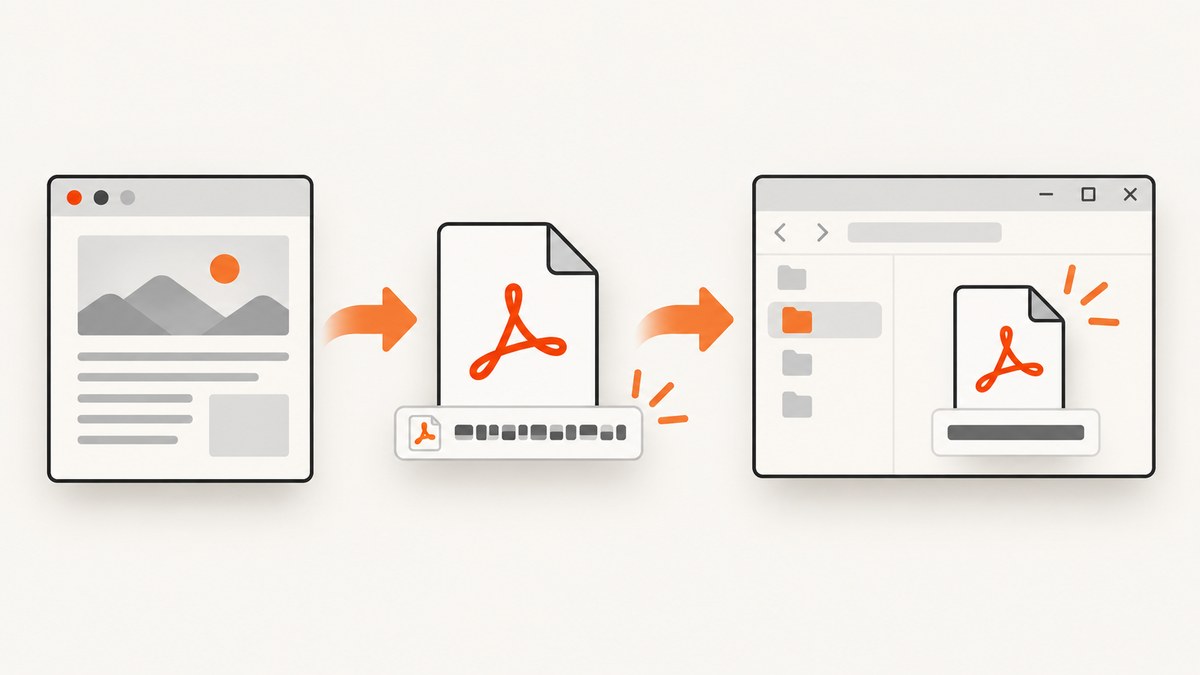
Short answer: the update name is probably KB5001330, not KB50001330. In the documented incident matching this symptom, Internet Explorer copied the HTML file into the user’s temporary folder with a random eight-character name before sending it to CutePDF or Bullzip. The practical fix was to run the conversion in Microsoft Edge or Google Chrome instead; the report says both preserved the original filename.
Microsoft’s KB5001330 page describes the April 13, 2021 cumulative update for Windows 10 versions 2004 and 20H2 (builds 19041.928 and 19042.928), but it does not document a PDF filename defect. Treat the browser workaround as a documented incident resolution, not as a Microsoft-wide guarantee. See the Microsoft KB5001330 record.
1. Confirm the update and reproduce the symptom
- Open Settings and go to Update & Security → Windows Update → View update history.
- Search the list for
KB5001330.KB50001330appears to be a title typo, not a separate package. - Record the exact workflow: source browser, HTML path or URL, PDF printer, output folder, and the filename that is produced.
- Run the same job once in Edge or Chrome. If the output keeps the source basename there, your issue matches the reported Internet Explorer behavior.
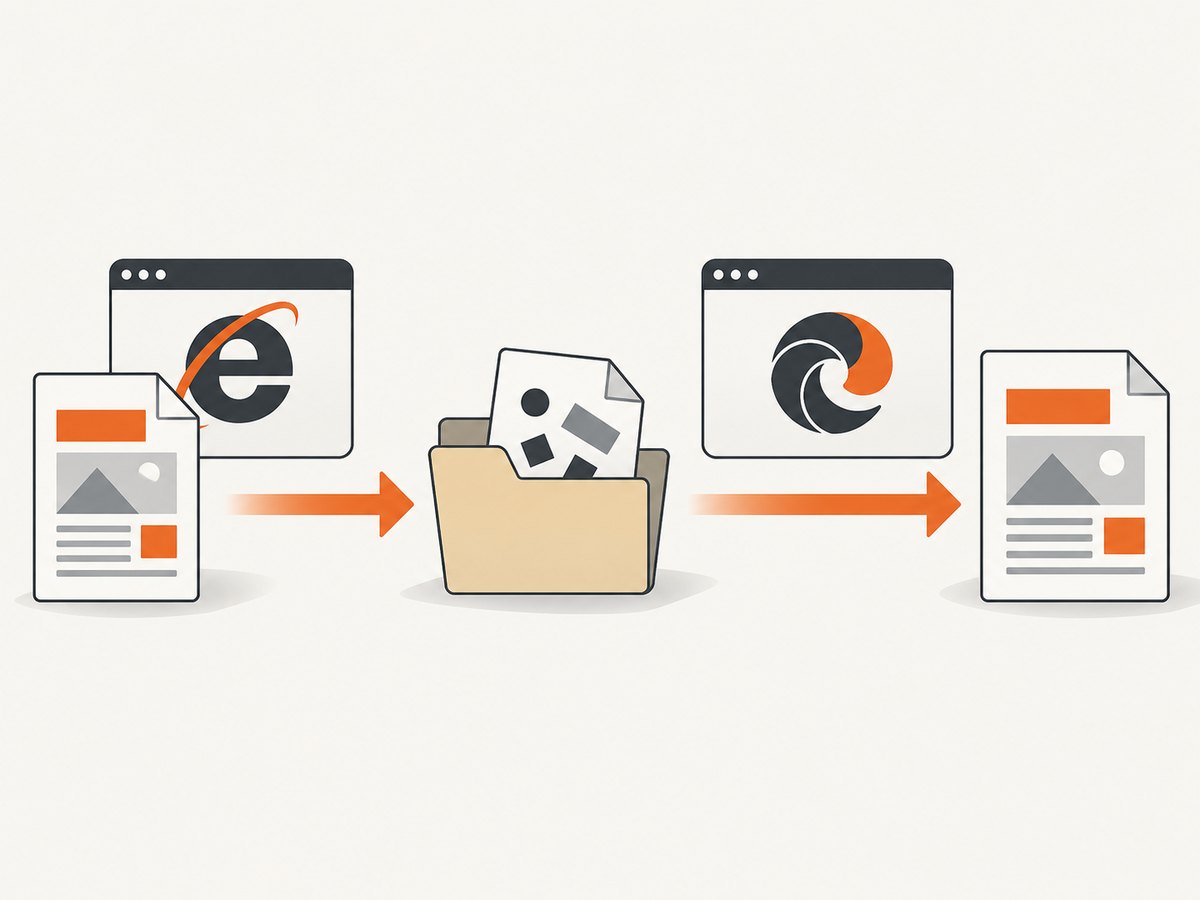
2. Preferred fix: move the conversion from Internet Explorer
Internet Explorer is the part of the matching workflow associated with the random name. The report says Edge and Chrome retained the original filename, and that updating Edge to version 90.0.818.62 solved that incident. That version is historical; use the current supported Edge build on a live system.
Manual browser steps
- Open the same HTML document or application URL in Microsoft Edge or Google Chrome.
- Choose Print and select your PDF printer or Save to PDF.
- Check the proposed output name before saving. Keep the original basename and the
.pdfextension. - Open the resulting PDF and verify that fonts, images, page breaks, links, and the output path still meet your application’s requirements.
Automated browser launch example (PowerShell)
$htmlPath = 'C:\work\my_file.html'
$outputPath = 'C:\work\my_file.pdf'

# Open the file in the installed Edge build.
Start-Process msedge.exe -ArgumentList "`"file:///$($htmlPath -replace '\\','/')`""

# Printing remains an interactive step unless your application controls
# the browser through WebDriver, Playwright, or another automation layer.
Write-Host "Print the page to PDF and save it as $outputPath"
For unattended jobs, replace the interactive print dialog with a maintained browser automation or HTML-to-PDF library. Keep the filename under your application’s control rather than relying on a temporary browser copy.
3. If you must keep Internet Explorer
Some legacy applications cannot be migrated immediately. In that case:
- Test whether the PDF printer is receiving a temporary file rather than the original path. The matching report says Internet Explorer copied the source into
%USERPROFILE%\\AppData\\Local\\Tempunder a random name. - Test the same HTML with both CutePDF and Bullzip, the printers named in the report.
- Check whether a maintained HTML-to-PDF component can accept the source path directly. This is a practical fallback, not an official Microsoft compatibility statement.
- Change the application so it supplies the intended output filename after conversion, if the PDF tool supports that operation.
4. Should you uninstall KB5001330?
Use removal only as temporary troubleshooting. KB5001330 is a cumulative security update, and the Microsoft record does not publish a PDF-specific uninstall workaround.
- Document the current build, update history, printer version, and a reproducible input file.
- If your administrator approves the test, uninstall the update from View update history → Uninstall updates.
- Reboot and repeat the exact conversion test.
- Regardless of the result, install a current supported Windows update after isolating the cause.
A filename test that changes after uninstalling is evidence about your environment, not proof that Microsoft identified this PDF defect as a general regression.
5. Repair PDFs that already have random names
Find the files
- In File Explorer, select This PC and search for the original basename.
- Search for the random eight-character name shown by the printer.
- Search for
*.pdfand sort by Date modified. - If files are missing after an upgrade, use Microsoft’s Search and Indexing troubleshooter.
Rename them safely
$source = 'C:\work\IABG0P12.pdf'
$target = 'C:\work\my_file.pdf'

if (-not (Test-Path -LiteralPath $source)) {
  throw "Source PDF was not found: $source"
}
if (Test-Path -LiteralPath $target) {
  throw "Refusing to overwrite an existing file: $target"
}
Rename-Item -LiteralPath $source -NewName ([System.IO.Path]::GetFileName($target))
You can also select the file in File Explorer and press F2. Keep the .pdf extension visible, and do not reuse a name that already exists. Microsoft’s rename guidance lists a missing source and duplicate target as common failure causes.
6. Compare the available fixes
| Approach | Filename preservation | Legacy compatibility | Security impact | Operational effort |
|---|---|---|---|---|
| Move the job to Edge or Chrome | Strongest direct evidence from the matching report | May require application changes | Uses a supported browser when kept current | Low to medium |
| Replace or change the PDF printer | Must be verified in your workflow | Often easier for legacy apps | Depends on the vendor and version | Medium |
| Uninstall KB5001330 | Useful only as a diagnostic comparison | Preserves the old workflow temporarily | Highest risk because security updates are removed | Medium, plus follow-up patching |
7. Troubleshooting common errors
| Symptom | Likely cause | Fix |
|---|---|---|
| You searched for KB50001330 and found nothing | The update number has an extra zero | Search Windows Update history for KB5001330. |
| Edge still produces a random name | The application is still launching Internet Explorer, or the PDF printer is renaming output | Confirm the actual browser process and test Edge’s built-in Save to PDF separately from the third-party printer. |
| The PDF is correct but saved in the wrong folder | The print dialog or automation layer controls the destination | Set the output directory explicitly in the automation or rename/move the completed file after verifying it. |
| Renaming fails | The source path is wrong, the file is open, or the target already exists | Close the PDF, verify the full path, and choose a non-existent target name. |
| Pages or images changed after migration | Different browser rendering or print settings | Compare paper size, margins, scale, headers, footers, fonts, and print CSS in a fixed test document. |
| Uninstalling the update appears to help | The change may be correlated with another browser or printer state | Reinstall a current supported update and keep the browser or printer migration that passed your tests. |
8. Reliability, performance, and operating cost
- Reliability: Keep a small regression set of HTML files that exercises long pages, images, web fonts, tables, and non-ASCII filenames. Run it after browser, printer, and Windows updates.
- Performance: A browser-based conversion can wait for scripts, fonts, and images. For batch jobs, reuse a browser process where your automation framework supports it and set an explicit timeout.
- File safety: Write to a temporary output name, verify that the PDF opens, then atomically move it to the final basename. This avoids publishing a partial file.
- Cost: Browser printing has no per-request API charge, but it consumes machine time and requires maintenance of browsers, drivers, printers, and Windows patches.
9. Or skip the browser setup
ScreenshotNeo provides a website capture API that can return PNG, JPEG, WebP, or PDF from one GET request. It can load lazy images, wait for a selector, delay, or network idle, and set paper size, margins, landscape mode, and page ranges for PDF output.
For a PDF-capable capture workflow, start with the API documentation at screenshotneo.com/docs/. The following call uses the required API endpoint and target URL:
cURL
curl -G "https://api.screenshotneo.com/v1/shot" -d access_key=YOUR_API_KEY --data-urlencode url=https://stripe.com -o shot.webpPython
import requests

r = requests.get(
    "https://api.screenshotneo.com/v1/shot",
    params={"access_key": "YOUR_API_KEY", "url": "https://stripe.com"},
    timeout=90,
)
r.raise_for_status()
open("shot.webp", "wb").write(r.content)
Node.js
const q = new URLSearchParams({ access_key: 'YOUR_API_KEY', url: 'https://stripe.com' });
const res = await fetch(`https://api.screenshotneo.com/v1/shot?${q}`);
if (!res.ok) throw new Error(`Screenshot failed: ${res.status}`);
const data = Buffer.from(await res.arrayBuffer());
require('fs').writeFileSync('shot.webp', data);
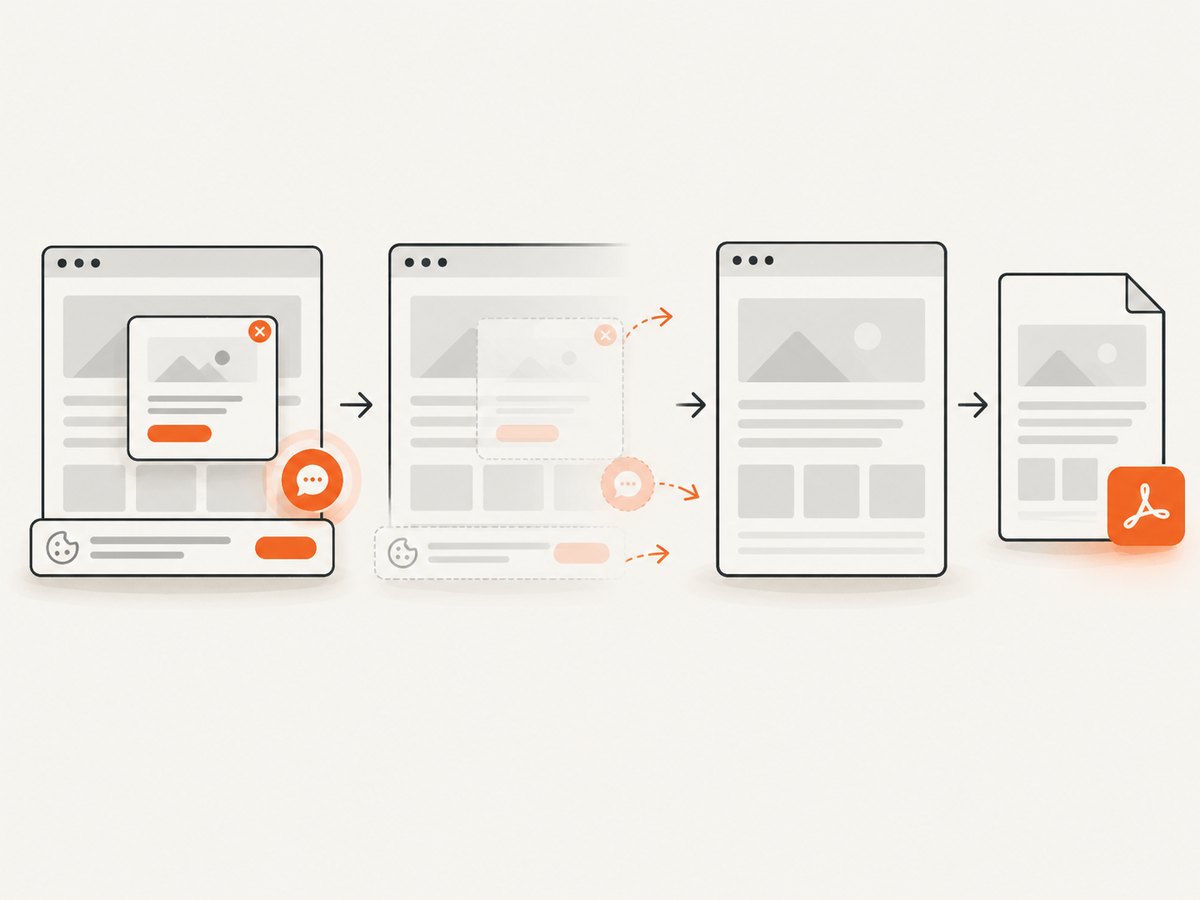
Cookie banners, newsletter popups, and chat widgets are removed before the shot. Bot checks, blank pages, failed loads, timeouts, and cache hits are not billed, and response headers identify the page verdict and billing result. ScreenshotNeo also provides an MCP server so Claude, Cursor, and other MCP clients can take screenshots, inspect pages, and capture PDFs. The Free plan includes 1,000 screenshots per month with no card; paid plans start at $5 for 3,000 shots.
Create a free ScreenshotNeo account to try the workflow.
FAQ
Is KB50001330 a real update?
The matching Microsoft package is KB5001330. The extra zero in KB50001330 appears to be a typo.
Did Microsoft officially confirm this PDF filename bug?
No. The Microsoft KB page does not document it. The browser behavior and Edge resolution come from a dated user report.
Do I need to rename every existing PDF?
Only the files whose names are wrong. Search by basename, random name, or *.pdf, then rename after checking that the destination name is unused.
Can I keep Internet Explorer permanently?
You can test a replacement PDF printer or post-process filenames, but migrating the conversion path to a current browser is the best-supported direction for the reported symptom.


