How to Fix PDF Font Size Differences Between Chrome and Chromium in Docker
When a Docker PDF wraps differently from a local Chrome PDF, check the container’s actual fonts first, then align print CSS, browser versions, and PDF options.
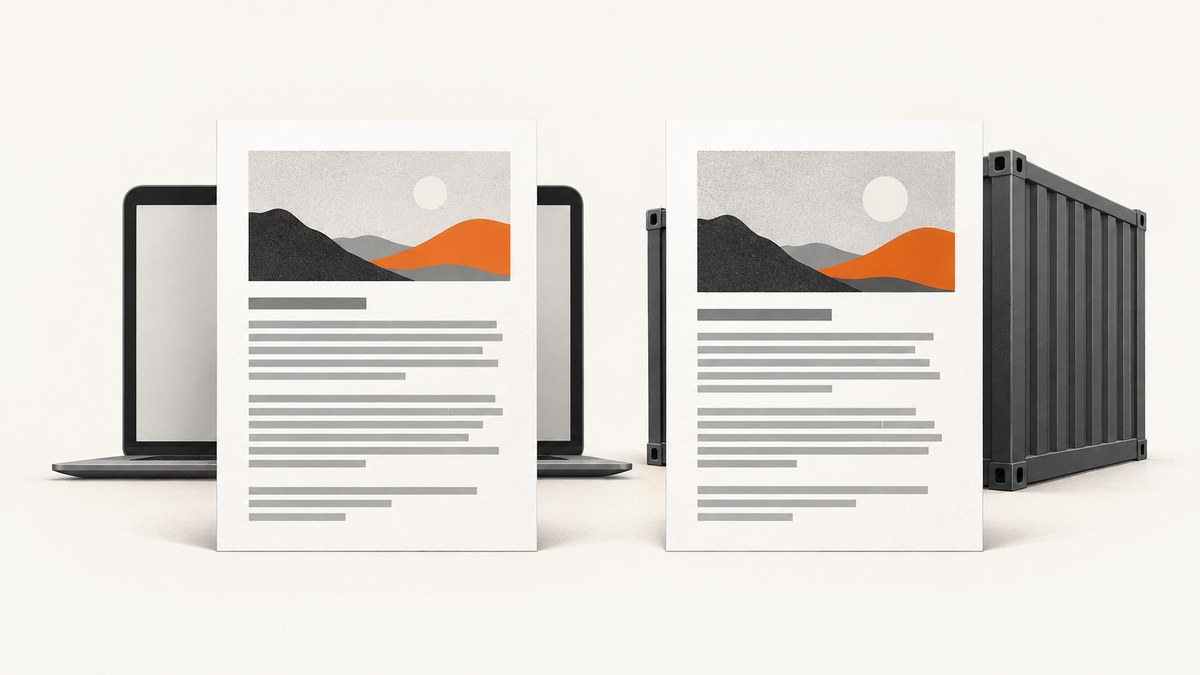
If a PDF generated in Docker has different text size, line wrapping, or pagination from a PDF generated locally, first check which font the Linux container actually selects. A CSS font-family declaration does not guarantee that the same font file is installed or resolved on both systems. Then compare the browser and Puppeteer versions, print CSS, font-loading behavior, and PDF options using the same input and settings.
There is no universal setting that guarantees identical output between Chrome on macOS and Chromium on Linux. Pinning the environment makes the difference reproducible; correcting a missing or substituted font often addresses the underlying cause. A numeric line-height can be worth testing for vertical sizing, but it is an anecdotal workaround and may not fix multiline wrapping.
1. Make the difference reproducible
Before changing CSS or scaling the PDF, record the inputs that can affect rendering. Generate both files from the same HTML or URL, stylesheet, locale, viewport setup, and content. Keep a copy of the exact container image and the browser build used for each run.
- Record the Chrome or Chromium version, Puppeteer version, Docker base image, and installed font files.
- Record the PDF settings, including format or dimensions, margins, scale, and whether CSS page size takes priority.
- Compare computed styles with print media active, including font family, font size, weight, line height, letter spacing, transforms, and width constraints.
- Check whether remote fonts have finished loading before capture.
- Save both PDFs and compare the same pages and text blocks, especially where a line wraps or a page break shifts.
This is a controlled-diagnosis workflow, not a claim that one particular browser version causes the issue. The available documentation does not identify one universally responsible version, Docker setting, or cross-platform metric difference.
2. Check the font Chromium resolves inside Docker
Fontconfig reads configured font directories and matches a requested font pattern to the nearest available match. If the family named in CSS is missing from the container, the browser may use a fallback. The fallback can have different glyph widths and vertical metrics, so identical CSS font sizes can still produce different line breaks or page counts. This relationship is a practical explanation of the observed behavior, not a quantified guarantee for every font or document. See the [Fontconfig user documentation](https://fontconfig.pages.freedesktop.org/fontconfig/fontconfig-user.html) and [overview](https://wiki.freedesktop.org/www/Software/fontconfig/).
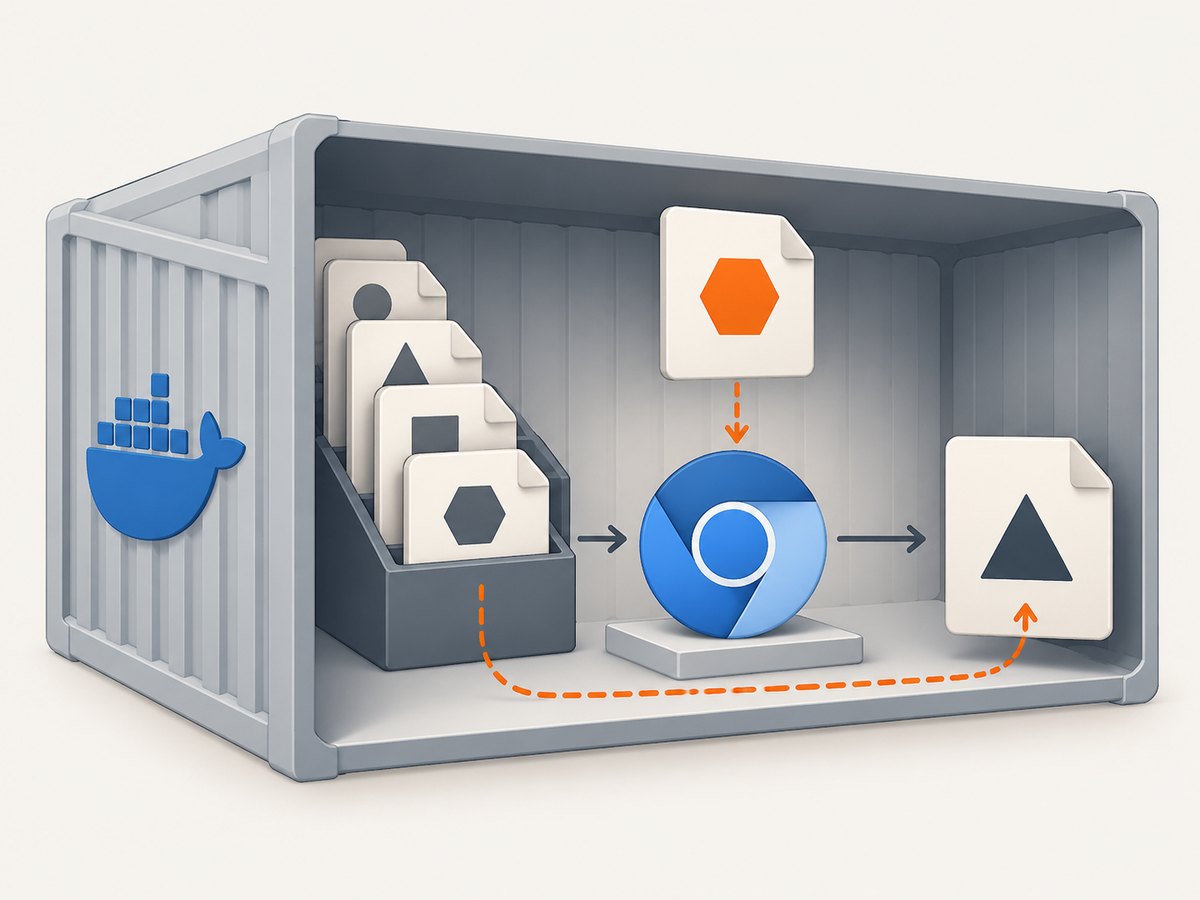
Inspect font resolution from within the same image and runtime that generates the PDF. On images with Fontconfig utilities available, fc-match can show which file matches a family. For example:
fc-match "Inter"
fc-list | head
Run these commands inside the container, not just on the Docker host. Check the returned family and file path against the intended font. If the font is absent, add the required font files to the image using the package manager or copy them into a configured font directory. Refresh the font cache if required by that image, then run the match check again.
Also check script coverage. A font may cover Latin text but not the characters in the document, leading to fallback for only some glyphs. Puppeteer notes that additional font files can be necessary for Chinese, Japanese, and Korean rendering. Consult its [troubleshooting guide](https://github.com/puppeteer/puppeteer/blob/main/docs/troubleshooting.md) when configuring the container.
An installed font name alone does not prove that two operating systems, font builds, or browser builds will use identical metrics. Verify the resolved file, and compare the actual output after making the environment consistent.
3. Compare print CSS with the CSS you see on screen
Puppeteer’s Page.pdf() generates using the print CSS media type by default. A page that looks correct in a normal browser tab can have different print-specific rules. Inspect @media print and @page as well as ordinary screen styles. The [Puppeteer Page.pdf() documentation](https://github.com/puppeteer/puppeteer/blob/main/docs/api/puppeteer.page.pdf.md) describes this behavior.
If the PDF is supposed to reflect screen styling, explicitly switch media before generating it. If the document is meant to be printed, keep print media and correct its rules instead. Do not toggle media just to make a mismatch disappear without checking which rendering is intended.
await page.emulateMediaType('print');
// Or, if the intended PDF should use screen styles:
// await page.emulateMediaType('screen');
Inspect the computed font family and size under the active media type. Review these properties and constraints:
font-family, including fallback families and whether web fonts loaded.font-weight, because the requested weight may resolve to a different face or synthetic weight.line-height,letter-spacing, and text transforms.- Element width, column width, padding, and any print-specific scaling.
@pagesize and margins, which affect the available line width and pagination.
A small change in glyph widths or usable page width can move a word to the next line. That extra line can then change page breaks farther down the document. Check wrapping before compensating with global scale or font-size changes.
4. Make PDF settings explicit and wait for fonts
Compare equivalent PDF options rather than relying on defaults in one environment and explicit settings in another. Puppeteer documents format, scale, preferCSSPageSize, and waitForFonts among its PDF options. preferCSSPageSize gives the CSS @page size priority over API-supplied paper dimensions; waitForFonts waits for document.fonts.ready. See the [PDFOptions interface](https://github.com/puppeteer/puppeteer/blob/main/docs/api/puppeteer.pdfoptions.md).
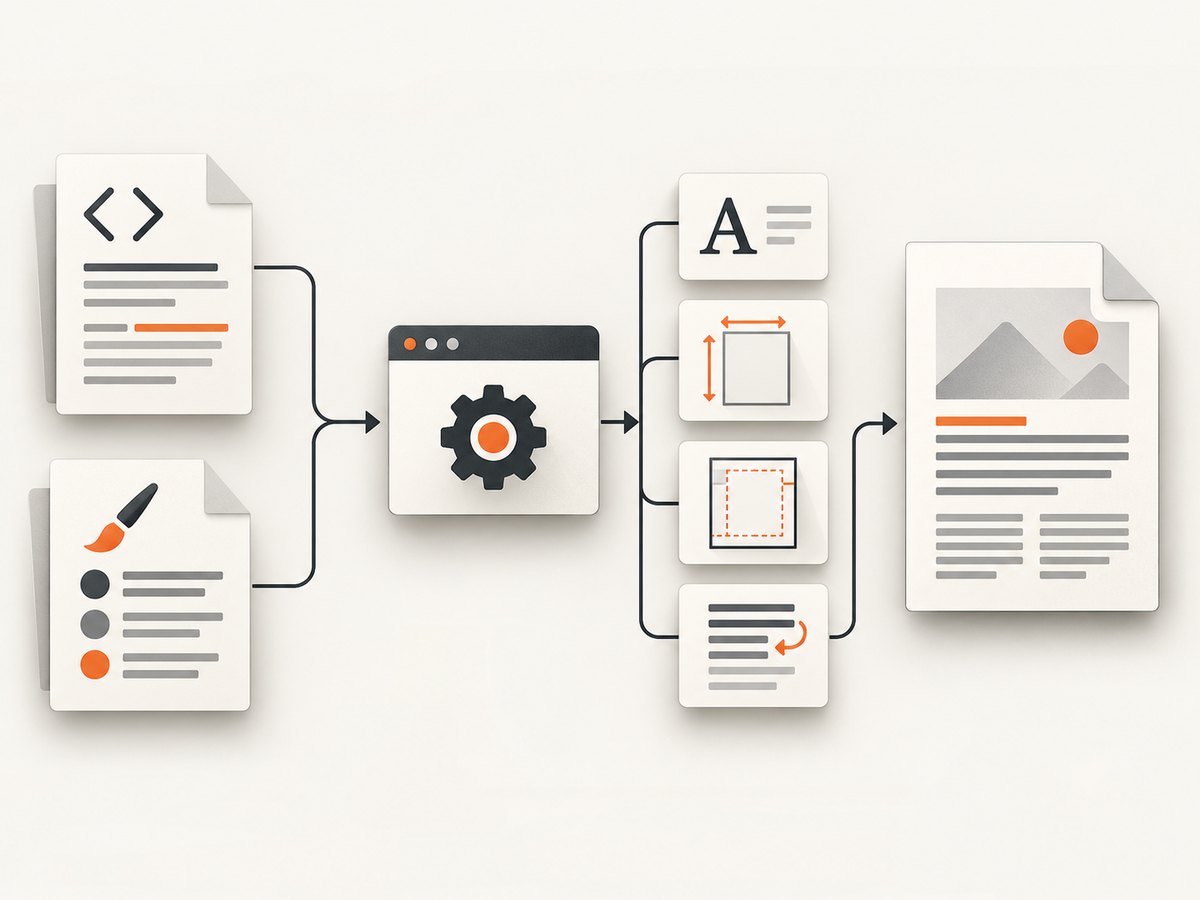
Here is a minimal Puppeteer example with deliberate print settings. Install Puppeteer in your project and run it in the same pinned environment you use in production. Replace the URL and paper settings to match your document.
import puppeteer from 'puppeteer';

const browser = await puppeteer.launch({ headless: true });
try {
  const page = await browser.newPage();
  await page.setViewport({ width: 1280, height: 900 });
  await page.goto('https://example.com', { waitUntil: 'networkidle0' });
  await page.emulateMediaType('print');
  await page.evaluate(() => document.fonts.ready);
  await page.pdf({
    path: '/tmp/output.pdf',
    format: 'A4',
    printBackground: true,
    preferCSSPageSize: true,
    waitForFonts: true,
    scale: 1,
    margin: { top: '12mm', right: '12mm', bottom: '12mm', left: '12mm' }
  });
} finally {
  await browser.close();
}
The example uses a public page for illustration; use a stable test document when debugging. In production, prefer a selector-based readiness condition if the page has ongoing network activity and cannot reach network idle. Avoid using PDF scale to conceal a font substitution: scaling affects the whole output and may create different layout problems.
If you use direct headless Chrome instead of Puppeteer, Chrome documents --print-to-pdf, --timeout, and an option to omit generated headers and footers. Check the [Chrome Headless command-line reference](https://developer.chrome.google.cn/docs/automation-and-testing/headless-cli?hl=en) for the syntax supported by the exact browser build in your image.
5. Pin the rendering environment
Once the font and settings are correct, hold the environment steady so later changes are diagnosable. Pin the Docker image, Puppeteer release, browser build, and font files. Keep locale, HTML, CSS, viewport, media type, and PDF options fixed in a regression fixture.
Generate the same fixture more than once in the pinned environment. If the output changes, investigate changes in content, network-loaded assets, fonts, or runtime configuration before changing layout rules. Pinning is a reproducibility recommendation based on the documented rendering inputs; there is no official guarantee in the cited sources that Chrome on macOS and Chromium on Linux will produce identical text metrics.
6. Test line height only after checking fonts
A historical community answer reported that replacing line-height: normal with an explicit numeric value improved vertical sizing for single-line elements. It also reported that multiline content could still wrap differently. Treat this as a targeted experiment, not a general fix. The [Stack Overflow discussion](https://stackoverflow.com/questions/50747070/chrome-pdf-font-size-differences-with-local-chrome-chromium-in-docker-linux) is anecdotal and does not establish a universal solution.
.pdf-label {
  font-size: 14px;
  line-height: 20px;
}
Use a value that fits the design and test paragraphs, headings, and constrained-width blocks separately. If single-line height improves but paragraph wrapping remains different, return to the font match, width, and browser environment checks.
Common errors and fixes
| Symptom or error | Likely cause | What to do |
|---|---|---|
| Text is consistently wider or narrower in Docker | The requested family is unavailable or a different font file is selected. | Run fc-match inside the image, install the intended files, refresh the font cache if needed, and verify the match. |
| Only some characters look different | The selected font lacks glyph coverage and those characters fall back. | Add a font with the required script coverage; verify the actual match for the affected characters and follow Puppeteer’s font troubleshooting guidance. |
| Browser preview matches but PDF does not | Page.pdf() uses print media by default, and print rules may change typography or width. |
Inspect @media print and @page; explicitly choose print or screen media according to the desired output. |
| First PDF differs from a later run | A web font may not have been ready when capture began. | Wait for document.fonts.ready and enable Puppeteer’s waitForFonts option. |
| Text size appears uniformly changed | PDF scale, page size, margins, or print scaling differs. | Set format or dimensions, margins, scale, and preferCSSPageSize consistently. Do not use scaling to mask a font mismatch. |
| Single-line blocks align but paragraphs gain lines | Line height may address vertical spacing while font metrics or available width still affect wrapping. | Compare the resolved font and content width; treat numeric line height as a limited workaround. |
| PDF generation fails in the container | The browser runtime or its system dependencies may be incomplete. | Use Puppeteer’s troubleshooting documentation for the container and check that the pinned image includes the required runtime dependencies. |
Performance, reliability, and cost considerations
Font verification is a small diagnostic step compared with repeatedly generating and visually inspecting PDFs after arbitrary CSS changes. For stable output, keep fonts local to the image where practical, wait for required assets, and avoid uncontrolled changes to browser and font versions. A page that depends on remote font or content requests can vary with network timing; record the environment and readiness condition alongside the PDF settings.
Changing scale or font size can make one sample page look closer while changing line lengths and pagination elsewhere. Validate representative pages with short labels, paragraphs, headings, and content near page breaks. No cited source provides a benchmark, incidence rate, or quantified cost for this Chrome-versus-Chromium issue, so those should not be inferred.
Or skip the browser setup
If the goal is a clean website screenshot rather than diagnosing your own PDF rendering stack, [ScreenshotNeo](https://screenshotneo.com) is a website screenshot API and MCP server. Its API also supports PDF output. The following one-call example saves a screenshot; see the [ScreenshotNeo documentation](https://screenshotneo.com/docs/) for PDF and other capture options.
curl -G "https://api.screenshotneo.com/v1/shot" \
  -d access_key=YOUR_API_KEY \
  --data-urlencode url=https://stripe.com \
  -o shot.webp
ScreenshotNeo accepts cookie or consent banners before capture and removes more than 60 known consent platforms, newsletter popups, and chat widgets; each step can be turned off. Bot checks and CAPTCHAs, blank pages, timeouts, failed loads, and cache hits cost nothing, and response headers report the page verdict and billing status. An MCP server provides take_screenshot, get_page_info, and capture_pdf for Claude, Cursor, and other MCP clients. The Free plan includes 1,000 screenshots a month with no card; paid plans start at $5 for 3,000 screenshots.
Create a free account and get 1,000 screenshots a month with no card.
FAQ
Will installing the same font guarantee identical PDFs?
It removes a common source of substitution, but it does not guarantee identical rendering across operating systems and browser builds. Compare pinned environments and the generated output.
Should I use line-height: normal or a number?
Use the rule that fits the document after confirming the font and print layout. A numeric value has been reported as helpful for single-line vertical sizing, but it may not fix paragraph wrapping.
Can I use page.emulateMediaType('screen') to fix the PDF?
Only if screen styling is the intended PDF output. Puppeteer uses print media by default; choosing screen media changes which CSS applies rather than correcting a missing font.
Why can two PDFs have different page counts if the font size is the same?
Font metrics, available line width, print rules, paper size, margins, or scale can change wrapping and page breaks even when the declared CSS font size matches.


